Series:This is Part 7 of 7 in my series on Microsoft Purview Insider Risk Management. New to the series? Start with the series guide, which summarises every part.
This is the final part of the series, and it brings everything together. Insider Risk Management spots risky behaviour. Adaptive Protection turns it into a risk level. In this part, that risk level reaches the front door – sign-in – and an AI assistant helps your compliance team deal with the alerts.
Part A: Insider risk in Conditional Access
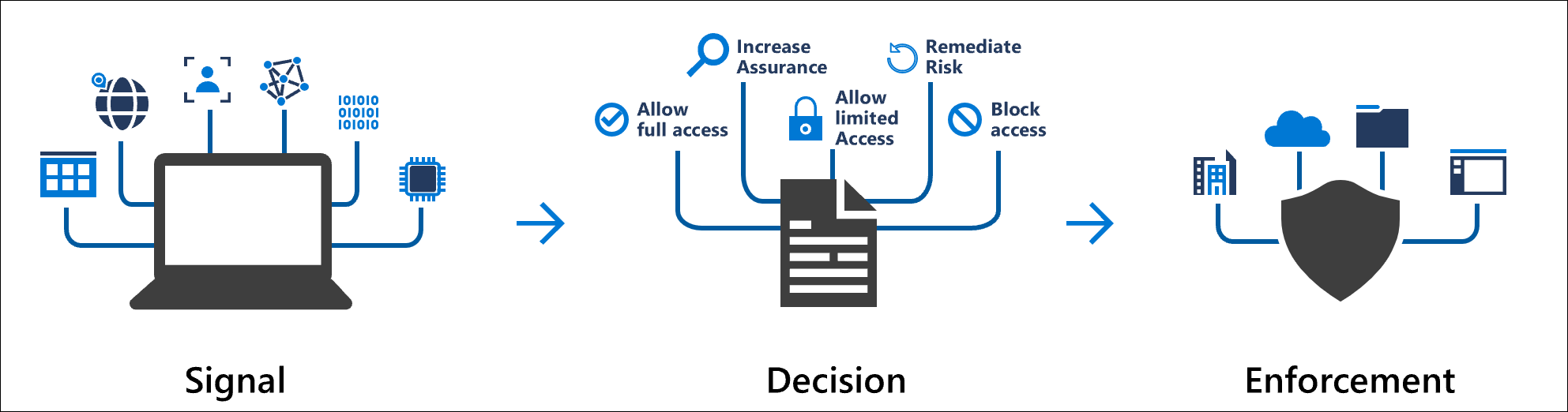
Conditional Access is the set of rules in Microsoft Entra ID that decides who can sign in to what, from where and on which device. Most organisations already use it – for example, to require multi-factor authentication. Since July 2024, it can also use a person’s insider risk level as a condition.
That means the same risk level that tightens DLP in Part 5 can also block or restrict someone’s access to Microsoft 365 apps. You need Microsoft Entra ID P2, which is included in E5, and Adaptive Protection switched on.
What Microsoft recommends for each level
Level
Recommended Conditional Access response
Effect on the person
Elevated
Block sign-in to Microsoft 365 apps, block access to specific labelled SharePoint sites, or block downloads from cloud apps
Cannot reach the data at all
Moderate
Require them to accept Terms of Use when signing in to admin portals
A reminder of their obligations, with no loss of access
Minor
Run a policy in report-only mode
None – you just gain visibility
The Copilot angle: Blocking an Elevated person from specific labelled SharePoint sites also stops Microsoft 365 Copilot generating answers from those sites for them. A risky person cannot use Copilot as a back door to sensitive content.
Creating the block policy for Elevated risk
If you ran Adaptive Protection quick setup in Part 5, a policy called “1-Block access for users with Insider Risk” already exists in report-only mode. To create one yourself, sign in to the Microsoft Entra admin center as at least a Conditional Access Administrator and:
Go to Entra ID > Conditional Access > Policies and select New policy.
Users: include All users. Exclude your emergency access (break-glass) accounts and guest or external user types.
Target resources: include All resources.
Conditions: select Insider risk, set Configure to Yes, and tick Elevated.
Grant: select Block access.
Enable policy: set it to Report-only and select Create.
Review the report-only results for a few weeks, then switch the policy to On.
Never skip report-only: Blocking sign-in is the strongest action in this series. Run it in report-only first, check exactly who would have been blocked, and always exclude your emergency access accounts so a mistake cannot lock everyone out.
Part B: The Data Security Triage Agent
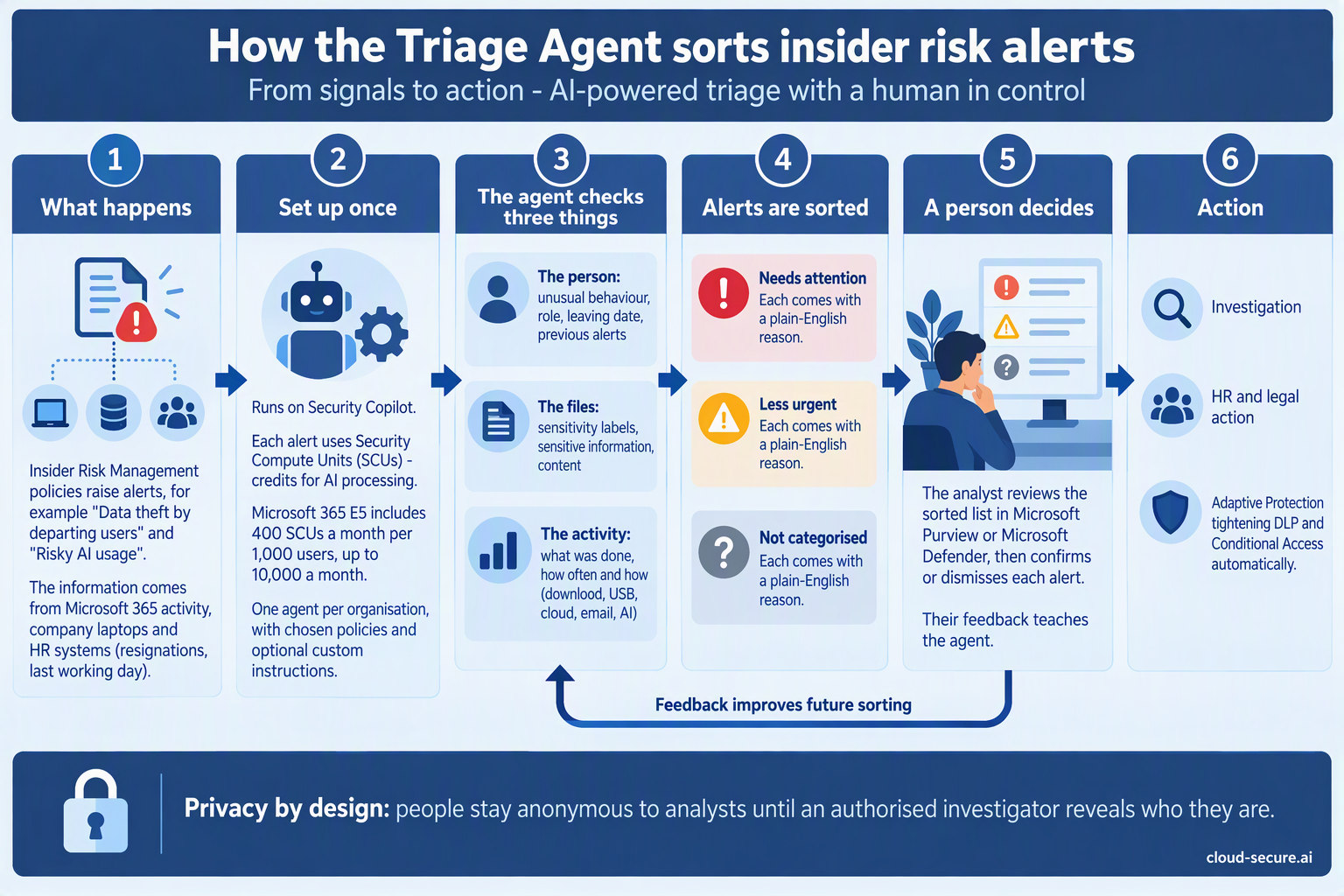
Every insider risk policy produces alerts, and someone has to look at them. On a busy day that queue can be long, and the most important alert can sit behind dozens of harmless ones. The Triage Agent is an AI assistant, built on Security Copilot, that reads each alert first and sorts the queue so your compliance team starts with what matters.
It does not investigate, decide or take action. It sorts and explains. A person still makes every decision.
How it sorts alerts
Category
What it means
Needs attention
The alerts the agent judged highest risk. Start here.
Less urgent
Lower-risk alerts to review when you have capacity.
Not categorized
Alerts the agent could not assess – for example, unsupported activity or an error. These still need a person to look at them.
For each alert, it weighs up the person (for example, whether they are a priority user and how many cases they already have open), the activity (how likely it is to be data leaving the organisation) and the content involved, and writes a short plain-English explanation of its decision.
How it runs and what it costs
Scope: you choose which insider risk policies it covers, and whether it looks only at new alerts or also at alerts from up to 30 days back.
Schedule: it can run automatically on a schedule, or an analyst can run it on one alert at a time.
Cost: each alert it processes uses Security Compute Units (SCUs). Microsoft 365 E5 includes 400 SCUs a month for every 1,000 users, up to 10,000 a month – see Part 3.
Feedback: analysts can give feedback on its decisions, which it takes into account when it triages future alerts.
Getting started well
Tune noisy policies first. The agent sorts what your policies produce – and every alert costs credits.
Start with new alerts only, then widen the lookback once you trust the results.
Compare for two weeks. Have your compliance team triage as normal and compare their view with the agent’s.
Check Not categorized every day. Those alerts have not been assessed by anyone yet.
Watch your SCU usage in Security Copilot, so the monthly allowance is not used up by one noisy policy.
The people reviewing the sorted queue need the same Insider Risk Management roles as before – Analysts or Investigators, through PIM. Setting up the agent needs additional Purview agent and Security Copilot roles.
Bringing it full circle
Over seven parts, we have gone from a licence sitting on the shelf to a joined-up system:
Insider Risk Management spots risky behaviour, starting with people who are leaving.
Adaptive Protection turns that behaviour into a risk level.
DLP and Conditional Access tighten automatically for the few who need it.
The Triage Agent helps your compliance team deal with the alerts.
Compliance officers, not IT, own the process, with access controlled through PIM.
And all of it is included in the Microsoft 365 E5 licence many organisations already pay for.
Final thoughts
If you take one thing from this series, make it this: if you have E5 and no insider risk policies, you are paying for protection you are not using. Start small – one departing users policy, a few compliance officers, quick setup in simulation – and build from there. The scripts and KQL queries from Part 4 will help you prove it works.
Thank you for following the series. If you have questions or want to talk about your own deployment, get in touch through cloud-secure.ai.
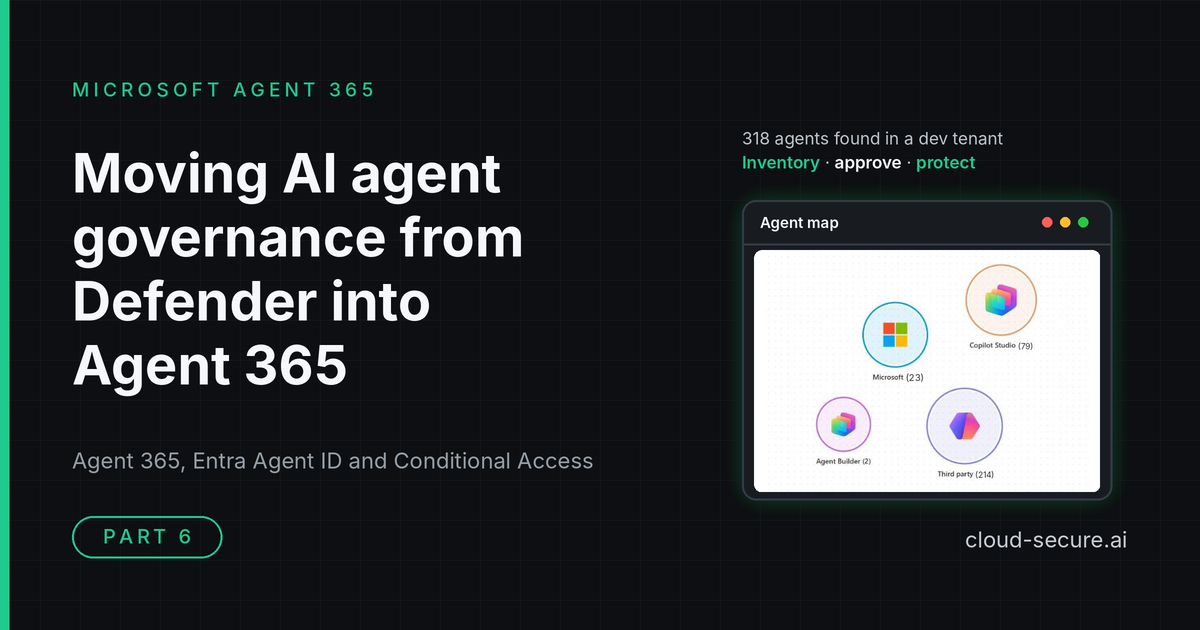
Series:Part 1 introduced AI agent runtime protection in Microsoft Defender for Endpoint. Part 2 covered the lab build and validation. Part 3 found the agents running on your endpoints. Part 4 blocked an unsanctioned MCP server with a Defender indicator. Part 5 automated it. Part 6 moves from Defender controls on the endpoint to governance in Microsoft Agent 365.
From Defender controls to Agent 365 governance
Parts 1 to 5 of this series were about Defender controls. They covered seeing agents on endpoints, detecting prompt injection, blocking unsanctioned MCP servers and controlling where tools like Claude Code can connect. Those controls act at runtime, on the device, once an agent is already running.
This part moves up a level, to governance and control in Microsoft Agent 365. Agent 365 is where Microsoft now inventories every agent in a tenant, approves them before people can use them, and applies policy when they are published. Entra ID sits underneath it, giving the agents that have an identity their own Conditional Access, ID Protection and access governance.
Defender answers “what is this agent doing right now?” Agent 365 answers the questions that should come first: which agents do we have, who owns them, who approved them, and what are they allowed to reach?
Core concepts
A few terms come up throughout:
Agent: in Agent 365, anything in the registry, whatever platform built it: Copilot Studio, Microsoft, a third-party publisher or your own developers.
Agent identity: an agent that signs in to Entra with its own identity, much like a service principal. Only these agents can be targeted by Entra Conditional Access, ID Protection and access packages.
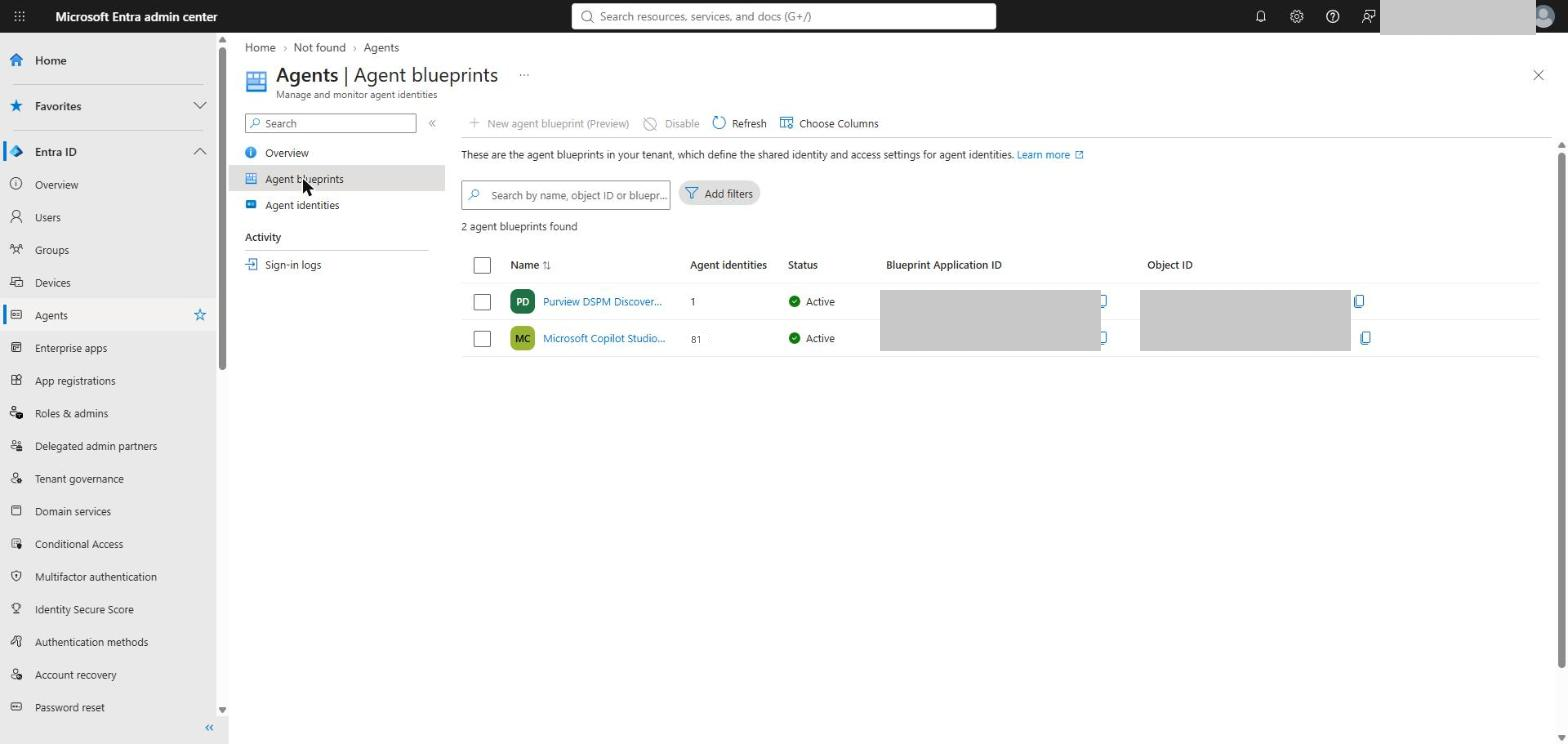
Agent identity blueprint: the template an agent identity is created from. It sets the identity, permissions, policies and naming for every agent built from it. Copilot Studio has its own blueprint, so every Copilot Studio agent with an identity comes from the same one.
Blueprint principal: the blueprint’s object in your tenant. Conditional Access uses it to include or exclude every agent built from that blueprint in one go.
Agent user: an agent that also has a user account, so it can work in Teams, Outlook, SharePoint and OneDrive. It is a separate identity type, so a policy for agent identities does not cover agent users.
Owner and sponsor: the people accountable for an agent. Owners handle the technical side; sponsors answer for why it exists.
User consent: the Entra setting that decides whether ordinary users can grant an app or agent access to their data without an administrator.
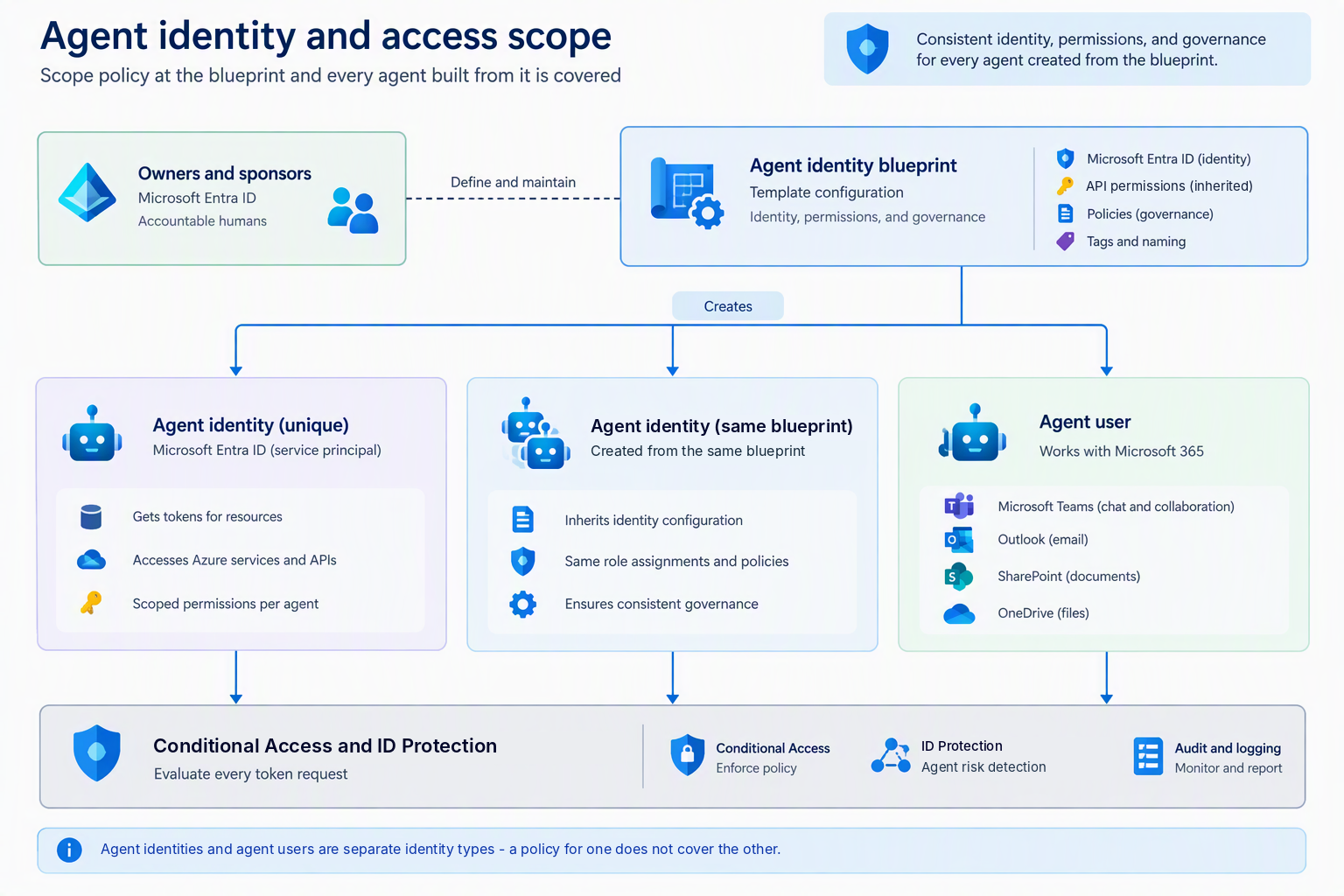
The diagram above shows how these fit together. Owners and sponsors maintain a blueprint. The blueprint creates agent identities, and can create agent users for agents that need Microsoft 365. Conditional Access and ID Protection then evaluate every token request those identities make. The point to take from it: set policy at the blueprint, and every agent built from it is covered.
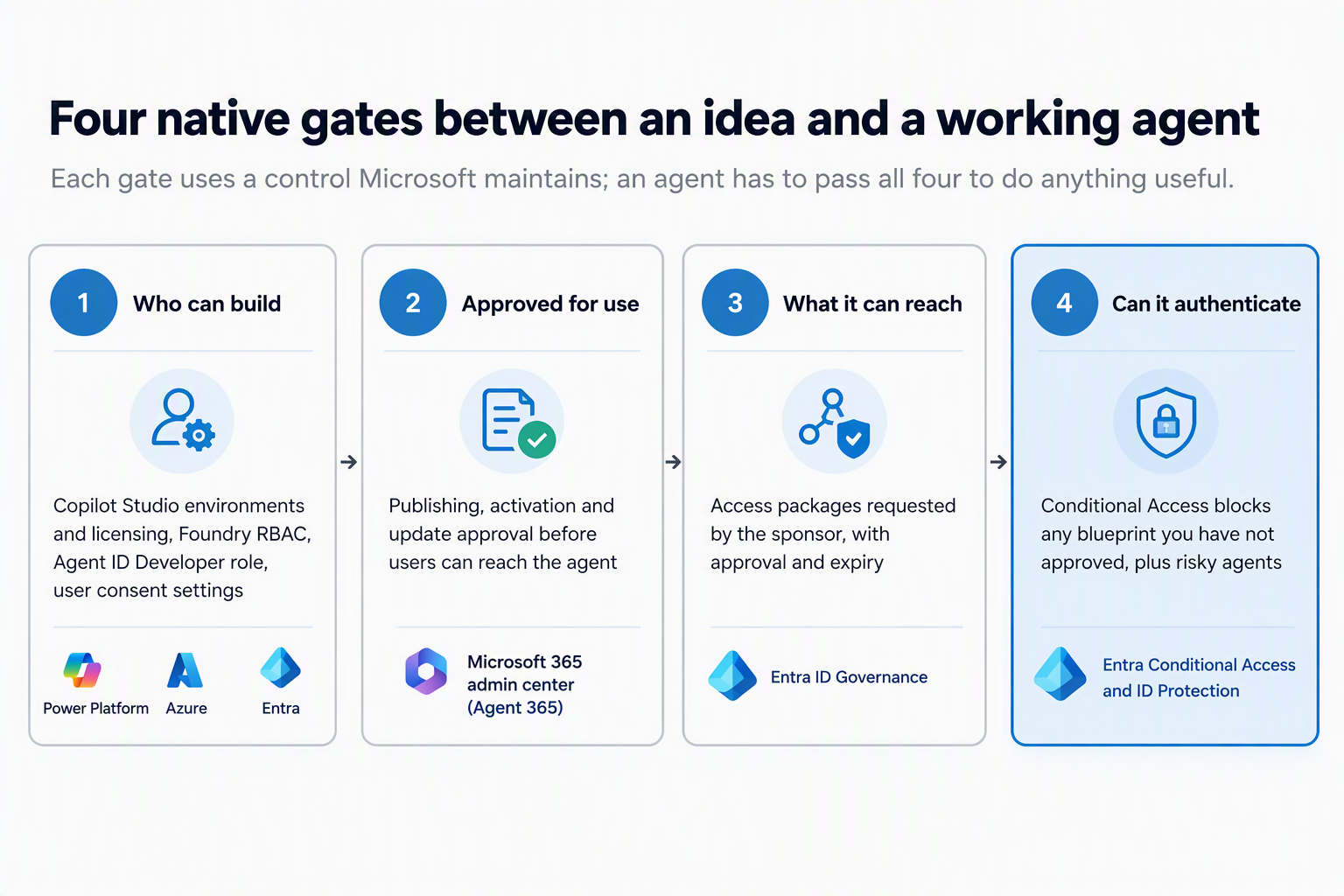
The diagram below shows the four gates this post is built around. Each one asks a different question, and an agent has to pass all four before it is any use.
Gate
Question
Native control
Where
1
Who can build an agent?
Copilot Studio environments and licensing, Foundry RBAC, Agent ID Developer role, user consent
Power Platform, Azure, Entra
2
Is it approved for people to use?
Agent and plugin access, user access, policy templates, approval of requests
Microsoft 365 admin center (Agent 365)
3
What can it reach?
Owners and sponsors, access packages with approval and expiry
Entra ID Governance
4
Can it authenticate at all?
Conditional Access for agents, plus ID Protection
Entra
Gate 2 covers every agent in the registry. Gates 3 and 4 only reach agents with an Entra agent identity, which is why Agent 365 comes first.
What a dev tenant looks like
To write this part I reviewed a Microsoft 365 E7 dev tenant, read-only.
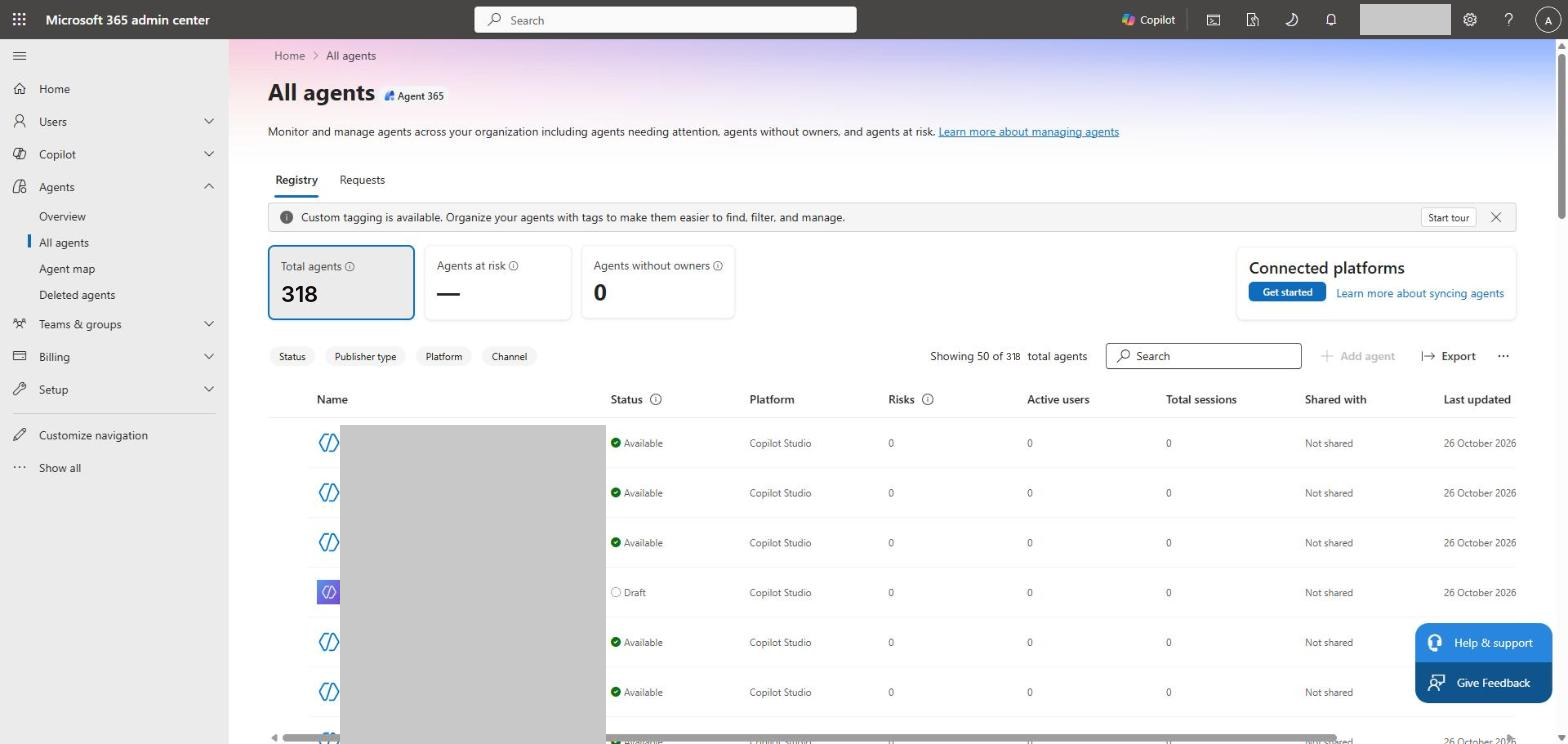
81 from the Copilot Studio blueprint, 1 from Purview
Waiting for approval
0 requests
–
Governance templates
None
–
Agent Conditional Access
–
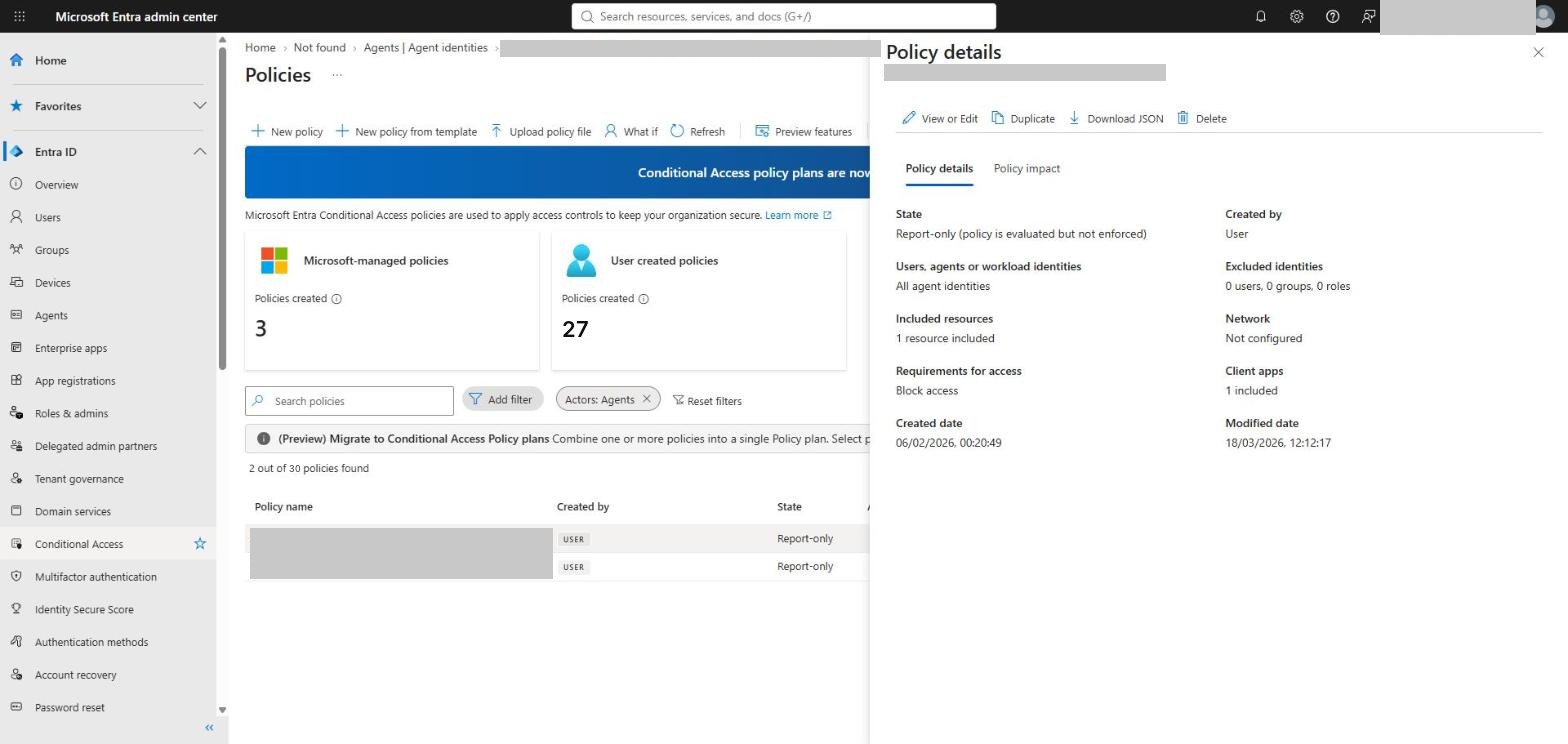
2 policies, both report-only
These figures are from a dev tenant. Agent 365 and Entra count agents in different ways, so the totals do not line up exactly between the two portals.
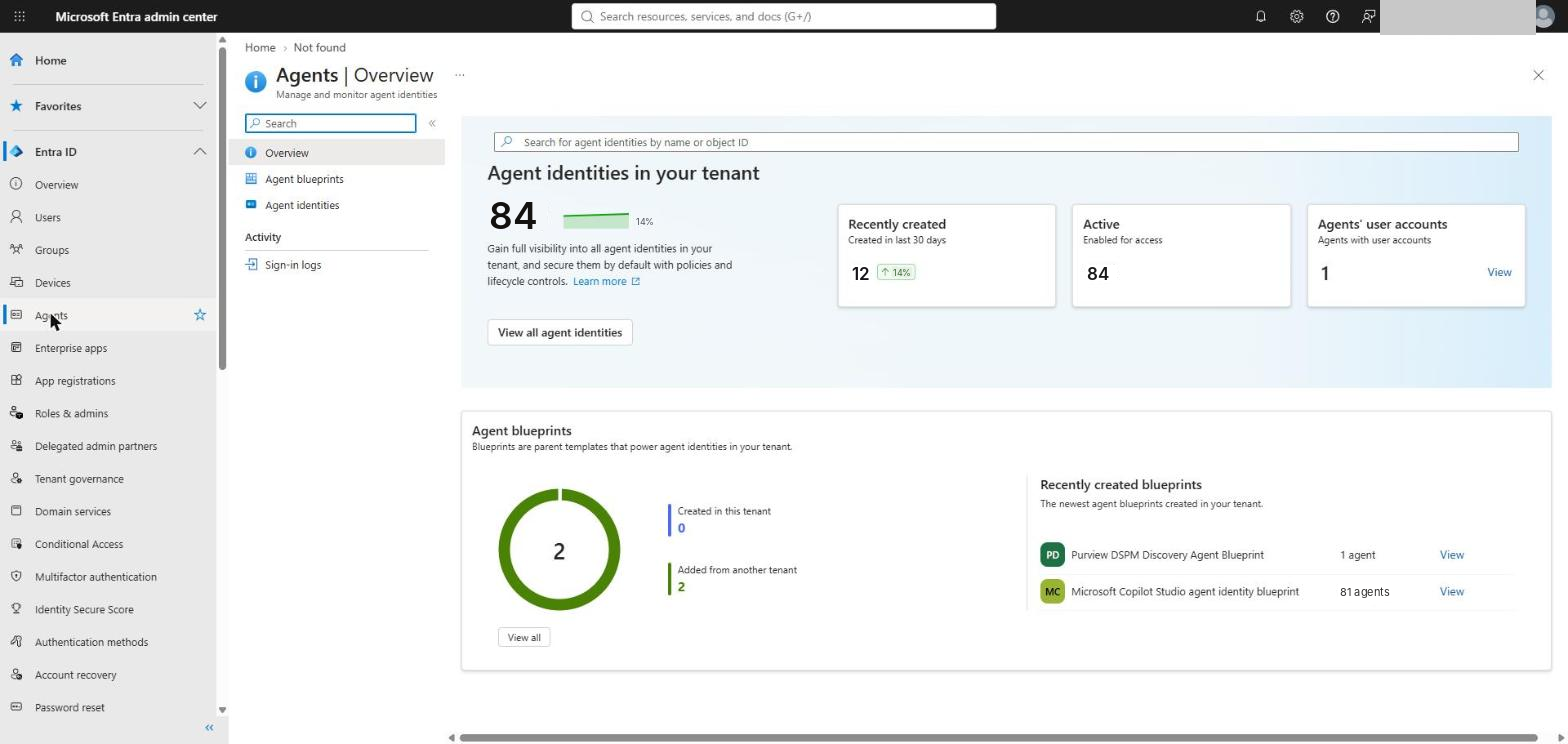
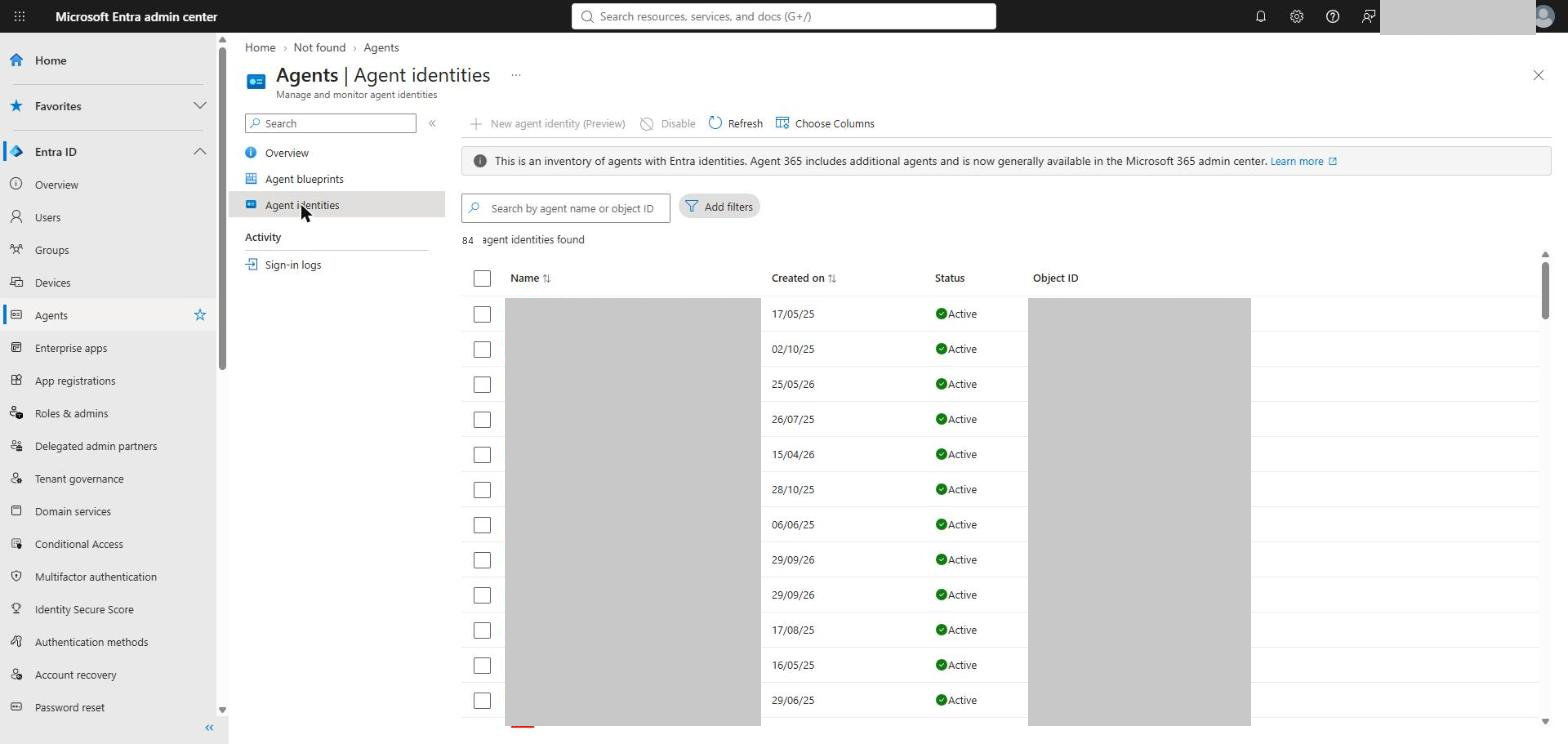
The headline is the gap between the two columns. Most agents in the tenant have no Entra agent identity at all, so Entra’s Conditional Access, ID Protection and access packages cannot see them. Entra says so itself on the Agent identities page: it lists only agents with Entra identities, and points to Agent 365 for the rest. That is why the governance has to start in Agent 365.
The risks
Risk
What I saw
Why it matters
Agent sprawl
Hundreds of agents across several platforms
Nobody can review what they cannot count
Agents outside Entra
About three quarters of agents had no Entra agent identity
Identity controls (CA, ID Protection, access packages) do not reach them
Third-party agents
Two thirds of the registry
They cannot go through the Agent 365 approval workflow
No approval in use
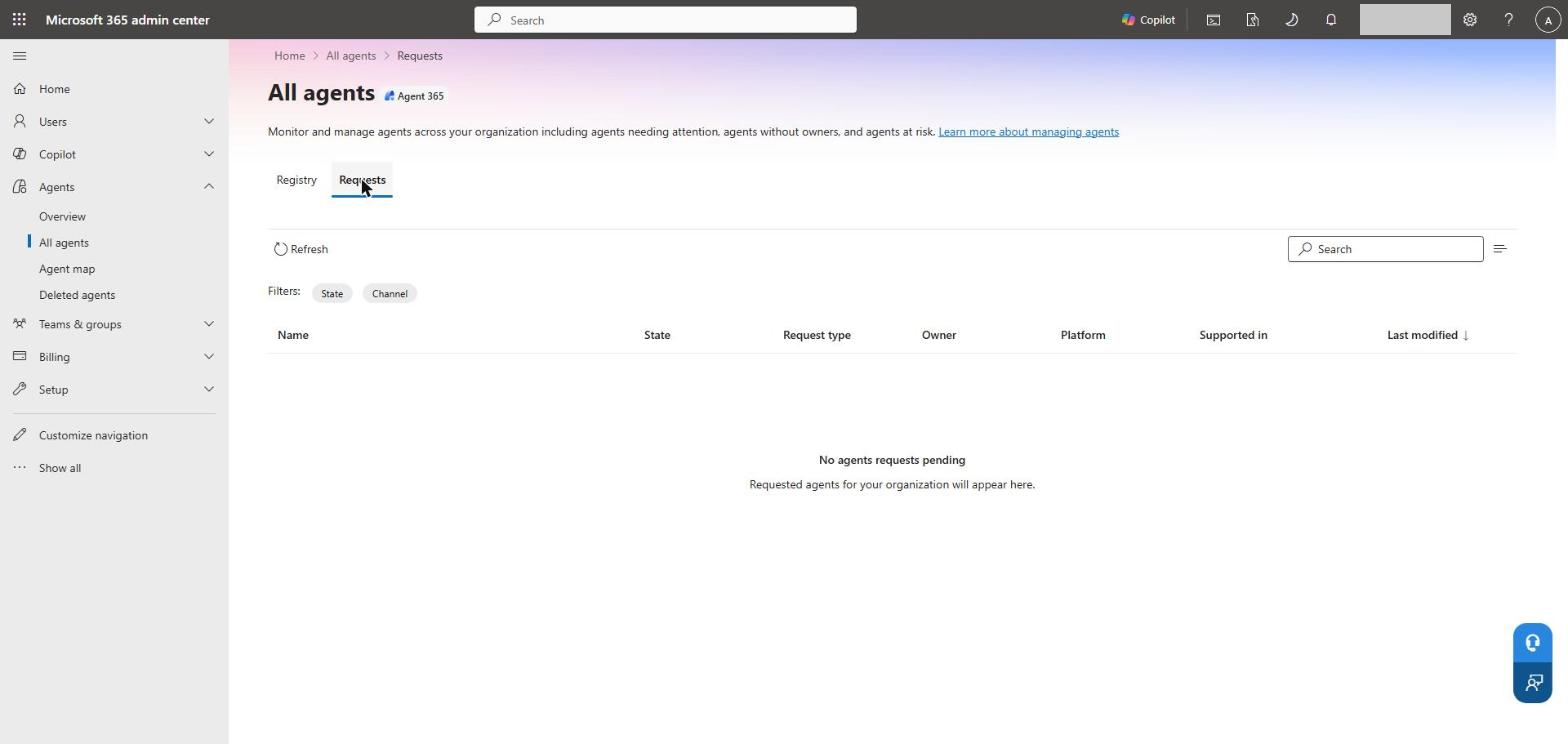
Nothing in the Requests queue
Nothing had gone through the approval workflow, so there is no record of anyone signing agents off
Ownerless agents
An agent identity with no owner and no sponsor
No one to ask what it does, or to switch it off
Standing permissions
An agent holding a delegated permission granted by admin consent
Access granted once, never reviewed, never expires
Permissive defaults
External publishers allowed; no governance templates
Agents arrive without policy applied
Controls not enforced
Agent CA policies left in report-only
Risky agents would be logged, not blocked
Data exposure through users
Copilot Studio agents act with the signed-in user’s permissions
An over-shared agent exposes whatever its users can reach
None of this is unusual. Agent 365 and Entra Agent ID are new, the defaults are open, and agents have been arriving faster than anyone has been governing them.
Two ways to put the controls in place
Option 1: the portal walkthrough. The rest of this post walks through each control, with screenshots from the dev tenant, in the Microsoft 365 admin center and the Entra admin center. Use it to understand what each setting does, or to apply it by hand in a small tenant.
Option 2: the script. The companion PowerShell script, Invoke-Agent365Governance.ps1, asks for one thing, your tenant ID, and signs you in interactively. It then:
Reviews the tenant read-only: every agent identity grouped by blueprint, agents with no owner, agents holding granted permissions, legacy Copilot Studio service principals, and existing agent Conditional Access policies. Everything is exported to CSV.
Creates the Gate 4 policies (CA-AGT-001 to 003, plus the optional CA-WID policies for service principals) in report-only mode, skipping any that already exist.
Run it with -ReviewOnly to change nothing, or -WhatIf to see what it would create.
The README explains every parameter and the Microsoft 365 and Entra roles the account running it needs. The Agent 365 settings in Gate 2 have no published API yet, so the script cannot set them. The README and the script’s summary list them as manual steps. Gate 2, later in this post, walks through each one with screenshots.
Prerequisites
Licensing
Capability
Licence needed
Agent 365 registry, approvals, templates
Microsoft Agent 365, included in Microsoft 365 E7 (Learn)
Entra Agent ID (agent identities and blueprints)
Included for Microsoft Entra customers
Conditional Access for agents
Microsoft 365 E7, or Agent 365 plus Entra ID P1 or Microsoft 365 E3 (Learn)
Risk-based Conditional Access for agents
As above, plus Entra ID P2 or Microsoft 365 E5 (Learn)
Global Reader (check it can open the Agent 365 pages in your tenant)
Tip: Security defaults must be off, or Conditional Access will not apply to agents at all.
Step 1: Take stock
1a. Agent 365: the full inventory
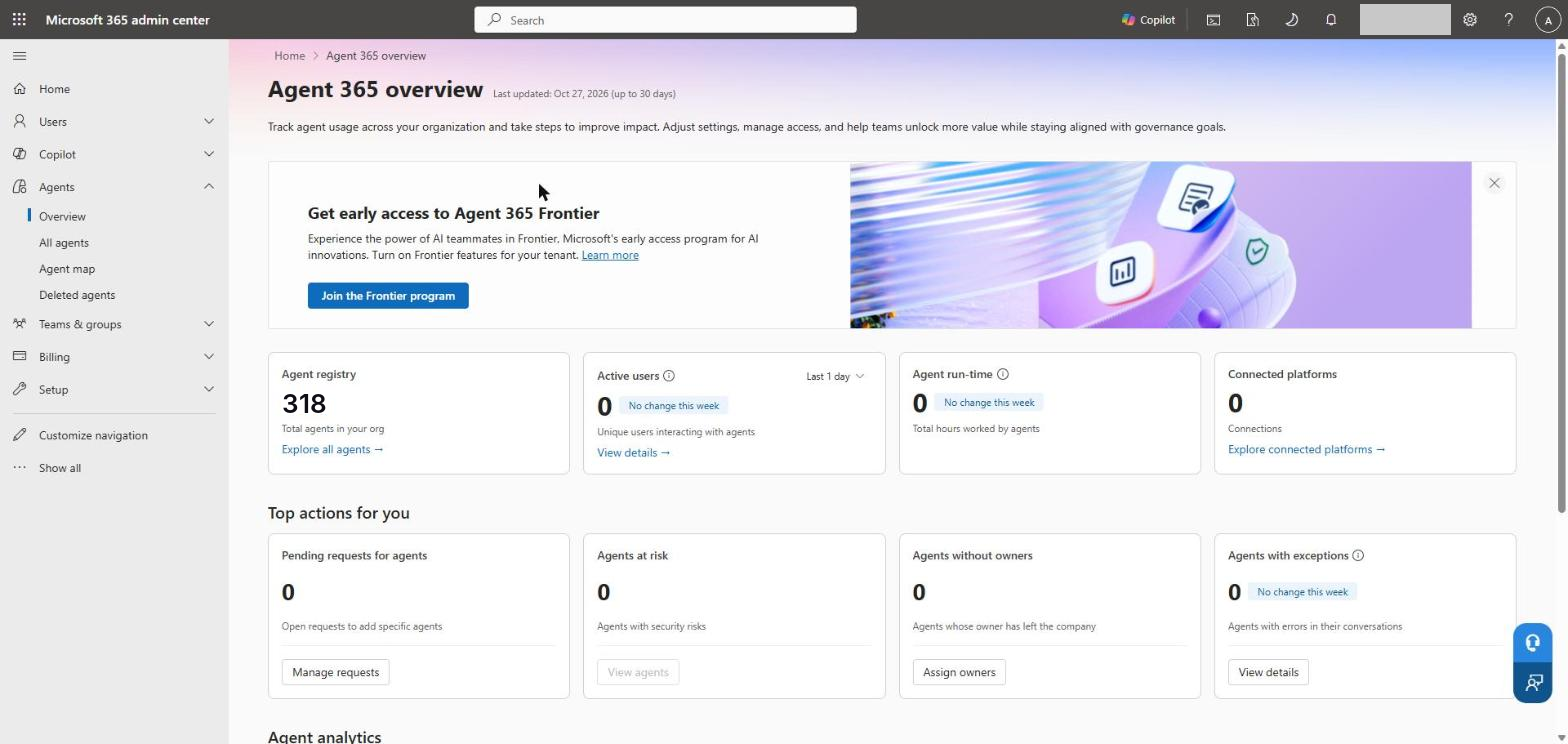
In the Microsoft 365 admin center, browse to Agents > Overview. The cards show the registry total, active users, connected platforms, pending requests, agents at risk and agents without owners.
Open Agents > All agents. The Registry tab lists every agent with its status, platform, risks, users and sessions; filter by Status, Publisher type, Platform or Channel.
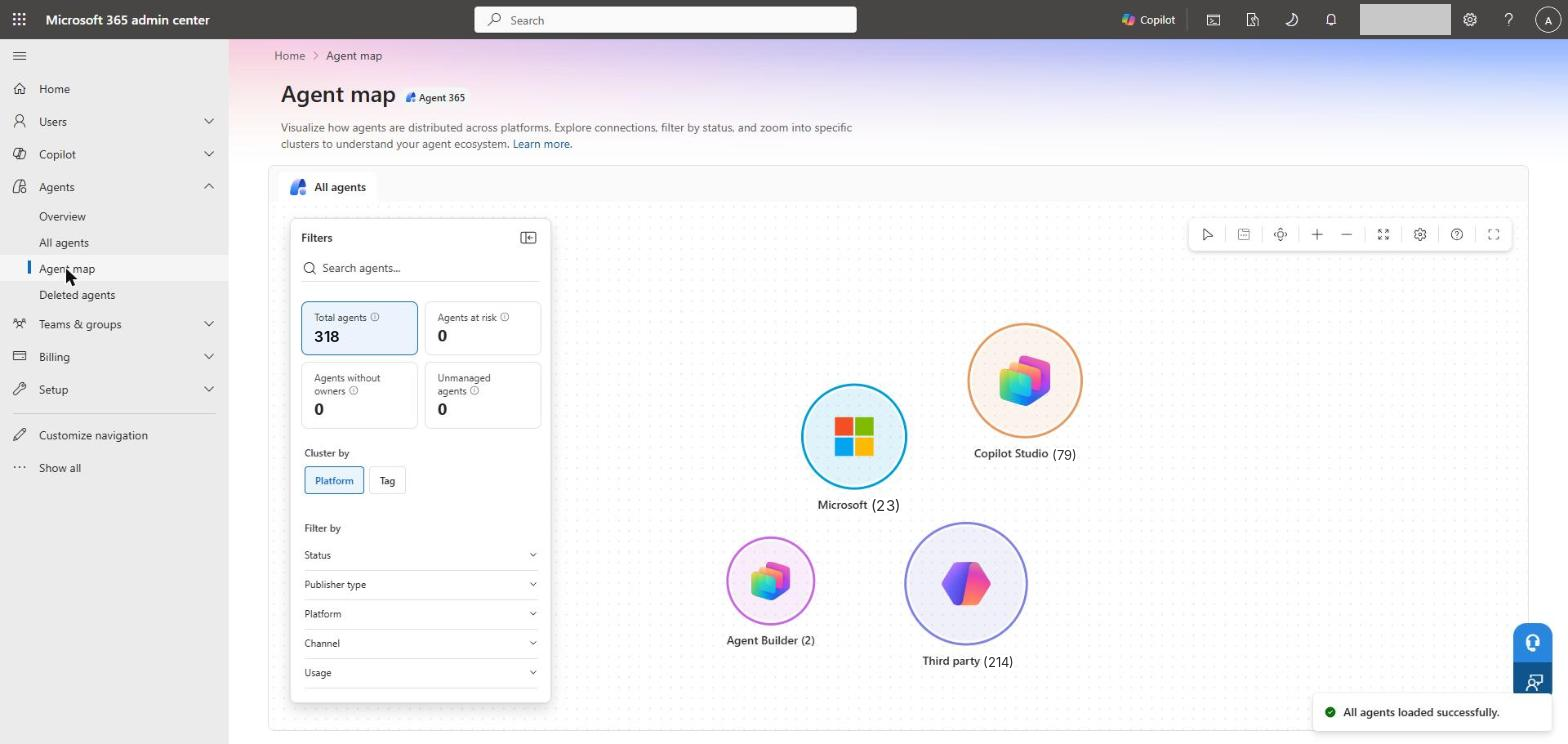
Open Agents > Agent map to see the agents clustered by platform. This is the quickest way to show leadership where agents are coming from.
1b. Entra: the agents with an identity
In the Entra admin center, browse to Entra ID > Agents > Overview.
Open Agent identities for the list, and Agent blueprints to see which blueprints they come from.
Compare the two totals. The difference is the number of agents your identity controls cannot see.
1c. Find legacy Copilot Studio service principals
Older Copilot Studio agents use plain service principals rather than agent identities. Their service principals carry consistent tags such as AgenticApp, AIAgentBuilder and power-virtual-agents-<id> (Learn):
<#.SYNOPSIS Lists service principals tagged as Copilot Studio / agentic apps..NOTES Author: Seán O'Farrell Website: https://cloud-secure.ai/#>Connect-MgGraph-Scopes"Application.Read.All"-NoWelcome$agentTags=@('AgenticApp','AIAgentBuilder','AgenticInstance')$legacyAgents=Get-MgServicePrincipal-All-PropertyId,AppId,DisplayName,Tags,CreatedDateTime|Where-Object{$tags=$_.Tags($tags|Where-Object{$_-in$agentTags-or$_-like'power-virtual-agents-*'})}$legacyAgents|Select-ObjectDisplayName,AppId,CreatedDateTime,@{Name='CopilotStudioTag';Expression={$_.Tags|Where-Object{$_-like'power-virtual-agents-*'}}}|Sort-ObjectCreatedDateTime-Descending|Format-Table-AutoSizeWrite-Host"🔎 Found $($legacyAgents.Count) agent-tagged service principals"
Don’t mass-disable. Blocking an agent or disabling a blueprint can break something the business relies on. Triage first, with the owners.
Gate 1: Control who can build
You cannot stop a Copilot Studio agent getting an identity, but you can control who can build agents in the first place (Learn):
Platform
Native control
Copilot Studio
Block self-service trials, assign Copilot Studio licences only to approved makers, restrict environment creation to Power Platform Administrators
Microsoft Foundry
Turn off self-service subscription creation; assign Azure AI Account Owner and Azure AI User only to approved teams
Custom agents
Limit the Agent ID Administrator and Agent ID Developer roles
Third-party agents
Tighten user consent so users cannot consent to new agent blueprints themselves
Microsoft Teams
Control which apps and agents users can add in the Teams admin center
Gate 2: Govern agents in Agent 365 (the main event)
Everything in this gate happens in the Microsoft 365 admin center, under Agents > Settings and Agents > All agents.
2a. Agent and plugin access
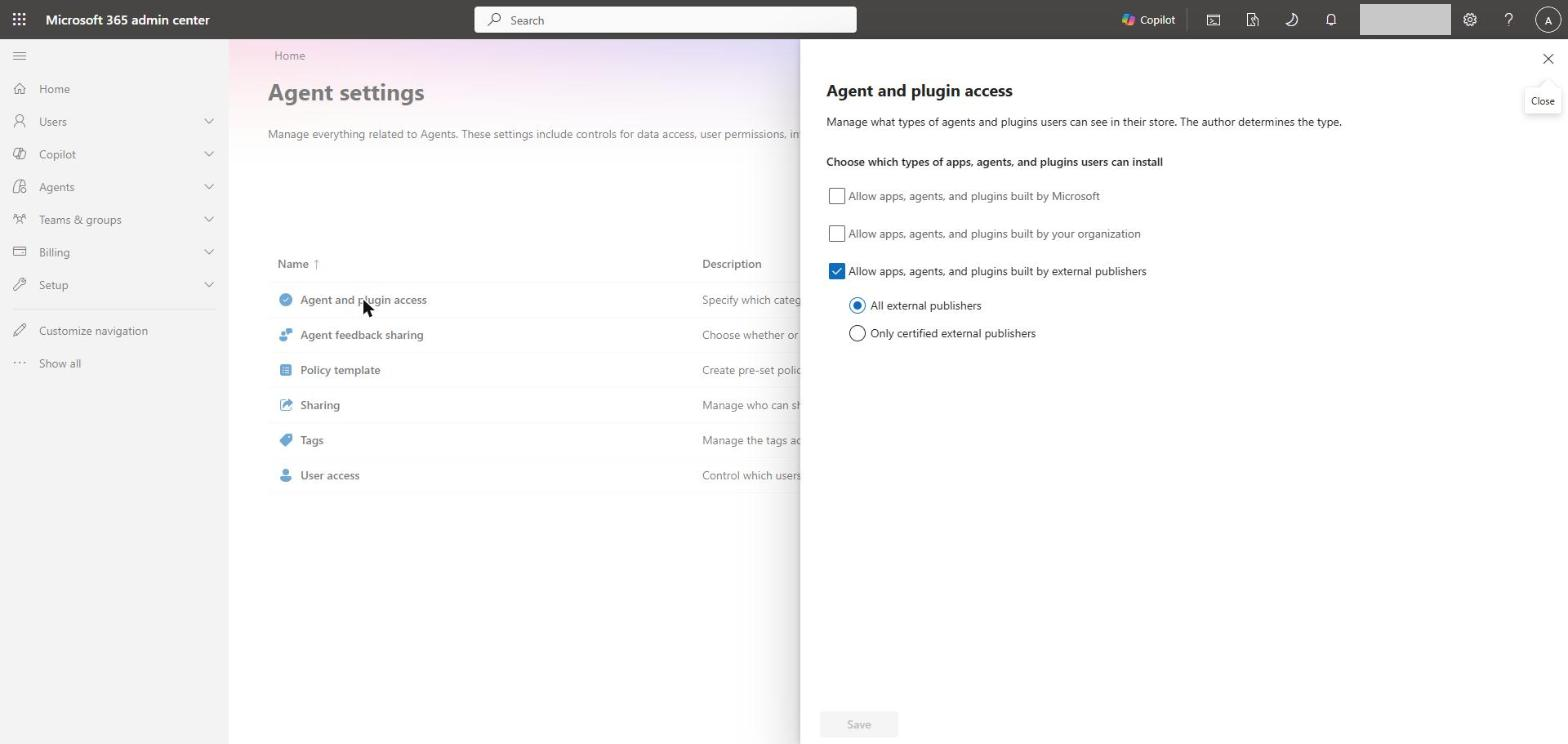
Decide which kinds of agent users can install. The dev tenant allowed agents from all external publishers, which is the opposite of where most organisations want to start.
Open Agents > Settings > Agent and plugin access.
Choose which types users can install: built by Microsoft, built by your organisation, or built by external publishers.
If you allow external publishers, consider Only certified external publishers rather than All external publishers.
Select Save.
2b. User access
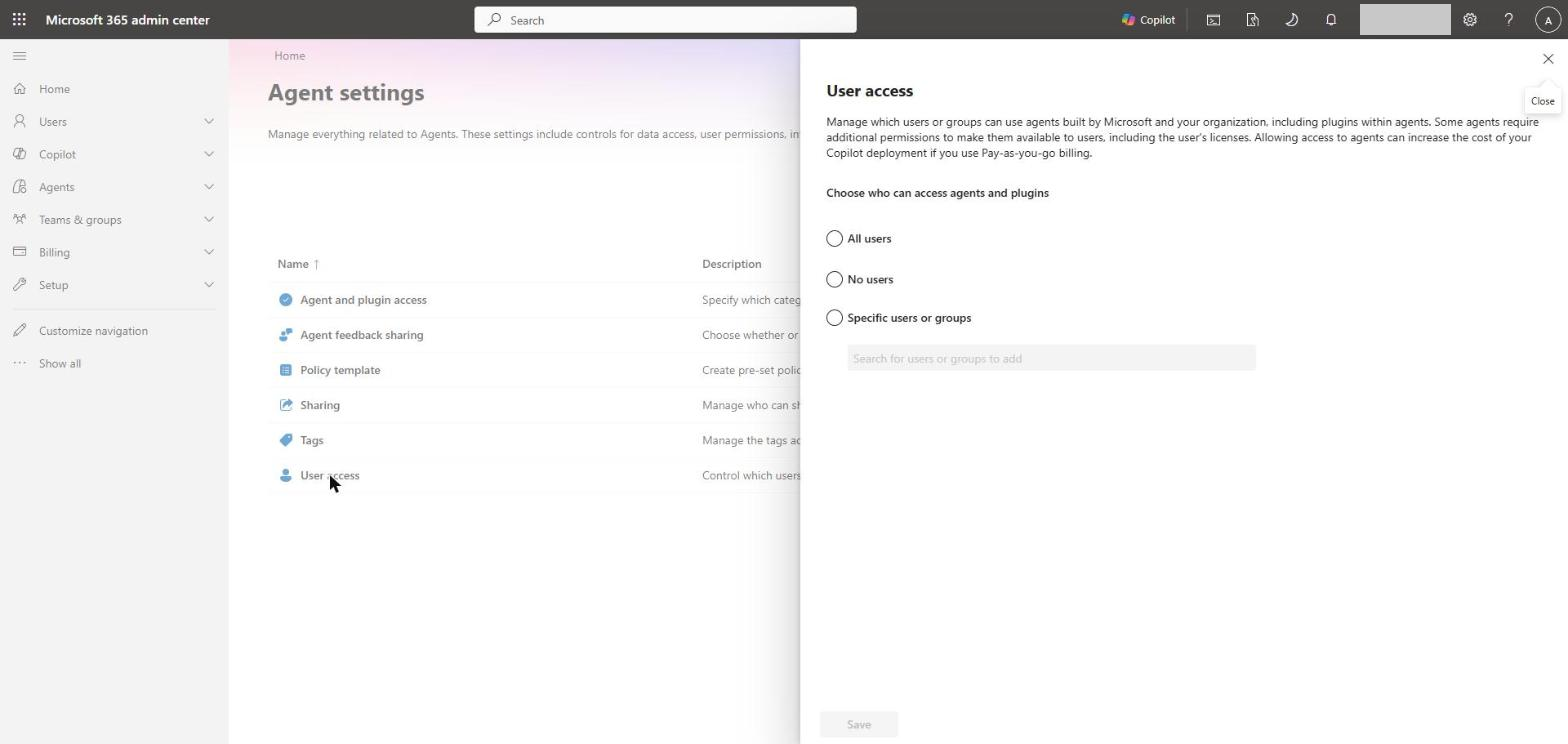
Control who can use agents at all: All users, No users, or Specific users or groups. A pilot group is a sensible place to start while the rest of the controls go in. Microsoft notes that wider access can increase cost if you use pay-as-you-go billing.
2c. Policy templates
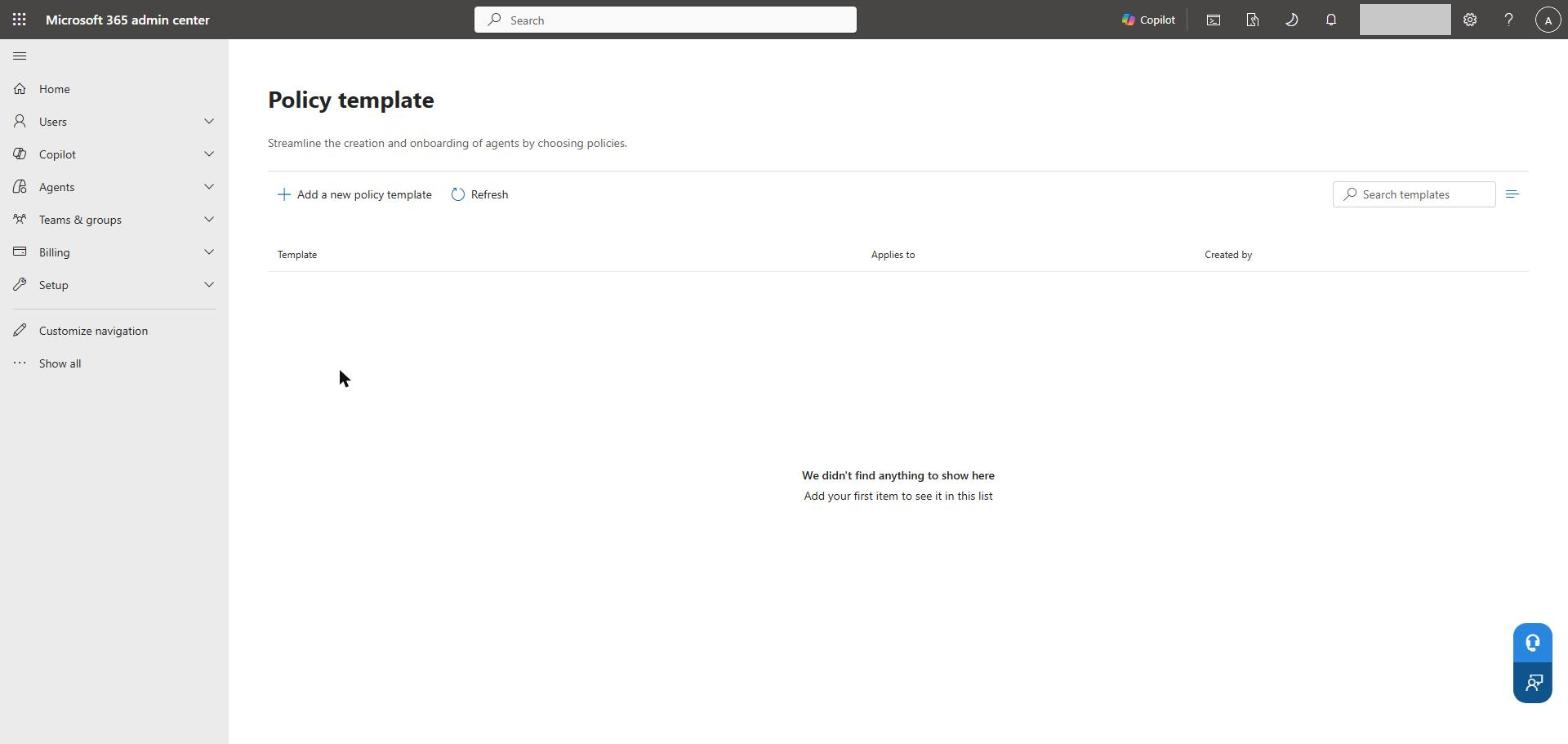
Policy templates apply licences and policies automatically when an agent is created or added. The dev tenant had none.
Open Agents > Settings > Policy template and select Add a new policy template.
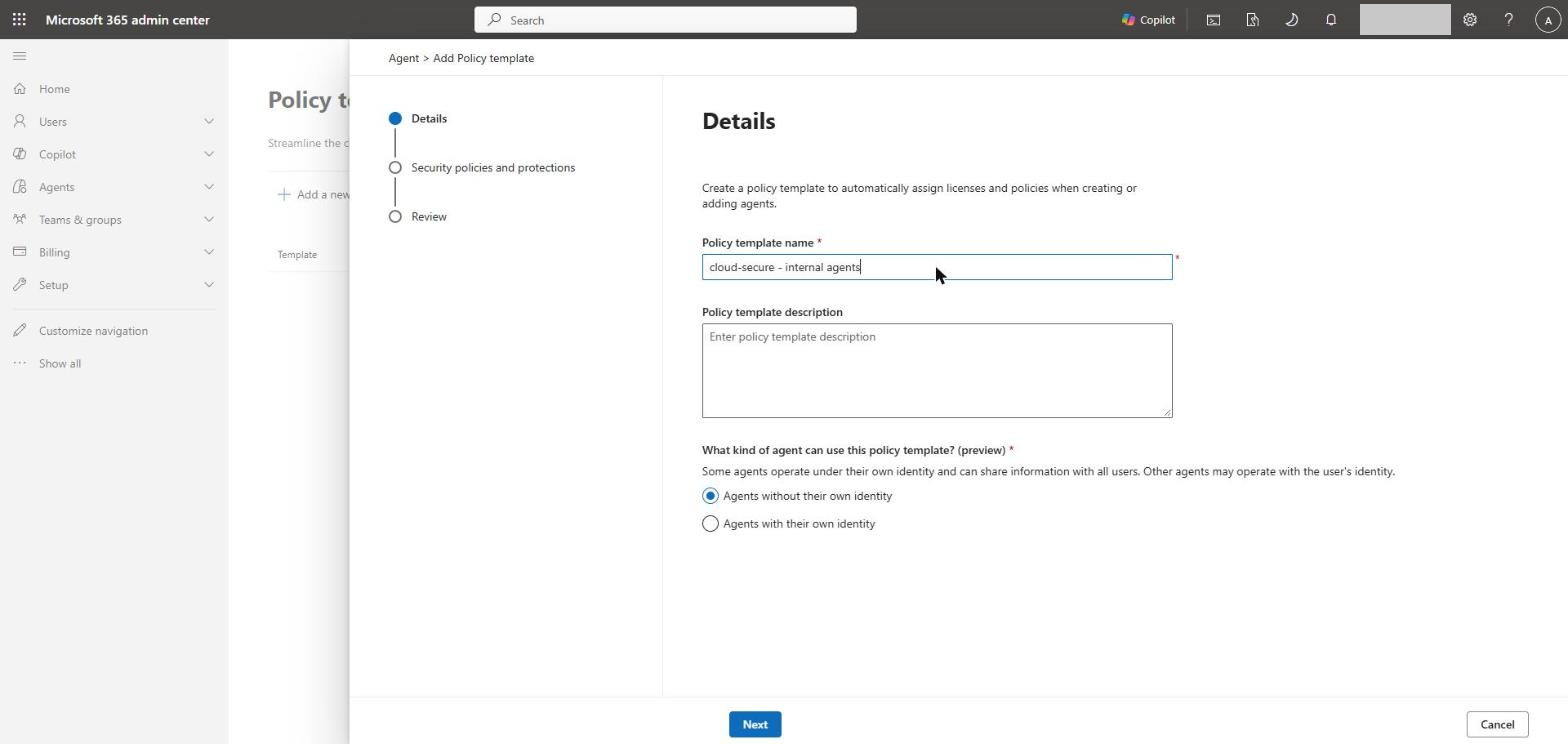
On Details, give it a name and description, then choose What kind of agent can use this policy template? and pick Agents without their own identity or Agents with their own identity (preview).
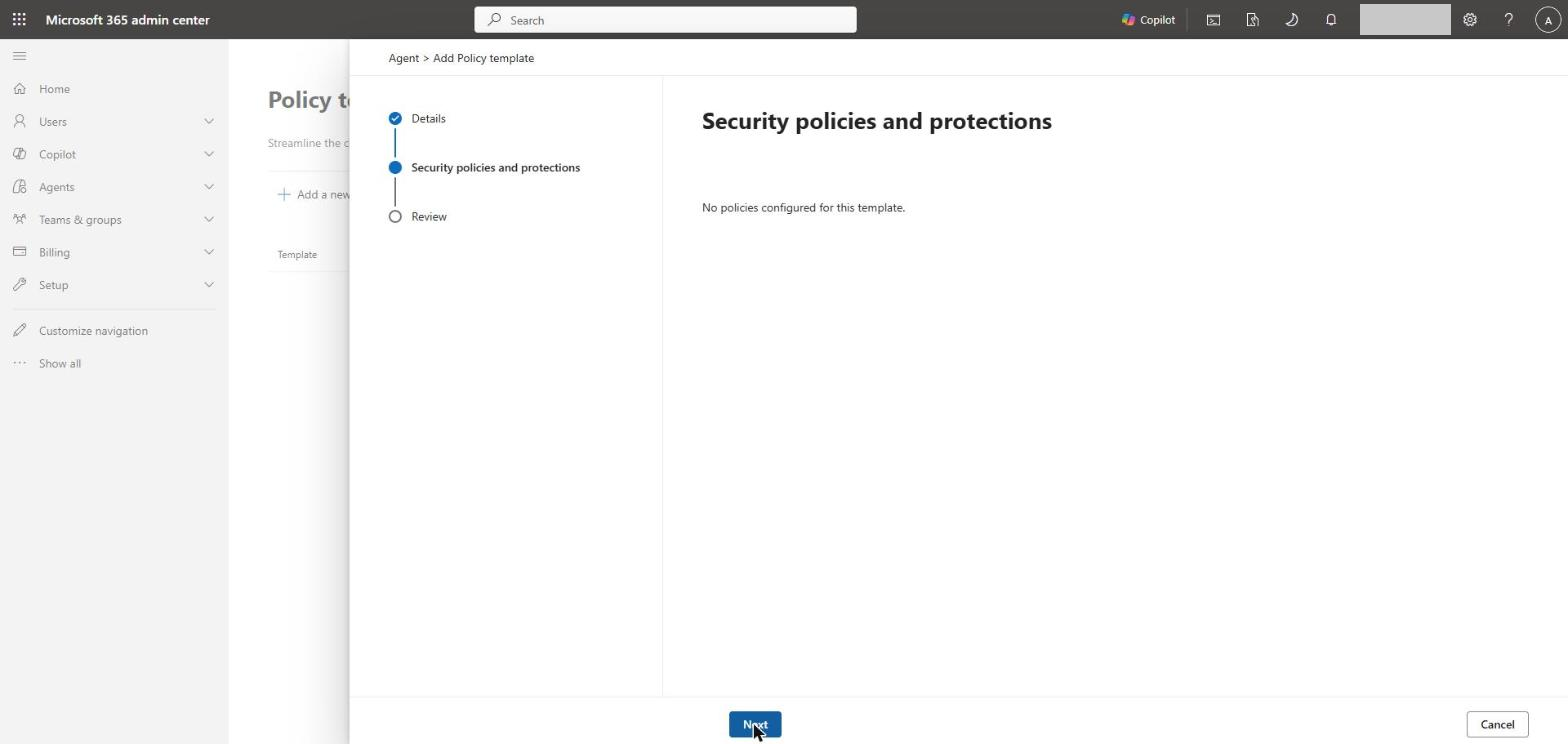
On Security policies and protections, choose the policies to apply. For agents without their own identity, the dev tenant offered none, so expect this page to vary by agent type and licensing.
Review and create.
2d. Work the Requests queue
When a maker publishes an agent to the tenant, it should land in Agents > All agents > Requests for approval rather than going straight to users (Learn). An empty queue in a tenant with hundreds of agents is a warning sign, not a sign that all is well.
For each request, ask four questions (Learn): does it ask only for what it needs, is the publisher trusted, is the business purpose clear, and does it fit your AI policy? Then approve it with Publish to store, choosing the audience and template, or reject it.
Gap: third-party agents cannot be requested or approved through this workflow. In the dev tenant, that was two thirds of the registry. Your controls for them are Gate 1 (user consent) and Gate 2a (which publishers to allow), plus blocking anything you do not trust.
2e. Review an agent
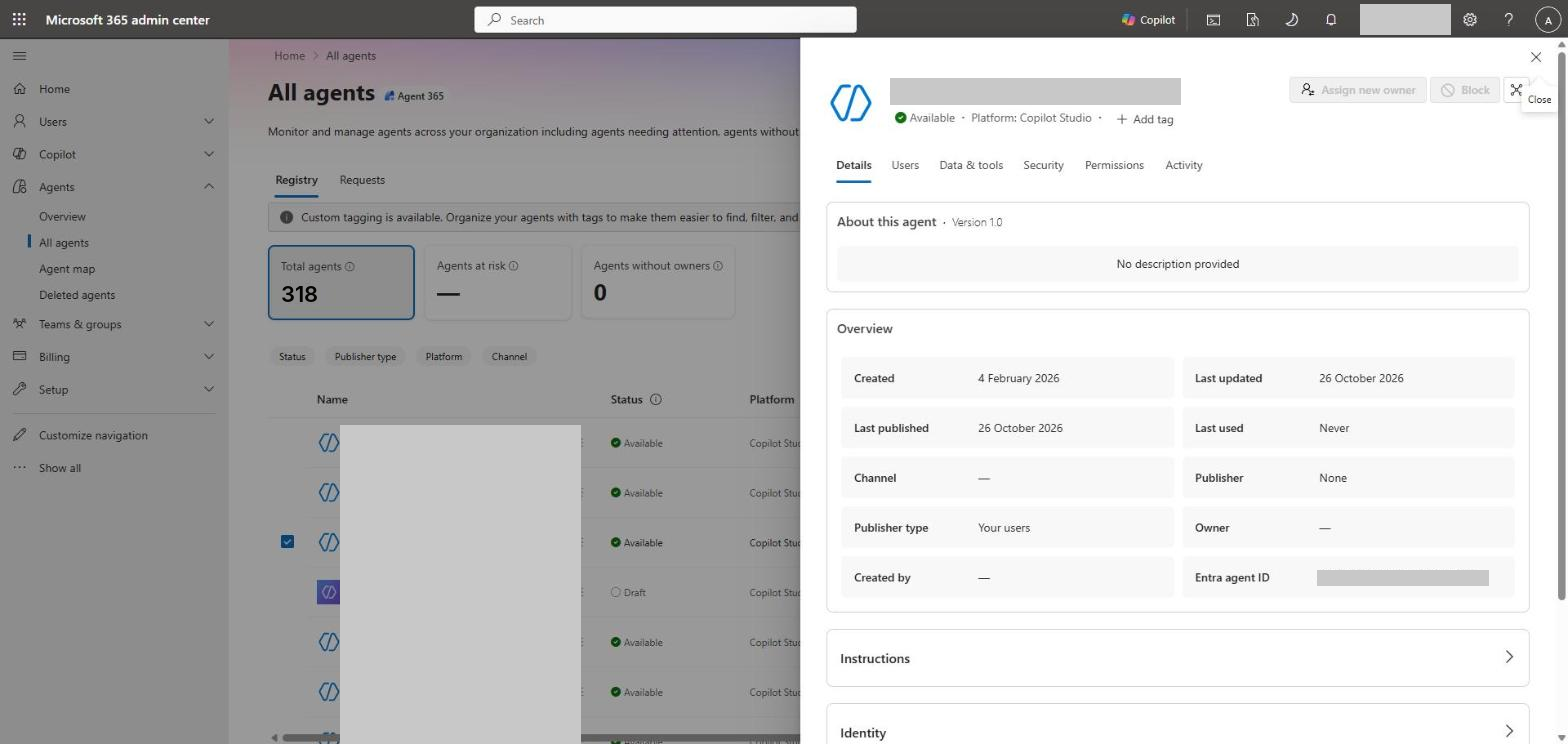
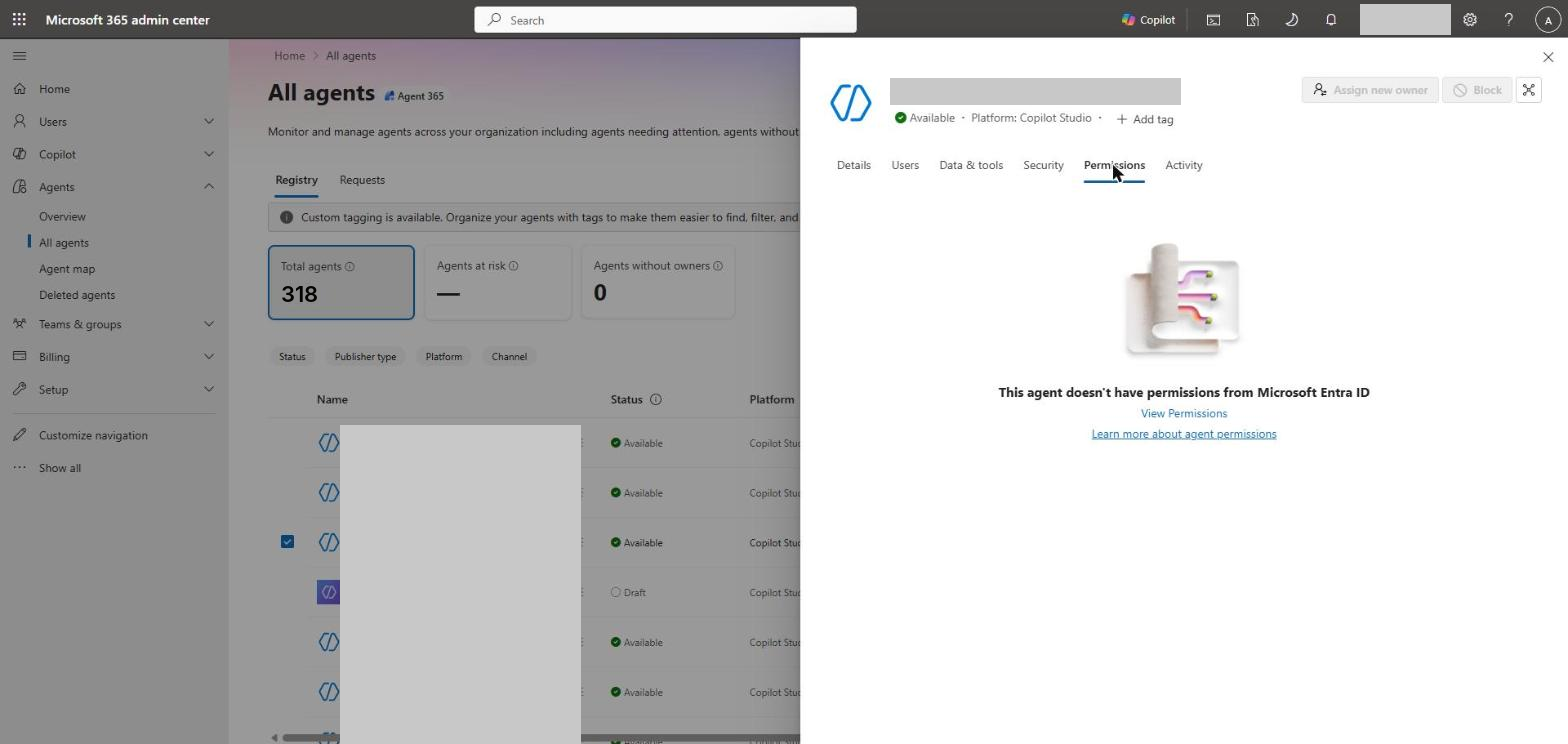
Select any agent in the registry to open its details. The tabs tell you most of what you need: Details, Users, Data & tools, Security, Permissions and Activity. From here you can also Assign new owner and Block the agent.
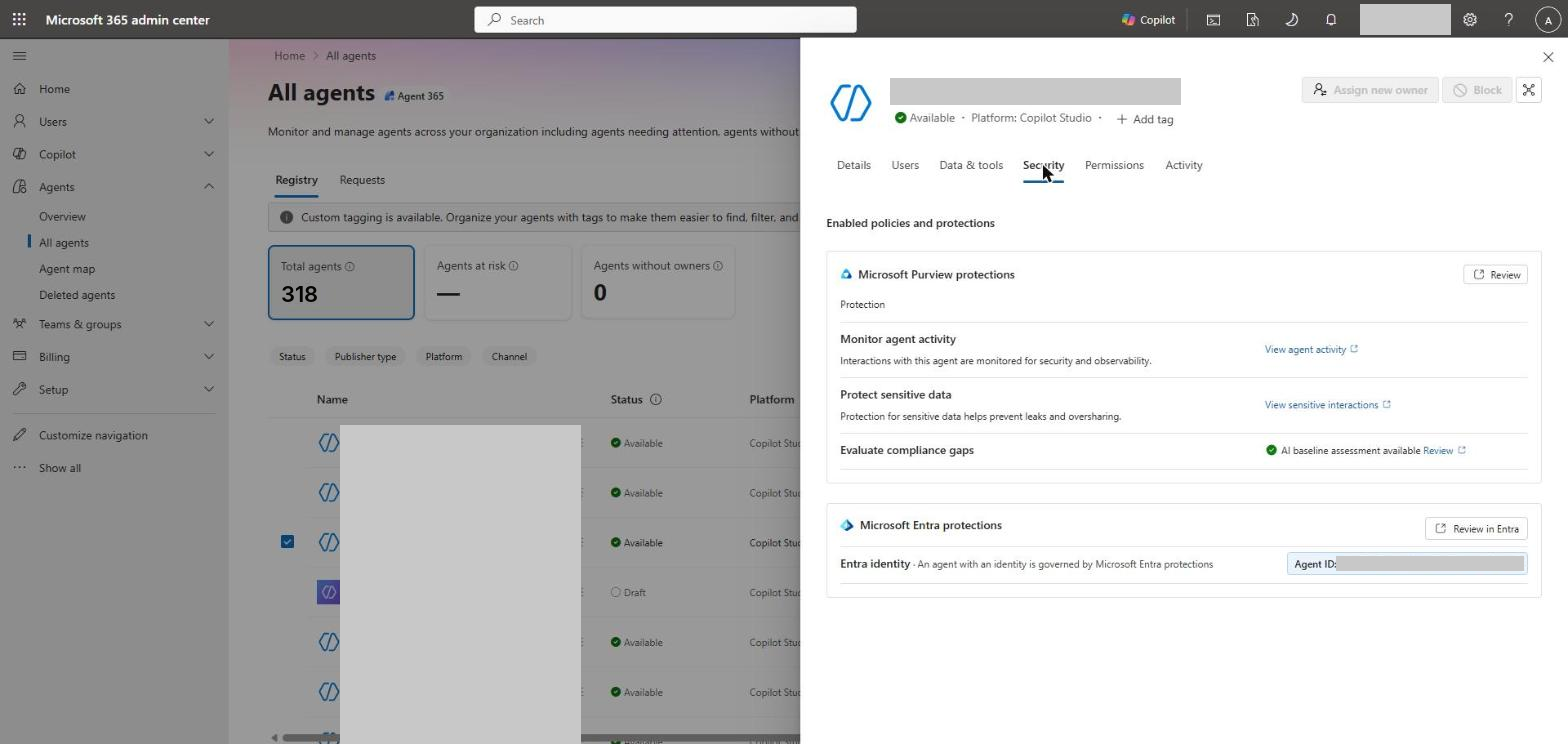
The Security tab is where Agent 365 ties the other products together: Purview protections for the agent’s activity and data, and a link to its Entra identity.
2f. Block, delete and restore
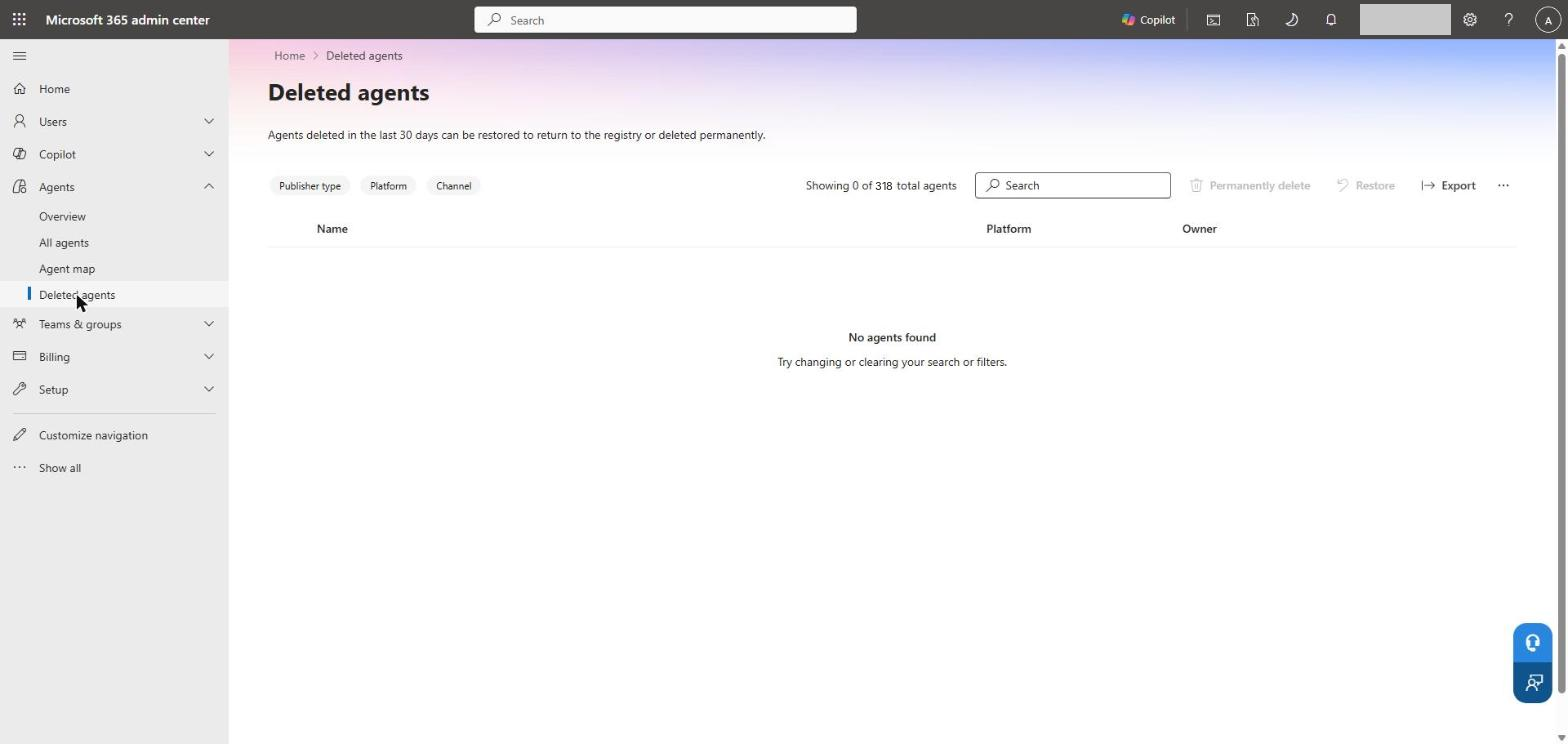
Block stops an agent being surfaced to users. Delete soft-deletes it for 30 days, and you can restore it from Agents > Deleted agents (Learn). Both need a role that can manage agents. They were greyed out for the read-only account I used.
Gate 3: Owners, sponsors and access
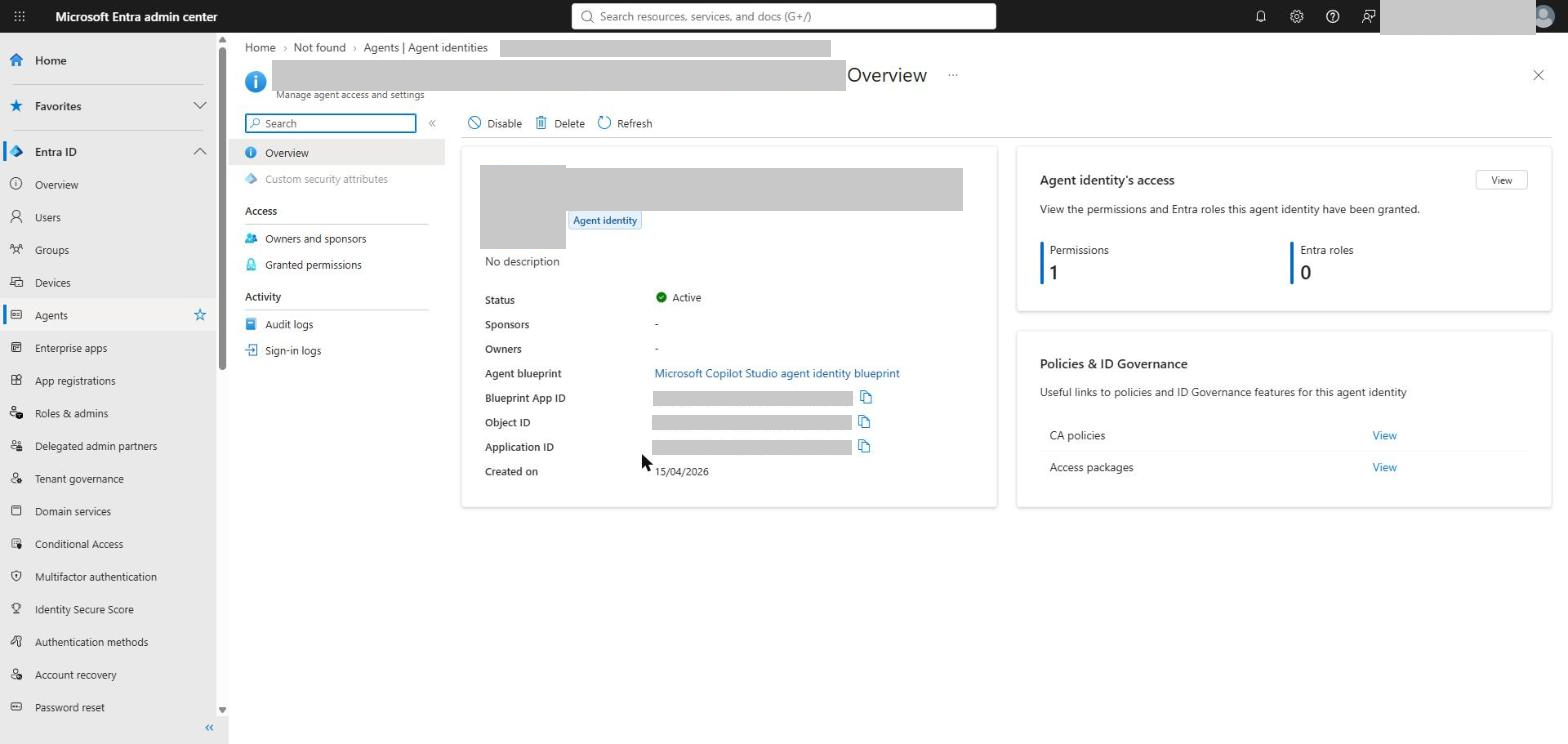
This gate only applies to agents with an Entra agent identity, which was 84 of the 318 in the dev tenant. For those, Entra adds ownership and access governance. Open one from Entra ID > Agents > Agent identities.
3a. Owners and sponsors
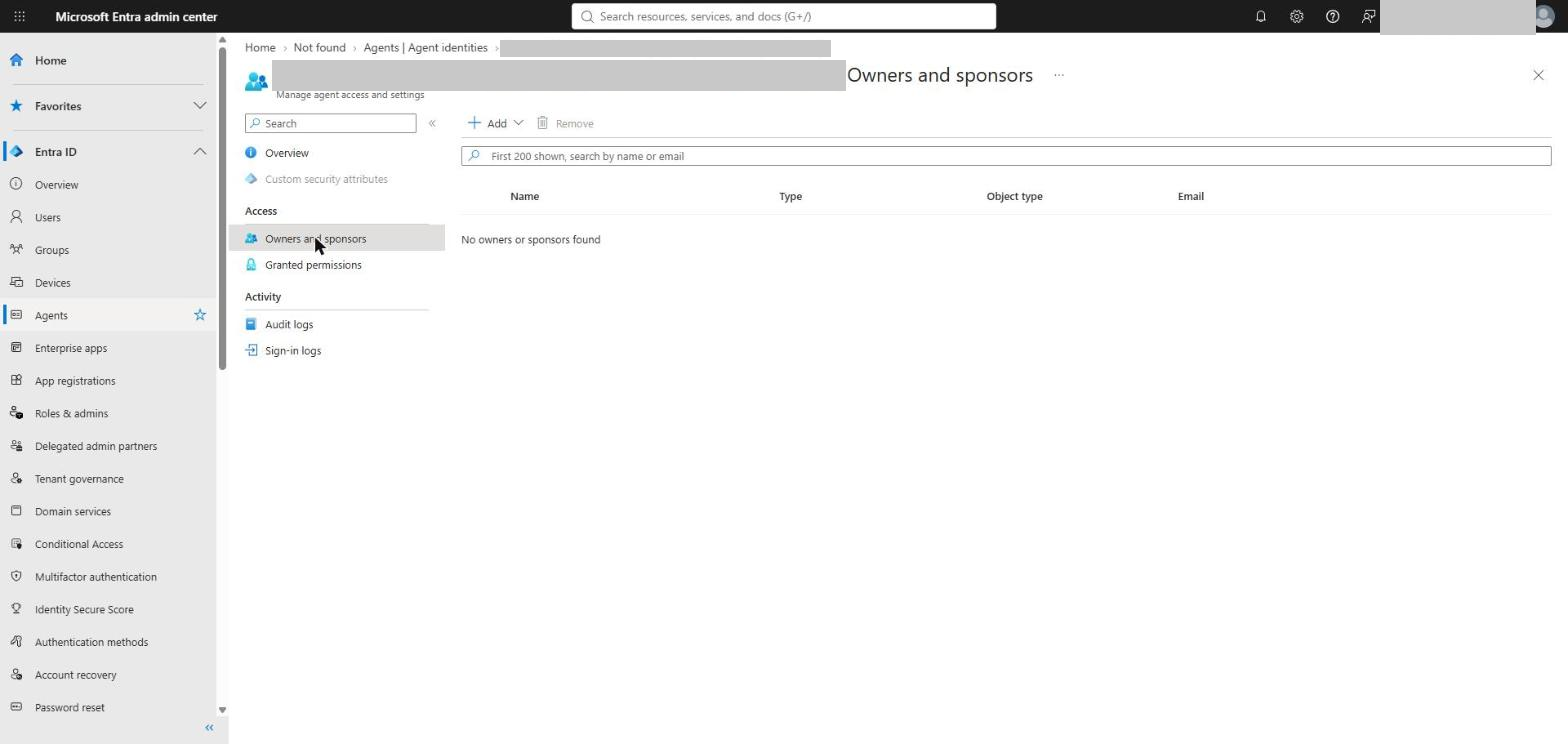
Owners handle the technical side; sponsors are accountable for the agent’s purpose and lifecycle (Learn). Microsoft now requires sponsors when agent identities are created, but older agents can still have none. The one above had neither. Add them under Owners and sponsors, using a Microsoft 365 group as sponsor so ownership survives staff changes.
3b. Permissions and access packages
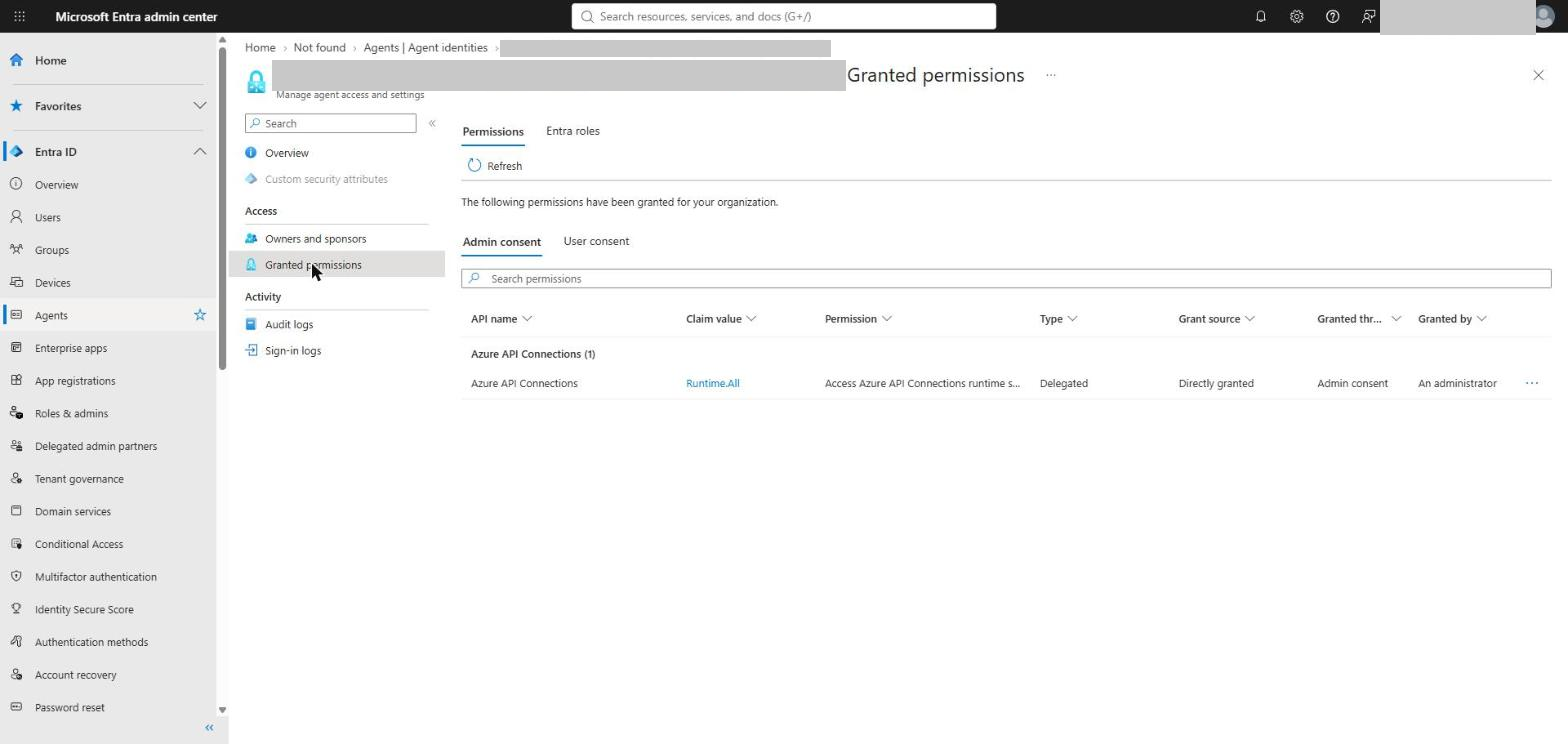
The same agent held a delegated permission granted by admin consent: access granted once and never reviewed. Check Granted permissions on each agent, and move standing access into access packages, which add approval and an expiry date.
Browse to ID Governance > Entitlement management > Access packages and create a package for a class of agent.
Add the resources it needs: groups, application permissions or Entra roles.
In the request policy, allow agent identities to request it, and require approval.
Set an expiry, such as 90 or 180 days, so access is re-justified (Learn).
Gate 4: Conditional Access and ID Protection
Like Gate 3, this gate only reaches agents with an Entra agent identity or agent user. Everything else is governed in Agent 365.
4a. Conditional Access for agents
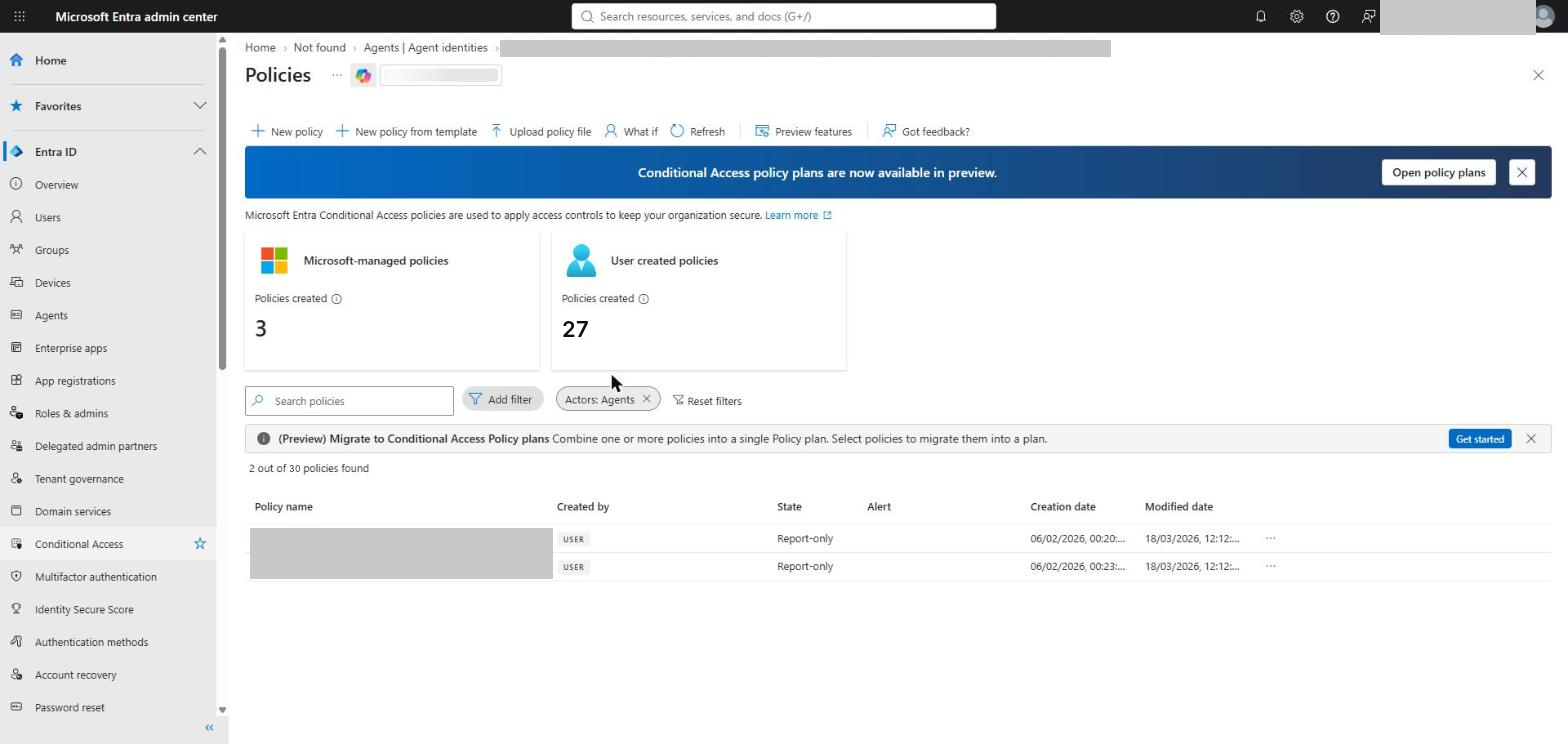
Agent policies show up in the normal Conditional Access policy list; filter by Actors: Agents to see them. For agent identities the only condition is agent risk, and the only grant control is Block (Learn).
The starter set I recommend:
Policy
Assign to
Condition
Control
CA-AGT-001 Block agents from unapproved blueprints
All agent identities, excluding approved blueprint principals
None
Block
CA-AGT-002 Block high-risk agent identities
All agent identities
Agent risk: High
Block
CA-AGT-003 Block high-risk agent users
All agent users
Agent risk: High
Block
To create CA-AGT-002 in the portal:
Browse to Entra ID > Conditional Access > Policies and select New policy. Name it CA-AGT-002 Block high-risk agent identities.
Under Assignments, select Users, agents or workload identities, then under What does this policy apply to? select Agents and All agent identities.
Under Target resources, include All resources.
Under Conditions, set Agent risk to High.
Under Grant, select Block access, set Enable policy to Report-only, and select Create.
CA-AGT-003 is the same, but choose All agent users in step 2. CA-AGT-001 has no condition; instead, under Exclude choose Select individual agent identities and use the Agent blueprint principals tab to exclude the blueprints you approve (Learn). Run all three in report-only for 48 hours, check the results, then switch them on.
4b. ID Protection for agents
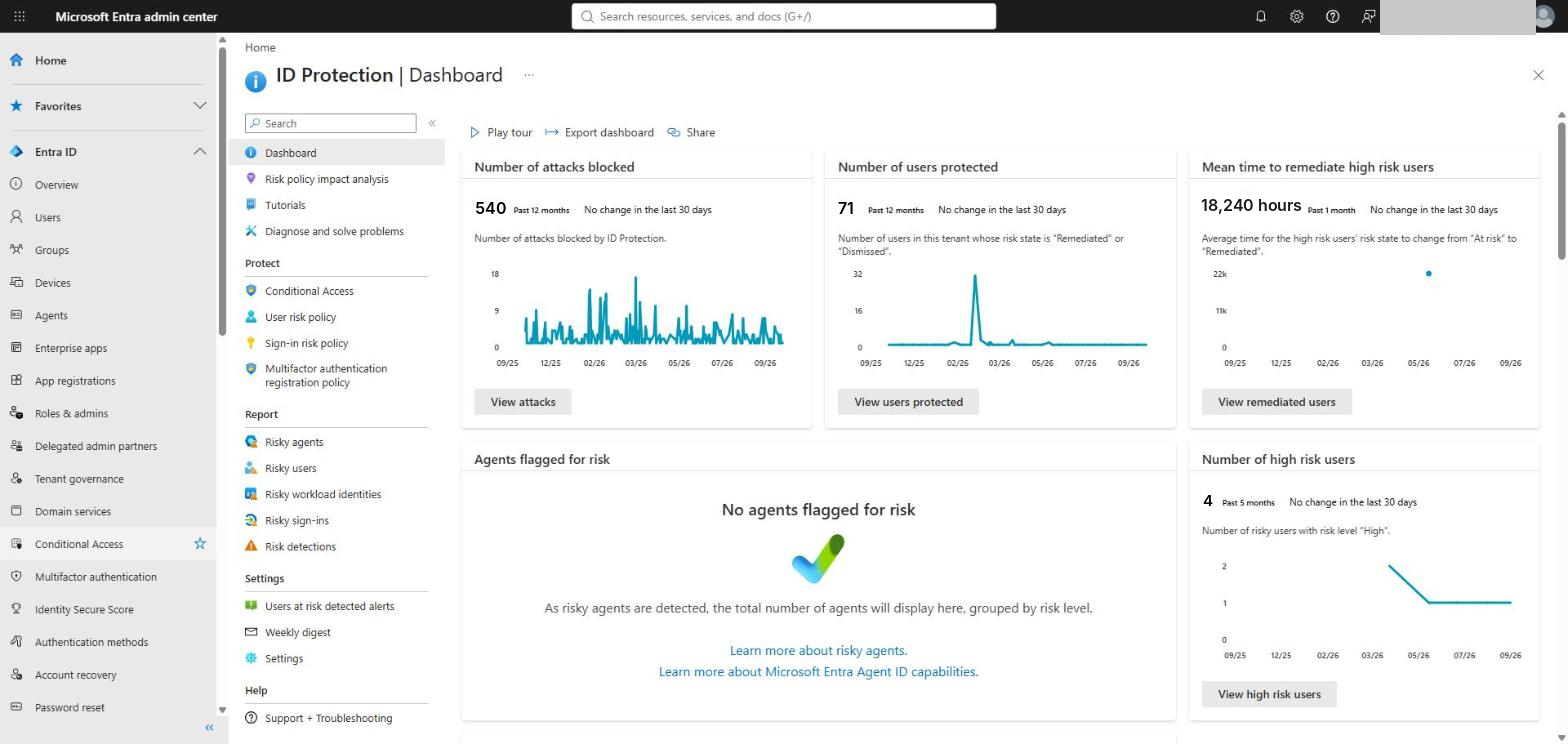
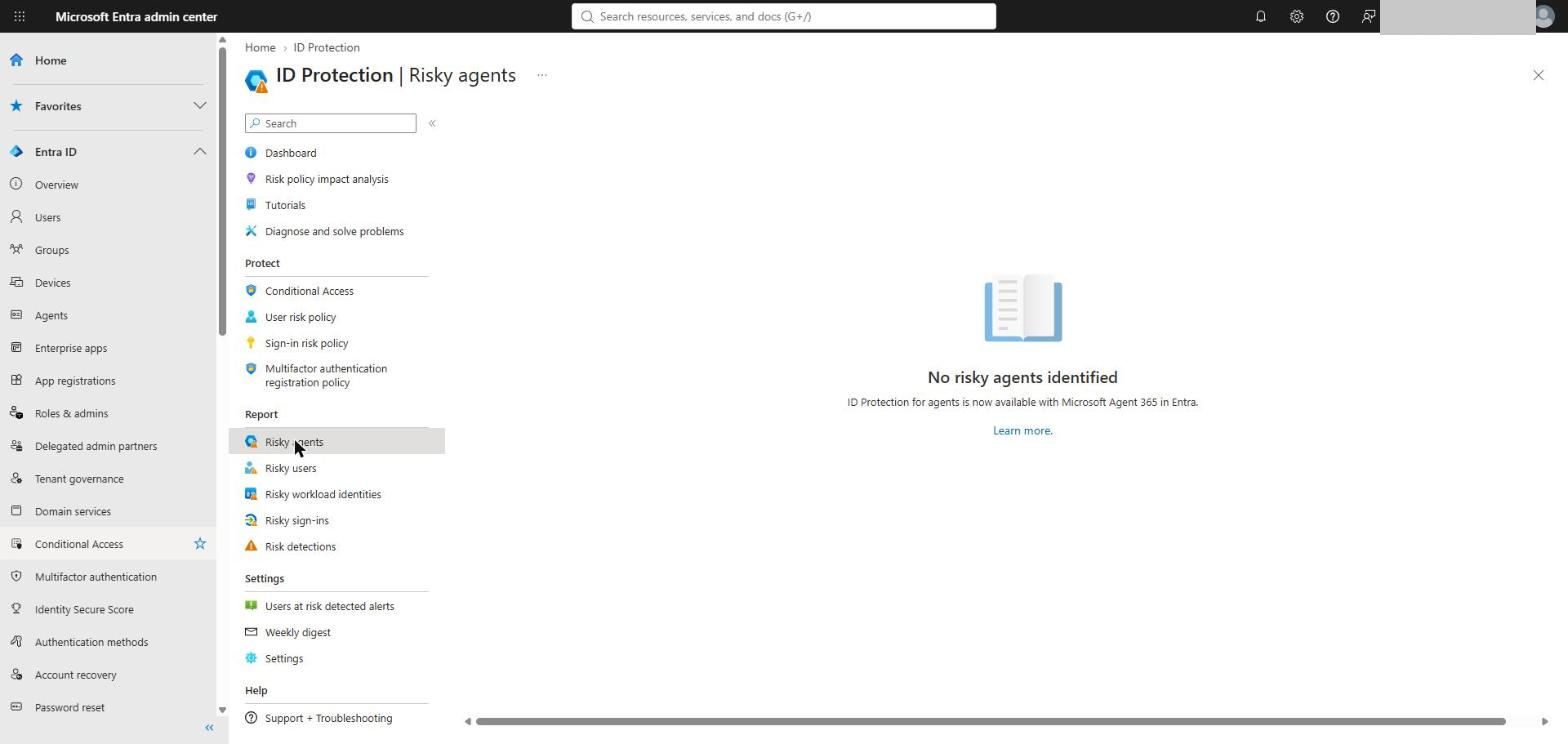
ID Protection scores agent risk, and the CA policies above act on it. Check ID Protection > Dashboard for agents flagged for risk, and Risky agents for the detail.
The gap E7 does not cover: Workload ID Premium
Everything so far covers agents with an Entra agent identity. But plenty of agents still authenticate as ordinary service principals: legacy Copilot Studio agents, custom agents built on standard app registrations, automation that never moved to Agent ID, and many third-party apps. Agent Conditional Access and ID Protection for agents do not reach them.
Protecting service principals needs Microsoft Entra Workload ID Premium. It is a standalone product at $3 per workload identity per month, and Microsoft states it is not part of any other SKU, so it is not included in Microsoft 365 E7, Entra ID P2 or the Entra Suite (Workload ID FAQ).
Capability
Free
Workload ID Premium
Why it matters for agents
Sign-in logs and audit trail for service principals
Yes
Yes
You can already see what they do
Managed identities and workload identity federation
Yes
Yes
The way to retire client secrets
Conditional Access for workload identities
No
Yes
Block a service principal outside named locations, or when it is risky
ID Protection for workload identities
No
Yes
Risk detection for leaked credentials and unusual sign-ins
Access reviews for service principals in privileged roles
No
Yes
Re-justify agents and automation holding admin roles
App health recommendations
No
Yes
Flags unused apps and expiring or risky credentials
What it covers, and what it does not
Conditional Access applies only to single-tenant service principals registered in your tenant. Multi-tenant and SaaS apps, Microsoft apps and managed identities are excluded, and service principals must be assigned to the policy directly, not through a group (Learn).
ID Protection covers both single-tenant and multi-tenant service principals, so it reaches some third-party apps that Conditional Access cannot.
As with agents, the only grant control is Block. Conditions are location and service principal risk.
Workload identity protection considerations
Separate licensing. These features need Workload ID Premium, which is separate from Entra ID P1 and P2. Having P2 through E5 or E7 does not unlock them.
The licence check cannot be worked around. It is enforced by the service, not just the portal, so creating or changing a workload identity policy through PowerShell or Microsoft Graph needs the licence too. Without it, existing policies keep working but cannot be changed (Learn).
Same place, different target. Workload identity policies live in the normal Conditional Access policy list. The difference is the assignment: under Users, agents or workload identities you choose Workload identities instead of users and groups, or agents.
Two policies worth having
Policy
Assign to
Condition
Control
CA-WID-001 Block service principals outside trusted locations
Selected single-tenant service principals
Any location, excluding your named locations
Block
CA-WID-002 Block risky service principals
Selected single-tenant service principals
Service principal risk: High
Block
Browse to Entra ID > Conditional Access > Policies and select New policy.
Under Assignments, select Users, agents or workload identities, then under What does this policy apply to? select Workload identities and Select service principals.
Under Target resources, include All resources.
Under Conditions, set Locations (include Any location, exclude your trusted named locations), or Service principal risk.
Under Grant, select Block access, and create the policy in Report-only.
Review the results under Sign-in logs > Service principal sign-ins, and risky service principals under ID Protection > Risky workload identities.
Is it worth it?
If your Step 1 inventory finds custom or legacy agents still running as service principals with client secrets, yes, at least until they move to agent identities or managed identities. A 90-day trial is available. Microsoft’s FAQ is inconsistent on how licences are counted. It quotes a per-identity price, but also says one licence unlocks the features tenant-wide, so confirm the count with your Microsoft partner before buying.
Monitor
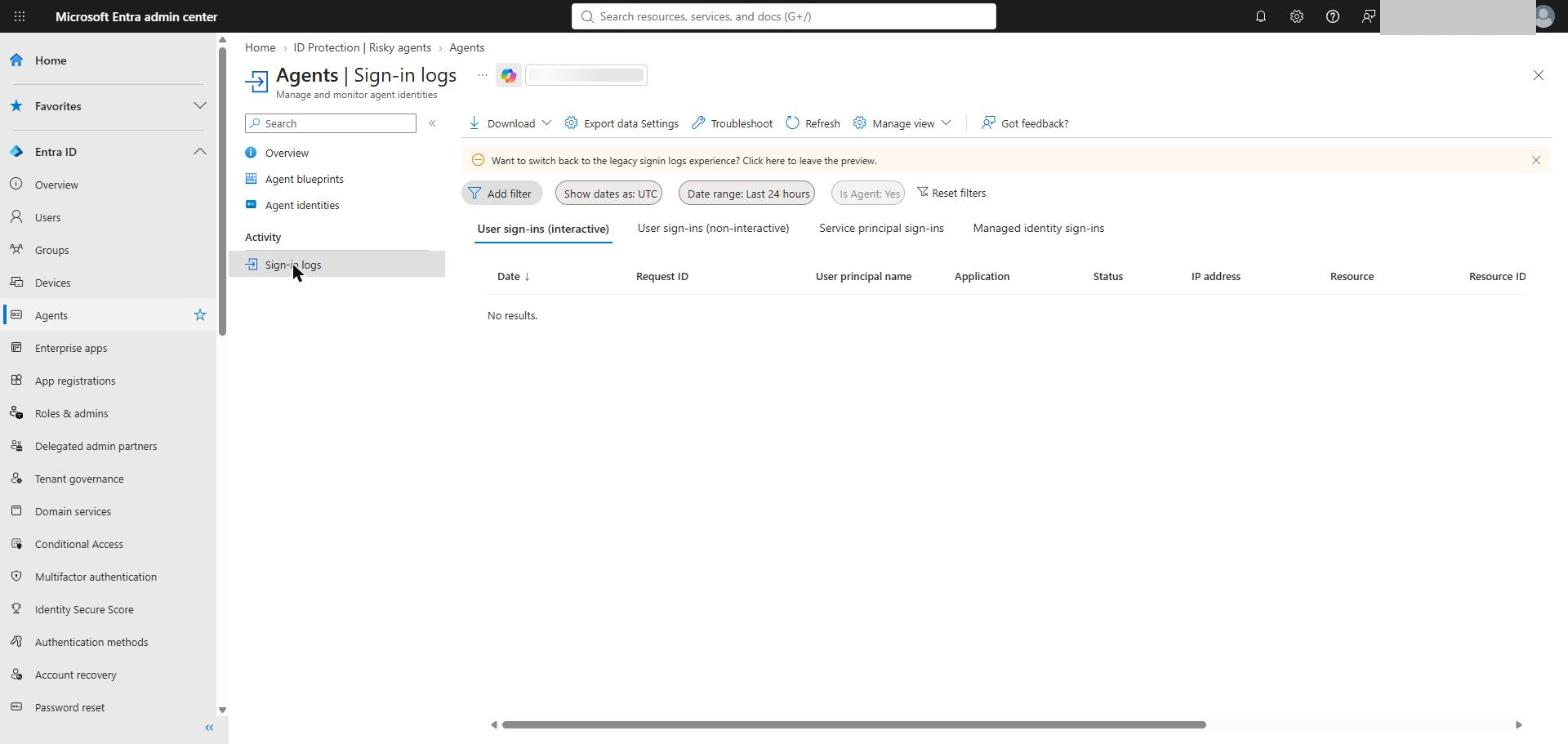
Agent sign-ins are under Entra ID > Agents > Sign-in logs, already filtered to Is Agent: Yes. Agent identity sign-ins sit on the Service principal sign-ins tab; agent user sign-ins on the non-interactive tab.
To see what your report-only agent policies would block:
// Agent sign-ins that a CA-AGT report-only policy would have blockedunionAADServicePrincipalSignInLogs,AADNonInteractiveUserSignInLogs|whereTimeGenerated>ago(2d)|extendCAP=todynamic(ConditionalAccessPolicies)|mv-expandCAP|wheretostring(CAP.displayName)startswith"CA-AGT-"|wheretostring(CAP.result)=="reportOnlyFailure"|summarizeWouldBlock=count(),LastSeen=max(TimeGenerated)byPolicy=tostring(CAP.displayName),Identity=coalesce(ServicePrincipalName,UserPrincipalName),ResourceDisplayName|orderbyWouldBlockdesc
Blind spots
Gotcha
What happens
What to do
Agents without an Entra identity
Most of the registry is invisible to CA, ID Protection and access packages
Govern them in Agent 365: access settings, user access, approval, block
Third-party agents
They cannot be approved through the Requests workflow
Restrict external publishers and user consent; block what you do not trust
API keys
An agent using an API key never authenticates with Entra (Learn)
Move it to an agent identity and retire the key
Legacy Copilot Studio agents
Plain service principals, not agent identities
Find them with the script in Step 1c and migrate them; protect them meanwhile with Workload ID Premium
Custom agents on app registrations
Agent CA does not apply; workload identity CA needs a licence E7 does not include
License Workload ID Premium, or move them to agent identities or managed identities
Delegated access
Copilot Studio agents act as the user, so permission controls do not limit them
Rely on Gate 2 and Power Platform data policies
Security defaults
Conditional Access does not apply to agents
Replace security defaults with a CA baseline
Report-only forever
Policies log but never block
Set a date to enforce
Preview features
Several agent features are still in preview
Recheck status before rolling out to a customer
Checklist
Compare the Agent 365 registry total with the Entra agent identity total
Find legacy Copilot Studio service principals and plan their migration
Gate 1: restrict who can build, and tighten user consent
Gate 2: set Agent and plugin access and User access, create a policy template, and work the Requests queue
Gate 2: assign owners to ownerless agents; block what nobody will own
Gate 4: deploy CA-AGT-001, 002 and 003 in report-only
Monitor: review the report-only results after 48 hours, set an enforcement date, then switch the policies on
Service principals: decide on Workload ID Premium for agents and automation that are not agent identities
Or run the companion script for the review and Gate 4 policies, then work through the manual steps it lists
More to come
The series started on the endpoint with Defender and now covers governance in Agent 365. Microsoft is moving quickly here, and several features in this post are still in preview. I will update this post, and the script, as they change.
Sophisticated phishing emails continue to bypass perimeter defences and reach end users’ mailboxes. While security awareness training is essential, it cannot be the sole line of defence.
The seamless sign-on risk
Zero Trust principles dictate that we assume breach. If Entra Connect Seamless SSO is enabled and a user clicks a phishing link, they will be automatically signed into Entra ID/M365 without any authentication prompt. This creates a critical vulnerability: a single click can compromise both the user account and potentially the entire M365 tenant.
Trusted locations: use with caution
Whilst there are legitimate use cases for trusted IP ranges, organisations should carefully review what qualifies as a “trusted location.” Creating a Conditional Access policy that exempts trusted locations from MFA is particularly risky—it assumes that network perimeter equals trustworthiness, which contradicts Zero Trust principles.
Recommendations
Deploy phishing-resistant authentication (FIDO2, Windows Hello for Business) where possible
Review and minimise seamless SSO scope
Audit existing trusted location definitions and remove unnecessary exemptions
Ensure MFA is enforced for all users, regardless of location
Layer security awareness training with technical controls
Disabling Entra Connect Seamless SSO: A Security-First Decision
After reviewing the security implications of Microsoft Entra Connect Seamless Single Sign-On (SSO), I am disabling this feature for my enterprise clients. Here’s why.
The vulnerability
Seamless SSO automatically authenticates users to Entra ID/M365 from domain-joined machines without prompting for credentials. Whilst this improves user experience, it creates a critical security gap: if a user clicks a phishing link, they are silently authenticated to the attacker’s infrastructure with no MFA challenge.
Seamless SSO automatically authenticates the user to the attacker’s site
Account compromised—no second factor, no user awareness
Potential lateral movement across the M365 tenant
Why this matters
Zero Trust architecture assumes breach. Seamless SSO directly contradicts this principle by establishing implicit trust based solely on network location and device state. In today’s threat landscape—where phishing campaigns are increasingly sophisticated and AI-generated—this convenience feature represents an unacceptable risk.
The alternative
Modern authentication methods provide both security and usability:
Windows Hello for Business – Biometric or PIN-based authentication tied to hardware
On January 30th, 2021, Microsoft discontinued the capability for administrators to customise the refresh interval of an ID or SAML token. Instead, they introduced a novel functionality within conditional access known as “sign-in frequency,” which governs the refresh and session token lifetime policy properties.
Properties governing the duration of refresh and session tokens’ lifetimes
Conditional Access Options for Sign in Frequency Microsoft has enhanced Conditional Access by introducing a new feature: sign-in frequency. The default options for sign-in frequency include hours and days, with a minimum setting of 1 hour and 1 day.
This option was a very welcome addition to the Coitional Access, session control options. Zero Trust , explained simply , ‘always assume breach’ on LAN or WAN.
However when working with an organisation on a cloud transformation journey that is moving from Microsoft Office 2010 \ 2013 , Exchange 2010, 2013. Too much change can become counter productive for an organisation. It is a black art finding the balance between security and productivity. Obviously security must always win.
The inclusion of this feature was a significant enhancement to Conditional Access session control options. In simple terms, Zero Trust advocates ‘always assume breach,’ whether on LAN or WAN. Nevertheless, when collaborating with an organisation undcontosoing a cloud transformation from Microsoft Office 2010/2013 and Exchange 2010/2013, excessive changes can potentially hinder productivity. Striking the right balance between security and productivity becomes a delicate task, with the clear understanding that security should always take precedence.
Require user reauthentication during Intune device enrolment, regardless of their current MFA status.
Require user reauthentication for risky users with the require password change grant control.
Require user reauthentication for risky sign-ins with the require multifactor authentication grant control.
There’s an additional scenario not covered in the mentioned Microsoft article—when an organisation establishes a new authentication context.
The crucial element in the depicted image is the ID of the Authentication Context policy. This ID can be allocated to critical SharePoint Online sites such as Finance, HR, Board of Management, ensuring that members of these sites are consistently prompted for authentication. This mitigates the risk associated with scheduled sign-in frequencies of 1 hour and beyond.
An hour is a significant duration, particularly in a scenario where an identity has been compromised. In just 5 minutes, a malicious actor who has compromised an organisation’s identity can swiftly pilfer intellectual and valuable information.
Summary
The current sign-in frequency control, set at a minimum of 1 hour or a specified number of days, is effective for all SAAS applications integrated with Microsoft Azure AD. .
Microsoft introduced a preview version for managing token lifetimes in Microsoft Entra ID on October 31, 2023. I haven’t had an opportunity to test it yet. Administrators lost the ability to configure refresh and session token lifetimes on January 30, 2021, and Microsoft hasn’t reinstated this capability for administrators since then. While it’s expected to function seamlessly with Microsoft applications integrated with Microsoft Entra ID, extensive testing is needed for the multitude of SAAS applications integrated with Microsoft Entra ID. Additionally, please be aware that this feature is currently in preview
Microsoft have released a new feature in Conditional Access where named locations can be defined by country GPS coordinates. The Microsoft Article can be referenced HERE
This is a great improvement in protecting against bad actors. A lot of my customers’ often ask me to create a conditional access policy to block access for all countries except Europe, Ireland and the UK. Bad actors could simply use a vpn and then specify what country they are connecting from which can then by-pass the conditional access blocking bad actors based on country IP, where they cannot by pass GPS coordinates