
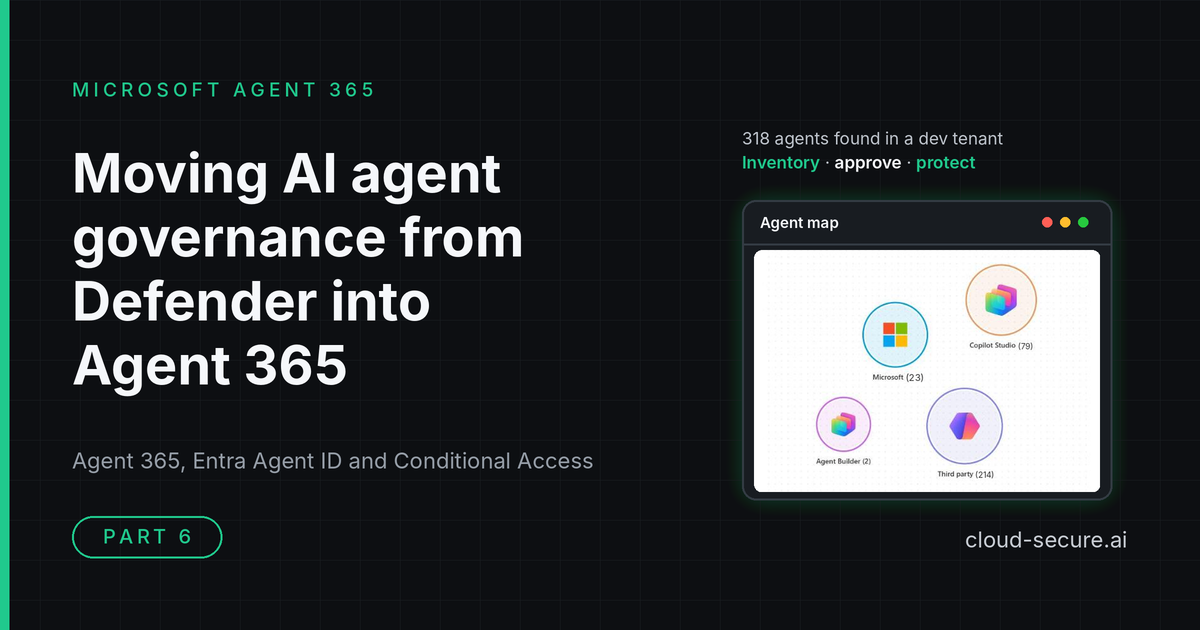
Series: Part 1 introduced AI agent runtime protection in Microsoft Defender for Endpoint. Part 2 covered the lab build and validation. Part 3 found the agents running on your endpoints. Part 4 blocked an unsanctioned MCP server with a Defender indicator. Part 5 automated it. Part 6 moves from Defender controls on the endpoint to governance in Microsoft Agent 365.
From Defender controls to Agent 365 governance
Parts 1 to 5 of this series were about Defender controls. They covered seeing agents on endpoints, detecting prompt injection, blocking unsanctioned MCP servers and controlling where tools like Claude Code can connect. Those controls act at runtime, on the device, once an agent is already running.
This part moves up a level, to governance and control in Microsoft Agent 365. Agent 365 is where Microsoft now inventories every agent in a tenant, approves them before people can use them, and applies policy when they are published. Entra ID sits underneath it, giving the agents that have an identity their own Conditional Access, ID Protection and access governance.
Defender answers “what is this agent doing right now?” Agent 365 answers the questions that should come first: which agents do we have, who owns them, who approved them, and what are they allowed to reach?
Core concepts
A few terms come up throughout:
- Agent: in Agent 365, anything in the registry, whatever platform built it: Copilot Studio, Microsoft, a third-party publisher or your own developers.
- Agent identity: an agent that signs in to Entra with its own identity, much like a service principal. Only these agents can be targeted by Entra Conditional Access, ID Protection and access packages.
- Agent identity blueprint: the template an agent identity is created from. It sets the identity, permissions, policies and naming for every agent built from it. Copilot Studio has its own blueprint, so every Copilot Studio agent with an identity comes from the same one.
- Blueprint principal: the blueprint’s object in your tenant. Conditional Access uses it to include or exclude every agent built from that blueprint in one go.
- Agent user: an agent that also has a user account, so it can work in Teams, Outlook, SharePoint and OneDrive. It is a separate identity type, so a policy for agent identities does not cover agent users.
- Owner and sponsor: the people accountable for an agent. Owners handle the technical side; sponsors answer for why it exists.
- User consent: the Entra setting that decides whether ordinary users can grant an app or agent access to their data without an administrator.
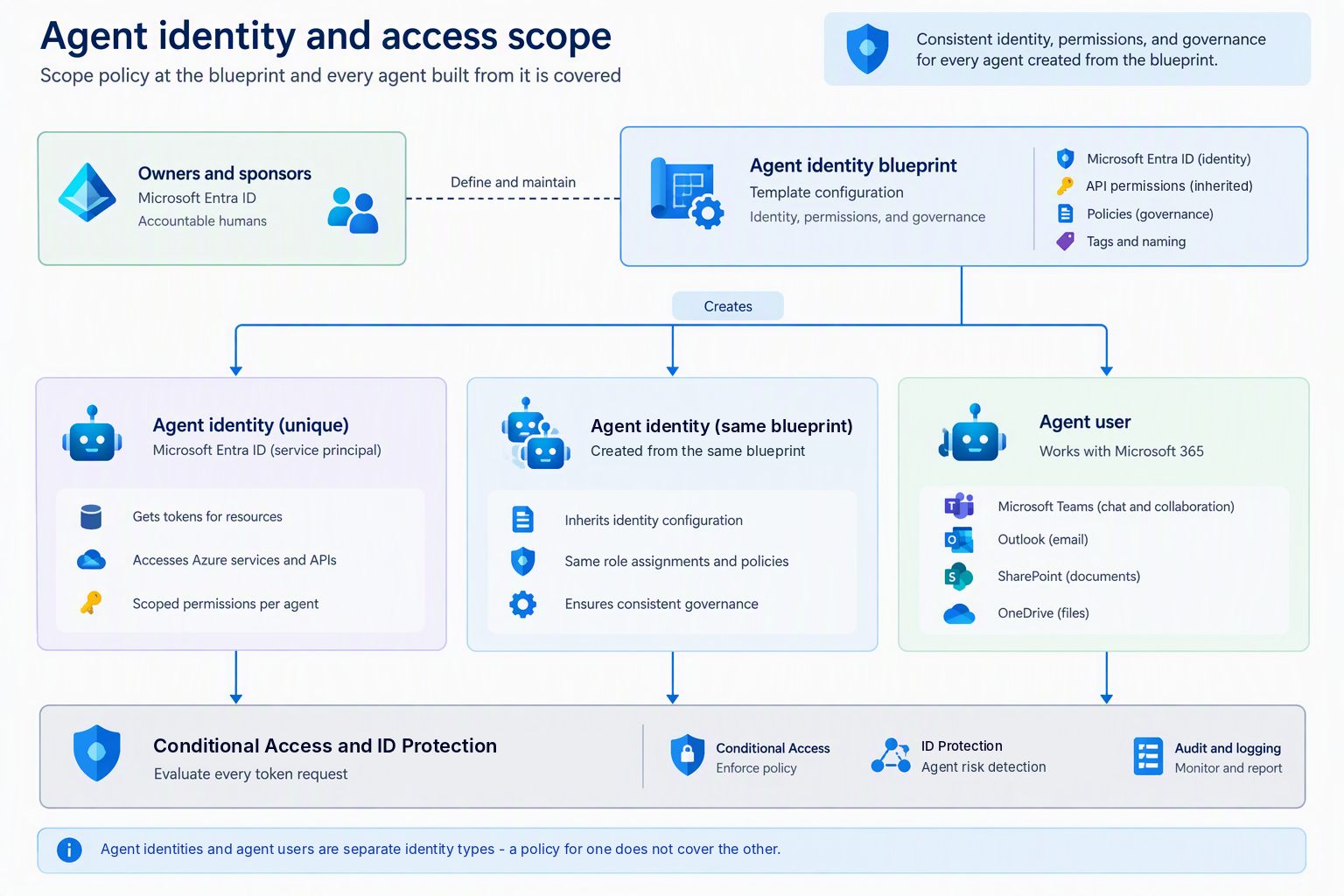
The diagram above shows how these fit together. Owners and sponsors maintain a blueprint. The blueprint creates agent identities, and can create agent users for agents that need Microsoft 365. Conditional Access and ID Protection then evaluate every token request those identities make. The point to take from it: set policy at the blueprint, and every agent built from it is covered.
The diagram below shows the four gates this post is built around. Each one asks a different question, and an agent has to pass all four before it is any use.
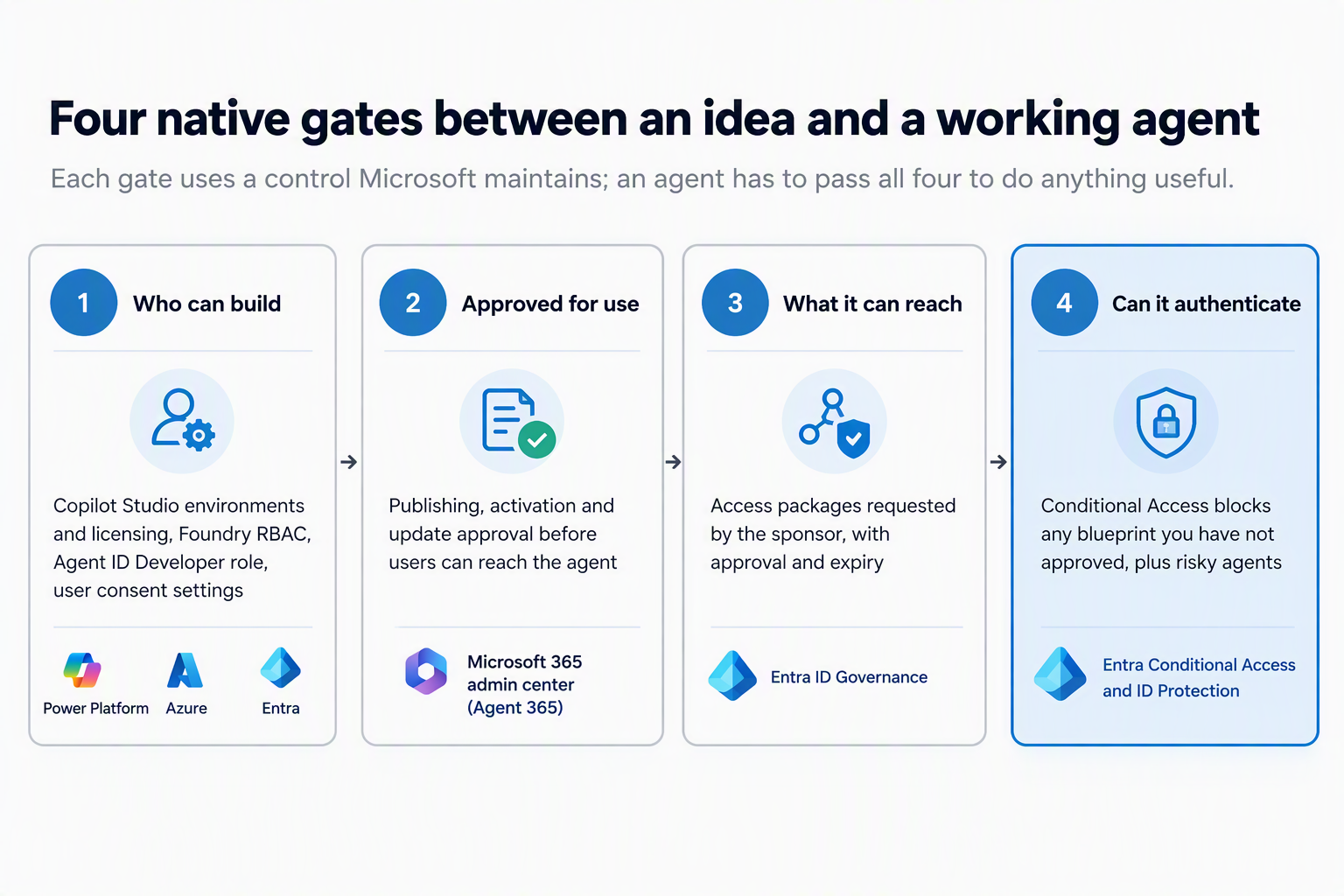
| Gate | Question | Native control | Where |
|---|---|---|---|
| 1 | Who can build an agent? | Copilot Studio environments and licensing, Foundry RBAC, Agent ID Developer role, user consent | Power Platform, Azure, Entra |
| 2 | Is it approved for people to use? | Agent and plugin access, user access, policy templates, approval of requests | Microsoft 365 admin center (Agent 365) |
| 3 | What can it reach? | Owners and sponsors, access packages with approval and expiry | Entra ID Governance |
| 4 | Can it authenticate at all? | Conditional Access for agents, plus ID Protection | Entra |
Gate 2 covers every agent in the registry. Gates 3 and 4 only reach agents with an Entra agent identity, which is why Agent 365 comes first.
What a dev tenant looks like
To write this part I reviewed a Microsoft 365 E7 dev tenant, read-only.
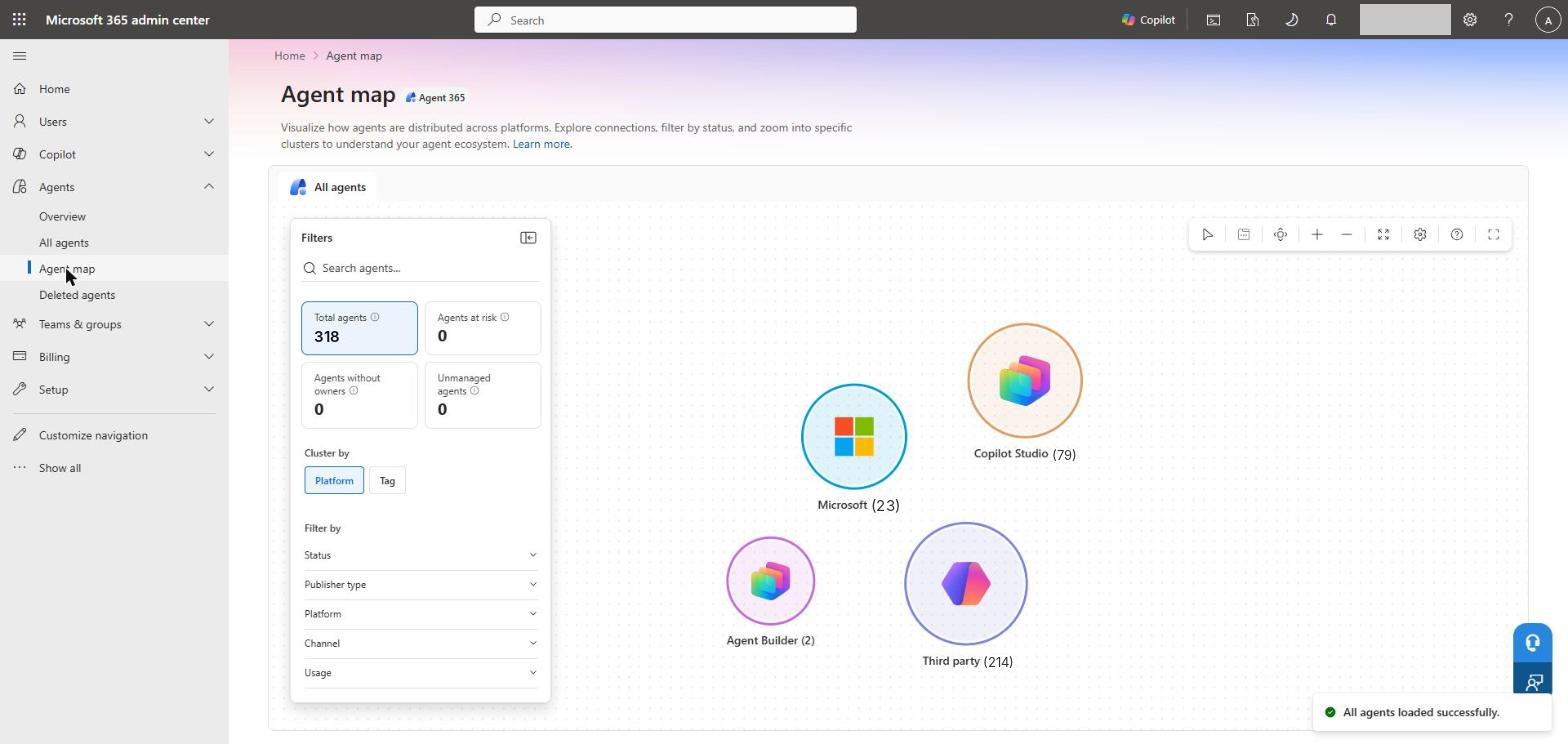
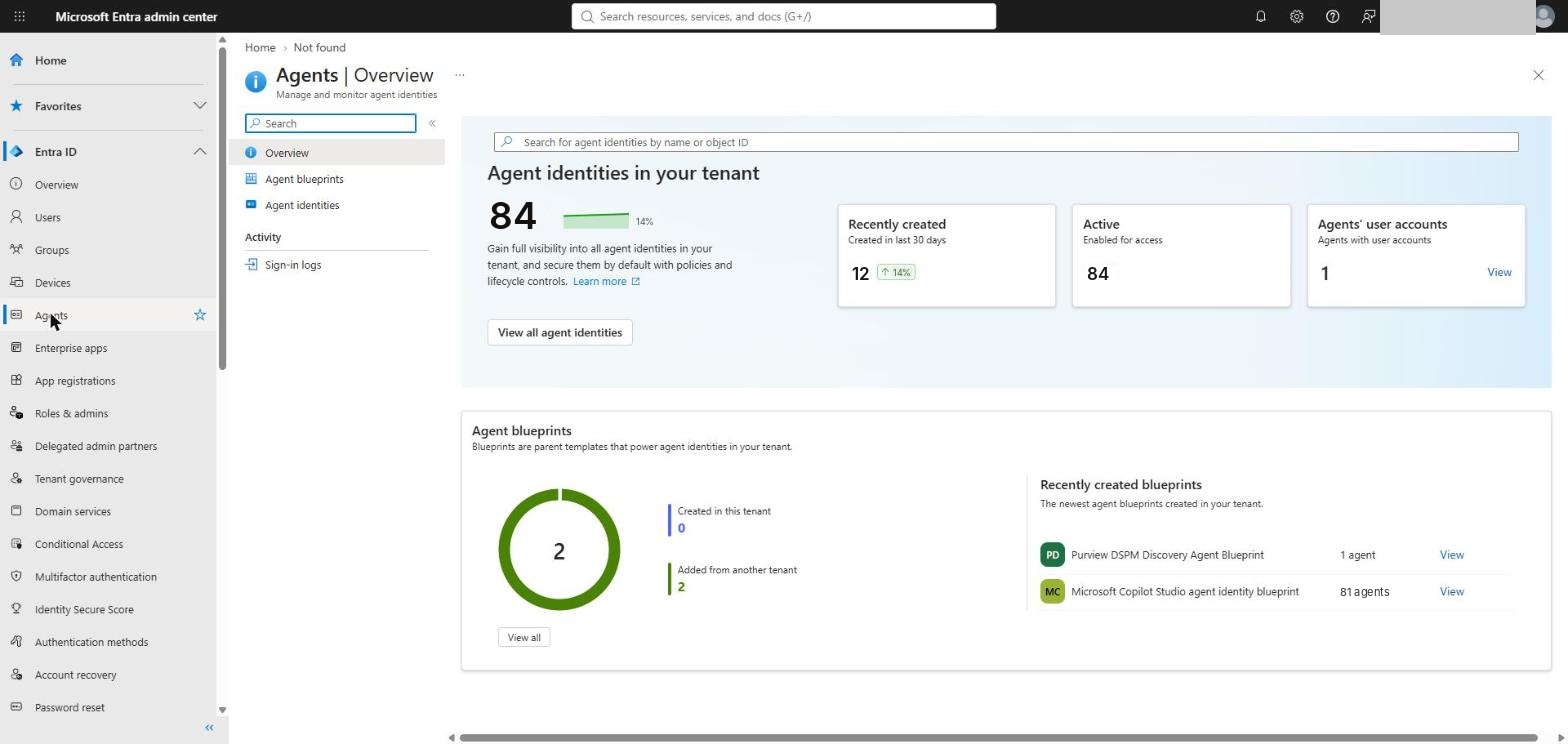
| What I found | Agent 365 | Entra ID |
|---|---|---|
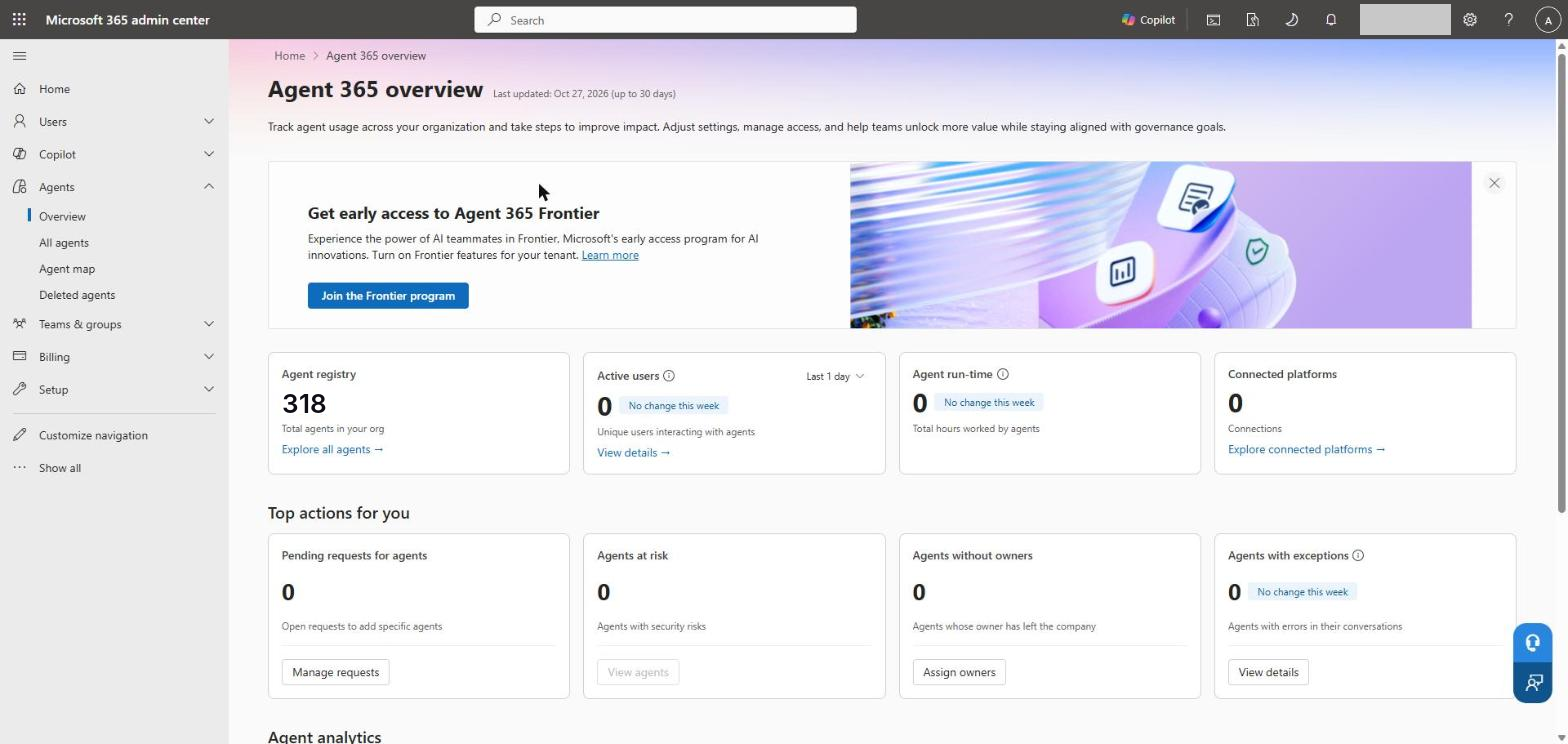
| Agents | 318 in the registry | 84 agent identities |
| Where they come from | 214 third-party, 79 Copilot Studio, 23 Microsoft, 2 Agent Builder | 81 from the Copilot Studio blueprint, 1 from Purview |
| Waiting for approval | 0 requests | – |
| Governance templates | None | – |
| Agent Conditional Access | – | 2 policies, both report-only |
These figures are from a dev tenant. Agent 365 and Entra count agents in different ways, so the totals do not line up exactly between the two portals.
The headline is the gap between the two columns. Most agents in the tenant have no Entra agent identity at all, so Entra’s Conditional Access, ID Protection and access packages cannot see them. Entra says so itself on the Agent identities page: it lists only agents with Entra identities, and points to Agent 365 for the rest. That is why the governance has to start in Agent 365.
The risks
| Risk | What I saw | Why it matters |
|---|---|---|
| Agent sprawl | Hundreds of agents across several platforms | Nobody can review what they cannot count |
| Agents outside Entra | About three quarters of agents had no Entra agent identity | Identity controls (CA, ID Protection, access packages) do not reach them |
| Third-party agents | Two thirds of the registry | They cannot go through the Agent 365 approval workflow |
| No approval in use | Nothing in the Requests queue | Nothing had gone through the approval workflow, so there is no record of anyone signing agents off |
| Ownerless agents | An agent identity with no owner and no sponsor | No one to ask what it does, or to switch it off |
| Standing permissions | An agent holding a delegated permission granted by admin consent | Access granted once, never reviewed, never expires |
| Permissive defaults | External publishers allowed; no governance templates | Agents arrive without policy applied |
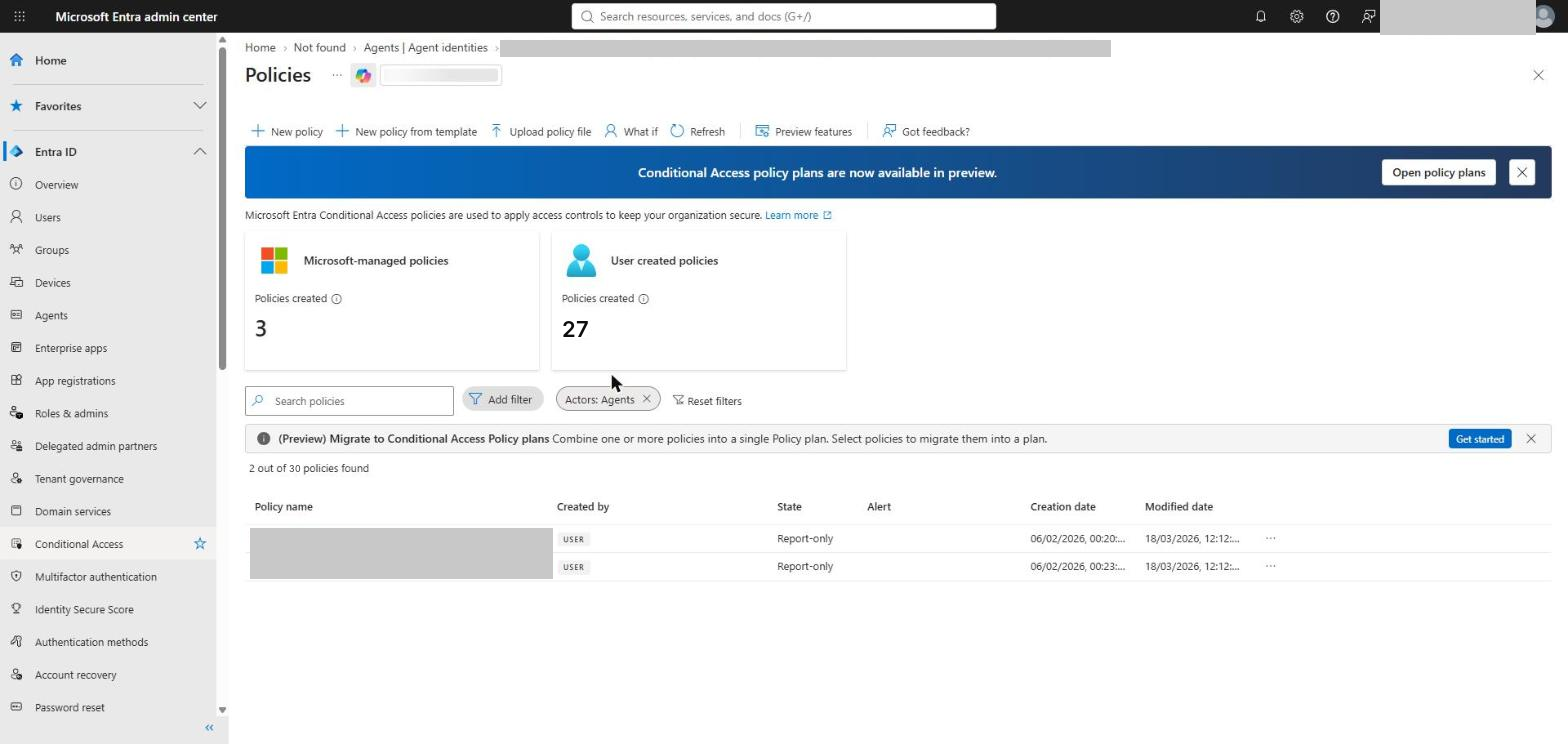
| Controls not enforced | Agent CA policies left in report-only | Risky agents would be logged, not blocked |
| Data exposure through users | Copilot Studio agents act with the signed-in user’s permissions | An over-shared agent exposes whatever its users can reach |
None of this is unusual. Agent 365 and Entra Agent ID are new, the defaults are open, and agents have been arriving faster than anyone has been governing them.
Two ways to put the controls in place
Option 1: the portal walkthrough. The rest of this post walks through each control, with screenshots from the dev tenant, in the Microsoft 365 admin center and the Entra admin center. Use it to understand what each setting does, or to apply it by hand in a small tenant.
Option 2: the script. The companion PowerShell script, Invoke-Agent365Governance.ps1, asks for one thing, your tenant ID, and signs you in interactively. It then:
- Reviews the tenant read-only: every agent identity grouped by blueprint, agents with no owner, agents holding granted permissions, legacy Copilot Studio service principals, and existing agent Conditional Access policies. Everything is exported to CSV.
- Creates the Gate 4 policies (CA-AGT-001 to 003, plus the optional CA-WID policies for service principals) in report-only mode, skipping any that already exist.
Run it with -ReviewOnly to change nothing, or -WhatIf to see what it would create.
GitHub: Agent365-governance-in-Microsoft-365
The README explains every parameter and the Microsoft 365 and Entra roles the account running it needs. The Agent 365 settings in Gate 2 have no published API yet, so the script cannot set them. The README and the script’s summary list them as manual steps. Gate 2, later in this post, walks through each one with screenshots.
Prerequisites
Licensing
| Capability | Licence needed |
|---|---|
| Agent 365 registry, approvals, templates | Microsoft Agent 365, included in Microsoft 365 E7 (Learn) |
| Entra Agent ID (agent identities and blueprints) | Included for Microsoft Entra customers |
| Conditional Access for agents | Microsoft 365 E7, or Agent 365 plus Entra ID P1 or Microsoft 365 E3 (Learn) |
| Risk-based Conditional Access for agents | As above, plus Entra ID P2 or Microsoft 365 E5 (Learn) |
| ID Protection for agents | Agent 365 or Microsoft 365 E7 (MC1395007) |
| Entra ID Governance for agents | Microsoft 365 E7, or Agent 365 with Entra ID P1 or Microsoft 365 E3 (Learn) |
| Conditional Access and ID Protection for ordinary service principals | Microsoft Entra Workload ID Premium: standalone, not included in E7 (FAQ) |
Roles for the portal walkthrough
Use the least privileged role for each task rather than Global Administrator.
| Task | Portal | Least privileged role |
|---|---|---|
| Review the agent registry, approve requests, block agents, assign owners | Microsoft 365 admin center > Agents | AI Administrator (MC1245636) |
| Grant admin consent to an agent’s Microsoft Graph application permissions | Microsoft 365 admin center or Entra | Privileged Role Administrator (MC1245636) |
| Change Agent settings (agent and plugin access, user access, policy templates) | Microsoft 365 admin center > Agents > Settings | AI Administrator (MC1245636) |
| Manage agent identities and blueprints | Entra > Agents | Agent ID Administrator (Learn) |
| Create Conditional Access policies for agents | Entra > Conditional Access | Conditional Access Administrator |
| Review and act on risky agents | Entra > ID Protection | Security Operator (Security Reader to view) |
| Create access packages for agents | Entra > ID Governance | Identity Governance Administrator |
| Change user consent settings | Entra > Enterprise apps > Consent and permissions | Privileged Role Administrator (Learn) |
| Read agent sign-in logs | Entra > Agents > Sign-in logs | Reports Reader |
| Read-only review, as in this post | Both | Global Reader (check it can open the Agent 365 pages in your tenant) |
Tip: Security defaults must be off, or Conditional Access will not apply to agents at all.
Step 1: Take stock
1a. Agent 365: the full inventory
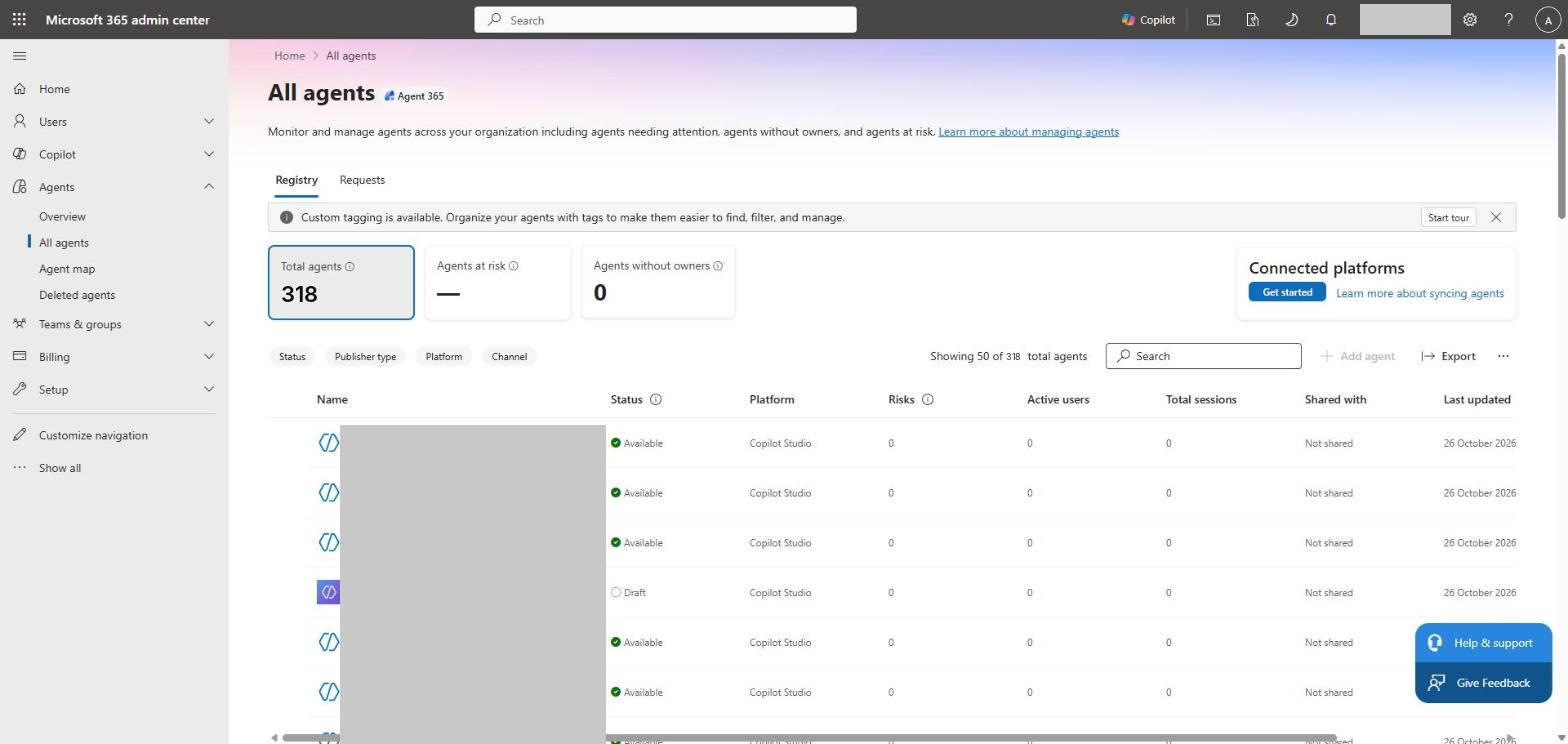
- In the Microsoft 365 admin center, browse to Agents > Overview. The cards show the registry total, active users, connected platforms, pending requests, agents at risk and agents without owners.
- Open Agents > All agents. The Registry tab lists every agent with its status, platform, risks, users and sessions; filter by Status, Publisher type, Platform or Channel.
- Open Agents > Agent map to see the agents clustered by platform. This is the quickest way to show leadership where agents are coming from.
1b. Entra: the agents with an identity
- In the Entra admin center, browse to Entra ID > Agents > Overview.
- Open Agent identities for the list, and Agent blueprints to see which blueprints they come from.
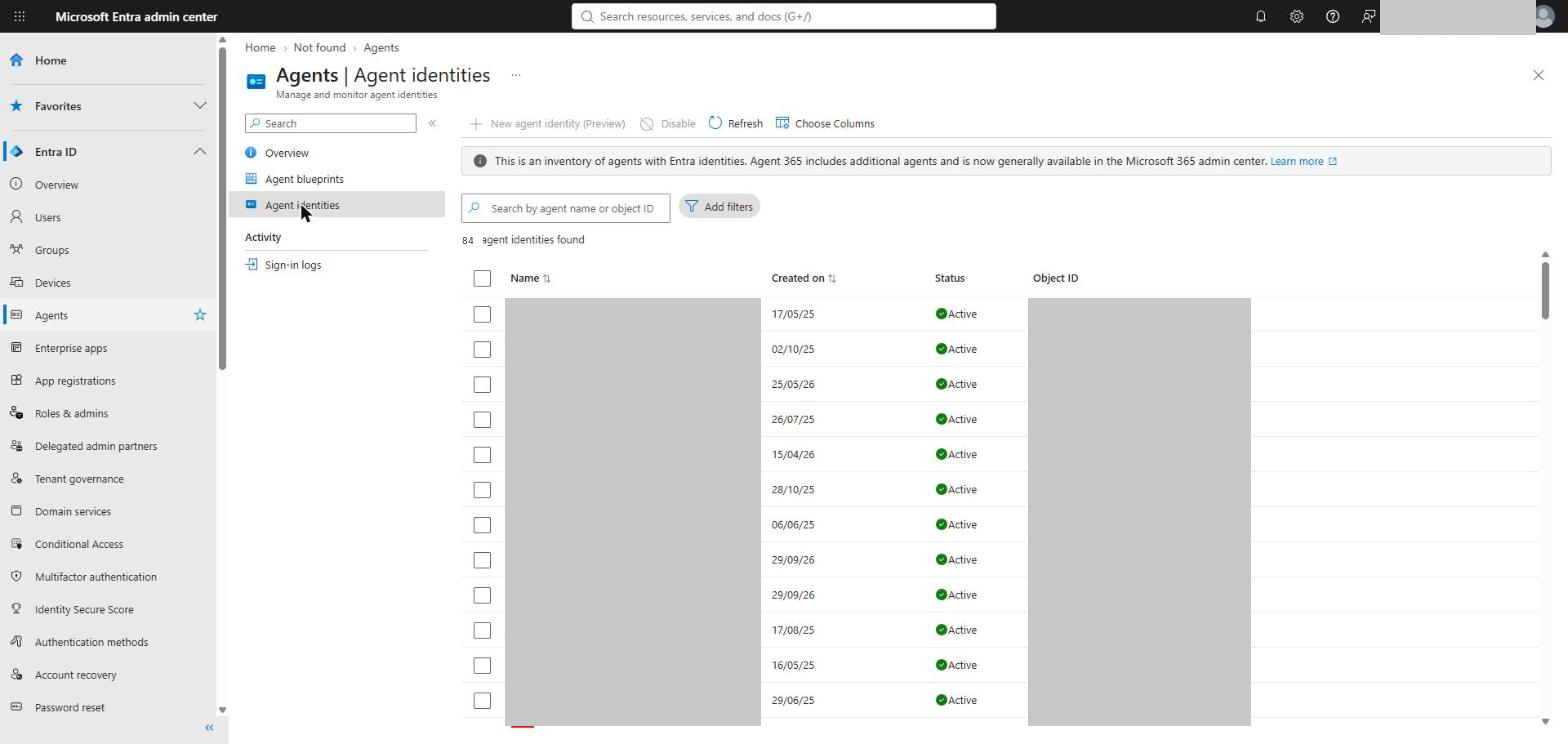
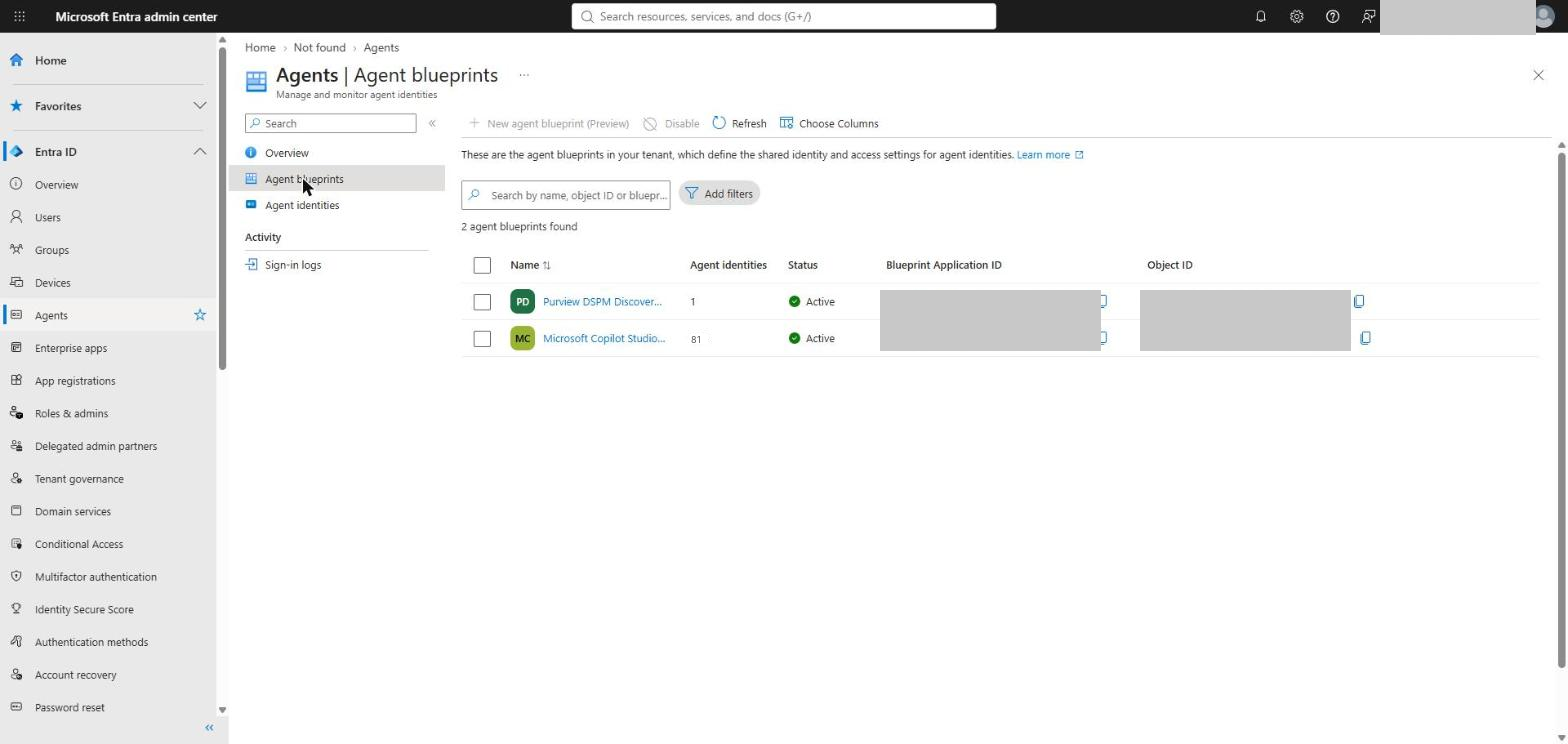
Compare the two totals. The difference is the number of agents your identity controls cannot see.
1c. Find legacy Copilot Studio service principals
Older Copilot Studio agents use plain service principals rather than agent identities. Their service principals carry consistent tags such as AgenticApp, AIAgentBuilder and power-virtual-agents-<id> (Learn):
<#
.SYNOPSIS
    Lists service principals tagged as Copilot Studio / agentic apps.
.NOTES
    Author: Seán O'Farrell
    Website: https://cloud-secure.ai/
#>
Connect-MgGraph -Scopes "Application.Read.All" -NoWelcome

$agentTags = @('AgenticApp', 'AIAgentBuilder', 'AgenticInstance')

$legacyAgents = Get-MgServicePrincipal -All -Property Id, AppId, DisplayName, Tags, CreatedDateTime |
    Where-Object {
        $tags = $_.Tags
        ($tags | Where-Object { $_ -in $agentTags -or $_ -like 'power-virtual-agents-*' })
    }

$legacyAgents |
    Select-Object DisplayName, AppId, CreatedDateTime,
        @{ Name = 'CopilotStudioTag'; Expression = { $_.Tags | Where-Object { $_ -like 'power-virtual-agents-*' } } } |
    Sort-Object CreatedDateTime -Descending |
    Format-Table -AutoSize

Write-Host "🔎 Found $($legacyAgents.Count) agent-tagged service principals"
Don’t mass-disable. Blocking an agent or disabling a blueprint can break something the business relies on. Triage first, with the owners.
Gate 1: Control who can build
You cannot stop a Copilot Studio agent getting an identity, but you can control who can build agents in the first place (Learn):
| Platform | Native control |
|---|---|
| Copilot Studio | Block self-service trials, assign Copilot Studio licences only to approved makers, restrict environment creation to Power Platform Administrators |
| Microsoft Foundry | Turn off self-service subscription creation; assign Azure AI Account Owner and Azure AI User only to approved teams |
| Custom agents | Limit the Agent ID Administrator and Agent ID Developer roles |
| Third-party agents | Tighten user consent so users cannot consent to new agent blueprints themselves |
| Microsoft Teams | Control which apps and agents users can add in the Teams admin center |
Gate 2: Govern agents in Agent 365 (the main event)
Everything in this gate happens in the Microsoft 365 admin center, under Agents > Settings and Agents > All agents.
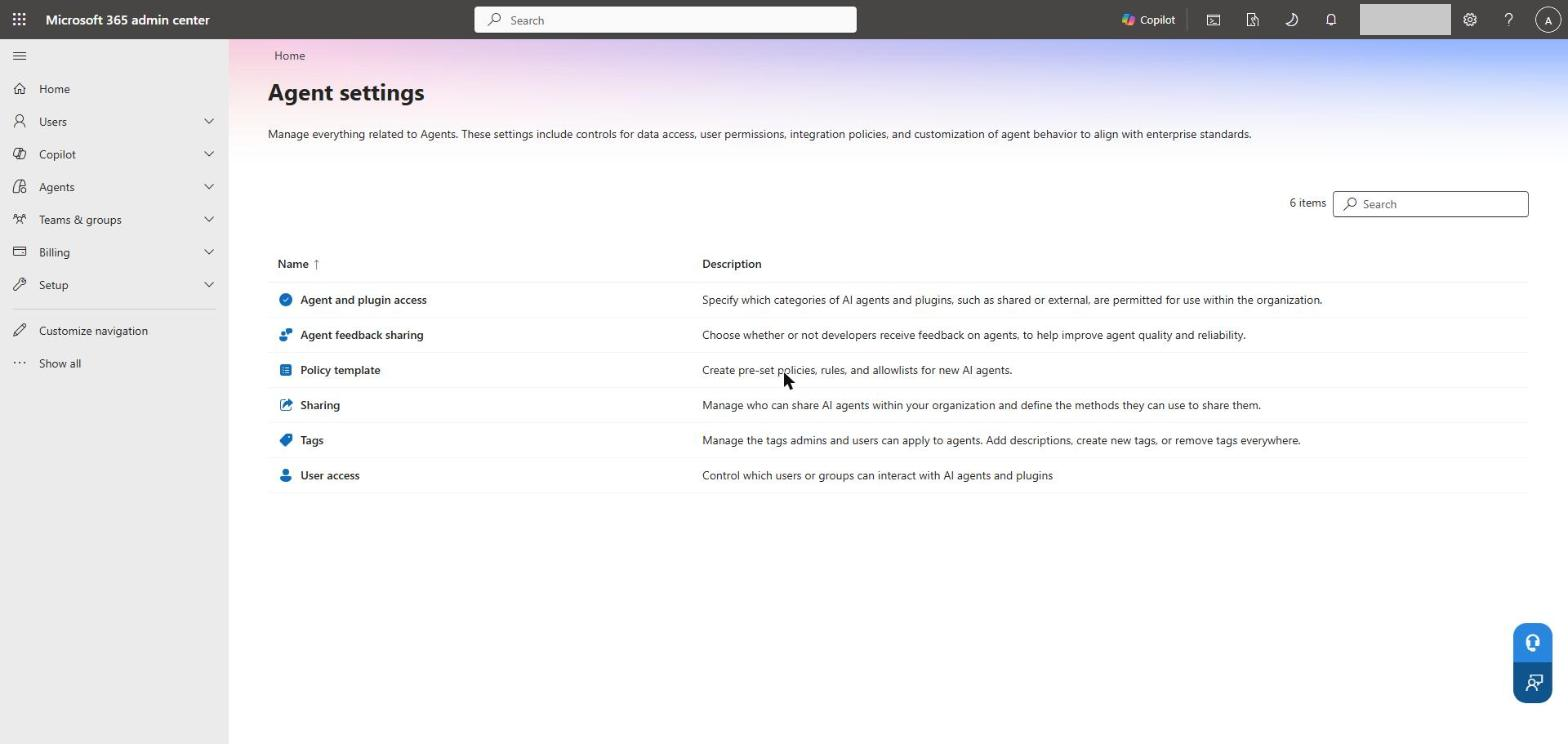
2a. Agent and plugin access
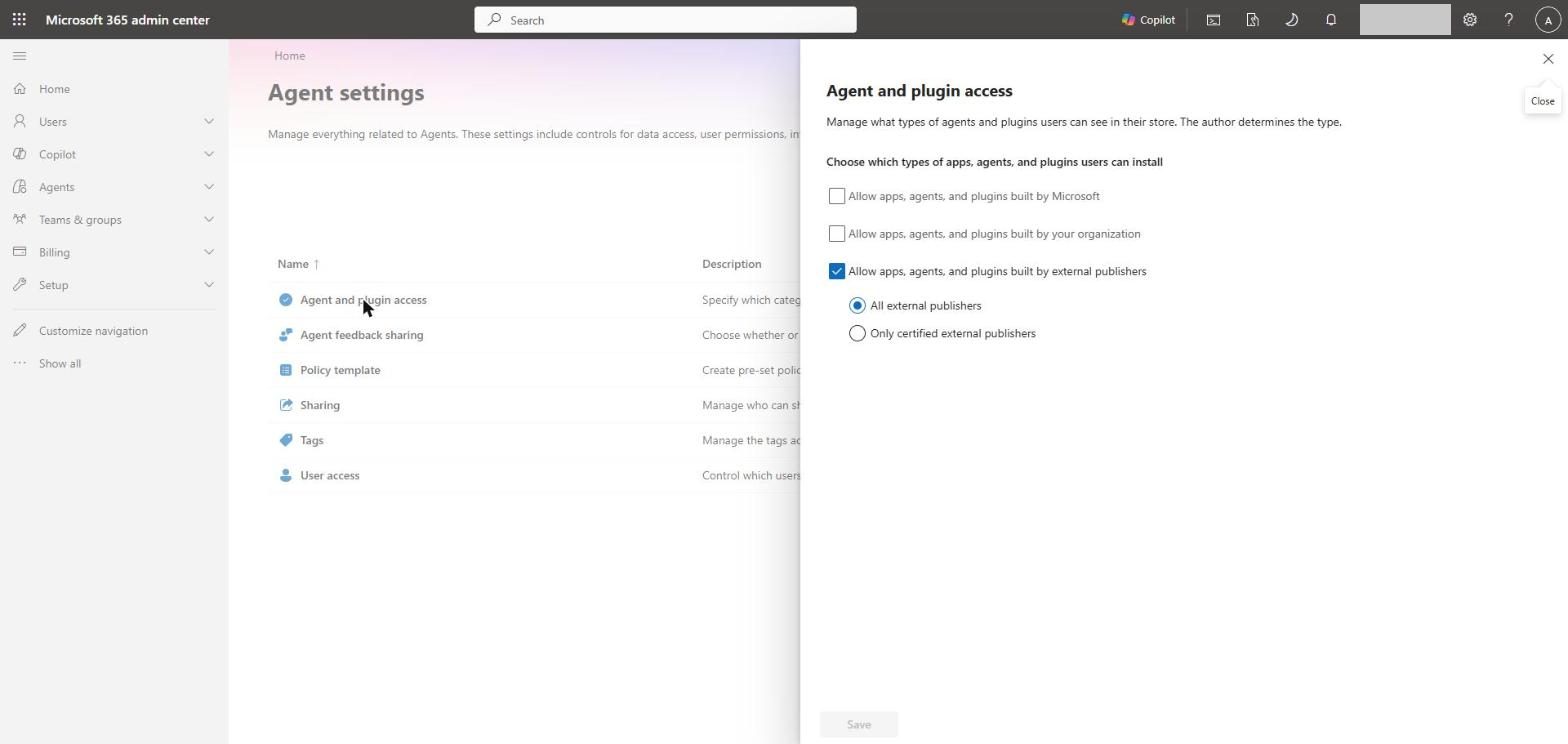
Decide which kinds of agent users can install. The dev tenant allowed agents from all external publishers, which is the opposite of where most organisations want to start.
- Open Agents > Settings > Agent and plugin access.
- Choose which types users can install: built by Microsoft, built by your organisation, or built by external publishers.
- If you allow external publishers, consider Only certified external publishers rather than All external publishers.
- Select Save.
2b. User access
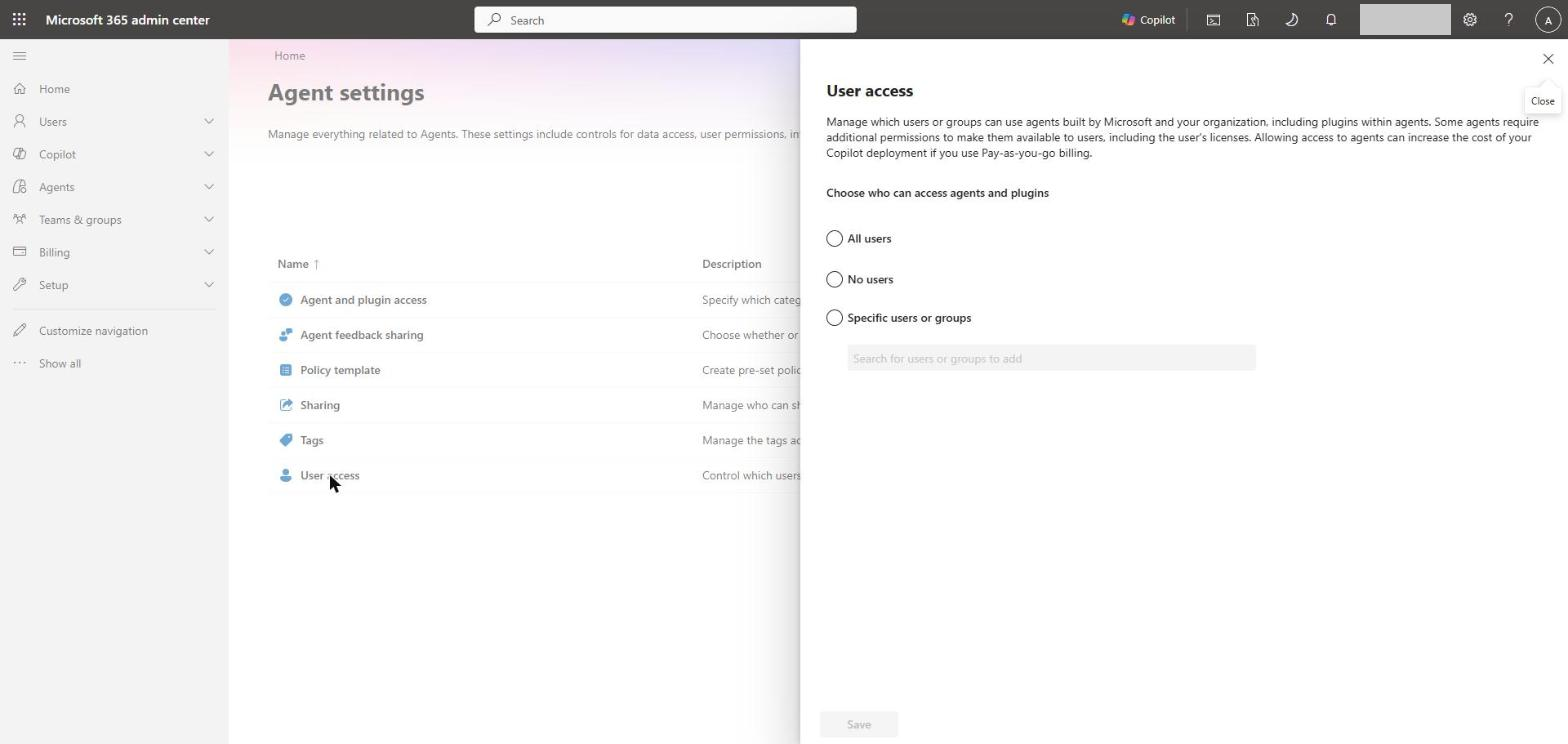
Control who can use agents at all: All users, No users, or Specific users or groups. A pilot group is a sensible place to start while the rest of the controls go in. Microsoft notes that wider access can increase cost if you use pay-as-you-go billing.
2c. Policy templates
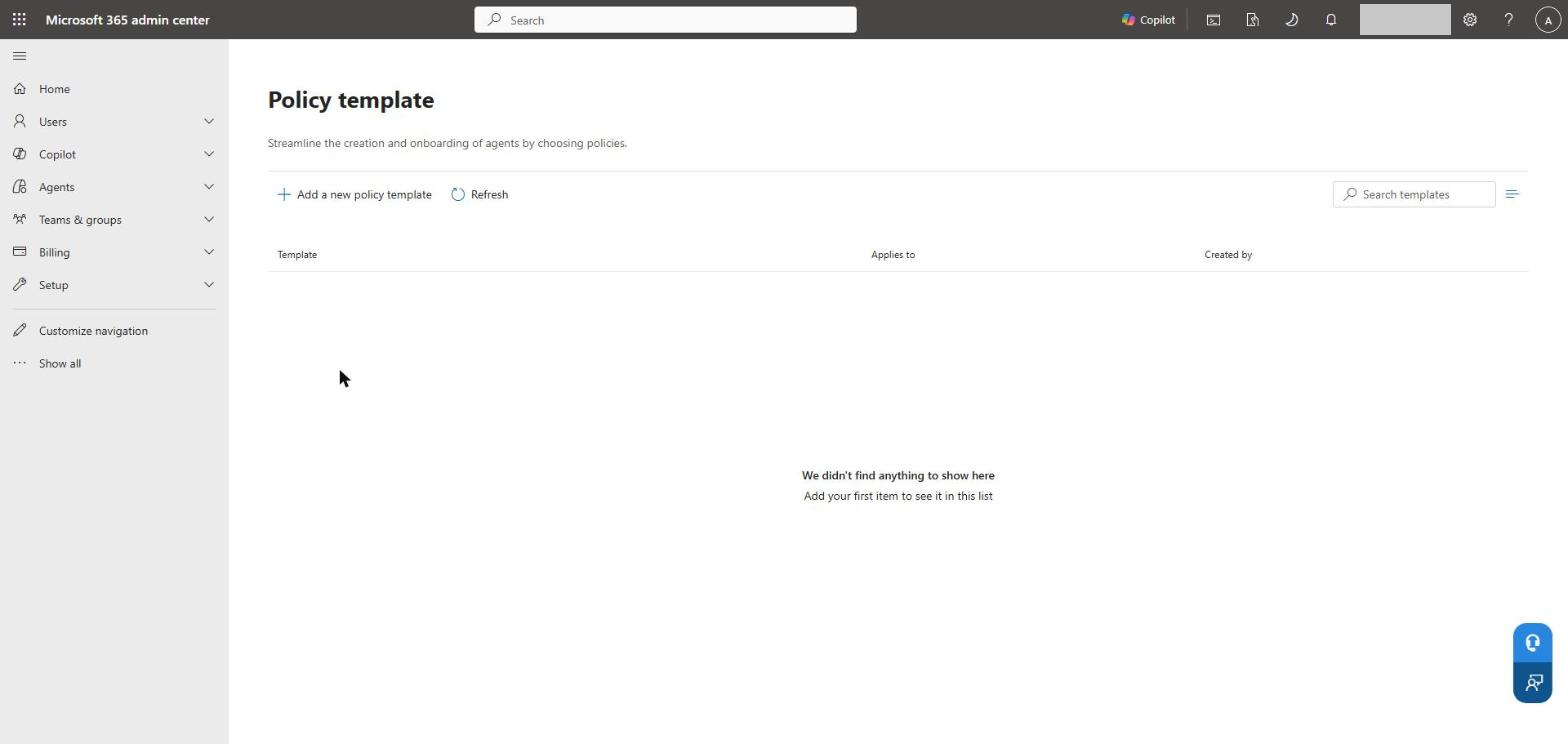
Policy templates apply licences and policies automatically when an agent is created or added. The dev tenant had none.
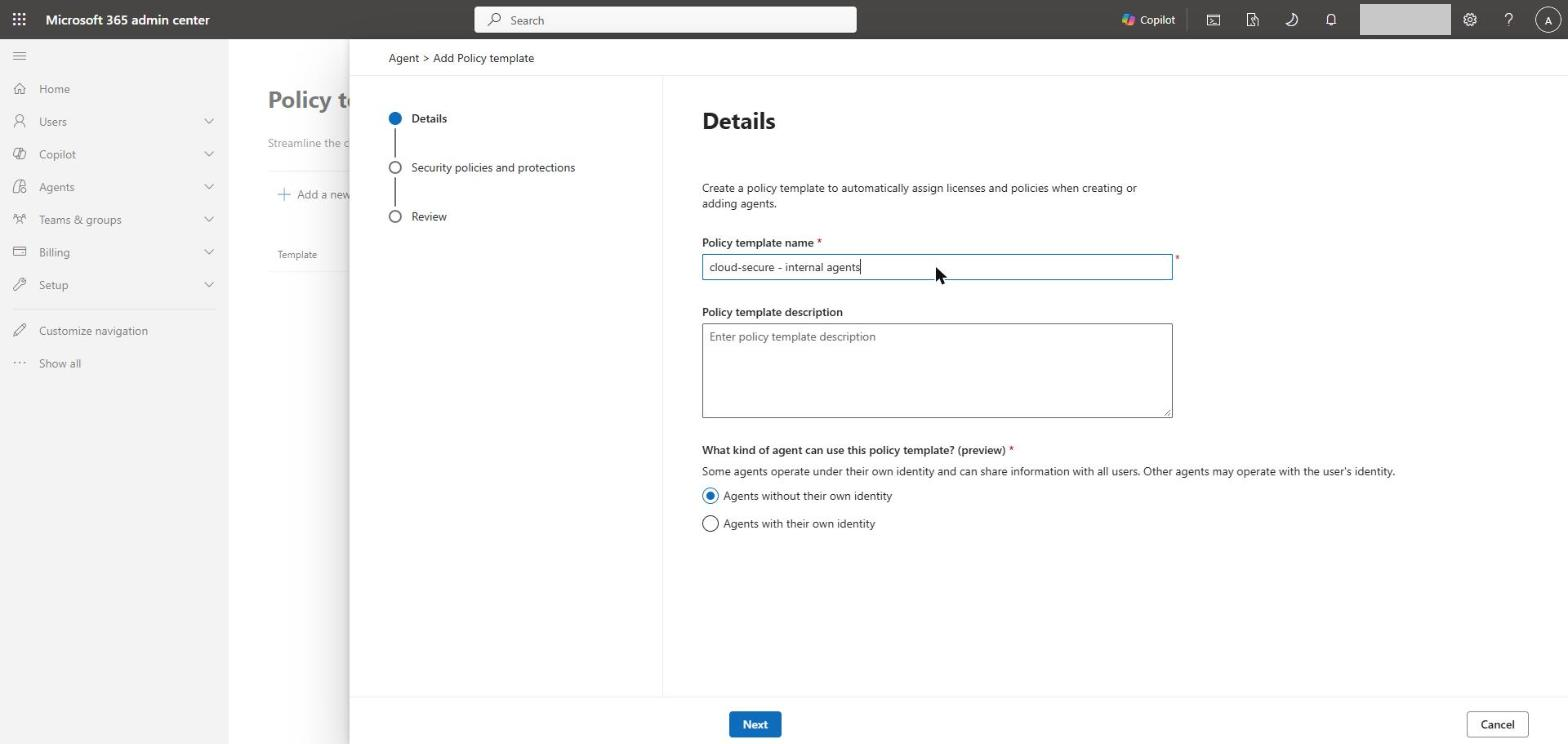
- Open Agents > Settings > Policy template and select Add a new policy template.
- On Details, give it a name and description, then choose What kind of agent can use this policy template? and pick Agents without their own identity or Agents with their own identity (preview).
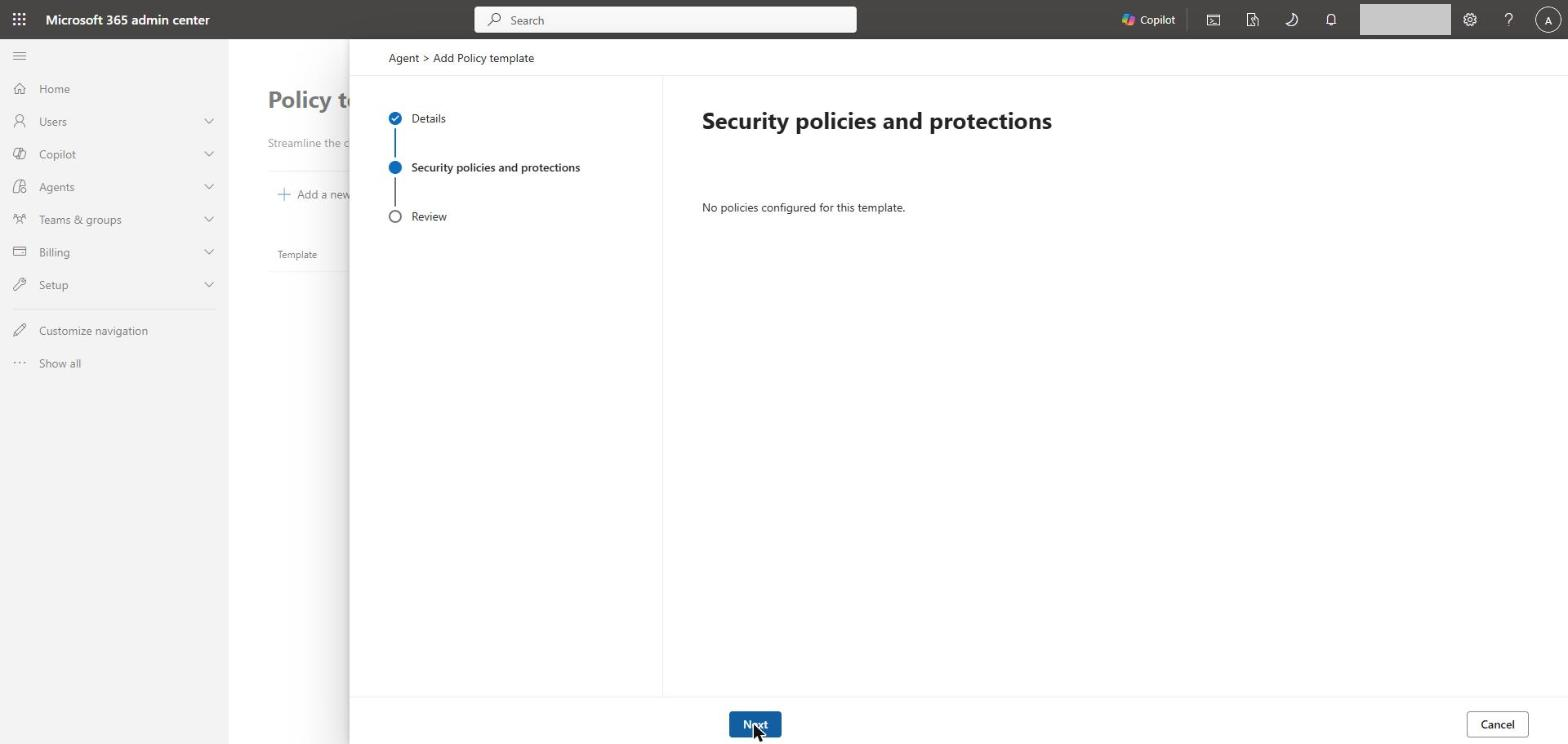
- On Security policies and protections, choose the policies to apply. For agents without their own identity, the dev tenant offered none, so expect this page to vary by agent type and licensing.
- Review and create.
2d. Work the Requests queue
When a maker publishes an agent to the tenant, it should land in Agents > All agents > Requests for approval rather than going straight to users (Learn). An empty queue in a tenant with hundreds of agents is a warning sign, not a sign that all is well.
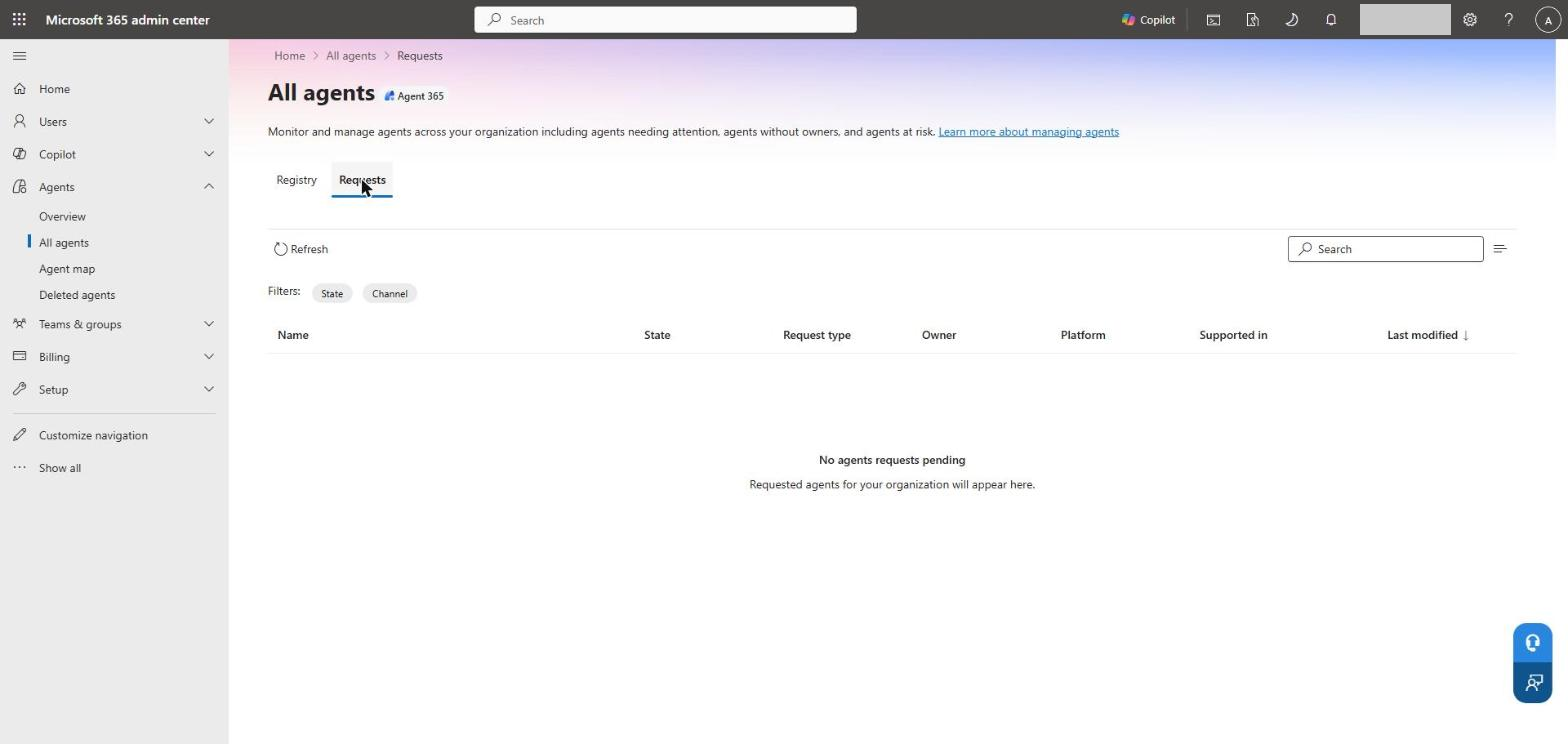
For each request, ask four questions (Learn): does it ask only for what it needs, is the publisher trusted, is the business purpose clear, and does it fit your AI policy? Then approve it with Publish to store, choosing the audience and template, or reject it.
Gap: third-party agents cannot be requested or approved through this workflow. In the dev tenant, that was two thirds of the registry. Your controls for them are Gate 1 (user consent) and Gate 2a (which publishers to allow), plus blocking anything you do not trust.
2e. Review an agent
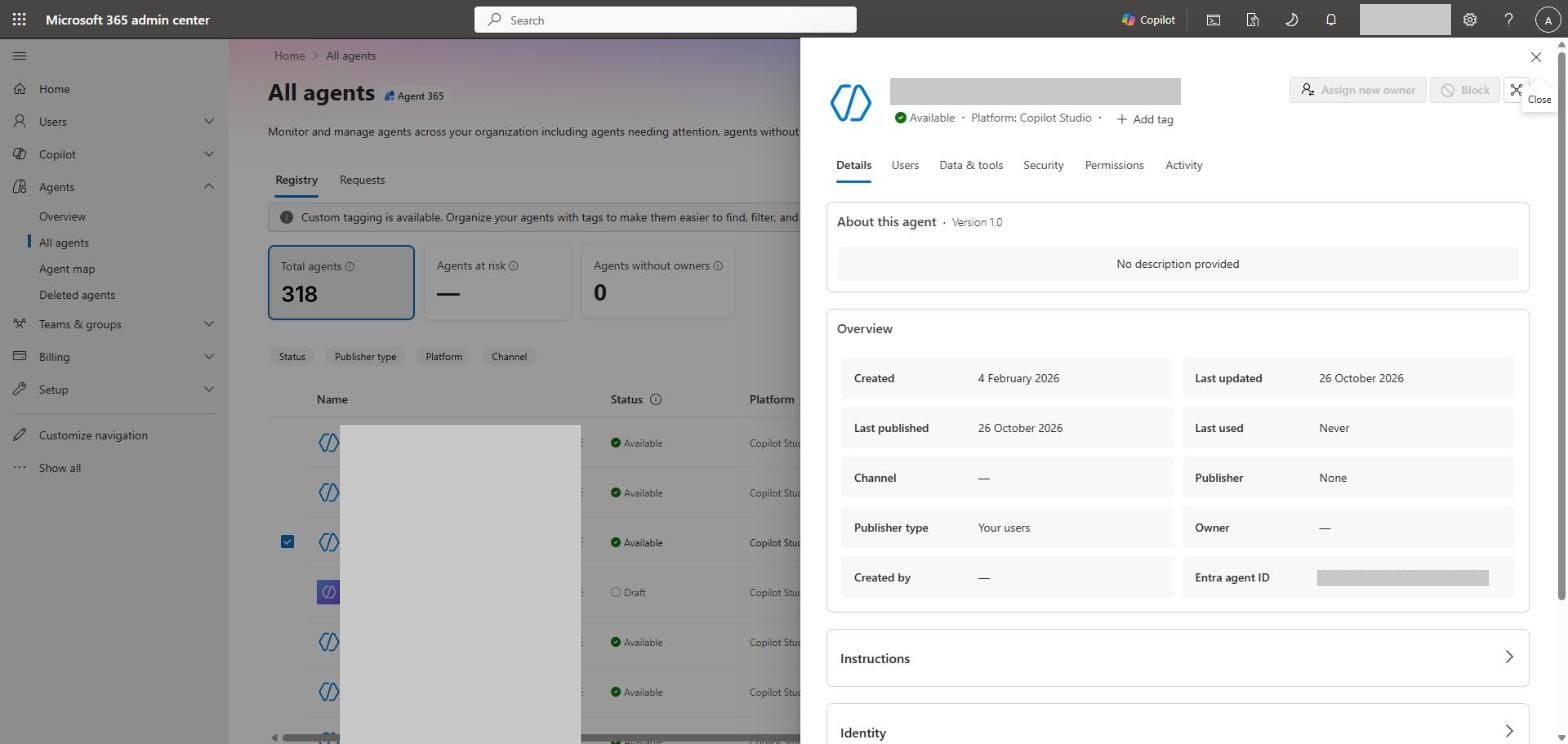
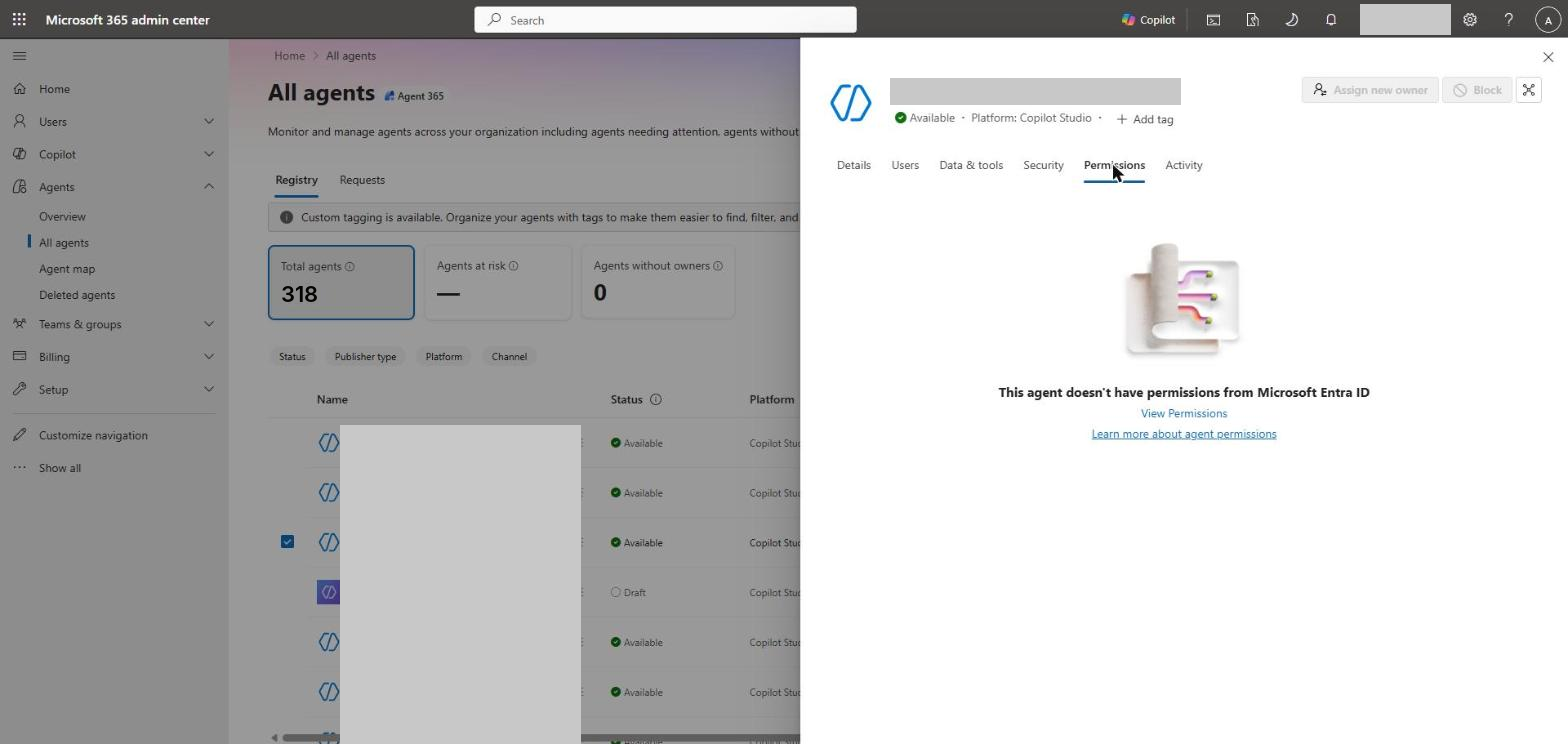
Select any agent in the registry to open its details. The tabs tell you most of what you need: Details, Users, Data & tools, Security, Permissions and Activity. From here you can also Assign new owner and Block the agent.
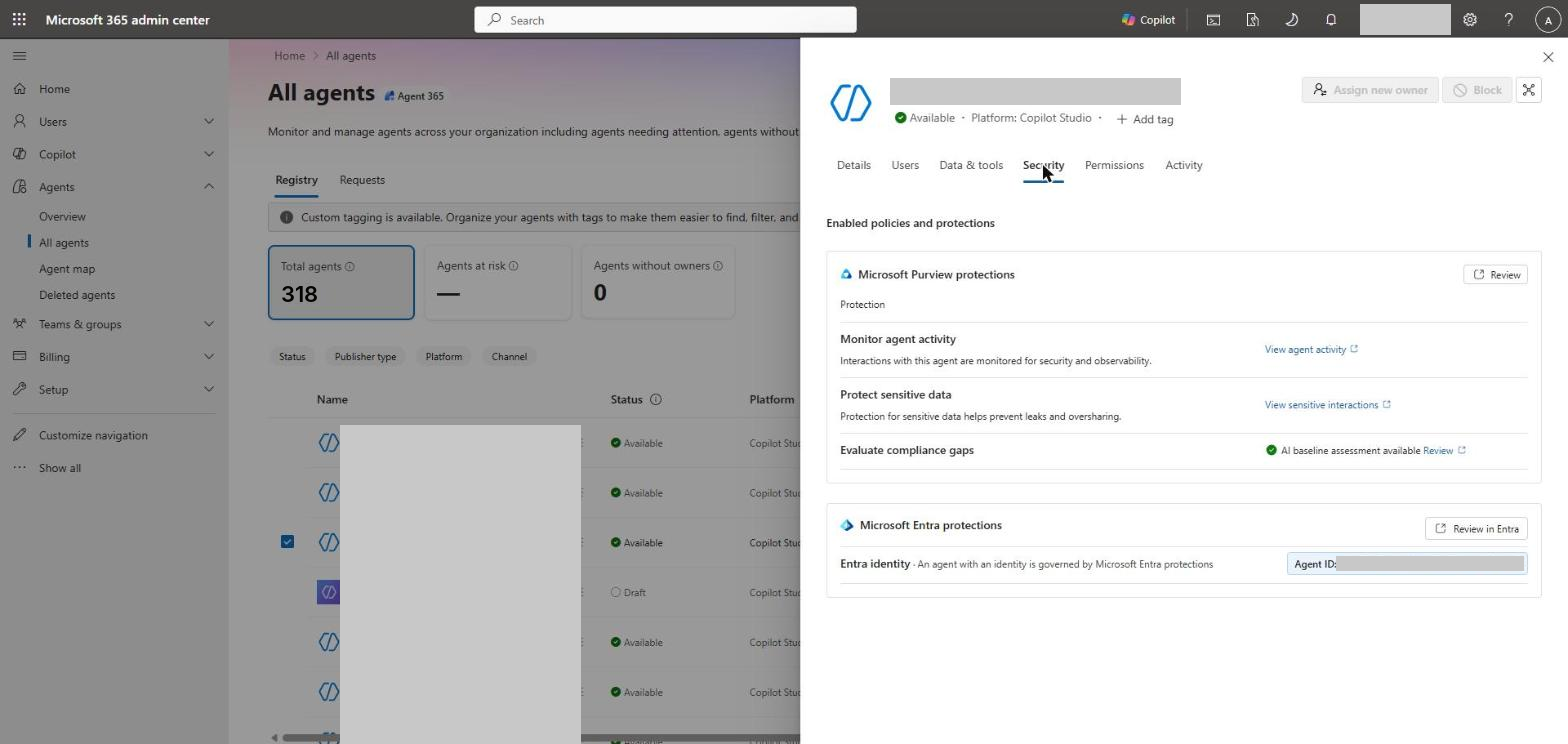
The Security tab is where Agent 365 ties the other products together: Purview protections for the agent’s activity and data, and a link to its Entra identity.
2f. Block, delete and restore
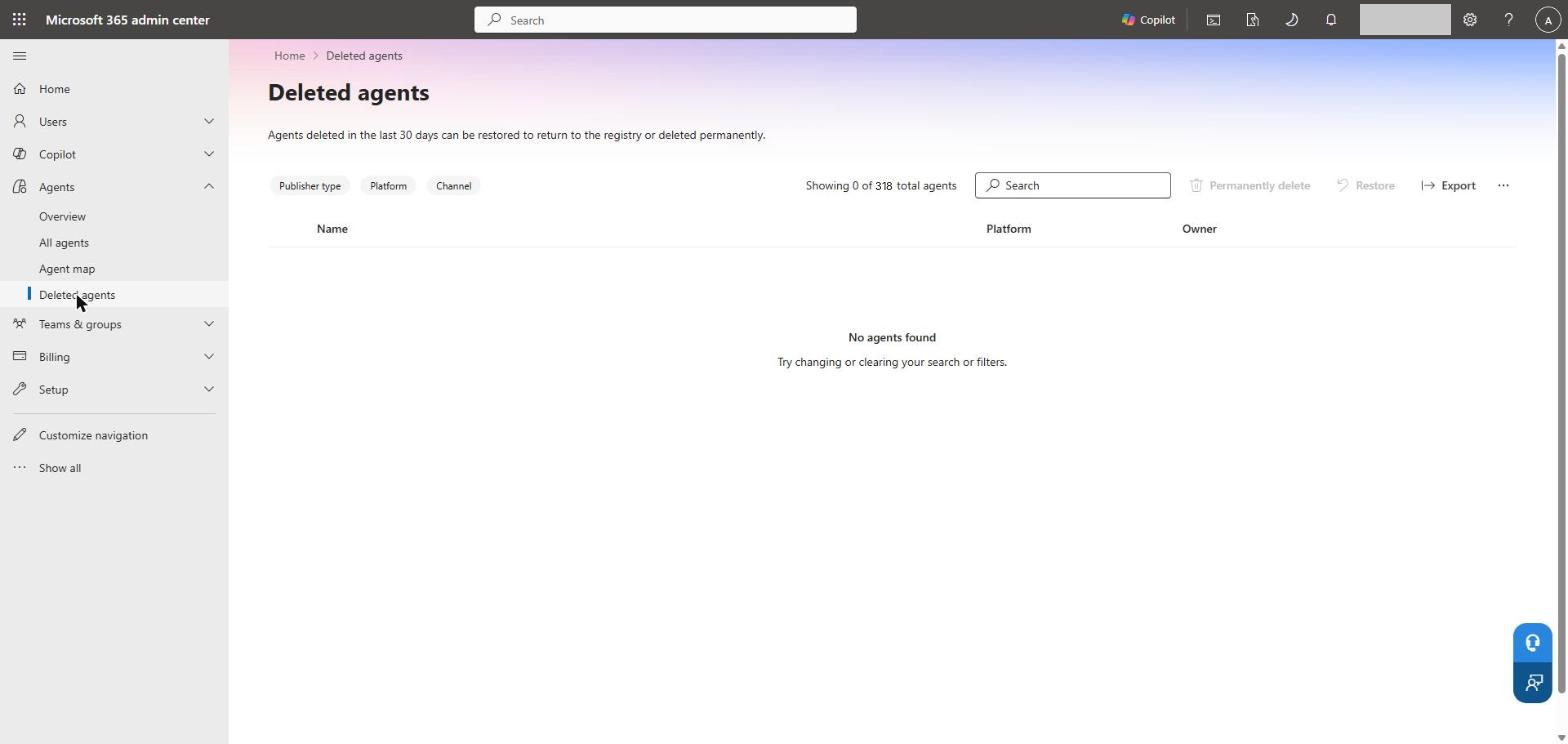
Block stops an agent being surfaced to users. Delete soft-deletes it for 30 days, and you can restore it from Agents > Deleted agents (Learn). Both need a role that can manage agents. They were greyed out for the read-only account I used.
Gate 3: Owners, sponsors and access
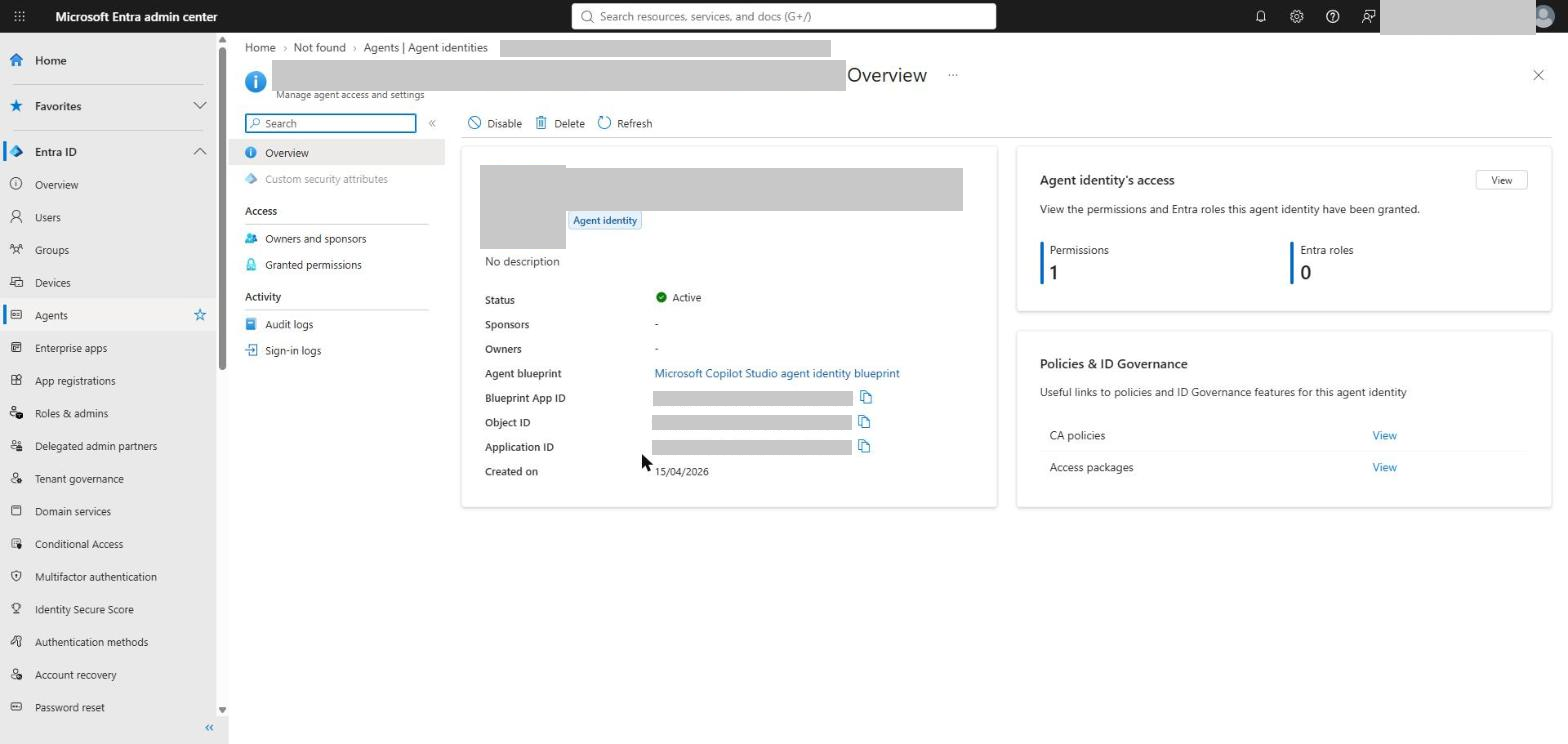
This gate only applies to agents with an Entra agent identity, which was 84 of the 318 in the dev tenant. For those, Entra adds ownership and access governance. Open one from Entra ID > Agents > Agent identities.
3a. Owners and sponsors
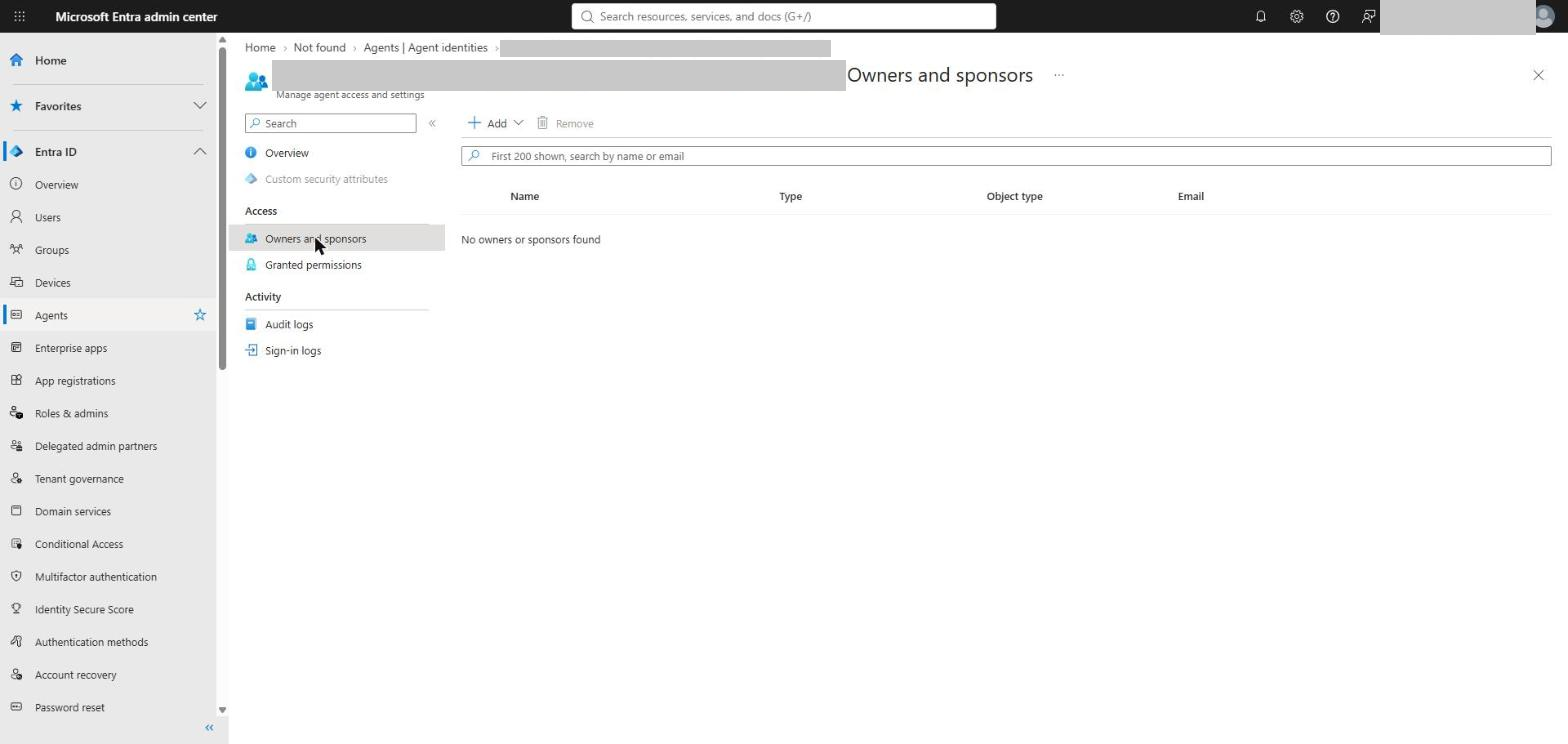
Owners handle the technical side; sponsors are accountable for the agent’s purpose and lifecycle (Learn). Microsoft now requires sponsors when agent identities are created, but older agents can still have none. The one above had neither. Add them under Owners and sponsors, using a Microsoft 365 group as sponsor so ownership survives staff changes.
3b. Permissions and access packages
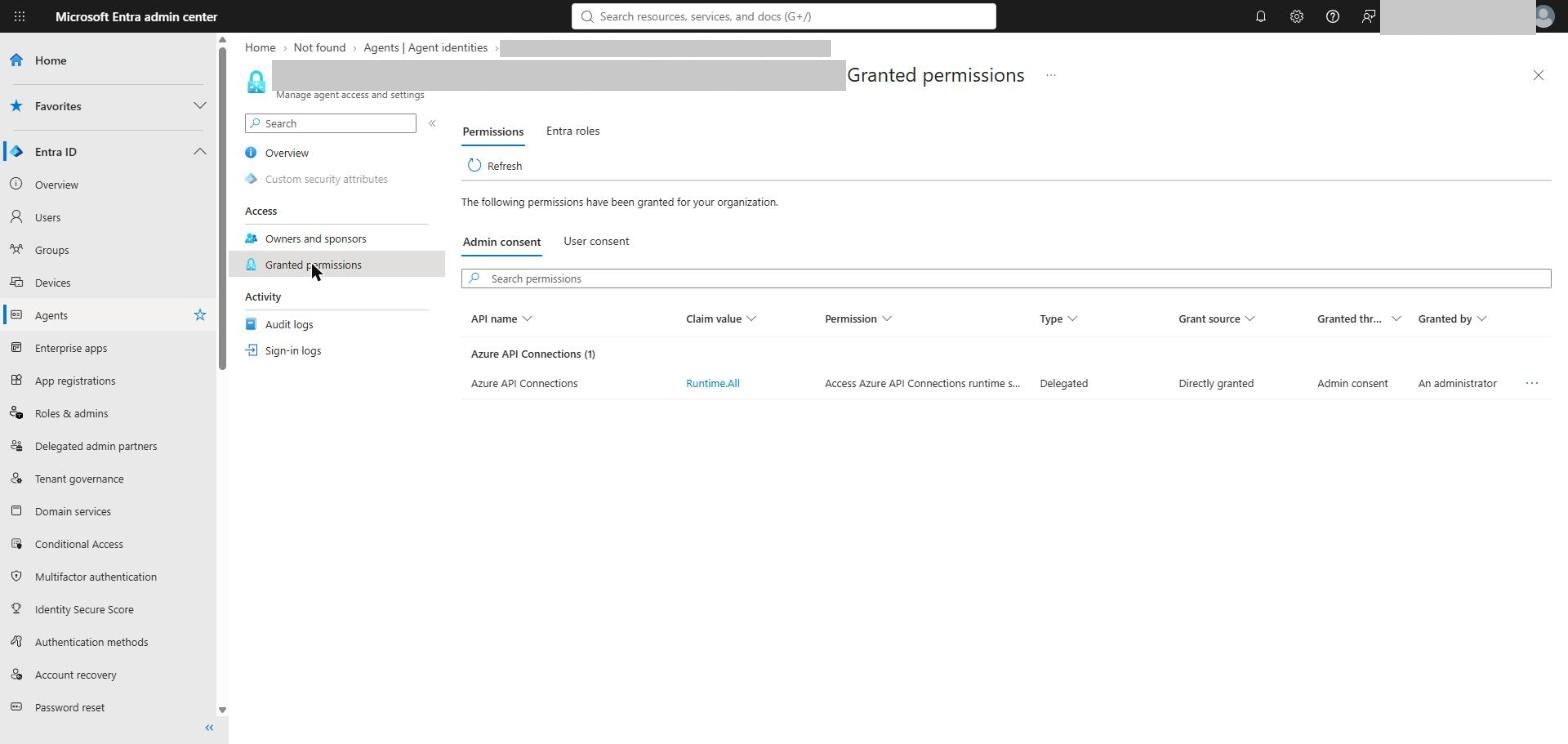
The same agent held a delegated permission granted by admin consent: access granted once and never reviewed. Check Granted permissions on each agent, and move standing access into access packages, which add approval and an expiry date.
- Browse to ID Governance > Entitlement management > Access packages and create a package for a class of agent.
- Add the resources it needs: groups, application permissions or Entra roles.
- In the request policy, allow agent identities to request it, and require approval.
- Set an expiry, such as 90 or 180 days, so access is re-justified (Learn).
Gate 4: Conditional Access and ID Protection
Like Gate 3, this gate only reaches agents with an Entra agent identity or agent user. Everything else is governed in Agent 365.
4a. Conditional Access for agents
Agent policies show up in the normal Conditional Access policy list; filter by Actors: Agents to see them. For agent identities the only condition is agent risk, and the only grant control is Block (Learn).
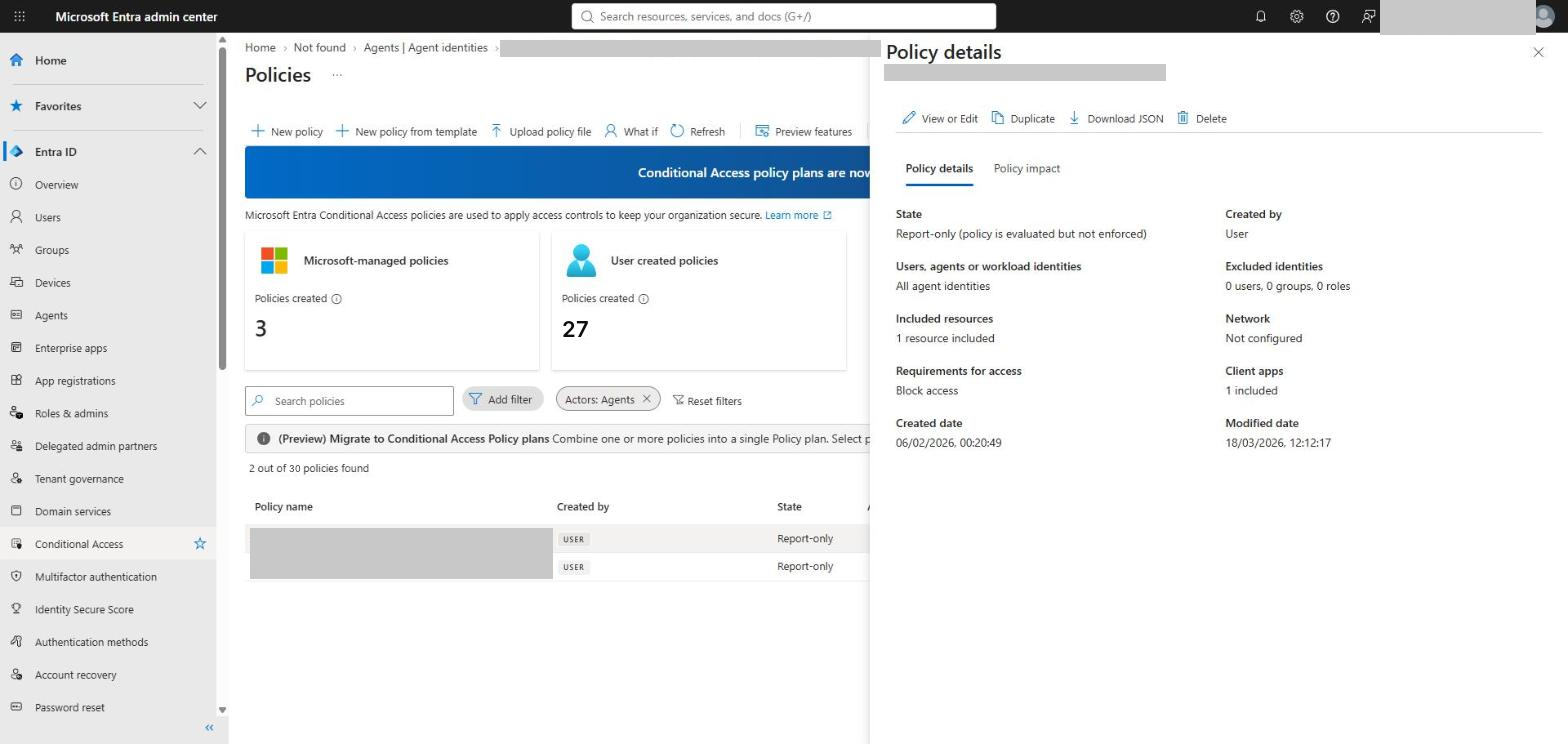
The starter set I recommend:
| Policy | Assign to | Condition | Control |
|---|---|---|---|
| CA-AGT-001 Block agents from unapproved blueprints | All agent identities, excluding approved blueprint principals | None | Block |
| CA-AGT-002 Block high-risk agent identities | All agent identities | Agent risk: High | Block |
| CA-AGT-003 Block high-risk agent users | All agent users | Agent risk: High | Block |
To create CA-AGT-002 in the portal:
- Browse to Entra ID > Conditional Access > Policies and select New policy. Name it CA-AGT-002 Block high-risk agent identities.
- Under Assignments, select Users, agents or workload identities, then under What does this policy apply to? select Agents and All agent identities.
- Under Target resources, include All resources.
- Under Conditions, set Agent risk to High.
- Under Grant, select Block access, set Enable policy to Report-only, and select Create.
CA-AGT-003 is the same, but choose All agent users in step 2. CA-AGT-001 has no condition; instead, under Exclude choose Select individual agent identities and use the Agent blueprint principals tab to exclude the blueprints you approve (Learn). Run all three in report-only for 48 hours, check the results, then switch them on.
4b. ID Protection for agents
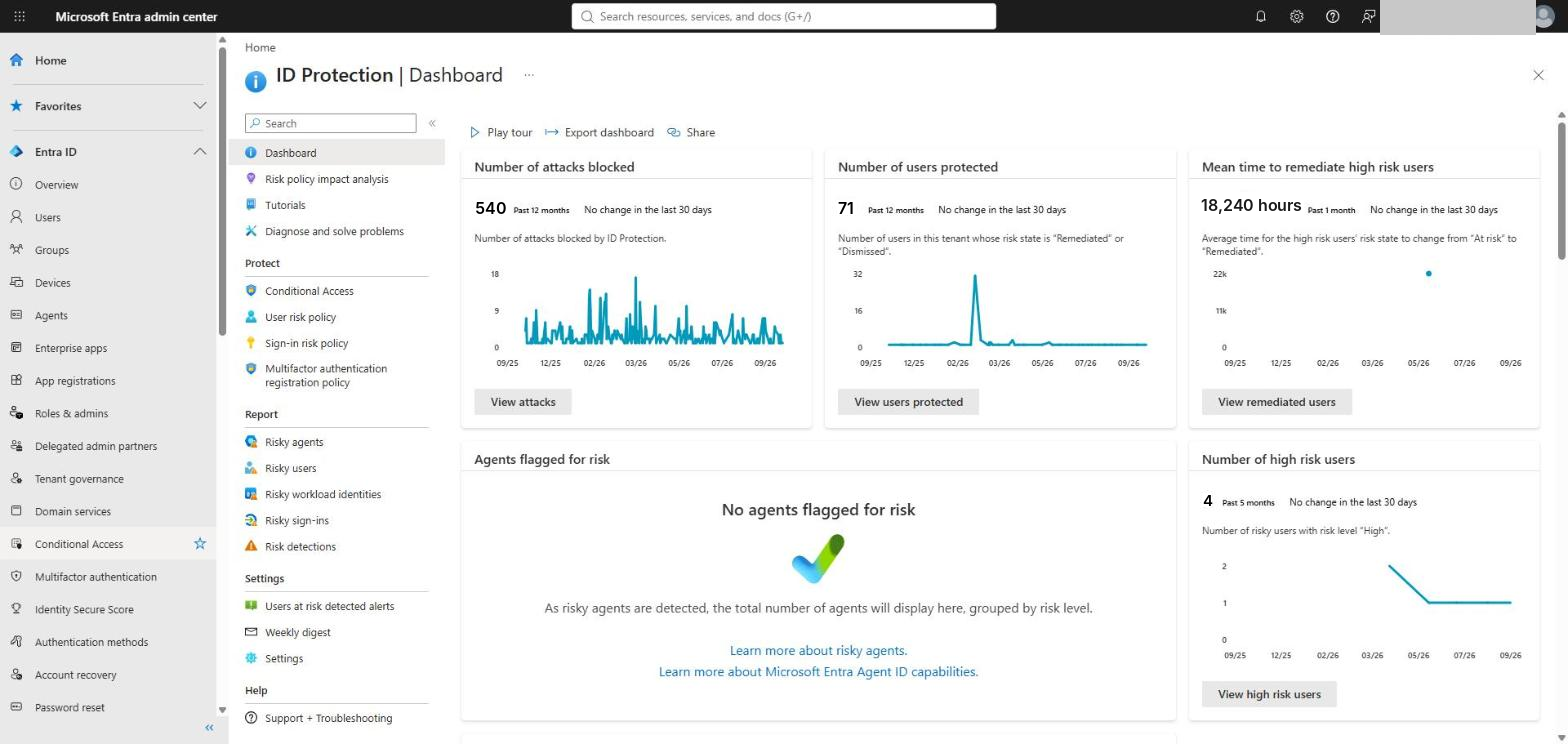
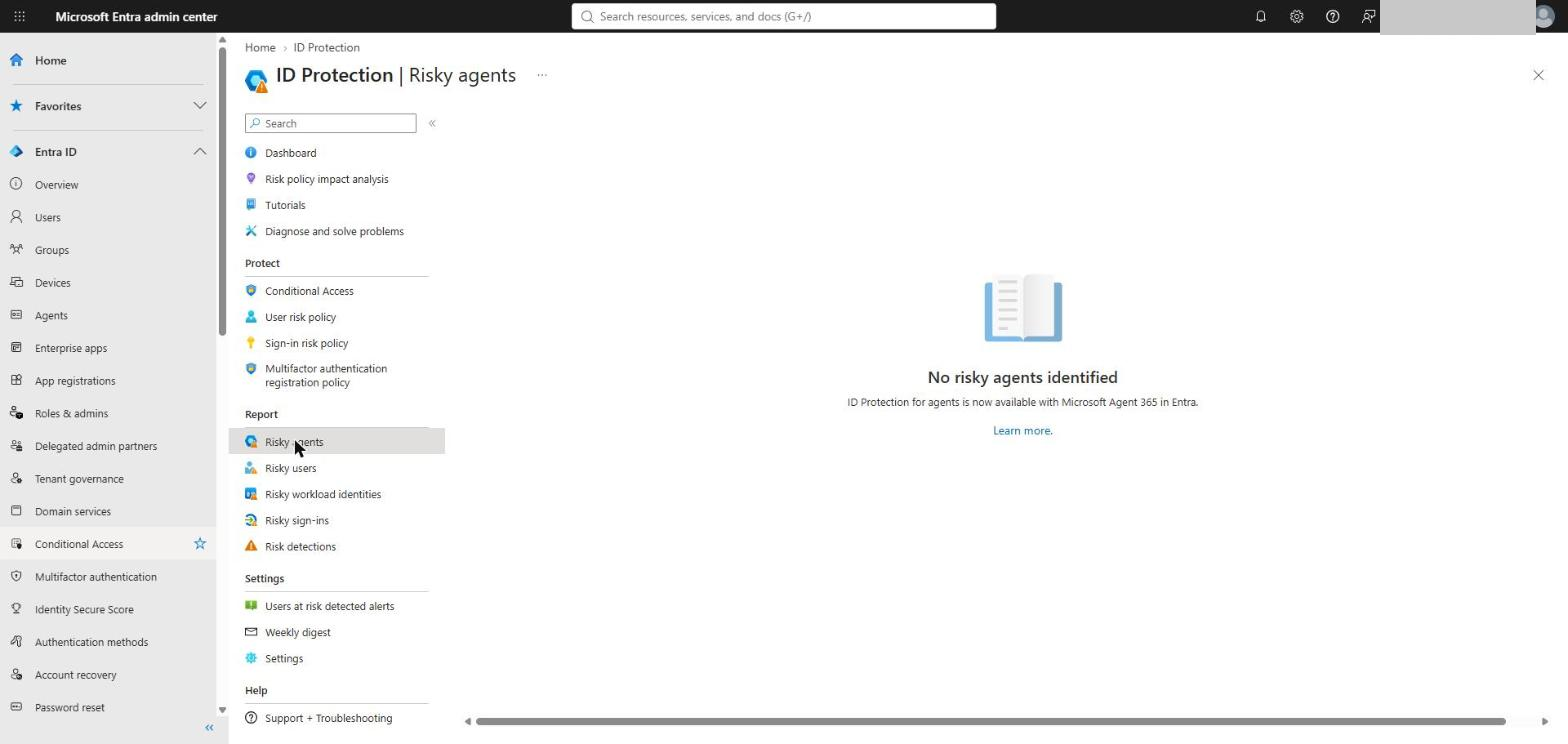
ID Protection scores agent risk, and the CA policies above act on it. Check ID Protection > Dashboard for agents flagged for risk, and Risky agents for the detail.
The gap E7 does not cover: Workload ID Premium
Everything so far covers agents with an Entra agent identity. But plenty of agents still authenticate as ordinary service principals: legacy Copilot Studio agents, custom agents built on standard app registrations, automation that never moved to Agent ID, and many third-party apps. Agent Conditional Access and ID Protection for agents do not reach them.
Protecting service principals needs Microsoft Entra Workload ID Premium. It is a standalone product at $3 per workload identity per month, and Microsoft states it is not part of any other SKU, so it is not included in Microsoft 365 E7, Entra ID P2 or the Entra Suite (Workload ID FAQ).
| Capability | Free | Workload ID Premium | Why it matters for agents |
|---|---|---|---|
| Sign-in logs and audit trail for service principals | Yes | Yes | You can already see what they do |
| Managed identities and workload identity federation | Yes | Yes | The way to retire client secrets |
| Conditional Access for workload identities | No | Yes | Block a service principal outside named locations, or when it is risky |
| ID Protection for workload identities | No | Yes | Risk detection for leaked credentials and unusual sign-ins |
| Access reviews for service principals in privileged roles | No | Yes | Re-justify agents and automation holding admin roles |
| App health recommendations | No | Yes | Flags unused apps and expiring or risky credentials |
What it covers, and what it does not
- Conditional Access applies only to single-tenant service principals registered in your tenant. Multi-tenant and SaaS apps, Microsoft apps and managed identities are excluded, and service principals must be assigned to the policy directly, not through a group (Learn).
- ID Protection covers both single-tenant and multi-tenant service principals, so it reaches some third-party apps that Conditional Access cannot.
- As with agents, the only grant control is Block. Conditions are location and service principal risk.
Workload identity protection considerations
- Separate licensing. These features need Workload ID Premium, which is separate from Entra ID P1 and P2. Having P2 through E5 or E7 does not unlock them.
- The licence check cannot be worked around. It is enforced by the service, not just the portal, so creating or changing a workload identity policy through PowerShell or Microsoft Graph needs the licence too. Without it, existing policies keep working but cannot be changed (Learn).
- Same place, different target. Workload identity policies live in the normal Conditional Access policy list. The difference is the assignment: under Users, agents or workload identities you choose Workload identities instead of users and groups, or agents.
Two policies worth having
| Policy | Assign to | Condition | Control |
|---|---|---|---|
| CA-WID-001 Block service principals outside trusted locations | Selected single-tenant service principals | Any location, excluding your named locations | Block |
| CA-WID-002 Block risky service principals | Selected single-tenant service principals | Service principal risk: High | Block |
- Browse to Entra ID > Conditional Access > Policies and select New policy.
- Under Assignments, select Users, agents or workload identities, then under What does this policy apply to? select Workload identities and Select service principals.
- Under Target resources, include All resources.
- Under Conditions, set Locations (include Any location, exclude your trusted named locations), or Service principal risk.
- Under Grant, select Block access, and create the policy in Report-only.
Review the results under Sign-in logs > Service principal sign-ins, and risky service principals under ID Protection > Risky workload identities.
Is it worth it?
If your Step 1 inventory finds custom or legacy agents still running as service principals with client secrets, yes, at least until they move to agent identities or managed identities. A 90-day trial is available. Microsoft’s FAQ is inconsistent on how licences are counted. It quotes a per-identity price, but also says one licence unlocks the features tenant-wide, so confirm the count with your Microsoft partner before buying.
Monitor
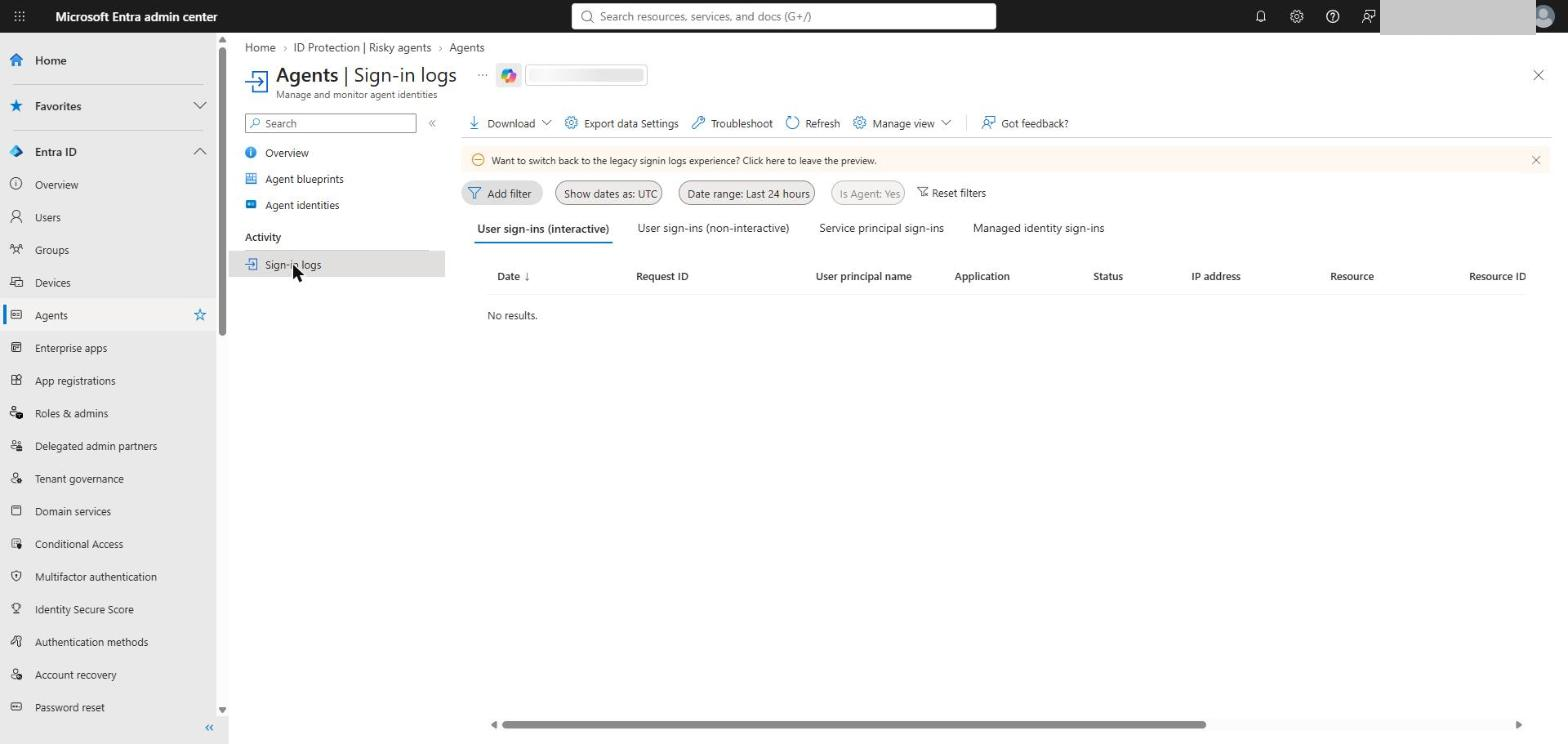
Agent sign-ins are under Entra ID > Agents > Sign-in logs, already filtered to Is Agent: Yes. Agent identity sign-ins sit on the Service principal sign-ins tab; agent user sign-ins on the non-interactive tab.
To see what your report-only agent policies would block:
// Agent sign-ins that a CA-AGT report-only policy would have blocked
union AADServicePrincipalSignInLogs, AADNonInteractiveUserSignInLogs
| where TimeGenerated > ago(2d)
| extend CAP = todynamic(ConditionalAccessPolicies)
| mv-expand CAP
| where tostring(CAP.displayName) startswith "CA-AGT-"
| where tostring(CAP.result) == "reportOnlyFailure"
| summarize WouldBlock = count(), LastSeen = max(TimeGenerated)
    by Policy = tostring(CAP.displayName),
       Identity = coalesce(ServicePrincipalName, UserPrincipalName),
       ResourceDisplayName
| order by WouldBlock desc
Blind spots
| Gotcha | What happens | What to do |
|---|---|---|
| Agents without an Entra identity | Most of the registry is invisible to CA, ID Protection and access packages | Govern them in Agent 365: access settings, user access, approval, block |
| Third-party agents | They cannot be approved through the Requests workflow | Restrict external publishers and user consent; block what you do not trust |
| API keys | An agent using an API key never authenticates with Entra (Learn) | Move it to an agent identity and retire the key |
| Legacy Copilot Studio agents | Plain service principals, not agent identities | Find them with the script in Step 1c and migrate them; protect them meanwhile with Workload ID Premium |
| Custom agents on app registrations | Agent CA does not apply; workload identity CA needs a licence E7 does not include | License Workload ID Premium, or move them to agent identities or managed identities |
| Delegated access | Copilot Studio agents act as the user, so permission controls do not limit them | Rely on Gate 2 and Power Platform data policies |
| Security defaults | Conditional Access does not apply to agents | Replace security defaults with a CA baseline |
| Report-only forever | Policies log but never block | Set a date to enforce |
| Preview features | Several agent features are still in preview | Recheck status before rolling out to a customer |
Checklist
- Compare the Agent 365 registry total with the Entra agent identity total
- Find legacy Copilot Studio service principals and plan their migration
- Gate 1: restrict who can build, and tighten user consent
- Gate 2: set Agent and plugin access and User access, create a policy template, and work the Requests queue
- Gate 2: assign owners to ownerless agents; block what nobody will own
- Gate 3: add sponsors, review granted permissions, move access into access packages
- Gate 4: deploy CA-AGT-001, 002 and 003 in report-only
- Monitor: review the report-only results after 48 hours, set an enforcement date, then switch the policies on
- Service principals: decide on Workload ID Premium for agents and automation that are not agent identities
- Or run the companion script for the review and Gate 4 policies, then work through the manual steps it lists
More to come
The series started on the endpoint with Defender and now covers governance in Agent 365. Microsoft is moving quickly here, and several features in this post are still in preview. I will update this post, and the script, as they change.
The rest of the series
- Part 1: the control for agents already on your endpoints
- Part 2: building it, proving it, and where the documentation is wrong
- Part 3: finding the agents you did not know you had
- Part 4: controlling where Claude can connect
- Part 5: blocking MCP servers you have not approved
References
- Onboard agents in Microsoft Agent 365
- Manage agent requests in the Microsoft 365 admin center
- Agent settings in the Microsoft 365 admin center
- Governance and lifecycle actions for agents
- Register agents and apply access controls (Agent 365 training)
- MC1245636: AI Administrator RBAC updates
- Secure autonomous agents with Conditional Access
- Conditional Access for Agent ID
- Target agent identities in Conditional Access policies
- Disable agent identities in your tenant
- Agent ID governance overview
- Agent sponsor tasks in Lifecycle Workflows
- Owners, sponsors and managers in Agent ID
- Manage agent identities in your organisation
- Configure user consent
- Migrate Copilot Studio agents to Agent ID
- MC1395007: New service plans for Conditional Access and ID Protection for agents
- Microsoft Entra Workload ID FAQ
- Conditional Access for workload identities
- Script on GitHub: Agent365-governance-in-Microsoft-365
Seán O’Farrell | cloud-secure.ai


Pingback: Microsoft Defender AI agent runtime protection: the series guide (parts 1 to 6) | Cloud-Secure.ai