Series: Part 1 introduced AI agent runtime protection in Microsoft Defender for Endpoint. Part 2 covered the lab build and validation. Part 3 found the agents running on your endpoints. Part 4 blocked an unsanctioned MCP server with a Defender indicator. Part 5 automates it, so every new MCP server is blocked until you approve it.
In part 4 a Defender for Endpoint custom domain indicator, enforced by network protection, stopped Claude Code reaching an unsanctioned remote MCP server. It worked, but it only blocks the domains you list. A developer who adds a new MCP server on a different domain connects to it without anyone noticing.
This part closes that gap with automation. An Azure Automation runbook runs every hour, finds every new remote endpoint an AI agent has used, and blocks it with a Defender indicator and an alert. Approved servers are permitted with an Allow indicator. There is no Sentinel dependency, no app registration and no secret to rotate – just a managed identity, two API permissions and three PowerShell scripts.
The same approach covers any agent, not just the ten or so that runtime protection supports. This post tests it with Claude Code, GitHub Copilot CLI and Gemini CLI, which runtime protection does not support.
Why MCP servers need controlling
A remote MCP server is a third-party service that an AI agent sends data to and takes instructions from. Developers add them in minutes, usually without security, procurement or data protection review – and each one becomes a new processor of your organisation’s data.
Key risks of sending corporate data to unapproved MCP servers
| Risk | What could happen | Risk level |
|---|---|---|
| Data exfiltration | Prompts, documents, credentials, customer information, source code or other sensitive data could be transmitted to the MCP operator. | ● Critical |
| Loss of data governance | Once information is sent outside approved Microsoft 365 and Azure controls, your organisation may lose control over where it is stored, processed or subsequently transferred. | ● Critical |
| Unknown data retention | The MCP provider may log requests, responses, prompts or tool parameters indefinitely, or use different retention policies from your organisation. | ● High |
| Credential and token exposure | OAuth tokens, API keys, connection strings or other authentication material could inadvertently be exposed to a malicious or poorly designed MCP server. | ● Critical |
| Excessive permissions | An MCP server may be granted access to files, databases, Git repositories, email, APIs or cloud services beyond what the user actually needs. | ● Critical |
| Malicious tool execution | A compromised or malicious MCP server could expose tools designed to manipulate an agent into performing unintended actions. | ● Critical |
| Prompt and tool injection | Content returned by an MCP server can influence an AI agent into invoking additional tools or disclosing information it would not normally provide. | ● High |
| Supply-chain compromise | A legitimate MCP server, its dependencies or its hosting environment could subsequently become compromised. | ● High |
| Data residency | Data may be processed or logged in regions that do not meet organisational, customer or regulatory residency requirements. | ● High |
| Compliance exposure | Sending personal, regulated or customer data to an unapproved service could breach GDPR, contractual obligations or internal security policies. | ● High |
| Lack of auditability | Security teams may have little or no visibility of what users sent to the MCP server or what the server subsequently did with it. | ● High |
| Shadow AI and shadow IT | Users can introduce new third-party processors and integrations without security, procurement or data protection review. | ● High |
Controlling which MCP servers agents can reach addresses these risks at the source, and brings two further benefits:
- Visibility. Every block alert is an inventory entry. You learn which servers your DevOps teams actually use, rather than guessing.
- Any agent. Runtime protection covers a fixed list of agents. Network indicators apply to every process on every onboarded device, so new and unsupported agents are covered too.
How it works
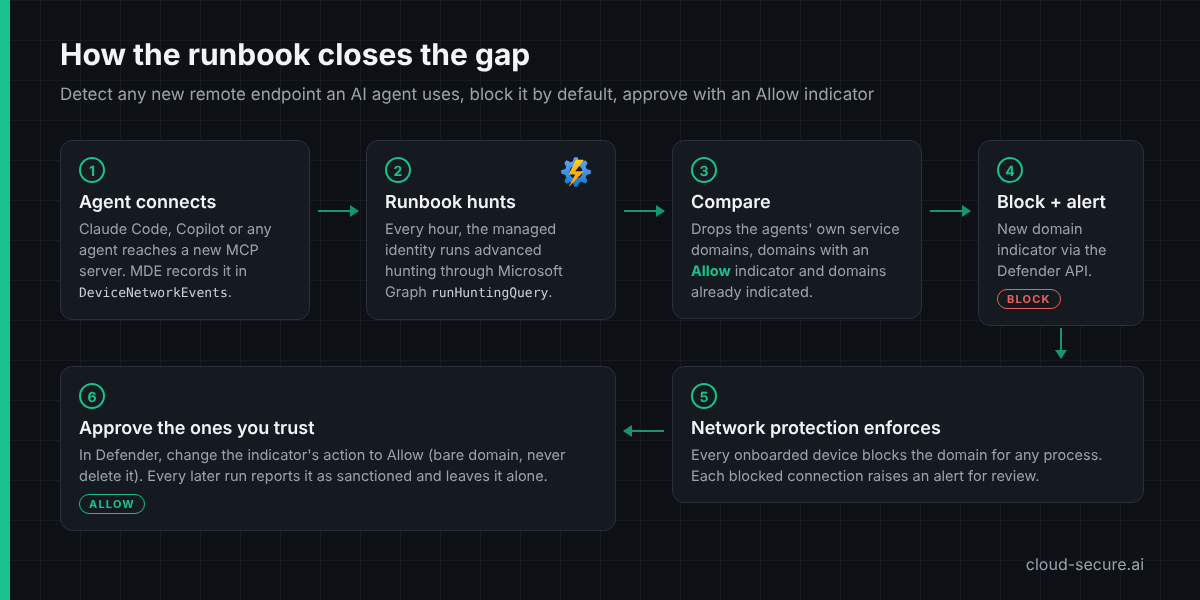
- An agent connects to a remote MCP server. Defender for Endpoint records the connection in
DeviceNetworkEvents. - Every hour, the Automation account’s managed identity runs an advanced hunting query through Microsoft Graph
runHuntingQueryfor domains that AI agent processes reached. - The runbook drops the agents’ own service domains (a never-block list), any domain with an Allow indicator and any domain that already has an indicator.
- Every domain left gets a Block domain indicator with alert generation, created through the Defender for Endpoint indicators API.
- Network protection enforces the block on every onboarded device, and each blocked connection raises an alert.
- An administrator approves trusted servers by changing the indicator’s action to Allow. Later runs report them as sanctioned and leave them alone.
The default is deny: anything new is blocked until someone approves it. An IndicatorAction parameter switches the runbook to Audit for a tuning period.
What advanced hunting showed first
Before building anything, I ran the runbook’s hunting logic over 30 days of lab data. It returned 63 domains contacted by agent processes. Only one was a remote MCP server reached directly from the device – mcp.context7.com, already blocked in part 4. The rest taught three lessons that shaped the runbook:
claude.exeis two products. Claude Code, the CLI, logs with a plainclaude.execommand line. The Claude desktop app is an Electron app, and its traffic comes from helper processes with--type=utilityon the command line – hCaptcha, Datadog, Sentry andclaudeusercontent.com. The runbook excludes those helper processes, so it assesses Claude Code only. The desktop app’s remote connectors only ever appeared asmcp-proxy.anthropic.com, so the MCP server’s own domain is not visible to the device.- VS Code hides the extension. All GitHub Copilot extension traffic leaves through VS Code’s shared network service process. Hunting can attribute a connection to
code.exe, never to Copilot, so the whole editor is treated as the agent and its own service domains go on the never-block list. - Telemetry is noise. Agent and editor telemetry endpoints (
datadoghq.com,sentry.io,exp-tas.com) would otherwise be blocked on the first run. They are on the never-block list.
With those changes, replaying the 30 days of data through the runbook produced no new blocks – the right baseline before adding new MCP servers.
Prerequisites
| Requirement | Detail |
|---|---|
| Defender for Endpoint | Devices onboarded, network protection in block mode and custom network indicators enabled (part 4) |
| Azure subscription | To host the Automation account |
| Entra role | Global Administrator or Privileged Role Administrator, to grant the API permissions |
| Azure role | Automation Contributor or Contributor on the Automation account |
| PowerShell 7 | With the Microsoft Graph and Az modules, on the administrator’s workstation |
Step 1 – Create the Automation account
In the Azure portal, search for Automation Accounts and select Create. On Basics, create a resource group such as rg-mcp-automation, name the account aa-mcp-indicators and pick your region.
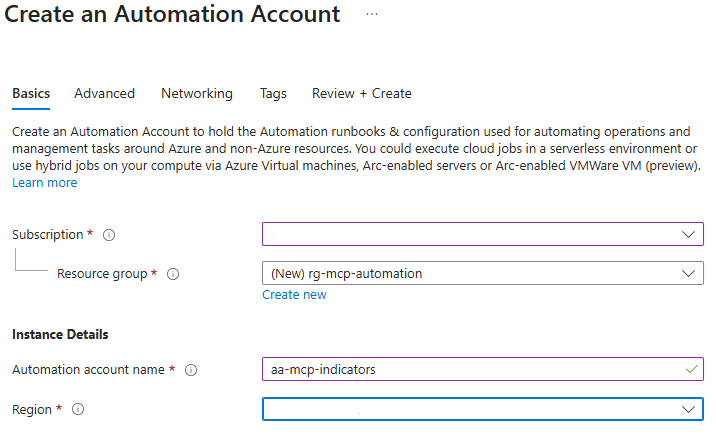
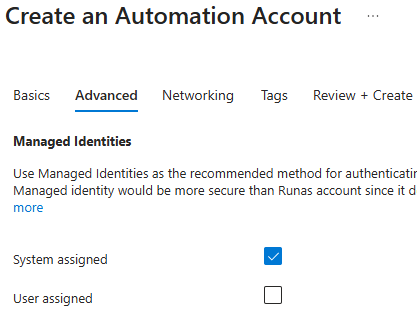
On Advanced, leave System assigned ticked. This managed identity is what the runbook authenticates as, so there are no credentials to store.
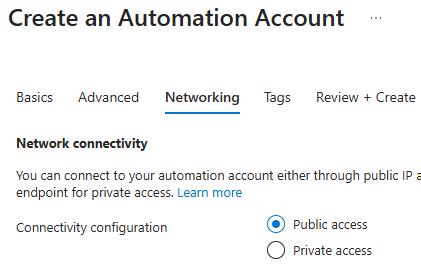
On Networking, choose Public access. The setting only controls inbound access to the account’s own endpoints, such as webhooks and Hybrid Runbook Workers. The runbook’s outbound calls to Graph and the Defender API work either way. Choose private access if your policy requires Private Link on every PaaS resource.
Select Review + Create > Create.
Step 2 – Confirm the managed identity
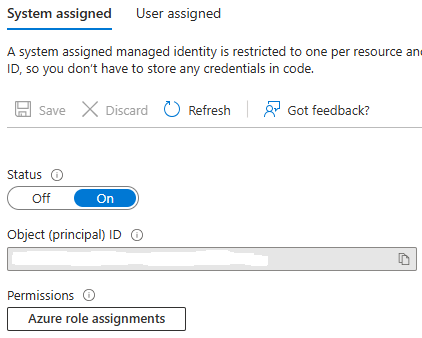
Open the account and go to Account Settings > Identity > System assigned. Status should be On. The runbook never needs the object ID – Azure Automation provides the identity’s token endpoint inside every job.
Step 3 – Grant the API permissions
The managed identity needs two application permissions:
| API | Permission | Used for |
|---|---|---|
| Microsoft Graph | ThreatHunting.Read.All |
Advanced hunting through runHuntingQuery |
| WindowsDefenderATP | Ti.ReadWrite.All |
Reading and creating indicators. The .All permission lets the runbook see indicators created by people as well as its own. |
Hunting goes through Microsoft Graph because Microsoft is retiring the Defender for Endpoint and Defender XDR advanced hunting APIs on 1 February 2027 (MC1220762). Indicators stay on the Defender for Endpoint API.
App roles cannot be assigned to a managed identity in the portal, so the first script does it. Run it from PowerShell 7 and enter the tenant and the Automation account name when prompted:
.\Grant-McpRunbookPermissions.ps1
The script finds the identity by name and contains no tenant-specific IDs. It is safe to re-run – roles already assigned are skipped. New role assignments can take 15-30 minutes to appear in the identity’s tokens.
Step 4 – Create the runbook
Go to Process Automation > Runbooks > Create. Name it MCP-ServerAutoBlock with runbook type PowerShell.
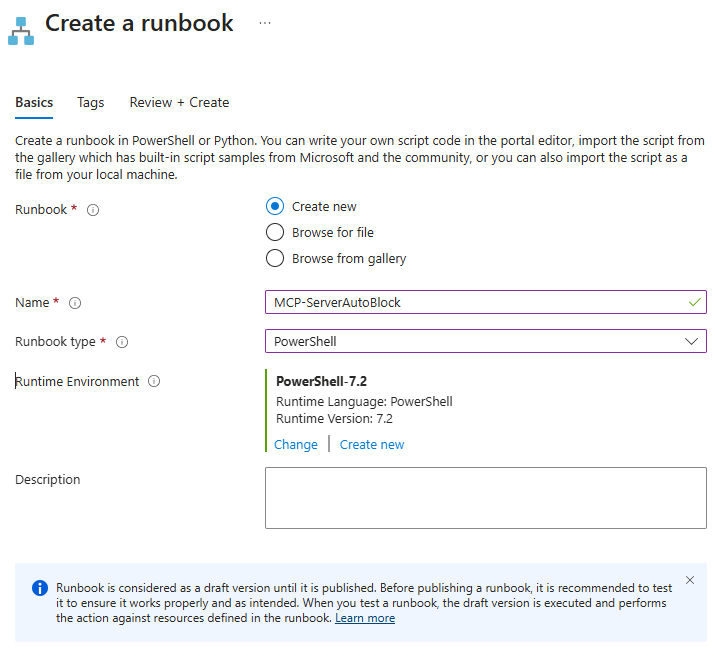
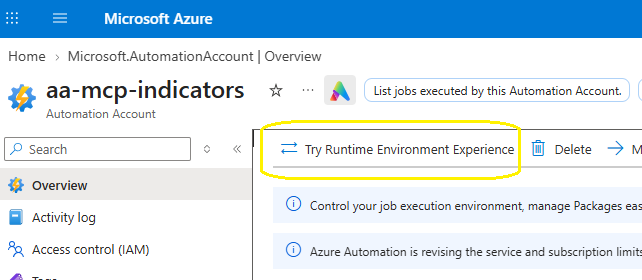
The classic runbook experience offers PowerShell 7.2 at most. Support for PowerShell 7.1 and 7.2 in Azure Automation has ended, so the runbook should move to a newer runtime. Newer versions are only available through Runtime environments. On the account Overview, select Try Runtime Environment Experience.
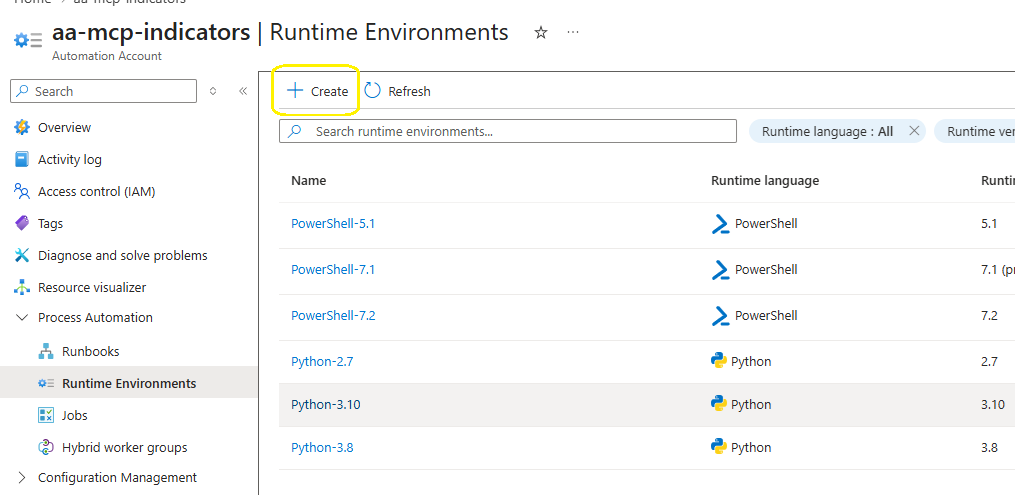
Go to Process Automation > Runtime Environments > Create. The system-generated environments stop at 7.2.
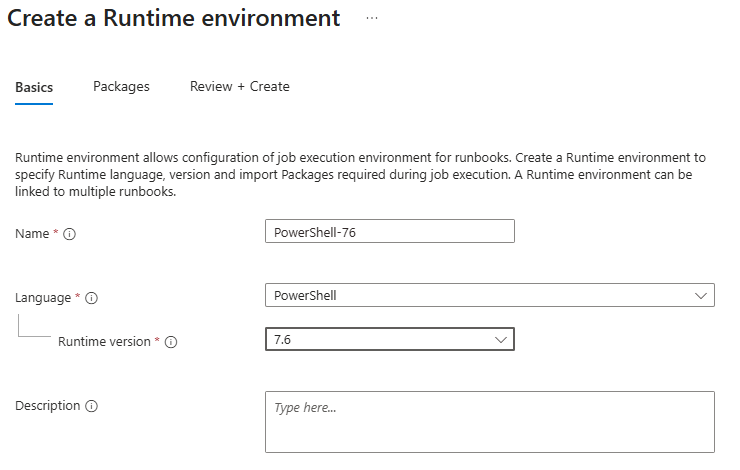
Name the new environment PowerShell-76, language PowerShell, runtime version 7.6, and leave the default packages. The runbook needs no extra modules. In my tenant 7.6 reported itself as a preview (7.6.0-preview.5). Use 7.4 where it is offered and you need a generally available runtime – the runbook runs unchanged on 7.2, 7.4 and 7.6.
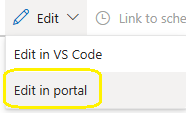
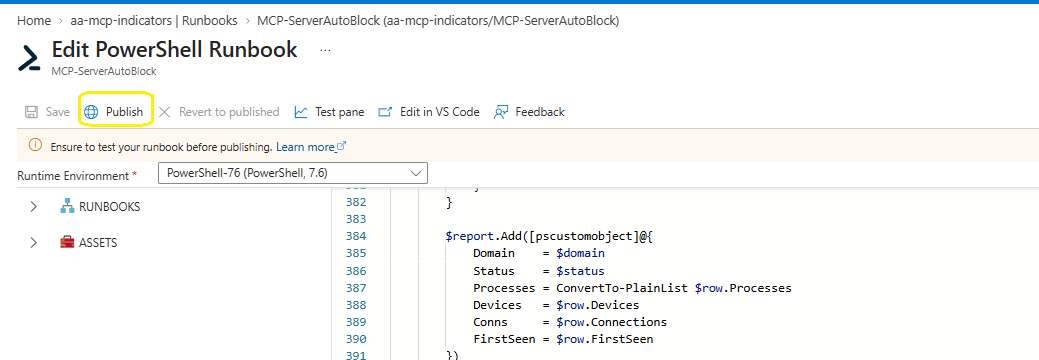
Open the runbook and select Edit > Edit in portal.
Set Runtime Environment to PowerShell-76, paste the contents of MCP-ServerAutoBlock.ps1 and select Save. Do not publish yet.
What the runbook runs
The core of the runbook is a single advanced hunting query. The agent process list and node.exe markers come from Automation variables, with lab-tested defaults:
let agentProcesses = dynamic(['claude.exe', 'copilot.exe', 'code.exe', 'cursor.exe', 'gemini.exe']);
let nodeMarkers = dynamic(['claude', 'copilot', 'gemini']);
DeviceNetworkEvents
| where Timestamp > ago(2h)
| where isnotempty(RemoteUrl)
| where InitiatingProcessFileName in~ (agentProcesses)
    or (InitiatingProcessFileName =~ "node.exe" and InitiatingProcessCommandLine has_any (nodeMarkers))
| where not(InitiatingProcessFileName =~ "claude.exe" and InitiatingProcessCommandLine has "--type=")
| extend HostPart = iff(RemoteUrl has "://", tostring(parse_url(RemoteUrl).Host), tostring(split(RemoteUrl, "/")[0]))
| extend Domain = tolower(trim_end(@"\.", tostring(split(HostPart, ":")[0])))
| where Domain matches regex @"^[a-z0-9-]+(\.[a-z0-9-]+)+$" and not(Domain matches regex @"^[0-9.]+$")
| summarize FirstSeen = min(Timestamp), Connections = count(), Devices = dcount(DeviceId),
            Processes = make_set(InitiatingProcessFileName, 5) by Domain
Agents that run under node.exe, such as Gemini CLI, are matched on their command line. The runbook then compares the results with the never-block list and the tenant’s existing domain indicators before creating anything.
| Parameter | Default | Purpose |
|---|---|---|
DryRun |
False |
Report what would be created without creating anything |
LookbackHours |
2 |
Overlaps the hourly schedule so nothing is missed |
MaxNewIndicators |
20 |
Safety cap per run |
IndicatorAction |
Block |
Audit logs and alerts only, for tuning |
Step 5 – Dry run in the test pane
Select Test pane, set dryRun to True and select Start. The pre-flight checks decode each token and confirm both app roles are present before the runbook does anything else.
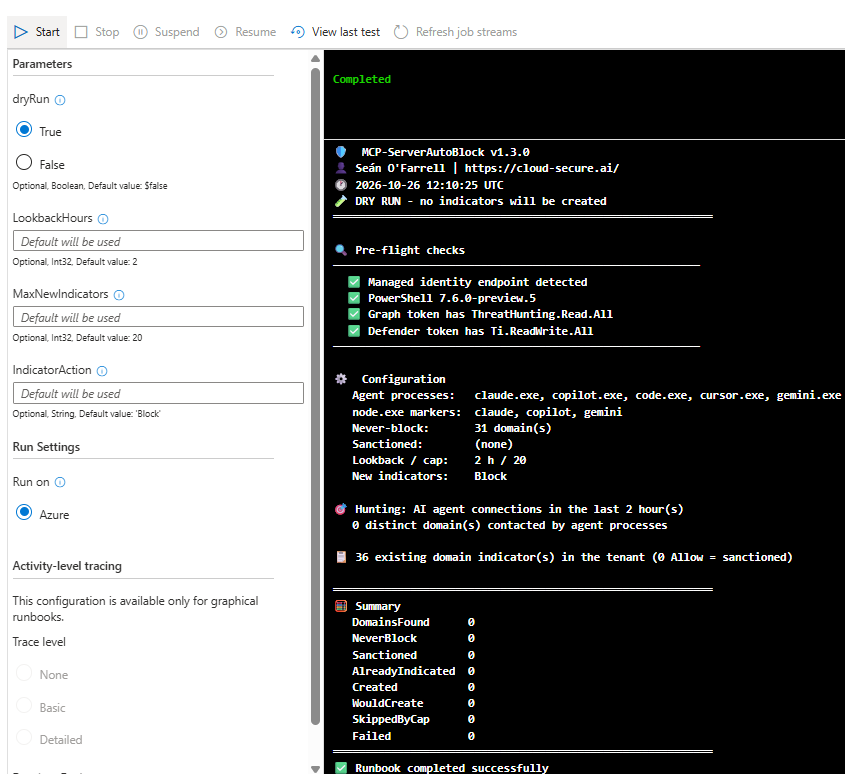
With no new agent activity in the last two hours, there is nothing to block – and nothing was created. When new MCP servers appear, they show as Would create (Block) in a dry run.
Step 6 – Publish and schedule
Select Publish > Yes. Scheduled runs always use the published version. Then run the third script, which needs no parameters:
.\New-McpRunbookSchedule.ps1- Enter the tenant ID or domain when prompted, for example
contoso.onmicrosoft.com. - Sign in to Azure.
- If your account can see more than one subscription, type the number shown next to the subscription that holds the Automation account – for example
1or10– and press Enter. - If more than one Automation account has the runbook, type the number of the right one.
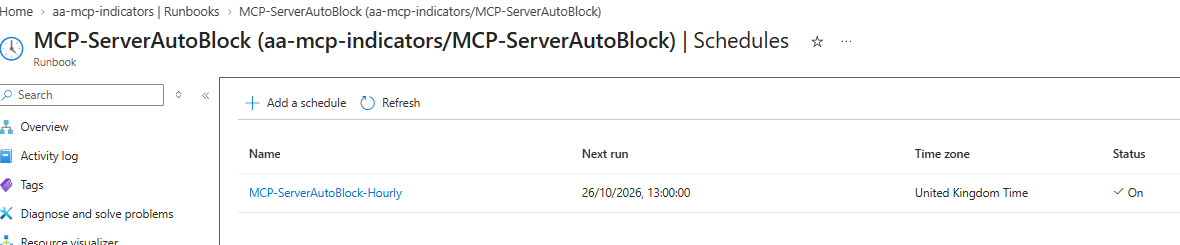
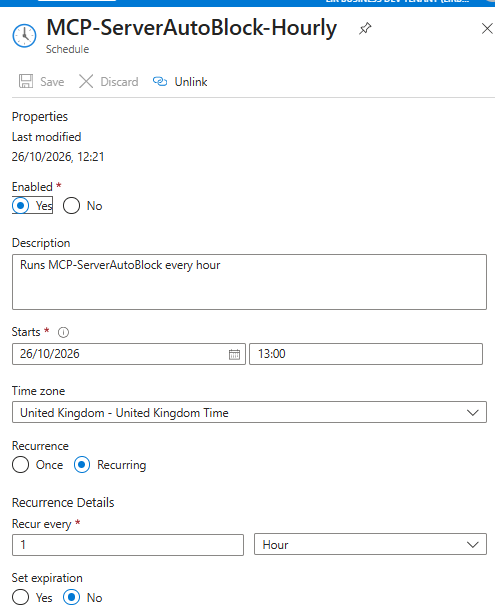
The script creates an hourly schedule starting at the next full hour and links it to the runbook with DryRun set to False, LookbackHours to 2 and IndicatorAction to Block. One hour is the most frequent a schedule can run in Azure Automation.
Permitting an approved MCP server
Approval lives in Defender, next to the blocks. In the Defender portal, go to Settings > Endpoints > Indicators > URLs/Domains:
- Already blocked – open the AI agent endpoint (auto, Block): … indicator, change Action to Allow and save.
- Approving in advance – select Add item, enter the domain, set Action to Allow and record the owner or change reference in the title.
Every later run reports the domain as Sanctioned (Allow). Two rules apply:
- Change the action, never delete the indicator. If a Block indicator is deleted, the next run sees the domain again and blocks it again.
- Use the bare domain. As part 4 showed, network protection only sees the domain name for non-browser processes, so a URL-style indicator never matches.
Network protection can take time to pick up indicator changes on a device – in part 4 the device needed a restart. Plan approvals with that delay in mind.
Defender for Cloud Apps is not the right place for this list. It sanctions apps from its catalogue, and most MCP endpoints are not in the catalogue, so they are never discovered as apps and cannot be sanctioned there.
Seeing it work with three agents
To prove the “any agent” claim, I gave three agents a new remote MCP server each, on domains with no indicator. Only Claude Code is on runtime protection’s supported list – Gemini CLI is not supported at all.
| Agent | MCP server | Process Defender sees |
|---|---|---|
| Claude Code | https://mcp.deepwiki.com/mcp |
claude.exe |
| Gemini CLI | https://gitmcp.io/docs |
node.exe (command line contains gemini) |
| GitHub Copilot CLI | https://huggingface.co/mcp |
copilot.exe |
Claude Code
Add the server for the user, so it is available in every folder:
claude mcp add --scope user --transport http deepwiki https://mcp.deepwiki.com/mcp
claude mcp list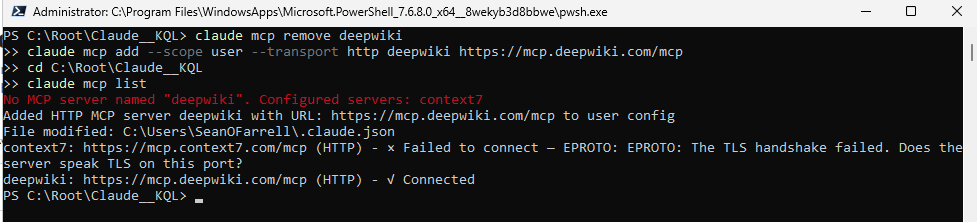
The list shows both sides of the control in one screen. Context7 fails with EPROTO: The TLS handshake failed – that is network protection enforcing the part 4 indicator. DeepWiki, which nobody has reviewed, connects.
Gemini CLI and GitHub Copilot CLI
Both install from npm, so Node.js comes first:
npm install -g @google/gemini-cli
npm install -g @github/copilot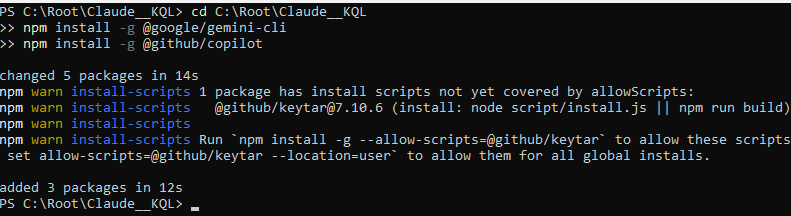
A note on TLS inspection. In my lab the installs first failed: the Node.js download returned 403 and npm reported SELF_SIGNED_CERT_IN_CHAIN. Both were caused by Entra Internet Access (Global Secure Access) web filtering and TLS inspection on the same device. If you run Global Secure Access, add exclusions for nodejs.org and registry.npmjs.org, or set NODE_USE_SYSTEM_CA=1 so Node.js trusts the Windows certificate store. For this test I paused the client, so the only control in the path was Defender for Endpoint.
Gemini CLI signs in with a Gemini API key from Google AI Studio – its Sign in with Google option is no longer offered for individual accounts. Add GitMCP to %USERPROFILE%\.gemini\settings.json:
{ "mcpServers": { "gitmcp": { "httpUrl": "https://gitmcp.io/docs" } } }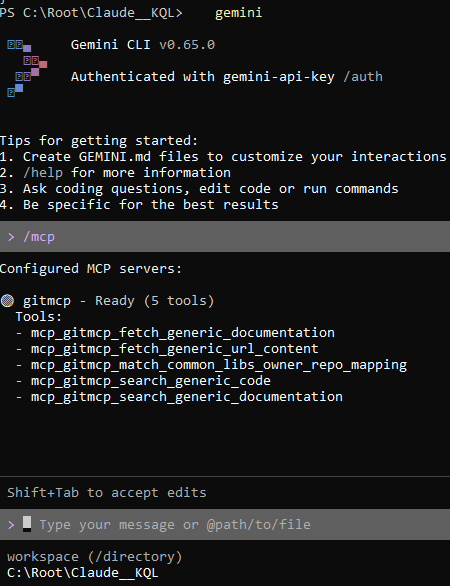
Copilot CLI signs in with /login, and the server is added from PowerShell:
copilot mcp add --transport http huggingface https://huggingface.co/mcp
copilot mcp list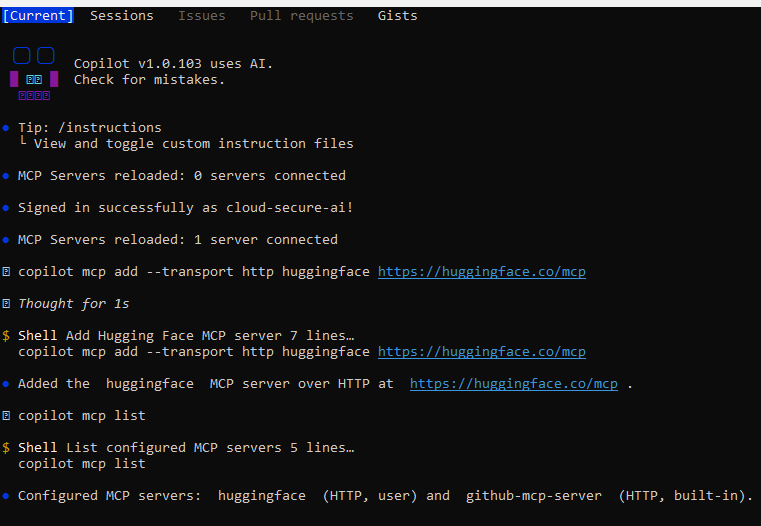
Note the built-in github-mcp-server. Copilot CLI ships with GitHub’s own MCP server already configured, which matters for the shared-domain point below.
What Defender records
A small lab helper, Invoke-McpAgentTest.ps1, runs each agent non-interactively with a prompt that uses its MCP tool. Each agent connects to its MCP servers as it starts, so the connection is logged even when the tool call itself fails. Minutes later, all three appear in advanced hunting:
DeviceNetworkEvents
| where Timestamp > ago(2h)
| where RemoteUrl has_any ("deepwiki.com", "gitmcp.io", "huggingface.co")
| extend Agent = case(
    InitiatingProcessFileName =~ "claude.exe", "Claude Code",
    InitiatingProcessCommandLine has "gemini", "Gemini CLI",
    InitiatingProcessCommandLine has "copilot", "GitHub Copilot CLI",
    InitiatingProcessFileName)
| summarize FirstSeen = min(Timestamp), Connections = count() by Agent, RemoteUrl, InitiatingProcessFileName
| order by FirstSeen asc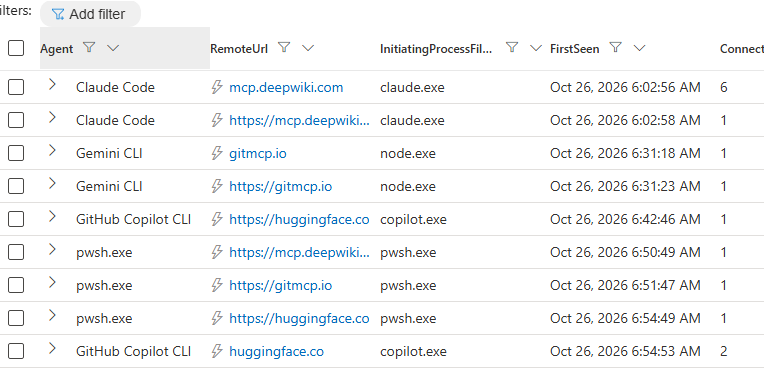
Three details are worth noticing:
- Gemini CLI is
node.exe. Only the command line identifies it, which is why the runbook matchesnode.exeagents on command-line markers. - Copilot CLI is
copilot.exe, even when installed from npm – the package runs a native binary. - Each server appears twice, once as a bare domain and once as an
https://URL. The runbook reduces both to the bare domain, so each server gets one indicator. Thepwsh.exerows are the test helper’s own reachability check – PowerShell is not in the agent list, so the runbook ignores them.
What the user sees when a server is blocked
When an agent reaches a blocked domain, network protection drops the connection and Windows shows a notification. This is Context7, blocked by the part 4 indicator, being reached when Claude Code started:
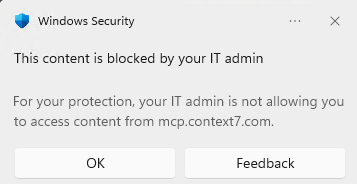
Claude Code connects to every configured MCP server at start-up, so the block – and its alert in the Defender portal – happened before anyone asked it a question. DeepWiki, GitMCP and Hugging Face are now in advanced hunting and match none of the never-block entries, so they are exactly what the runbook’s next hourly run picks up: each gets a Block indicator and an alert, and from then on each agent sees this same notification until an administrator approves the server.
GitHub Copilot and shared domains
GitHub hosts its remote MCP server at api.githubcopilot.com/mcp/, and Copilot CLI includes it as a built-in server. Network protection cannot see the /mcp/ path, so a block on api.githubcopilot.com affects everything on that host. In the lab, Copilot Free traffic from VS Code used api.individual.githubcopilot.com for the Copilot service itself, a different host – but Business and Enterprise plans use other hosts, so do not assume the same split.
For that reason githubcopilot.com is on the never-block list, and the runbook does not block GitHub’s own MCP server. Treat it as approved by default. If you want to block it, test with a manual Block indicator on api.githubcopilot.com first and confirm Copilot itself still works on your plan.
Limits to know
- Detect, then block. A brand-new server is reachable until it appears in advanced hunting and the next run blocks it – typically within one to two hours. A true pre-emptive allow-list belongs at the network edge, in a proxy or egress firewall.
- Domain only. The runbook cannot tell an MCP server from any other site an agent reaches. A site Claude Code fetches during a web search can be blocked too. Keep the never-block list tuned, review the alerts, and start on Audit if that risk is too high.
- Shared hosts. Where an MCP server shares a host with the agent’s own service, blocking one blocks both.
- Electron hosts. VS Code traffic is attributed to
code.exe, not to the extension, and the Claude desktop app’s remote connectors are not visible on the device. - Indicator alerts. As part 4 found, the indicator’s own alert ignores the severity set on it. Use the part 4 custom detection rule for tailored alerting.
The scripts
The scripts are in the Defender-mcp-server-autoblock repository on GitHub, each with its own README. None contains tenant-specific IDs.
| Script | Runs | Purpose |
|---|---|---|
| MCP-ServerAutoBlock | Azure Automation, hourly | Hunts, compares and blocks new AI agent endpoints |
| Grant-McpRunbookPermissions | Once, by an administrator | Grants the managed identity its two API permissions |
| New-McpRunbookSchedule | Once, by an administrator | Creates the hourly schedule and links it to the runbook |
| Invoke-McpAgentTest | Lab only, on a test device | Makes Claude Code, Gemini CLI and Copilot CLI call their MCP servers, before and after the block |
Wrapping up
Part 4 showed that one indicator can stop an agent reaching one MCP server. Part 5 turns that into a standing control: every new remote endpoint an AI agent uses is found within the hour, blocked by default and raised as an alert, and approval is a single change in the Defender portal. It works for any agent you can name, with nothing more than a managed identity, two API permissions and a scheduled runbook.
The rest of the series
- Part 1: Microsoft Defender AI agent runtime protection – the control for agents already on your endpoints
- Part 2: Microsoft Defender AI agent runtime protection – building it, proving it, and where the documentation is wrong
- Part 3: Microsoft Defender AI agent runtime protection – finding the agents you did not know you had
- Part 4: Microsoft Defender AI agent runtime protection – controlling where Claude can connect
References
- Advanced hunting with the Microsoft Graph security API – runHuntingQuery
- Submit or update indicator API – Microsoft Defender for Endpoint
- List indicators API – Microsoft Defender for Endpoint
- Runtime environment in Azure Automation
- Manage schedules in Azure Automation
- MC1220762 – MDE and XDR advanced hunting APIs retiring
- Scripts on GitHub – Defender-mcp-server-autoblock
Seán O’Farrell | cloud-secure.ai


Pingback: Microsoft Defender AI agent runtime protection: the series guide (parts 1 to 5) | Cloud-Secure.ai