Let me start with a comment. If your organisation is licensed for Microsoft 365 E5 and has no insider risk policies turned on, that is crazy. You are already paying for one of the most effective data protection controls Microsoft makes, and it is sitting there doing nothing.
Many organisations pay for Microsoft 365 E5, run a Microsoft Purview project for labels and data loss prevention, and then skip Insider Risk Management. In my experience that is almost never a deliberate decision. It happens because people do not understand what it does, worry that it is a tool for spying on staff, or think data loss prevention already covers it.
This seven-part series fixes that. It explains in plain English what insider risk is, how the product has changed, what it costs, how to build your first policy in a real test environment, how it lines up with GDPR and NIS2, and how it ties into Conditional Access and AI-powered alert triage.
My recommended approach: train your compliance officers in Purview Insider Risk Management and make them its owners, not your IT team. IT administrators have the widest access in the organisation, so they are among the people Insider Risk Management needs to watch – and nobody can fairly assess themselves. Control access to the Insider Risk roles that can see alerts with Microsoft Entra Privileged Identity Management (PIM), so it is switched on only when needed, for a limited time, and every activation is logged. Part 1 explains how.
Data protection officer, HR or legal? Start with Part 6, then read Part 1.
Short on time?Part 1 makes the case, and Part 6 answers the question your DPO will ask.
Scripts and KQL queries
Part 4 comes with two PowerShell scripts: Invoke-InsiderRiskSetup.ps1, which checks audit logging, assigns the Insider Risk Management roles and verifies your policy, and Invoke-InsiderRiskSimulation.ps1, which plays the part of a leaver in a test environment so you can prove the policy works. It also includes seven KQL hunting queries for Microsoft Defender, including a leaver activity timeline that works even without Insider Risk Management. Everything is on GitHub.
Series:This is Part 1 of 7 in my series on Microsoft Purview Insider Risk Management. New to the series? Start with the series guide, which summarises every part.
Let me start with a comment. If your organisation is licensed for Microsoft 365 E5 and has no insider risk policies turned on, that is crazy. You are already paying for one of the most effective data protection controls Microsoft makes, and it is sitting there doing nothing while your people – and now your AI agents – have full, legitimate access to your most sensitive data.
Many organisations pay for Microsoft 365 E5 and then start a Microsoft Purview project. Purview is Microsoft’s set of tools for protecting and governing data. The project usually covers sensitivity labels (tags that mark how confidential a document is), data loss prevention or DLP (rules that stop sensitive information being shared where it should not be), and retention (how long data is kept). Then the project closes, and Insider Risk Management is quietly left on the shelf.
That is rarely a deliberate decision. It happens because Insider Risk Management is the least understood part of Purview. People are not sure what it does, think it is a tool for spying on staff, or believe DLP already covers it. None of that is true.
Who should run it – and why not IT
My recommended approach is to train your compliance officers in Purview Insider Risk Management and make them its owners – not your IT team.
The reason is simple. IT administrators have the widest access in any organisation: mailboxes, file shares, laptops and admin portals. That makes them some of the most important insiders to watch. If IT runs Insider Risk Management, they end up investigating themselves and their colleagues – and nobody can fairly assess themselves. Keeping the people being watched separate from the people doing the watching is a basic rule of good governance, known as segregation of duties.
IT still has a job to do. They build the foundations – audit logging, laptop onboarding, the HR connector. They just do not see the alerts.
Access to the Insider Risk Management roles that can see alerts and reveal names should be controlled with Microsoft Entra Privileged Identity Management (PIM), which is included in E5. Instead of permanent access, a compliance officer is made eligible for the role and switches it on only when they need it – for a limited time, with a reason recorded and, if you choose, approval from a second person. Every activation is logged.
How to set it up: In Microsoft Entra, create a security group for each Insider Risk role you use – for example Insider Risk Investigators – and turn on PIM for Groups for it. Make your compliance officers eligible members, with a time limit and approval on activation. Then add that group, not the individual people, to the matching Insider Risk Management role group in the Purview portal. Microsoft documents PIM for Groups as the way to give just-in-time access to Purview role groups.
What you are exposed to without it
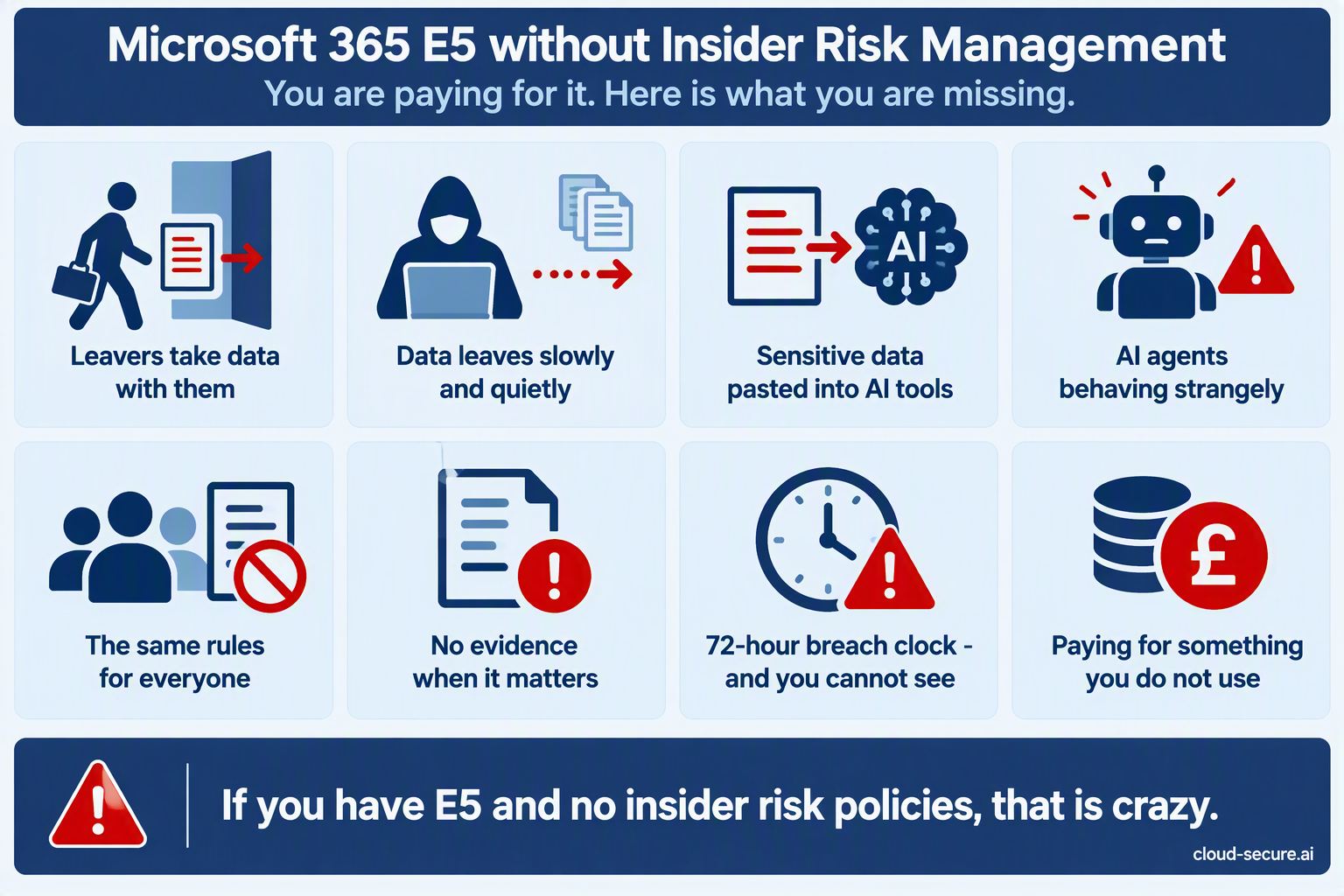
Here is what an organisation with E5 but no insider risk policies is living with today:
Risk
What happens without Insider Risk Management
Leavers take data with them
Nobody is told when someone who has resigned downloads, copies or emails sensitive files. You find out from a competitor, a client or a newspaper.
Data leaving slowly and quietly
Data that leaves a little at a time never sets off a DLP rule. Nothing compares what a person is doing now with what they normally do, or with what their colleagues do.
Sensitive data pasted into AI tools
You may block or record a single question typed into an AI tool, but you cannot see which people keep sharing sensitive data with Copilot, ChatGPT or other AI apps.
AI agents behaving strangely
AI agents – software that carries out tasks on a person’s behalf – have genuine access to your data. Without risky agent policies, nobody is watching what they do with it.
The same rules for everyone
Without insider risk, your security controls treat your riskiest user exactly like everyone else. You either restrict everybody or nobody.
No evidence when it matters
When HR or legal need to act, there is no timeline of what happened and no record of what left the organisation.
The breach clock is ticking and you cannot see
Under GDPR you must tell the Data Protection Commission about a personal data breach within 72 hours of becoming aware of it. You cannot report – or stop – what you cannot see.
Paying for something you do not use
The licence, the Security Copilot capacity included with E5, and the Triage Agent are all paid for and sitting idle.
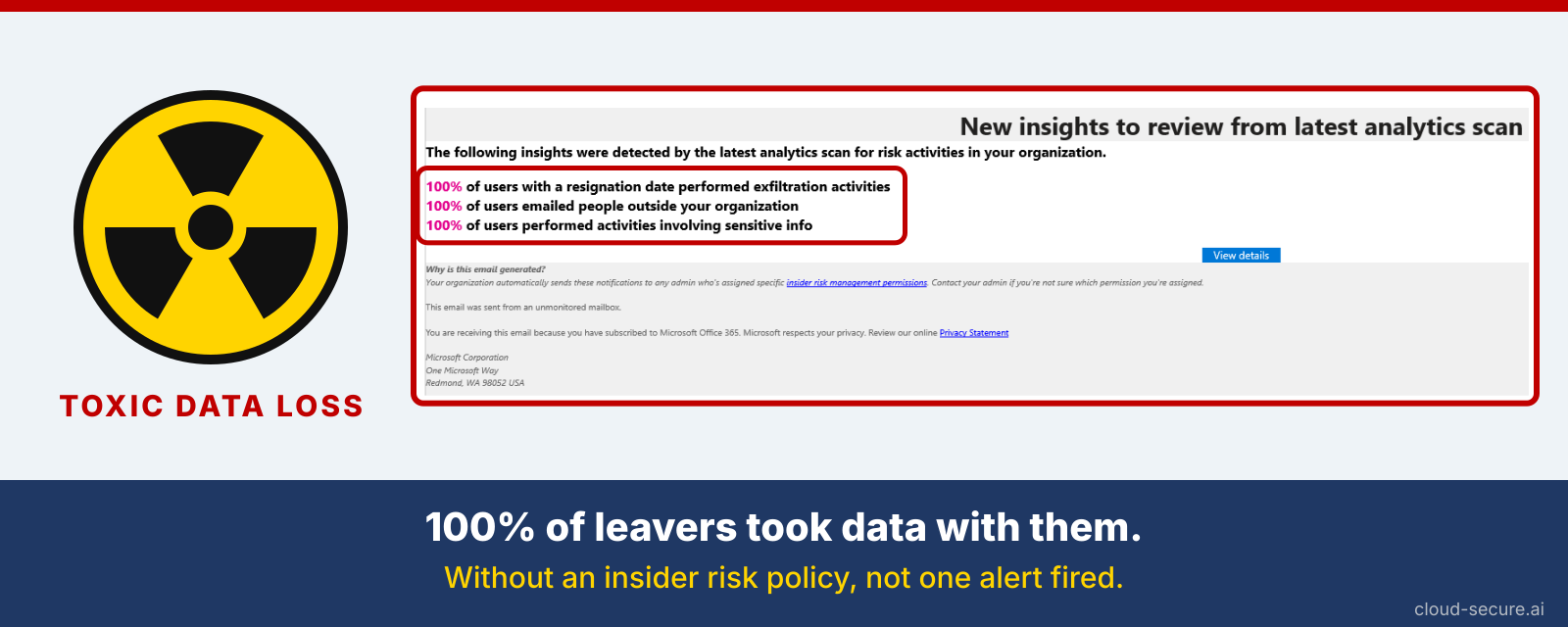
Look at the email below. Insider Risk Management sends it after it scans an organisation for risky activity. Every single person who had resigned had moved data out of the organisation. Without an insider risk policy, every one of them walked out the door without a single alert.
Why Insider Risk Management gets skipped
When I review a Purview programme, the reasons it was left out fall into the same handful of buckets:
“It feels like spying on our people.” Without a clear explanation of the privacy controls, the business, HR and legal teams say no.
“We already have DLP.” DLP and Insider Risk Management solve different problems – more on that below.
“We do not know what good looks like.” Insider risk alerts and risk scores are less familiar than labels and DLP, so the value is harder to explain.
“Licensing is confusing.” Teams are unsure what they are entitled to and what else it depends on.
“Nobody owns it.” Insider risk sits between security, HR, legal and compliance. Without a sponsor, it falls through the cracks.
Every one of these is solvable, and most are solved simply by understanding how the product works.
What insider risk actually is
An insider is anyone who is allowed to access your data – employees, contractors, partners, and increasingly AI agents working on their behalf. Insider risk is the chance that this access causes harm, whether on purpose or by accident.
Most insider incidents are not malicious. They are a well-meaning employee emailing a client file to their personal address, uploading a spreadsheet to an AI tool the company has not approved, or copying a project folder to their personal Dropbox before leaving. The result is the same as a deliberate leak – sensitive data outside your control.
Microsoft Purview Insider Risk Management joins the dots. It brings together activity from Microsoft 365, from laptops protected by Microsoft Defender for Endpoint, from Microsoft Entra ID (where user accounts live) and from HR systems, and looks for risky patterns. It comes with ready-made policy templates for the most common situations, such as data theft by people who are leaving, data leaks, security policy breaches and risky use of AI.
Key terms in plain English:Exfiltration – moving data out of the organisation. Indicator – a specific activity Insider Risk Management watches for, such as copying files to USB. Triggering event – something that starts the watching, such as a resignation. Risk score – how worrying a person’s activity looks, which decides whether an alert is raised. Pseudonymised – names are replaced with codes, so investigators do not know who they are looking at until they need to.
Insider Risk Management is not DLP
DLP checks a single action against a rule at that moment – for example, blocking an email that contains credit card numbers. It has no memory of what that person did yesterday.
Insider Risk Management looks at behaviour over time. Picture someone who resigns, then a week later downloads far more files than usual, renames them, zips them up and copies them to a USB stick. That raises a high-priority alert, even though no single step on its own would have broken a DLP rule.
The two work best together. A feature called Adaptive Protection takes the risk level Insider Risk Management gives each person and passes it to DLP and to Conditional Access (the rules that decide who can sign in to what). Controls then tighten automatically for the few people who present a real risk, while everyone else carries on as normal.
A worked example: Contoso
Contoso is licensed for Microsoft 365 E5. A senior engineer hands in their notice. HR records the resignation and last working day in the HR system, and that information is passed to Insider Risk Management automatically. Over the following week the engineer:
Downloads several hundred files from a project SharePoint site they have not touched in months
Downgrades the sensitivity label on a client proposal
Uploads a compressed archive to a personal cloud storage service
On its own, each of these looks normal. Together, and straight after a resignation, they tell a clear story. Insider Risk Management raises an alert with the full timeline, and HR and legal have the evidence before the engineer’s last day rather than after it.
Privacy is built in, not bolted on
Names hidden by default. People appear as codes until an authorised investigator chooses to reveal who they are.
Only the right people see alerts. Separate roles for the people who set it up, the people who review alerts and the people who investigate.
Nobody is watched without a reason. Most policies only start looking at a person after a triggering event, such as a resignation.
The watchers are watched. Every action taken inside Insider Risk Management is itself recorded.
Part 6 covers how these controls line up with GDPR and the Data Protection Commission’s workplace guidance.
Final thoughts
What holds organisations back from Insider Risk Management is understanding, not technology. Over the rest of this series I will walk through everything you need to make the case internally and switch it on with confidence. In Part 2, I look at how the product has changed – because if you looked at it in 2020, it is not the same product today.
Series:This is Part 5 of 7 in my series on Microsoft Purview Insider Risk Management. New to the series? Start with the series guide, which summarises every part.
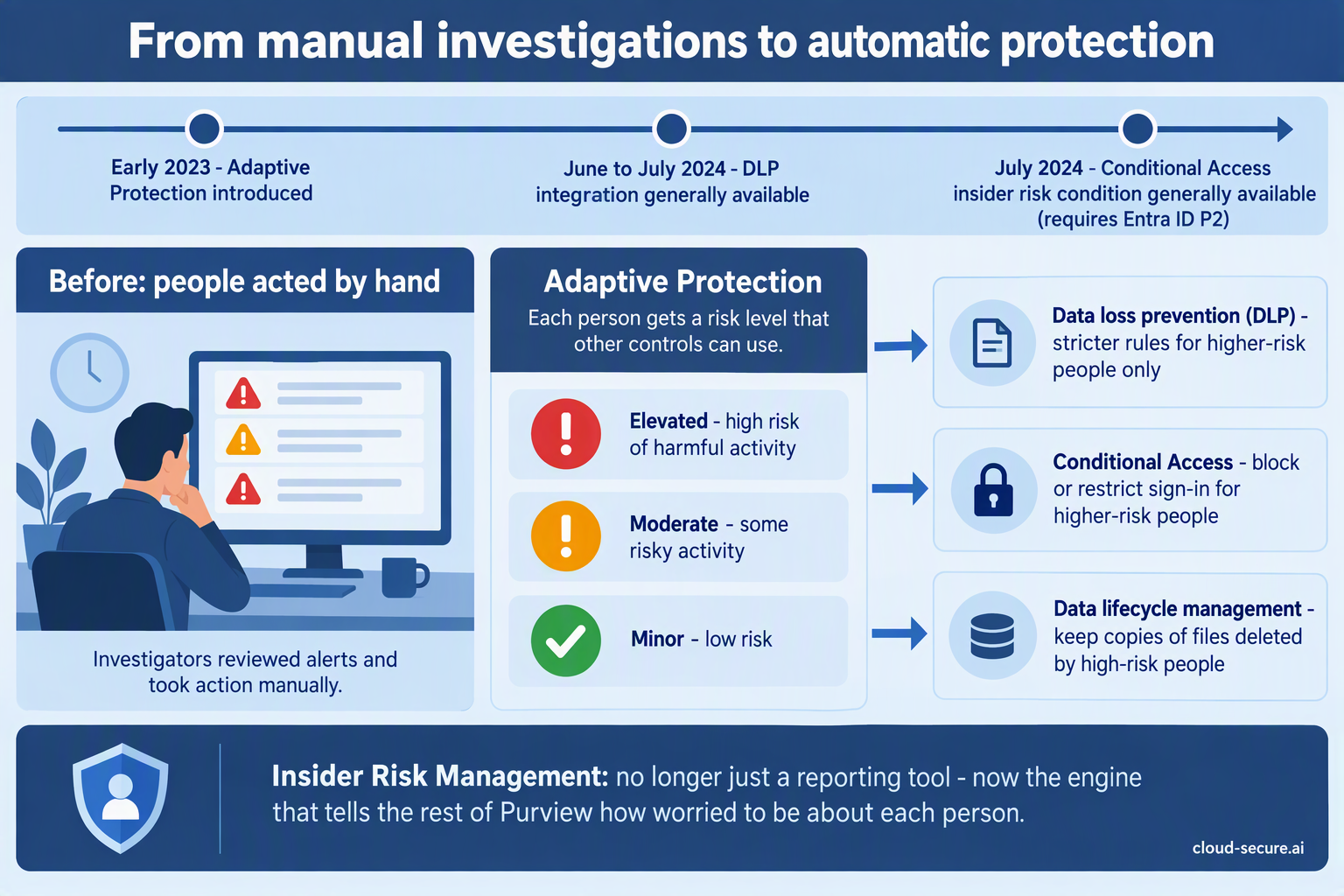
In Part 4 we built a policy that spots people taking data before they leave. On its own, that policy raises alerts – and then waits for a person to act. Adaptive Protection removes the wait. It turns each person’s insider risk into a level, and lets your other security controls tighten automatically for the few people who are genuinely risky, while everyone else carries on as normal.
This is the feature that turns Insider Risk Management from a reporting tool into protection. In this part I explain how it works in plain English, what quick setup creates for you, and how to roll it out without upsetting anyone.
What Adaptive Protection does
Most security controls treat everyone the same. A data loss prevention (DLP) rule that blocks copying to USB blocks it for the whole organisation, which frustrates the many to stop the few. So most organisations set their rules loosely – and the risky few get through.
Adaptive Protection fixes that. Insider Risk Management watches behaviour and gives each person a risk level. Other controls then read that level and act on it:
Data loss prevention – stricter rules for higher-risk people only.
Conditional Access – block or restrict sign-in for higher-risk people (covered in Part 7).
Data lifecycle management – keep copies of anything a high-risk person deletes.
Levels go up and down automatically as behaviour changes. Nobody has to remember to add someone to a “watch list” or take them off it again.
The three risk levels
Adaptive Protection uses three levels. Microsoft provides built-in definitions, which you can change:
Level
Built-in definition (simplified)
Typical response
Elevated
High-severity alerts, several high-severity sequences of risky activity, or a confirmed high-severity alert
Block
Moderate
Medium-severity alerts, or at least two high-severity data exfiltration activities
Warn, record, or require extra steps
Minor
Low-severity alerts, or at least one high-severity data exfiltration activity
Record only
Do not confuse the two: Alert severity (Low, Medium, High) helps analysts decide which alert to look at first. Insider risk levels (Minor, Moderate, Elevated) are what drive automatic protection. They are related, but they are not the same thing.
How long a level lasts
Risk level timeframe: a level lasts 7 days by default (you can choose between 5 and 30). If the person keeps meeting the criteria, it is extended.
Past activity detection: how far back Adaptive Protection looks at activity when assigning a level – also 7 days by default, between 5 and 30.
Automatic expiry: on by default. When the related alert is dismissed or the case is closed, the level is removed.
Manual reset: an investigator can expire a person’s level at any time under Adaptive Protection > Users assigned insider risk levels. Alerts and cases are kept.
Quick setup or custom setup?
Quick setup is the fastest way to start and needs no existing policies. It creates everything for you in a safe, test-only state:
What it creates
What it does
Starts as
Insider risk policy
Adaptive Protection policy based on the Data leaks template, covering all users
Active
DLP policy for laptops (Endpoint DLP)
Elevated: blocks USB copies, printing, uploads to unapproved cloud sites and more. Moderate and Minor: recorded only
Simulation (test mode)
DLP policy for Teams and Exchange
Elevated: blocks sharing sensitive content with people outside the organisation. Moderate and Minor: recorded only
Simulation (test mode)
Conditional Access policy
Blocks Elevated people from Office 365 apps
Report-only
Data lifecycle policy
Keeps deleted SharePoint, OneDrive and Exchange content from Elevated people for 120 days
Active
Quick setup can take up to 72 hours to finish, and you get an email when it is done. Do not turn Adaptive Protection off while it is still setting up.
Custom setup suits organisations that already have insider risk and DLP policies. You choose the insider risk policy, define the three levels yourself, add the risk level condition to your existing DLP and Conditional Access policies, then switch Adaptive Protection on. Results can take up to 36 hours to appear.
How DLP uses the risk level
Once Adaptive Protection is on, DLP policies gain a new condition: “Insider risk level for Adaptive Protection is”. You choose one, two or all three levels, then choose what happens. It works in DLP policies for Exchange email, Teams and devices (company laptops).
The pattern Microsoft uses in quick setup is a good starting point:
Where
Elevated
Moderate and Minor
Laptops
Block copying to USB and network shares, printing, copying to the clipboard, uploads to unapproved cloud sites and use by unapproved apps
Record the same activities, without blocking
Email and Teams
Block or encrypt sensitive content shared with people outside the organisation
Record external sharing, without blocking
For laptops: Adaptive Protection on devices needs either Advanced classification scanning and protection switched on, or the “File type is” condition in your DLP rule. If someone is covered by both an Adaptive Protection policy and another device DLP policy, the strictest one wins.
Who needs which role
Task
Role
Set up Adaptive Protection
Insider Risk Management or Insider Risk Management Admins
Edit DLP policies that use the risk level
Compliance Administrator, Compliance Data Administrator or DLP Compliance Management
Edit Conditional Access policies that use the risk level
Conditional Access Administrator or Security Administrator
See who has which risk level
Insider Risk Management, Analysts or Investigators – ideally your compliance officers through PIM, as described in Part 1
Rolling it out safely
Run quick setup and wait for the completion email.
Leave everything in simulation for two to four weeks. Review which people reach each level and what the DLP policies would have blocked.
Check for surprises. Are the right people reaching Elevated? Would any legitimate work have been blocked? Adjust the level definitions if needed.
Turn on blocking for Elevated only. Leave Moderate and Minor recording only.
Tell people. Your IT acceptable use policy and privacy notice should explain that controls can tighten automatically when risky activity is detected – see Part 6.
Review regularly. Look at who is assigned a level each week, and use manual expiry when an investigation clears someone.
Switching it off
If you ever need to, turn Adaptive Protection off in its settings. Levels stop being assigned and are reset within about six hours. Your insider risk, DLP, Conditional Access and data lifecycle policies are not deleted – they simply stop receiving risk levels.
Final thoughts
Adaptive Protection is where the investment in Insider Risk Management pays back. Instead of choosing between rules that are too strict for everyone or too loose to matter, you get strict rules for the few who need them and freedom for everyone else – automatically.
In Part 6 I tackle the question every data protection officer asks: is this something we are obliged to do?
Series:This is Part 7 of 7 in my series on Microsoft Purview Insider Risk Management. New to the series? Start with the series guide, which summarises every part.
This is the final part of the series, and it brings everything together. Insider Risk Management spots risky behaviour. Adaptive Protection turns it into a risk level. In this part, that risk level reaches the front door – sign-in – and an AI assistant helps your compliance team deal with the alerts.
Part A: Insider risk in Conditional Access
Conditional Access is the set of rules in Microsoft Entra ID that decides who can sign in to what, from where and on which device. Most organisations already use it – for example, to require multi-factor authentication. Since July 2024, it can also use a person’s insider risk level as a condition.
That means the same risk level that tightens DLP in Part 5 can also block or restrict someone’s access to Microsoft 365 apps. You need Microsoft Entra ID P2, which is included in E5, and Adaptive Protection switched on.
What Microsoft recommends for each level
Level
Recommended Conditional Access response
Effect on the person
Elevated
Block sign-in to Microsoft 365 apps, block access to specific labelled SharePoint sites, or block downloads from cloud apps
Cannot reach the data at all
Moderate
Require them to accept Terms of Use when signing in to admin portals
A reminder of their obligations, with no loss of access
Minor
Run a policy in report-only mode
None – you just gain visibility
The Copilot angle: Blocking an Elevated person from specific labelled SharePoint sites also stops Microsoft 365 Copilot generating answers from those sites for them. A risky person cannot use Copilot as a back door to sensitive content.
Creating the block policy for Elevated risk
If you ran Adaptive Protection quick setup in Part 5, a policy called “1-Block access for users with Insider Risk” already exists in report-only mode. To create one yourself, sign in to the Microsoft Entra admin center as at least a Conditional Access Administrator and:
Go to Entra ID > Conditional Access > Policies and select New policy.
Users: include All users. Exclude your emergency access (break-glass) accounts and guest or external user types.
Target resources: include All resources.
Conditions: select Insider risk, set Configure to Yes, and tick Elevated.
Grant: select Block access.
Enable policy: set it to Report-only and select Create.
Review the report-only results for a few weeks, then switch the policy to On.
Never skip report-only: Blocking sign-in is the strongest action in this series. Run it in report-only first, check exactly who would have been blocked, and always exclude your emergency access accounts so a mistake cannot lock everyone out.
Part B: The Data Security Triage Agent
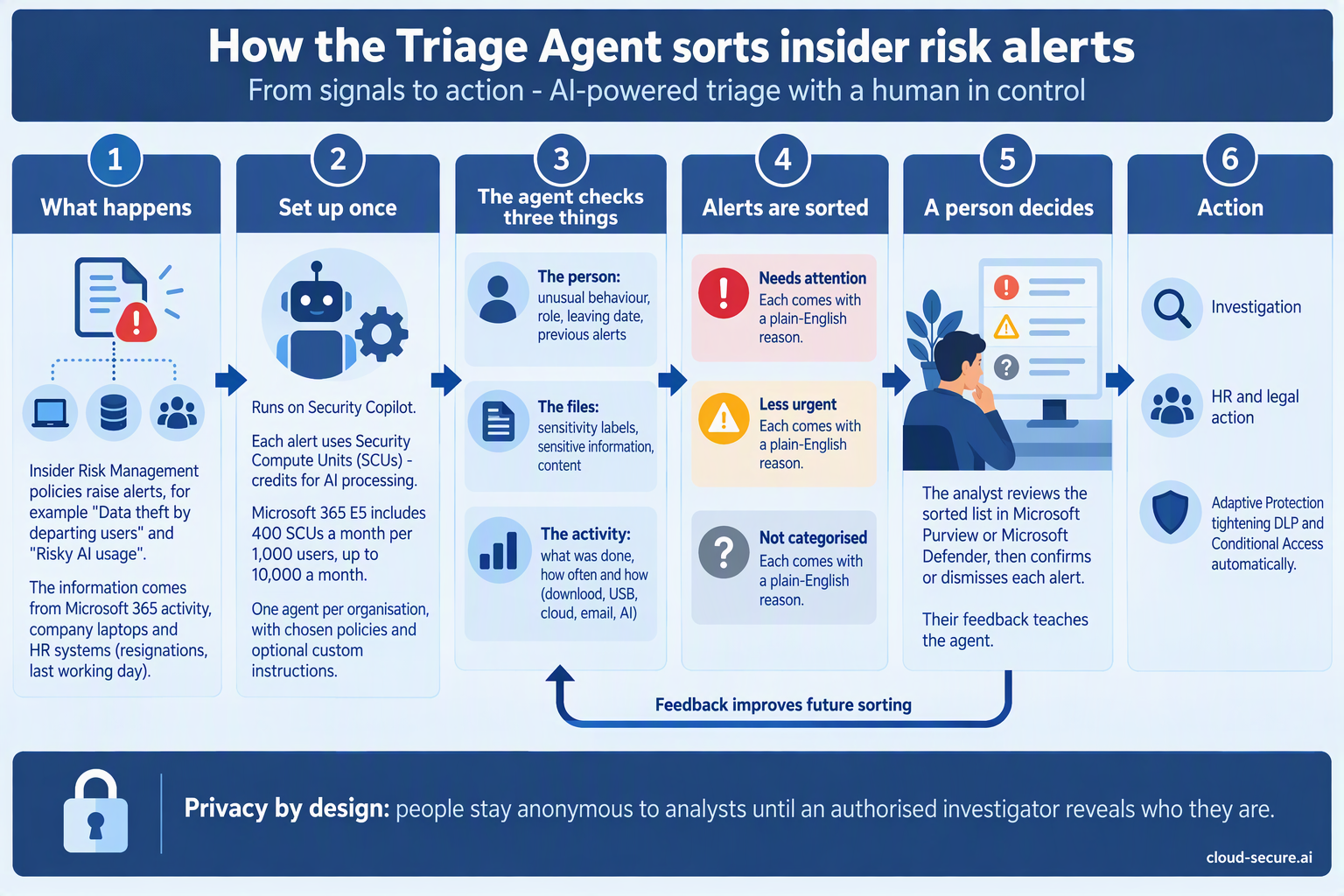
Every insider risk policy produces alerts, and someone has to look at them. On a busy day that queue can be long, and the most important alert can sit behind dozens of harmless ones. The Triage Agent is an AI assistant, built on Security Copilot, that reads each alert first and sorts the queue so your compliance team starts with what matters.
It does not investigate, decide or take action. It sorts and explains. A person still makes every decision.
How it sorts alerts
Category
What it means
Needs attention
The alerts the agent judged highest risk. Start here.
Less urgent
Lower-risk alerts to review when you have capacity.
Not categorized
Alerts the agent could not assess – for example, unsupported activity or an error. These still need a person to look at them.
For each alert, it weighs up the person (for example, whether they are a priority user and how many cases they already have open), the activity (how likely it is to be data leaving the organisation) and the content involved, and writes a short plain-English explanation of its decision.
How it runs and what it costs
Scope: you choose which insider risk policies it covers, and whether it looks only at new alerts or also at alerts from up to 30 days back.
Schedule: it can run automatically on a schedule, or an analyst can run it on one alert at a time.
Cost: each alert it processes uses Security Compute Units (SCUs). Microsoft 365 E5 includes 400 SCUs a month for every 1,000 users, up to 10,000 a month – see Part 3.
Feedback: analysts can give feedback on its decisions, which it takes into account when it triages future alerts.
Getting started well
Tune noisy policies first. The agent sorts what your policies produce – and every alert costs credits.
Start with new alerts only, then widen the lookback once you trust the results.
Compare for two weeks. Have your compliance team triage as normal and compare their view with the agent’s.
Check Not categorized every day. Those alerts have not been assessed by anyone yet.
Watch your SCU usage in Security Copilot, so the monthly allowance is not used up by one noisy policy.
The people reviewing the sorted queue need the same Insider Risk Management roles as before – Analysts or Investigators, through PIM. Setting up the agent needs additional Purview agent and Security Copilot roles.
Bringing it full circle
Over seven parts, we have gone from a licence sitting on the shelf to a joined-up system:
Insider Risk Management spots risky behaviour, starting with people who are leaving.
Adaptive Protection turns that behaviour into a risk level.
DLP and Conditional Access tighten automatically for the few who need it.
The Triage Agent helps your compliance team deal with the alerts.
Compliance officers, not IT, own the process, with access controlled through PIM.
And all of it is included in the Microsoft 365 E5 licence many organisations already pay for.
Final thoughts
If you take one thing from this series, make it this: if you have E5 and no insider risk policies, you are paying for protection you are not using. Start small – one departing users policy, a few compliance officers, quick setup in simulation – and build from there. The scripts and KQL queries from Part 4 will help you prove it works.
Thank you for following the series. If you have questions or want to talk about your own deployment, get in touch through cloud-secure.ai.
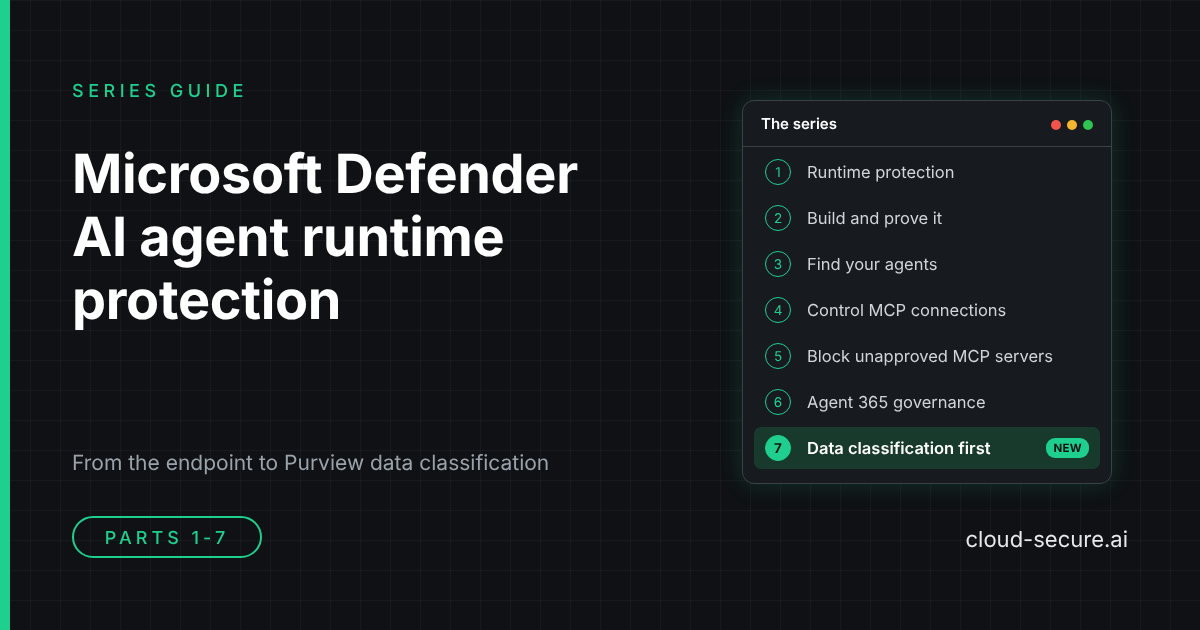
Series guide:seven parts on securing the AI agents in your organisation, from Microsoft Defender for Endpoint on the device, to governance in Microsoft Agent 365, to classifying the data they can reach with Microsoft Purview: what each part covers, and where to start.
AI agents such as Claude Code, GitHub Copilot and Gemini CLI are already on managed endpoints, running with the full rights of the signed-in user and connecting to MCP servers that nobody has reviewed. This series works through what Microsoft Defender for Endpoint can do about that today: detecting prompt injection, finding the agents, and controlling and automatically blocking the servers they talk to. It then moves up a level to Microsoft Agent 365, where you decide which agents exist, who owns them and what they can reach, and finally to Microsoft Purview, where classification decides what data is allowed through once a destination is approved.
Every part is built and tested in a lab or dev tenant, with screenshots of what actually happened, including where the product or the documentation did not behave as expected.
The starting point: what AI agent runtime protection is, which agents it covers and how it detects prompt injection against agents running locally on your endpoints. If you are new to the topic, start here.
The lab build and the validation work behind it. It shows the protection working end to end, and records where the published documentation did not match what the tenant actually served, so you do not lose the same time I did.
Visibility before control. The Local agents view in the Defender portal, why discovery is activity based rather than installation based, the licensing split between the inventory and the risk assessment, and a set of advanced hunting queries that go well beyond what the portal shows.
Runtime protection does not decide which MCP servers an agent may reach. Part 4 closes that gap for a known server: a Defender for Endpoint custom domain indicator, enforced by network protection, blocks Claude Code from an unsanctioned remote MCP server. It covers why the indicator must be the bare domain, why Edge enforces it before network protection does, and a custom detection rule to alert on the blocks.
An indicator only blocks the domains you list. Part 5 automates it: an Azure Automation runbook with a managed identity runs every hour, finds every new remote endpoint an AI agent has used, and blocks it with a Defender indicator and an alert. Approved servers are permitted with an Allow indicator. It is tested with Claude Code, GitHub Copilot CLI and Gemini CLI (an agent runtime protection does not support), and the scripts are on GitHub.
Parts 1 to 5 act on the device, once an agent is already running. Part 6 moves up to governance in Microsoft Agent 365, where every agent in the tenant is inventoried and approved before people can use it. A dev tenant with 318 agents had only 84 visible to Entra, so most were out of reach of Conditional Access. The post works through four gates: who can build, Agent 365 approval, owners, sponsors and access packages, and Conditional Access and ID Protection for agents. It also covers the Workload ID Premium gap that E7 does not include, and a companion script on GitHub that reviews the tenant and creates the policies in report-only mode.
Parts 1 to 6 decide where data is allowed to go. Part 7 answers the question that has to come first: what is the data? Once a destination is approved, whether an MCP server, Copilot or an AI app, only a control that recognises the content can stop the wrong data reaching it. The post covers every Purview classification method – sensitivity labels, custom SITs, exact data match, document fingerprinting and trainable classifiers – and the types of DLP that act on them, from Endpoint DLP to inline web traffic and the Copilot location. It walks through how proximity and confidence levels keep a custom SIT from flooding the alert queue, where GSA prompt injection protection fits and where it does not, finding IP already at rest with eDiscovery, and the Triage Agent in DLP. It is the foundation the other six parts stand on.
Where to start
New to the topic: read part 1, then part 3 to see what is already running in your estate.
Need to control MCP servers now:part 4 for a single server, then part 5 to block every new one automatically.
Need to know which agents exist and who approved them:part 6.
Need to stop sensitive data reaching agents and AI apps you have approved:part 7, the foundation every other control relies on.
More to come
The series is not finished. Microsoft is moving quickly on AI agent security in the Defender portal, and the next parts will follow the new capabilities as they arrive, including the new Sentinel workbook and automation features in the Defender portal. Each one is built and tested in a lab before it is written up.
Follow along on cloud-secure.ai or connect with me on LinkedIn to hear when the next part is published.
Disclaimer: The views in this series are my own. They do not represent my employer, or Microsoft or any other vendor whose products are discussed here.