Series: Part 1 introduced AI agent runtime protection in Microsoft Defender for Endpoint. Part 2 covered the lab build and validation. Part 3 goes back a step to the question that should come first: what is actually running on your endpoints?
Every organisation I work with has more AI agents running on its endpoints than it thinks it has. Not Copilot Studio agents, not Foundry agents, not anything that went near an architecture review. Developer tooling: Claude Code, the VS Code Claude Code extension, GitHub Copilot CLI, ChatGPT Desktop, Antigravity CLI. Installed by individuals, on managed laptops, with the full rights of the signed-in user, talking to MCP servers nobody has catalogued.
The Local agents tab in Microsoft Defender is the first Microsoft capability that gives you a straight answer to the question “what is actually running?”. This post covers what the view shows, how to get the data out of it, a set of advanced hunting queries that go well beyond what the portal surfaces, and – the part that matters – what you can actually do about what you find.
Part 1 of this series covered what AI agent runtime protection is and how it detects prompt injection against local agents. Part 2 covered the lab build and the validation work behind it. Both assumed you already knew which agents you were protecting. This part fills that gap, and in a real deployment it is the step that comes first.
Where the data comes from
Local agent discovery lives in the Defender portal under Assets > AI agents, on the Local agents tab. The Agents tab beside it covers cloud-hosted agents from Copilot Studio, Microsoft Foundry and Microsoft 365. Local agents are a separate pipeline and a separate onboarding story.
The mechanism is worth understanding, because it drives how you interpret the numbers:
- Discovery is delivered by Microsoft Defender Antivirus, not by a separate agent, a script or a connector. There is nothing to deploy.
- It is activity based, not installation based. An agent that is installed but has not run will not appear. The inventory answers “what has been used”, which is the more useful question, but it means the count climbs over time rather than landing fully formed.
- Each row is one agent installation, scoped to a device and an account. The same agent on three devices is three rows. Two accounts on one device is two rows. The row count is not the agent count.
Prerequisites
- Defender for Endpoint Plan 2, commercial cloud only. Sovereign and national clouds are not supported.
- Devices onboarded to Defender for Endpoint, running a supported Windows or macOS build. macOS discovery is in preview.
- Defender Antivirus in active mode with real-time protection enabled. Passive mode will not give you this.
- Current monthly platform and engine updates.
The licensing split that catches people out
The inventory and the risk assessment are licensed separately, and this is the single most important thing to flag to a client before they go looking:
| Capability | Licence required |
|---|---|
| Discover agents, view the inventory, agent details, device and account, configured MCP servers | Defender for Endpoint Plan 2 |
Query agents in advanced hunting, including the AgentsInfo table |
Defender for Endpoint Plan 2 |
| Risk level, Risk indicators and security recommendations | Microsoft 365 E7, or Microsoft Agent 365 with Defender for Endpoint Plan 2 |
An E5 tenant gets the inventory and the hunting table. The Risk level column that the view is built around needs E7 or Agent 365. Worth confirming against your own licence position before you build a report that depends on it.
Reading the Local agents view
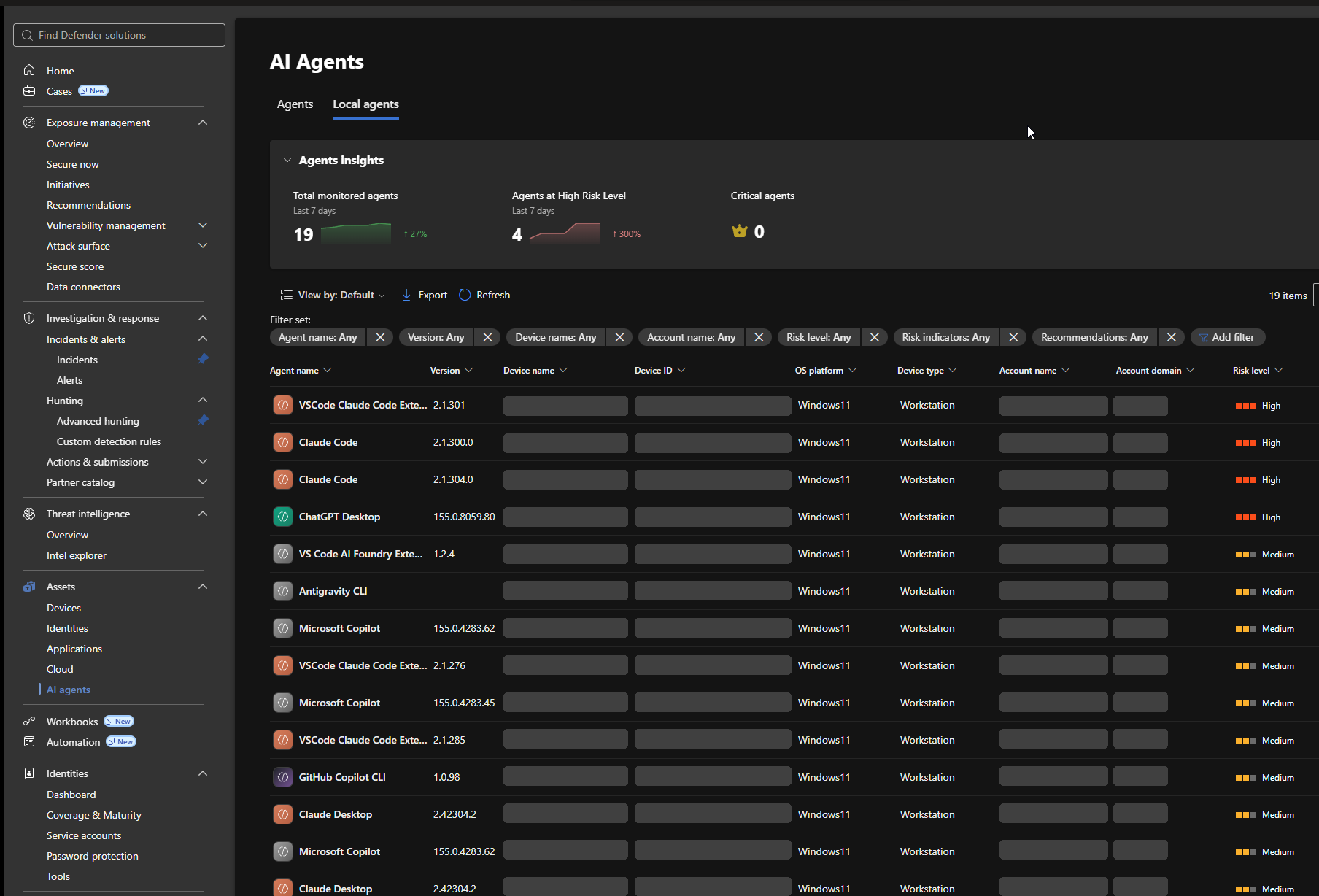
Here is the tab in a tenant with nineteen agents discovered. Device names, device IDs, account names and account domains are redacted throughout – the blanked columns are deliberate, not a rendering fault.
Agents insights
Three cards sit across the top: Total monitored agents, Agents at High Risk Level and Critical agents, each over a seven day window with a trend. In the Contoso tenant above that reads 19 monitored agents, up 27 per cent, with 4 at high risk, up 300 per cent, and no critical agents.
The 300 per cent jump is the useful signal, and it is also the trap. On an activity-based inventory, a week-on-week rise usually means discovery is still catching up rather than that four new risky agents appeared on Tuesday. Treat the first three to four weeks after enablement as a baselining period and do not report the trend to a steering group until it settles.
Columns
The default view gives you Agent name, Version, Device name, Device ID, OS platform, Device type, Account name, Account domain, Risk level, Risk indicators and Recommendations. Customize columns adds MCP servers, Local MCPs and First seen, and First seen is the one I always add – it is what turns the inventory into a timeline.
Filters are available on every column in the filter set, and Risk level is the obvious one to start with. Export writes the filtered list out, so the workflow for a client report is: filter to High, export, and work the resulting list. That is a perfectly good starting point. It is also where the portal stops being enough.
Making sense of the risk level
The Risk level column is the most valuable thing on this page and the most commonly misread. It is not a score for the agent as a product. It is a calculated view of this installation, of this agent, on this device, under this account, and the same agent will carry different risk levels on different rows for exactly that reason.
Defender derives it from the agent’s active risk indicators, weighing both the severity of each indicator and the combination of indicators present. Indicators that are inactive, or that could not be assessed because the supporting data was not available, do not contribute. The levels are:
| Risk level | What it means |
|---|---|
| High | A serious combination of active indicators. Prioritise for review. |
| Medium | Notable risk. Review and mitigate. |
| Low | Minor active risk. |
| No known risk | Assessed, with no active risk indicators found. |
| Not evaluated | Not enough information to assess. This is a visibility gap, not a clean bill of health. |
Not evaluated is the row people skip past. It means Defender could not gather enough about that agent to judge it, which on an activity-based inventory usually means it has only just been seen. Keep it on the list rather than filtering it out.
The indicators behind the level
Indicators come from the agent’s configuration, the tools and data it can reach, its runtime activity, the endpoint and user context around it, and any active alerts. Not every indicator applies to every platform. The ones you will see across agent types include:
- Weak Instructions – the agent’s instructions do not give it enough guidance for safe, predictable behaviour.
- High-usage Agent – used by multiple users, and likely to matter to business operations.
- Indirect Prompt Injection Exposure – the agent may be exposed to indirect prompt injection. This is the indicator that ties the inventory directly to the runtime protection work in Parts 1 and 2.
- Privileged Business-system Access – the agent has write access to key business systems.
- Active Threat – there are active security alerts associated with the agent.
For local agents specifically, the context around the agent does most of the work:
- Used by a critical user – the agent is associated with a user flagged as critical.
- Running on a critical device – the agent is running on a device flagged as critical.
- Running on a device with vulnerabilities – the host has known vulnerabilities.
- Privileged Software Development Access – the agent can reach software development systems.
Those labels are what the portal renders. The underlying data uses different names, and the mapping is not documented anywhere, so here it is:
| Property on the exposure graph node | Portal label |
|---|---|
agentOnCriticalDeviceIndicator |
Running on a Critical Device |
agentOnVulnerableDeviceIndicator |
Running on a Device with Vulnerabilities |
agentLinkedToCriticalUserIndicator |
Used by a Critical User |
publishedAgentIndicator |
Publish status, applies to cloud agents rather than local ones |
Each indicator is a separate property on the agent’s exposure graph node, sitting beside the aiAgentMetadata bag – not an array of indicator objects, which is the first thing most people reach for. Query 12 below puts them to work. If your tenant shows an indicator that is not in that table, query 12’s lead-in shows how to enumerate the full set.
One more thing the data makes obvious: an agent whose account could not be resolved cannot be assessed for the user-context indicators at all. If you see rows with a blank account name in the inventory, expect them to sit at Not evaluated or to carry a lower level than they deserve.
That last group is the point. A local agent inherits the identity and the access rights of the person running it, and it typically runs with broad permissions on the endpoint. The agent binary is rarely what makes a row High. Who is running it, and on what, usually is.
What that means for the four High rows
In the Contoso tenant in the screenshot above, the High rows are coding agents – two Claude Code installations, a VS Code extension and a desktop assistant – sitting under developer accounts. None of those tools is inherently more dangerous than the Medium rows below them. They rank higher because of the accounts and devices they are attached to, and because a coding agent reaching development systems picks up the privileged development access indicator that a general assistant does not.
Select a row and the Risk section of the flyout shows the indicators behind its level. Below are two agents from the same tenant: first a High one – running on a critical device, on a device with vulnerabilities, used by a critical user and by a privileged user – and then a Medium one, carrying two of the same indicators but neither of the two user-privilege ones.
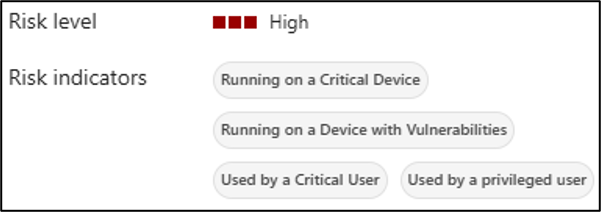
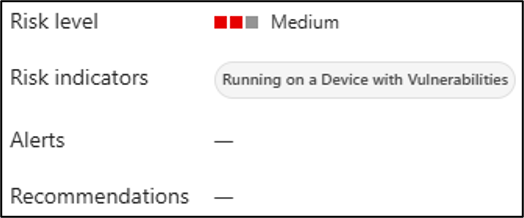
Side by side those two make the calculation obvious. The difference between Medium and High here is not the agent and not the device – it is the account. Add the critical user and the privileged user indicators on top of the device context and the level moves up. That is the single most useful thing to understand about this column, and it is why query 14 groups by account rather than by agent.
Note also that Used by a privileged user appears on the High flyout and is not in the documented indicator set, which is a reminder that the published list is not complete and your tenant is the authority.
The practical read is that a High here is an instruction to look at the combination, not to go and uninstall the agent. Two questions answer most of them: does this person need this agent on this device, and is this device inside the runtime protection scope yet? Query 8 answers the first half properly by ranking on asset criticality, and query 11 answers the second.
Be careful about one trap. Some indicators cannot be remediated at all, because they describe the agent working as intended – an agent that needs access to critical systems is going to carry that indicator permanently. Those are there for prioritisation, not as a defect list. Chasing them to zero is wasted effort.
And remember that this whole column is the part of the page that needs Microsoft 365 E7 or Agent 365. On a plain E5 tenant you still get the inventory, but every row will be blank here and you will be prioritising from the hunting queries instead.
Why the export is not the end of the job
The export gives you the rows as displayed. It will not tell you which agents auto-approve their own actions, which are running under an untrusted host process, which MCP servers they are wired into, or which of those MCP endpoints are remote. For a real assessment you need advanced hunting.
Advanced hunting: a schema reality check first
Local agents land in the AgentsInfo table, which replaced AIAgentsInfo. Before you write anything against it, three things will save you half an hour:
- The published schema and what the tenant serves do not currently line up. The Learn schema page documents an
AgentNamecolumn. The tenants I have worked in serve the agent display name asName. Run a bareAgentsInfo | take 1and confirm against your own tenant before you trust any query, mine included. - There is no
DeviceNamecolumn. For local agents the device and account context is nested insideRawAgentInfo.localAgentMetadata, and you have to extend it out. - The table holds multiple snapshots per agent. Without an
arg_maxyou will count the same agent many times over. Every query below deduplicates.
Two more gotchas worth having in your head: trustedProcess and autoApprove come through as strings, so compare them against "true" and "false" rather than casting with tobool(). And AgentId is a guid in AgentsInfo but a string in the exposure graph, so wrap both sides in tostring() when you join.
Filter every local agent query with Platform == "LocalAgents". Without it you are querying the cloud agent estate as well.
The query set
Run these in the Defender portal under Investigation & response > Hunting > Advanced hunting. Microsoft also ships prebuilt queries in the AI Agents folder on the Queries tab, which are worth reading before you write your own. Each query repeats whatever let statements it needs, so any one of them can be pasted in and run on its own.
1. Current local agent inventory
The baseline. One row per agent, latest snapshot, with retired entries dropped. Everything else builds on this shape.
AgentsInfo
| where Platform == "LocalAgents"
| summarize arg_max(Timestamp, *) by AgentId
| where LifecycleStatus !in~ ("Deleted", "Uninstalled")
| project LastSeen = Timestamp, Agent = Name, Version, AgentId, LifecycleStatus
| order by Agent asc
2. Device and account context
Unpacks the nested local agent metadata so you get the device and user behind each row – the columns the portal shows but the table does not expose directly.
AgentsInfo
| where Platform == "LocalAgents"
| summarize arg_max(Timestamp, *) by AgentId
| where LifecycleStatus !in~ ("Deleted", "Uninstalled")
| extend Meta = RawAgentInfo.localAgentMetadata
| extend Device = tostring(Meta.deviceName),
         Account = tostring(Meta.accountName),
         HostProcess = tostring(Meta.hostProcess),
         AutoApprove = tostring(Meta.autoApprove),
         TrustedProcess = tostring(Meta.trustedProcess)
| project LastSeen = Timestamp, Agent = Name, Version, Device, Account,
          HostProcess, AutoApprove, TrustedProcess
| order by Device asc, Agent asc
3. Risky configuration: auto-approve and untrusted host processes
This is the query that earns its keep. An agent that auto-approves its own actions has no human in the loop, and an untrusted host process means the binary driving the agent is not one Defender recognises. Either on its own is worth a conversation. Together they are a finding.
AgentsInfo
| where Platform == "LocalAgents"
| summarize arg_max(Timestamp, *) by AgentId
| where LifecycleStatus !in~ ("Deleted", "Uninstalled")
| extend Meta = RawAgentInfo.localAgentMetadata
| extend AutoApprove = tostring(Meta.autoApprove),
         TrustedProcess = tostring(Meta.trustedProcess),
         Device = tostring(Meta.deviceName),
         Account = tostring(Meta.accountName)
| where AutoApprove =~ "true" or TrustedProcess =~ "false"
| project Agent = Name, Version, Device, Account, AutoApprove,
          TrustedProcess, LastSeen = Timestamp
| order by AutoApprove desc, Agent asc
4. Agent sprawl: how many devices per agent
Turns the row count into something you can take to a steering group. Ten rows of Claude Code across eight devices and six accounts is a different story to ten rows on one developer’s machine.
AgentsInfo
| where Platform == "LocalAgents"
| summarize arg_max(Timestamp, *) by AgentId
| where LifecycleStatus !in~ ("Deleted", "Uninstalled")
| extend Meta = RawAgentInfo.localAgentMetadata
| extend Device = tostring(Meta.deviceName), Account = tostring(Meta.accountName)
| summarize Installs = count(),
            Devices = dcount(Device),
            Accounts = dcount(Account),
            Versions = make_set(Version, 20)
  by Agent = Name
| order by Installs desc
5. Version drift
AI agent tooling updates weekly and users update it themselves. Anything with a long tail of versions is a patching conversation you are not currently having, because none of this is in your software inventory.
AgentsInfo
| where Platform == "LocalAgents"
| summarize arg_max(Timestamp, *) by AgentId
| where LifecycleStatus !in~ ("Deleted", "Uninstalled")
| summarize VersionCount = dcount(Version),
            Versions = make_set(Version, 50),
            Installs = count()
  by Agent = Name
| where VersionCount > 1
| order by VersionCount desc
6. Newly seen agents in the last seven days
Your shadow AI early warning. Run it weekly, or wrap it in a scheduled hunt. Note that this finds agents whose first snapshot falls inside the window, so during the initial baselining period it will be noisy.
let Window = 7d;
AgentsInfo
| where Platform == "LocalAgents"
| summarize FirstSeen = min(Timestamp), LastSeen = max(Timestamp),
            Agent = any(Name), Version = anyif(Version, isnotempty(Version))
  by AgentId
| where FirstSeen > ago(Window)
| project FirstSeen, LastSeen, Agent, Version, AgentId
| order by FirstSeen desc
7. MCP servers and declared tools
The MCP server list is the part of this inventory most people have not thought about. An agent is only as contained as the tools it can reach, and a remote MCP endpoint is an egress path that never went through a firewall review.
AgentsInfo
| where Platform == "LocalAgents"
| summarize arg_max(Timestamp, *) by AgentId
| where LifecycleStatus !in~ ("Deleted", "Uninstalled")
| extend Meta = RawAgentInfo.localAgentMetadata
| extend Device = tostring(Meta.deviceName), Account = tostring(Meta.accountName)
| mv-expand Server = McpServers
| extend ServerName = tostring(Server.name),
         ServerType = tostring(Server.type),
         Endpoint   = tostring(Server.url)
| where isnotempty(ServerName)
| project Agent = Name, Device, Account, ServerName, ServerType, Endpoint
| order by ServerType asc, ServerName asc
8. Agents on critical devices
Joins the inventory to the exposure graph so you can rank by business impact rather than by agent risk alone. Asset criticality runs 0 for very high through 3 for low. Note that the graph calls the agent identifier id inside aiAgentMetadata.
let LocalAgentNodes =
    ExposureGraphNodes
    | where NodeLabel == "ai-agent"
    | where tostring(NodeProperties.rawData.aiAgentMetadata.platform) == "LocalAgents"
    | extend AgentKey = tostring(NodeProperties.rawData.aiAgentMetadata.id)
    | project AgentNodeId = NodeId, AgentKey, AgentDisplayName = NodeName;
let DeviceNodes =
    ExposureGraphNodes
    | where NodeLabel in ("device", "microsoft.compute/virtualmachines")
    | extend Criticality = toint(NodeProperties.rawData.criticalityLevel.criticalityLevel)
    | where isnotnull(Criticality) and Criticality <= 1
    | project DeviceNodeId = NodeId, DeviceNodeName = NodeName, Criticality;
ExposureGraphEdges
| where EdgeLabel in ("runs on", "installed on")
| join kind=inner LocalAgentNodes on $left.SourceNodeId == $right.AgentNodeId
| join kind=inner DeviceNodes on $left.TargetNodeId == $right.DeviceNodeId
| project Agent = AgentDisplayName, Device = DeviceNodeName, Criticality, AgentKey
| order by Criticality asc, Agent asc
9. Prompt injection alerts raised against local agents
Once runtime protection is on, this is the detection to watch. Severity is Informational while you are in audit mode and moves to a real severity in block mode, so filter on title rather than severity during a pilot.
AlertInfo
| where Timestamp > ago(30d)
| where Title has_any ("prompt injection", "AI agent", "jailbreak")
| join kind=leftouter (
    AlertEvidence
    | project AlertId, EntityType, DeviceName, AccountName, FileName, ProcessCommandLine
) on AlertId
| project Timestamp, Title, Severity, Category, DeviceName, AccountName,
          EntityType, FileName, AlertId
| order by Timestamp desc
10. Runtime protection audit and block events
Audit and block events from real-time protection are recorded as behaviours, which is where you go to see what block mode would have stopped before you turn block mode on.
BehaviorInfo
| where Timestamp > ago(30d)
| where Categories has_any ("AI", "Agent") or Description has "agent"
| join kind=leftouter (
    BehaviorEntities
    | project BehaviorId, EntityType, DeviceName, AccountName, ProcessCommandLine
) on BehaviorId
| project Timestamp, ActionType, Description, DeviceName, AccountName, BehaviorId
| order by Timestamp desc
11. Agents whose devices are not covered by runtime protection
The gap analysis. There is no single column that gives you this, so build it from the agent inventory and the set of devices you have targeted with the runtime protection policy, exported from the policy assignment. Swap the let for your own device group logic.
let ProtectedDevices = dynamic(["lap-0001", "lap-0002"]);  // from policy assignment
AgentsInfo
| where Platform == "LocalAgents"
| summarize arg_max(Timestamp, *) by AgentId
| where LifecycleStatus !in~ ("Deleted", "Uninstalled")
| extend Device = tostring(RawAgentInfo.localAgentMetadata.deviceName)
| where Device !in~ (ProtectedDevices)
| summarize Agents = make_set(Name, 20), AgentCount = dcount(AgentId) by Device
| order by AgentCount desc
Risk indicators in advanced hunting
The Risk indicators column is the most useful thing in the portal and the most awkward to get at in hunting, because the indicators are not where you would expect them. They are not an array of indicator objects you can mv-expand. Each one is a separate boolean property hanging directly off the agent’s exposure graph node. If you go looking for a riskIndicators collection you will get a single empty row back and conclude the data is not there.
To enumerate what your own tenant is using, read the keys rather than the values:
ExposureGraphNodes
| where NodeLabel == "ai-agent"
| mv-apply K = bag_keys(NodeProperties.rawData) on (project Key = tostring(K))
| summarize Nodes = dcount(NodeId), Agents = make_set(NodeName, 3) by Key
| order by Nodes desc
Anything ending in Indicator is a risk indicator. Run that first, because the set grows during preview and the portal labels do not appear in the data at all – searching the raw JSON for “Critical Device” returns nothing.
12. Agents, devices, accounts and their risk indicators
The query the portal export cannot give you: every local agent with its device, account, host process and the indicators driving its risk level. Note the join key – the graph calls the agent identifier id inside aiAgentMetadata, while AgentsInfo calls it AgentId, and it is a guid on one side and a string on the other.
let LocalAgentNodes =
    ExposureGraphNodes
    | where NodeLabel == "ai-agent"
    | extend Meta = NodeProperties.rawData.aiAgentMetadata
    | where tostring(Meta.platform) == "LocalAgents"
    | extend Raw = NodeProperties.rawData
    | extend
        OnCriticalDevice     = tostring(Raw.agentOnCriticalDeviceIndicator) has "true",
        OnVulnerableDevice   = tostring(Raw.agentOnVulnerableDeviceIndicator) has "true",
        LinkedToCriticalUser = tostring(Raw.agentLinkedToCriticalUserIndicator) has "true"
    | project AgentKey = tostring(Meta.id),
              ProcessName = tostring(Meta.processName),
              OnCriticalDevice, OnVulnerableDevice, LinkedToCriticalUser;
let LocalAgentInventory =
    AgentsInfo
    | where Platform == "LocalAgents"
    | summarize arg_max(Timestamp, *) by AgentId
    | where LifecycleStatus !in~ ("Deleted", "Uninstalled")
    | extend AgentMeta = RawAgentInfo.localAgentMetadata
    | project AgentKey = tostring(AgentId), Agent = Name, Version,
              Device  = tostring(AgentMeta.deviceName),
              Account = tostring(AgentMeta.accountName),
              LastSeen = Timestamp;
LocalAgentInventory
| join kind=leftouter LocalAgentNodes on AgentKey
| extend IndicatorCount = toint(OnCriticalDevice) + toint(OnVulnerableDevice)
                        + toint(LinkedToCriticalUser)
| extend Indicators = trim(" ", strcat(
      iff(OnCriticalDevice,     "CriticalDevice ", ""),
      iff(OnVulnerableDevice,   "VulnerableDevice ", ""),
      iff(LinkedToCriticalUser, "CriticalUser ", "")))
| extend Indicators = iff(isempty(Indicators), "None", Indicators)
| project Agent, Version, Device, Account, ProcessName, Indicators, IndicatorCount,
          OnCriticalDevice, OnVulnerableDevice, LinkedToCriticalUser, LastSeen
| order by IndicatorCount desc, Device asc, Agent asc
13. Which indicator combinations actually occur
Rolls the detail up into the combinations present in your estate. This is the view that tells you whether High is being driven by device context, user context, or the two together, and it is not available anywhere in the portal.
let LocalAgentNodes =
    ExposureGraphNodes
    | where NodeLabel == "ai-agent"
    | extend Meta = NodeProperties.rawData.aiAgentMetadata
    | where tostring(Meta.platform) == "LocalAgents"
    | extend Raw = NodeProperties.rawData
    | extend
        OnCriticalDevice     = tostring(Raw.agentOnCriticalDeviceIndicator) has "true",
        OnVulnerableDevice   = tostring(Raw.agentOnVulnerableDeviceIndicator) has "true",
        LinkedToCriticalUser = tostring(Raw.agentLinkedToCriticalUserIndicator) has "true"
    | project AgentKey = tostring(Meta.id),
              ProcessName = tostring(Meta.processName),
              OnCriticalDevice, OnVulnerableDevice, LinkedToCriticalUser;
let LocalAgentInventory =
    AgentsInfo
    | where Platform == "LocalAgents"
    | summarize arg_max(Timestamp, *) by AgentId
    | where LifecycleStatus !in~ ("Deleted", "Uninstalled")
    | extend AgentMeta = RawAgentInfo.localAgentMetadata
    | project AgentKey = tostring(AgentId), Agent = Name, Version,
              Device  = tostring(AgentMeta.deviceName),
              Account = tostring(AgentMeta.accountName),
              LastSeen = Timestamp;
LocalAgentInventory
| join kind=inner LocalAgentNodes on AgentKey
| extend Indicators = trim(" ", strcat(
      iff(OnCriticalDevice,     "CriticalDevice ", ""),
      iff(OnVulnerableDevice,   "VulnerableDevice ", ""),
      iff(LinkedToCriticalUser, "CriticalUser ", "")))
| extend Indicators = iff(isempty(Indicators), "None", Indicators)
| summarize Agents  = count(),
            Devices = dcount(Device),
            Users   = dcount(Account),
            AgentNames = make_set(Agent, 5)
  by Indicators
| order by Agents desc
14. Where the exposure is concentrated, by user
The one to lead a client conversation with. Local agents inherit the identity of the person running them, so the useful unit of analysis is the person, not the agent. This also builds the list you need for the runtime protection device group.
let LocalAgentNodes =
    ExposureGraphNodes
    | where NodeLabel == "ai-agent"
    | extend Meta = NodeProperties.rawData.aiAgentMetadata
    | where tostring(Meta.platform) == "LocalAgents"
    | extend Raw = NodeProperties.rawData
    | extend
        OnCriticalDevice     = tostring(Raw.agentOnCriticalDeviceIndicator) has "true",
        OnVulnerableDevice   = tostring(Raw.agentOnVulnerableDeviceIndicator) has "true",
        LinkedToCriticalUser = tostring(Raw.agentLinkedToCriticalUserIndicator) has "true"
    | project AgentKey = tostring(Meta.id),
              ProcessName = tostring(Meta.processName),
              OnCriticalDevice, OnVulnerableDevice, LinkedToCriticalUser;
let LocalAgentInventory =
    AgentsInfo
    | where Platform == "LocalAgents"
    | summarize arg_max(Timestamp, *) by AgentId
    | where LifecycleStatus !in~ ("Deleted", "Uninstalled")
    | extend AgentMeta = RawAgentInfo.localAgentMetadata
    | project AgentKey = tostring(AgentId), Agent = Name, Version,
              Device  = tostring(AgentMeta.deviceName),
              Account = tostring(AgentMeta.accountName),
              LastSeen = Timestamp;
LocalAgentInventory
| join kind=inner LocalAgentNodes on AgentKey
| summarize Agents = dcount(AgentKey),
            Devices = dcount(Device),
            AgentNames = make_set(Agent, 10),
            CriticalDeviceAgents = countif(OnCriticalDevice),
            VulnerableDeviceAgents = countif(OnVulnerableDevice),
            IsCriticalUser = countif(LinkedToCriticalUser) > 0
  by Account
| order by CriticalDeviceAgents desc, Agents desc
What you can actually do from the portal
This is the question every client asks within about ninety seconds of seeing the inventory, and it deserves a straight answer. There is no “block this agent” button on an agent row. Discovery and posture are read paths. The enforcement lives in capabilities you already own, pointed at what discovery found.
1. AI agent runtime protection, in audit then block
This is the primary control, and it is the subject of Parts 1 and 2 of this series, so I will keep it short here. It detects prompt injection in content that local agents read, at the device level, through two mechanisms:
- Agent-native event inspection (
AiAgentProtection) for agents that expose a vendor-supported event interface. - Network inspection (
AiAgentNetworkInspection) for agents that do not.
Both take Disabled, Audit or Block. In audit the agent action still runs and you get an informational Suspicious AI prompt injection alert. In block the action is stopped before it executes, the agent terminal tells the user what was blocked and why, and the alert carries a real severity.
Deploy it from Endpoints > Configuration management > Endpoint security policies > Windows policies > Create new policy, using the Microsoft Defender AI agent runtime protection template. That template covers agent-native inspection only. Network inspection currently needs a PowerShell platform script running in system context:
Set-MpPreference -AiAgentNetworkInspection Audit

# verify on a device
Get-MpPreference | Select-Object AiAgentProtection, AiAgentNetworkInspection
Get-MpComputerStatus | Select-Object AntivirusSignatureVersion
Targeting is by group, and the group has to contain devices. In Intune you assign the policy to a device group. For devices managed through Defender security settings management you assign it to an Entra ID security group whose members are the devices themselves. There is no user targeting.
That constraint matters more here than it does for most endpoint policies, because the exposure sits with a handful of developers rather than with any device collection you already maintain. Query 2 gives you the device and account pairs behind every discovered agent, which is the list to build the security group from.
Signature version 1.451.224.0 or later is required, and during preview test devices should sit on the Beta channel for Defender updates.
2. Security recommendations on the agent page
Open Agent page gives you a Security recommendations tab with the description, evidence, remediation steps and the affected agents for each finding, and each recommendation is mapped to the risk indicators it reduces. These are posture fixes rather than enforcement, but they are the prioritised work list and they are the one place the product tells you what “good” looks like.
Recommendations are calculated separately from the risk level, so a High agent may have none and a Medium one may have several. Do not use recommendation count as a proxy for risk.
3. The attack surface map and Go hunt
From the agent flyout, View on map puts the agent in the exposure graph alongside the devices, identities and resources it touches, and Go hunt drops you into advanced hunting pre-scoped to that agent. For an agent on a critical device the map is the fastest way to show a client what the blast radius actually is.
4. Standard Defender response, once an alert fires
Agent detections correlate into incidents like anything else, which means the full device-level response surface applies: isolate device, run antivirus scan, collect investigation package, restrict app execution, initiate automated investigation, and live response for anything bespoke. The agent is a process running as the user, so everything you would do to contain a compromised user session applies unchanged.
5. The controls that are not in the AI agents page at all
If the decision is that a given agent should not be running in the estate, discovery gives you the target list and the enforcement comes from elsewhere:
- App control (WDAC) or AppLocker to stop the binary executing, and Restrict app execution as a per-device containment action.
- Network protection and custom indicators to block specific remote MCP endpoints once you have the URLs from query 7.
- Web content filtering to put the AI category on a monitored or blocked footing.
- Conditional Access and app governance for anything that authenticates with a work identity, which is the Agent 365 and Entra Agent ID story rather than the local agent one.
Be honest with clients about where the line sits. Defender will tell you what is running, tell you what is risky about it, and stop prompt injection against it. It will not currently uninstall it for you.
A practical sequence
- Confirm Defender Antivirus is in active mode with real-time protection on across the estate. No active mode, no discovery.
- Let the inventory build for three to four weeks. Resist reporting on it until the trend settles.
- Run queries 1, 2 and 4 to get the real agent, device and account spread, and share it with the business. The conversation that follows is usually more productive than the technical work.
- Run query 3. Auto-approve and untrusted host processes are your first remediation list.
- Run queries 12 to 14 to see which risk indicators are actually firing, which combinations produce the High rows, and which handful of people carry most of the exposure.
- Run query 7 and catalogue the MCP endpoints. Decide which remote endpoints are sanctioned.
- Build a device group from the discovery output and enable runtime protection in audit mode against it.
- Review alerts and behaviours for one to two weeks using queries 9 and 10, mark false positives, then widen the audit scope.
- Move to block mode, starting with the critical devices identified by query 8.
Verify before you trust
Two notes in the interest of not wasting your afternoon. The AgentsInfo schema documentation and what tenants actually serve are not currently aligned, and the nested localAgentMetadata properties have moved during preview. Run the queries against your own tenant and adjust the column names before you build anything on top of them. Feature availability also varies by tenant during preview, so confirm what you have rather than what the documentation says you should have.
Where this goes next
Discovery is the easy half. The harder question, and the one I will come back to, is what a sanctioned local AI agent actually looks like in a managed estate: which agents are approved, which MCP servers they may reach, which accounts may run them, and how any of that is enforced rather than documented. Microsoft has given us the visibility. The policy is still ours to write.
The rest of the series
- Part 1: Microsoft Defender AI agent runtime protection – the control for agents already on your endpoints
- Part 2: Microsoft Defender AI agent runtime protection – building it, proving it, and where the documentation is wrong
References
- Discover local AI agents with Microsoft Defender for Endpoint
- Configure AI agent runtime protection (preview)
- Discover AI agents and assess security posture using Microsoft Defender
- AI agent posture risk in Microsoft Defender (Preview)
- Detect and investigate threats to AI agents (Preview)
- AgentsInfo table reference
Seán O’Farrell | cloud-secure.ai