Let me start with a comment. If your organisation is licensed for Microsoft 365 E5 and has no insider risk policies turned on, that is crazy. You are already paying for one of the most effective data protection controls Microsoft makes, and it is sitting there doing nothing.
Many organisations pay for Microsoft 365 E5, run a Microsoft Purview project for labels and data loss prevention, and then skip Insider Risk Management. In my experience that is almost never a deliberate decision. It happens because people do not understand what it does, worry that it is a tool for spying on staff, or think data loss prevention already covers it.
This seven-part series fixes that. It explains in plain English what insider risk is, how the product has changed, what it costs, how to build your first policy in a real test environment, how it lines up with GDPR and NIS2, and how it ties into Conditional Access and AI-powered alert triage.
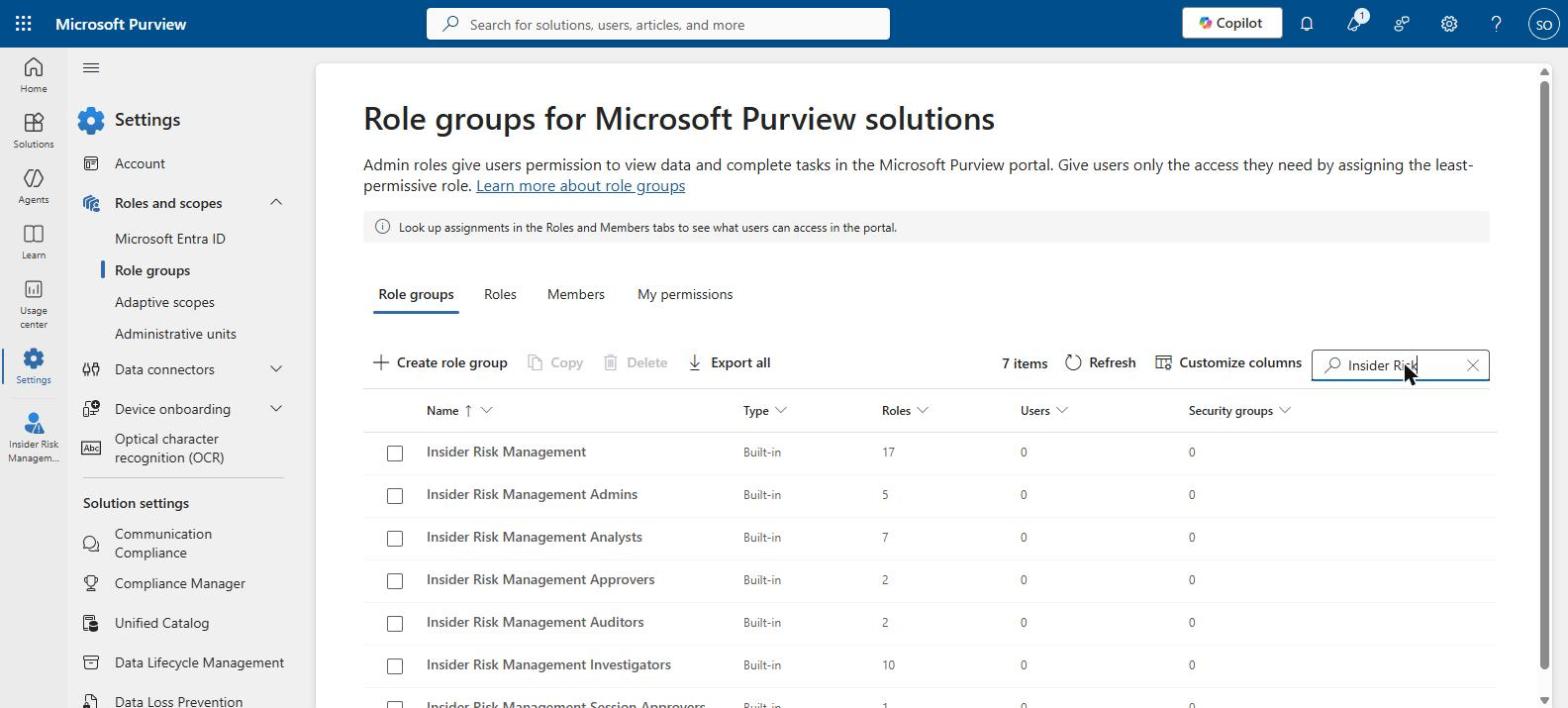
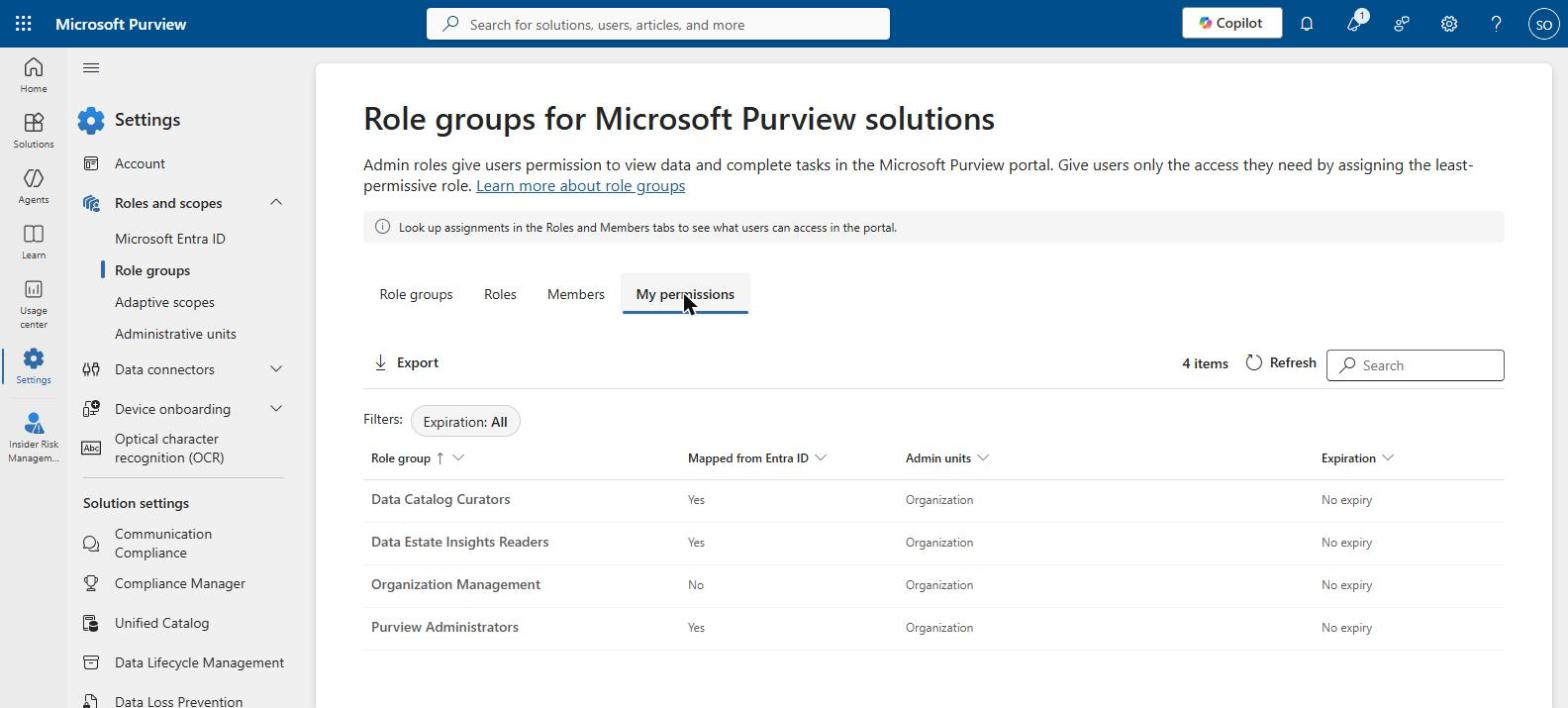
My recommended approach: train your compliance officers in Purview Insider Risk Management and make them its owners, not your IT team. IT administrators have the widest access in the organisation, so they are among the people Insider Risk Management needs to watch – and nobody can fairly assess themselves. Control access to the Insider Risk roles that can see alerts with Microsoft Entra Privileged Identity Management (PIM), so it is switched on only when needed, for a limited time, and every activation is logged. Part 1 explains how.
Data protection officer, HR or legal? Start with Part 6, then read Part 1.
Short on time?Part 1 makes the case, and Part 6 answers the question your DPO will ask.
Scripts and KQL queries
Part 4 comes with two PowerShell scripts: Invoke-InsiderRiskSetup.ps1, which checks audit logging, assigns the Insider Risk Management roles and verifies your policy, and Invoke-InsiderRiskSimulation.ps1, which plays the part of a leaver in a test environment so you can prove the policy works. It also includes seven KQL hunting queries for Microsoft Defender, including a leaver activity timeline that works even without Insider Risk Management. Everything is on GitHub.
Series:This is Part 2 of 7 in my series on Microsoft Purview Insider Risk Management. New to the series? Start with the series guide, which summarises every part.
Many people formed their view of Insider Risk Management years ago, when it was a simpler tool with a handful of templates and a reputation for too many alerts. The product today is very different. It has grown from a tool that simply spotted problems into the engine at the centre of Microsoft Purview, feeding risk information to DLP, Conditional Access, Microsoft Defender XDR (Microsoft’s security operations portal) and now AI agents.
2019 – 2020: The launch
Microsoft announced Microsoft 365 Insider Risk Management at Ignite in November 2019 and opened a private preview. It reached general availability in February 2020, alongside Communication Compliance, as part of the Microsoft 365 E5 compliance story.
The core idea has not changed. Rather than judging single actions, it looked across Microsoft 365 – file activity, unusual behaviour and HR events such as resignations – to find risky patterns. Two principles still define it:
Triggers. An HR event or similar starts the clock. Nobody is scored until there is a reason to.
Privacy by design. Hidden names, restricted access and full records of who did what were built in from the start, with input from legal, privacy and HR experts.
Microsoft drew on its own internal insider risk programme and several years of research with Carnegie Mellon University.
2020 – 2022: Maturing the detections
The list of templates grew beyond data theft and data leaks. New templates covered security policy breaches, using information from laptops protected by Microsoft Defender for Endpoint, and priority users such as executives. Detection got smarter too. It began recognising chains of activity – download, disguise, move out, delete – and comparing people with their colleagues to spot data leaking out slowly over time.
In April 2022 Microsoft brought its compliance tools together under the Microsoft Purview name. Later that year it announced forensic evidence, which can record short screen clips of high-risk activity on a laptop for investigators. This only happens with explicit approval.
2023 – 2024: From detection to protection
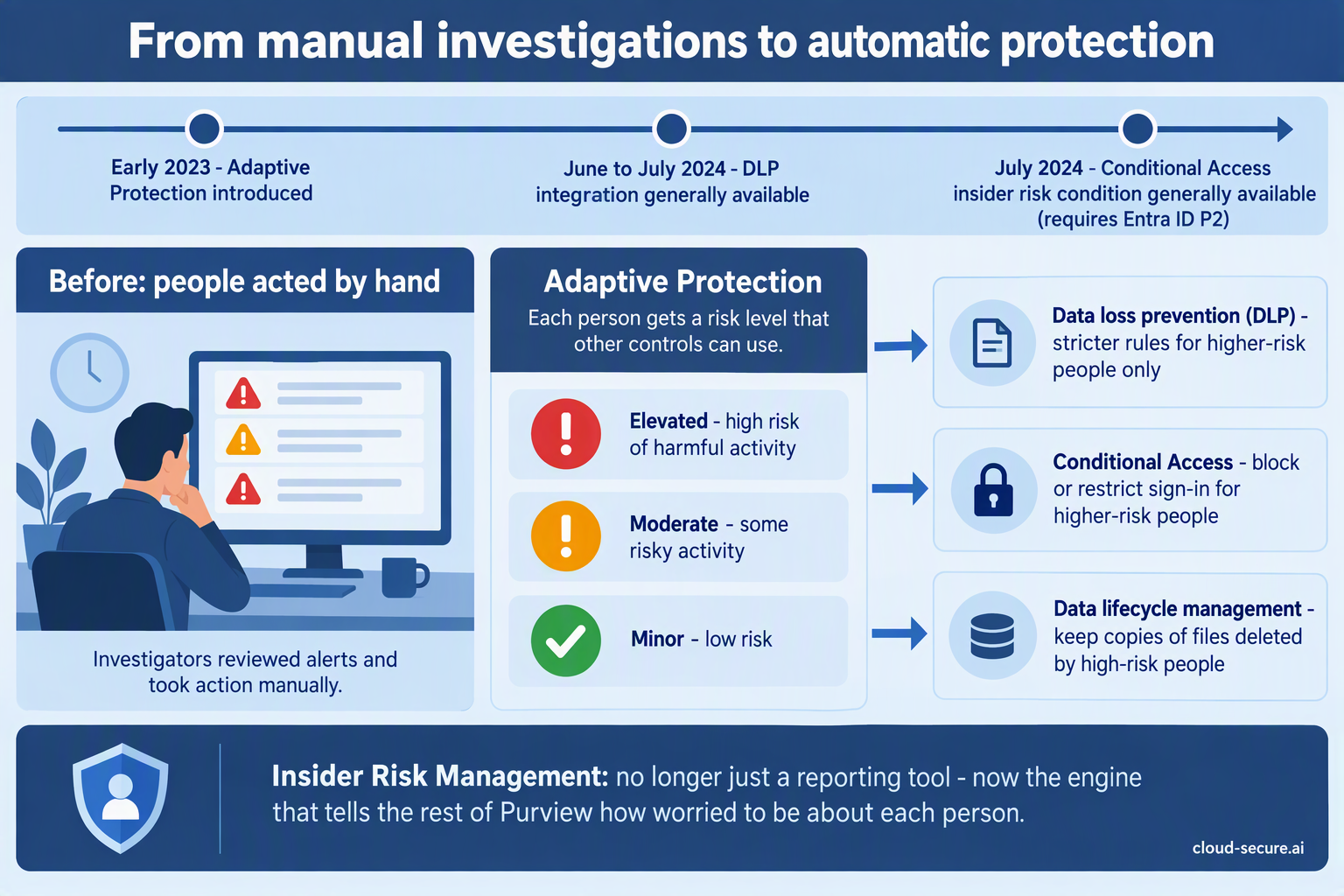
This is the turning point. Until 2023, Insider Risk Management told you about risk, and people had to act on it by hand. Adaptive Protection, introduced in early 2023, changed that. It gives each person a risk level – Elevated, Moderate or Minor – and shares it with other security controls so they can act automatically:
DLP: from mid-2024, stricter DLP rules can apply to higher-risk people only.
Conditional Access: from July 2024, sign-in rules can block or restrict people based on their insider risk level. This needs Microsoft Entra ID P2, which is included in E5.
Data lifecycle management: if a high-risk person deletes files, copies can be kept automatically.
Insider Risk Management stopped being just a reporting tool and became the engine that tells the rest of Purview how worried to be about each person.
2024 – 2025: The AI era
AI websites: from early 2024, it could spot people visiting generative AI websites.
Risky AI usage: a dedicated template, previewed in December 2024 and fully released in August 2025, watches for sensitive information being shared with Microsoft 365 Copilot, Copilot Studio and ChatGPT Enterprise.
Defender XDR: from late August 2025, insider risk alerts also appear in the Microsoft Defender portal, where security teams already work.
Microsoft also started using AI to help the people reviewing alerts. A Triage Agent – an AI assistant that sorts alerts so the most urgent are dealt with first – was announced in March 2025 and fully released between late November and mid-December 2025. From November 2025, Microsoft began including Security Copilot, its AI assistant for security teams, in Microsoft 365 E5 at no extra cost.
2026: Insider risk for AI agents
The latest step treats AI agents as insiders too. Insider Risk Management for risky agents was previewed in December 2025, with general availability rolling out from mid-2026. It watches AI agents built with Microsoft tools such as Copilot Studio and Azure AI Foundry. The same engine that watches for an employee taking data before they leave now watches for an AI agent behaving strangely.
The timeline at a glance
When
Milestone
Status
Nov 2019
Insider Risk Management announced at Microsoft Ignite
Private preview
Feb 2020
Generally available, alongside Communication Compliance
GA
Apr 2022
Microsoft 365 compliance rebranded as Microsoft Purview
Rebrand
Dec 2022
Forensic evidence announced
Announced
Feb 2023
Adaptive Protection introduced
Preview
Jan 2024
Browsed to generative AI websites indicator
Preview
Jun – Jul 2024
Adaptive Protection integration with DLP
GA
Jul 2024
Insider risk condition in Entra Conditional Access
GA
Nov 2024
Cloud storage, cloud service and Fabric indicators move to pay-as-you-go
Preview (pay-as-you-go)
Dec 2024
Risky AI usage policy template
Preview
Apr 2025
Alert Triage Agent in Insider Risk Management
Preview
Aug 2025
Risky AI usage policy template
GA
Aug – Sep 2025
Insider Risk Management alerts in Microsoft Defender XDR
GA
Nov – Dec 2025
Data Security Triage Agent
GA
Nov 2025
Security Copilot inclusion in Microsoft 365 E5 begins
Rolling out
Dec 2025
Insider Risk Management for risky agents
Preview
Apr 2026
“Other AI apps” indicators move to pay-as-you-go
Pay-as-you-go
Jun – Jul 2026
Insider Risk Management for risky agents
GA (rolling out)
What has changed since you last looked
It now protects, not just detects. Risk scores tighten DLP and Conditional Access automatically.
It covers AI. Sensitive information shared with AI tools, and AI agents themselves, are now covered.
It is easier to run. Alerts appear where security teams already work, and the Triage Agent sorts them first.
In Part 3 I explain exactly what you need to license, including the pay-as-you-go extras that catch people out.
Series:This is Part 3 of 7 in my series on Microsoft Purview Insider Risk Management. New to the series? Start with the series guide, which summarises every part.
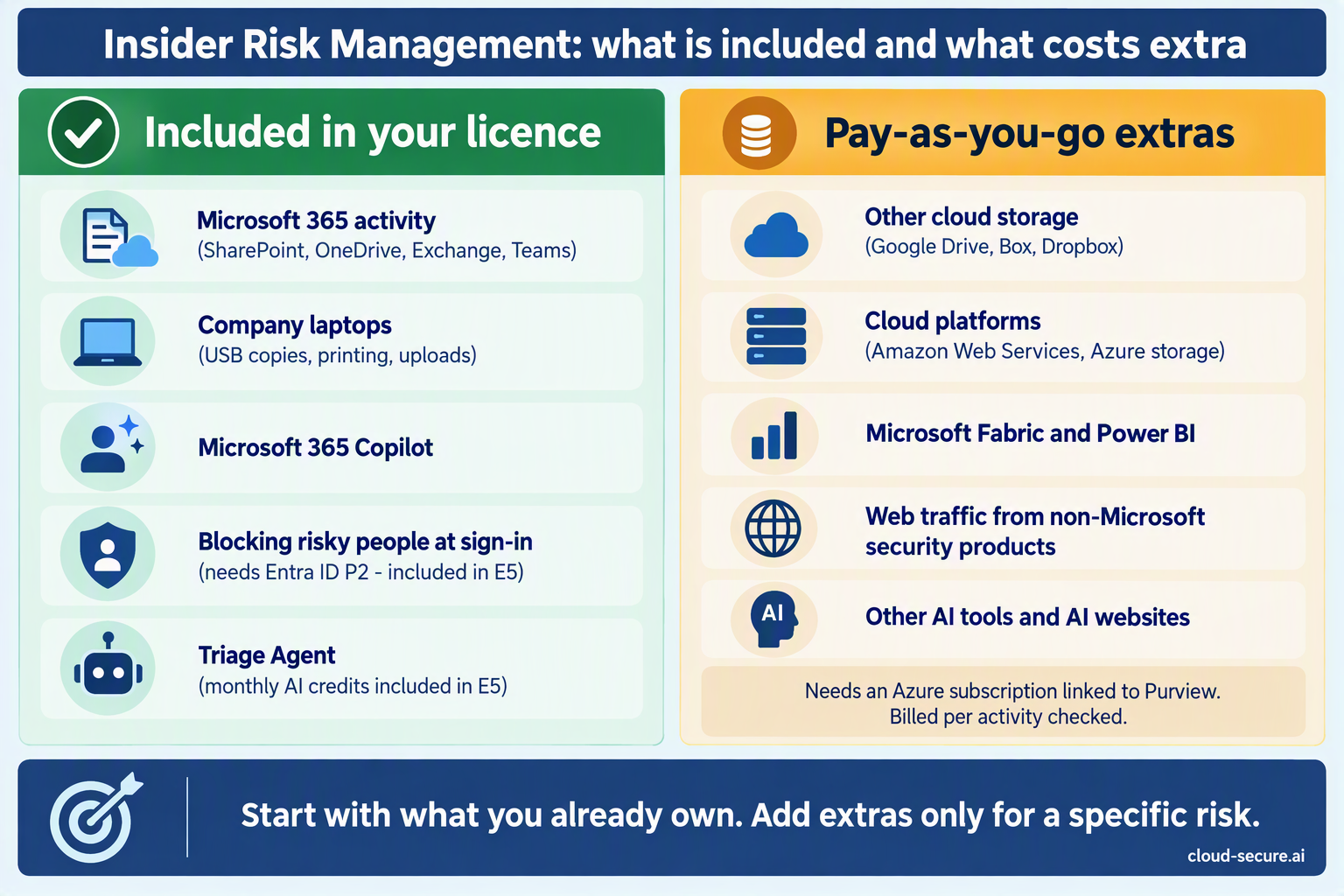
Licensing is one of the reasons Insider Risk Management gets skipped, so let me make it simple. If you have Microsoft 365 E5, you already own it. The only questions are who needs a licence, what else you need, and which extras are charged on a pay-as-you-go basis – meaning you pay only for what you use.
Who needs a licence
Insider Risk Management is licensed per person. Everyone covered by an insider risk policy needs one of the following:
Licence
Notes
Microsoft 365 E5 (or the A5 education and G5 government equivalents)
Includes everything this series uses – Insider Risk Management, Entra ID P2, Defender for Endpoint and Security Copilot – apart from the pay-as-you-go extras below.
Microsoft 365 E3 + E5 Compliance add-on
Adds Insider Risk Management along with the other E5 compliance tools.
Microsoft 365 E3 + E5 Insider Risk Management add-on
The cheaper option if you only need insider risk for some people.
You do not need to license everyone in the organisation – only the people your policies cover. Starting with a small pilot group, or with your highest-risk roles, is a perfectly good way to begin.
What else you need
Capability
What you need
Included in E5?
Seeing activity on laptops (USB, printing, uploads)
Laptops connected to Microsoft Defender for Endpoint
Yes
Blocking risky people at sign-in (Conditional Access)
Microsoft Entra ID P2, and Adaptive Protection switched on
Yes
Knowing when someone resigns
The HR connector
Yes – no extra licence
The AI Triage Agent
Security Copilot and Security Compute Units (SCUs)
Yes – monthly allowance included
Watching non-Microsoft cloud apps and AI tools
Pay-as-you-go billing through an Azure subscription
No – see below
Is there a pay-as-you-go requirement?
For the core product, no. A standard insider risk policy that watches Microsoft 365, user accounts and company laptops – like the one built in Part 4 – is fully covered by your licence.
For some extras, yes. Watching activity outside Microsoft 365 – such as Google Drive, Amazon cloud storage or non-Microsoft AI apps – is charged on a pay-as-you-go (PAYG) basis. You are billed on how many user activities Insider Risk Management checks:
What is watched
Examples
How it is paid for
Microsoft 365, user accounts, laptops and DLP alerts
SharePoint, OneDrive, Exchange, Teams, USB copies, printing
Included in licence
Microsoft 365 Copilot
Questions asked of Copilot and the answers it gives
Included in licence
Other cloud storage
Google Drive, Box, Dropbox
Pay-as-you-go (since Nov 2024)
Cloud platforms
Amazon Web Services storage, Azure databases and storage
Pay-as-you-go (since Nov 2024)
Microsoft Fabric (Microsoft’s data and reporting platform)
Power BI reports and other Fabric data
Pay-as-you-go (since Nov 2024)
Web traffic
Website activity reported by non-Microsoft network security products
Pay-as-you-go
Other AI tools
Other Microsoft Copilots, company AI apps, and AI websites people visit such as ChatGPT
Pay-as-you-go (“Other AI apps” since Apr 2026)
To use these extras, an administrator must connect an Azure subscription (Microsoft’s cloud billing account) to Purview, then switch the extras on in the Insider Risk Management settings. If no subscription is connected, the portal will tell you before you can use them.
My advice: Start with what is included in your licence. Only add pay-as-you-go extras for a specific risk you have identified – for example, people moving data to a personal Google Drive – and set a budget alert in Azure so there are no surprises on the bill.
The Triage Agent and Security Compute Units
The Triage Agent runs on Security Copilot. Each alert it looks at uses up Security Compute Units (SCUs) – think of them as credits for AI processing. Microsoft 365 E5 now includes 400 SCUs a month for every 1,000 licensed users, up to 10,000 a month. Unused credits do not carry over to the next month.
If you use more than your monthly allowance, Microsoft has said you will be able to pay for extra SCUs as you go, at $6 per SCU, with 30 days’ notice before that option is switched on.
Prerequisites checklist
Licences assigned to everyone your policies cover
Audit logging turned on
Your Microsoft 365 organisation hosted in a region where Insider Risk Management is available
Insider Risk Management role groups assigned, ideally through PIM (Parts 1 and 4)
HR connector set up, so Insider Risk Management knows when people resign (Part 4)
Laptops connected to Microsoft Defender for Endpoint, so activity on them can be seen
Azure subscription linked to Purview, only if you need the pay-as-you-go extras
In Part 4 we stop talking and build the first policy.
Series:This is Part 4 of 7 in my series on Microsoft Purview Insider Risk Management. New to the series? Start with the series guide, which summarises every part.
In this post I create a Data theft by departing users policy from start to finish in the Microsoft Purview portal. I also explain who needs which permissions and what the HR connector is, and share two PowerShell scripts and a set of KQL queries to set up, test and hunt. Every screenshot comes from my test environment, including the warnings and gaps I hit along the way.
Why start with departing users?
Remember the email from Part 1: every person who had resigned had moved data out of the organisation. That scan tells you the problem exists, but it does not raise an alert about any individual. A Data theft by departing users policy does. That is why it is the first policy I recommend every organisation creates.
Before you start
Licensing. Covered in Part 3.
Audit logging. Microsoft 365 keeps a log of user activity, and Insider Risk Management relies on it. It is on by default, but some organisations have turned it off. My test environment flagged it as something to check.
Permissions. Covered below.
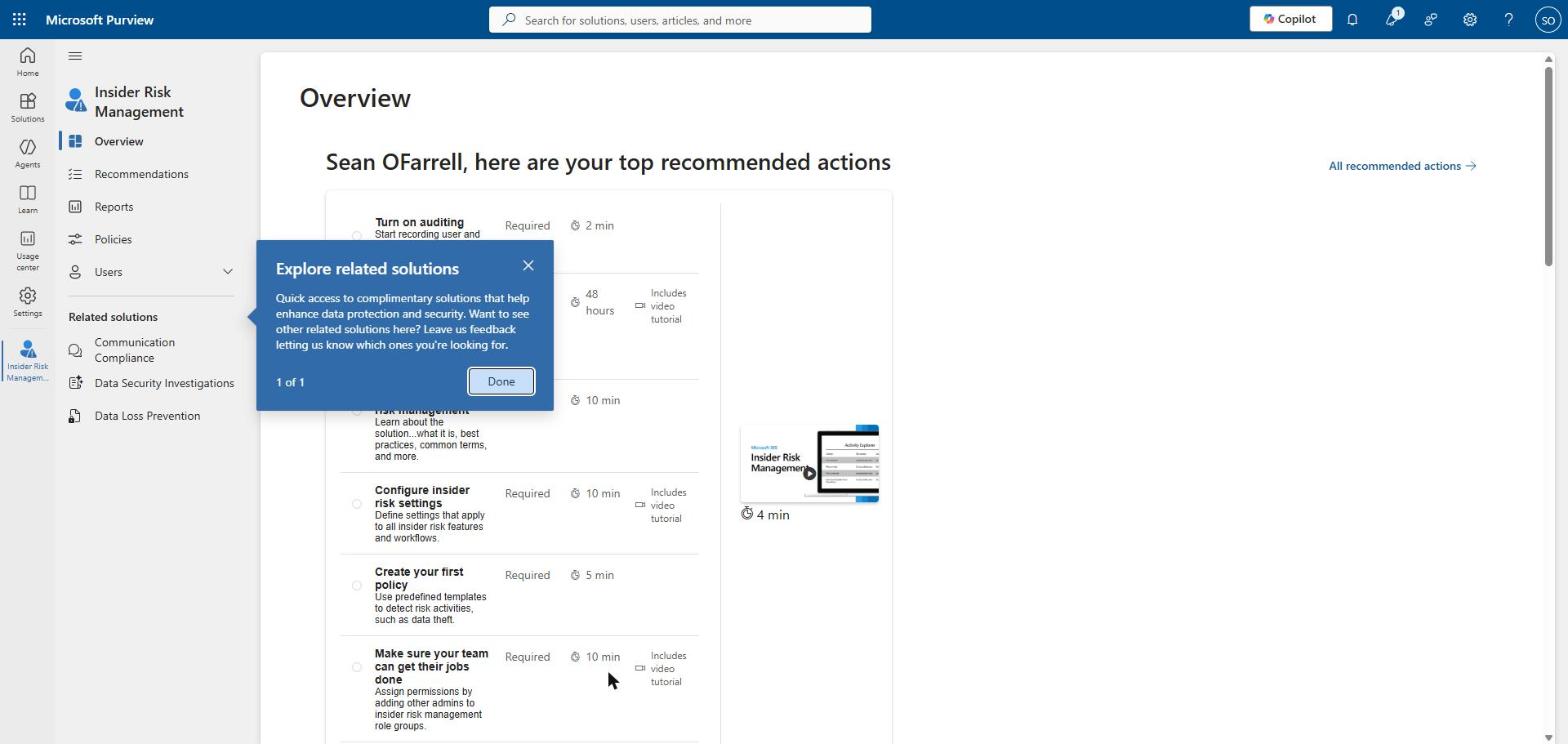
Analytics (recommended). Turn on analytics in the Insider Risk Management settings. It scans for risky activity across the organisation and can take up to 48 hours to report back.
Indicators. The activities Insider Risk Management watches for are switched on in its settings. If they are off, the policy set-up stops you, as it did for me.
Connections to other systems. The HR connector for the leavers policy, and laptops connected to Microsoft Defender for Endpoint so their activity can be seen.
Required roles
Insider Risk Management has its own permission groups, called role groups. They are separate from the usual administrator roles on purpose: the people who set up policies should not automatically be able to see who is being investigated.
Role group
What it allows
Insider Risk Management
Full access to every Insider Risk Management feature. Use for small teams or a single lead investigator.
Insider Risk Management Admins
Configure policies and settings, Adaptive Protection, analytics and forensic evidence requests. Cannot investigate alerts.
Insider Risk Management Analysts
Triage alerts and cases, view analytics and reports. Users are pseudonymised.
Insider Risk Management Investigators
Investigate alerts and cases, view forensic evidence and use Content explorer.
Insider Risk Management Auditors
View and export the Insider Risk Management audit log only.
Insider Risk Management Approvers
Approve forensic evidence capture requests only.
Insider Risk Management Session Approvers
Visible in the portal alongside the others. Relates to forensic evidence session approval.
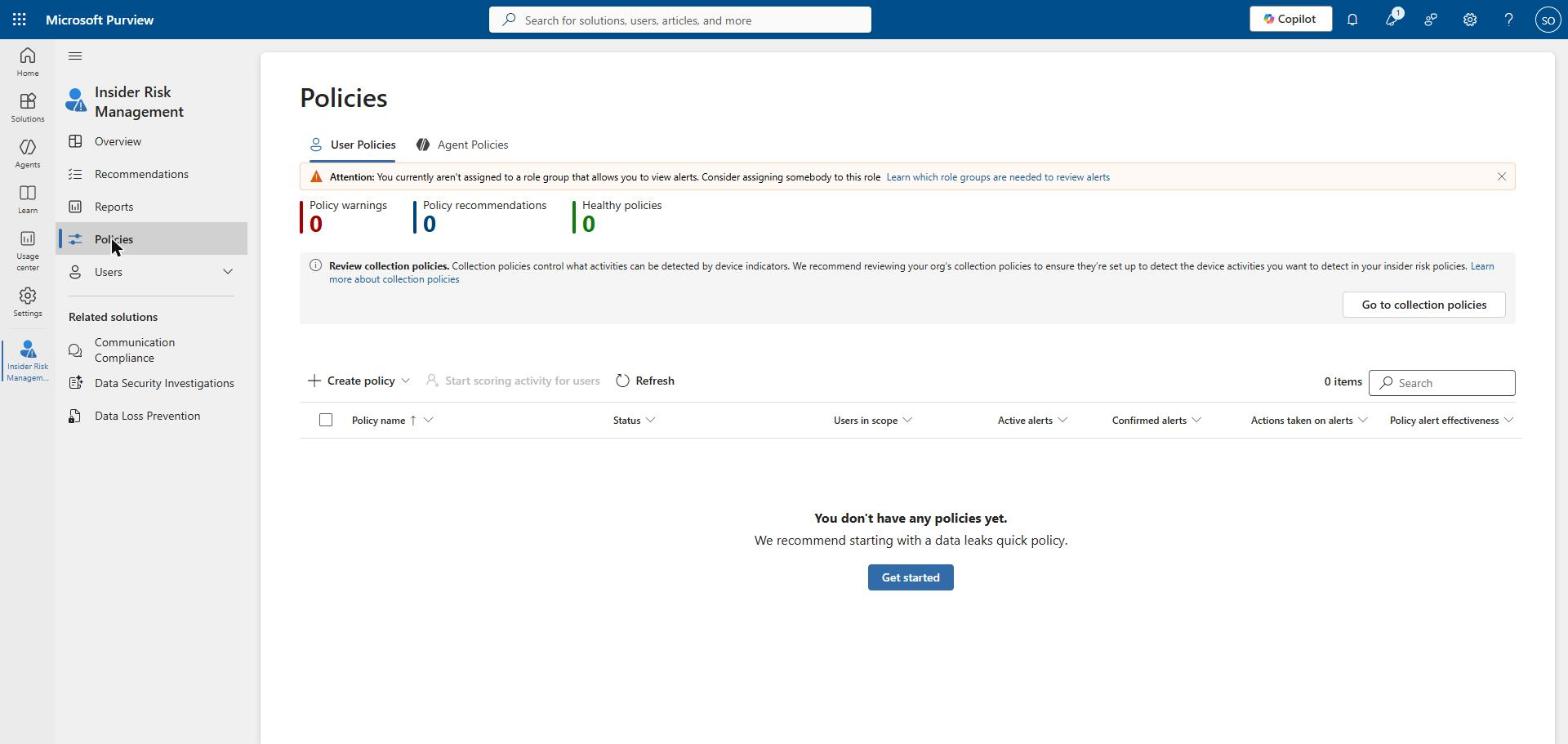
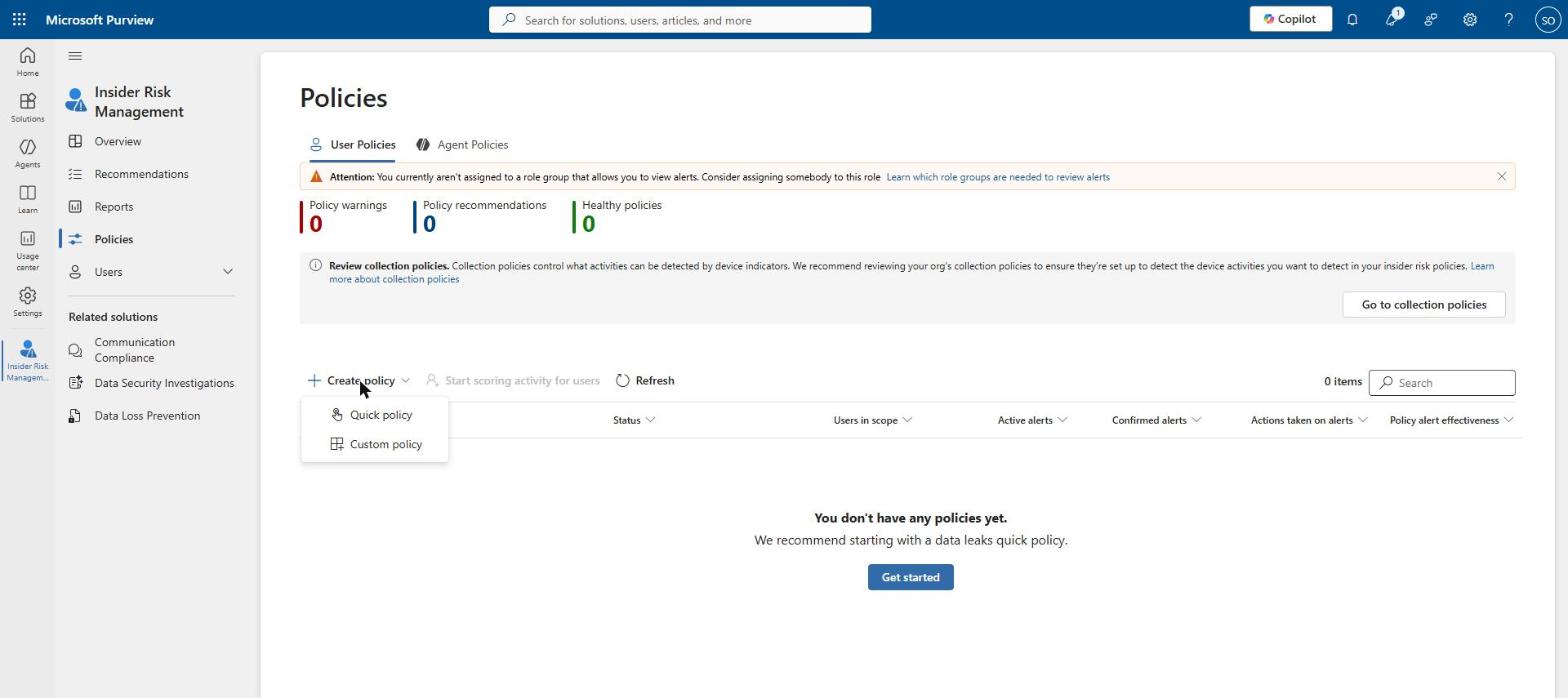
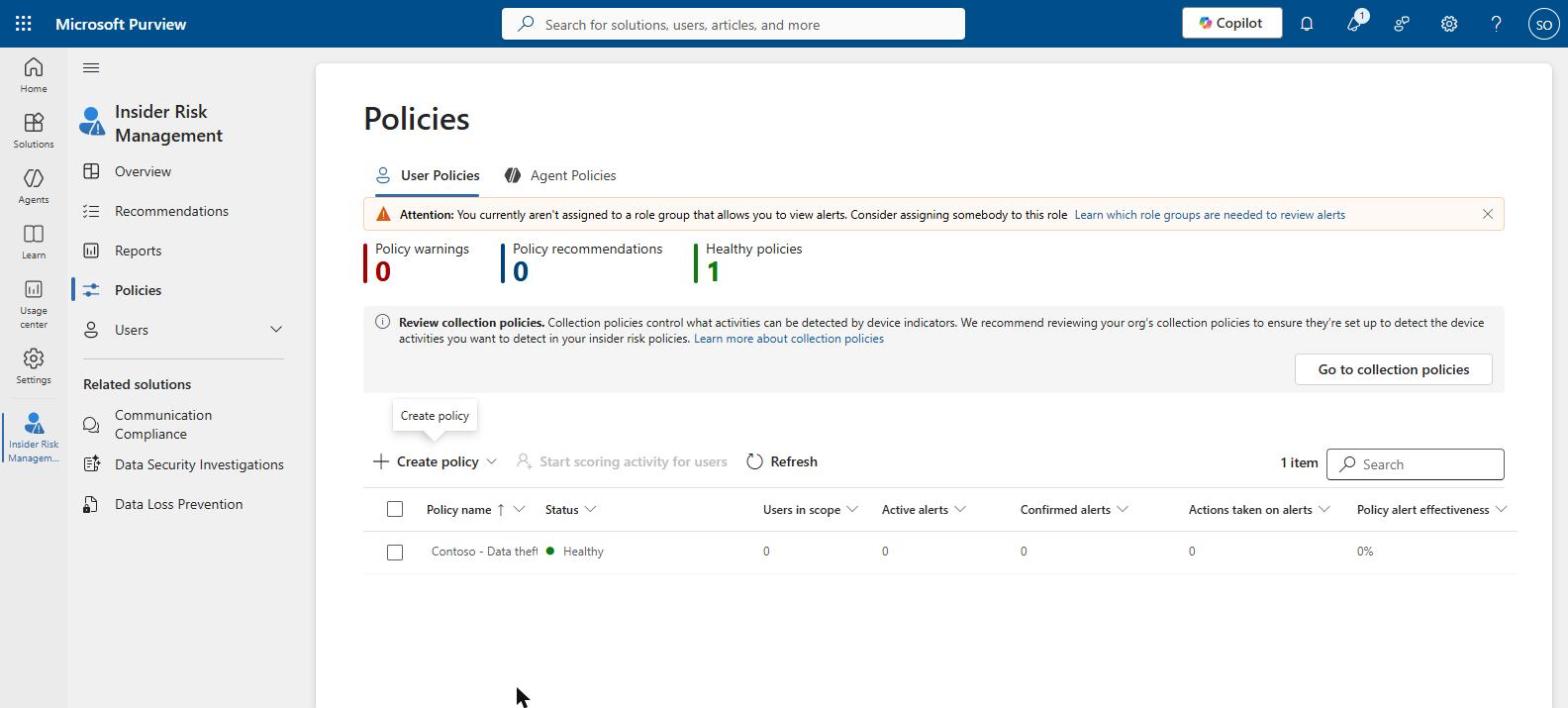
Senior administrators, such as Global Administrators and Compliance Administrators, can set up Insider Risk Management, but they cannot see alerts or investigations. My test environment shows this perfectly. I created the policy without a problem, but the Policies page warned that I could not see the alerts it would produce:
Recommendation: Put the people who set up policies in the Admins role group, and your compliance officers – not IT – in the Analysts or Investigators role group. Keep the two separate and keep both small. For the roles that can see alerts and reveal names, add a PIM-enabled security group rather than individual people, as described in Part 1, so access is only switched on when needed. Changes can take up to 30 minutes to take effect.
The HR connector explained
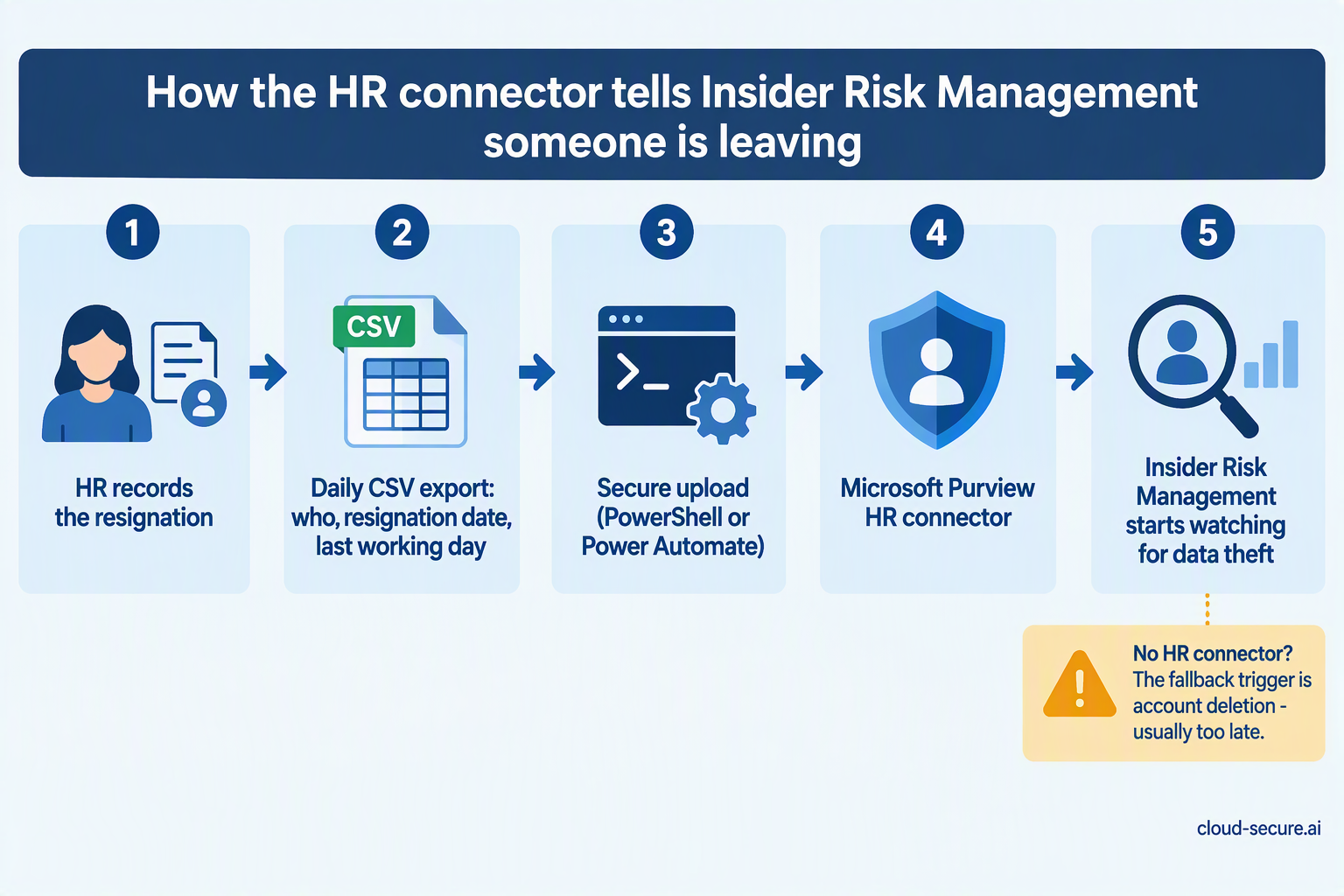
Insider Risk Management needs to know when someone is leaving, and Microsoft 365 cannot work that out on its own. The HR connector is how you tell it. It takes a simple spreadsheet file (a CSV) exported from your HR system and feeds it into Purview. As well as resignations, it can share job changes such as demotions, performance reviews and performance improvement plans.
For leavers, the file only needs three columns – who, when they resigned, and their last working day:
Create an app registration in Microsoft Entra ID. This gives the upload process its own secure identity. Note its application ID, tenant ID and client secret.
Create the HR connector in Purview under Settings > Data connectors, tell it which column is which, and copy the job ID it gives you.
Upload the file using Microsoft’s sample PowerShell script. The computer running it must be allowed through your firewall to webhook.ingestion.office.com.
Schedule it to run daily, or use Microsoft’s Power Automate template to upload automatically whenever HR saves a new file to SharePoint or OneDrive.
Resignation data is used by the two leaver templates. Job changes and performance data are used by the risky user templates.
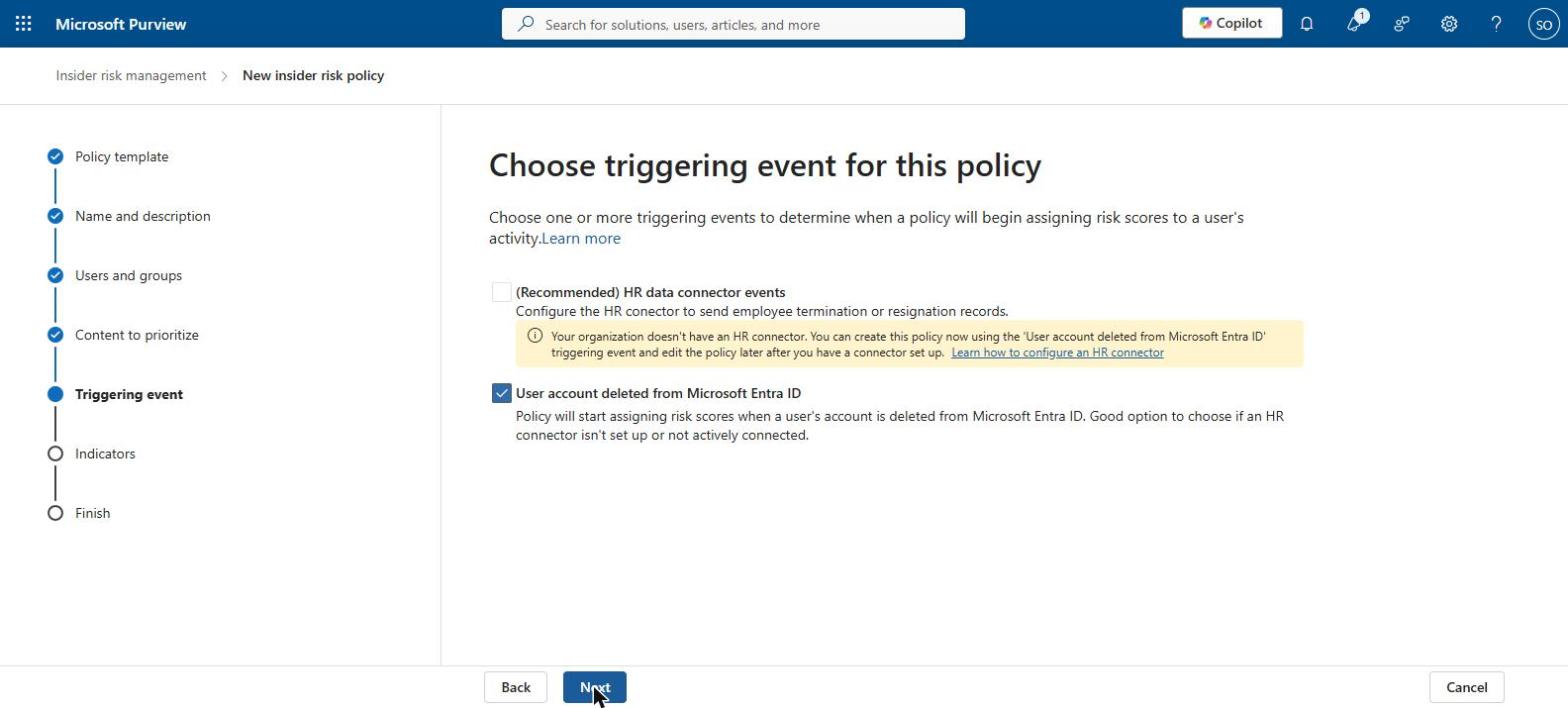
No HR connector yet? You can still create the policy. It will use “User account deleted from Microsoft Entra ID” as the trigger instead. That usually happens after the person has already left – too late to stop the data walking out – so treat it as a temporary fix.
Walkthrough: creating the policy
Go to Insider Risk Management in the Purview portal, open Policies and select Create policy.
Step 1 – Start a custom policy
A quick policy fills in sensible defaults for you. A custom policy walks through every setting, which is what I use here so you can see each option.
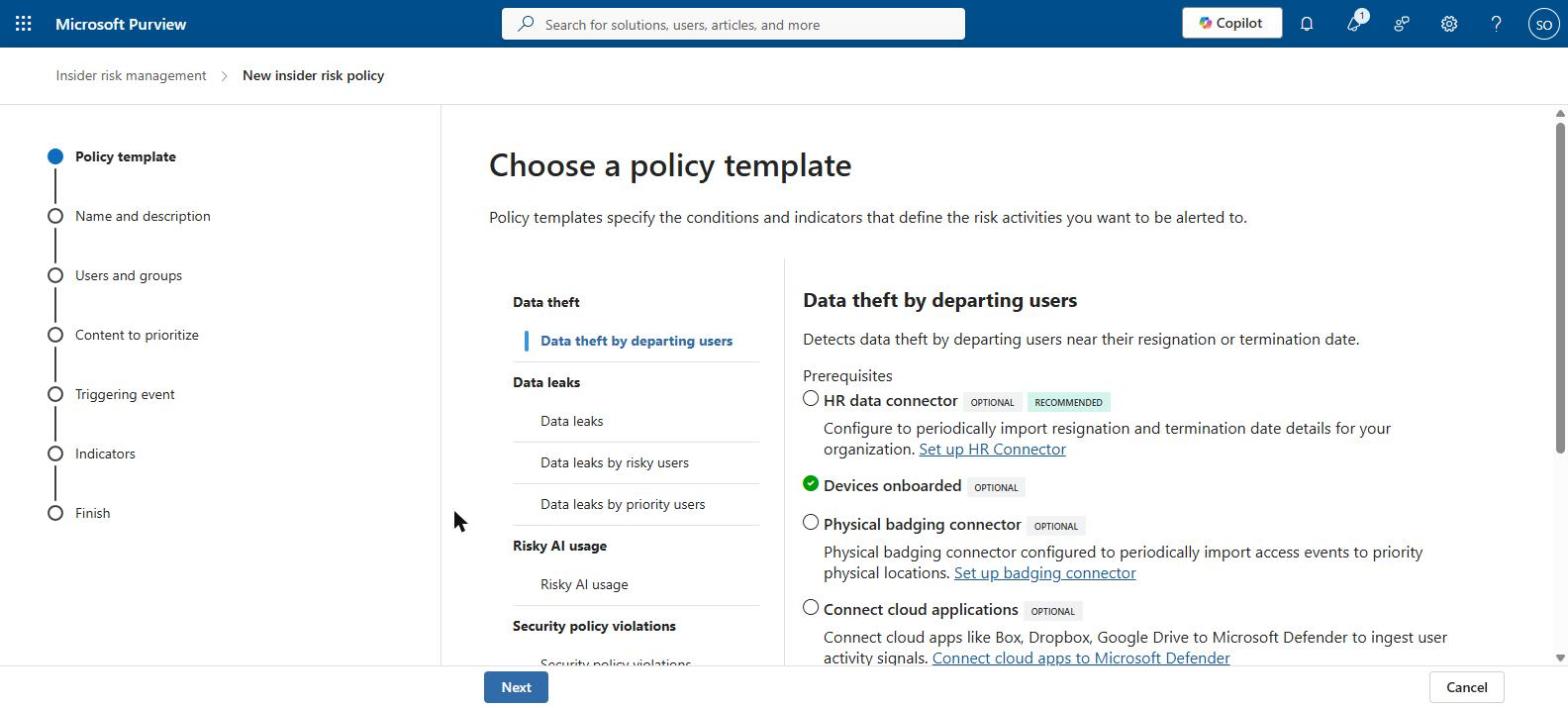
Step 2 – Choose the template
Select Data theft by departing users. The panel on the right shows what the template needs: the HR connector is recommended, and my laptops are already connected.
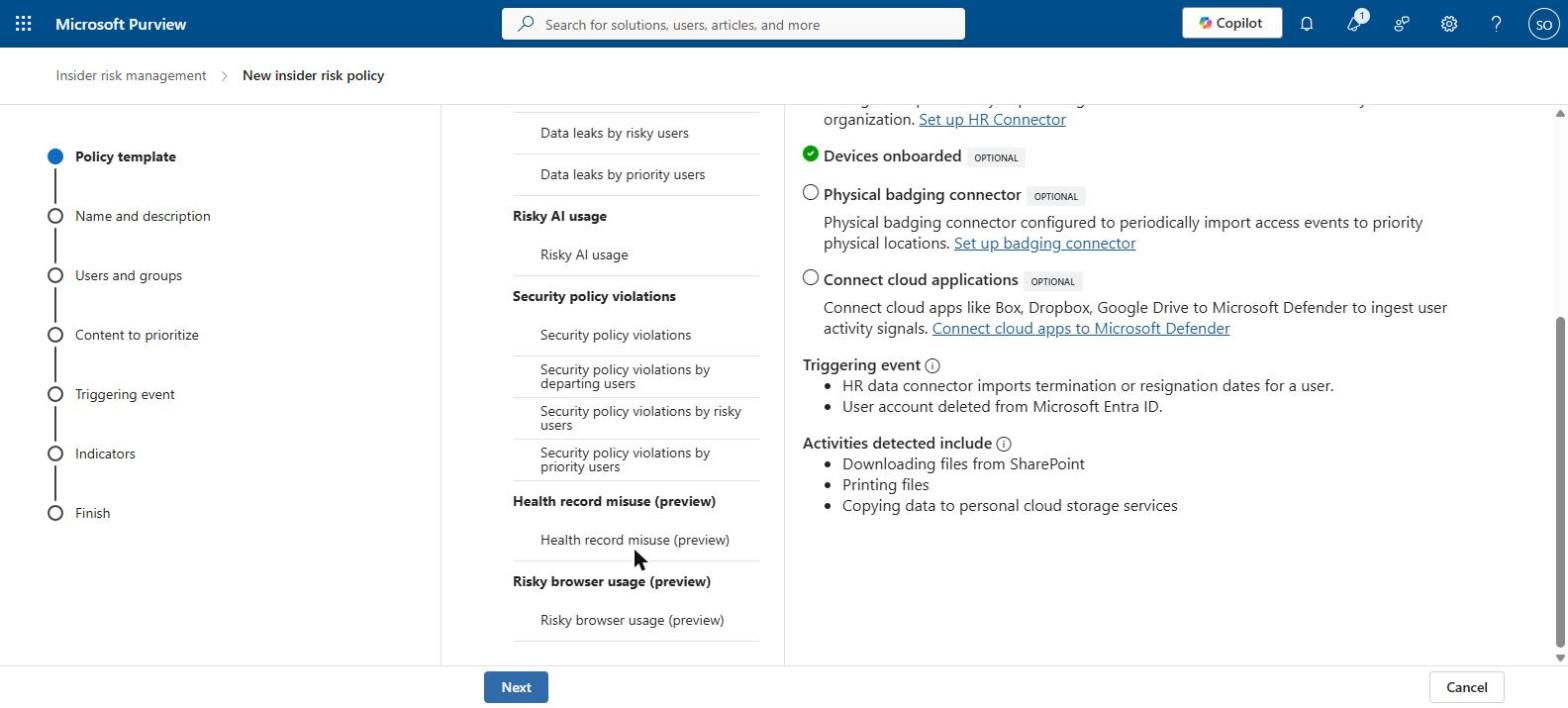
Scroll down to see what starts the policy and what activity it looks for. You can also see the other templates, including Risky AI usage, and a separate tab for AI agent policies.
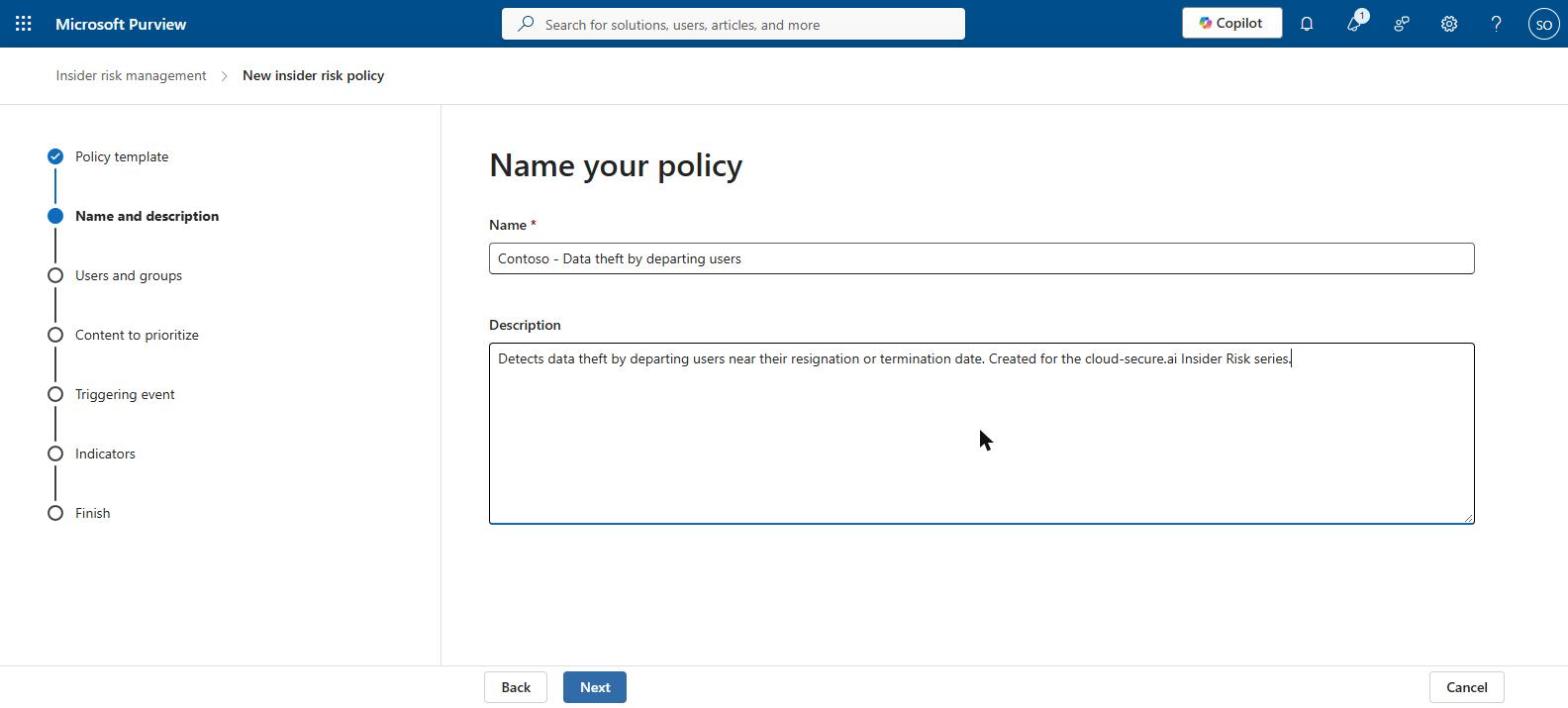
Step 3 – Name and describe the policy
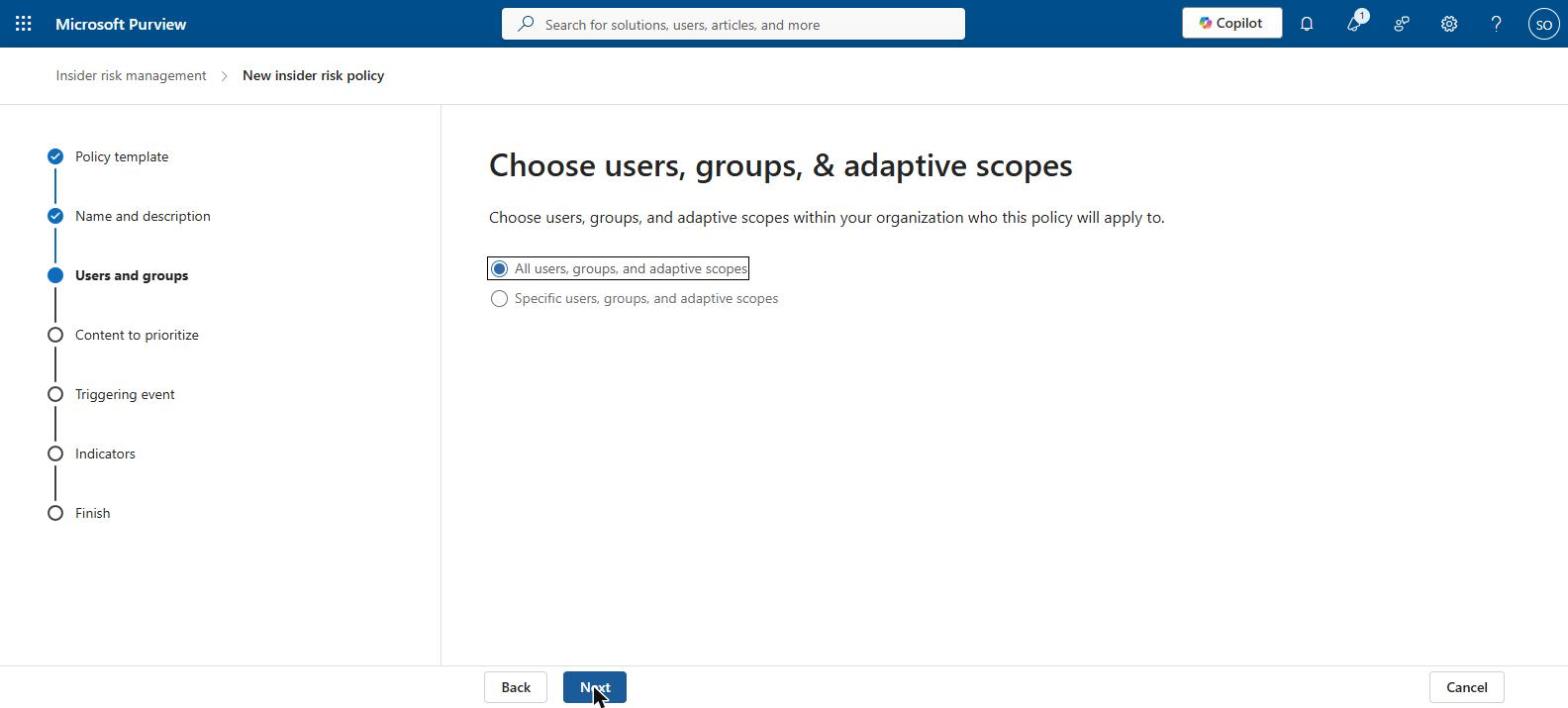
Step 4 – Choose users and groups
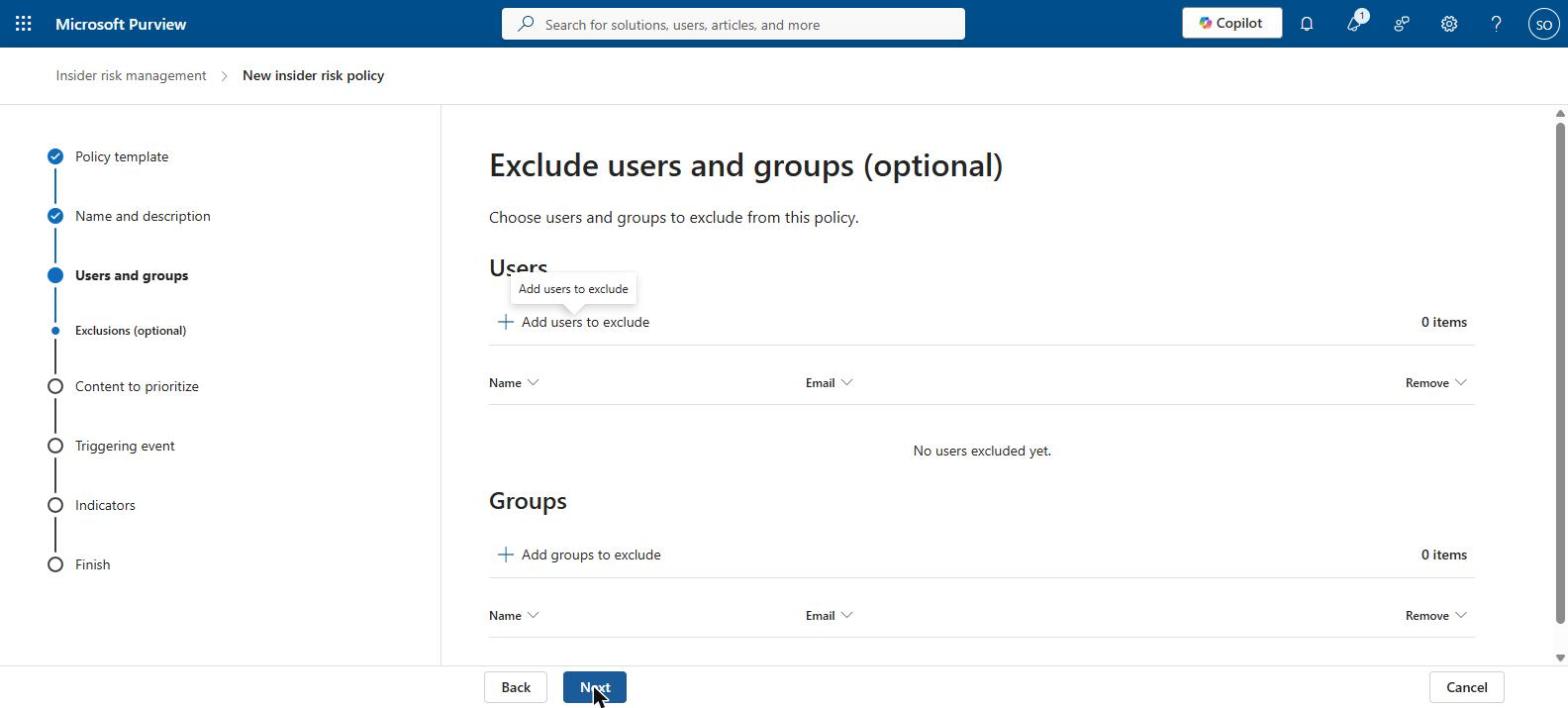
I kept the default of all users in my test environment. In a real organisation, consider starting with a pilot group, and remember everyone covered needs a licence. On the next screen you can leave out test or system accounts.
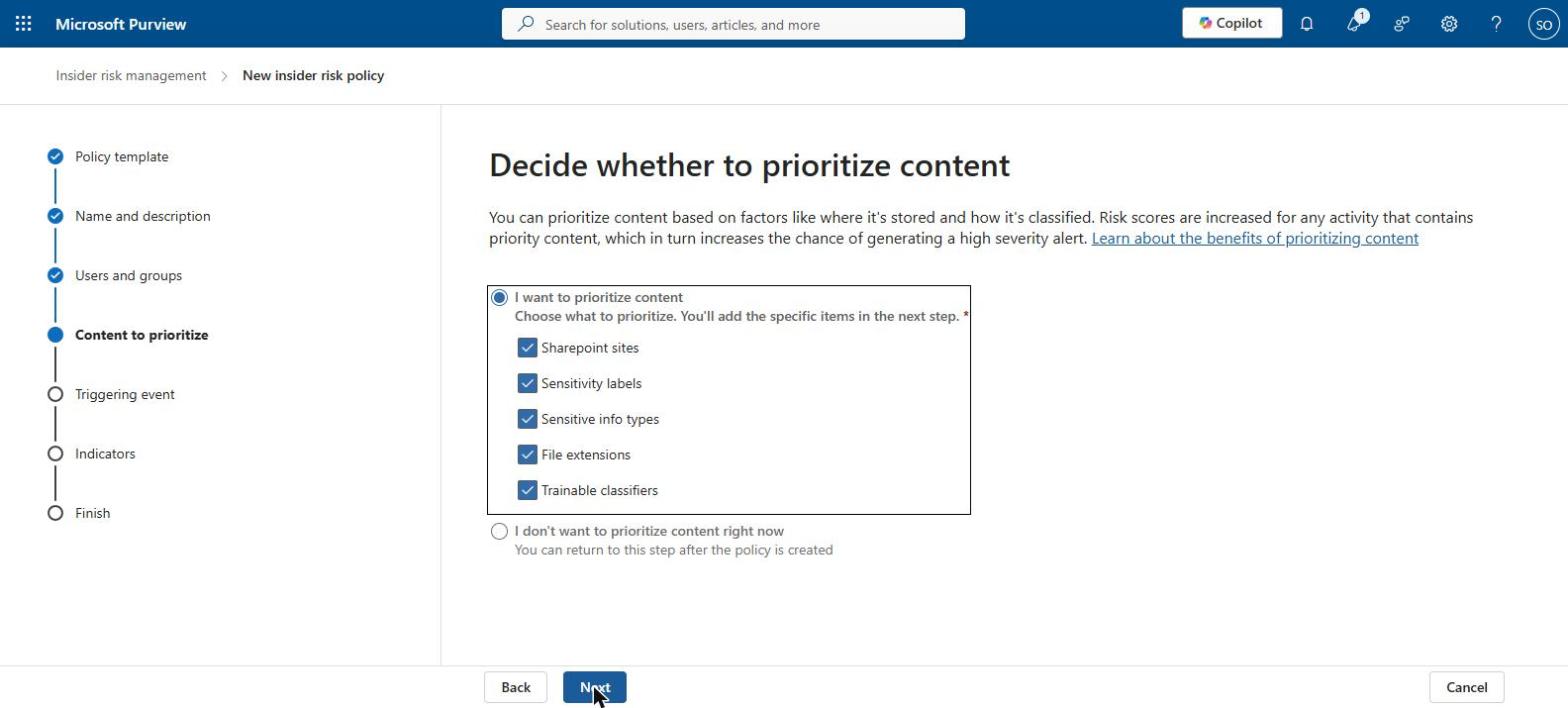
Step 5 – Content to prioritise
Here you can tell Insider Risk Management which data matters most – specific SharePoint sites, sensitivity labels, or types of sensitive information such as credit card numbers. Activity involving that data scores higher. For a first policy I skipped this. You can add it later, and it is where your labelling work really starts to pay off.
Step 6 – Triggering event
Because my test environment has no HR connector, the set-up selects “User account deleted from Microsoft Entra ID” and explains why.
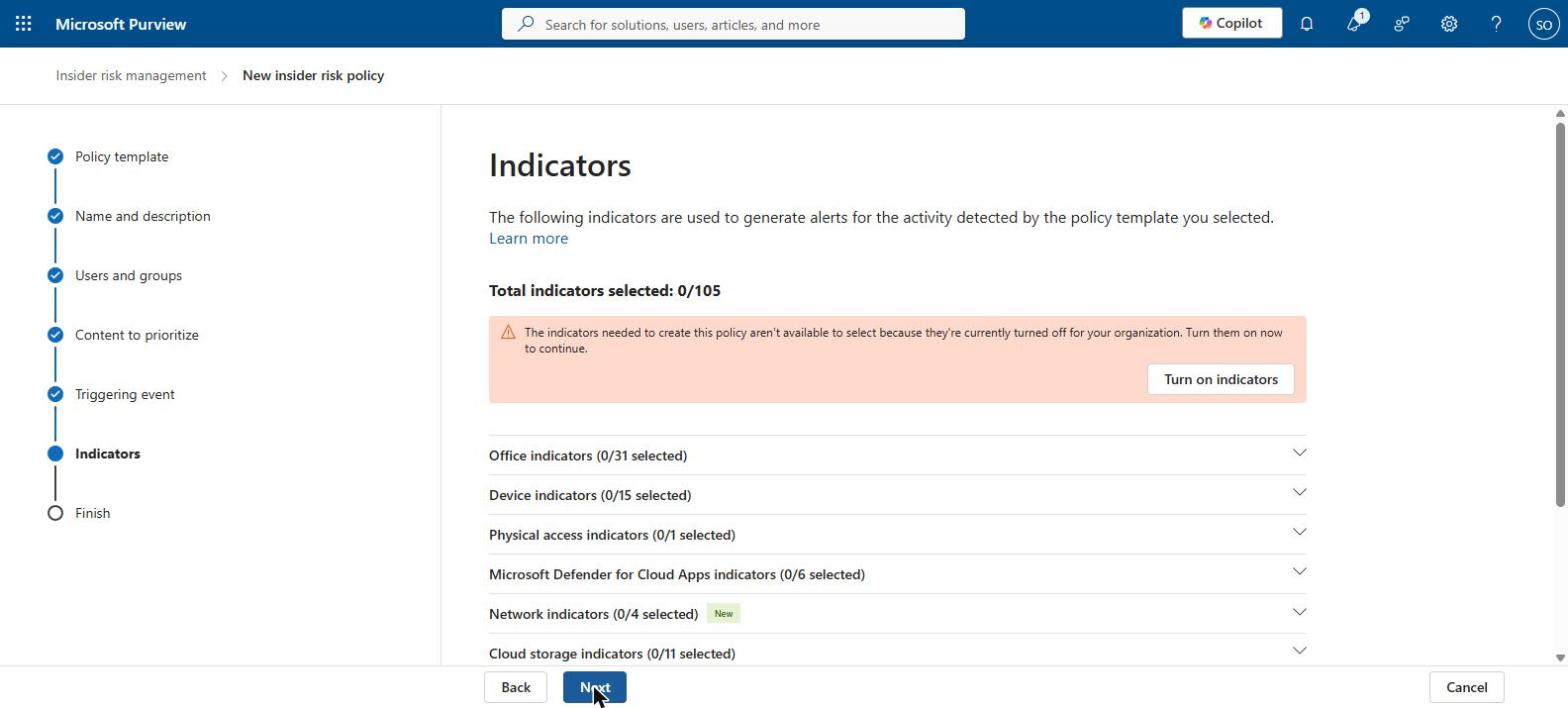
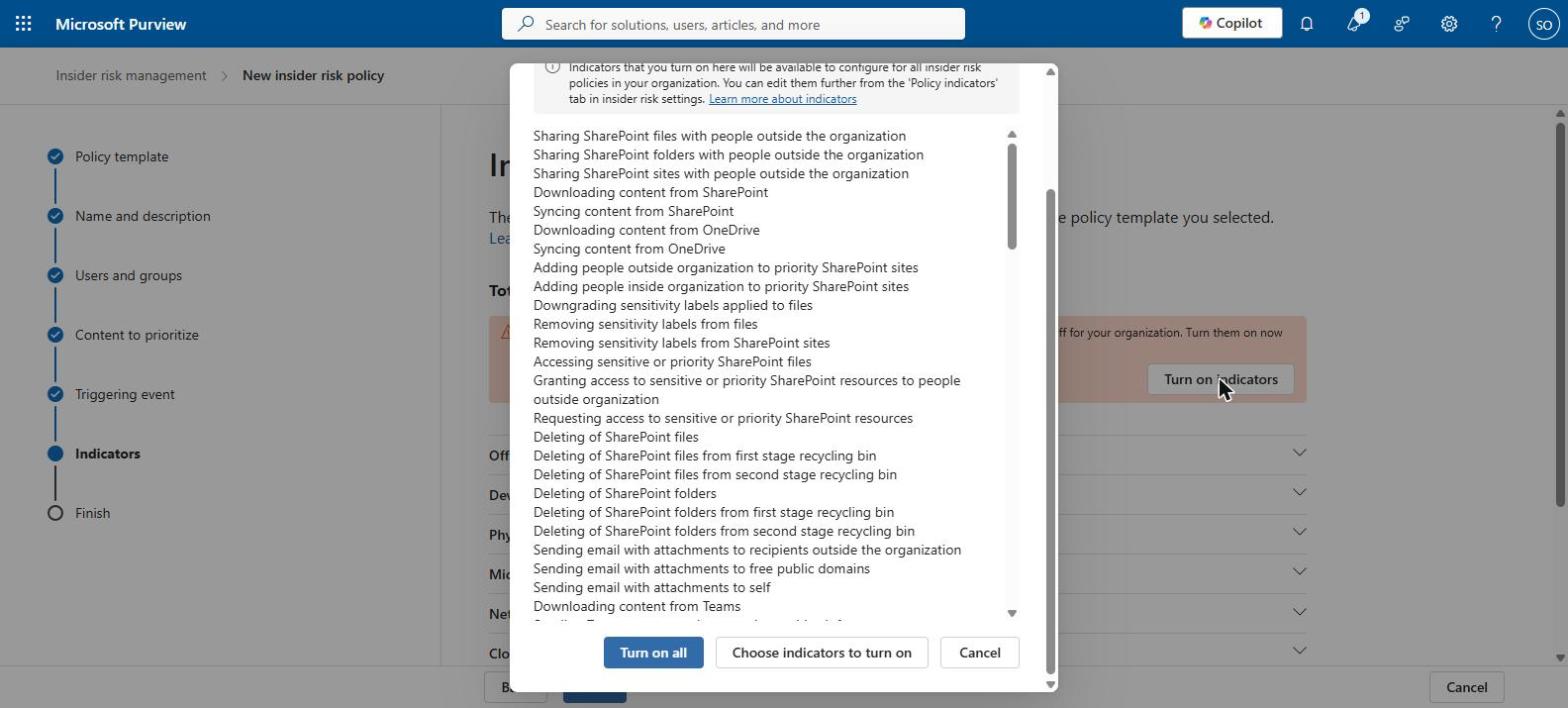
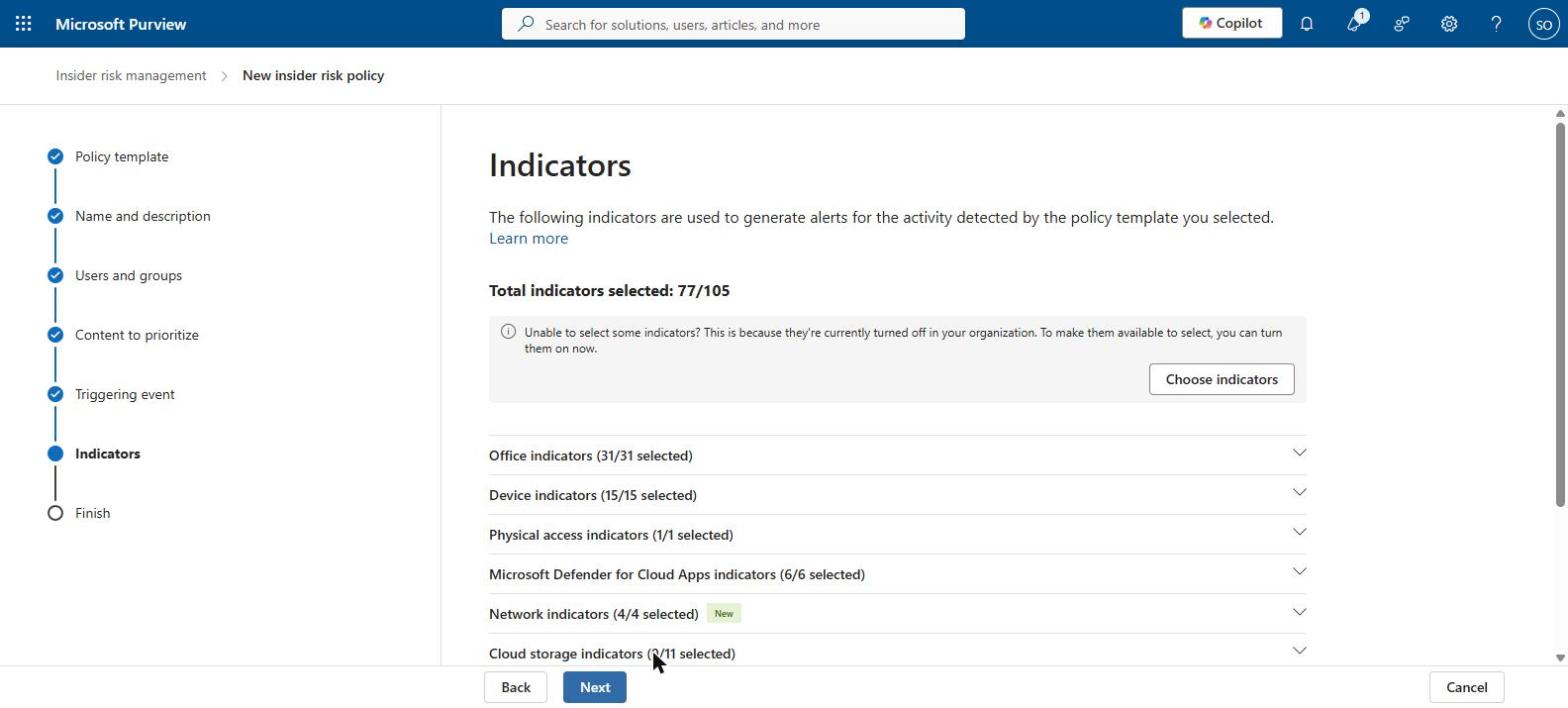
Step 7 – Indicators
This is where my test environment stopped me. The activities the policy needs to watch were switched off for the whole organisation:
Selecting Turn on indicators changes a setting for the whole organisation – every insider risk policy can then use them.
After selecting Turn on all, 77 of the 105 available indicators were switched on for this policy.
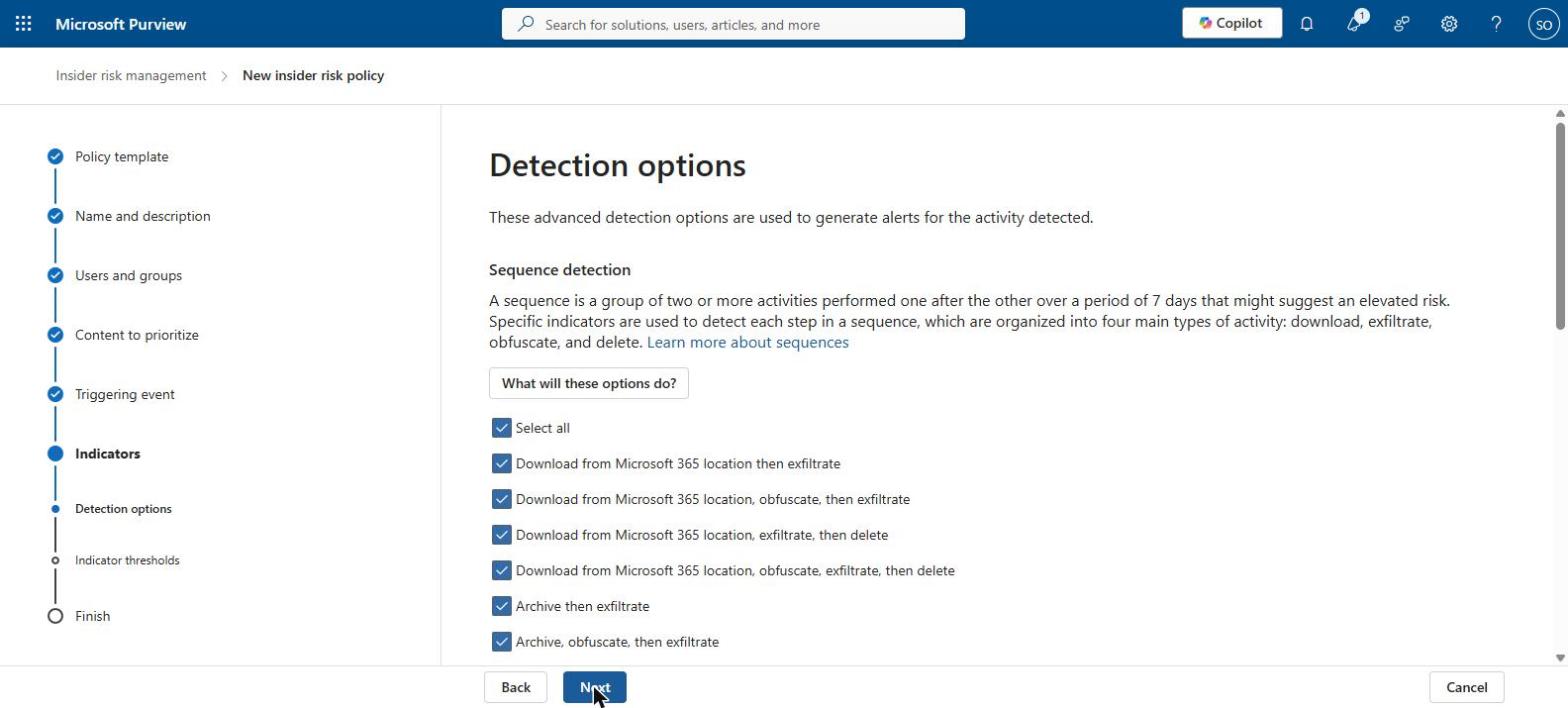
Step 8 – Detection options
Sequence detection is on by default. It looks for a chain of steps within seven days – downloading data, disguising it, moving it out and deleting the evidence.
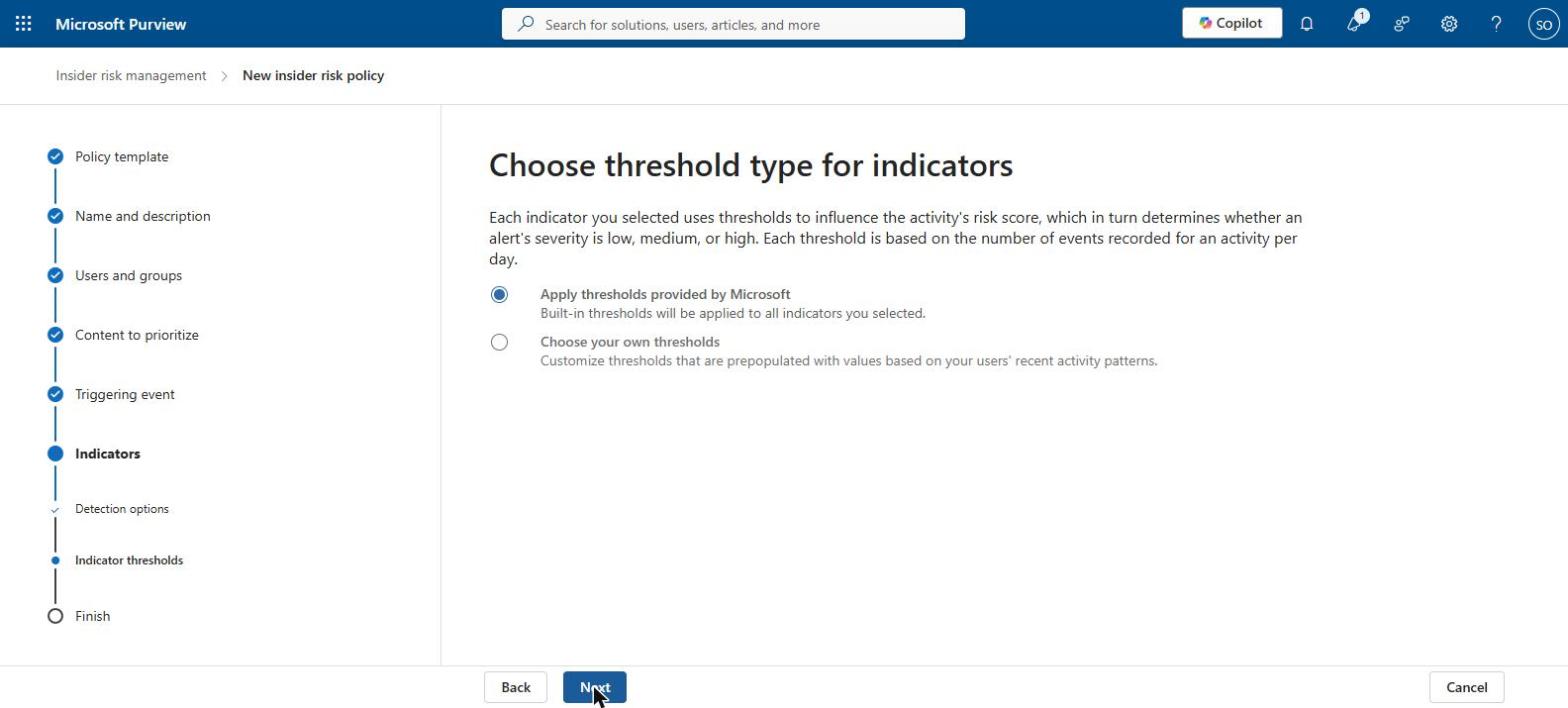
Step 9 – Indicator thresholds
Thresholds decide how much activity counts as unusual. Start with Microsoft’s, and fine-tune them once analytics has learned what is normal for your organisation.
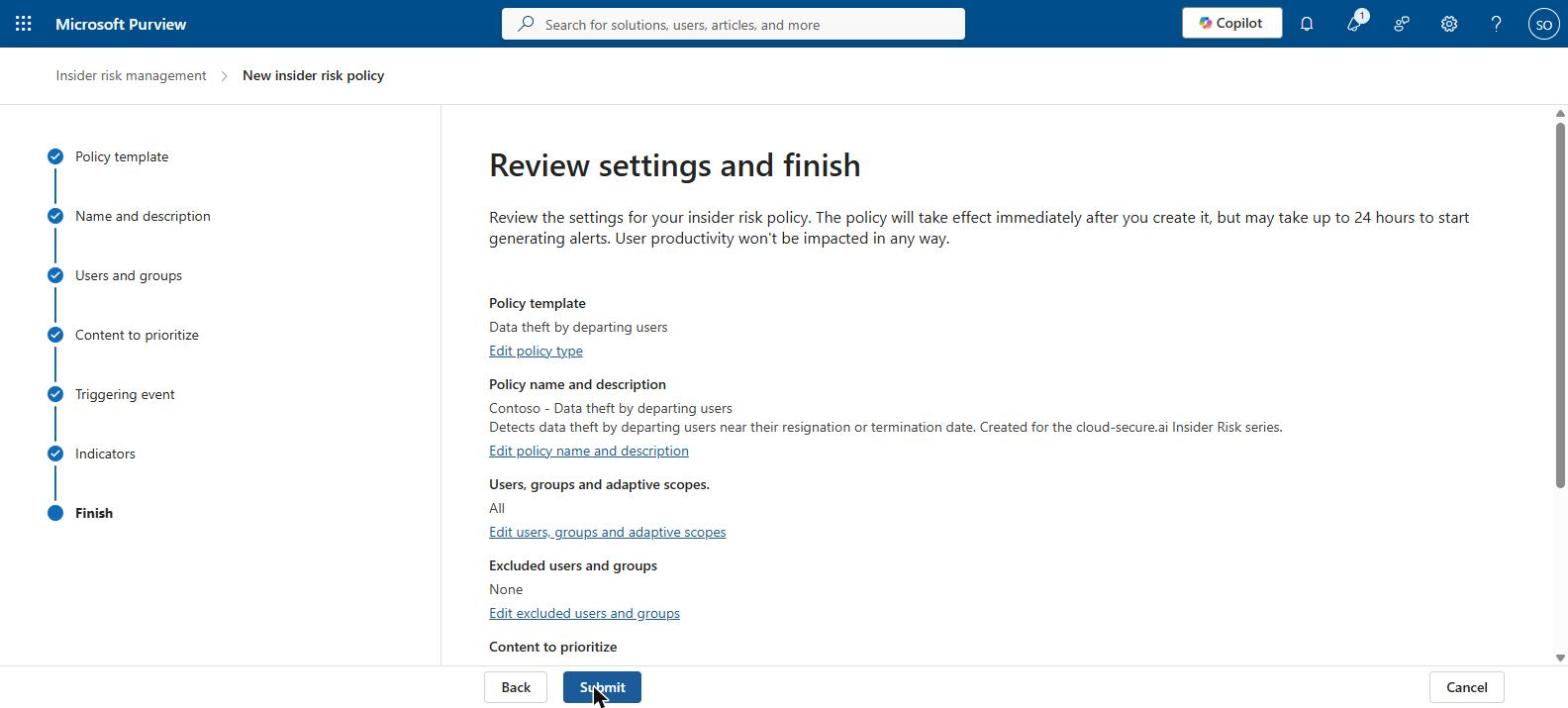
Step 10 – Review and submit
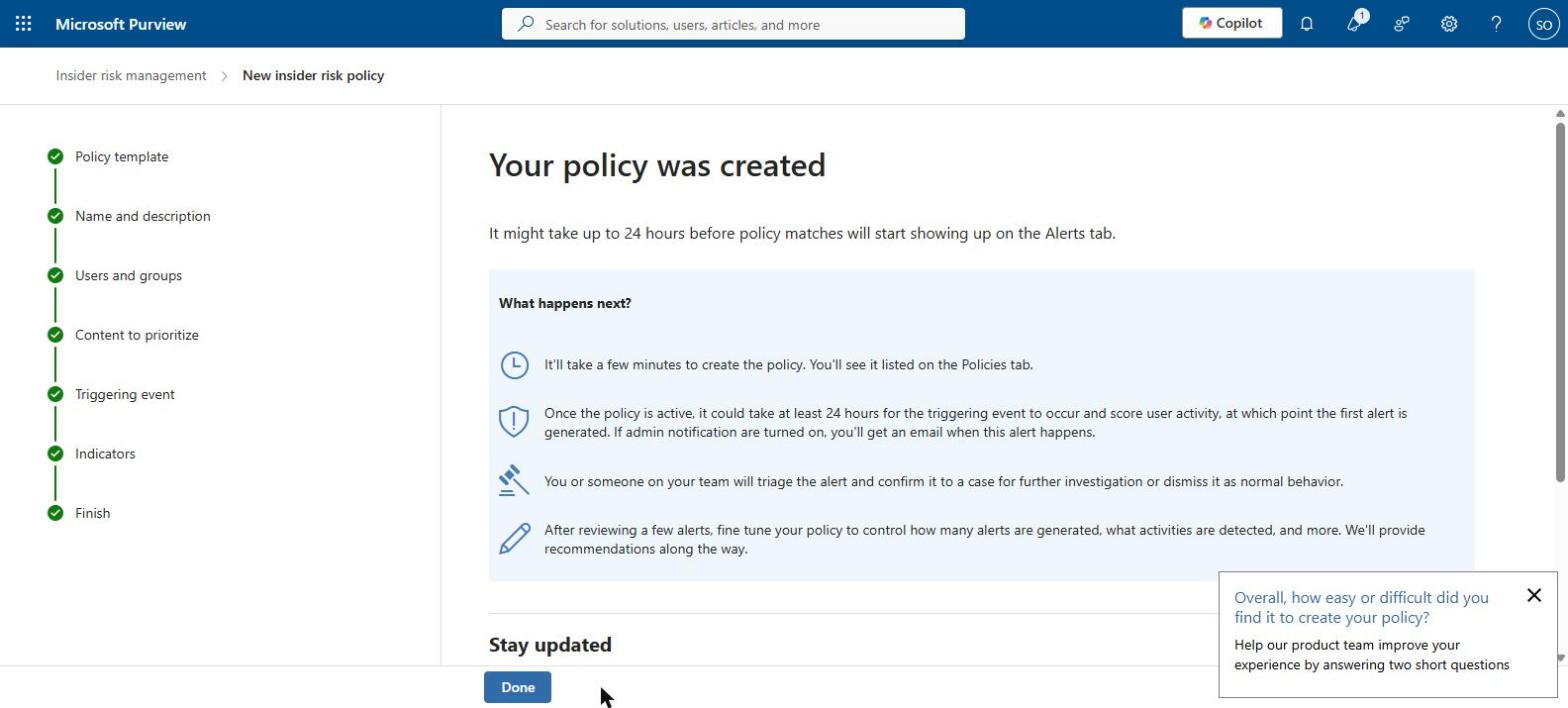
The policy starts straight away, but it can take up to 24 hours before the first alerts appear.
Automating with PowerShell
Microsoft does not provide a supported PowerShell command for creating insider risk policies, so the policy itself has to be created in the portal. The companion script, Invoke-InsiderRiskSetup.ps1, automates everything around it instead:
Checks audit logging is on, and can turn it on for you
Adds people to the Insider Risk Management role groups
Shows which insider risk PowerShell commands are available to you
Confirms your policy exists and saves a copy of its settings for your records
A policy is only useful if it catches something. The second companion script, Invoke-InsiderRiskSimulation.ps1, plays the part of a leaver in a test environment. It creates files containing dummy sensitive data, downloads them from SharePoint, zips them up and renames the archive to hide what it is, copies it to a USB stick or a personal cloud folder, can email a few files to an outside address, and then deletes the evidence.
Run it as a test user, on a laptop connected to Microsoft Defender for Endpoint. First bring that user into scope with Start scoring activity for users on the Policies page, or upload a resignation date for them through the HR connector. Every step is written to a log file with a timestamp, so you can match it against the alert. Alerts can take up to 24 hours to appear.
Test environments only: The simulation deliberately behaves like someone stealing data. It will not run unless you confirm it is a test environment, and it checks it is signed in to the test organisation you name. Never run it in production.
Hunting with KQL
Insider Risk Management alerts also appear in the Microsoft Defender portal, where your security team already works. There you can search the underlying activity yourself using advanced hunting. Advanced hunting uses KQL (Kusto Query Language) – you paste a query in, select Run query, and get a table of results.
Two settings matter before Insider Risk data shows up in Defender. First, turn on Sharing data with other Microsoft security solutions under Insider Risk Management settings > Data sharing. Second, the person hunting must be in the Insider Risk Management Analysts or Investigators role group – the same admin-versus-analyst split covered earlier.
This query lists every file copied to a USB stick or other removable drive, with the make, model and serial number of the device it went to:
You do not need Insider Risk Management for the next one. It uses standard Defender data, so you can run it in any organisation with Defender today. Add your recent leavers and their last working day, and it shows every SharePoint or OneDrive download, every zip file created on their laptop and every email with attachments they sent outside, in the 30 days before they left:
letLeavers=datatable(AccountUpn:string,LastWorkingDay:datetime)["leaver1@contoso.com",datetime(2026-11-21),"leaver2@contoso.com",datetime(2026-12-05)];letLookbackDays=30d;letLeaverUpns=Leavers|projectAccountUpn=tolower(AccountUpn);letCloudDownloads=CloudAppEvents|whereTimestamp>ago(90d)|whereActionType=="FileDownloaded"|extendAccountUpn=tolower(tostring(RawEventData.UserId))|whereAccountUpnin(LeaverUpns)|projectTimestamp,AccountUpn,Activity="Downloaded from SharePoint or OneDrive",Detail=ObjectName,Application;letArchivesCreated=DeviceFileEvents|whereTimestamp>ago(90d)|whereActionTypein("FileCreated","FileRenamed")|whereFileNamematchesregex@"(?i)\.(zip|7z|rar|tar|gz|dat)$"|extendAccountUpn=tolower(InitiatingProcessAccountUpn)|whereAccountUpnin(LeaverUpns)|projectTimestamp,AccountUpn,Activity=strcat("Archive ",tolower(ActionType)," on device"),Detail=strcat(DeviceName," - ",FolderPath),Application=InitiatingProcessFileName;letExternalEmail=EmailEvents|whereTimestamp>ago(90d)|whereEmailDirection=="Outbound"andAttachmentCount>0|extendAccountUpn=tolower(SenderFromAddress)|whereAccountUpnin(LeaverUpns)|projectTimestamp,AccountUpn,Activity="Email with attachments sent outside",Detail=strcat(RecipientEmailAddress," - ",Subject),Application="Exchange Online";unionCloudDownloads,ArchivesCreated,ExternalEmail|joinkind=inner(Leavers|extendAccountUpn=tolower(AccountUpn))onAccountUpn|whereTimestampbetween((LastWorkingDay-LookbackDays)..(LastWorkingDay+1d))|projectTimestamp,AccountUpn,LastWorkingDay,Activity,Detail,Application|orderbyAccountUpnasc,Timestampasc
Try this: Run the leaver timeline against the last five people who left your organisation. If it returns anything, you have just found what Insider Risk Management would have alerted you to – and that is usually the most persuasive business case there is.
The full set of seven queries – including Insider Risk alerts by person, sensitivity label changes and a query that finds a run of the simulation script – is on GitHub with a README explaining each one.
In Part 5 I connect this policy to Adaptive Protection and DLP, so that a high risk score automatically tightens the controls for that person.
Series:This is Part 6 of 7 in my series on Microsoft Purview Insider Risk Management. New to the series? Start with the series guide, which summarises every part.
This is the question security leaders and data protection officers ask me most: is insider risk management something we have to do by law, or is it just a service Microsoft provides?
The short answer
No law names it. No Irish or EU law says you must use Microsoft Purview Insider Risk Management, or any particular product. It is a Microsoft service.
But the results it delivers are expected. The main rules and standards – GDPR, NIS2, DORA and ISO 27001 – all expect you to stop data leaking out, manage the security risk of people joining and leaving, and spot unusual activity. At the same time, data protection law sets strict rules on how you monitor employees. Insider Risk Management sits between those two pressures: protecting personal data, while respecting the privacy of the people who handle it.
Important: I am a security architect, not a lawyer. This section explains how the frameworks relate to Insider Risk Management. Get advice from your DPO and legal team on your own obligations.
What the laws and standards expect
Law or standard
What it expects
How Insider Risk Management helps
GDPR Article 32 (security of personal data)
Suitable technical and organisational measures to protect personal data, including from being shared without permission. Pseudonymisation is named as an example.
Spots insiders moving personal data out, and hides the identities of the people it monitors.
GDPR Articles 33 and 34 (breach reporting)
Tell the Data Protection Commission within 72 hours of becoming aware of a personal data breach, and tell the people affected if the risk to them is high.
Alerts and timelines tell you a breach has happened and show what left, when and how.
NIS2 Article 21(2)(i) (EU cybersecurity law)
Security around staff, control over who can access what, and managing company assets. Management boards are held accountable.
Links HR events such as resignations to data activity, and adjusts access automatically for risky people.
DORA (EU law for banks, insurers and other financial firms)
Managing IT risk, including quickly spotting unusual activity. Applies from January 2025.
Spots unusual behaviour and sends alerts to the security team.
ISO/IEC 27001:2022 (international security standard)
Controls 6.5 (security when people leave or change role), 8.12 (preventing data leaks) and 8.16 (monitoring for unusual activity).
Evidence for all three controls when auditors ask.
NIST SP 800-53 PM-12 (US government security standard)
An insider threat programme – one of the few standards that asks for one by name. Relevant if you supply the US government.
Provides the technology at the heart of an insider threat programme.
NIS2 in Ireland: NIS2 is an EU cybersecurity law that Ireland has not yet written into Irish law. A draft outline of the National Cyber Security Bill was published in August 2024, and in July 2026 the European Commission took Ireland to the EU Court of Justice over the delay. The National Cyber Security Centre is set to be the main regulator. The obligations are coming, and organisations it will apply to should be preparing now.
The PII gap
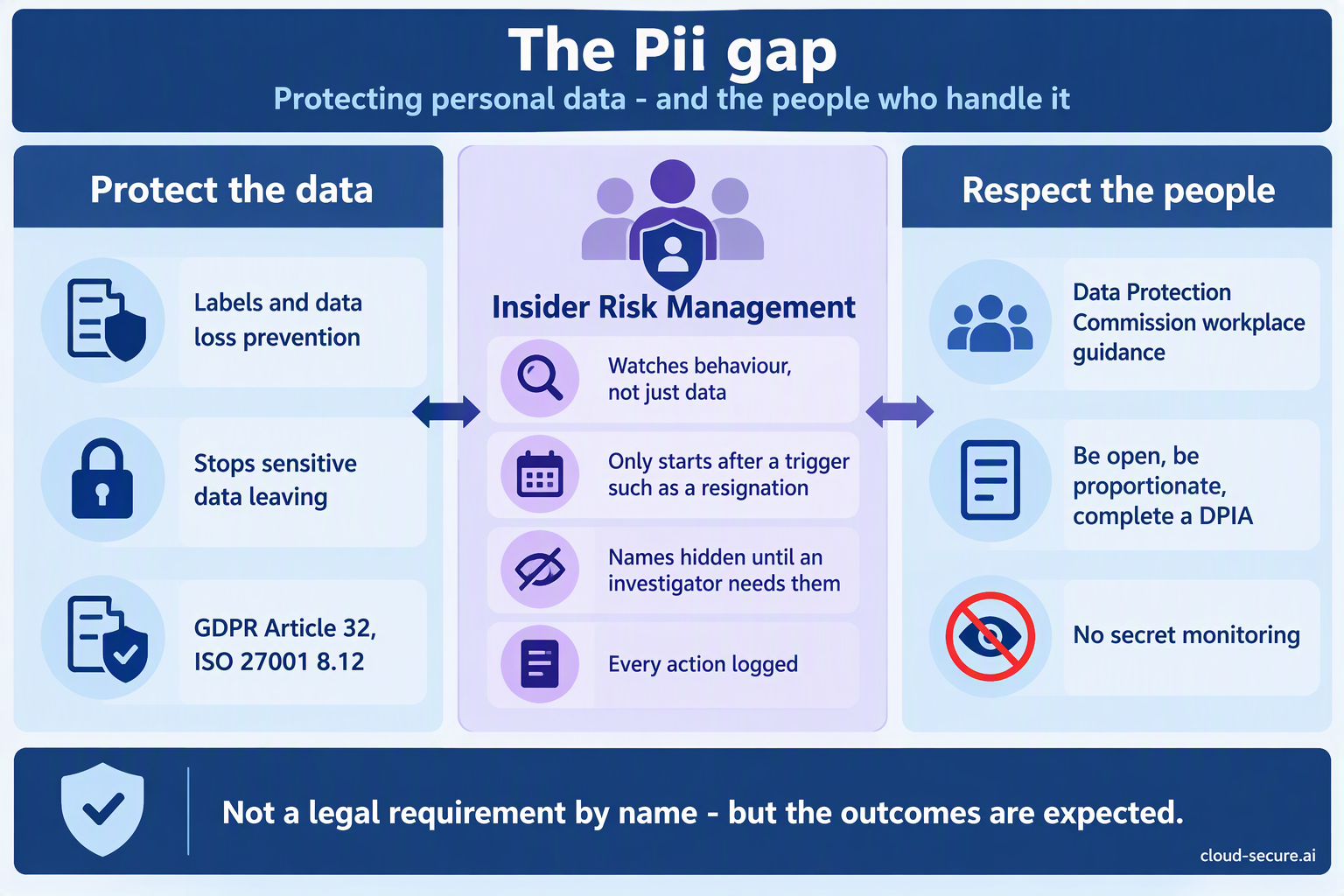
PII stands for personally identifiable information – anything that identifies a person, such as a name, address or PPS number. Most Purview projects focus on protecting that data directly: finding it, labelling it and stopping it leaving with DLP. That protects the data. It does not tell you when a trusted person, who is allowed to see that data, starts behaving in a way that puts it at risk. That is the gap Insider Risk Management fills.
But there is a second side to the gap. Monitoring employees means collecting information about them, which is itself covered by data protection law. The Data Protection Commission’s 2023 guidance for employers makes four points clear. Workplace monitoring must be open and proportionate – no more than is needed. Employers will find it hard to justify monitoring simply because it is in their business interest (known as “legitimate interests”). A data protection impact assessment (DPIA) – a written assessment of the privacy risks – is essential before monitoring starts. And secret monitoring should be avoided wherever possible. European court rulings point the same way: employees should be told in advance that monitoring may take place.
This is where Insider Risk Management is genuinely different from a surveillance tool. Its design lines up closely with those principles:
Data protection principle
How Insider Risk Management supports it
Transparency – be open about it
Policies watch activities you can describe to staff in your IT acceptable use policy and privacy notice. Built-in notice templates help you communicate with them.
Proportionality – no more than needed
People are only scored after an event such as a resignation. Policies can be limited to specific groups.
Pseudonymisation – hide identities
On by default. Names are only revealed to authorised investigators.
Limit who can see what
Separate role groups for the people who set it up, review alerts, investigate and audit.
Accountability – keep a record
Every action inside Insider Risk Management is logged, and a dedicated Auditors role group can review that log.
Purpose limitation – only use it for the stated reason
Each policy template has one clear purpose – data theft, data leaks, security breaches or risky AI use.
No secret monitoring by default
It uses activity that is already recorded, such as audit logs. It does not record keystrokes. Forensic evidence (screen recording) is optional and needs approval – treat it with particular care in your DPIA.
What you need to do
Complete a DPIA before switching on Insider Risk Management, and update it when you add new policies or features.
Write down your legal basis – the legal reason you are allowed to do this – and, if it is legitimate interests, show how you weighed your needs against employees’ privacy.
Update your IT acceptable use policy and employee privacy notice so staff know what activity may be monitored and why.
Involve HR, legal, the DPO and employee representatives early. The HR connector makes HR a stakeholder anyway.
Keep pseudonymisation on and keep the Investigators role group small.
Set retention for alerts and cases in line with your records policy.
Link it to the standards you follow – for example ISO 27001 controls 6.5, 8.12 and 8.16, NIS2 Article 21 and DORA – so the evidence is ready when auditors ask.
My view
No regulator will ask you whether you have switched on Insider Risk Management by name. But every standard above expects you to spot and deal with the risk it covers, and data protection law expects you to do it fairly and proportionately. Few tools do both as well.
And here is the uncomfortable question: after a departing employee walks out with a customer database, how do you explain to the Data Protection Commission that the control designed to catch it was already licensed, already paid for – and switched off?