
Series: This is Part 7 of 7 in my series on Microsoft Purview Insider Risk Management. New to the series? Start with the series guide, which summarises every part.
This is the final part of the series, and it brings everything together. Insider Risk Management spots risky behaviour. Adaptive Protection turns it into a risk level. In this part, that risk level reaches the front door – sign-in – and an AI assistant helps your compliance team deal with the alerts.
Part A: Insider risk in Conditional Access
Conditional Access is the set of rules in Microsoft Entra ID that decides who can sign in to what, from where and on which device. Most organisations already use it – for example, to require multi-factor authentication. Since July 2024, it can also use a person’s insider risk level as a condition.
That means the same risk level that tightens DLP in Part 5 can also block or restrict someone’s access to Microsoft 365 apps. You need Microsoft Entra ID P2, which is included in E5, and Adaptive Protection switched on.
What Microsoft recommends for each level
| Level | Recommended Conditional Access response | Effect on the person |
|---|---|---|
| Elevated | Block sign-in to Microsoft 365 apps, block access to specific labelled SharePoint sites, or block downloads from cloud apps | Cannot reach the data at all |
| Moderate | Require them to accept Terms of Use when signing in to admin portals | A reminder of their obligations, with no loss of access |
| Minor | Run a policy in report-only mode | None – you just gain visibility |
The Copilot angle: Blocking an Elevated person from specific labelled SharePoint sites also stops Microsoft 365 Copilot generating answers from those sites for them. A risky person cannot use Copilot as a back door to sensitive content.
Creating the block policy for Elevated risk
If you ran Adaptive Protection quick setup in Part 5, a policy called “1-Block access for users with Insider Risk” already exists in report-only mode. To create one yourself, sign in to the Microsoft Entra admin center as at least a Conditional Access Administrator and:
- Go to Entra ID > Conditional Access > Policies and select New policy.
- Users: include All users. Exclude your emergency access (break-glass) accounts and guest or external user types.
- Target resources: include All resources.
- Conditions: select Insider risk, set Configure to Yes, and tick Elevated.
- Grant: select Block access.
- Enable policy: set it to Report-only and select Create.
- Review the report-only results for a few weeks, then switch the policy to On.
Never skip report-only: Blocking sign-in is the strongest action in this series. Run it in report-only first, check exactly who would have been blocked, and always exclude your emergency access accounts so a mistake cannot lock everyone out.
Part B: The Data Security Triage Agent
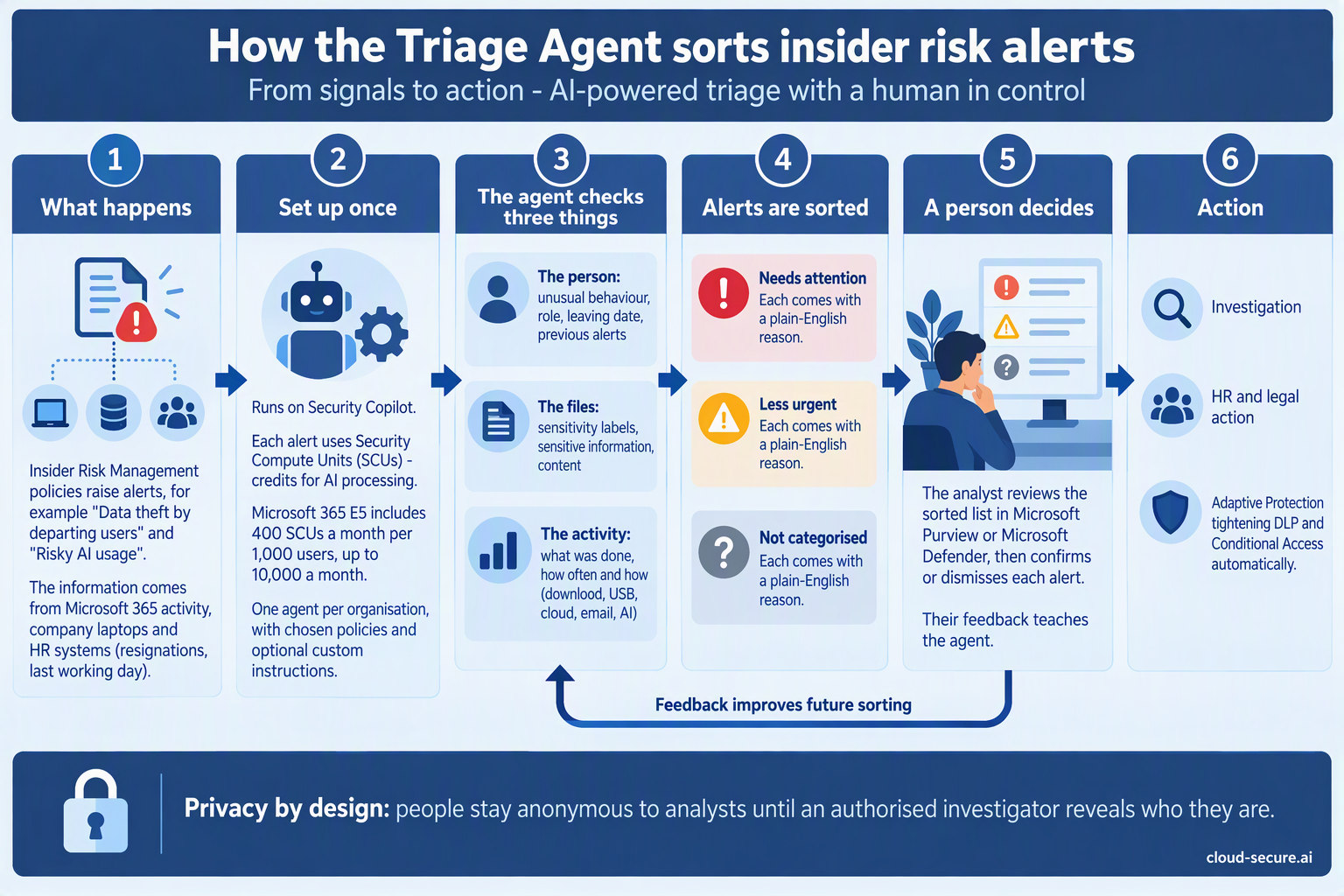
Every insider risk policy produces alerts, and someone has to look at them. On a busy day that queue can be long, and the most important alert can sit behind dozens of harmless ones. The Triage Agent is an AI assistant, built on Security Copilot, that reads each alert first and sorts the queue so your compliance team starts with what matters.
It does not investigate, decide or take action. It sorts and explains. A person still makes every decision.
How it sorts alerts
| Category | What it means |
|---|---|
| Needs attention | The alerts the agent judged highest risk. Start here. |
| Less urgent | Lower-risk alerts to review when you have capacity. |
| Not categorized | Alerts the agent could not assess – for example, unsupported activity or an error. These still need a person to look at them. |
For each alert, it weighs up the person (for example, whether they are a priority user and how many cases they already have open), the activity (how likely it is to be data leaving the organisation) and the content involved, and writes a short plain-English explanation of its decision.
How it runs and what it costs
- Scope: you choose which insider risk policies it covers, and whether it looks only at new alerts or also at alerts from up to 30 days back.
- Schedule: it can run automatically on a schedule, or an analyst can run it on one alert at a time.
- Cost: each alert it processes uses Security Compute Units (SCUs). Microsoft 365 E5 includes 400 SCUs a month for every 1,000 users, up to 10,000 a month – see Part 3.
- Feedback: analysts can give feedback on its decisions, which it takes into account when it triages future alerts.
Getting started well
- Tune noisy policies first. The agent sorts what your policies produce – and every alert costs credits.
- Start with new alerts only, then widen the lookback once you trust the results.
- Compare for two weeks. Have your compliance team triage as normal and compare their view with the agent’s.
- Check Not categorized every day. Those alerts have not been assessed by anyone yet.
- Watch your SCU usage in Security Copilot, so the monthly allowance is not used up by one noisy policy.
The people reviewing the sorted queue need the same Insider Risk Management roles as before – Analysts or Investigators, through PIM. Setting up the agent needs additional Purview agent and Security Copilot roles.
Bringing it full circle
Over seven parts, we have gone from a licence sitting on the shelf to a joined-up system:
- Insider Risk Management spots risky behaviour, starting with people who are leaving.
- Adaptive Protection turns that behaviour into a risk level.
- DLP and Conditional Access tighten automatically for the few who need it.
- The Triage Agent helps your compliance team deal with the alerts.
- Compliance officers, not IT, own the process, with access controlled through PIM.
And all of it is included in the Microsoft 365 E5 licence many organisations already pay for.
Final thoughts
If you take one thing from this series, make it this: if you have E5 and no insider risk policies, you are paying for protection you are not using. Start small – one departing users policy, a few compliance officers, quick setup in simulation – and build from there. The scripts and KQL queries from Part 4 will help you prove it works.
Thank you for following the series. If you have questions or want to talk about your own deployment, get in touch through cloud-secure.ai.
The rest of the series
- Series guide: Insider Risk Management with Microsoft Purview
- Part 1: The Purview workload everyone skips
- Part 2: From Ignite 2019 to AI agents
- Part 3: Licensing, prerequisites and pay-as-you-go
- Part 4: Creating your first policy
- Part 5: Adaptive Protection with DLP
- Part 6: Obligation or option? Regulation, privacy and the PII gap
References
- Block access for users with insider risk – Microsoft Entra Conditional Access
- Adaptive Protection deployment guide – Microsoft Learn
- Security Copilot agents in Microsoft Purview overview – Microsoft Learn
- Security Copilot inclusion in Microsoft 365 E5 – Microsoft Learn
Seán O’Farrell | cloud-secure.ai


Pingback: Insider Risk Management Part 1: The Purview workload everyone skips | Cloud-Secure.ai
Pingback: Insider Risk Management Part 2: From Ignite 2019 to AI agents | Cloud-Secure.ai
Pingback: Insider Risk Management Part 3: Licensing, prerequisites and pay-as-you-go | Cloud-Secure.ai
Pingback: Insider Risk Management Part 5: Adaptive Protection with DLP | Cloud-Secure.ai
Pingback: Insider Risk Management with Microsoft Purview: the series | Cloud-Secure.ai