
Series: This is Part 5 of 7 in my series on Microsoft Purview Insider Risk Management. New to the series? Start with the series guide, which summarises every part.
In Part 4 we built a policy that spots people taking data before they leave. On its own, that policy raises alerts – and then waits for a person to act. Adaptive Protection removes the wait. It turns each person’s insider risk into a level, and lets your other security controls tighten automatically for the few people who are genuinely risky, while everyone else carries on as normal.
This is the feature that turns Insider Risk Management from a reporting tool into protection. In this part I explain how it works in plain English, what quick setup creates for you, and how to roll it out without upsetting anyone.
What Adaptive Protection does
Most security controls treat everyone the same. A data loss prevention (DLP) rule that blocks copying to USB blocks it for the whole organisation, which frustrates the many to stop the few. So most organisations set their rules loosely – and the risky few get through.
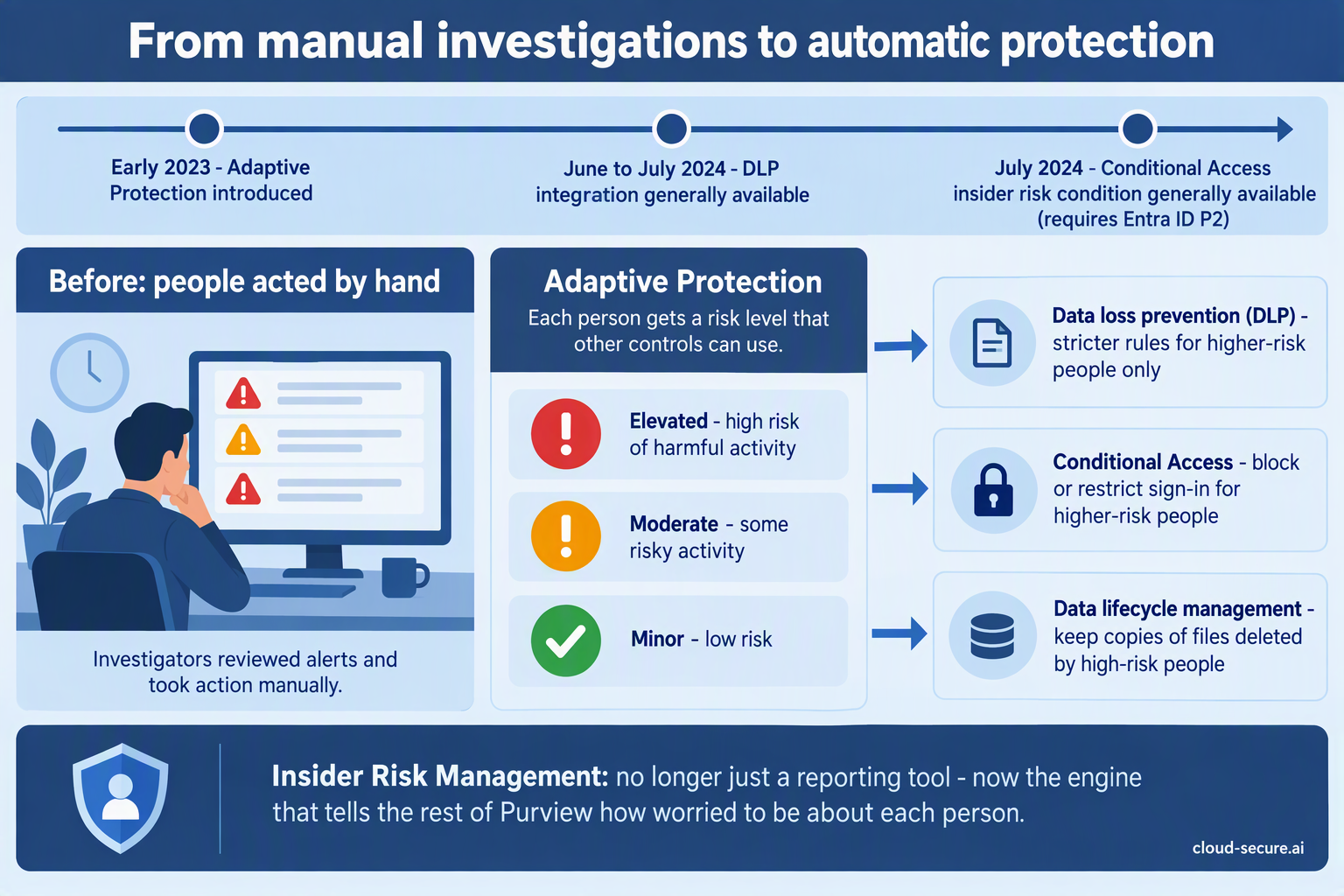
Adaptive Protection fixes that. Insider Risk Management watches behaviour and gives each person a risk level. Other controls then read that level and act on it:
- Data loss prevention – stricter rules for higher-risk people only.
- Conditional Access – block or restrict sign-in for higher-risk people (covered in Part 7).
- Data lifecycle management – keep copies of anything a high-risk person deletes.
Levels go up and down automatically as behaviour changes. Nobody has to remember to add someone to a “watch list” or take them off it again.
The three risk levels
Adaptive Protection uses three levels. Microsoft provides built-in definitions, which you can change:
| Level | Built-in definition (simplified) | Typical response |
|---|---|---|
| Elevated | High-severity alerts, several high-severity sequences of risky activity, or a confirmed high-severity alert | Block |
| Moderate | Medium-severity alerts, or at least two high-severity data exfiltration activities | Warn, record, or require extra steps |
| Minor | Low-severity alerts, or at least one high-severity data exfiltration activity | Record only |
Do not confuse the two: Alert severity (Low, Medium, High) helps analysts decide which alert to look at first. Insider risk levels (Minor, Moderate, Elevated) are what drive automatic protection. They are related, but they are not the same thing.
How long a level lasts
- Risk level timeframe: a level lasts 7 days by default (you can choose between 5 and 30). If the person keeps meeting the criteria, it is extended.
- Past activity detection: how far back Adaptive Protection looks at activity when assigning a level – also 7 days by default, between 5 and 30.
- Automatic expiry: on by default. When the related alert is dismissed or the case is closed, the level is removed.
- Manual reset: an investigator can expire a person’s level at any time under Adaptive Protection > Users assigned insider risk levels. Alerts and cases are kept.
Quick setup or custom setup?
Quick setup is the fastest way to start and needs no existing policies. It creates everything for you in a safe, test-only state:
| What it creates | What it does | Starts as |
|---|---|---|
| Insider risk policy | Adaptive Protection policy based on the Data leaks template, covering all users | Active |
| DLP policy for laptops (Endpoint DLP) | Elevated: blocks USB copies, printing, uploads to unapproved cloud sites and more. Moderate and Minor: recorded only | Simulation (test mode) |
| DLP policy for Teams and Exchange | Elevated: blocks sharing sensitive content with people outside the organisation. Moderate and Minor: recorded only | Simulation (test mode) |
| Conditional Access policy | Blocks Elevated people from Office 365 apps | Report-only |
| Data lifecycle policy | Keeps deleted SharePoint, OneDrive and Exchange content from Elevated people for 120 days | Active |
Quick setup can take up to 72 hours to finish, and you get an email when it is done. Do not turn Adaptive Protection off while it is still setting up.
Custom setup suits organisations that already have insider risk and DLP policies. You choose the insider risk policy, define the three levels yourself, add the risk level condition to your existing DLP and Conditional Access policies, then switch Adaptive Protection on. Results can take up to 36 hours to appear.
How DLP uses the risk level
Once Adaptive Protection is on, DLP policies gain a new condition: “Insider risk level for Adaptive Protection is”. You choose one, two or all three levels, then choose what happens. It works in DLP policies for Exchange email, Teams and devices (company laptops).
The pattern Microsoft uses in quick setup is a good starting point:
| Where | Elevated | Moderate and Minor |
|---|---|---|
| Laptops | Block copying to USB and network shares, printing, copying to the clipboard, uploads to unapproved cloud sites and use by unapproved apps | Record the same activities, without blocking |
| Email and Teams | Block or encrypt sensitive content shared with people outside the organisation | Record external sharing, without blocking |
For laptops: Adaptive Protection on devices needs either Advanced classification scanning and protection switched on, or the “File type is” condition in your DLP rule. If someone is covered by both an Adaptive Protection policy and another device DLP policy, the strictest one wins.
Who needs which role
| Task | Role |
|---|---|
| Set up Adaptive Protection | Insider Risk Management or Insider Risk Management Admins |
| Edit DLP policies that use the risk level | Compliance Administrator, Compliance Data Administrator or DLP Compliance Management |
| Edit Conditional Access policies that use the risk level | Conditional Access Administrator or Security Administrator |
| See who has which risk level | Insider Risk Management, Analysts or Investigators – ideally your compliance officers through PIM, as described in Part 1 |
Rolling it out safely
- Run quick setup and wait for the completion email.
- Leave everything in simulation for two to four weeks. Review which people reach each level and what the DLP policies would have blocked.
- Check for surprises. Are the right people reaching Elevated? Would any legitimate work have been blocked? Adjust the level definitions if needed.
- Turn on blocking for Elevated only. Leave Moderate and Minor recording only.
- Tell people. Your IT acceptable use policy and privacy notice should explain that controls can tighten automatically when risky activity is detected – see Part 6.
- Review regularly. Look at who is assigned a level each week, and use manual expiry when an investigation clears someone.
Switching it off
If you ever need to, turn Adaptive Protection off in its settings. Levels stop being assigned and are reset within about six hours. Your insider risk, DLP, Conditional Access and data lifecycle policies are not deleted – they simply stop receiving risk levels.
Final thoughts
Adaptive Protection is where the investment in Insider Risk Management pays back. Instead of choosing between rules that are too strict for everyone or too loose to matter, you get strict rules for the few who need them and freedom for everyone else – automatically.
In Part 6 I tackle the question every data protection officer asks: is this something we are obliged to do?
The rest of the series
- Series guide: Insider Risk Management with Microsoft Purview
- Part 1: The Purview workload everyone skips
- Part 2: From Ignite 2019 to AI agents
- Part 3: Licensing, prerequisites and pay-as-you-go
- Part 4: Creating your first policy
- Part 6: Obligation or option? Regulation, privacy and the PII gap
- Part 7: Insider risk in Conditional Access and the Data Security Triage Agent
References
- Help dynamically mitigate risks with Adaptive Protection – Microsoft Learn
- Learn about Adaptive Protection in Data Loss Prevention – Microsoft Learn
- Adaptive Protection deployment guide – Microsoft Learn
Seán O’Farrell | cloud-secure.ai

