In Part 1 I argued that the Data Security Posture Agent changes where classification starts. This post is the honest version of getting it running. It took two evenings in a CDX tenant, a Pay-As-You-Go Azure subscription and a PowerShell session, and almost every step had a catch. Here they are, in the order you will hit them, with what it cost at the end.
- Part 1 - Let the data tell you: what Purview already sees, and why the Posture Agent changes the starting point
- Part 2 - Getting the Posture Agent running: prerequisites, gotchas and what it actually cost (this post)
- Part 3 - From discovery to definition: using the agent to find the sensitive information types you did not know you needed
- Part 4 - Teaching Purview what matters: trainable classifiers (coming soon)
- Part 5 - From classification to protection: labels, DLP and the evidence trail (coming soon)
The checklist
If you only read one section, read this one. Do these in order, and do the first one days before you need it:
- Turn on Purview Audit and confirm records are flowing.
- Get Security Copilot capacity, either through the Microsoft 365 E5 inclusion or by provisioning it in Azure.
- Allow Security Copilot to access Microsoft 365 data.
- Complete the unified DSPM setup, reviewing the pay-as-you-go collection policies before you click Start setup.
- Assign roles, including content-level roles for whoever needs to see matched content.
- Write your prompts and pick your data sources before you create any hourly capacity.
- Decide which Purview pay-as-you-go features you need, such as Data Security Investigations, and link an Azure subscription for Purview billing. These are billed separately from Security Copilot and E5 does not cover them.
1. Audit first, and days ahead
Purview Audit was off in the CDX tenant. Security Copilot setup could not enable audit logging of Copilot activity, and the unified DSPM setup will not complete without it. Turning it on was the longest delay of the whole lab.
The portal offered “Complete organisational setup”, then failed with InvalidOperationInDehydratedContextException. The Exchange Online organisation was dehydrated, which is common in demo and small tenants. The fix is in Exchange Online PowerShell:
Connect-ExchangeOnline
Get-OrganizationConfig | Format-List IsDehydrated
Enable-OrganizationCustomization
Set-AdminAuditLogConfig -UnifiedAuditLogIngestionEnabled $true
Get-AdminAuditLogConfig | Format-List UnifiedAuditLogIngestionEnabled
What to expect:
- IsDehydrated reported False well before audit could actually be enabled. Reads and writes hit different replicas, so it is replication lag, not throttling. Disconnect, reconnect and retry every 15 minutes.
- Audit was finally accepted about 73 minutes after the first attempt.
- The first audit record appeared about seven hours later.
- Audit is not retroactive. Nothing from the first evening - Security Copilot setup, the agent’s first runs or the classifier creation - was captured.
Gotcha: if you need audit evidence of an agent rollout, enable audit days before you start, not on the day.
2. Security Copilot capacity
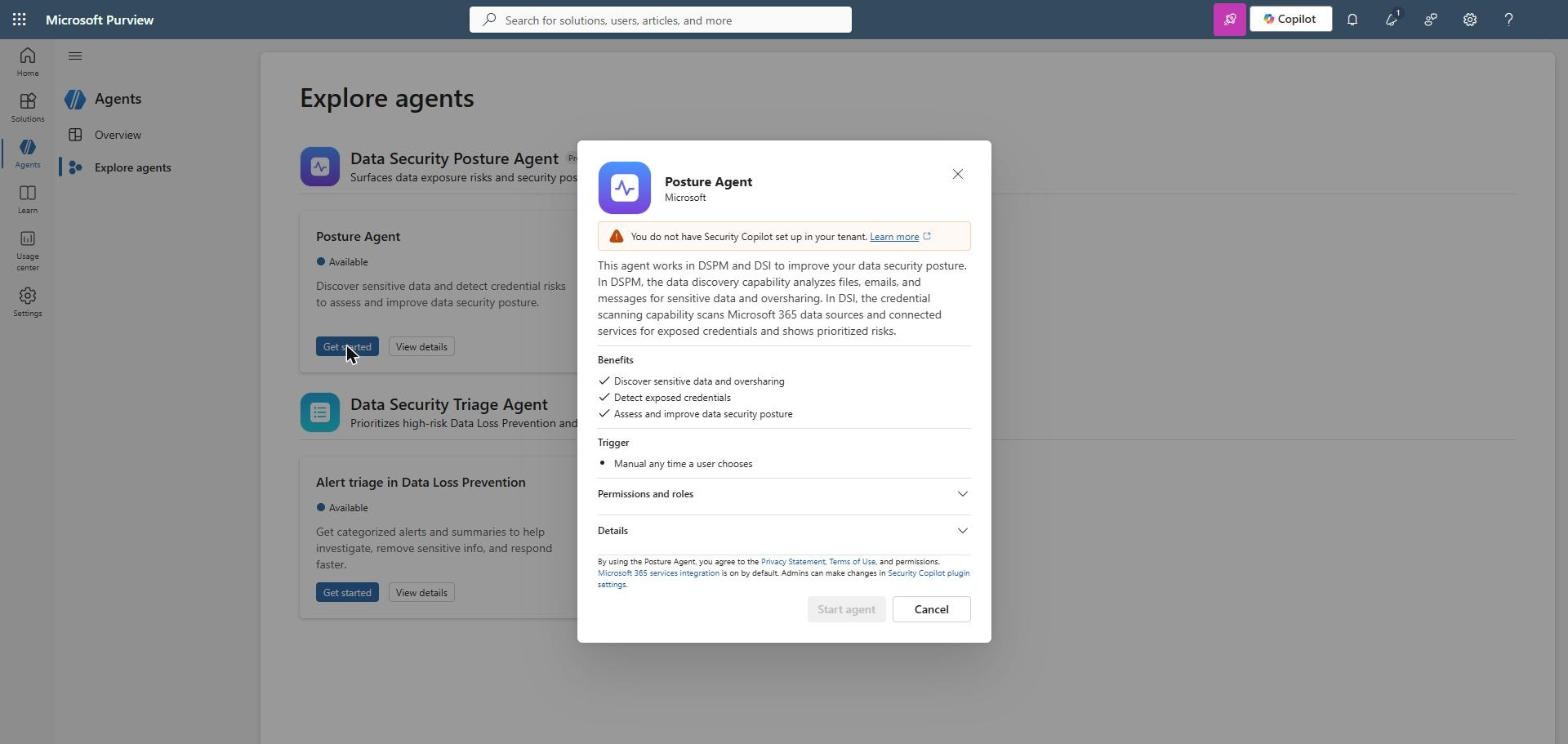
Selecting Get started on the Posture Agent produced: “You do not have Security Copilot set up in your tenant.” Start agent stays greyed out.
The Microsoft 365 E5 route
Microsoft now includes Security Copilot with Microsoft 365 E5 and E7. Eligible tenants get 400 security compute units (SCUs) per month for every 1,000 paid user licences, up to 10,000 SCUs a month. It is provisioned automatically with 30 days’ notice, the allocation resets monthly and unused SCUs do not roll over.
Two words matter: eligible and paid. Demo and developer tenants do not qualify, and the rollout has been phased. I have yet to see it switched on in a customer tenant. Smaller customers should also do the maths: a 300-seat E5 organisation gets 120 SCUs a month.
The Azure route
Without the inclusion, you provision capacity yourself from an Azure subscription. In a CDX tenant that brought its own set of problems:
- CDX tenants cannot start an Azure free trial. I created a Pay-As-You-Go subscription on a separate account and moved it into the CDX directory with Change directory.
- After the move, the CDX admin had no role on the subscription. I used elevated access to assign one - remember to remove elevated access afterwards.
- Assign Contributor rather than Owner. Owner triggers the role assignment condition screen, and Contributor is enough to create the capacity.
- The role assignment defaults to Eligible through PIM. Switch it to Active, or it has to be activated before every use.
Then the capacity itself. The minimum is 1 SCU at $4 USD per hour, billed from the moment it is created. The form shows an estimated $2,920 a month, which is what happens if you forget to delete it.
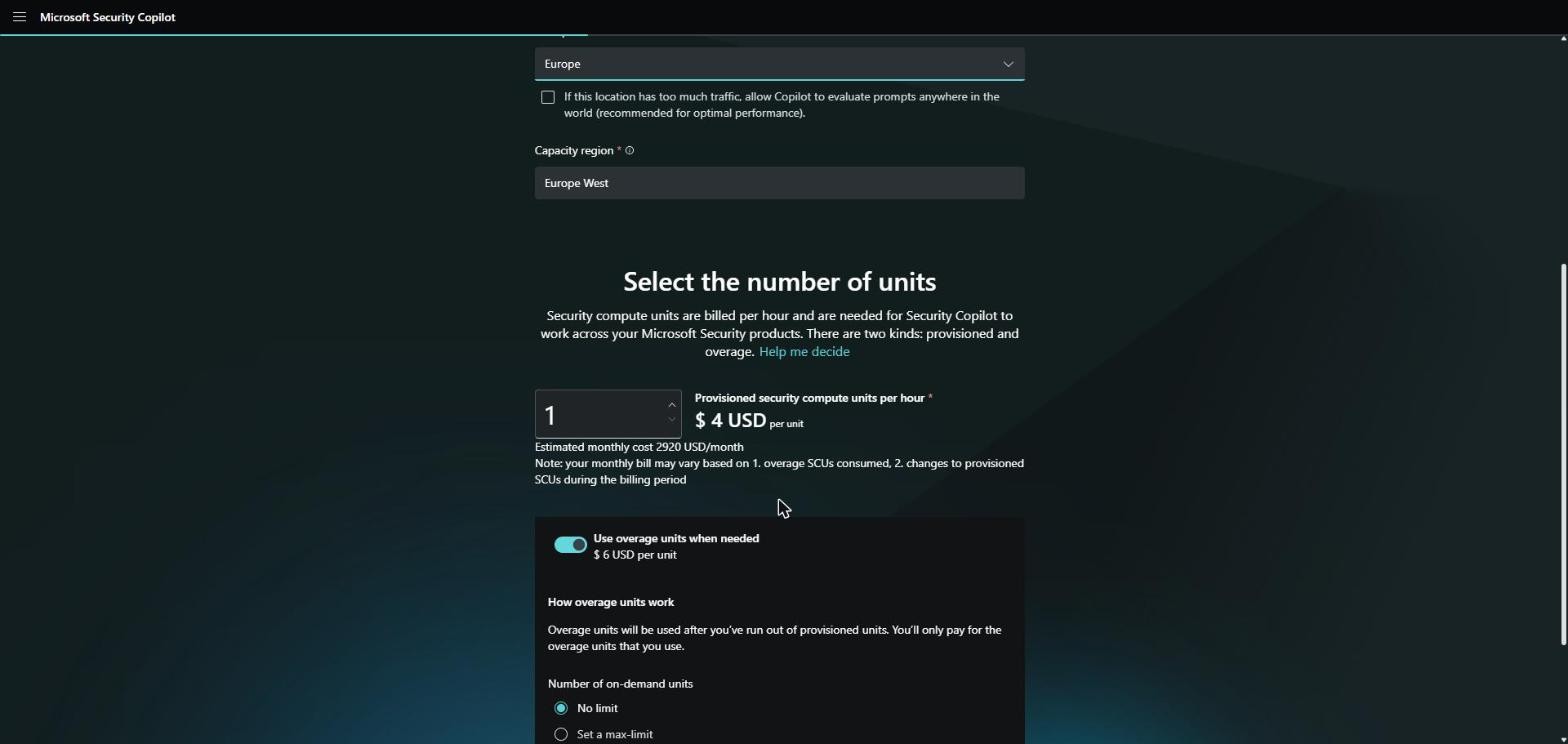
- Use overage units when needed is on by default at $6 USD per unit, with No limit selected. Turn it off for a lab, or set a max limit.
- Both “Help improve Copilot” data sharing options are on by default and allow Microsoft human review of prompts and responses. Decide deliberately.
- Form fields silently reset. Resource group, location and units did not stick on the first pass. Check every field before Create.
- Deleting the capacity does not delete the Security Copilot workspace. When you provision again, you must Apply the new capacity to the existing workspace.
3. Let Security Copilot see Microsoft 365 data
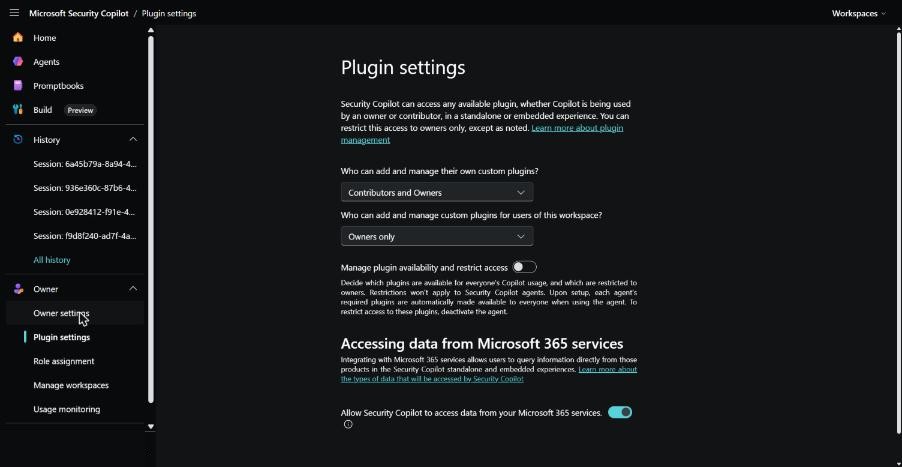
The Posture Agent needs Security Copilot to read Microsoft 365 data. This is under Security Copilot > Owner > Plugin settings > Accessing data from Microsoft 365 services. Opting out means the agent cannot be used with Purview.
4. The unified DSPM gate
The first time you open the Posture Agent tab, Purview asks you to “Complete setup to unlock the unified DSPM experience”. It turns on auditing and analytics and creates three collection policies for AI, tagged Pay-as-you-go.
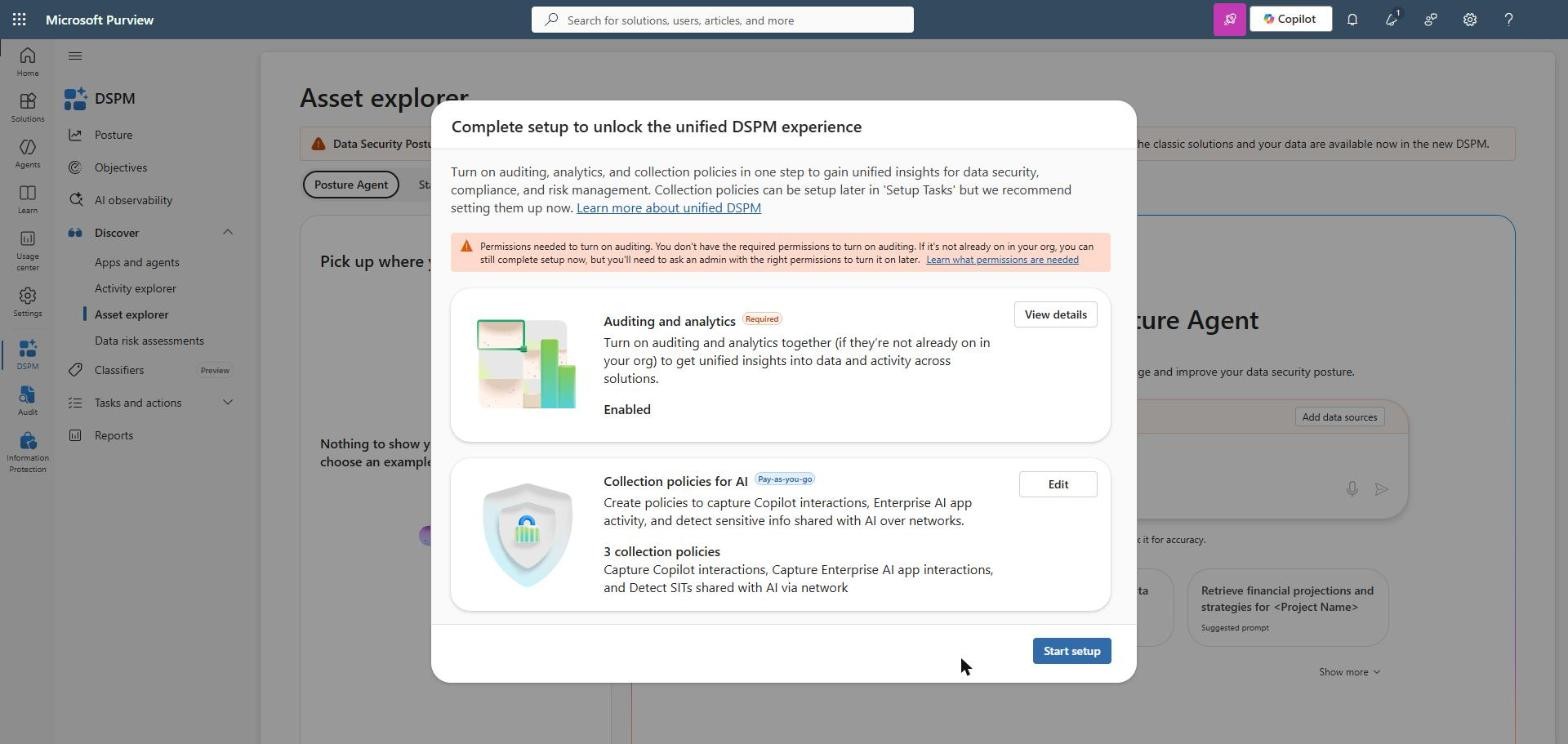
- Select Edit and review the collection policies before Start setup. They capture Copilot and enterprise AI interactions and may generate charges.
- Until this completes, and therefore until audit works, the gate keeps coming back. A first job may run, but Add data sources and View insights on finished jobs reopen the pop-up. You cannot even read your results.
5. First runs
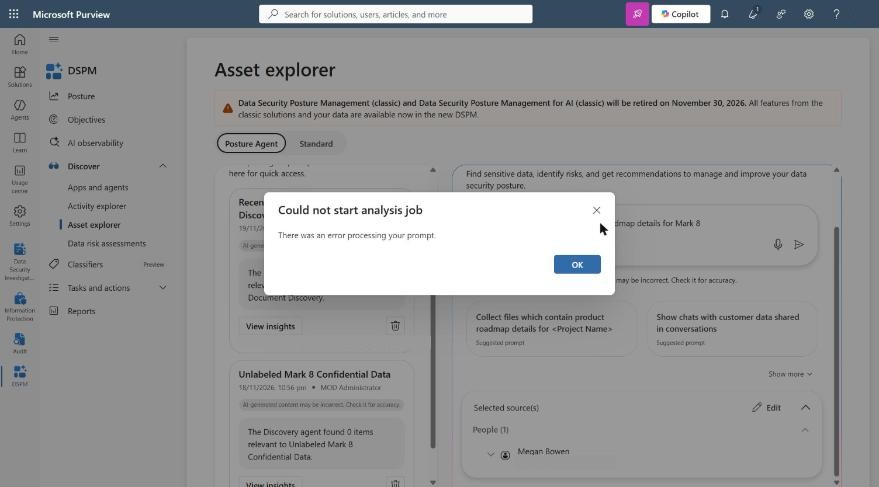
With everything in place, the first prompt about five minutes after the capacity was created failed with “Could not start analysis job”. A retry a few minutes later worked.
- Data sources must be added for every prompt. They do not carry over.
- Searching by person works. Group search hung on Loading, and communication sites without a Microsoft 365 group never appeared in the picker.
- Job estimation alone took 13 to 20 minutes, then reported 40 to 64 minutes remaining for a single person or group.
- If you delete the capacity while a job is running, the job reports “found 0 items”. That looks exactly like a genuine empty result.
- Every run, including failed ones, creates a session in Security Copilot history. That is useful evidence.
What it actually cost
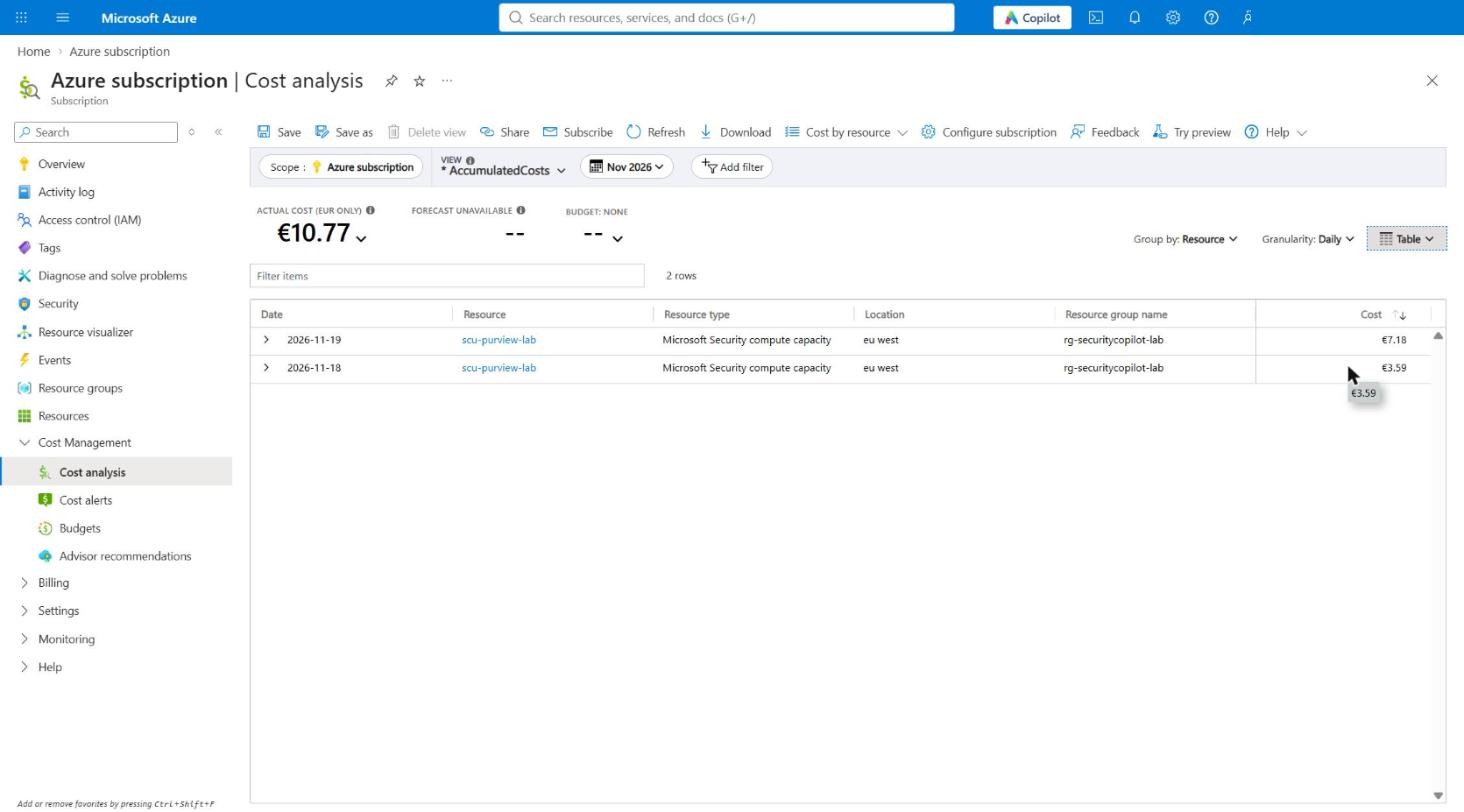
Cost is the question every customer asks and few posts answer, so here are the real numbers. The lab used one Security Copilot capacity of 1 SCU on two occasions: about an hour and a half on the first evening, and 09:24 to 13:13 the next day. Azure Cost analysis, grouped by resource, showed the first evening a day later:
| Item | Billed | Cost (EUR) | Status |
|---|---|---|---|
| Capacity, evening one (18 to 19 Nov) | 3 SCU-hours | €10.77 | Actual |
| Capacity, day two (09:24 to 13:13) | 4 to 5 SCU-hours | €14.36 to €17.95 | Estimate |
| DSI and Purview pay-as-you-go | No investigations created | €0 | Estimate |
| Total | 7 to 8 SCU-hours | About €25 to €29 (about $28 to $32) | Estimate |
The surprise was the first evening. The capacity existed for about an hour and a half, but it was billed for 3 SCU-hours: one on 18 November and two on 19 November. Billing appears to work per clock hour started, so a capacity that crosses the hour, or midnight, costs more than the minutes it ran. On that basis the day two capacity, which touched five clock hours, should land between 4 and 5 SCU-hours.
For context, €3.59 per SCU-hour is the $4 USD list price shown in the capacity form. Usage takes time to reach Cost analysis: the day two charges had still not appeared an hour after the capacity was deleted.
What this means for planning:
- A focused lab or proof of concept costs tens of euros, not hundreds, provided you delete the capacity the moment you finish.
- Most of my SCU-hours were spent waiting on job estimation, replication and retries, not running prompts. Doing the prerequisites first is the biggest saving available.
- With the Microsoft 365 E5 inclusion, the same runs would come out of the monthly SCU allocation rather than an hourly bill. The trade-off is that a shared allocation can be used up by other teams’ agents and prompts.
How to keep it down:
- Do the audit, Microsoft 365 data access and unified DSPM steps before you create capacity. Anything that waits on replication should not be waiting on an hourly meter.
- Create the capacity at the top of the hour and delete it just before the next one.
- Write your prompts and choose data sources in advance.
- Turn overage off, set an Azure budget alert and delete the capacity as soon as you are finished. Budget alerts warn you; they do not stop spending.
Pay-as-you-go: the bill E5 does not cover
Security Copilot is only one meter. Several Purview features are billed pay-as-you-go through an Azure subscription linked to Purview, and the Microsoft 365 E5 inclusion does not cover them. You link the subscription once, Purview creates a billing resource in a resource group you choose, and you pay for what you use. The ones this series touched:
- Data Security Investigations - storage per GB per month, plus AI compute units for investigations and AI analysis. Both have their own setup tasks: pay-as-you-go billing and AI capacity.
- Collection policies for AI - created by the unified DSPM setup in step 4 to capture Copilot and enterprise AI interactions.
- Some DLP policy features - the DLP Policies page shows “Set up pay-as-you-go billing” until a subscription is linked.
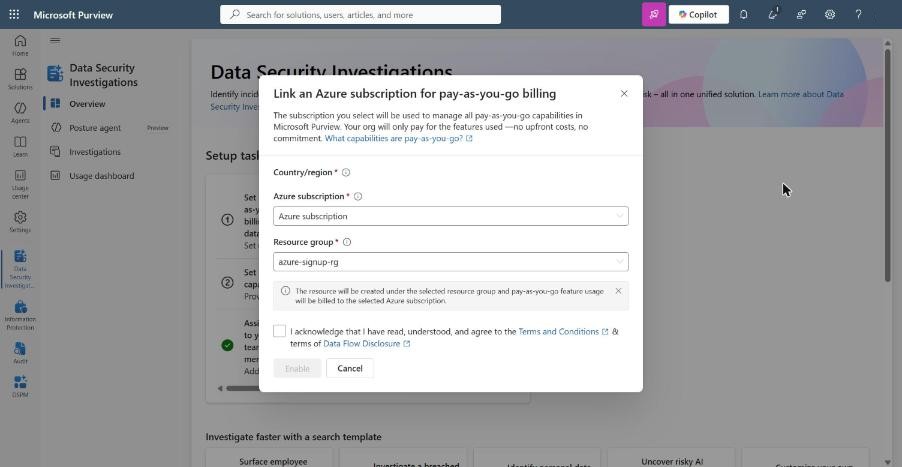
Gotchas from linking it in the lab:
- The wizard suggests “Contoso” as the resource name, then rejects it because default names are not allowed. Enter your own.
- Put the billing resource in the same resource group as your Security Copilot capacity, so teardown is one delete.
- Linking took about three minutes, and the confirmation warns it can take a few hours to show in the account.
- The billing resource was created in West US, the tenant’s geography, whatever AI processing location you choose later.
- Deleting the billing resource unlinks pay-as-you-go billing in Purview. The DLP banner came straight back.
Here is the catch I hit: the credential scanning half of the Posture Agent lives in Data Security Investigations, so I set up DSI billing and AI capacity expecting them to unblock a stuck credential scan. They did not, and Microsoft Learn confirms the Posture Agent does not need them - only investigations and AI analysis do. If you are only using the agent, you can skip DSI, but budget for pay-as-you-go as soon as you move from discovery into investigations.
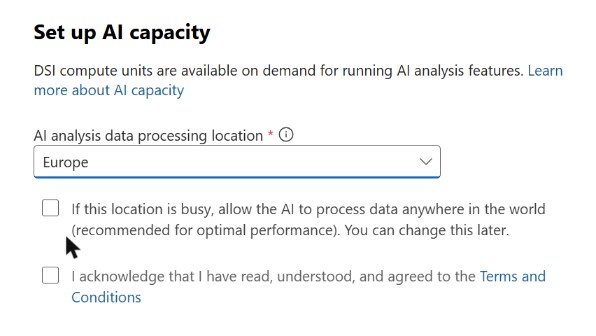
If you do set up DSI AI capacity, watch the data residency choice. The processing location (Australia, Europe, United Kingdom or United States) is where analysis runs, not where your data lives, so pick your tenant’s home geography. Leave “allow the AI to process data anywhere in the world” unticked if sovereignty matters - it is labelled “recommended for optimal performance”, which makes it an easy click.
Next
With the agent running, Part 3 gets to the point of the series: using its findings to define the sensitive information types Contoso did not know it needed.
References
- Security Copilot inclusion in Microsoft 365 E5 - learn.microsoft.com/copilot/security/security-copilot-inclusion
- Get started with the Data Security Posture Agent - learn.microsoft.com/purview/copilot-in-purview-posture-agent-get-started
- Turn auditing on or off - learn.microsoft.com/purview/audit-log-enable-disable
- Data Security Investigations billing - learn.microsoft.com/purview/data-security-investigations-billing
- Posture agent in Data Security Investigations - learn.microsoft.com/purview/data-security-investigations-posture-agent


Pingback: Where do we start with data classification? Part 1: Let the data tell you | Cloud-Secure.ai
Pingback: Where do we start with data classification? Part 3: From discovery to definition | Cloud-Secure.ai