Conditional Access Insights and Reporting

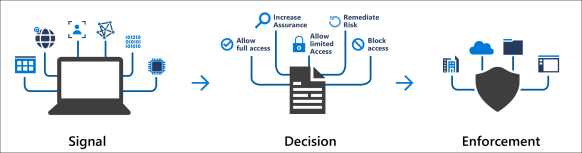
Conditional Access Schematic
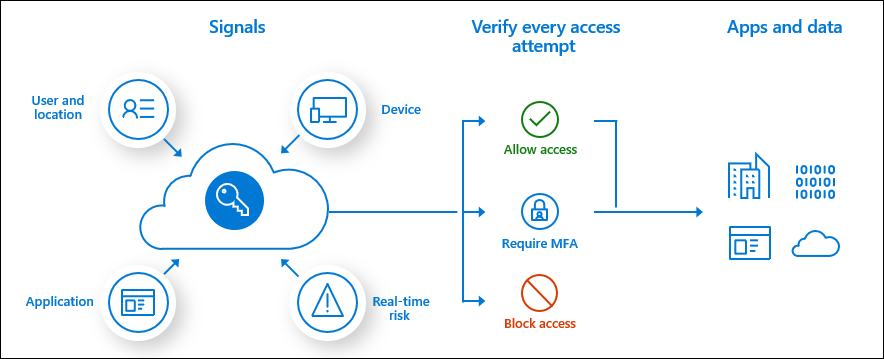
One of the most desirable Conditional Access policy controls is to only grant access to cloud applications if the Windows 10 devices are Azure AD Hybrid joined.

To ensure all Windows 10 devices are Azure AD Hybrid joined can be quite tricky , It is not as simple as enabling Azure AD Hybrid join in the AD connect wizard and simply synching an organizational unit that contains all of the Window 10 machines

The Windows 10 devices must be able to communicate with the Microsoft Office365 and Intune endpoints.

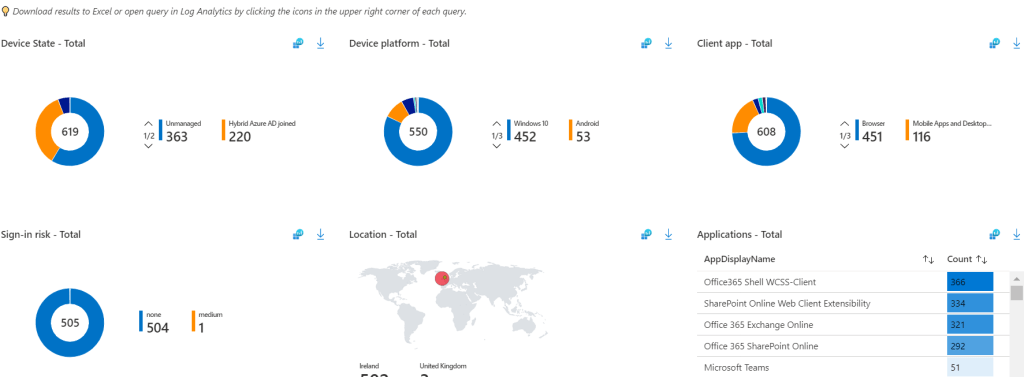
Microsoft Azure AD Conditional Access Policy – Report Mode only has been available for some time, however trying to demonstrate and analyze the impact of enabling the new conditional access policy was quite difficult when trying to review the activity for the new policy in the Azure AD sign in logs or even via a csv export of the policy activity.

Microsoft released Conditional Access Insights and Reporting : Overview and setup available HERE Power BI can also connect to the Log Analytics workspace to create custom dashboards if required.

Now when attempting to review conditional access policies in report mode only and in this example the policy is a report mode only if devices were blocked from signing in unless they were Azure AD Hybrid joined.

The impact summary is simple to read and break down
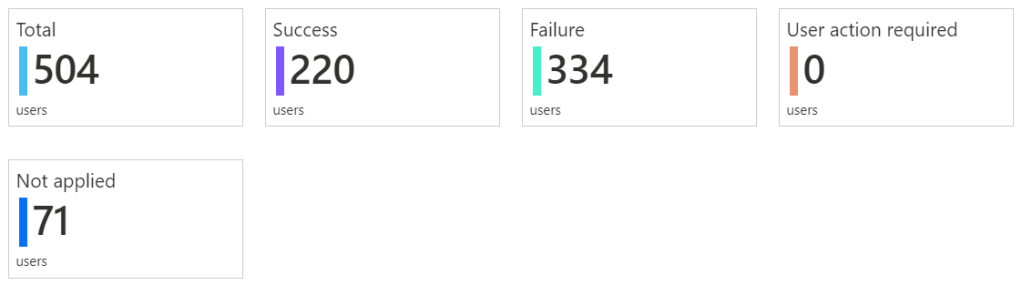
The next page summarizes user sign in details and which users would be impacted most by enabling the policy and then allow IT administrators to take action and get the users \ devices compliant before enabling the policy.
Azure AD Conditional Access Policies Best Practices

Every organisation is different and has different requirements. I have been working with conditional access for quite some time and have settled on the following policies for every organisation.

Create a security group that contains users that are permitted to access the organisations cloud services when outside of trusted locations.

Blocked Countries Conditional Access Policy

  • All Users
  • Exclude Break Glass Admin account
  • All Cloud Apps
  • Location : Blocked Countries that have been setup in the named locations section of Azure Conditional Access.
  • Access Control : Block Access

Blocked External Access

  • All users , except Break Glass Admin account and security group that contains users that are permitted access.
  • All Cloud Apps
  • Locations : Any location except trusted locations
  • Access Control : Block Access

Permit External Access 

  • Users : security group that contains users that are permitted access.
  • All Cloud Apps
  • Locations : Any location except trusted locations
  • Client Apps
    Browser
    Mobile apps and desktop clients
    Modern authentication clients
  • Grant Access : Require all of these controls
    Require Multi factor Authentication
    Require Hybrid Azure AD joined device
    Require approved client app
    Terms of Use

Mobile Device Access

  • Users : security group that contains users that are permitted access.
  • Exchange Online
  • Locations : Any location except trusted locations
  • Device Platforms : Android & IOS
  • Client Apps
    Browser
    Mobile apps and desktop clients
    Modern authentication clients
  • Grant Access : Require all of these controls
    Require Multi factor Authentication
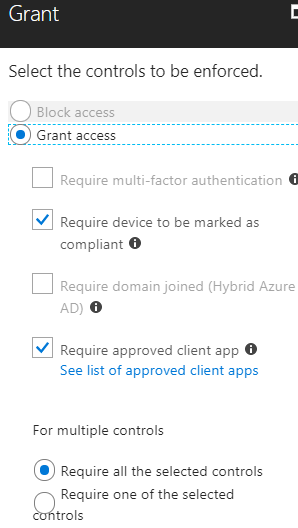
    Require device to be marked as compliant (Enrolled in Intune)
    Require approved client app

Why still enable MFA for the mobile device access policy. When the Microsoft Authenticator application is installed on an Android or IOS device. It acts like an SSO broker and can communicate with the modern authentication Microsoft Outlook client.

Block Legacy Protocols

Simply replicate the legacy : Baseline policy: Block legacy authentication (Preview)

Conditional Access and Azure Active Directory License Management

Azure AD group based license assignment was made generally available in Feb 2018. It really is a superb way of managing and assigning licenses for services like Office365.

Quite often on projects that I deliver ,  I will work with my customer to build a profile which could be for example standard user, power user , exec user and these groups can assign some or all of the M365 suite of services.

So this means we would have 3 security groups to match each user profile and each organisation can modify their new starter process to add new users into their relevant security group or use Identity Management tools like Microsoft Identity Manager 2016 SP1 to manage the user life cycle.

One of the quickest and most powerful conditional access policy is as follows

  • Assignment : All users , except license groups and break glass admin account
  • Cloud Apps :  All Apps
  • Conditions : Default , NO CHANGE
  • Access Controls \ Grant : BLOCK

So the assignment to all users is the key , If a new user is not setup properly and follows the new user creation process then they cannot access the organisation’s cloud apps that are integrated with Azure AD.

This is a policy to block all unlicensed users.

All licensed users would expect to have the following items configured as a minimum requirement.

  • MFA
  • SSPR
  • Combined SSPR & MFA registration
  • Azure Password Protection Service
  • Microsoft Advanced Threat Protection integration with CASB
  • Azure AD P2 license , Identity Protection policies enabled
  • Azure AD Hybrid joined machines
  • Intune managed bitlocker encrypted devices
  • Intune managed devices with security baselines

Block native mail app on Apple IOS using Azure conditional access policies

I recently set up EMS for a customer and they wanted to ensure all ios native mail apps were blocked and that all client phones must use the Microsoft Outlook app and that devices are enrolled before they can access corporate email.

Azure conditional access policies make this really simple and the following screenshots ill show how we can create this conditional policy.

Browse to the Azure Active Directory admin center / Azure Active Directory/ Conditional Policies

   Firstly Create the Policy

    Next we assign what users the policy will be applied to
   Select the cloud app – Exchange Online
    Select the client app – Active Sync

    Select the controls to enforce
Finally save & enable the policy


Now when a client attempts to setup and use the native Apple IOS app , this message will appear in the end users mailbox, the native app will be unusable for sending and receiving messages. The user can then proceed with the device enrollment process.


  Â