When attempting to federate a domain hosted in Exchange on premises with Exchange Online. The error message displayed below appears.
To resolve this issue TLS 1.2 needs to be enabled on the Exchange Hybrid servers.
ALI TAJRAN has a excellent ARTICLE and script to enable TLS 1.2 on Exchange servers. Once this script has run on the Exchange Hybrid servers, the wizard to add a federated domain will complete successfully.
Note: TLS 1.3 is not supported on Exchange on premises yet.
When an organisation has completely transitioned and migrated to Exchange Online and directed their MX record to contoso-com.mail.protection.outlook.com. The organisation should in line with best practices, have Microsoft Defender for Office365 Plan 2 securely configured.
Scenario 3, this my proffered choice. All Contoso *.onmicrosoft.com aliases can be blocked as they are no longer required. When Contoso’s mx record has been directed at Exchange Online protection. Exchange Online Protection & Microsoft Defender for 365 will protect all aliases. It may not even be necessary to block all Contoso *.onmicrosoft.com aliases.
It is possible to create an email address policy for Office365 groups that only use’s @contoso.com primary email addresses, which can still allow mail flow to Team’s channels. Then the usual protection of contoso.com comes into play, SPF, DKIM and finally DMARC.
Some organisations do not use Exchange Online Protection and Microsoft Defender for 365 to protect their Exchange Online tenant and use 3rd party message hygiene services like Mimecast and Proof Point. This blog will demonstrate a a scenario where securing Exchange Online message routing is configured incorrectly and could be classified a vulnerability,
SCENARIO 2
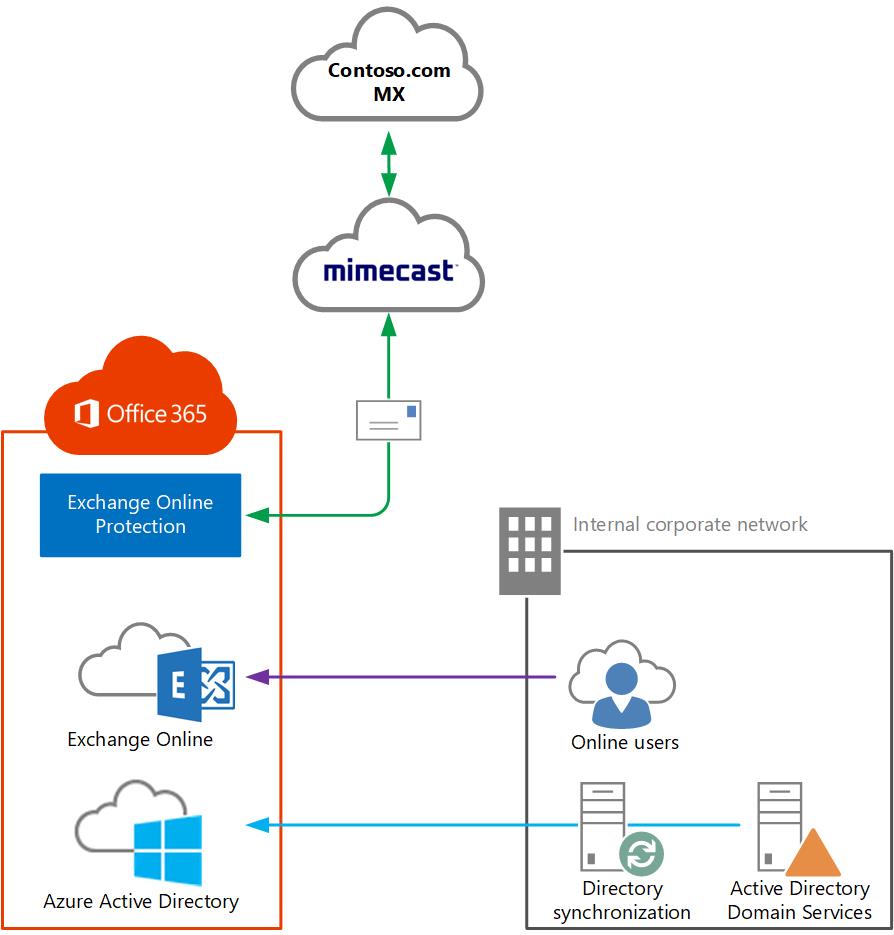
1. Contoso.com MX record is pointed at Mimecast; Mimecast provides spam protection 2. Mimecast then passes the messages to Exchange Online 3. If there are any remaining Exchange on-premise recipients, Exchange online will route the messages to the Exchange Hybrid servers via the secure Exchange Hybrid connectors 3. The Exchange Online inbound connector that accepts traffic from the Mimecast service is secured via TLS
VULNERABILITY Anyone in the world can send an email to to an Exchange Online recipient with a *.mail.onmicrosoft.com or *.onmicrosoft.com alias, when sending to these domains. The messages completely bypasses , the organisation’s Mimecast’s message hygiene services and can route messages to Exchange Online recipients and Exchange on-premise recipients. If the organisation has not configured Exchange Online protection and Microsoft Defender for 365, then the organisation is vulnerable to malware and phishing emails.
Another problem: Office365 groups, When a Teams Channel is created, it creates an Office365 group that will have a *.onmicrosoft.com alias. Bad actors sending emails to these aliases can once again completely bypass the organisation’s message hygiene services.
SOLUTION The Hybrid configuration wizard creates an Exchange Online inbound connector that is locked down with TLS via a public trusted certificate on the Exchange Hybrid servers.
The default inbound Exchange Online connector that was created by the Exchange Hybrid wizard, can be modified to only accept inbound messages from the IP ranges of the Mimecast service and TLS.
This script queries the existing inbound connector and creates an inbound connector that blocks messages recipients using the *.mail.onmicrosoft.com to only accept traffic from a service using the TLS certificate and connector that has been modified or it can query a new inbound connector
In this scenario , when a message is sent to an Exchange online recipient , the message flows as follows. 1. MX contoso.com 2. Mimecast 3. Contoso.com aliases & all consto.com *.onmicrosoft.com will only accept messages from Mimecast
Note: run this script using the latest Exchange Online PowerShell module
New-InboundConnector -Name ‘Restrict inbound mail flow to hybrid domains’ -ConnectorType Partner -SenderDomains * -TlsSenderCertificateName (Get-InboundConnector $InboundConnectorName).TlsSenderCertificateName -RestrictDomainsToCertificate $true -RequireTls $true
Some organisations do not use Exchange Online Protection and Microsoft Defender for 365 to protect their Exchange Online tenant and use 3rd party message hygiene services like Mimecast and Proof Point. This blog will demonstrate a scenario where securing Exchange Online message routing is configured incorrectly and could be classified as a vulnerability,
SCENARIO 1
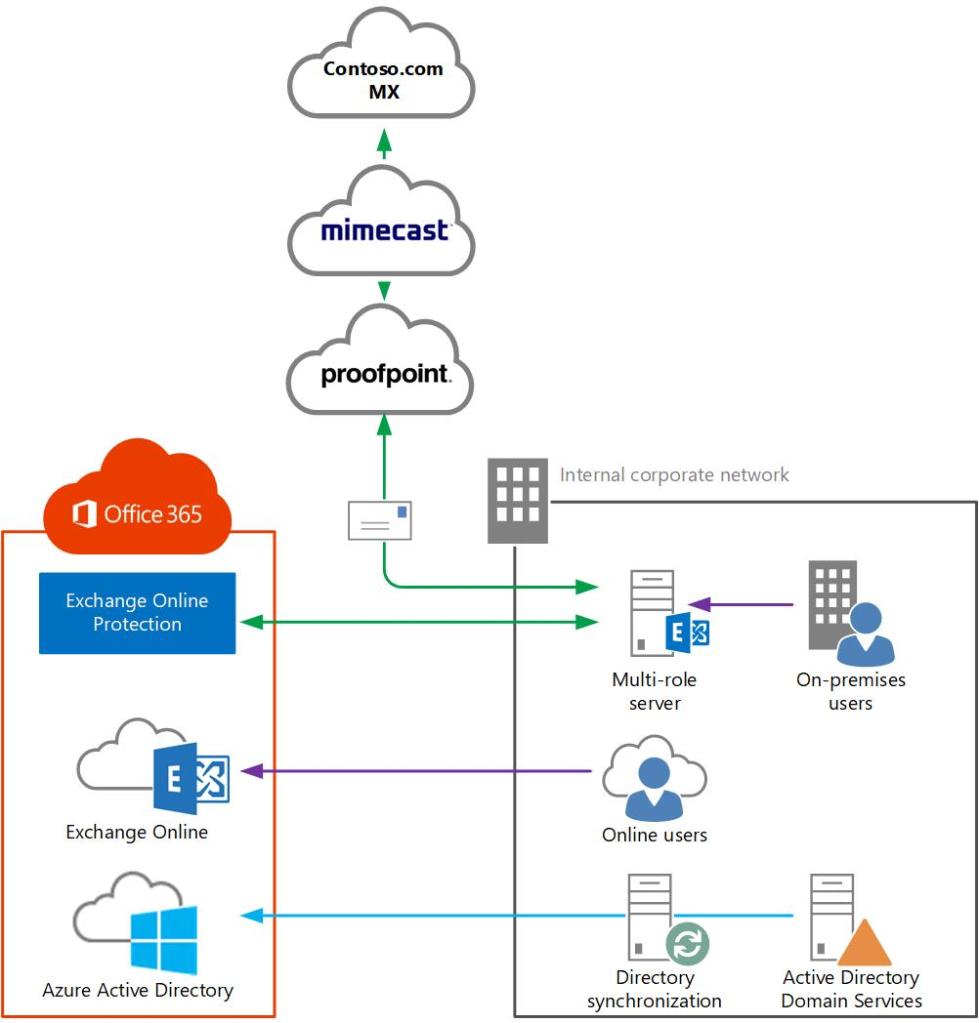
In the scenario above , this could be one of the most typical Exchange Online topologies. 1. Contoso.com MX record is pointed at Mimecast, Mimecast provides spam protection 2. Mimecast then passes the messages to Proof Point, and Proof Point, performs malware inspection on the messages. 3. Proofpoint then routes the messages to the on-premises Exchange Hybrid platform. 4. Exchange Hybrid forwards messages to Exchange Online recipients via the Exchange Hybrid connector and the mail flow source Exchange Hybrid server communicates directly with Exchange Online and does not route via Mimecast or Proof Point. 5. The Exchange Online inbound connector that accepts traffic from the Exchange Hybrid servers is secured via TLS.
VULNERABILITY Anyone in the world can send an email to an Exchange Online recipient with a *.mail.onmicrosoft.com or *.onmicrosoft.com alias, when sending to these domains. The messages completely bypasses , the organisation’s Mimecast and Proofpoint message hygiene services. If the organisation has not configured Exchange Online protection and Microsoft Defender for 365, then the organisation is vulnerable to malware and phishing emails.
Another problem: Office365 groups, When a Teams Channel is created, it creates an Office365 group that will have a *.onmicrosoft.com alias. Bad actors sending emails to these aliases can once again completely bypass the organisation’s message hygiene services.
SOLUTION The Hybrid configuration wizard creates an Exchange Online inbound connector that is locked down with TLS via a public trusted certificate on the Exchange Hybrid servers.
This script queries the existing inbound connector and creates an inbound connector that blocks messages routed to *.onmicrosoft.com recipients, to only accept traffic from the Hybrid servers that are using the matching TLS certifictate.
In this scenario , when a message is sent to an Exchange online recipient , the message flows as follows. 1. MX contoso.com 2. Mimecast 3. Proof Point 4. Exchange on-premises 5. Exchange on-premise forwards the message to the Exchange Online recipient’s *.mail.onmicrosoft.com alias.
Note: run this script using the latest Exchange Online PowerShell module
New-InboundConnector -Name ‘Restrict inbound mail flow to hybrid domains’ -ConnectorType Partner -SenderDomains * -TlsSenderCertificateName (Get-InboundConnector $InboundConnectorName).TlsSenderCertificateName -RestrictDomainsToCertificate $true -RequireTls $true
After a clean successful installation of Exchange 2016 CU20 and reboot on completion of the installation. I was presented with the following error when trying to login to the ECP and OWA.
Now this was a unique scenario. There were two Exchange 2013 production servers patched to the highest level and each Exchange 2013 server had a certificate issued from an internal certificate authority, the certificate included all of the required subject alternate names, but the certificate was also acting as the Microsoft Exchange Server Auth server on the Exchange 2013 servers and included .local domain names.
The design decision to introduce Exchange 2016 to the environment was purely to act as an Exchange Hybrid and not touch the production Exchange 2013 servers.
I installed Exchange 2016 CU20 with April 2021 security patches and got the errors listed above. Exchange Management Shell access was fine. I decided to install an additional Exchange 2016 CU19 server to see if CU20 was buggy. But unfortunately I received the same error on the fresh build of Exchange 2016 CU19 server.
The Exchange 2016 servers did not have rights to the private key of the certificate issued by the internal certificate authority that was in use by the Exchange 2013 servers as the Microsoft Auth Server certificate and the Exchange 2016 servers picked up this cert by default as it was in use in the existing Exchange organisation.
So how did i resolve this issue??
Firstly I created a new Microsoft Server Auth certificate with the following commands
New-ExchangeCertificate -KeySize 2048 -PrivateKeyExportable $true -SubjectName “CN= Microsoft Exchange Server Auth Certificate” -DomainName “*.contoso.com” -FriendlyName “Microsoft Exchange Server Auth Certificate” -Services SMTP
The next thing was to export the newly created certificate and import the certificate into the computer trusted root certification authorities location on each Exchange server.
Next we need to review and run the commands described in this Microsoft KB
Next we rename the sharedwebconfig file in the following directories to sharedwebconfig.bak. C:\Program Files\Microsoft\Exchange Server\V15\ClientAccess C:\Program Files\Microsoft\Exchange Server\V15\FrontEnd\HttpProxy
But replace the environmental variable in the two commands specified in the article ‘%ExchangeInstallPath%’ with the actual install path as the install path can change from the default locations defending on the Exchange build and the environmental variable ‘%ExchangeInstallPath%’ may not resolve in the Exchange management shell.
Run the commands and then restart the server and all should be fine , at this point you can import a trusted certificate like DigiCert and assign IIS & SMTP services to the certificate.
And run a health check on the Exchange 2016 server and – Get-ServerComponentState