Exchange 2016 – 2019 Federation Fails with Exchange Online

When attempting to federate a domain hosted in Exchange on premises with Exchange Online. The error message displayed below appears.

To resolve this issue TLS 1.2 needs to be enabled on the Exchange Hybrid servers.

ALI TAJRAN has a excellent ARTICLE and script to enable TLS 1.2 on Exchange servers. Once this script has run on the Exchange Hybrid servers, the wizard to add a federated domain will complete successfully.

Note: TLS 1.3 is not supported on Exchange on premises yet.

Exchange Online to Exchange On-Prem Free \ Busy Not Working

Free busy not working in an Exchange 2016 CU17 Hybrid environment.

When a customer forgets to tell you that they previously configured Exchange Hybrid using the Modern hybrid agent, The modern hybrid agent leaves behind some configuration settings that prevent free-busy working from EOL to EOP.

I always use the classic hybrid wizard for organisations that require long term rich co-existence.

The frustrating this with this issue is that the Exchange Remote Connectivity analyzer tests WORK, which would lead you to believe everything is ok and configured correctly. But when you attempt to query availability requests for a user or resource from OWA or Outlook , the look up fails.

What does the Hybrid Agent leave behind in Exchange Online?

Two values are populated that will prevent free \ busy from EOL to EOP working.

  • OrganizationRelationship -targetsharingepr
  • Intraorgconnector -targetsharingepr

When you query these values , You may see a value like   https://a75aa21a-2f8d-4b2e-85fe-1234.resource.mailboxmigration.his.msappproxy.net/EWS/E
xchange.asmx

To resolve the issue run the following commands

  1. set-intraorgconnector -TargetSharingEpr $null
  2. set-OrganizationRelationship “Name of Org Relationship” -TargetSharingEpr $null

Switch from SCCM Co-Management Hybrid to Intune

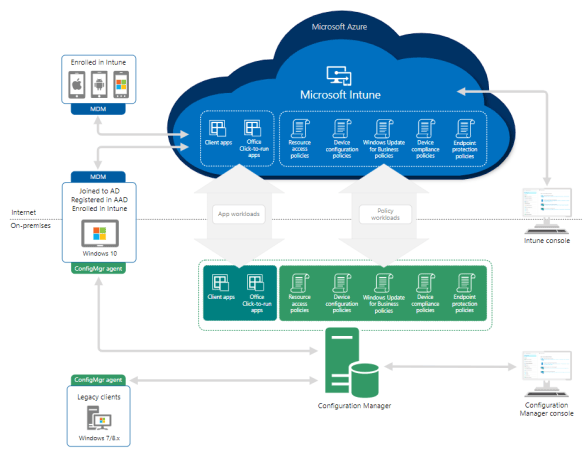
I recently had to break co-management of SCCM & Intune Co-Management Hybrid and migrate to Intune for mobile devices that were managed by SCCM\Intune.

I followed Gerry Hampson’s blog POST on how to do this. Gerry is a Microsoft MVP in Enterprise Client Management.

I faced a problem. How do I translate an SCCM device collection that has no information on users, to a security group that I can assign an Intune Application Protection Policy to. In my particular instance there was only two policies required.

  1. Intune_Exec_AppProtection_Policy
  2. All users except the Exec users

Azure Active Directory has the ability to create complex dynamic user or device security groups. So in my instance I created two Intune Application Protection Policies that are listed above.

I created one on-premise synced AD Security group that contained the Exec users, this group would be assigned to Intune Application Protection Policy 1. I then wanted to create a security group that I could assign to all non exec users and any new users. So I created an Azure dynamic user security group that queried Azure AD for any user that has an Intune license. The query for the Azure dynamic security group is listed below.

user.assignedPlans -any (assignedPlan.servicePlanId -eq “c1ec4a95-1f05-45b3-a911-aa3fa01094f5” -and assignedPlan.capabilityStatus -eq “Enabled”)

This type of dynamic security group can be applied to any Microsoft cloud service. The list of all Microsoft servicePlanId’s is available HERE


Hybrid Azure AD Joined Devices

Anyone familiar with conditional access, will have noticed this access control in Conditional Access policies. So what does it mean , How can I enable this, Is this a good feature.

This is not a good feature, it is an excellent feature. The best way to describe this control requirement is as follows. DO NOT GRANT access unless the machine is DOMAIN JOINED. Many enterprise companies have corporate wifi rolled out and only permit access to the corporate wifi via credentials and a machine certificate issued by the local certificate authority.

AD Connect keeps getting better and better and Microsoft have made it so easy to enable this feature. The following screenshots ill demonstrate how easy it is to enable this feature.

Modify the configuration of AD Connect and select ‘Configure Device Options’

Enter Azure AD Credentials

Note: Only select the second option ‘Supported Windows domain level domain-joined devices if you are using Azure Seamless Sign On, Azure Seamless Sign on provides the functionality to support Windows 7 and above operating systems.

Then enter enterprise admin on-premise credentials as per the image below.

Download and run the PowerShell script using on-premise enterprise admin credentials that AD Connect has prepared as per image above.

Next step is to follow this Microsoft Article : To enable auto enrollment of Windows Devices.

Now that we have enabled device auto enrollment into Intune, What are the benefits?

  • Intune Device Management – Intune can manage 5 devices per user license
  • Conditional Access Policy Control : Hybrid Azure AD objects
  • Intune – Bitlocker Management
  • Azure Dynamic Machine groups can be a useful method for managing global or large enterprise organisations.
  • Windows 10 Security Base Lines
  • Intune integration with Windows Defender ATP

These are just a small number of benefits , Open to comments on more benefits.

Update: 24.05.2019

Follow THIS Microsoft guide and block downloading from SharePoint Online on no domain joined devices

eDiscovery for Exchange Online Data at Rest

  • It is not possible to search for sensitive information types when selecting Exchange Online mailboxes as the data source , Office 365 User Voice REQUEST
  • It is possible to search for the items specified in this Microsoft ARTICLE and via KeyWord

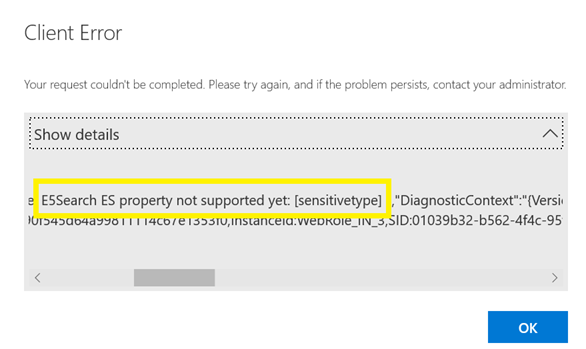
The screen shot below is from an Office365 E5 Advanced eDiscovery query that shows these types of searches are not supported

LETS HOPE MICROSOFT RESOLVE THIS ONE!