Switch from SCCM Co-Management Hybrid to Intune

I recently had to break co-management of SCCM & Intune Co-Management Hybrid and migrate to Intune for mobile devices that were managed by SCCM\Intune.

I followed Gerry Hampson’s blog POST on how to do this. Gerry is a Microsoft MVP in Enterprise Client Management.

I faced a problem. How do I translate an SCCM device collection that has no information on users, to a security group that I can assign an Intune Application Protection Policy to. In my particular instance there was only two policies required.

  1. Intune_Exec_AppProtection_Policy
  2. All users except the Exec users

Azure Active Directory has the ability to create complex dynamic user or device security groups. So in my instance I created two Intune Application Protection Policies that are listed above.

I created one on-premise synced AD Security group that contained the Exec users, this group would be assigned to Intune Application Protection Policy 1. I then wanted to create a security group that I could assign to all non exec users and any new users. So I created an Azure dynamic user security group that queried Azure AD for any user that has an Intune license. The query for the Azure dynamic security group is listed below.

user.assignedPlans -any (assignedPlan.servicePlanId -eq “c1ec4a95-1f05-45b3-a911-aa3fa01094f5” -and assignedPlan.capabilityStatus -eq “Enabled”)

This type of dynamic security group can be applied to any Microsoft cloud service. The list of all Microsoft servicePlanId’s is available HERE


Intune Endpoints Through Proxies or Corporate Firewalls

Microsoft previously submitted all the urls  and ip ranges for the Office365 platform on docs.microsoft.com. Now there is a new Office365 IP Web Service , HERE 

It would be great if this dynamic ip services covered all services in Office365  that can be updated in firewalls and proxies. Unfortunately it does not.

Intune is an amazing service from Microsoft but if you do not white-list the endpoints listed HERE

Features like Bitlocker, x86 custom app deployments, Windows 10 Security Baselines will fail.

Office365 & Intune White list URL and IP Range

For years I have fought tooth and nail with Security vendors on my enterprise customer sites that will typically have a corporate proxy or silent proxy like Palo Alto by tryng to get them to grant the customer,site or project access to Office365.

Microsoft have made the Office365 endpoints dynamically available as a web link which all enterprise firewall vendors support like Cisco, Juniper, Palo Alto can connect to.

Palo Alto guide HERE

Microsoft site Office 365 URLs and IP address ranges
Dynamic URL for firewalls and proxies 

I have faced on numerous occasions , issues with ip ranges that are outside the published Microsoft ranges. When my customer asked me what is this IP address , I cannot say it is mine and then need Microsoft to verify via a service ticket that they own the ip address.

My recommendation is also to white list the urls and ip ranges listed in this Microsoft article when using Intune. Intune network configuration requirements and bandwidth

Microsoft IP ranges outside the published ip ranges have affected me on customer project sites with Office365 ProPlus activation and Intune managed BitLocker encryption.

Securing Intune Enrolment

I have been working a lot with Intune for Android & IOS MDM. This post is focused on securing enrollment for Android & IOS devices. There are different methods available for Windows 10 devices which will be covered in a later post.

The Intune enrollment process can be secured via Conditional Access & Azure MFA and Microsoft have an article available HERE that describes how to secure the Intune Enrollment APP via Azure MFA.

But first we need to secure the Azure MFA registration process, If an attacker has obtained a user’s credentials and the user that has been compromised has not registered for MFA, the attacker could use his\her phone to register for MFA.

So there are 3 methods to secure the MFA registration process.

  1. Multi-factor authentication registration policy 
  2. User risk Sign In Policy
  3. Populating the phone numbers as described in this ARTICLE
If using method 3 and using a text message or call authentication process, The organisation admins can populate the mobile phone number per user and manage the MFA registration process.

Some helpful commands

##Using MSONLINE module, Query what the existing MFA auth method is
get-msoluser -UserPrincipalName sean@contoso.com | Select-Object -ExpandProperty StrongAuthenticationMethods

##Using MSONLINE module to cancel existing MFA Auth methods
set-msoluser -UserPrincipalName sean@contoso.com -StrongAuthenticationMethods $null

##Export all MFA enabled users to a csv
Get-MsolUser -All | where {$_.StrongAuthenticationMethods -ne $null} | Select-Object -Property UserPrincipalName | export-csv “CSV PATH”

Once we have followed the guidelines in the Microsoft article to secure the Intune enrollment process with MFA , We can proceed to create our policy for Android & IOS

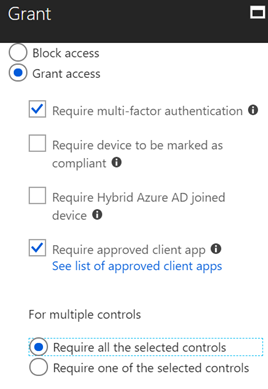
In the conditional access policy for Android & IOS devices, The final actions are listed below, Devices must be compliant but the compliance enrollment process is secured with MFA