When attempting to federate a domain hosted in Exchange on premises with Exchange Online. The error message displayed below appears.
To resolve this issue TLS 1.2 needs to be enabled on the Exchange Hybrid servers.
ALI TAJRAN has a excellent ARTICLE and script to enable TLS 1.2 on Exchange servers. Once this script has run on the Exchange Hybrid servers, the wizard to add a federated domain will complete successfully.
Note: TLS 1.3 is not supported on Exchange on premises yet.
After a clean successful installation of Exchange 2016 CU20 and reboot on completion of the installation. I was presented with the following error when trying to login to the ECP and OWA.
Now this was a unique scenario. There were two Exchange 2013 production servers patched to the highest level and each Exchange 2013 server had a certificate issued from an internal certificate authority, the certificate included all of the required subject alternate names, but the certificate was also acting as the Microsoft Exchange Server Auth server on the Exchange 2013 servers and included .local domain names.
The design decision to introduce Exchange 2016 to the environment was purely to act as an Exchange Hybrid and not touch the production Exchange 2013 servers.
I installed Exchange 2016 CU20 with April 2021 security patches and got the errors listed above. Exchange Management Shell access was fine. I decided to install an additional Exchange 2016 CU19 server to see if CU20 was buggy. But unfortunately I received the same error on the fresh build of Exchange 2016 CU19 server.
The Exchange 2016 servers did not have rights to the private key of the certificate issued by the internal certificate authority that was in use by the Exchange 2013 servers as the Microsoft Auth Server certificate and the Exchange 2016 servers picked up this cert by default as it was in use in the existing Exchange organisation.
So how did i resolve this issue??
Firstly I created a new Microsoft Server Auth certificate with the following commands
New-ExchangeCertificate -KeySize 2048 -PrivateKeyExportable $true -SubjectName “CN= Microsoft Exchange Server Auth Certificate” -DomainName “*.contoso.com” -FriendlyName “Microsoft Exchange Server Auth Certificate” -Services SMTP
The next thing was to export the newly created certificate and import the certificate into the computer trusted root certification authorities location on each Exchange server.
Next we need to review and run the commands described in this Microsoft KB
Next we rename the sharedwebconfig file in the following directories to sharedwebconfig.bak. C:\Program Files\Microsoft\Exchange Server\V15\ClientAccess C:\Program Files\Microsoft\Exchange Server\V15\FrontEnd\HttpProxy
But replace the environmental variable in the two commands specified in the article ‘%ExchangeInstallPath%’ with the actual install path as the install path can change from the default locations defending on the Exchange build and the environmental variable ‘%ExchangeInstallPath%’ may not resolve in the Exchange management shell.
Run the commands and then restart the server and all should be fine , at this point you can import a trusted certificate like DigiCert and assign IIS & SMTP services to the certificate.
And run a health check on the Exchange 2016 server and – Get-ServerComponentState
Free busy not working in an Exchange 2016 CU17 Hybrid environment.
When a customer forgets to tell you that they previously configured Exchange Hybrid using the Modern hybrid agent, The modern hybrid agent leaves behind some configuration settings that prevent free-busy working from EOL to EOP.
I always use the classic hybrid wizard for organisations that require long term rich co-existence.
The frustrating this with this issue is that the Exchange Remote Connectivity analyzer tests WORK, which would lead you to believe everything is ok and configured correctly. But when you attempt to query availability requests for a user or resource from OWA or Outlook , the look up fails.
What does the Hybrid Agent leave behind in Exchange Online?
Two values are populated that will prevent free \ busy from EOL to EOP working.
OrganizationRelationship -targetsharingepr
Intraorgconnector -targetsharingepr
When you query these values , You may see a value like https://a75aa21a-2f8d-4b2e-85fe-1234.resource.mailboxmigration.his.msappproxy.net/EWS/E
xchange.asmx
To resolve the issue run the following commands
set-intraorgconnector -TargetSharingEpr $null
set-OrganizationRelationship “Name of Org Relationship” -TargetSharingEpr $null
One of the pre-requisites for Teams (online) integration with Exchange on-premise calendars is oauth authentication.
Sometimes solution providers just install a single or multiple Exchange 2016 servers to ensure the oauth pre-requisite is delivered. However if the project scenario requires Exchange on-premise mailboxes to be migrated as quickly as possible to Exchange Online then it may seem overkill to implement Exchange 2016 servers during this transition period.
Exchange 2013 CU24 and above does not complete the oauth authentication part of the Hybrid wizard, however Microsoft do have an article on how to configure OAUTH for Exchange 2013.
This solution works perfectly and allows an organization to transition from Exchange 2013 to Exchange Online without the requirement for Exchange 2016 servers and enables Teams to interact with Exchange 2013 on-premise calendars.
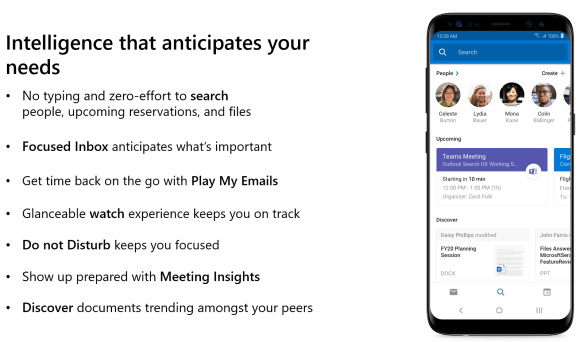
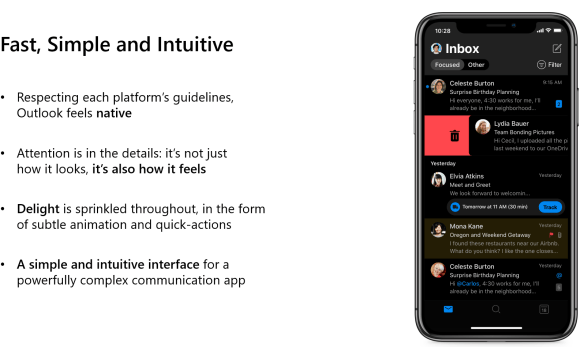
I always recommend the Outlook mobile client to my customers as this application can be included in an Intune app configuration & protection policy to protect and encrypt corporate data.
One of the features that the native IOS & Android mail client provides to end users is the illusion that the global address list of the organisation that they work for is in their native contacts. So when an end user searches for users in their company they expect to get the contact information instantly. Users must use Outlook Mobile.
End users mostly complain about loosing this feature but the argument is security comes first and Outlook Mobile is more secure! It is very difficult to find the balance between security and productivity.