Maintaining Exchange on-premise storage during migrations

Now that Microsoft have announced that Exchange 2010 support will end in October 2020 a lot of organisations are moving to Exchange 2016, 2019 or hopefully Exchange Online.

For enterprise organisations , the migration topology will include two Exchange 2016 servers that are load balanced via an F5 , Citrix Net Scaler or my preferred choice a Kemp load balancer. Autodiscover services for the smtp domains will be transferred to the new virtual IP and the service will be provided by the new Exchange 2016 servers that will proxy access requests to Exchange 2010 hosted mail resources.

The new virtual IP for load balancing services will become the target for the Exchange Online migration endpoint.

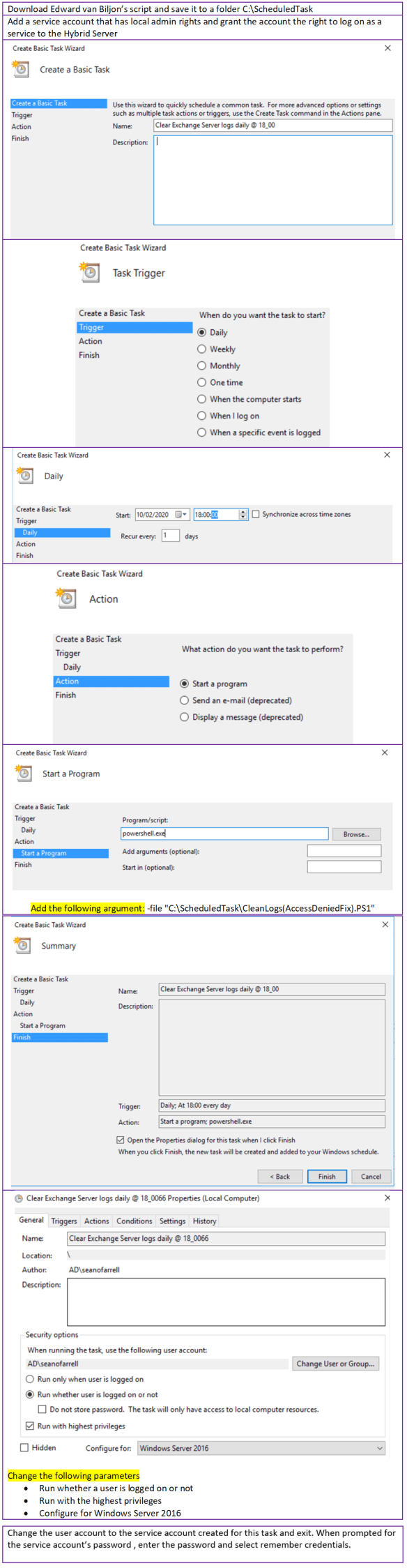
The Exchange Online Hybrid wizard licenses the new Exchange 2016 servers as part of the Hybrid configuration process , the Hybrid license does not permit the hosting of mailboxes. One of the problems with Exchange server since Exchange 2013 is log file growth. This post will demonstrate a scheduled task i always create on Hybrid servers.

The task schedules Edward van Biljon script available to download HERE

These log files are mostly IIS log files and not Exchange database log files as no mailboxes are hosted on the Hybrid server. But if an organisation is moving thousands of mailboxes to Exchange Online and not clearing down these logs, then they will run into issues. I have often reclaimed 20 -30GB of disk storage from running this script as a scheduled task.
Drawing1

The next section to consider is Exchange Database logs. Most vendors like

  • Commvault
  • Veeam
  • Veritas

perform an excellent backup service and are typically scheduled to run outside of business hours. Exchange backups are critical to truncate logs and become even more critical in an Exchange DAG. I have worked on previous projects that migrated Lotus Notes or Groupwise to Exchange and the log files grew too quick and could not wait till the daily evening backup. This issue can also arise in Exchange Hybrid native migrations due to the volume of traffic being migrated.

Most Exchange backup vendors communicate with VSS , It is critical that Exchange truncates the mailbox database logs , as there will be corruption in the databases’ if Exchange cannot perform this task.

If there is a scenario where the Exchange database and log volume is running out of space , Microsoft have an excellent utility called diskshadow which has been around for a long time. So essentially we trick Exchange into thinking a full backup has been performed and here are the simple steps if an Exchange Server database was installed on the system volume.

DiskShadow

This process should only be used in emergencies, Business as Usual backup schedules should normally ensure Exchange volumes do not run out of space but during migrations from an Exchange 2010 to Exchange Online or Lotus Notes to Exchange on-premise or online , the log files fill up really quick and even more so if there 3 or more databases that are members of a DAG

The final option for reclaiming space is offline de-fragmentation databases to claim white space. And only choose this option when all mailboxes have been migrated as it can take a long time and requires downtime.

Exchange 2010 – 2016 Hyrid – Outlook not connecting

I have wrote many articles  about the Exchange Hybrid process. There are lots of excellent articles on line about this process. This blog post is aimed it simplifying the whole process and ensuring 2010 clients can still connect when using Exchange 2016 servers for autodiscover.

The Exchange Online Hybrid wizard has greatly improved over the years and the Exchange Hybrid Modern Agent is an amazing step forward and provides a mechanism to quickly migrate mailboxes to Exchange Online.

Exchange 2010  support will Expire in October 2020. I have recently been performing a lot of Hybrid migrations using Exchange 2010 and Exchange 2016 as the hybrid server

I always use this powershell SCRIPT to install the pre-requisites for each new Exchange server.

Autodiscover services are typically  transferred from the Exchange 2010 servers to Exchange 2016 servers.

Simply updating the autodiscover.consto.com A record to point at the new Hybrid server and expecting clients to connect without any issues is a big mistake.

If the Exchange 2010 organisation has a load balanced virtual ip , this IP cannot be simply reused for the Exchange 2016 server. The main reason for this is that,mapi has transitioned to mapi over http from Exchange 2013 versions and higher.

Exchange 2016 has different virtual directories and also has health check urls per Exchange virtual directory.

  • Kemp – Kemp have templates for Exchange 2016
  • F5 – Have templates for Exchange 2016
  • Netscaler – Follow this article to load balance Exchange 2016 via Netscaler HERE

When the Exchange Hybrid has been installed and configured , Run this SCRIPT
And set all of the virtual directories to your corporate domain eg. autodiscover.contoso.com

On the Exchange 2010 server , get an inventory of databases hosted on the Exchange 2010 servers. And then run this command to set the rpc client access server per Exchange 2010 database,

Set-MailboxDatabase –Identity “<Database Name>” –RPCClientAccessServer “exch2010-01.contoso.local”

This is the most important task, Exchange 2016 receives autodiscover requests and proxies them to the Exchange 2010 client access servers for mailboxes that are still hosted on Exchange 2010.

Now is the time to update the two DNS records autodiscover.contoso.com and mail.contoso.com to point to the new Hybrid server.

Exchange Online users that have been migrated and are working outside of their company offices will query the public autodiscover.contoso.com record which will point to the hybrid server, the hybrid server will respond with the correct autodiscover xml via http redirect to Exchange Online.

Exchange On-Premise Mailbox will not MIGRATE

I recently encountered an issue which I have seen before but never this bad and more commonly with Public Folders. My customer had a 50GB mailbox that also had an archive mailbox. The mailbox would get so far and just stall and never complete.

So I tried all of some of the usual methods to repair the mailbox to no avail.
Repair the mailbox with PowerShell & Migrate the mailbox to another Exchange database

So we asked the customer could we review the mailbox and found thousands of folder in the format of 16/04/2019. Exchange does not like / , Exchange normally sees / as the top of the information store. So my first attempt to resolve this was powershell and could not seem to crack it. Thanks to my colleague Mark Doyle  ,We resolved this issue with an Outlook Macro.

So if you ever encounter this unique issue , Please follow these steps.

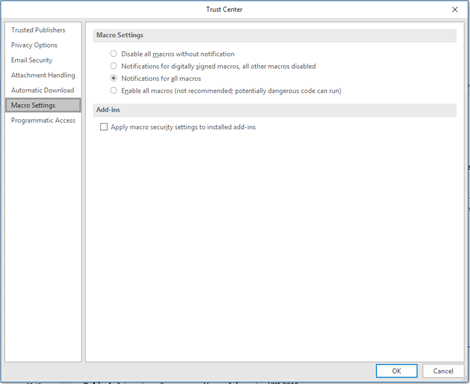
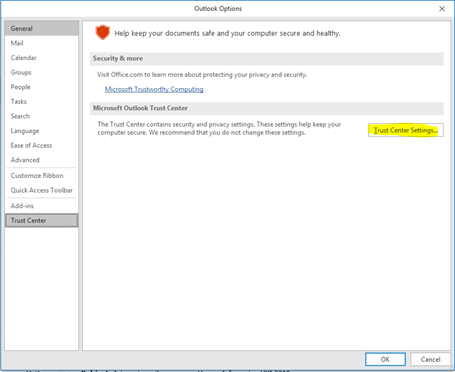
  1. Browse to the Outlook Trust Center
  2. Macro Settings, Select Notifications for all Macros
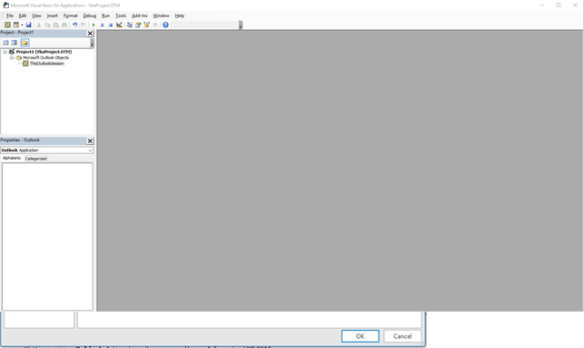
  3. Press Alt + F11 to open Visual Basic
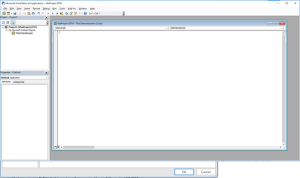
  4. Double click “This Outlook Session” under Microsoft Outlook Objects
  5. Paste  this TEXT below into the window
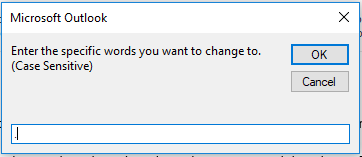
  6. Click on the folder or inbox that you want , And run the Macro
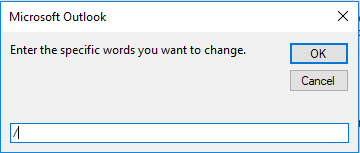
  7. Input character we want to replace in this case will be /
  8. Then select . as the replacement character
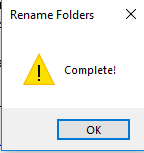
  9. Finally task complete

Final Comment

This is in no means an enterprise solution and I asked Microsoft for help and didn’t get anywhere. Once we removed the / , We could see when checking get-moverequeststatistics (mailbox) , that it was getting past the ‘create folder hierarchy’ stage in a mailbox move. And we did not need to tell our customer , Sorry this mailbox cannot be migrated!

eDiscovery for Exchange Online Data at Rest

  • It is not possible to search for sensitive information types when selecting Exchange Online mailboxes as the data source , Office 365 User Voice REQUEST
  • It is possible to search for the items specified in this Microsoft ARTICLE and via KeyWord

The screen shot below is from an Office365 E5 Advanced eDiscovery query that shows these types of searches are not supported

LETS HOPE MICROSOFT RESOLVE THIS ONE!

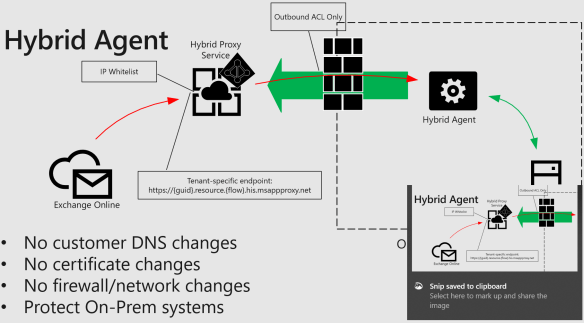
Exchange Hybrid Agent

Image

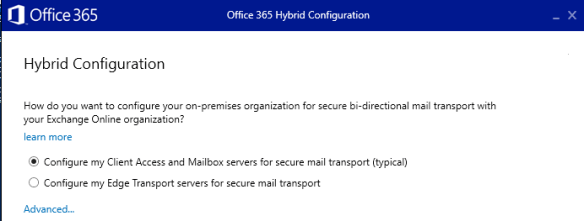
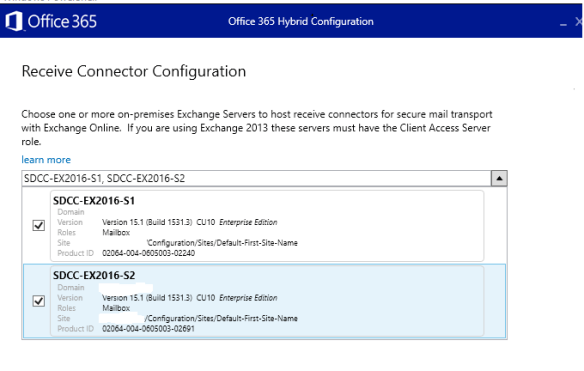
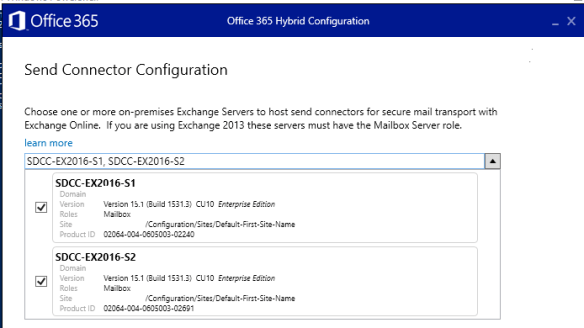
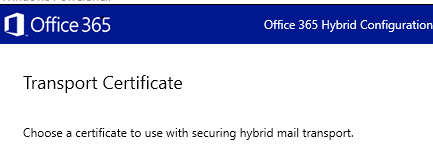
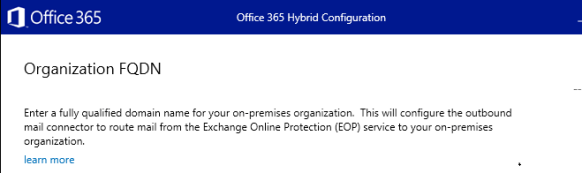
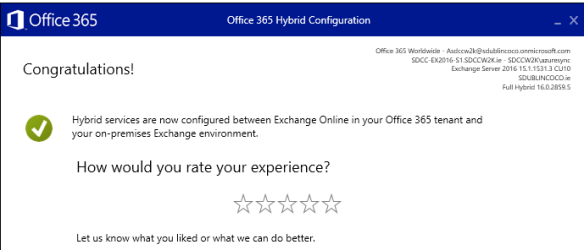
During one of my favorite sessions in Ignite last year, Microsoft announce a new feature : Hybrid Agent displayed in the image above. The next part of this blog is step by step screenshots displaying the configuration of Hybrid Agent on two Exchange 2016 CU10 servers.

First of all run this powershell command on all Hybrid servers.
Set-WebServicesVirtualDirectory -Identity “EWS (Default Web Site)” -MRSProxyEnabled $true

Most organisations route outbound external smtp traffic via a smarthost which can normally be an appliance like Cisco Ironports and do not permit outbound port 25 traffic from Hybrid servers.  I would suggest temporarily allowing smtp traffic outbound from the Hybrid servers until the Hybrid agent installation completes then block outbound port 25 again on the hybrid servers.

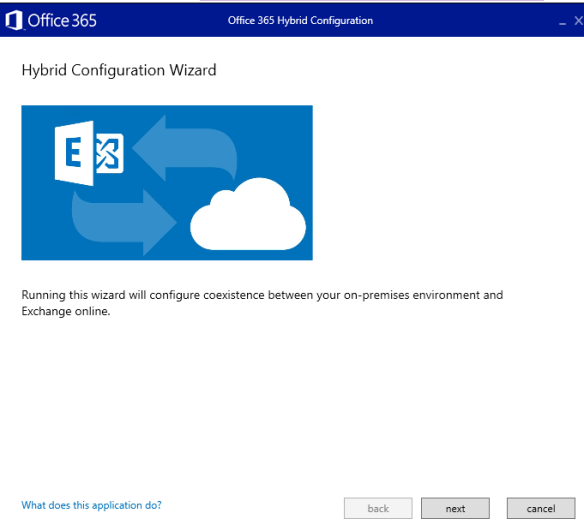
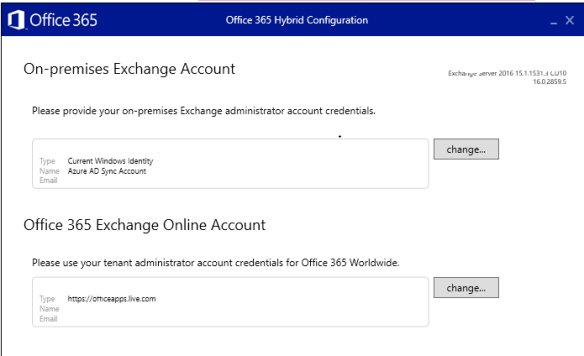
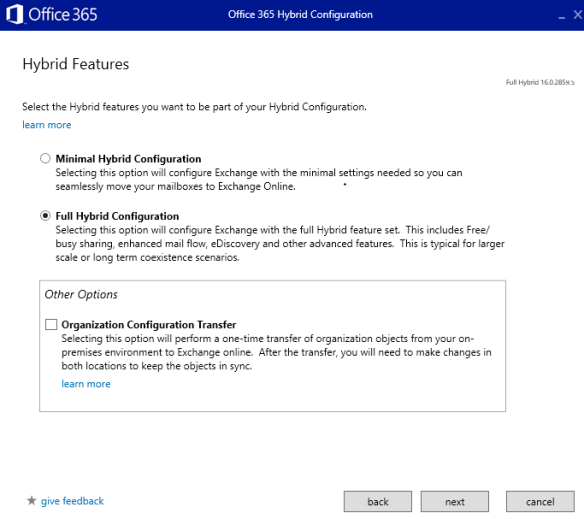
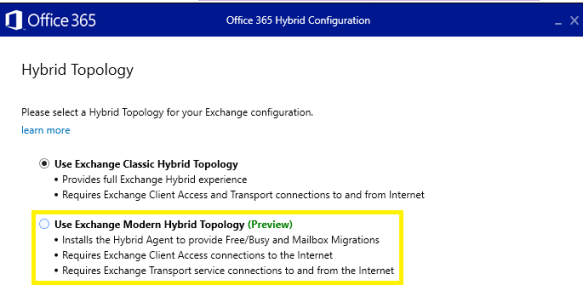
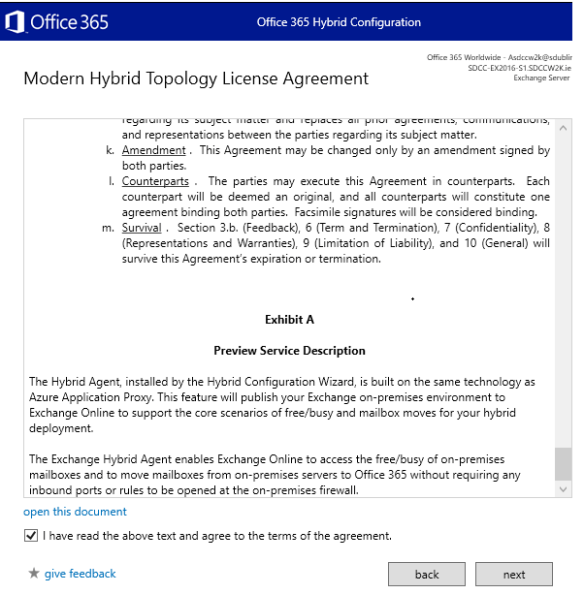
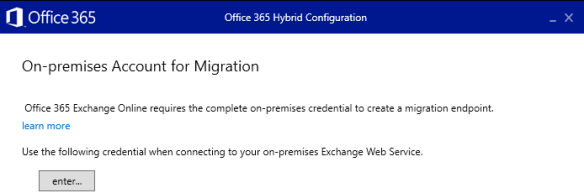
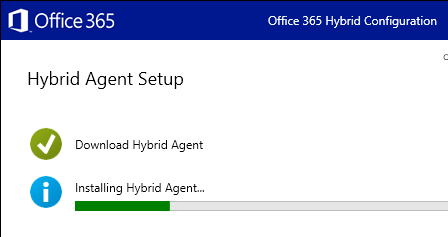
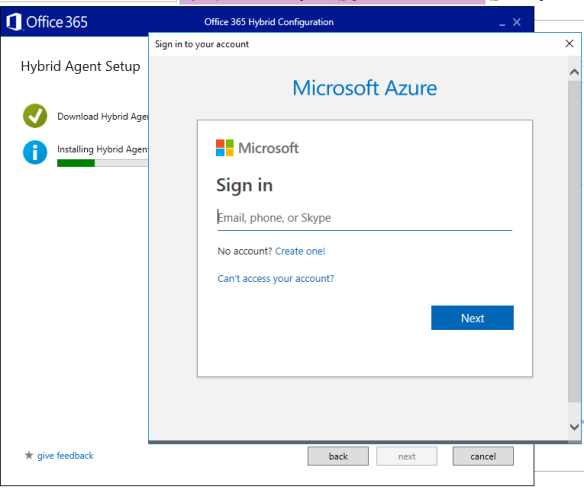
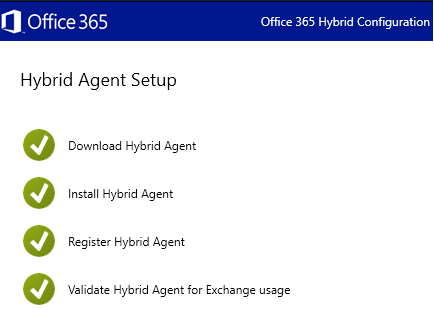
The next steps run through the Hybrid agent setup.


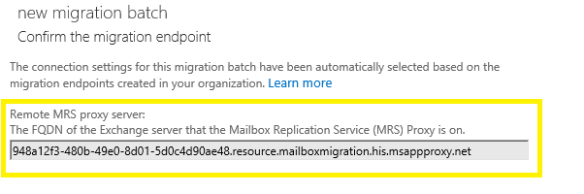
Now when attempting to migrate mailboxes note the change in the migration endpoint highlighted in the image below