Office365 WAAD not deleting filtered Organisational Units

If you you upgraded a Dirsync Server to the newer WAAD sync tool and the original configuration was syncing the full AD forest then when you upgrade to the newer version. You need to perform a full synchronisation with the complete AD Forest.
 
After the full sync completes , You can then filter the OU’s and they will be deleted from Syncing with Office365.
 
 
I recently had an issue whereby the objects in the OU’s that I had filtered were not getting removed from my Office365 tenant. So to resolve the issue , I performed the steps above.
 
Once complete , Run the powershell command below to clear out the Office365 recycle bin.
 
Get-MsolUser –all -ReturnDeletedUsers | Remove-MsolUser -RemoveFromRecycleBin -Force


Error installing WAAD into full SQL Server

I recently uninstalled DirSync from a customer site where DirSync was installed using SQL Server and not SQL Express. 

I launched dirsync /fullsql and tried to launch ‘DirSyncInstallShell.psc1‘ and got the error message above.  

The fix was really simple , Download and install Powershell 3.0 on Windows Server 2008R2

Office365 Desktop Readiness & Server Patches/Utilities


Microsoft Office365 sign in assistant 

Microsoft Office 2013 Service Pack 1 x86

Microsoft Office 2013 Service Pack 1 x64

Microsoft Office 2010 Service Pack 2 x86

Microsoft Office 2010 Service Pack 2 x64

Microsoft Outlook 2010 SP2 February 2014 Cumulative Update

Microsoft Office 2007 Service Pack 3 x86

Microsoft Office 2007 Service Pack 3 x64

Microsoft Outlook 2007  Patch KB2596598

Microsoft Outlook 2007 Patch KB268704

Azure RMS Sharing Application

Lync2013 April 2014 Cumulative Update

Microsoft Exchange Server 2010 Service Pack 3

Microsoft Exchange Server 2010 Service Pack 3 Rollup 5

Windows Azure Active Directory Sync tool – 64 bit

IdFix DirSync Error Remediation Tool

Windows Azure Active Directory Module for Windows PowerShell (32-bit version)

Windows Azure Active Directory Module for Windows PowerShell (64-bit version) 

Windows Azure AD Rights Management Administration Tool

SharePoint Online Management Shell

Windows PowerShell Module for Lync Online

Microsoft Exchange Server 2013 Service Pack 1 (SP1)

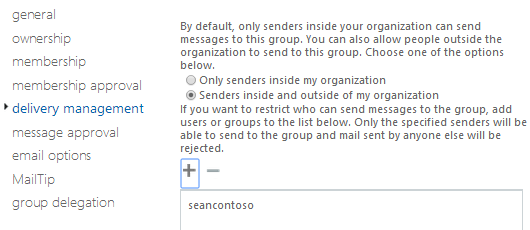
Exchange Online Distribution Group Delivery Management

I recently carried out a large migration and my customer had 700 Distribution Groups. My customer asked me to restrict delivery of emails to the groups by members only. So end users could not email the distribution group unless they were a member. 

So how do I do this for 700 users!! Powershell to the rescue.

Connect to Exchange Online via Powershell and run this command.

  1. Get-Distributiongroup | export-csv C:\users\disti.csv
  2. I then deleted all columns in the csv except for PrimarySmtpAddress and then renamed that column to distiname.
  3. Then run this command
    Import-Csv “C:\Users\sofarrell\Desktop\disti.csv” | Foreach-Object{get-distributiongroup $_.distiName | Set-distributiongroup -AcceptMessagesOnlyFromDLMembers $_.distiname}
  4. And then run this command
    Import-Csv “C:\Users\sofarrell\Desktop\disti.csv” | Foreach-Object{get-distributiongroup $_.distiName | Set-distributiongroup -AcceptMessagesOnlyFromSendersOrMembers $_.distiname}
Job done , Happy Customer.