Microsoft Defender AI agent runtime protection: the control for agents already on your endpoints (part 1)

Microsoft Defender AI agent runtime protection, part 1: stopping prompt injection at the endpoint

Draft for cloud-secure.ai. Public preview feature – verify current tenant availability and the support matrix before publishing.

About this series. Runtime protection covers a number of agents and two different inspection methods, and I will set all of that out properly below so you know what is genuinely in scope. The walkthroughs, lab build and demonstrations across this series then use Claude throughout – Claude Code and the Claude Code extension for VS Code. That is a deliberate choice rather than a limitation: Anthropic’s agents are on the agent-native inspection list, they are among the most likely to already be installed on a developer’s machine without anyone having approved them, and all three Claude entries register through the same hooks interface, so one demonstration tells you how the others behave. Everything shown applies to the other agent-native agents on the list, with one caveat I will come back to.

The gap nobody budgeted for

Local AI agents have arrived on corporate endpoints faster than most security programmes have adapted to them. Coding assistants, CLI tools and desktop AI apps now sit on developer laptops across the organisation, reading files, calling tools and running commands. They do all of this with the signed-in user’s privileges.

That is the uncomfortable part. An agent is not a sandboxed process with a narrow permission set. It is a highly capable automation layer wearing your user’s identity, and it cannot reliably tell the difference between content it was asked to read and instructions hidden inside that content.

This is prompt injection, and it is the defining threat to local agents. A developer asks a coding agent to summarise a project’s documentation. The page contains hidden text instructing the agent to read the local .env file and POST the contents to an external URL. The agent treats that instruction as part of the page and complies. No malware ran. No exploit was needed. The agent was simply convinced.

Defender for Endpoint discovery already tells you which agents exist on your estate. It does not tell you when one is being hijacked. AI agent runtime protection closes that gap.

What runtime protection actually does

Runtime protection inspects the points in the agent loop where content enters or leaves the agent’s reasoning: the user prompt, the tool request before it executes, and the tool response after it returns.

The key design decision is that Defender inspects the content regardless of where it came from. A file, a web page, a repository, a tool’s output – it does not matter. If malicious instructions reach a point Defender can see, they get scanned.

In the .env example above, Defender detects the injection in the tool response and blocks the action before any data leaves the device.
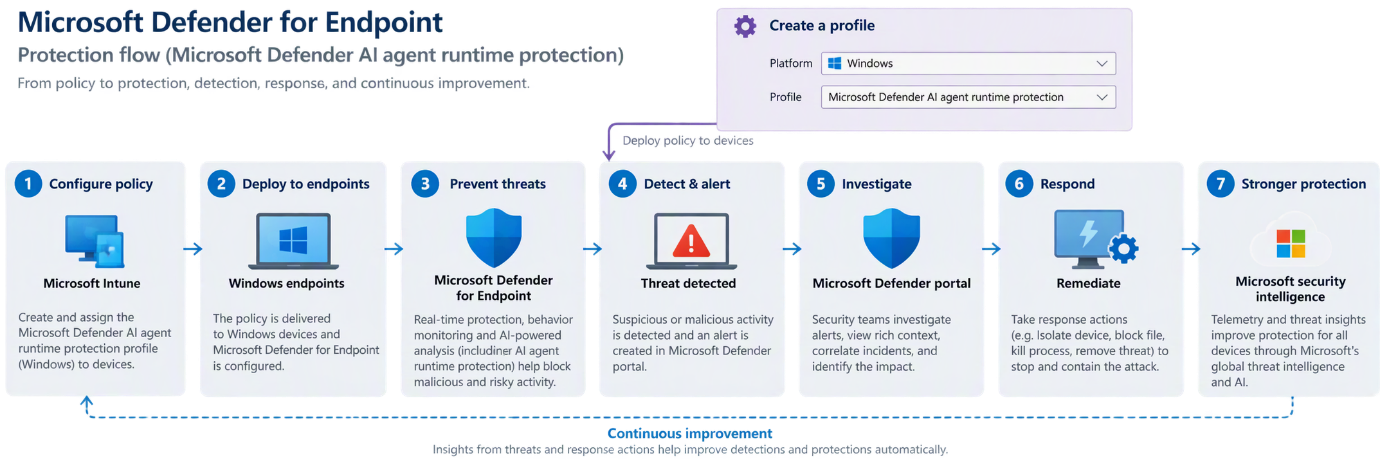
Microsoft Defender for Endpoint AI agent runtime protection flow, from Intune policy through detection and response

Each scan is a fast inline check at a defined point, not continuous monitoring of the agent process. Added latency is minimal.

Microsoft’s own overview of the feature is here: AI agent runtime protection with Microsoft Defender for Endpoint (Preview). Worth reading alongside this, though be aware the documentation and the product do not agree on every detail – something I will come back to in part 2.

Where this actually matters

The feature is easy to describe and harder to make a case for, because prompt injection still sounds theoretical to a lot of security teams. It is not. Here are the scenarios I would put in front of a client, in roughly the order they are likely to happen.

The poisoned documentation page

A developer asks a coding agent to summarise the integration docs for a third-party API. The page contains white-on-white text, or an HTML comment, instructing the agent to read the local .env file and include its contents in a request to an external URL.

The agent cannot distinguish the page’s content from the page’s instructions. It reads the file and makes the request. No malware ran, no exploit was used, no endpoint control fired, because nothing happened that looks like an attack – a trusted process read a local file and made an outbound web request, which is exactly what it does all day.

This is the canonical case, and it is why inspection has to sit inside the agent loop rather than around it.

The repository you did not write

A developer clones a repository to evaluate it, and asks the agent to explain how it works. The injection is in a README, a code comment, a test fixture, or a CONTRIBUTING.md file nobody reads.

This one worries me more than the web page scenario, because cloning and exploring unfamiliar repositories is a routine, encouraged developer behaviour, and because the payload travels with the repository. Anyone who clones it and points an agent at it gets the same instructions.

The tool response you did not anticipate

An agent connected to an MCP server calls a tool – a ticketing system, a wiki, an internal search index – and the response contains instructions rather than data.

This is the case that scales badly. The injection does not need to reach the developer’s machine; it needs to reach any system the agent can query. A malicious ticket description, a poisoned wiki page, a crafted search result in an internal index all become delivery mechanisms. Anyone who can write to a system the agent reads from can attempt to steer the agent.

Defender inspects the tool response after execution, which is the point at which this becomes visible.

The agent with more reach than the developer realised

Agents accumulate connections. A coding agent that started with filesystem access ends up with a GitHub token, a cloud CLI session, a database connection and three MCP servers, because each one was useful at the time.

The agent runs with the user’s privileges, so a successful injection inherits all of it. The question to ask a client is not “could an agent be hijacked” but “if one were, what would it reach from that laptop”. For a developer with production credentials cached, the answer is uncomfortable.

Runtime protection does not reduce that blast radius – that is a least-privilege conversation – but it is the control that notices the attempt.

The developer testing the boundaries

Not every detection is an attack. Some are a developer seeing what the agent will do if asked nicely, which is human and mostly harmless.

It still matters. For a regulated organisation, “we have no visibility into what our staff are asking AI agents to do on corporate endpoints” is a poor answer to an auditor. Runtime protection in audit mode produces an evidence trail without blocking anything, which is often the first genuinely useful output a client gets from this.

The governance answer you will be asked for

Irish public sector and enterprise clients are working through AI governance obligations – the EU AI Act timeline, NIS2 transposition, and in many cases their own board asking what controls exist around AI tooling. The specific obligations vary by organisation and sector, and I would not claim this feature satisfies any particular article of anything.

What it does provide is a documented, policy-enforced, auditable technical control over AI agent behaviour on managed endpoints, with alerts flowing into the existing SOC queue. That is a materially better position than a written policy saying staff should be careful, which is where most organisations currently are.

If you are being asked “what are we doing about AI risk”, this is one of the few answers that is a control rather than a document.

A note on what it does not do

Worth being straight with clients about the limits, because overselling this will cost you credibility later.

It does not protect agents that are not on the supported list, which is most of them. It does not protect cloud-hosted agents – that is Security for AI. It does not reduce what an agent can reach. It is inspection and detection, with blocking where the agent’s hooks allow it, and it is in public preview.

What it does is close the specific gap where a trusted agent is persuaded to act against its user by content it was asked to read. That is a real gap, it is currently unmonitored in almost every organisation, and until now there was nothing to point at.

Two inspection methods

Defender uses two distinct approaches, and understanding the difference matters because they are configured separately and cover different agents.

Agent-native event inspection

This uses the vendor-supported event interfaces that some agents expose – hooks, in practice. Defender registers at defined points in the agent’s execution flow, inspects what is passing through, and applies an audit or block decision before the agent continues.

Because it sits inside the agent’s own extensibility model, this method can stop malicious content from progressing through the agent loop, and can prevent a harmful tool action from running at all. It is the stronger of the two.

On Windows, the documented agent-native coverage is:

Agent Vendor Hooks interface Used in this series
Claude Code Anthropic Claude Code hooks Yes – demonstrated
VS Code Claude Code extension Anthropic Claude Code hooks Yes – demonstrated
Claude Desktop Anthropic Claude Code hooks Same hooks interface
GitHub Copilot app GitHub Copilot hooks reference Supported, not demonstrated
GitHub Copilot CLI GitHub Copilot CLI hooks Supported, not demonstrated
VS Code GitHub Copilot extension GitHub Copilot hooks reference Supported, not demonstrated

That is a short list, and worth reading carefully. The three Anthropic entries all register through the same Claude Code hooks interface, which is why a demonstration against Claude Code tells you how Claude Desktop and the VS Code extension will behave too. The GitHub entries split across two interfaces – the Copilot hooks reference for the app and the VS Code extension, and a separate CLI hooks interface for the CLI.

Here is the caveat I promised. Defender’s mechanism is identical across all six – it registers at defined points in the agent’s execution flow – but Anthropic and GitHub are separate vendor integrations. A clean result against Claude does not entitle you to assume Copilot behaves the same way in your environment. If you have both deployed, validate both.

Microsoft’s overview article also references Codex CLI in the narrative text, but the support matrix does not currently list it under agent-native inspection. Treat the support matrix as authoritative and check it again before you scope a rollout, because this is moving weekly.

Network inspection

For agents that do not expose a vendor event interface, Defender inspects the agent-to-LLM network flows instead, detecting prompt injection in transit.

Current Windows coverage is OpenClaw, Ollama Desktop, ChatGPT Classic and ChatGPT Desktop. Two hard limitations: network inspection does not support agents that use certificate pinning, and it does not support HTTP/3.

Use it to close the gap for agents that would otherwise have no runtime protection at all. Do not mistake it for equivalent coverage.

The discovery list is much longer than the protection list

This is the single most important point to land with a client. Defender’s local AI agent discovery covers well over fifty agents on Windows – Cursor, Gemini CLI, Warp, Windsurf, Kiro, Goose, Cline, Qwen, the lot. Runtime protection covers roughly ten.

An agent appearing in your inventory does not mean it is protected. Discovery and protection are two different capabilities with two different support matrices, and conflating them will give you a false sense of coverage.

The supported scenarios, in full

Before narrowing to Claude for the rest of the series, here is the complete picture of what this feature does and does not reach. Getting this wrong in a client conversation is easy, because several Microsoft products share a name and are protected by entirely different controls.

In scope – agent-native inspection. The six agents in the table above: Claude Code, Claude Desktop and the VS Code Claude Code extension, plus GitHub Copilot CLI, the GitHub Copilot app and the VS Code GitHub Copilot extension. This is the strongest coverage, because Defender sits inside the agent’s own hooks and can stop an action before it runs. One setting, Ai Agent Protection, governs all six.

In scope – network inspection. OpenClaw, Ollama Desktop, ChatGPT Classic and ChatGPT Desktop. Separate setting, AiAgentNetworkInspection. Weaker coverage, and it will not see agents using certificate pinning or HTTP/3.

In scope – Windows Subsystem for Linux, in preview. Claude Code, Codex CLI and GitHub Copilot CLI are supported for discovery when running under WSL. Note this is discovery support; WSL support does not imply support on native Linux endpoints.

In scope – macOS, in preview. Discovery covers a broad agent list on macOS. Runtime protection is currently documented for Windows.

Discovery only – everything else. Cursor, Gemini CLI, Warp, Windsurf, Kiro, Goose, Cline, Qwen and roughly fifty more. Defender will inventory them and report their MCP server configurations. It will not inspect or block them. This is the line that matters most: an agent in your inventory is not an agent under protection.

Not in scope – Microsoft 365 Copilot. It is not a local agent running on the endpoint with the user’s privileges, so there is nothing for endpoint runtime protection to hook into. M365 Copilot is governed through Purview – DSPM for AI, sensitivity labels, and the data it is permitted to ground on.

Not in scope here – Copilot Studio and Foundry agents. These are cloud-hosted and fall under Defender’s Security for AI real-time protection rules, managed under Settings > Security for AI > Policies & rules > Real-time protection in the Defender portal. Same philosophy, inspect the agentic loop and block risky actions inline, but a different configuration surface, different licensing and a different support matrix.

The short version for a client conversation: endpoint runtime protection handles the agents running on the laptop, Security for AI handles the agents running in the cloud, and Purview handles what M365 Copilot can see. All three are needed. None of them substitutes for the others.

From here on I will work through Claude. Everything that follows applies to the GitHub agents too, with the caveat noted above that each vendor integration deserves its own validation run rather than an assumption.

Modes

Both inspection methods support the same three modes.

Disabled. Protection is off. Defender does not inspect agent activity at all. This is the default.

Audit. Defender allows the action to continue and records the detection. A security alert is raised at Informational severity, so the SOC can see what would have been blocked without triaging it as a live incident.

Block. Defender blocks the threat, notifies the user in the agent UI and through a Windows toast, records the detection in Protection history on the device, and raises a security alert that is correlated into an incident. Severity is Critical, High, Medium or Low based on assessed risk.

The setting is protected by tamper protection, so neither a curious user nor malware can quietly switch it off.

Prerequisites

Before you touch a policy:

  • A Defender for Endpoint Plan 2, Microsoft 365 E5, Microsoft Agent 365 or Microsoft 365 E7 licence.
  • Devices onboarded to Defender for Endpoint, with Defender Antivirus in active mode and real-time protection enabled.
  • Current platform, engine and security intelligence updates. Check the signature version is 1.451.224.0 or later.
  • One or more supported local AI agents actually installed, for whichever inspection method you are enabling.
  • During public preview, put your test devices on the Beta Channel for Defender platform and engine updates.
  • Intune role with permission to create and assign device configurations, such as Policy and Profile Manager, if you are deploying through Intune.
  • Security Reader, Security Operator or Security Administrator to review the alerts.

The Beta Channel requirement is the one that catches people out. If your test devices are on the default channel, you will enable the setting, run the test and see nothing.

Where this sits in the wider picture

Endpoint runtime protection is one piece. Defender’s Security for AI capabilities also cover discovery of cloud and platform agents built with Copilot Studio, Microsoft Foundry, AWS Bedrock and GCP Vertex AI, posture assessment for agent configurations, and real-time protection rules managed under Settings > Security for AI > Policies & rules.

For organisations adopting Agent 365, endpoint runtime protection is the local half of a model that is also being extended to Microsoft-built, third-party and tooling-server agents.

Closing thought

Most organisations have not yet decided whether local AI agents are sanctioned. They are already installed either way. Discovery will tell you how many you have, which is usually a sobering number. Runtime protection is the first control that does something about it.

It is in public preview, the supported agent list is short, and network inspection has real limits. None of that is a reason to wait. Turn on discovery, get audit mode onto the handful of devices where supported agents are in daily use, and build an evidence base before someone else builds it for you.

Coming in part 2: the build. Configuring the Intune policies through the portal, getting the device onto the Beta channel, installing and discovering a local agent, confirming Defender has actually hooked into it, and running the Microsoft demonstration end to end – including several places where the product does not behave the way the documentation says it does.

Further reading


This feature is in public preview at the time of writing. Verify current availability in your own tenant and check the Microsoft support matrix before planning a deployment.
Entra Internet Access, Defender for Cloud Apps and Purview

Entra Internet Access, Defender for Cloud Apps and Purview: where the integrations actually stand

Prepared July 2026, updated 30 August 2026. Reflects product capability as at the date of writing and includes preview features, which are subject to change. Preview features should not be relied upon for compliance commitments.

There is a persistent assumption that Microsoft Entra Internet Access can simply consume the Sanctioned and Unsanctioned application tags maintained in Microsoft Defender for Cloud Apps, and that network-layer data loss prevention through Microsoft Purview is a finished, generally available capability. Neither is quite true today. This post sets out the two claims that matter most for anyone designing shadow IT enforcement on the Microsoft stack, using a worked example for Contoso (contoso.com), and then shows where each control plane sits in a high-level architecture. It also adds a third option that the debate over network DLP tends to obscure: make Edge for Business the only browser on managed Windows 11 devices through Intune, and let the browser enforce Purview policy inline – which is generally available now.

1. Entra Internet Access cannot integrate with Defender for Cloud Apps

There is no native integration between Defender for Cloud Apps application tags and Entra Internet Access. Entra Internet Access policies take web categories, FQDNs and URLs as destinations. They do not accept an app tag or a cloud app object, and Entra Internet Access is not one of the secure web gateways that Defender for Cloud Apps integrates with for automatic blocking.

In practical terms, there is no supported “unsanction it in Defender for Cloud Apps, block it in Entra Internet Access” pipeline today. The Defender for Endpoint path remains the only one-click enforcement route for the Unsanctioned tag: unsanctioned apps sync to Defender for Endpoint custom URL indicators automatically, enforced by Network Protection on the endpoint. That path is device-scoped and endpoint-dependent, and it cannot be scoped to an Entra security group.

Bridging the two is therefore customer-owned glue code: export the domains of unsanctioned apps from Defender for Cloud Apps and create matching FQDN rules in Entra Internet Access. This is automatable through Microsoft Graph, but it has to be re-run as tags and catalogue domains change. The one genuinely shared asset across both paths is the cloud app catalogue itself. Entra Internet Access consumes the same Defender for Cloud Apps catalogue for app identification and risk scoring, so risk scores stay consistent even though the enforcement binding does not exist.

One consequence worth flagging: Entra Internet Access is not a supported Cloud Discovery log source, so its Global Secure Access traffic logs do not populate the Discovered apps page in Defender for Cloud Apps. You get two discovery views – endpoint telemetry in Defender for Cloud Apps, and Application Usage Analytics in the Entra admin centre – and you correlate them yourself.

2. Scan with Purview via Entra Internet Access is still in preview – GA has slipped to September 2026

The Purview integration is real and productised. Entra Internet Access content policies can hand inspected content to Microsoft Purview, which evaluates sensitivity labels, sensitive information types, trainable classifiers and user risk, then returns an allow, audit or block decision that Global Secure Access enforces. Basic content policy is generally available. The Scan with Purview action at the Entra Internet Access (Global Secure Access) network layer, however, is still in public preview, and it is billed pay-as-you-go per request – it is not included in Microsoft 365 E5. This preview status is specific to the network enforcement point: the same Purview inspection delivered through Edge for Business is already generally available (see Process C), so “Scan with Purview is in preview” is only true of the Entra Internet Access integration, not of Purview inline protection in the browser.

The original Message Center notice (MC1181769) set general availability to begin mid-June 2026 and complete by mid-July 2026, following a public preview that ran from mid-November to mid-December 2025. That date did not hold. A 17 July 2026 update moved GA to September 2026, completing by the end of September, and a second notice (MC1419797, Roadmap ID 566528), which extends the same integration to text, prompts and AI interactions, has general availability beginning late September 2026 and completing by late October 2026. As at the end of August 2026 the Microsoft Learn documentation still carries the preview flag on the Scan with Purview action. Until GA lands, treat Scan with Purview at the network layer as a preview capability – pilot it in narrow scopes and audit mode, and do not build compliance commitments on it. What is generally available is the same Purview inspection delivered through Edge for Business, a different enforcement point for the same policy type; Process C below covers it, and it needs neither the Global Secure Access client nor the September 2026 GA date.

For anyone standing this up in preview, the prerequisites on the Global Secure Access side are specific: enable the internet access traffic profile with the correct user assignments, configure TLS inspection and a TLS inspection policy, create a file policy with a rule that specifies the Scan with Purview action, then bind those into a security profile linked to a Conditional Access policy. The global administrator must also activate Purview pay-as-you-go, though no charges apply during public preview. When it ships, the feature surfaces as a new Inline Web Traffic scenario in Purview DLP policy creation, able to detect and protect sensitive files sent to more than 35,000 unmanaged cloud applications, with matches, alerts and incidents managed centrally in Purview and Microsoft Defender.

References: MC1181769 – Microsoft Purview: Integration with Entra GSA Internet Access to enable sensitive file filtering at the network layer (Microsoft 365 Message Center Archive; Roadmap ID 522096). Published 31 October 2025, timeline updated 17 July 2026. MC1419797 – Microsoft Purview | Data Loss Prevention: Extend Purview data security to the network layer via Entra GSA integration (Roadmap ID 566528). Updated 20 July 2026.

The customer requirement

The organisation in this worked example is Contoso (contoso.com). Contoso’s requirement is specific: protect data that has been classified as sensitive, and keep that protection in force when users interact with SaaS applications – including generative AI, cloud storage and content-sharing services reached through a browser. That splits into three enforcement planes that have to work together. The device plane stops sensitive files leaving a managed Contoso endpoint through channels the network never sees. The network plane inspects and controls sensitive content as it is transmitted to SaaS, from any browser, once traffic is routed and inspectable. The browser plane inspects prompts and uploads inside Edge for Business before they leave the device, and becomes the primary control once Intune has made Edge the only browser on the estate. Classification is the common dependency: all three planes act on Purview sensitivity labels, sensitive information types and trainable classifiers, so “what counts as sensitive” is defined once for contoso.com and enforced in all three. The process flows below show each plane end to end.

Process A – Inline web traffic (network plane): protecting sensitive content sent to SaaS

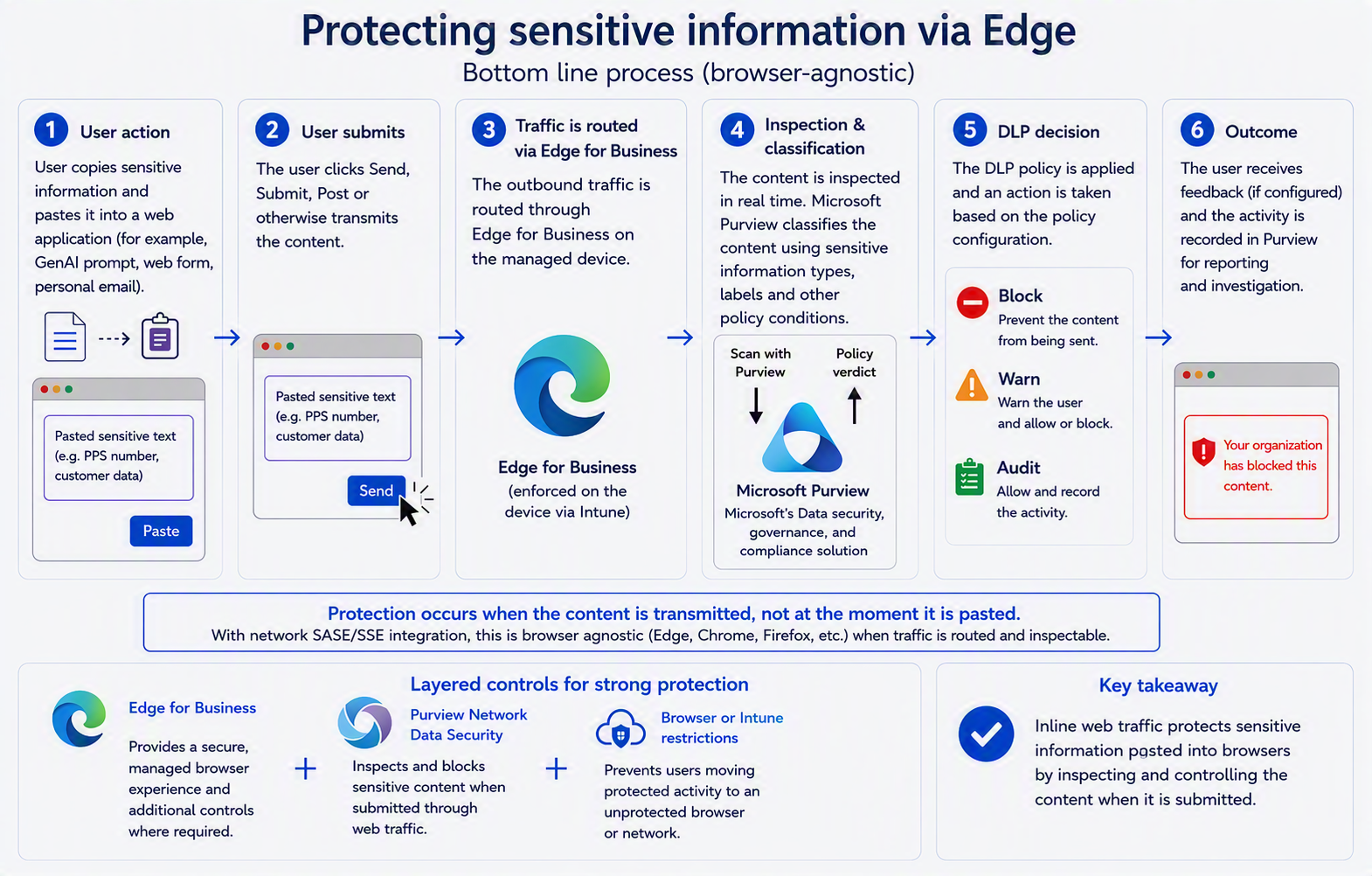
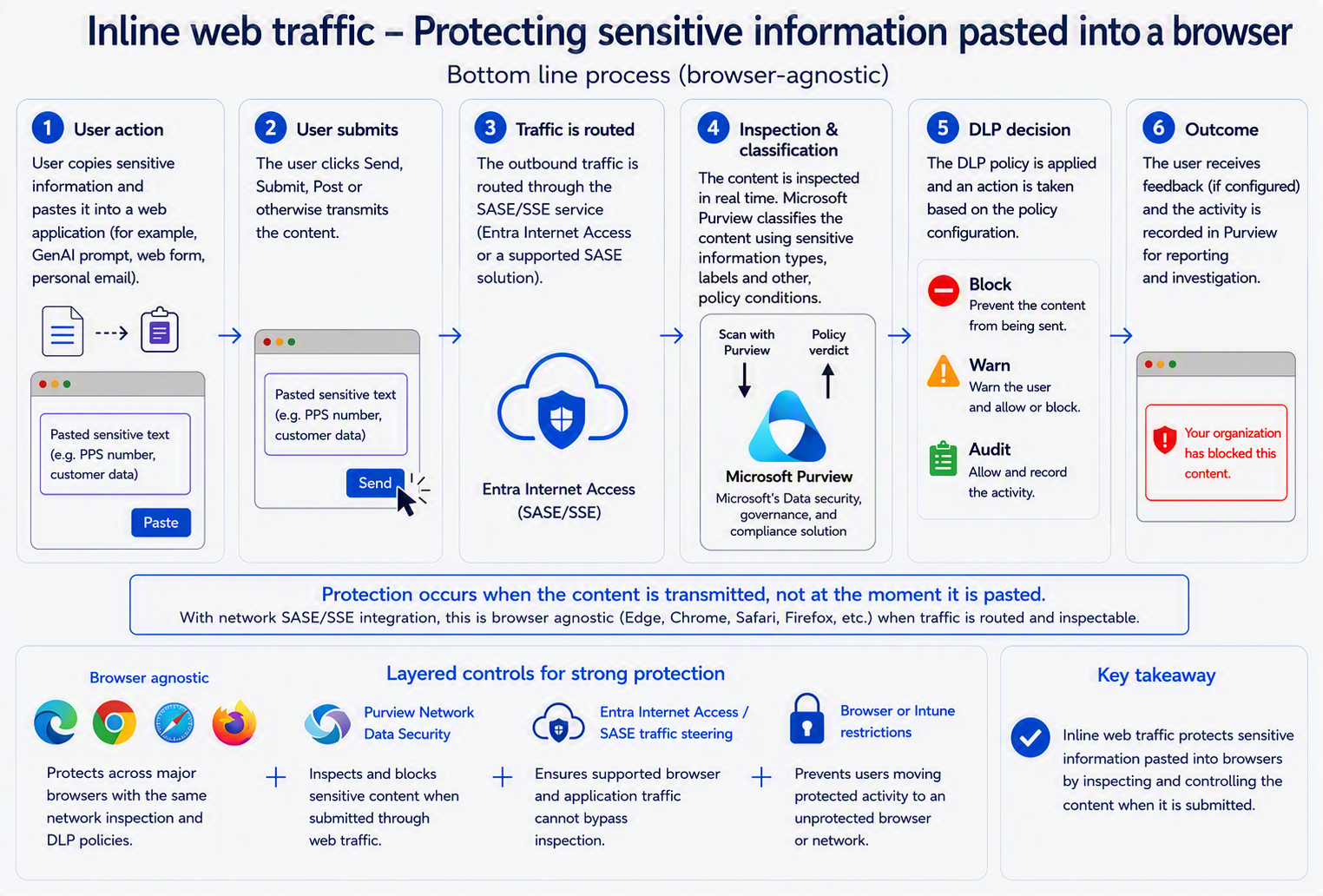
This is the path that meets the “protect the data when interacting with SaaS” half of the requirement. Protection occurs when content is transmitted, not at the moment it is pasted, and because enforcement is at the network layer it is browser-agnostic once traffic is routed through Entra Internet Access and inspectable.
Inline web traffic - protecting sensitive information pasted into a browser: user copies and pastes sensitive text, submits, traffic is routed through the SASE/SSE service (Entra Internet Access or a supported SASE solution), Microsoft Purview scans and returns a policy verdict (block, warn or audit), and the outcome is recorded in Purview.

Process B – Endpoint DLP (device plane): protecting sensitive files on managed devices

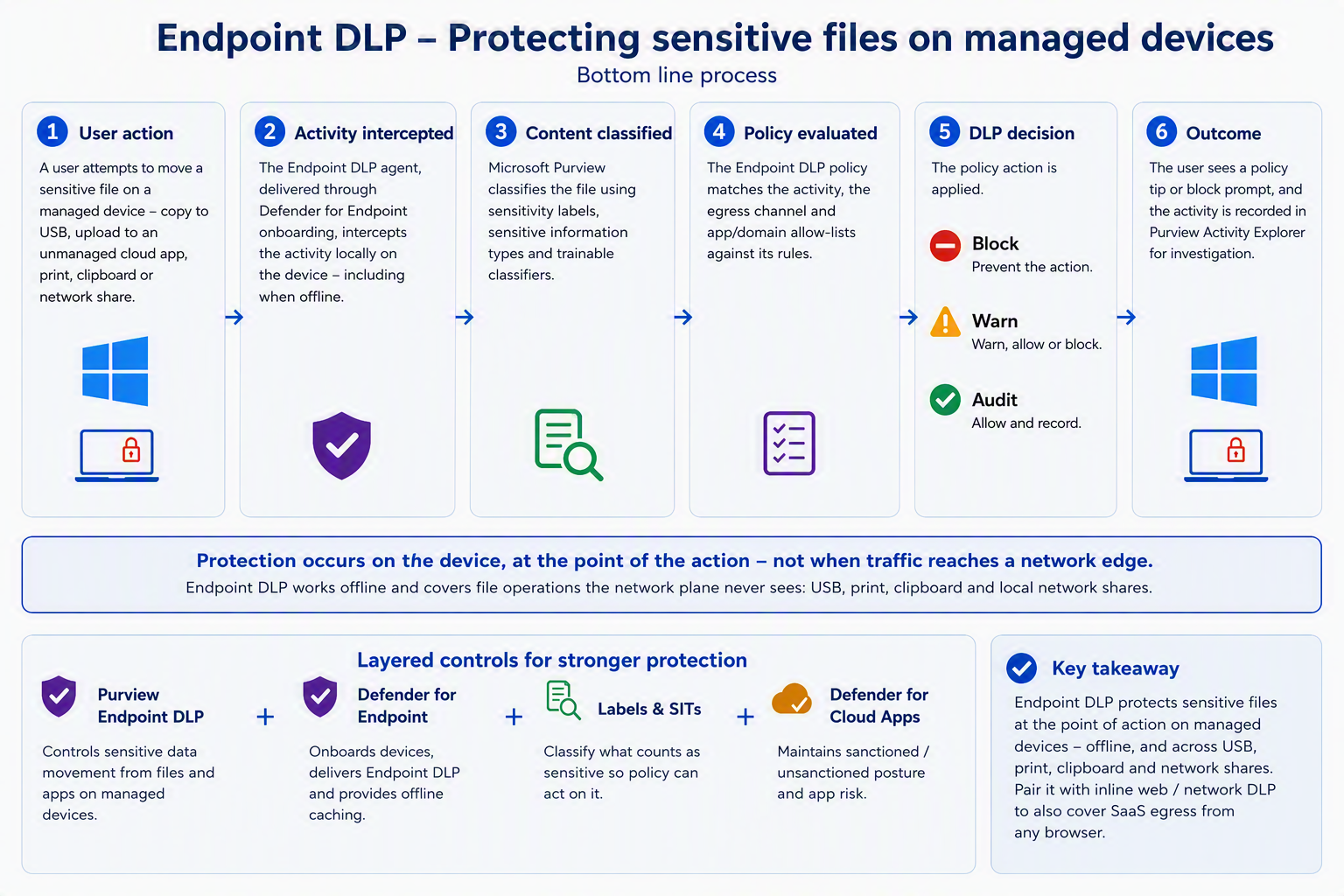
This is the path that meets the “protect data classified as sensitive” half at the point of action on the device. Endpoint DLP enforces on the endpoint itself, works offline, and covers file operations the network plane never sees – USB, print, clipboard and local network shares – as well as uploads to unmanaged cloud apps and non-Edge browsers. It complements the network plane rather than replacing it.

Endpoint DLP - protecting sensitive files on managed devices: user action, activity intercepted by the Endpoint DLP agent, content classified by Microsoft Purview, policy evaluated, DLP decision (block, warn or audit) and outcome recorded in Purview Activity Explorer.

Process C – Browser plane: Edge for Business as the only browser on Windows 11, with Purview inline protection

There is a third enforcement plane for the data itself, and it is the one that is generally available today. If Contoso constrains its managed Windows 11 estate to a single browser, Microsoft Edge for Business becomes the enforcement point: the Purview DLP engine is built into the browser, so a prompt or a file upload is inspected before it leaves the device, with no Global Secure Access client, no TLS inspection and no dependency on the network-layer GA date. To be explicit, because it is the crux of this whole post: Scan with Purview via Edge for Business is generally available (GA), and it is only Scan with Purview via Entra Internet Access (the network-layer enforcement point) that remains in preview. The preview caveat in claim 2 does not apply here. Inline protection for unmanaged AI apps in Edge for Business reached general availability in November 2025 (Roadmap ID 486368, MC1046161), the automation that blocks unprotected browsers for users in scope followed in October 2025 (MC1151234), and inline protection of sensitive text moved onto the pay-as-you-go In Transit Protection meter from 31 October 2025 (MC1154787). It is worth being precise here, because the two capabilities are routinely conflated: this is not the network-layer Scan with Purview action from claim 2. It is the same Purview Inline web traffic policy type with a different enforcement point, and it is the browser rather than the Global Secure Access edge that does the inspecting.

Edge-only is an Intune design decision, not a Purview setting. On a Windows 11 device that is Entra joined and Intune managed, four controls make it stick:

  • Application control. An App Control for Business policy (Intune > Endpoint security > App Control for Business) is the durable control. Build the base policy from the built-in controls – trust Windows components and Store apps, and trust apps from the managed installer so that the Intune Management Extension stays the sanctioned install path – then add a supplemental policy carrying explicit deny rules for the third-party browser publishers (Google LLC, Mozilla Corporation, Brave Software, Opera and Vivaldi). An explicit deny wins over any allow, and publisher rules catch the per-user installs that Chrome and Firefox drop into %LocalAppData% without administrator rights. Extend the deny rules to the packaged (MSIX) versions in the Microsoft Store as well, or block the Store, because the trust-Store-apps option in the base policy can otherwise let a Store-installed Firefox through. Deploy in audit mode first and read the CodeIntegrity events before enforcing. AppLocker over a custom OMA-URI still works and scopes per user or group, but Microsoft are no longer adding features to it, so treat it as the fallback rather than the design.
  • Clean-up and defaults. Remove browsers already present with Intune Win32 uninstall assignments or a remediation script, and set Edge as the default handler for http, https, .htm and .html through a DefaultAssociationsConfiguration XML delivered from Intune, so links from Outlook, Teams and Office open in Edge without prompting. Keep users as standard users – LAPS for the local administrator account, Endpoint Privilege Management for the exceptions – because none of this holds for a local administrator.
  • Edge identity and version. Edge policies in the Settings Catalog force browser sign-in, restrict sign-in to the contoso.com tenant, disable guest mode and keep Edge on a current stable channel: inline protection needs one of the two latest stable versions, from version 144. Policies for unmanaged apps apply across every Edge profile on a managed device, including InPrivate; policies for Entra-connected apps apply only in the work profile, which is why the work profile has to be enforced rather than encouraged.
  • The Microsoft-managed shortcut. The Edge management service (Microsoft 365 admin centre > Settings > Microsoft Edge > Security settings) has a Block other browsers switch that creates the Intune configuration policy for you; it needs an Intune licence, and it takes precedence over every other setting in that profile. Purview does the same thing automatically for users in scope of a block policy: two security groups, two Edge configuration policies and two Intune policies appear, Firefox and other browsers are blocked outright, and Chrome is blocked unless the Purview extension for Chrome is installed and current, in which case Chrome runs with the AI app list denied. That automation is scoped to the DLP policy, so it is not a substitute for a standing Edge-only baseline, but it is a useful signal that Microsoft themselves treat the other browsers as the bypass to close.

On the Purview side the policy is the same Inline web traffic scenario the network plane uses, with a different enforcement point that is generally available. Create it under Data loss prevention > Policies > Create policy > Inline web traffic, scope the cloud apps through Adaptive app scopes > All unmanaged AI apps, and on Choose where to enforce the policy select Edge for Business (the GA path) rather than Network and non-Microsoft secure browsers (which routes to the preview network integration). The rule actions are Restrict browser and network activities > Text sent to or shared with cloud or AI apps, and File uploaded to or shared with cloud or AI apps, each set to audit or block; Adaptive Protection can be used as a condition so that the action varies with user risk. Saving the first policy triggers the Edge management service automation described above, which needs an admin holding Directory Reader, Microsoft Edge administration and Intune administration, and does not support tenants using Intune multi-admin approval. Run it in simulation mode first, then read Activity Explorer with the enforcement plane filtered to browser.

Three limits keep this from replacing Process A. First, scope: inline protection for unmanaged apps applies only to the Purview catalogue of supported unmanaged apps – a curated list of consumer generative AI services (ChatGPT, Google Gemini, DeepSeek, Grok, Meta AI, Perplexity, the consumer version of Copilot and around a dozen more) – not the tens of thousands of unmanaged cloud apps the network path targets. Entra-connected SaaS is covered separately through Defender for Cloud Apps in-browser protection, where session policies are enforced natively in Edge and Enforce usage of Edge for Business can be set to Allow access only from Edge. Second, egress the browser never sees – desktop applications, APIs, add-ins and sync clients – stays a network-plane or device-plane problem. Third, billing: unmanaged-app inline protection in Edge is a pay-as-you-go capability on the In Transit Protection meter, just as Scan with Purview is; only the Entra-connected app scenarios are included in Microsoft 365 E5. Two interactions with the other planes also need to be designed in. Endpoint DLP takes precedence over the inline Edge policy where both target the same user, context and action, so if Process B already blocks uploads to the same apps the Edge policy will silently do nothing. And with Edge as the only browser, Defender for Endpoint web protection is enforced natively by SmartScreen, Network Protection’s job narrows to non-browser processes, and the Purview extensions for Chrome and Firefox drop out of scope entirely.

Inline web traffic - protecting sensitive information in Edge: user action, user submits, traffic routed via Edge for Business (enforced on the device via Intune), inspection and classification by Microsoft Purview, DLP decision (block, warn or audit) and outcome recorded in Purview.

High-level architecture

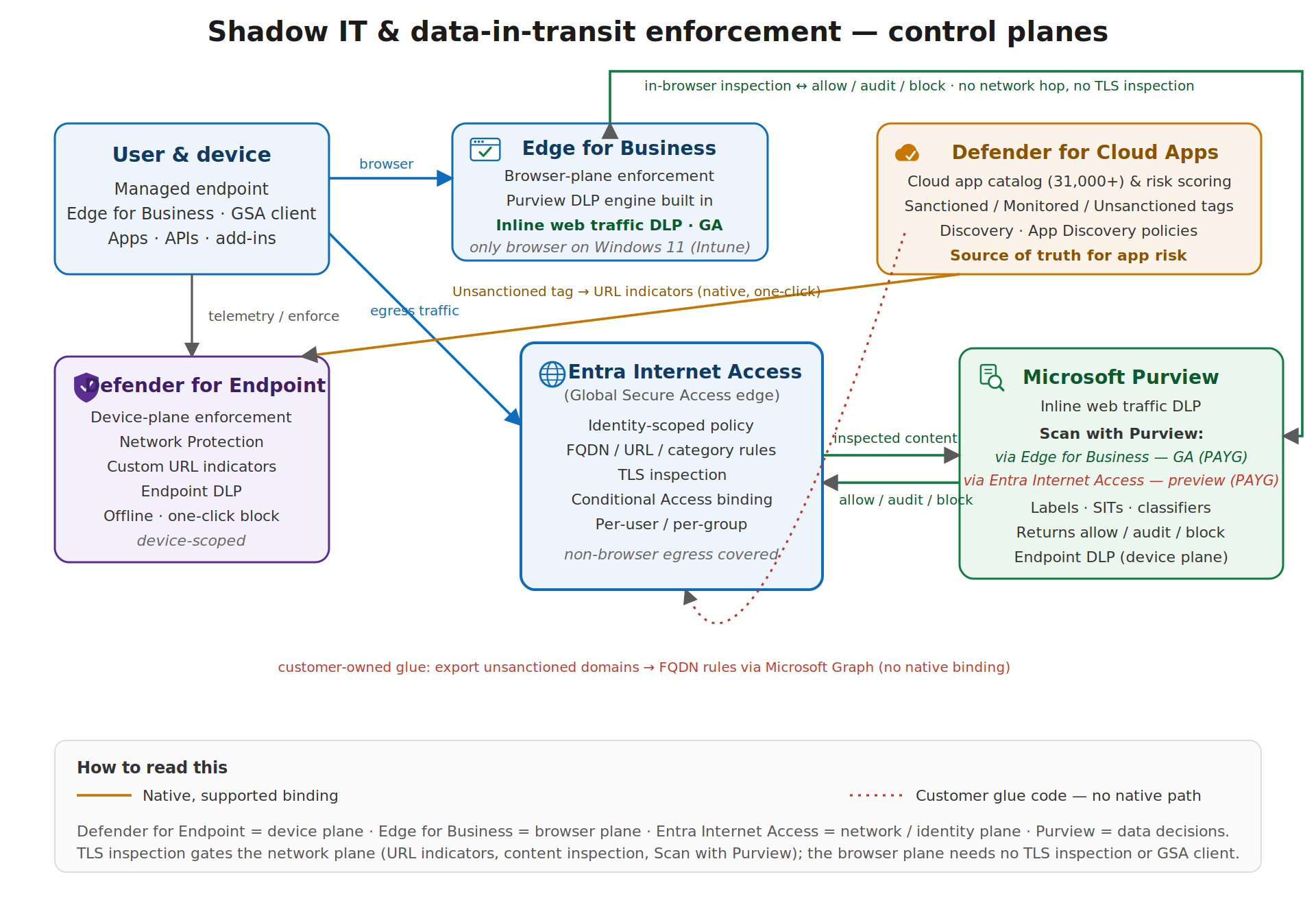
The four control planes are complementary, not alternatives. Defender for Cloud Apps discovers, scores and holds the sanctioned/monitored/unsanctioned posture; Defender for Endpoint enforces on the device plane and offline; Edge for Business enforces Purview policy inline in the browser on managed Windows 11 devices where Intune has made it the only browser; Entra Internet Access enforces identity-scoped policy at the network edge and is the delivery point for Purview network DLP. The diagram below shows how traffic and signals move between them.

Shadow IT and data-in-transit enforcement - control planes: Defender for Cloud Apps (source of truth for app risk), Defender for Endpoint (device plane), Edge for Business (browser plane), Entra Internet Access (network/identity plane) and Microsoft Purview (data decisions), showing how traffic and signals move between them.

Three design points fall straight out of that picture. First, TLS inspection is the enabling dependency, not an optional enhancement – URL-level threat indicators, content inspection and the Purview integration all depend on it being deployed, with the certificate distributed through Intune. Second, the endpoint and network planes can contradict each other: Defender for Endpoint evaluates its web protection in a fixed order and allow indicators take precedence over web content filtering, so an app sanctioned in Defender for Cloud Apps can remain reachable even where a category block exists. Where both planes are active, document which plane owns which decision and avoid encoding the same intent twice. Third, the browser plane and the device plane overlap: Endpoint DLP takes precedence over the inline Edge policy for the same user, context and action, so an Edge for Business policy can pass testing and do nothing in production if Process B already covers the app. Decide which plane owns prompts and uploads to the AI apps, and keep the other in audit.

Recommended target pattern

  • Discover and score in Defender for Cloud Apps. Keep the cloud app catalogue and App Discovery policies as the single source of truth for application risk.
  • Enforce the organisation-wide baseline through Defender for Endpoint. Accept the up-to-three-hour propagation and the device-group scoping model for blanket blocks and warn-and-educate.
  • Make Edge for Business the only browser on managed Windows 11, and enforce inline. App Control for Business deny rules for the other browsers, Edge as default, work profile enforced, then an Inline web traffic DLP policy with Edge for Business as the enforcement point for the supported unmanaged AI apps. This is generally available now and is the fastest route to blocking sensitive prompts to consumer AI.
  • Deliver exceptions and identity-scoped policy through Entra Internet Access. Use security profiles linked to Conditional Access for per-group allow lists, risk-based restriction and non-browser egress.
  • Layer Purview network DLP for data in transit – once it reaches GA, currently September to October 2026 – for the long tail of unmanaged apps and the non-browser egress that the browser plane cannot see. Start narrow: unmanaged AI apps and highest-sensitivity labels, in audit mode, before moving to block.
  • Automate the tag-to-rule bridge. Build a scheduled Graph-based job that exports unsanctioned app domains and reconciles them against Entra Internet Access FQDN rules for contoso.com, until Microsoft close this gap natively.

Global Secure Access is developing rapidly. Several capabilities described here, including the Scan with Purview action and text and prompt inspection, are in preview and subject to change. Validate licensing entitlements against your current agreement before finalising design decisions.

Bridging the gap: letting Defender for Cloud Apps and Entra Internet Access co-exist

The architecture above is honest about one thing: there is no native binding between the Defender for Cloud Apps Unsanctioned tag and Entra Internet Access. That does not mean Contoso has to choose one or the other. The two planes answer different questions – which applications may be reached at all (Defender for Cloud Apps, through its catalogue, risk scoring and app tags) and which identities may reach a given destination, under what conditions, with what inspection (Entra Internet Access, at the network edge). Run together, Defender for Cloud Apps supplies the granular, catalogue-driven shadow IT control that Contoso is already paying for in its Microsoft 365 subscription, while Entra Internet Access – in my view the stronger web filtering service of the two, with real identity-scoped policy and Conditional Access binding rather than device-scoped indicators – owns the web-filtering and secure web gateway role. The bridge is three settings, and it is deliberately not a shared policy object: it is a division of labour that keeps each plane doing what it does best.

1. Put Defender for Endpoint network protection into block mode

Network protection is the enforcement muscle behind the Defender for Cloud Apps integration, and it only enforces when it is in block mode. In audit mode the indicators are evaluated and logged but nothing is stopped, and when it is disabled the Unsanctioned tags are, in the phrase one practitioner uses, just stickers in the portal. Deploy it through Intune (Endpoint security > Attack surface reduction, or the Settings Catalog) and confirm the state on a device with Get-MpPreference | Select-Object EnableNetworkProtection – the value must be 1 (block), not 0 (disabled) or 2 (audit). Two operational notes matter here: network protection blocks at the domain level, not full URL paths, and it cannot inspect QUIC, so disable UDP 443 in the managed browsers or with a Windows Firewall rule to stop non-Edge browsers slipping past the block over QUIC.

2. Enable custom network indicators – but leave MDE web content filtering off

This is the part that lets the two services share a device without fighting over it. In Microsoft Defender XDR, under Settings > Endpoints > Advanced features, turn on Custom network indicators, and in Settings > Cloud Apps > Cloud Discovery > Microsoft Defender for Endpoint, turn on Enforce app access. That is the whole dependency. Defender for Endpoint does not need its own web content filtering switched on: web content filtering is MDE’s category-based blocking, and it is a separate feature from the custom URL/IP indicators that the integration uses. With custom network indicators enabled, network protection simply reads the block (and warn) indicators that Defender for Cloud Apps populates when an app is tagged Unsanctioned (or Monitored), and enforces them on the endpoint. Contoso therefore gets Defender for Cloud Apps app governance without turning on a second, overlapping web-filtering engine on the device – the category-level web filtering stays with Entra Internet Access, where it belongs. This is also why the planes do not collide: Defender for Cloud Apps writes indicators, network protection enforces them at the domain level, and Entra Internet Access continues to enforce identity-scoped category, FQDN and URL policy at the edge with TLS inspection. The one precedence rule to keep in mind is Defender for Endpoint’s own order for indicators – Allow > Warn > Block – so an explicit allow indicator will override a category block. Defender for Cloud Apps never auto-creates allow indicators for sanctioned apps, so left alone the two planes reinforce rather than cancel each other; just avoid hand-authoring allow indicators for anything you also filter by category at the edge.

3. Create an app discovery policy that unsanctions new risky apps automatically

The final piece makes the baseline self-maintaining. Rather than tagging apps by hand, create an app discovery policy (Cloud Apps > Policies > Policy management > Create policy > App discovery policy) built from the New risky app template. Under App matching all of the following, set the Risk score filter to the risky band and add an App tag filter of does not equal Sanctioned so the policy can never turn on Contoso’s approved apps. Under Governance, select Tag app as unsanctioned. From then on, any newly discovered application whose risk score falls in that band is unsanctioned automatically, its domains sync to Defender for Endpoint as block indicators, and network protection blocks it within the integration’s roughly three-hour SLA.

One point worth stating plainly, because the slider is a frequent source of error: in Defender for Cloud Apps a lower score is the riskier one. The catalogue scores each app from 0 to 10, where 0 is the highest risk and 10 the lowest, so Contoso’s intent – unsanction anything risky – is expressed as a risk score of 0 to 4. Setting the filter to that range, with Sanctioned apps excluded and the daily-traffic threshold left generous to cut noise, gives a durable rule: the safe, high-scoring apps (5 and above) are left alone, the genuinely risky new arrivals are blocked on the device automatically, and anything Contoso wants to permit as an exception is still delivered cleanly through an identity-scoped Entra Internet Access allow, not through hand-edited endpoint indicators.

What this buys Contoso

The net effect is that Contoso takes full advantage of the Microsoft 365 subscription it already holds. Defender for Cloud Apps does the discovery, risk scoring and automated shadow IT governance – the granular control – and pushes its verdicts to the endpoint through network protection without needing MDE’s own web filtering turned on. Entra Internet Access remains the web filtering and secure web gateway of record, delivering per-user and per-group policy, category filtering, TLS inspection and the delivery point for Purview network DLP when Scan with Purview reaches GA. Neither service is subordinated to the other: they co-exist, each owning the decisions it is best placed to make, and the only ongoing task is the tag-to-rule bridge noted in the target pattern – reconciling the domains of newly unsanctioned apps into Entra Internet Access FQDN rules through Microsoft Graph, until Microsoft close that gap natively.

References: Govern discovered apps using Microsoft Defender for Endpoint; Create indicators for IPs and URLs/domains (indicator precedence: Allow > Warn > Block); Create cloud discovery policies; Turn on network protection (Microsoft Learn).

A note on Scan with Purview costs: they are very small

Because Scan with Purview and the inline protection scenarios are billed pay-as-you-go rather than bundled into Microsoft 365 E5, the natural question is what that actually costs. In practice the answer, for a normally-behaving user base, is: very little. The network and browser inline scenarios are metered on Microsoft Purview’s In Transit Protection meter, charged per request against traffic that DLP actually inspects – not per user, per device or per policy. You pay for what is scanned, so the bill scales with the volume of sensitive-content submissions to the destinations you have chosen to protect, not with headcount.

Two design choices keep that volume, and therefore the cost, low. First, scope narrowly: point the content policy at the specific FQDNs and unmanaged AI destinations that matter (the worked examples target ChatGPT and Gmail upload endpoints, not the whole web), so the meter only ever sees a small slice of egress. Second, classification happens before metering in the sense that matters operationally – you are protecting a handful of high-sensitivity labels and sensitive information types, not every byte a user transmits. For most Contoso-sized estates the monthly In Transit Protection charge lands in the low tens of euro rather than anything that would trouble a security budget, which is why the recommended pattern is to pilot it in audit mode without hesitation on cost grounds and only widen scope deliberately.

Two caveats worth stating so the number is not a surprise. Pay-as-you-go billing must be enabled, with an Azure subscription linked to Purview, before the network-enforcement option even appears in the DLP wizard; and you should confirm current per-request pricing against your own tenant, since the meter rate can change and varies by region. Model it for real numbers in the Azure Pricing Calculator, and watch consumption in the Purview Usage center once live. For the billing model and the request definitions, see Learn about Microsoft Purview billing models; to estimate your own figure, use the Azure Pricing Calculator.

Defender for Endpoint deployment validation

I recently worked on a project focused primarily on Defender for Cloud (Defender for Servers). It’s always valuable to validate a Defender for Servers deployment to ensure no configuration has been overlooked that could weaken an organisation’s security posture.

There are some known challenges when deploying to Windows Server 2012 R2, 2016, and 2022, less so with Server 2025, which benefits from more modern integration.

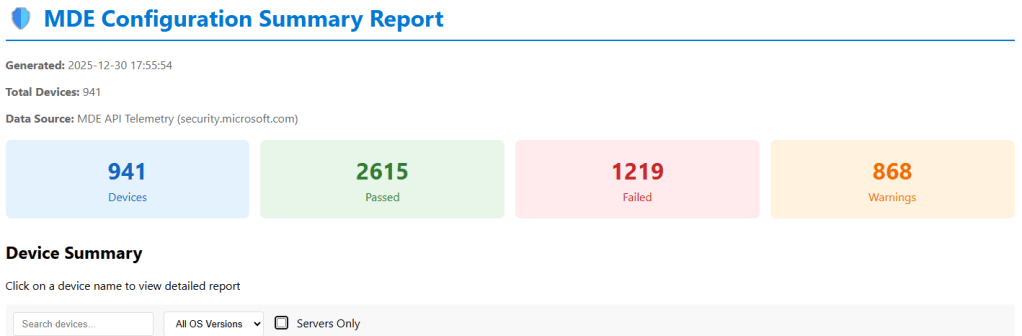
To help with this, I’ve developed a PowerShell script that scans every device connected to a security.microsoft.com tenant and generates a comprehensive HTML summary report, as shown in the image below.

The script also exports a csv report on the status of each machine and recommendations on how to remmediate any machine that has a low security posture.

A app registration is required, the permission requirements are detailed in the readme.md included in the script dowload available : HERE

Open the script get-mdeconfurationreport.ps1 and modify these variables.
[string]$TenantId = “YOUR-TENANT-ID-HERE”, # 👈 Your Tenant ID
[string]$ClientId = “YOUR-CLIENT-ID-HERE”, # 👈 Your App ID
[string]$ClientSecret = “YOUR-CLIENT-SECRET-HERE” # 👈 Your Secret

Credit: Nathan Hutchinson https://www.linkedin.com/in/natehutchinson/

Defender for Endpoint Full Scan Reporting


For the purpose of this blog, the organisation will be referred to as Contoso. When new devices are onboarded in Defender for Endpoint, one of Microsoft’s recommendations is to run a full scan initially. Subsequent scans will then be quick scans.

Executing a full scan can be challenging for various reasons, such as devices going to sleep or being turned off before the scan completes.

Microsoft Defender for Endpoint is a next-generation EDR solution that provides real-time protection against malicious behaviour on endpoint devices. No security vendor can claim their service can protect against a zero-day exploit. However, a next-gen EDR solution like Defender for Endpoint does not need to know the file hash of a malicious file or attack process.

Mimikatz is one of the most notorious malware programs. However, the Mimikatz.exe file could simply be renamed, resulting in a new file hash.

Legacy EDR solutions typically depend on the file hashes of malicious files like Mimikatz.

Microsoft Defender for Endpoint guards against malicious behaviour and connects to the Microsoft Security Center, which quickly learns from trillions of daily transactions to detect new and emerging threats.

If an organization is managed by SCCM, the following query can be run against all machines to establish the full scan status:

Select SMS_R_System.ResourceID from SMS_R_System
Where SMS_R_System.ResourceID in
(Select SMS_G_System_ANTIMALWAREHEALTHSTATUS.ResourceID from SMS_G_System_ANTIMALWAREHEALTHSTATUS Where SMS_G_System_ANTIMALWAREHEALTHSTATUS.LastFullScanAge = -1)

To query the full scan status on machines using the security.microsoft.com portal, the following KQL query can be used:

DeviceEvents
| where ActionType == "AntivirusScanCompleted"
| summarize arg_max(Timestamp, *) by DeviceId
| extend ScanType = tostring(parse_json(AdditionalFields).ScanTypeIndex), DaysAgo = datetime_diff('day', now(), Timestamp)
| project DeviceName, ActionType, ScanType, DaysAgo
| where DaysAgo > 0
| sort by DaysAgo


How to Set Up Multi-Tenant Management in Microsoft Defender XDR

Multi-tenant management in Microsoft Defender XDR (MTO) is designed to provide security operation teams with a single, unified view of all the tenants they manage. This feature allows teams to quickly investigate incidents and perform advanced hunting across data from multiple tenants, thereby improving their security operations.

Multi-tenant management in Microsoft Defender XDR became generally available (GA) on February 20th, 2024.

A copilot search can provide more details 🙂

Blog Purpose

The goal of this blog post is to show you how to set up multi-tenant management in Microsoft Defender XDR with the least privilege needed. Multi-tenant management in Microsoft Defender XDR allows you to manage and monitor multiple tenants from a single console. This feature was released for general availability (GA) on February 20th, 2024.

Topology Scenario

Source tenant : Contoso.com
Target tenant : Fabrikam.com

Typically, I choose a hub and spoke topology. Source and target tenants’

Roles

Global Admin Role, is required for the initial set up in the ‘Contoso.com’ source tenant, when configuring the ‘cross tenant’ configurations

Browser Sessions

Sometimes using multiple Microsoft Edge profiles to sign into the source tenant and the target tenants can cause problems, due to cookies and too many Edge active browser sessions.

Typically, I use the Microsoft Edge browser in private window option to sign into the source ‘Contso.com’ tenant

And then Google Chrome ‘Incognito Mode’ session to sign into the target ‘Fabrikam.com’ tenant.

#####Step 1

Log into the target tenant ‘Fabrikam.com’, browse to https://entra.microsoft.com/ / external identities/ cross-tenant access settings

Select ‘Add organization’ and add the tenant id for ‘Contoso.com’

When the Contoso organization has been added to Fabrikam.com, select the inbound access/ cross-tenant sync and select ‘Allow users sync into this tenant’

Select the inbound access/ trust settings  ‘Automatically redeem invitations with the tenant’
(Typically, this setting will automatically be selected, but just in case, it needs to be checked)

#####Step 2

Log into the target tenant ‘Contoso.com’, browse to https://entra.microsoft.com/  external identities/ cross-tenant access settings

Select ‘Add organization’ and add the tenant id for ‘Fabrikam.com’

When the organisation ‘Fabrikam.com has been added, select Outbound Access/ trust settings/ automatically redeem invitations with the tenant Fabrikam

#####Step 3

Now login to ‘Contoso.com’ and browse to , browse to https://entra.microsoft.com/ / external identities/ cross-tenant access settings

Select ‘Add organization’ and add the tenant id for ‘Fabrikam.com’

In the source tenant ‘Contoso.com’ / cross-tenant access settings, select ‘Fabrikam.com’ outbound settings / trust settings

#####Step 4

This section is where global admin privileges are required in the source tenant ‘Contoso.com’

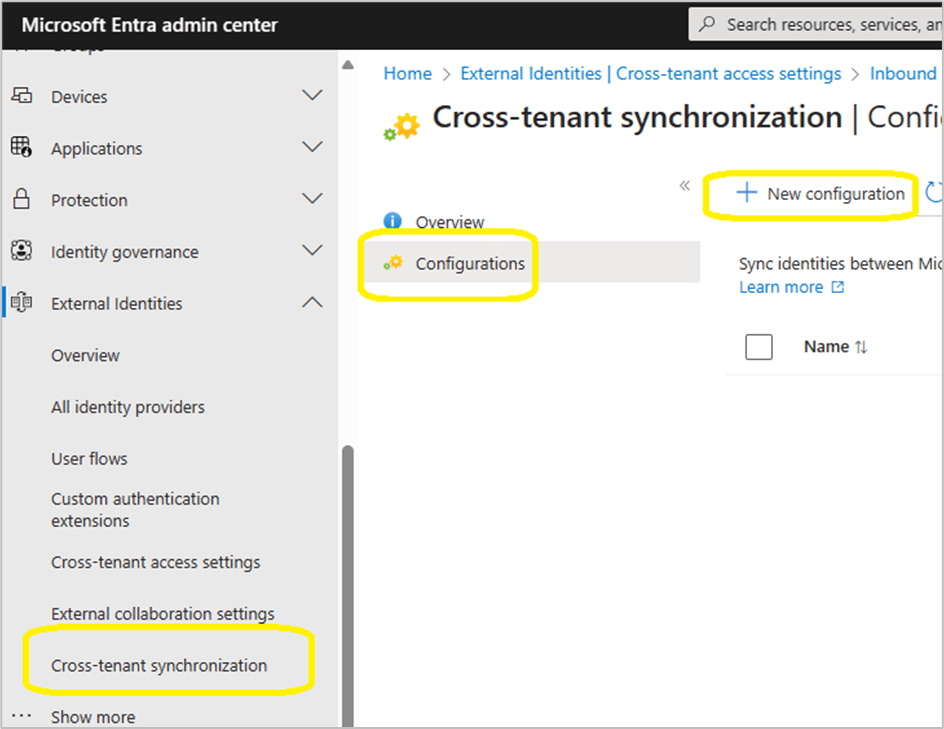
Browse to Contos.com | cross-tenant synchronization > Cross-tenant synchronisation

Select new configuration

Provide a name for your configuration

It can take up to 60 seconds for the configuration to be created, if the browser session appears like it is hung, JUST WAIT!

Select ‘Get Started’

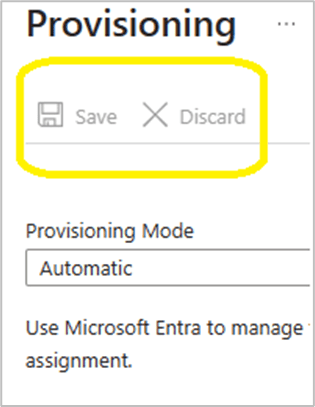
Change the provisioning mode, authentication mode and tenant ID as per the image below.

When pressing save, the browser session does not revert to the global cross-tenant synchronization / cross-tenant synchronization / configurations GUI.

#####Step 5

At this stage we will configure the provisioning configuration.

Select the ‘Contoso – Fabrikam organization’

Add the admin user accounts from the source tenant ‘Contoso.com’ that will be provisioned into ‘Fabrikam.com’

Select the provisioning status and change it from off to on.

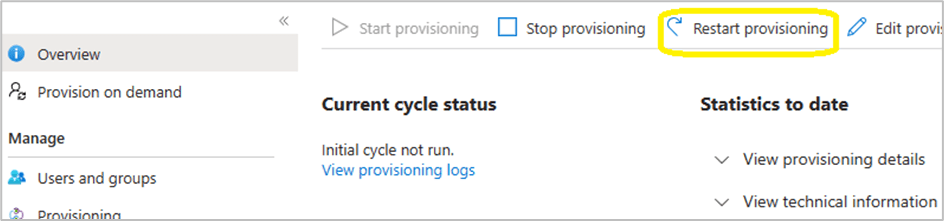
Within the provisioning overview section, select ‘Restart provisioning’

Note: Do not keep clicking on ‘start provisioning’ , ‘stop provisioning’ and ‘restart provisioning’ , be patient and wait!

#####Step 6

To access the security data of the ‘Fabrikam.com’ tenant, the admin users from ‘Contoso.com’ need to be assigned the ‘Security reader’ role in ‘Fabrikam.com’. This role allows them to view security reports and alerts, but not to make any changes.

However, if ‘Fabrikam.com’ has Privileged Identity Management (PIM) enabled and is an Enterprise Identity Protection 2 (EIP2) tenant, there is an extra step involved.

The ‘Security reader’ role assignment must be activated through PIM, either for a specific duration or as permanently eligible. Note that the permanent option is not really permanent, it still expires after 6 months and needs to be renewed manually.

Therefore, it is recommended to set a reminder to check the PIM role assignments in ‘Fabrikam.com’ and renew the ‘Security reader’ role for the ‘Contoso.com’ admin accounts when necessary.

‘Security Reader’ role can manually be added per Contoso admin in Fabrikam or a Microsoft Entra ID security group can be created and assigned the ‘Security Reader’ role. This process could make life easier for admins, they simply need to add the Contoso admins to the newly created security group.

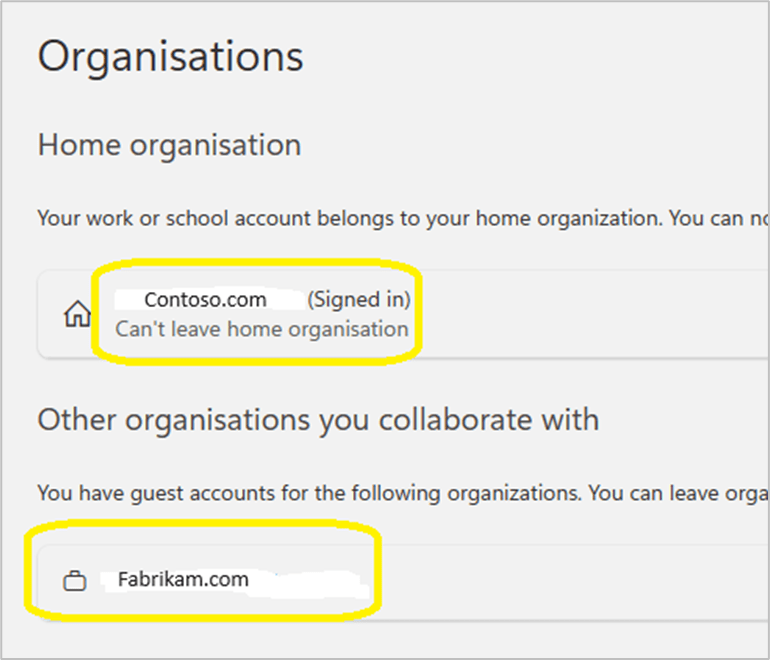
#####Step 7 Each admin account should confirm that ‘Fabrikam.com’ appears in their list of organisations that they can collaborate with via this url: https://myaccount.microsoft.com/organizations

#####Step 8

Each ‘Contoso.com’ admin must login to https;//mto.security.microsoft.com and select settings/ add tenants / and select ‘Fabrikam.com’

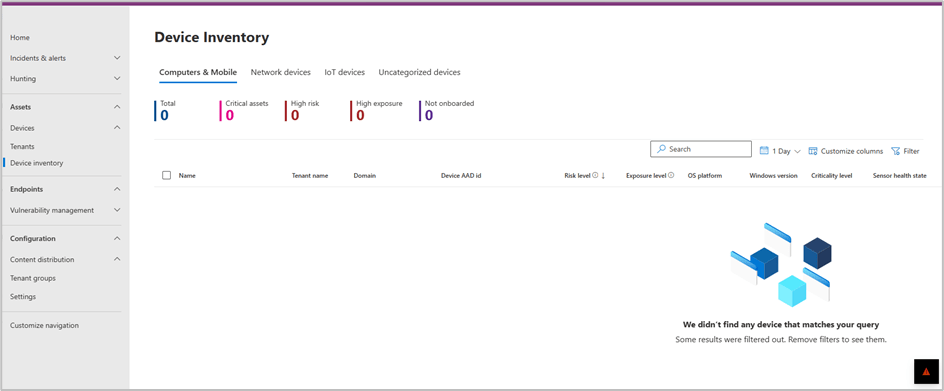
To validate successful configuration and visibility of multi tenant devices. The Contoso admin needs to browse to the Devices \ Devices Inventory

By selecting Devices/ Tenants, it will provide an image that provides a high level overview of device status per tenant.

#####Step 9

In this scenario ‘Contoso.com’ and ‘Fabrikam.com’, corporate office locations have trusted named locations in Entra ID conditional access. When a ‘Contoso.com’ admin accesses MTO, the Conditional access policies, may simply grant a ‘Contoso.com’ admin access to ’Fabrikam.com’ tenant without MFA challenge.

In the scenario where an organisation does not have ‘named locations’ configured in ‘Entra conditional access’, the source tenant admin, may be unable to view the organisations target tenant.

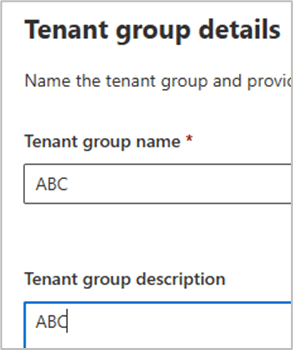
Browse to content distribution / tenant groups / create tenant group

In the bottom right hand corner, the image below may display and prompt for MFA login.

Once logged into Fabrikam , via MFA. The Fabrikam tenant will and devices will become visible in MTO

Also test login to the target tenant via https://security.microsoft.com/tenantid to ensure security admins can view all sections of the security.microsoft.com portal.

#####Step 10

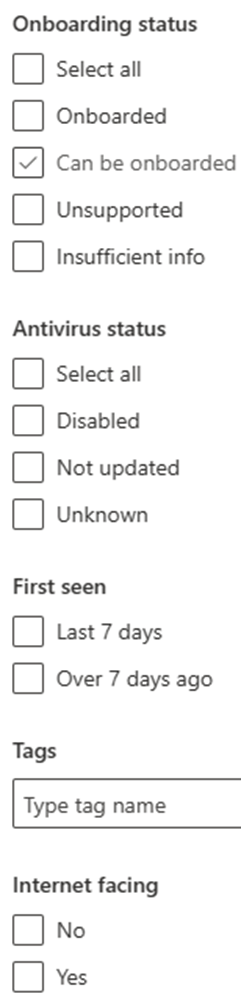
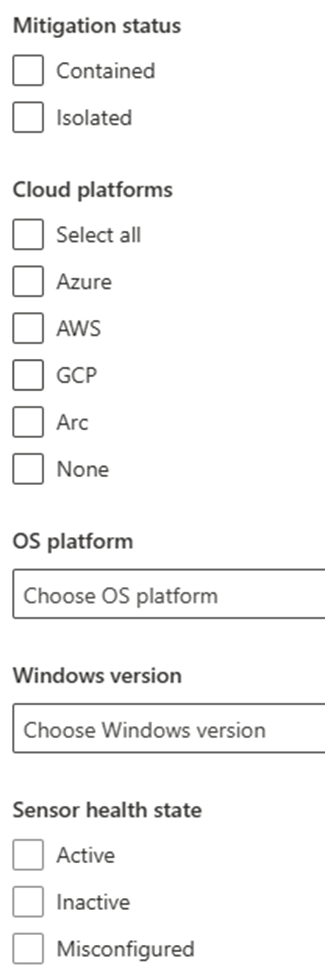
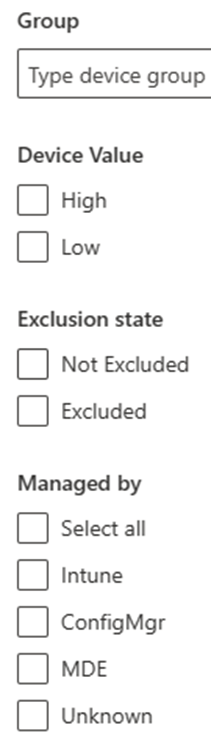
MTO device filer view

#####Step 11

Advanced hunting.

Advanced hunting queries can be executed against ‘Contoso.com’ and ‘Fabrikam.com’

#Some sample KQL queries

## All mitre attack alerts

AlertInfo // Define timerange | where Timestamp > ago(30d) | where AttackTechniques != “” | mvexpand todynamic(AttackTechniques) | summarize count() by tostring(AttackTechniques) // Define graphic | render piechart

## Device Scans

DeviceEvents

| where ActionType == “AntivirusScanCompleted”

| summarize arg_max(Timestamp, *) by DeviceId

| extend ScanType = tostring(parse_json(AdditionalFields).ScanTypeIndex),

    DaysAgo = datetime_diff(‘day’, now(), Timestamp)

| project DeviceName, ActionType, ScanType, DaysAgo

// Filter only devices that have not performed a antivirus scan in the last day

| where DaysAgo > 0

| sort by DaysAgo

#####Summary

#Some of the positive features are:

– Simplified threat hunting with multi-tenancy support.

– Centralized view of all device inventory across all tenants and within each tenant.

– Instant insights and ability to filter views according to needs.

The most amazing feature for me is the ability to run KQL queries across all tenants. I ran some KQL queries across 8 tenants with thousands of devices and the results took between 1 – 5 seconds.

#One of the negative features is:

– The service does not provide a cross-tenant reporting functionality.

#### Reference for KQL queries.

https://github.com/Bert-JanP/Hunting-Queries-Detection-Rules/blob/main/MITRE%20ATT%26CK/Mapping.md