
Series: Part 1 introduced AI agent runtime protection in Microsoft Defender for Endpoint. Part 2 covered the lab build and validation. Part 3 found the agents running on your endpoints. Part 4 closes a gap the first three exposed: controlling where Claude can connect.
Microsoft’s AI agent runtime protection supports around ten local agents. Defender discovers more than fifty. And none of that decides which remote MCP servers an agent is allowed to reach. This post closes that gap for Claude, with a control most organisations already own - and because the control works at network level rather than inside the agent, the same technique applies to any agent a developer installs.
Every remote MCP server an agent uses is an outbound connection from a developer laptop to a service nobody reviewed. Part 3 query 7 lists them. A Defender for Endpoint custom URL/domain indicator, enforced by network protection, blocks that connection at network level. It does not care which process is asking - Claude here, GitHub Copilot in a later part. A custom detection rule, running every hour, then raises the alert you want and can respond automatically.
At a glance
| What it does | What it does not do |
|---|---|
| Blocks any process, including any AI agent, from reaching an unsanctioned remote MCP server | Inspect prompts or stop prompt injection - that remains runtime protection’s job |
| Records the block on the device, in advanced hunting and in the incident queue | Control local (stdio) MCP servers, which make no network connection |
| Raises a meaningful alert every hour, with automated response actions, through a custom detection rule | Separate an MCP server from another service on the same domain - it blocks at domain level |
What I learned the hard way
- Test in Edge and you prove nothing. Edge enforced the indicator hours before network protection did. Every agent kept connecting until the device restarted.
- Use the bare domain. For HTTPS from anything other than Edge, network protection only sees the domain. A URL with a scheme or path matches in Edge and never for an agent.
- The agent will not tell the user. Claude reported a TLS handshake error and blamed the URL, a proxy or a firewall.
- The indicator’s alert follows its own rules. It ignored the severity and category I set - which is why the detection rule matters.
The control depends only on stable, generally available Defender for Endpoint features: indicators, network protection and the DeviceEvents table. The moving parts are delivery timing, alert behaviour, and the AgentsInfo and exposure graph schemas, which differ from their published documentation and change during preview. The detection logic in this post avoids those tables for that reason.
1. Prerequisites
Two settings decide whether this works at all. Microsoft Edge enforces indicators through SmartScreen, but every other process - including every AI agent - relies on network protection. If network protection is off or in audit mode, your indicator will block the browser and nothing else.
Set network protection to block mode. I used the Defender Antivirus policy in Intune; on the device, EnableNetworkProtection should return 1:
Get-MpPreference | Select-Object EnableNetworkProtection
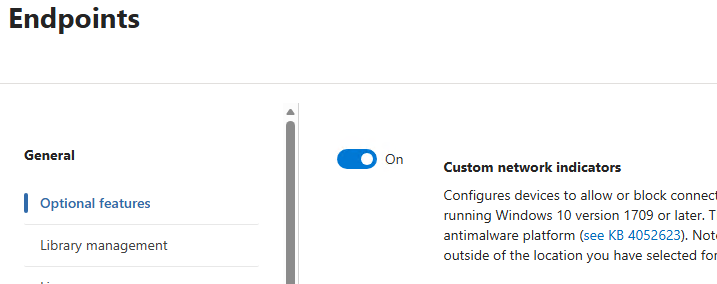
Then turn on custom network indicators under Settings > Endpoints > General > Optional features. Without it, indicators save but network protection never enforces them.
2. The test: an agent with a remote MCP server
I used Claude Code because it was already in the lab, but the agent is incidental - the indicator does not care which process makes the connection. For the MCP server I chose Context7, a public documentation server on its own dedicated domain, so blocking it breaks nothing else.
claude mcp add --transport http --scope user context7 https://mcp.context7.com/mcp
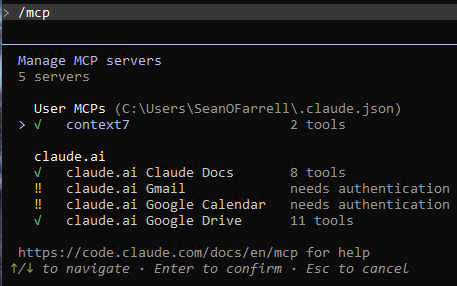
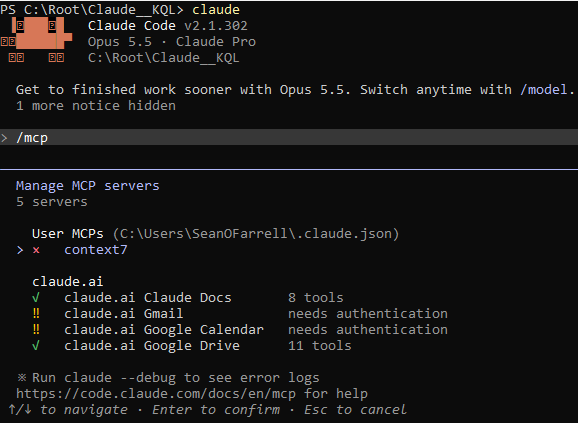
Inside Claude Code, /mcp confirms the server is connected. Both of its tools are marked open-world: they reach outside the machine, which is exactly the traffic an indicator can act on.
Before blocking anything, confirm the endpoint is reachable from a non-browser process. A JSON reply - even an error - means the connection got through.
Invoke-WebRequest https://mcp.context7.com/mcp -UseBasicParsing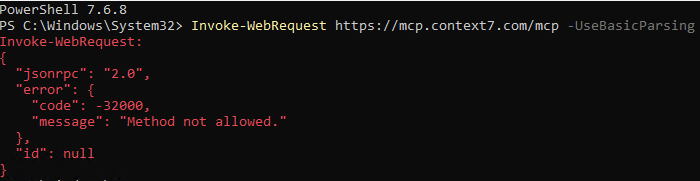
Keep this test to hand. Once the indicator is in place (section 3), the loop below repeats it every 10 minutes and stops the moment the connection is blocked - a server reply of any kind, even an error, counts as not blocked yet. It also reports how long the block took to arrive.
$start = Get-Date
do {
    try {
        Invoke-WebRequest https://mcp.context7.com/mcp -UseBasicParsing -ErrorAction Stop | Out-Null
        Write-Host "$(Get-Date -Format HH:mm) - reached server, not blocked yet"
        $blocked = $false
    }
    catch {
        if ($_.Exception.Response) {
            Write-Host "$(Get-Date -Format HH:mm) - server replied ($($_.Exception.Response.StatusCode)), not blocked yet"
            $blocked = $false
        }
        else {
            Write-Host "$(Get-Date -Format HH:mm) - BLOCKED: $($_.Exception.Message)" -ForegroundColor Green
            $blocked = $true
        }
    }
    if (-not $blocked) { Start-Sleep -Seconds 600 }
} until ($blocked)
Write-Host "Time to block: $([math]::Round(((Get-Date) - $start).TotalMinutes)) minutes"
Do not expect it to be quick. Microsoft documents up to 48 hours for a new URL or domain indicator to reach a device, with most taking effect in under two. In my lab, Edge enforced the indicator within about four hours, but network protection did not block PowerShell or Claude until I restarted the device, roughly twelve hours after creating it. Section 4 covers why. Leave the window open, and keep the device awake so the loop is not interrupted.
3. Creating the custom indicator
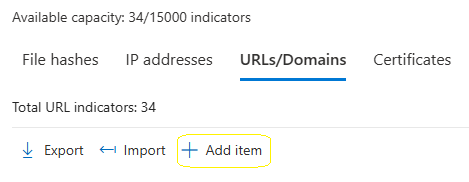
Go to Settings > Endpoints > Rules > Indicators, open the URLs/Domains tab and select Add item.
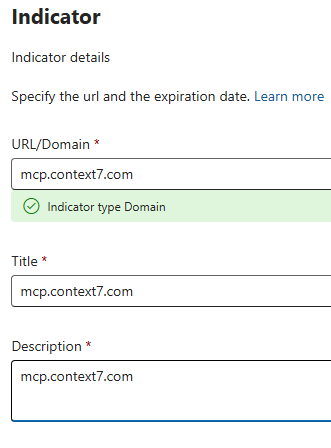
Indicator
Enter the bare domain: mcp.context7.com. For HTTPS from anything other than Edge, network protection only sees the domain name in the TLS handshake - never the scheme or the path. Enter a full URL and it will match in Edge and silently fail for every agent. The portal confirms the type as Domain, which is what you want to see.
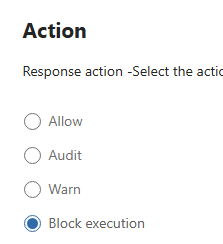
Action: the possible controls
This page is where the indicator becomes a control.
| Action | What it does |
|---|---|
| Allow | Never block the domain, overriding other policies. This is how you sanction an MCP server. |
| Audit | Allow the connection and record it. The right starting point in production. |
| Warn | Show a warning the user can bypass. Designed for browsers; for agents with no browser interface, Block is the predictable choice. |
| Block execution | Stop the connection. Used in this test. |
Alert details and scope
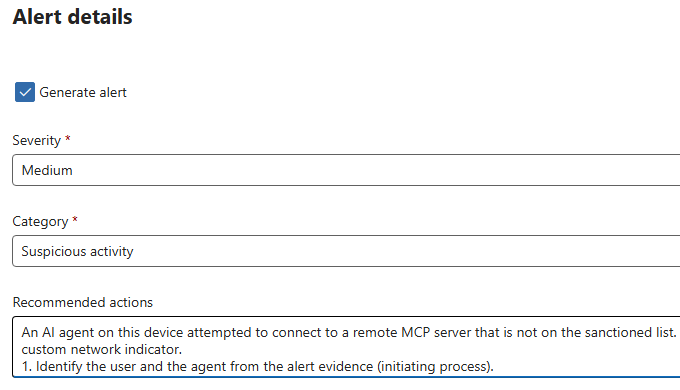
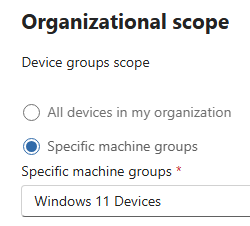
Tick Generate alert so the SOC sees the block, and scope the indicator to a device group - start with the group built from the Part 3 discovery queries. Section 6 shows what Defender actually did with these alert settings.
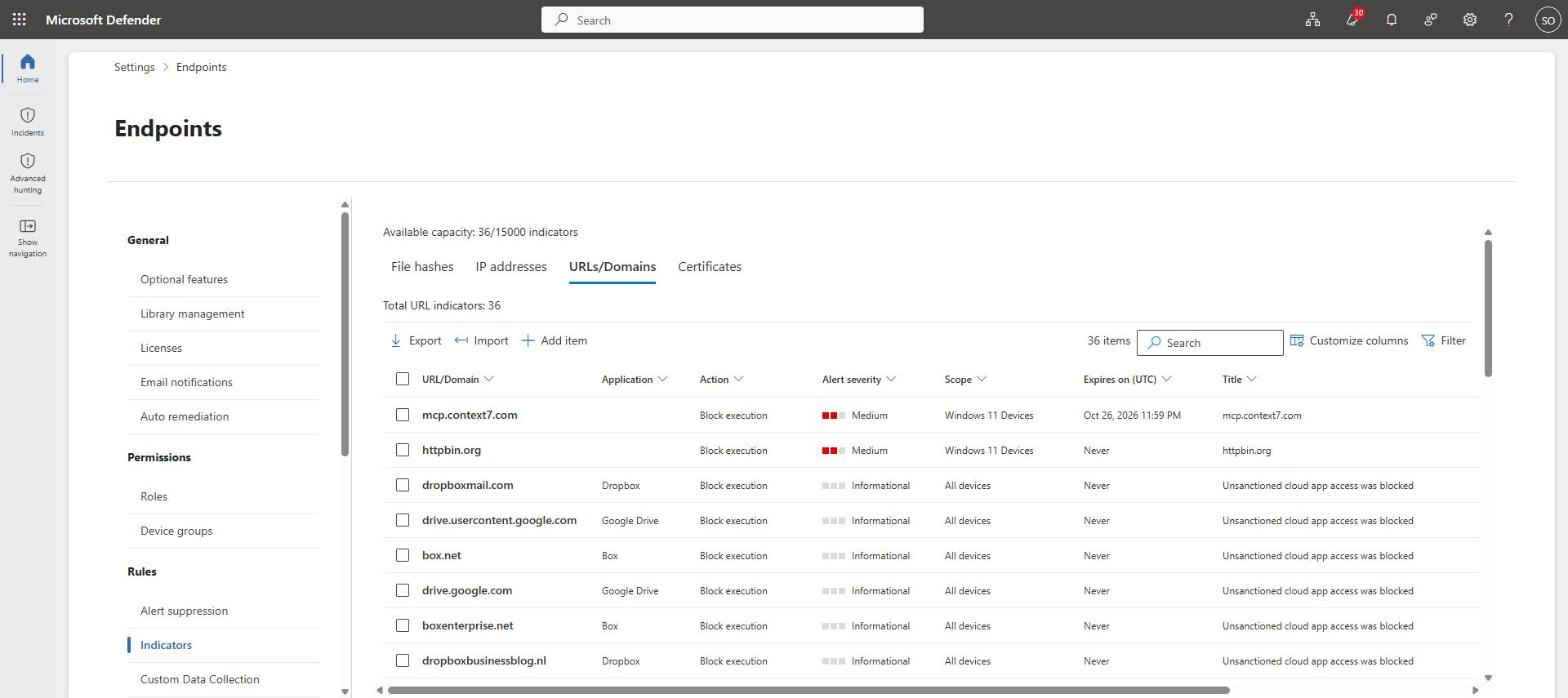
Save, and the indicator appears in the list with its action, severity and scope.
4. Proving the block - and the trap
This is the section I would have wanted before starting. A few hours after creating the indicator, I browsed to the domain in Edge and got the “blocked by your organization” page. Advanced hunting agreed: a SmartScreen warning with Experience CustomBlockList.
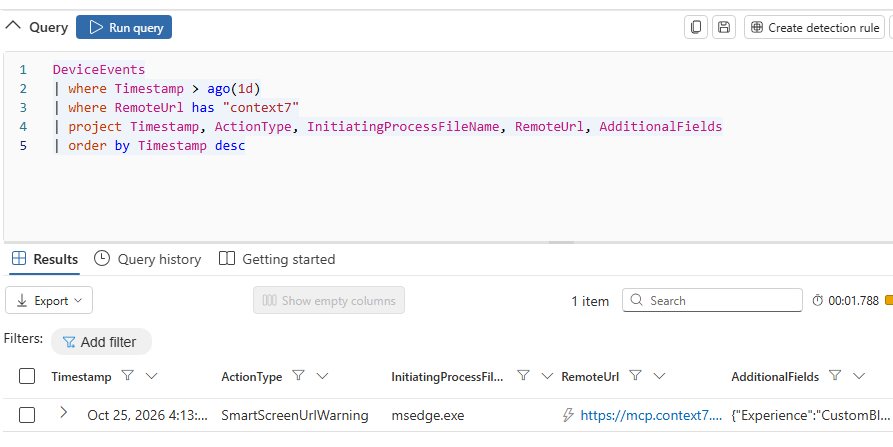
It looked finished. It was not. At the same moment, PowerShell, curl and Chrome on the same device were still reaching the server. Edge checks indicators against the cloud on every visit; network protection works from a list downloaded to the device, and that list had not picked up the new indicator. Seven hours later it still had not.
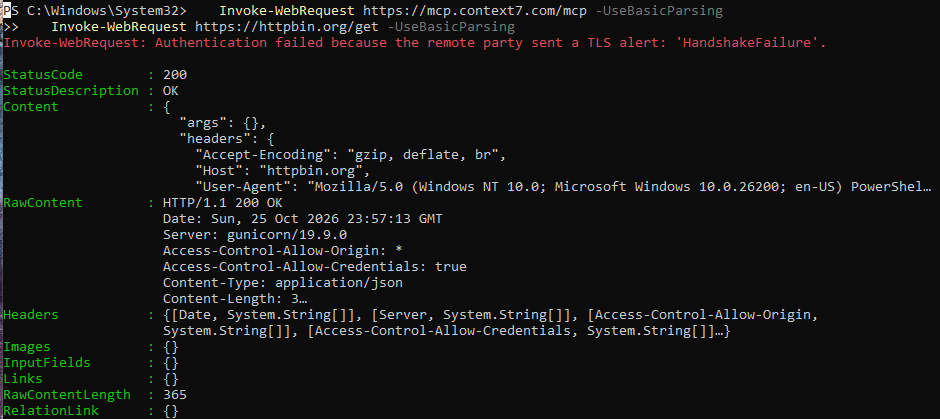
A restart fixed it. Straight after, PowerShell failed with a TLS handshake error - which is what a network protection block looks like - while httpbin.org, a control indicator added minutes earlier, was still reachable.
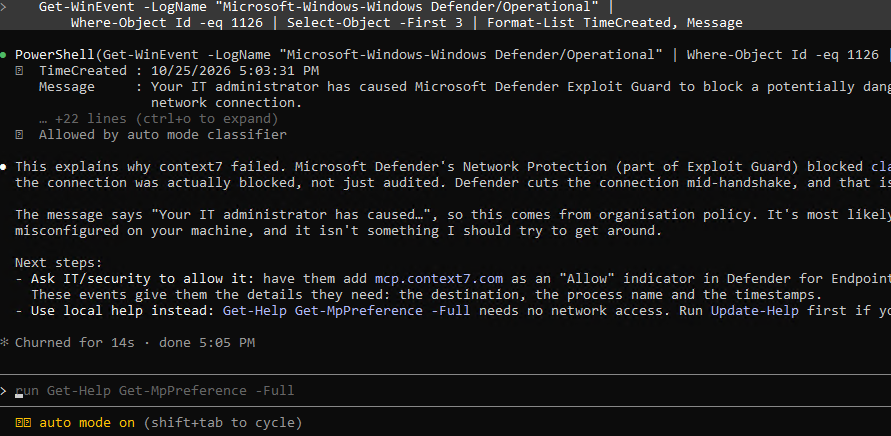
The device event log confirms it was Defender and not a coincidence. Event 1126 is a network protection block, and it names the process and the destination.
Get-WinEvent -LogName "Microsoft-Windows-Windows Defender/Operational" |
    Where-Object Id -eq 1126 | Select-Object -First 3 | Format-List TimeCreated, Message
The lesson: if an indicator works in Edge and not for an agent, restart the device before you start troubleshooting. And never use a browser to prove an indicator protects anything else.
5. Blocking the agent
With the block active, I started a fresh Claude Code session. The MCP server now shows as failed.
Asking Claude to use the tool produced the most telling screenshot of the test. Claude reported a TLS handshake error and suggested a wrong URL, a proxy or a TLS-inspecting firewall. Nothing told the user the connection had been blocked by policy. A developer would reasonably spend time fixing their MCP configuration, or raise a ticket about a broken tool. Brief your service desk on what this error means before you deploy.
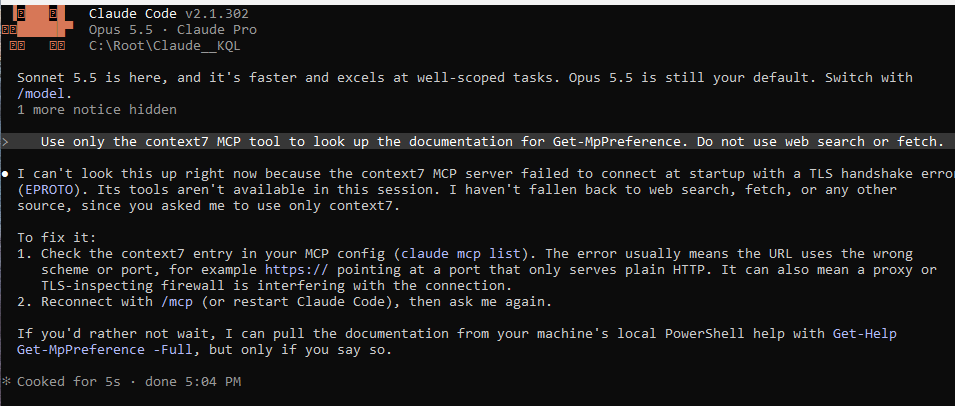
It also respected the instruction not to fall back to web search, so it did not simply route around the block. When I asked it to check the Defender event log, Claude identified the block itself, declined to work around it, and told the user exactly where in the portal to request an Allow indicator. Helpful - and a preview of the precise, well-informed unblock requests your team will start receiving.
Advanced hunting shows the agent and PowerShell side by side, with ResponseCategory set to CustomBlockList - proof the block came from the indicator rather than web content filtering or Defender for Cloud Apps.
DeviceEvents
| where Timestamp > ago(1d)
| where RemoteUrl has "context7"
| project Timestamp, ActionType, InitiatingProcessFileName, RemoteUrl, AdditionalFields
| order by Timestamp desc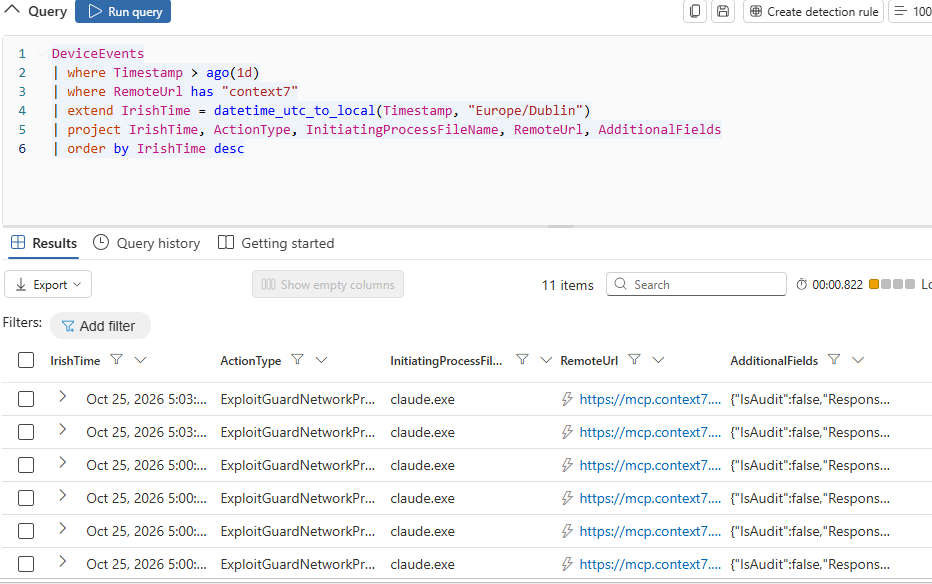
6. The indicator’s own alert
The block raised an alert, correlated into an incident, with the device, the user and the blocking process as evidence. The alert story shows the detail an analyst needs.
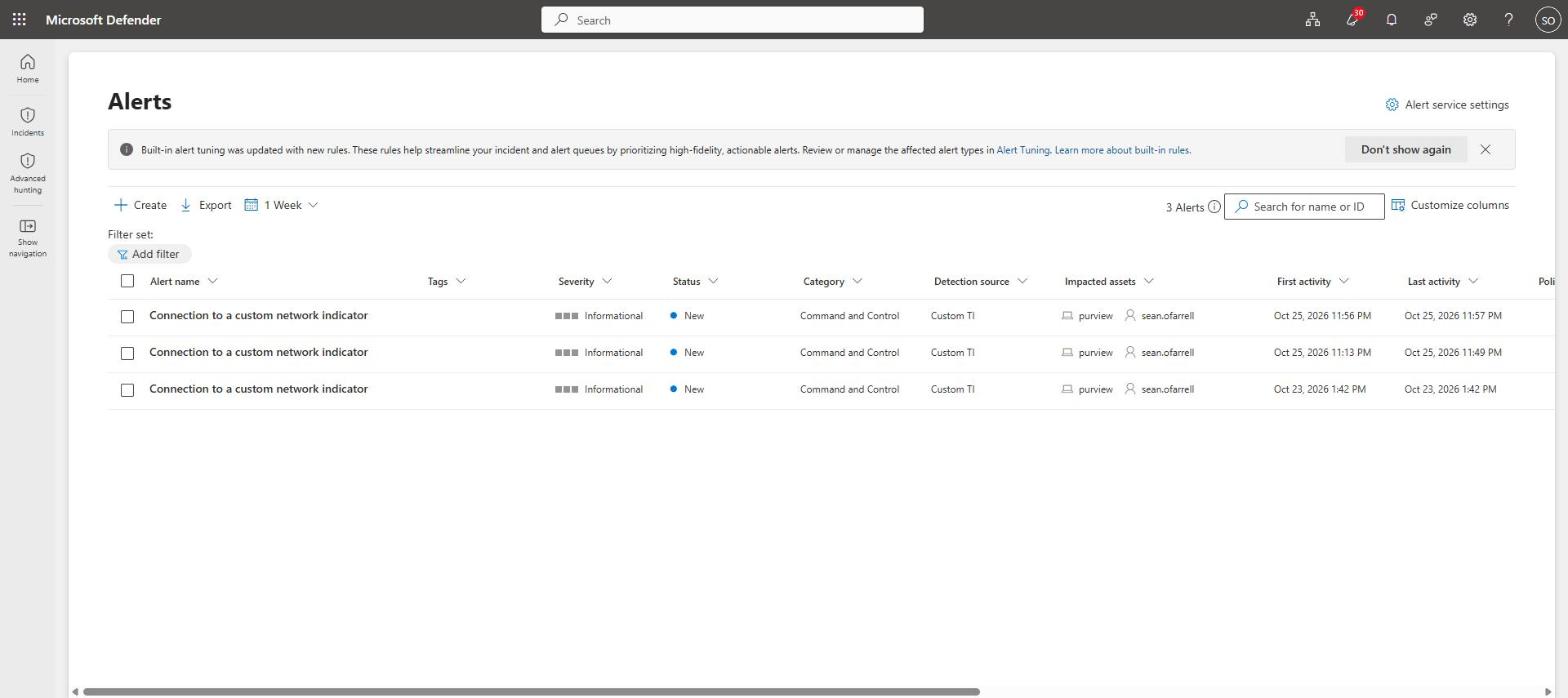
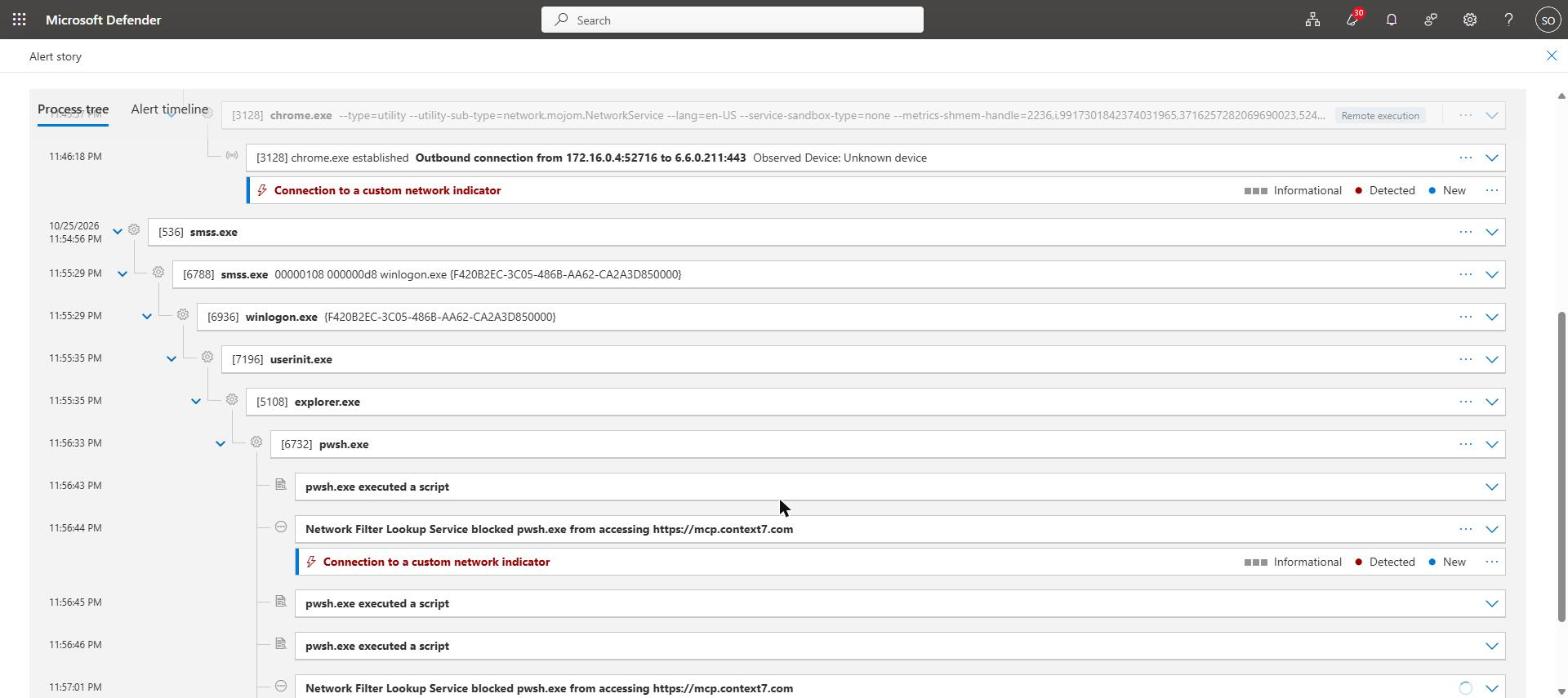
What it did not do was honour the indicator’s alert settings. It arrived as “Connection to a custom network indicator”, severity Informational, category Command and Control, with Microsoft’s generic recommended actions. Neither the Medium severity, the Suspicious activity category nor my recommended actions appeared. If your SOC triages by severity, these alerts will sit at the bottom of the queue. That is the job of the next section.
7. Running it every hour: the custom detection rule
The indicator blocks; the detection rule decides what happens next. A custom detection rule runs an advanced hunting query on a schedule, raises an alert with the title and severity you choose, and can take automated response actions. It also catches blocks from any source - your indicators, Defender for Cloud Apps or web content filtering - as long as the blocked process is an agent.
The query
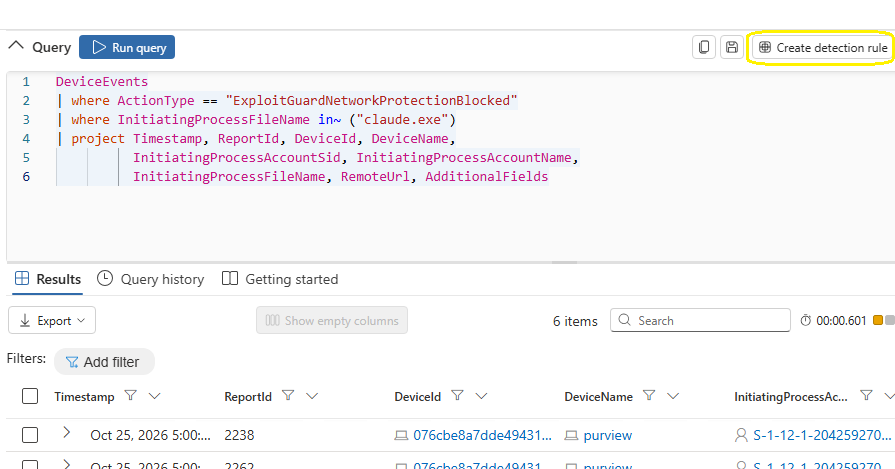
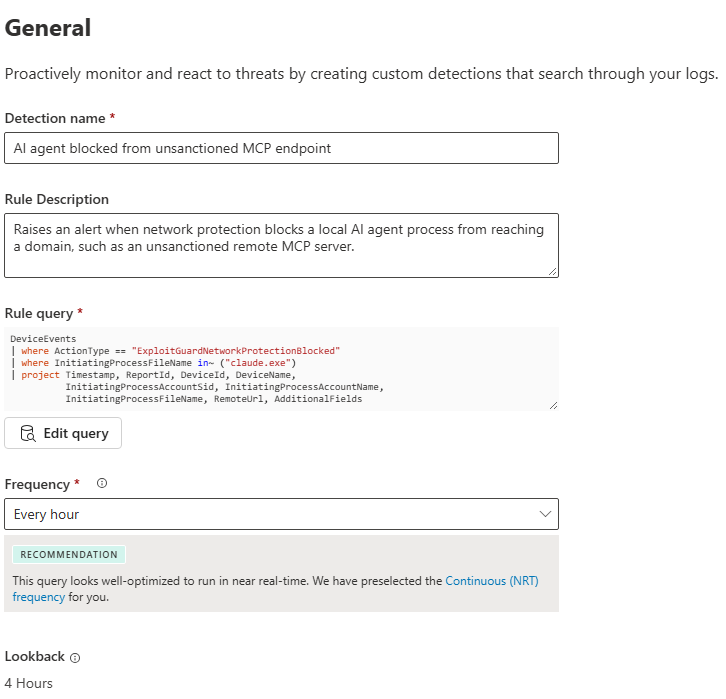
A detection rule needs Timestamp, ReportId and an impacted asset such as DeviceId in its results. This query returns all three from a single, generally available table. Add the process names of the agents in your estate to the list.
DeviceEvents
| where ActionType == "ExploitGuardNetworkProtectionBlocked"
| where InitiatingProcessFileName in~ ("claude.exe")
| project Timestamp, ReportId, DeviceId, DeviceName,
          InitiatingProcessAccountSid, InitiatingProcessAccountName,
          InitiatingProcessFileName, RemoteUrl, AdditionalFields
Run it in Hunting > Advanced hunting and confirm it returns rows before you build anything on it. Then select Create detection rule.
General: name and frequency
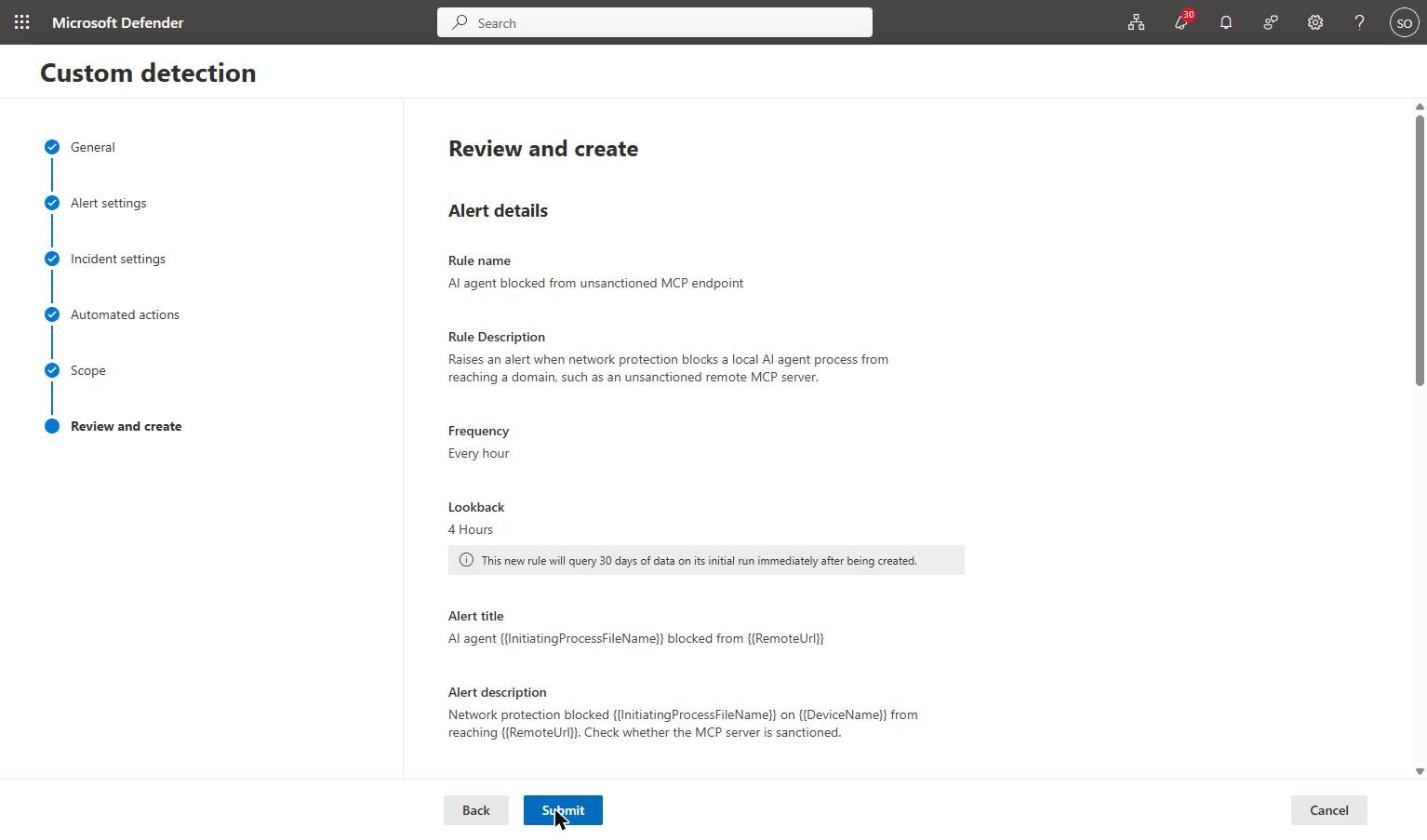
Give the rule a name your analysts will recognise, then choose the frequency. The options are Continuous (NRT), every hour, every 3, 12 or 24 hours, or a custom interval. Defender recommends NRT for this query because it reads a single table with no joins.
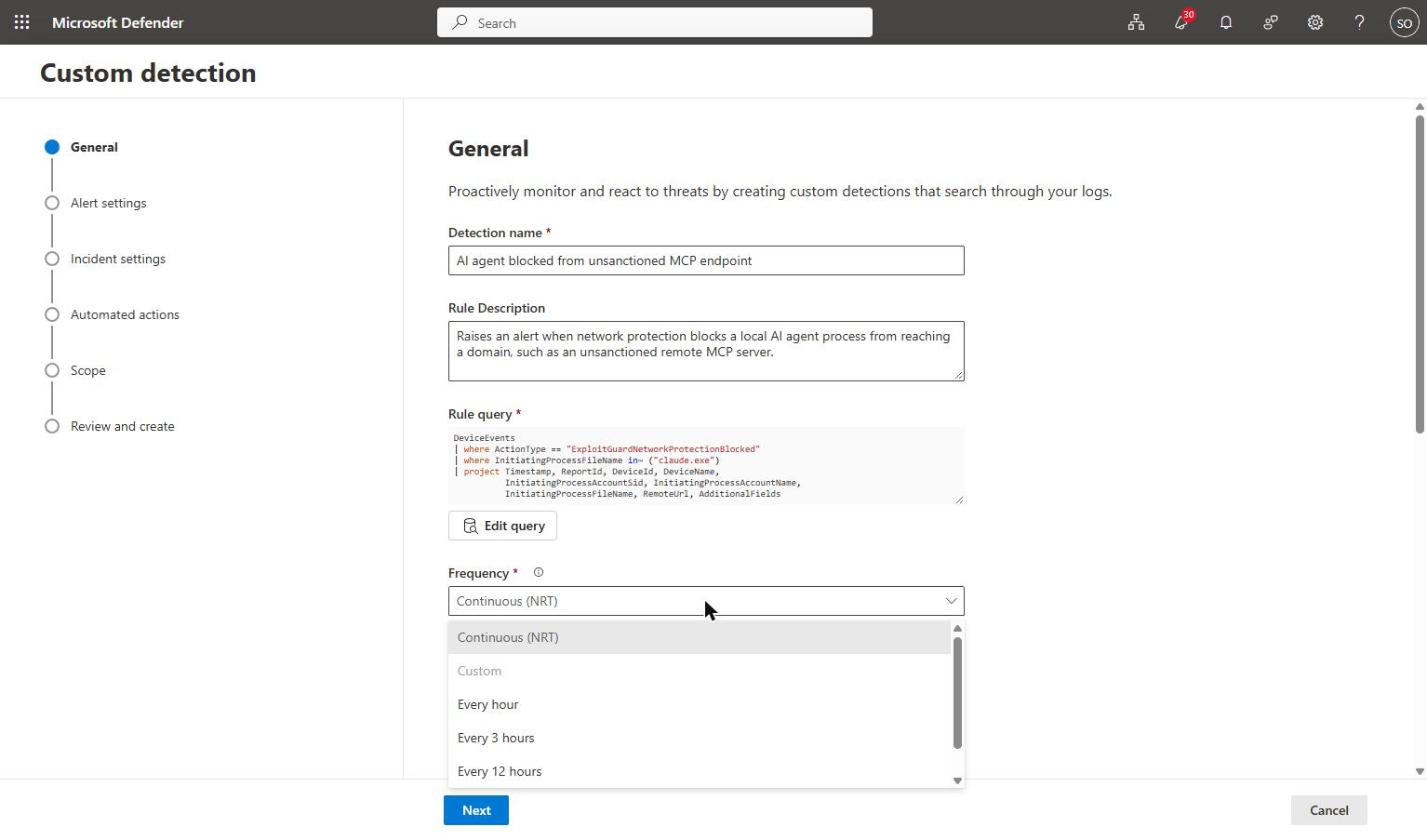
I chose every hour. It gives a predictable cadence for a policy-violation alert, and the 4-hour lookback means a missed run does not lose events. Use NRT if you intend to attach a disruptive action and want it to fire within minutes.
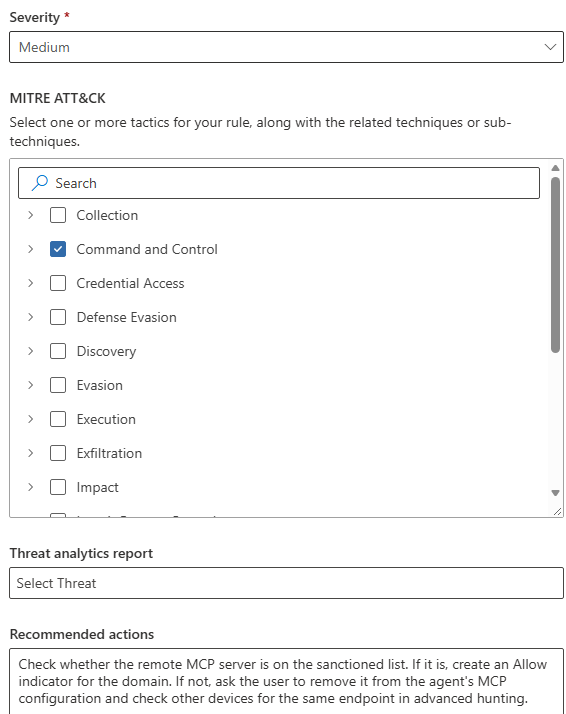
Further down the same page, set the severity - Medium for a policy block - tick the Command and Control tactic, and add recommended actions for the analyst. Unlike the indicator, the rule honours all three.
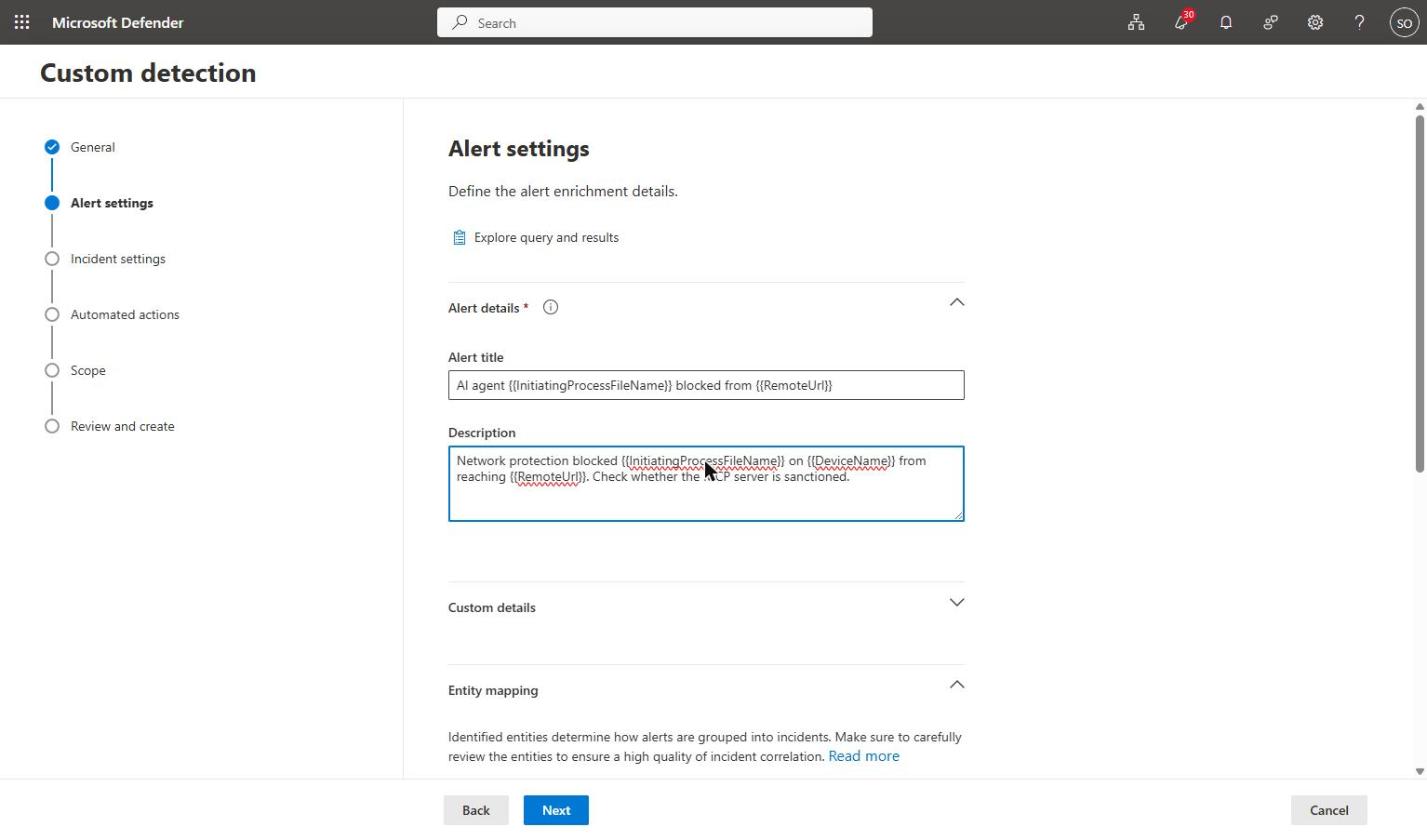
Alert settings
This is where the rule beats the indicator’s alert. The title and description accept column values in double braces, so every alert names the agent, the device and the endpoint: AI agent {{InitiatingProcessFileName}} blocked from {{RemoteUrl}}.
Entity mapping was filled in automatically from the query: the device from DeviceId, the user from the account SID, and the URL as related evidence. These decide how alerts correlate into incidents.
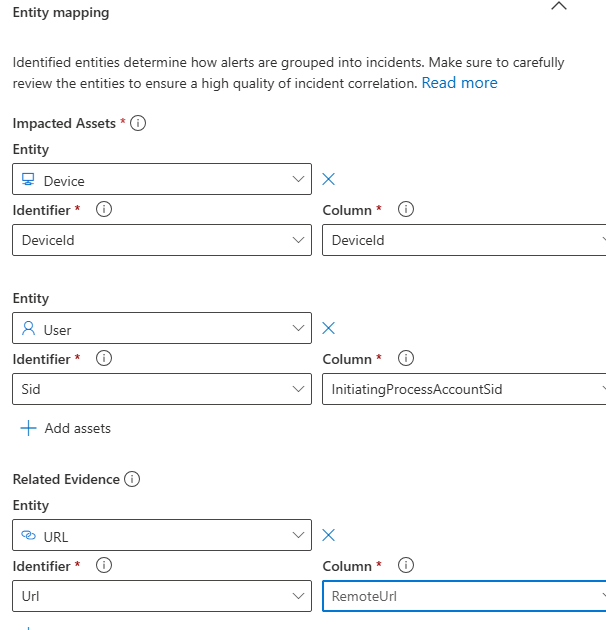
Check the mapping before moving on. If the Device entity points at the wrong column, the alert has no impacted device - and any automated action has nothing to run against.
Incident settings
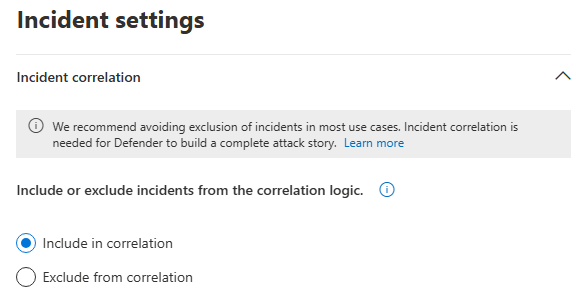
Leave Include in correlation selected. The rule’s alerts then join the same incident as the indicator’s alert for that device and user, so analysts see the whole story in one place.
Automated actions: the available controls
These run automatically on the entities in each alert. What is available depends on the columns your query returns.
| Action | What it does |
|---|---|
| Isolate device | Cuts the device off the network except for Defender. The strongest containment, and the most disruptive. |
| Collect investigation package | Gathers forensic data from the device without interrupting the user. A sensible default for this rule. |
| Run antivirus scan | Starts a scan on the device. |
| Restrict app execution | Allows only Microsoft-signed software to run. That stops a third-party agent completely - and almost everything else the developer uses. |
| Files: Allow/Block, Quarantine | Unavailable here, because the query returns no file hash. |
| Users: Mark user as compromised | Unavailable with the SID mapping used here. |
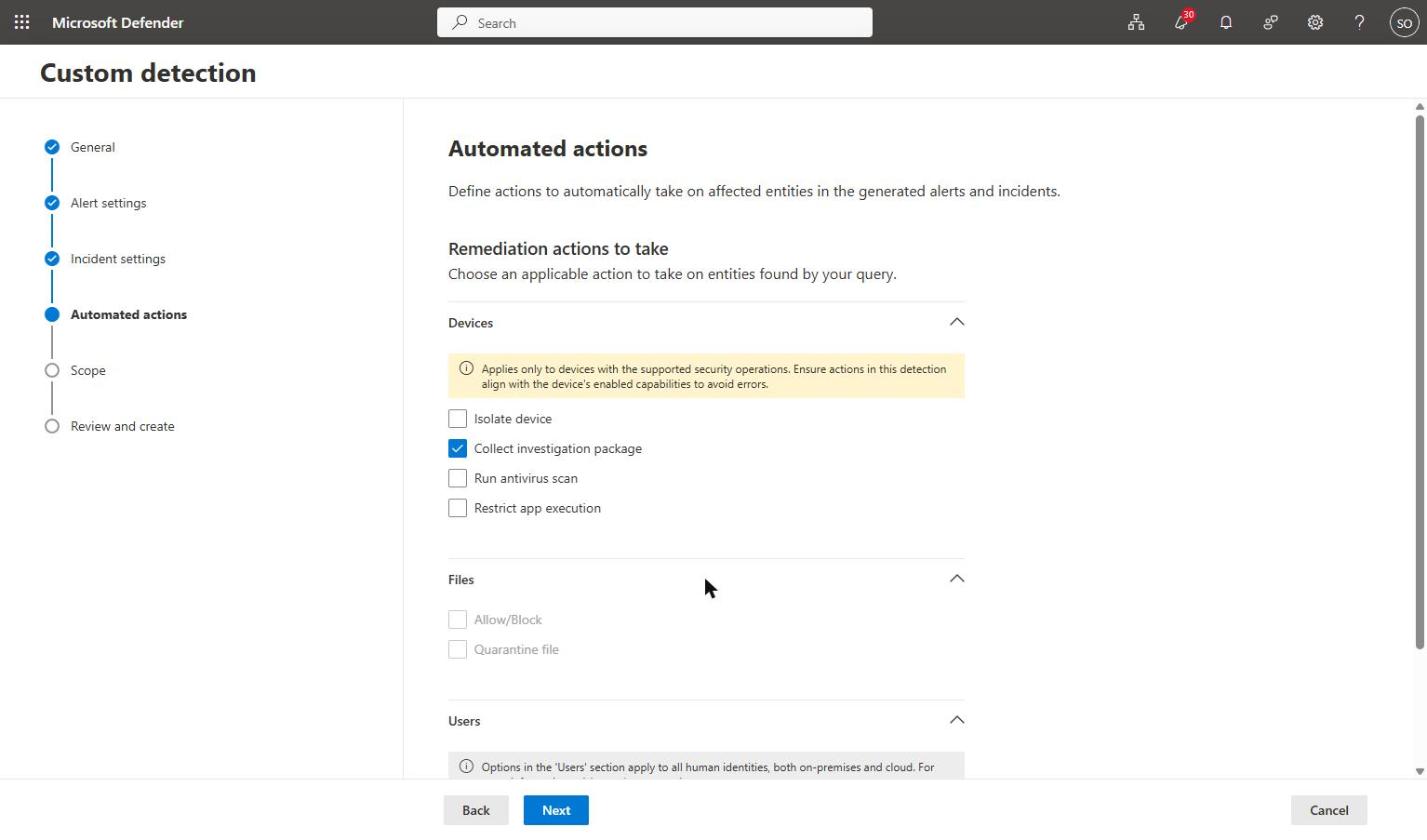
There is no action to block a URL. That is why the indicator does the blocking and the rule handles the response. Start with Collect investigation package, and keep isolation or app restriction for rules you trust completely.
Scope, review and create
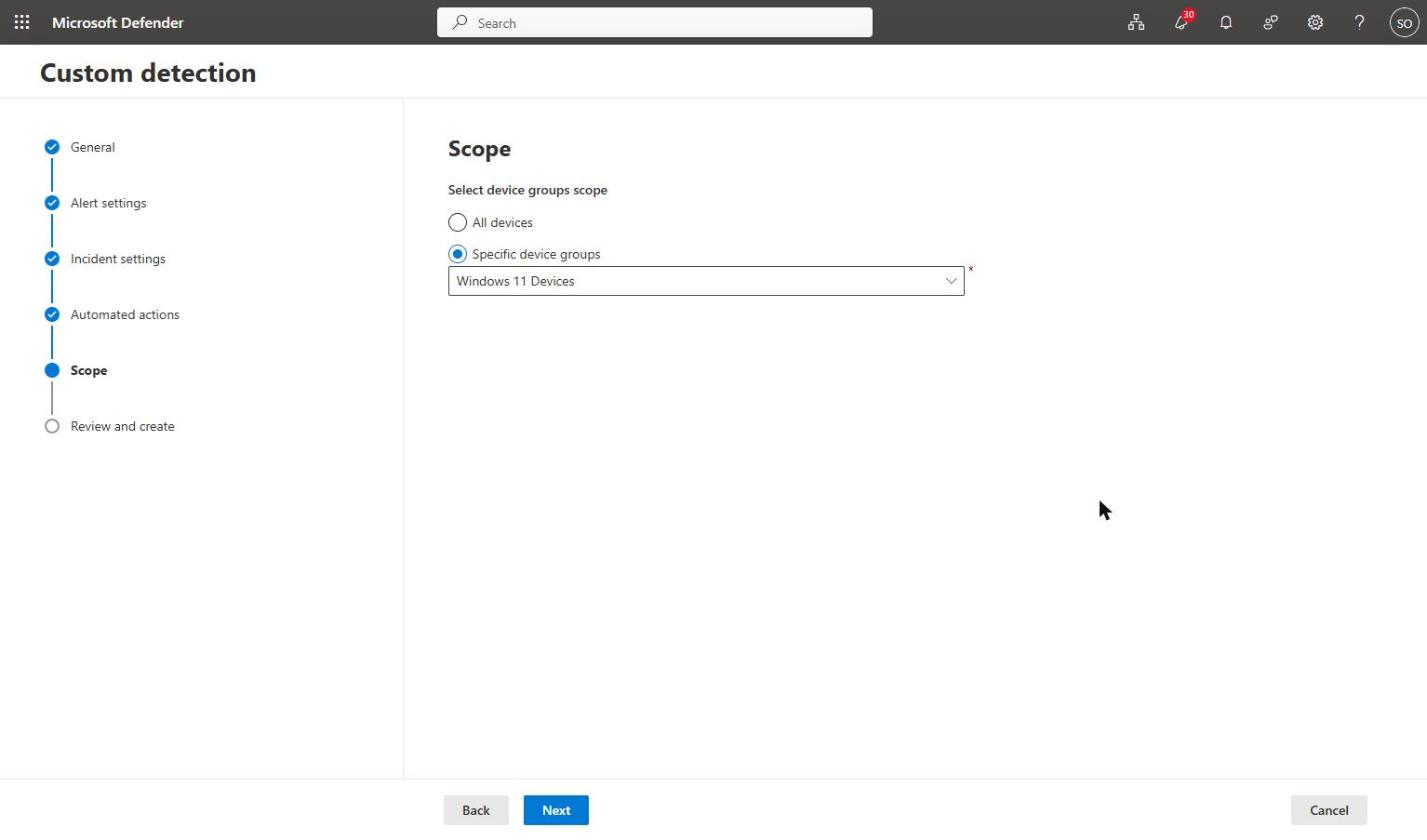
Scope the rule to the same device group as the indicator, then review. On creation the rule queries the last 30 days once, so expect alerts for historic blocks straight away.
8. Taking this to production
- Build the list first. Run Part 3 query 7 to find the remote MCP servers already in use, and decide which are sanctioned.
- Allow before you block. Create Allow indicators for sanctioned servers, then Audit for the rest, then Block once you trust what Audit tells you.
- Deploy the detection rule alongside. Alert-only to begin with; add automated actions once the alerts are clean.
- Brief the service desk. A blocked agent reports a TLS or connection error, not a policy block. Give them the error and the event ID.
- Expect unblock requests. Agents will tell users how to ask for an Allow indicator. Have an approval route ready.
- Allow for delay. Changes to indicators can take hours to reach network protection, in both directions. An agent can stay blocked after you approve it.
Closing
Runtime protection inspects what an agent reads, for the agents Microsoft supports. Discovery tells you which agents exist. Neither decides where an agent is allowed to connect. A custom indicator does - for Claude in this test, and for any agent that connects over the network - and an hourly detection rule turns each block into an alert with a response attached.
Part 4 is manual by design: someone has to spot a new MCP server and create the indicator. In the next part, an Azure Automation runbook finds new MCP endpoints every hour and creates the indicators for you - with no Sentinel dependency. After that, I run the same control against GitHub Copilot.
The rest of the series
- Part 1: Microsoft Defender AI agent runtime protection - the control for agents already on your endpoints
- Part 2: Microsoft Defender AI agent runtime protection - building it, proving it, and where the documentation is wrong
- Part 3: Microsoft Defender AI agent runtime protection - finding the agents you did not know you had
References
- Create indicators for IPs and URLs/domains
- Protect your network with network protection
- Create custom detection rules
- AI agent runtime protection with Microsoft Defender for Endpoint (Preview)
Seán O’Farrell | cloud-secure.ai

