When configuring Intune \ ASR (Attack Surface Reduction) policies for Windows Servers.
Why will the ASR policies not apply??
There is one setting in Intune\ Endpoint Security that is not compatible with ASR policies assigned to Windows severs, which is applicable to both Defender for Endpoint for servers plan 1or 2.
Within the ASR policy the following policy needs to remain – ‘Not Configured’
Once this policy remains ‘Not Configured’ , ASR rules can successfully apply to servers that are protected with Microsoft Defender for Server plan 1 & 2
Microsoft do not update security baselines that are available in the Microsoft Intune portal very often. The Security Compliance Toolkit and Baselines HERE , which has been updated as recently as 11th of October 2023, provides the following baselines.
Windows 10 version 22H2 Security Baseline
Windows 11 version 22H2 Security Baseline
Microsoft 365 Apps for Enterprise 2306
Microsoft Edge v117 Security Baseline
Windows Server 2022 Security Baseline
Windows Server 2022 Baseline
Dean Ellerby, has an excellent post on how to enrol Windows Servers for MDE protection and management: HERE
1. Download latest Security Compliance Toolkit and Baselines: HERE 2. Browse to Intune \ Devices \ Group Policy analytics
3. Click on : Import Group Policy Object Files
The extracted files will look like below, browse to ‘GP Reports’ and then select each ‘gpreport.xml’
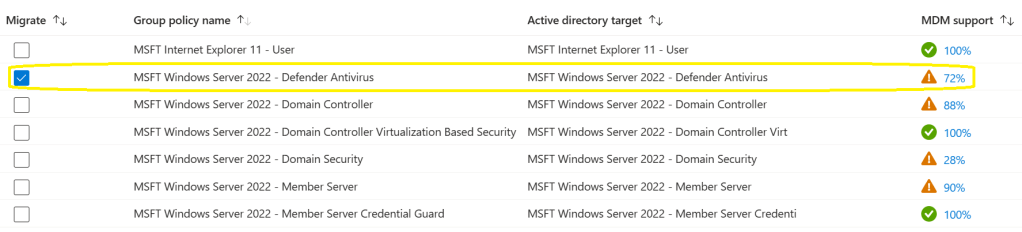
4. We then select the MSFT Windows Server 2022 – Defender Antivirus policy
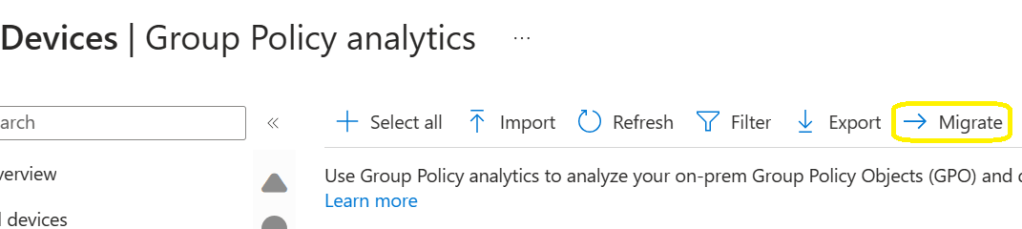
5. We then select : Migrate
6. Select all settings on this page and next
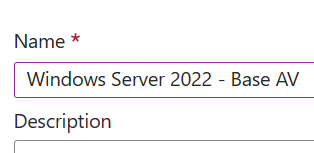
7. Give the policy a name
8. Assign the policy to a Microsoft Entra ID dynamic device group containing Microsoft Windows servers or a manually configured security group.
MSFT Windows Server 2022 – Member Server Base Line
These settings cannot be managed by Microsoft Intune, however the settings can be exported to a csv and then use a tool like Azure Logic Apps or Azure Automation Functions to apply the base line settings.
1. Select MSFT Windows Server 2022 – Member Server
2. The select export
3. The export process will export all of the settings that can be re-used in Azure Automation
Windows 11, Microsoft Edge and Microsoft 365 Apps for Enterprise Baselines
The built in Windows 10 and later, Microsoft Edge compliance policy, have configuration settings that conflict with Microsoft Defender Endpoint configurations, specifically ASR (Attack Surface Reduction) policies, some of these settings cannot be excluded from the default : ‘Windows 10 and later, and Microsoft Edge compliance policies’
Import all of the gpreport.xml files for Windows 11, Microsoft Edge and Microsoft APPs for Enterprise as described in the Windows Server 2022 baseline section. The image below high lights what policies can be exported and then create endpoint security policies or Windows device configuration policies.
Summary
In this blog post , I am mainly focusing on Windows 11 22H2 and the latest build of Windows Server 2022.
Some of the main benefits of using the ‘Microsoft Security Compliance Toolkit and Baselines’
Typically, when devices are onboarded to Microsoft Defender for Endpoint, there can be a lot of notifications in terms of vulnerabilities and recommendations. A lot of these notifications and recommendations can be resolved, when ensuring end user Windows 11 and Windows Server 2022 devices have up to date security baselines
Microsoft provide a delta spreadsheet with all changes when a new ‘Microsoft Security Compliance Toolkit and Baseline’ is released
The new policies for Windows 10 and later, uses , the ‘Settings Catalog’ template in Intune. It is very easy to remove configurations that conflict with ‘Microsoft Endpoint Security Policies’
I love Google Chrome and have used it for years, but my preference is to block Google Chrome on all managed devices and use one browser: Microsoft Edge on all platforms.
Windows Server 2022 Security Baseline policies can be exported and applied via automation in Azure and then updated with the delta information from new releases of ‘Microsoft Security Compliance Toolkit and Baselines’
There have recently been an increased amount of brute force password spray attacks against M365 \ Azure AD tenants.
The obvious protection is to implement (MFA) Multi Factor Authentication as the first line of defence.
A complex 8 character password that is not protected with MFA can be cracked in 24 hours or less.
I recently worked on a project where some M365 user accounts were brute force password sprayed attacked over 20,0000 times in a single month.
A lot of organisations make the mistake of having a ‘Meet the Team’ section on their corporate website, including the senior team member’s email addresses, which is one of the first places a bad actor will target.
Bruce force password spray attacks are not performed by human beings, they are performed by bots, hosted on private cloud networks or some public cloud networks……
A simple solution to protect an organisation against brute force password spray attacks is to enable Microsoft password less, gps authentication and biometric authentication via the Microsoft Authenticator application.
Conditional access policies that allow or block countries are not effective as a bad actor can simply mask their IP and pick any country code IP that they choose.
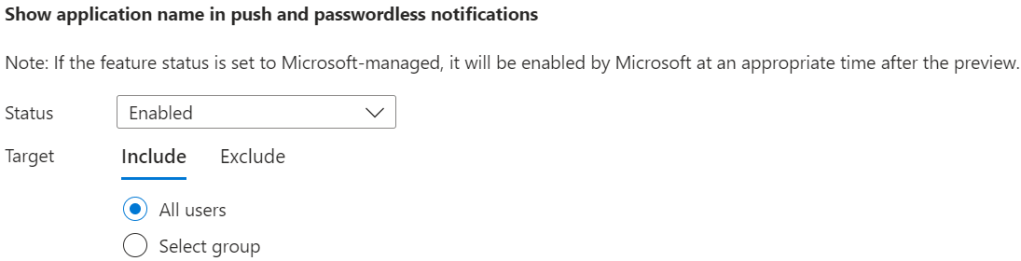
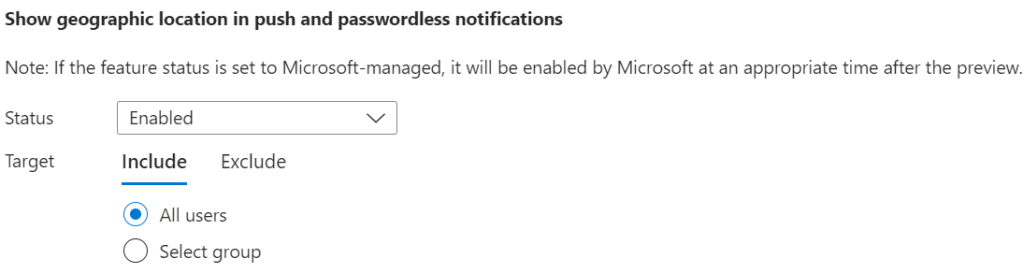
Microsoft Authenticator password less authentication mechanism To enable password less and GPS location authentication , please implement and test the following configuration. 1. Browse to Azure Active Directory\ Security \ Authentication Methods 2. Select Microsoft Authenticator
3. Enable and target a test group before enabling the feature for all users
4. Select the following 3 configurations
Microsoft Authenticator Application Configuration
The end user must enable phone sign in on the Microsoft Authenticator application. Currently, this can only be enabled for one password less account on Android, but multiple accounts on iOS.
End User Experience
No password
Click yes if you are in Dublin, no if the GPS notification is displaying an incorrect location. The GPS location, protection mechanism must be communicated to end users. Do not click yes if the GPS co-ordinates specifies Hong Kong, if you are in Dublin
The final step is to validate via biometric thumbprint on your Android or iOS device.
Summary
Brute force password spray attacks cannot succeed when the following authentication methods are in place.
1: Password less 2: GPS verification 3: Biometrics validation on the Microsoft Authenticator application
The end user experience is much more user friendly, and most importantly a lot more secure.
This blog post will focus on the triggers and actions available in the ‘Microsoft Defender ATP API’ and how Power Automate can, automate tasks using this API.
The number 1, recommendation is to use Microsoft Sentinel. In my view SIEM without SOAR is useless.
When can an organisation be truly ready to enable SOAR automation for Windows 10\11 endpoints?
The Microsoft portal security.microsoft.com/Vulnerability Management/recommendations section provides recommendations on all endpoint vulnerabilities.
How does this section of the Microsoft security portal, provide recommendations on devices that have not been enrolled into Microsoft Defender for Endpoint management? This can be controlled via the Microsoft security portal device discovery configurations.
Typically organisations do not transition, straight away to using (MEM) Microsoft Endpoint Manager to provide software update services.
A remediation task in MEM to update a version of Google Chrome or Notepad ++, can only be actioned if, MEM is controlling software updates and if the latest versions of Google Chrome or Notepad ++ are available in the MEM Microsoft Windows application repository for Windows 10\11 devices.
I recommend that an organisation, responds to all security.microsoft.com/Vulnerability Management/recommendations, via their existing software update service prior to transferring update services to MEM. MEM provides excellent automated software update services to Microsoft software products, but can be quite cumbersome when it comes to updating 3rd party software products, like Google Chrome and Notepad ++
Some organisations, make the mistake, and think that enabling (MDFE) Microsoft Defender for Endpoint – auto remediation, will just work and protects endpoints from all threats.
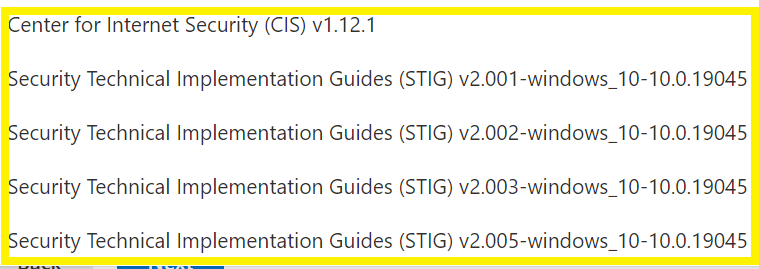
Run these baselines , my preference is the CIS security baseline and improve the security posture of an organisation’s Windows 10\11 devices as much as possible before implementing, Microsoft Defender for Endpoint – Auto Remediation, or Microsoft Defender automation tasks via Power Automate or Microsoft Sentinel.
The Microsoft : security.microsoft.com portal provides a service called ‘Custom detection rules’, however the frequency of ‘custom detection rules’ is ‘every hour’, which is not good enough.
Power Automate – automated protection via the ‘Microsoft Defender ATP API’
Firstly, there are two amazing blog posts that describe the process of using Power Automate on how to auto isolate, Windows 10\11 devices, based on their severity risk level.
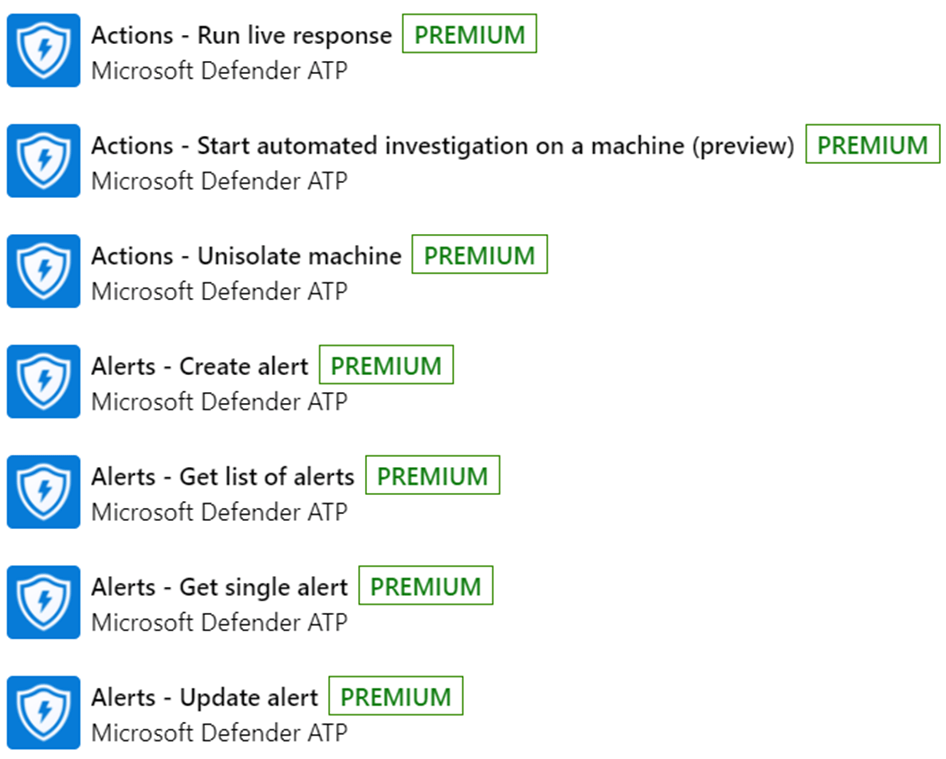
‘Microsoft Defender ATP API’ Actions The following actions, clearly illustrate the power of the ‘Microsoft Defender ATP API’, when an organisation has improved their security posture with Windows 10\11 devices. With some Power Automate or Microsoft Sentinel runbooks, these actions can enable an organisation to protect a bespoke line of business work flow on endpoint devices.
Some organisations may say, ‘Why MDFE, cannot, just provide this protection as standard’, and the simple answer is, every organisation’s line of business applications or workflows are different and require, custom, granular control, that the ‘Microsoft Defender ATP API’ can provide via Power Automate but, most preferably : Microsoft Sentinel.
The following images outline the actions that are possible using the ‘Microsoft Defender ATP API’
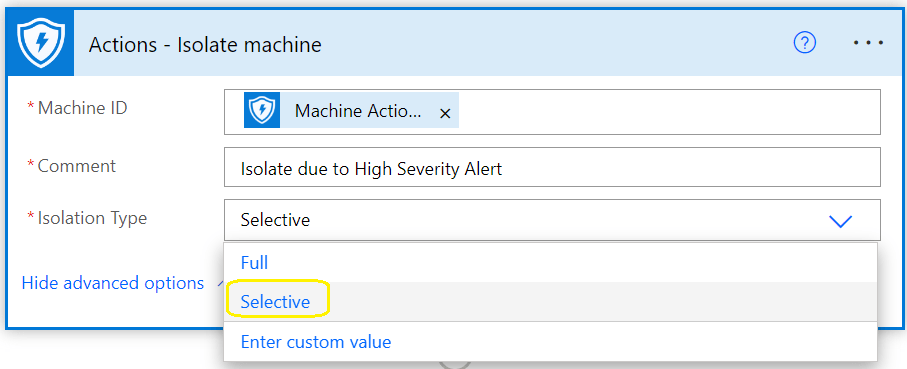
Microsoft Defender Auto Isolation new Feature It is now possible to ‘isolate’ devices but continue to allow end users to use ‘Microsoft Outlook and Teams’
This feature, ensures that end users can continue to remain productive in their daily work routines when using Windows 10\11 devices, yet be isolated from their corporate network, probably the best use case, is to prevent the spread of ransomware or Mimikatz credential theft.
How is this Auto Isolation feature to allow users to continue using ‘Microsoft Outlook and Teams’ controlled in the ‘Microsoft Defender ATP API’
I always find using Microsoft Azure Active Directory dynamic groups much easier to use when assigning policies, for example Defender for Endpoint onboarding policies via Intune.
Microsoft Defender for Endpoint included with M365 licensed user rule syntax