
Entra Internet Access, Defender for Cloud Apps and Purview: where the integrations actually stand
Prepared July 2026, updated 30 August 2026. Reflects product capability as at the date of writing and includes preview features, which are subject to change. Preview features should not be relied upon for compliance commitments.
There is a persistent assumption that Microsoft Entra Internet Access can simply consume the Sanctioned and Unsanctioned application tags maintained in Microsoft Defender for Cloud Apps, and that network-layer data loss prevention through Microsoft Purview is a finished, generally available capability. Neither is quite true today. This post sets out the two claims that matter most for anyone designing shadow IT enforcement on the Microsoft stack, using a worked example for Contoso (contoso.com), and then shows where each control plane sits in a high-level architecture. It also adds a third option that the debate over network DLP tends to obscure: make Edge for Business the only browser on managed Windows 11 devices through Intune, and let the browser enforce Purview policy inline – which is generally available now.
1. Entra Internet Access cannot integrate with Defender for Cloud Apps
There is no native integration between Defender for Cloud Apps application tags and Entra Internet Access. Entra Internet Access policies take web categories, FQDNs and URLs as destinations. They do not accept an app tag or a cloud app object, and Entra Internet Access is not one of the secure web gateways that Defender for Cloud Apps integrates with for automatic blocking.
In practical terms, there is no supported “unsanction it in Defender for Cloud Apps, block it in Entra Internet Access” pipeline today. The Defender for Endpoint path remains the only one-click enforcement route for the Unsanctioned tag: unsanctioned apps sync to Defender for Endpoint custom URL indicators automatically, enforced by Network Protection on the endpoint. That path is device-scoped and endpoint-dependent, and it cannot be scoped to an Entra security group.
Bridging the two is therefore customer-owned glue code: export the domains of unsanctioned apps from Defender for Cloud Apps and create matching FQDN rules in Entra Internet Access. This is automatable through Microsoft Graph, but it has to be re-run as tags and catalogue domains change. The one genuinely shared asset across both paths is the cloud app catalogue itself. Entra Internet Access consumes the same Defender for Cloud Apps catalogue for app identification and risk scoring, so risk scores stay consistent even though the enforcement binding does not exist.
One consequence worth flagging: Entra Internet Access is not a supported Cloud Discovery log source, so its Global Secure Access traffic logs do not populate the Discovered apps page in Defender for Cloud Apps. You get two discovery views – endpoint telemetry in Defender for Cloud Apps, and Application Usage Analytics in the Entra admin centre – and you correlate them yourself.
2. Scan with Purview via Entra Internet Access is still in preview – GA has slipped to September 2026
The Purview integration is real and productised. Entra Internet Access content policies can hand inspected content to Microsoft Purview, which evaluates sensitivity labels, sensitive information types, trainable classifiers and user risk, then returns an allow, audit or block decision that Global Secure Access enforces. Basic content policy is generally available. The Scan with Purview action at the Entra Internet Access (Global Secure Access) network layer, however, is still in public preview, and it is billed pay-as-you-go per request – it is not included in Microsoft 365 E5. This preview status is specific to the network enforcement point: the same Purview inspection delivered through Edge for Business is already generally available (see Process C), so “Scan with Purview is in preview” is only true of the Entra Internet Access integration, not of Purview inline protection in the browser.
The original Message Center notice (MC1181769) set general availability to begin mid-June 2026 and complete by mid-July 2026, following a public preview that ran from mid-November to mid-December 2025. That date did not hold. A 17 July 2026 update moved GA to September 2026, completing by the end of September, and a second notice (MC1419797, Roadmap ID 566528), which extends the same integration to text, prompts and AI interactions, has general availability beginning late September 2026 and completing by late October 2026. As at the end of August 2026 the Microsoft Learn documentation still carries the preview flag on the Scan with Purview action. Until GA lands, treat Scan with Purview at the network layer as a preview capability – pilot it in narrow scopes and audit mode, and do not build compliance commitments on it. What is generally available is the same Purview inspection delivered through Edge for Business, a different enforcement point for the same policy type; Process C below covers it, and it needs neither the Global Secure Access client nor the September 2026 GA date.
For anyone standing this up in preview, the prerequisites on the Global Secure Access side are specific: enable the internet access traffic profile with the correct user assignments, configure TLS inspection and a TLS inspection policy, create a file policy with a rule that specifies the Scan with Purview action, then bind those into a security profile linked to a Conditional Access policy. The global administrator must also activate Purview pay-as-you-go, though no charges apply during public preview. When it ships, the feature surfaces as a new Inline Web Traffic scenario in Purview DLP policy creation, able to detect and protect sensitive files sent to more than 35,000 unmanaged cloud applications, with matches, alerts and incidents managed centrally in Purview and Microsoft Defender.
References: MC1181769 – Microsoft Purview: Integration with Entra GSA Internet Access to enable sensitive file filtering at the network layer (Microsoft 365 Message Center Archive; Roadmap ID 522096). Published 31 October 2025, timeline updated 17 July 2026. MC1419797 – Microsoft Purview | Data Loss Prevention: Extend Purview data security to the network layer via Entra GSA integration (Roadmap ID 566528). Updated 20 July 2026.
The customer requirement
The organisation in this worked example is Contoso (contoso.com). Contoso’s requirement is specific: protect data that has been classified as sensitive, and keep that protection in force when users interact with SaaS applications – including generative AI, cloud storage and content-sharing services reached through a browser. That splits into three enforcement planes that have to work together. The device plane stops sensitive files leaving a managed Contoso endpoint through channels the network never sees. The network plane inspects and controls sensitive content as it is transmitted to SaaS, from any browser, once traffic is routed and inspectable. The browser plane inspects prompts and uploads inside Edge for Business before they leave the device, and becomes the primary control once Intune has made Edge the only browser on the estate. Classification is the common dependency: all three planes act on Purview sensitivity labels, sensitive information types and trainable classifiers, so “what counts as sensitive” is defined once for contoso.com and enforced in all three. The process flows below show each plane end to end.
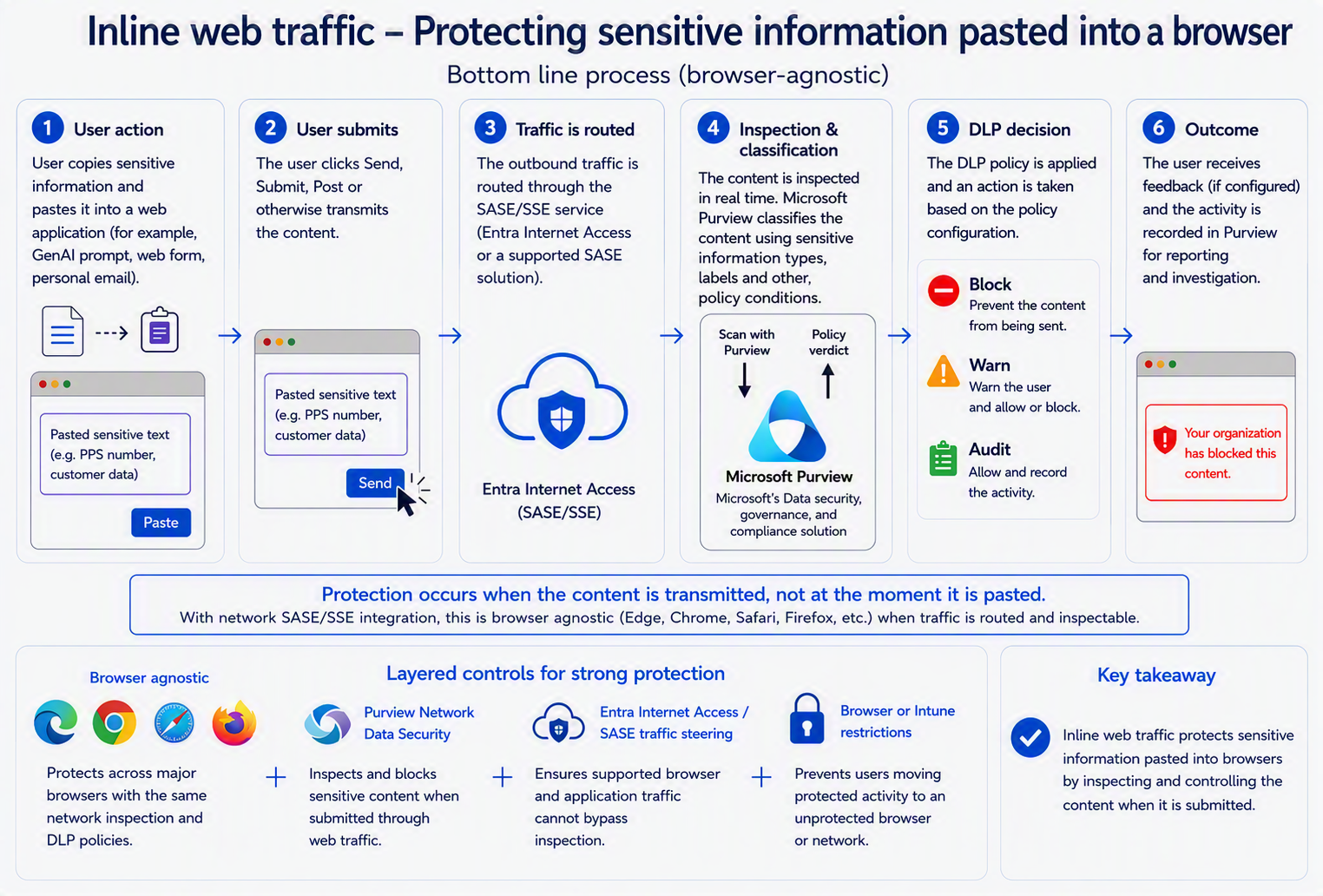
Process A – Inline web traffic (network plane): protecting sensitive content sent to SaaS
This is the path that meets the “protect the data when interacting with SaaS” half of the requirement. Protection occurs when content is transmitted, not at the moment it is pasted, and because enforcement is at the network layer it is browser-agnostic once traffic is routed through Entra Internet Access and inspectable.
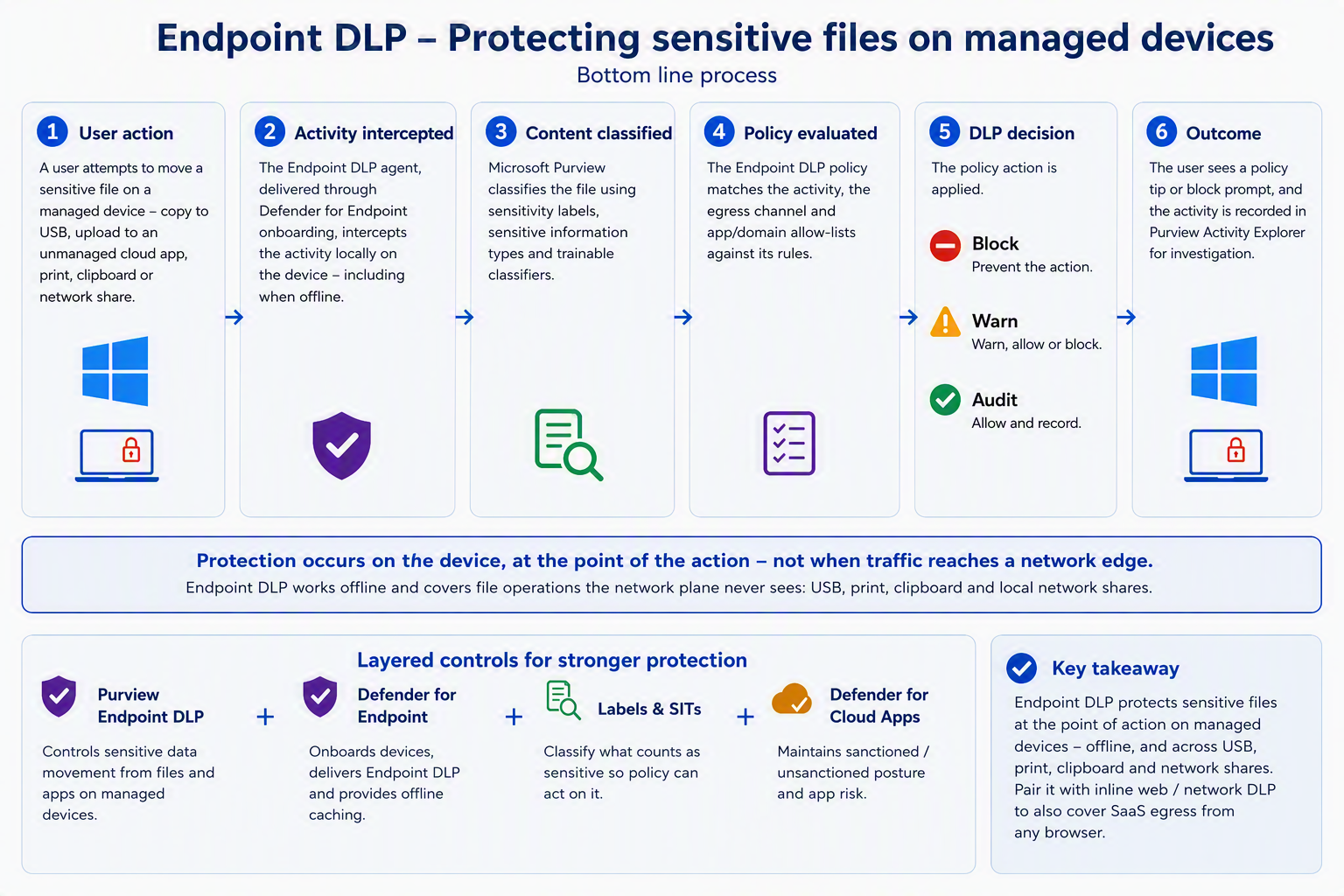
Process B – Endpoint DLP (device plane): protecting sensitive files on managed devices
This is the path that meets the “protect data classified as sensitive” half at the point of action on the device. Endpoint DLP enforces on the endpoint itself, works offline, and covers file operations the network plane never sees – USB, print, clipboard and local network shares – as well as uploads to unmanaged cloud apps and non-Edge browsers. It complements the network plane rather than replacing it.
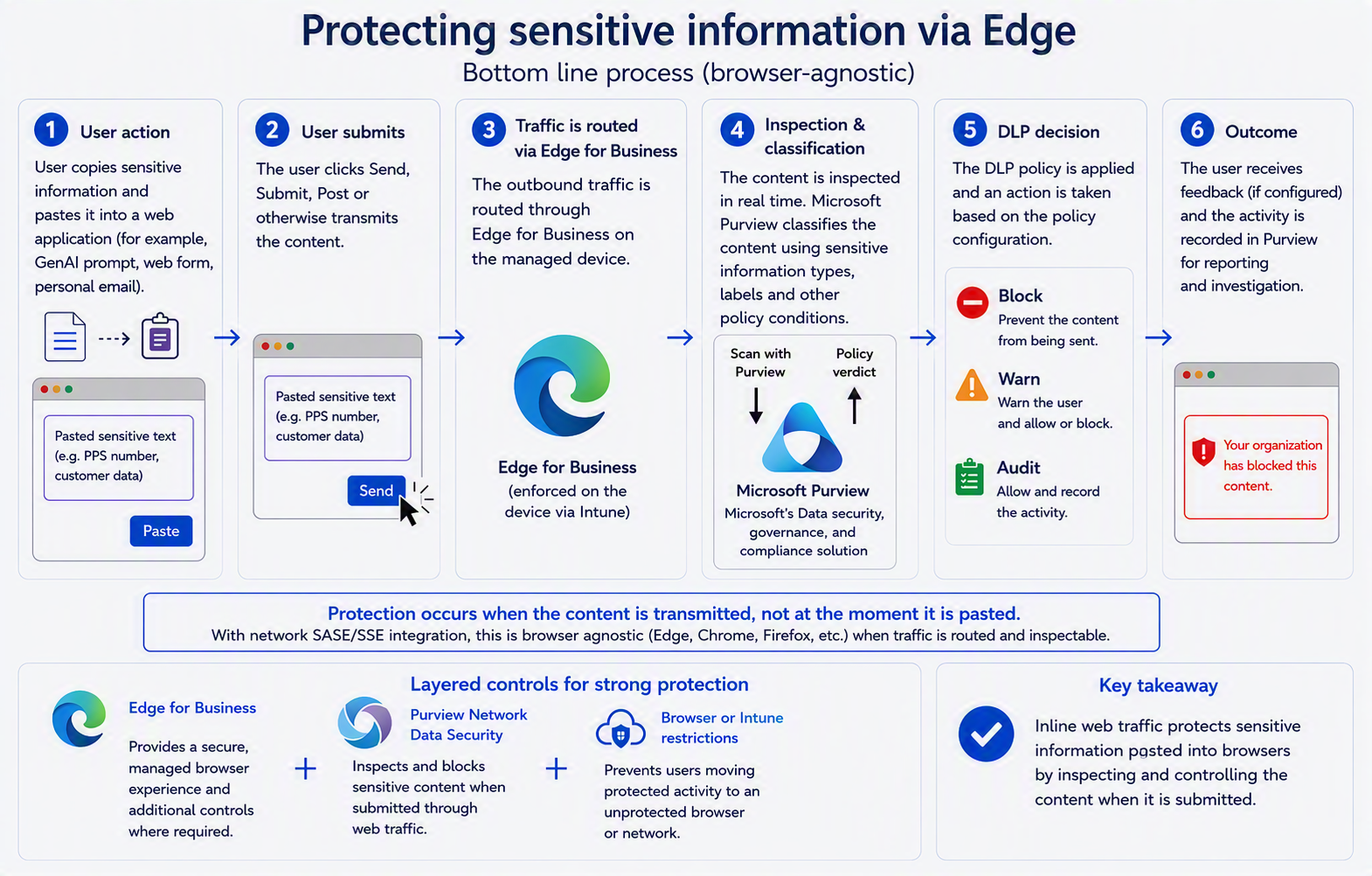
Process C – Browser plane: Edge for Business as the only browser on Windows 11, with Purview inline protection
There is a third enforcement plane for the data itself, and it is the one that is generally available today. If Contoso constrains its managed Windows 11 estate to a single browser, Microsoft Edge for Business becomes the enforcement point: the Purview DLP engine is built into the browser, so a prompt or a file upload is inspected before it leaves the device, with no Global Secure Access client, no TLS inspection and no dependency on the network-layer GA date. To be explicit, because it is the crux of this whole post: Scan with Purview via Edge for Business is generally available (GA), and it is only Scan with Purview via Entra Internet Access (the network-layer enforcement point) that remains in preview. The preview caveat in claim 2 does not apply here. Inline protection for unmanaged AI apps in Edge for Business reached general availability in November 2025 (Roadmap ID 486368, MC1046161), the automation that blocks unprotected browsers for users in scope followed in October 2025 (MC1151234), and inline protection of sensitive text moved onto the pay-as-you-go In Transit Protection meter from 31 October 2025 (MC1154787). It is worth being precise here, because the two capabilities are routinely conflated: this is not the network-layer Scan with Purview action from claim 2. It is the same Purview Inline web traffic policy type with a different enforcement point, and it is the browser rather than the Global Secure Access edge that does the inspecting.
Edge-only is an Intune design decision, not a Purview setting. On a Windows 11 device that is Entra joined and Intune managed, four controls make it stick:
- Application control. An App Control for Business policy (Intune > Endpoint security > App Control for Business) is the durable control. Build the base policy from the built-in controls – trust Windows components and Store apps, and trust apps from the managed installer so that the Intune Management Extension stays the sanctioned install path – then add a supplemental policy carrying explicit deny rules for the third-party browser publishers (Google LLC, Mozilla Corporation, Brave Software, Opera and Vivaldi). An explicit deny wins over any allow, and publisher rules catch the per-user installs that Chrome and Firefox drop into %LocalAppData% without administrator rights. Extend the deny rules to the packaged (MSIX) versions in the Microsoft Store as well, or block the Store, because the trust-Store-apps option in the base policy can otherwise let a Store-installed Firefox through. Deploy in audit mode first and read the CodeIntegrity events before enforcing. AppLocker over a custom OMA-URI still works and scopes per user or group, but Microsoft are no longer adding features to it, so treat it as the fallback rather than the design.
- Clean-up and defaults. Remove browsers already present with Intune Win32 uninstall assignments or a remediation script, and set Edge as the default handler for http, https, .htm and .html through a DefaultAssociationsConfiguration XML delivered from Intune, so links from Outlook, Teams and Office open in Edge without prompting. Keep users as standard users – LAPS for the local administrator account, Endpoint Privilege Management for the exceptions – because none of this holds for a local administrator.
- Edge identity and version. Edge policies in the Settings Catalog force browser sign-in, restrict sign-in to the contoso.com tenant, disable guest mode and keep Edge on a current stable channel: inline protection needs one of the two latest stable versions, from version 144. Policies for unmanaged apps apply across every Edge profile on a managed device, including InPrivate; policies for Entra-connected apps apply only in the work profile, which is why the work profile has to be enforced rather than encouraged.
- The Microsoft-managed shortcut. The Edge management service (Microsoft 365 admin centre > Settings > Microsoft Edge > Security settings) has a Block other browsers switch that creates the Intune configuration policy for you; it needs an Intune licence, and it takes precedence over every other setting in that profile. Purview does the same thing automatically for users in scope of a block policy: two security groups, two Edge configuration policies and two Intune policies appear, Firefox and other browsers are blocked outright, and Chrome is blocked unless the Purview extension for Chrome is installed and current, in which case Chrome runs with the AI app list denied. That automation is scoped to the DLP policy, so it is not a substitute for a standing Edge-only baseline, but it is a useful signal that Microsoft themselves treat the other browsers as the bypass to close.
On the Purview side the policy is the same Inline web traffic scenario the network plane uses, with a different enforcement point that is generally available. Create it under Data loss prevention > Policies > Create policy > Inline web traffic, scope the cloud apps through Adaptive app scopes > All unmanaged AI apps, and on Choose where to enforce the policy select Edge for Business (the GA path) rather than Network and non-Microsoft secure browsers (which routes to the preview network integration). The rule actions are Restrict browser and network activities > Text sent to or shared with cloud or AI apps, and File uploaded to or shared with cloud or AI apps, each set to audit or block; Adaptive Protection can be used as a condition so that the action varies with user risk. Saving the first policy triggers the Edge management service automation described above, which needs an admin holding Directory Reader, Microsoft Edge administration and Intune administration, and does not support tenants using Intune multi-admin approval. Run it in simulation mode first, then read Activity Explorer with the enforcement plane filtered to browser.
Three limits keep this from replacing Process A. First, scope: inline protection for unmanaged apps applies only to the Purview catalogue of supported unmanaged apps – a curated list of consumer generative AI services (ChatGPT, Google Gemini, DeepSeek, Grok, Meta AI, Perplexity, the consumer version of Copilot and around a dozen more) – not the tens of thousands of unmanaged cloud apps the network path targets. Entra-connected SaaS is covered separately through Defender for Cloud Apps in-browser protection, where session policies are enforced natively in Edge and Enforce usage of Edge for Business can be set to Allow access only from Edge. Second, egress the browser never sees – desktop applications, APIs, add-ins and sync clients – stays a network-plane or device-plane problem. Third, billing: unmanaged-app inline protection in Edge is a pay-as-you-go capability on the In Transit Protection meter, just as Scan with Purview is; only the Entra-connected app scenarios are included in Microsoft 365 E5. Two interactions with the other planes also need to be designed in. Endpoint DLP takes precedence over the inline Edge policy where both target the same user, context and action, so if Process B already blocks uploads to the same apps the Edge policy will silently do nothing. And with Edge as the only browser, Defender for Endpoint web protection is enforced natively by SmartScreen, Network Protection’s job narrows to non-browser processes, and the Purview extensions for Chrome and Firefox drop out of scope entirely.
High-level architecture
The four control planes are complementary, not alternatives. Defender for Cloud Apps discovers, scores and holds the sanctioned/monitored/unsanctioned posture; Defender for Endpoint enforces on the device plane and offline; Edge for Business enforces Purview policy inline in the browser on managed Windows 11 devices where Intune has made it the only browser; Entra Internet Access enforces identity-scoped policy at the network edge and is the delivery point for Purview network DLP. The diagram below shows how traffic and signals move between them.
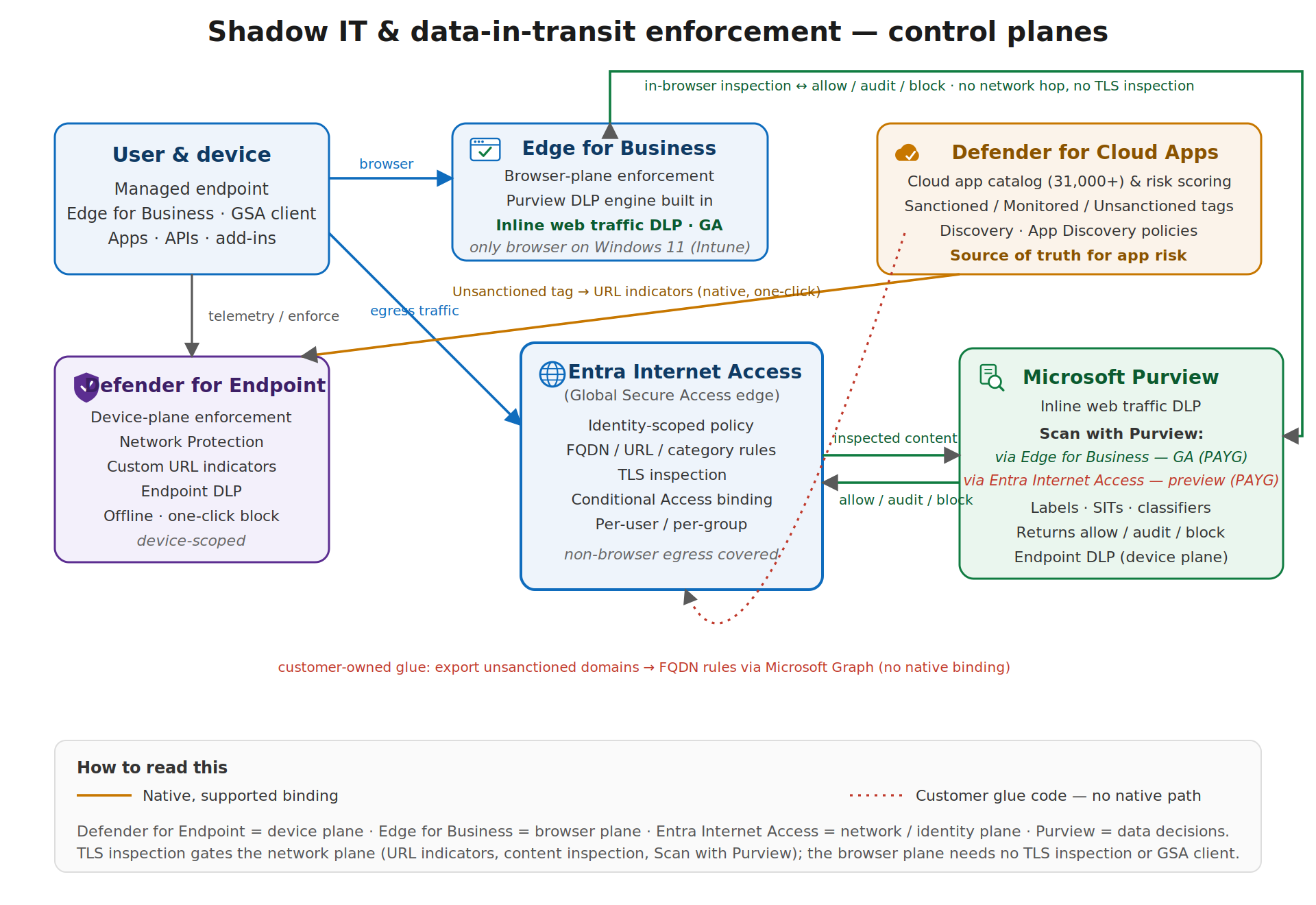
Three design points fall straight out of that picture. First, TLS inspection is the enabling dependency, not an optional enhancement – URL-level threat indicators, content inspection and the Purview integration all depend on it being deployed, with the certificate distributed through Intune. Second, the endpoint and network planes can contradict each other: Defender for Endpoint evaluates its web protection in a fixed order and allow indicators take precedence over web content filtering, so an app sanctioned in Defender for Cloud Apps can remain reachable even where a category block exists. Where both planes are active, document which plane owns which decision and avoid encoding the same intent twice. Third, the browser plane and the device plane overlap: Endpoint DLP takes precedence over the inline Edge policy for the same user, context and action, so an Edge for Business policy can pass testing and do nothing in production if Process B already covers the app. Decide which plane owns prompts and uploads to the AI apps, and keep the other in audit.
Recommended target pattern
- Discover and score in Defender for Cloud Apps. Keep the cloud app catalogue and App Discovery policies as the single source of truth for application risk.
- Enforce the organisation-wide baseline through Defender for Endpoint. Accept the up-to-three-hour propagation and the device-group scoping model for blanket blocks and warn-and-educate.
- Make Edge for Business the only browser on managed Windows 11, and enforce inline. App Control for Business deny rules for the other browsers, Edge as default, work profile enforced, then an Inline web traffic DLP policy with Edge for Business as the enforcement point for the supported unmanaged AI apps. This is generally available now and is the fastest route to blocking sensitive prompts to consumer AI.
- Deliver exceptions and identity-scoped policy through Entra Internet Access. Use security profiles linked to Conditional Access for per-group allow lists, risk-based restriction and non-browser egress.
- Layer Purview network DLP for data in transit – once it reaches GA, currently September to October 2026 – for the long tail of unmanaged apps and the non-browser egress that the browser plane cannot see. Start narrow: unmanaged AI apps and highest-sensitivity labels, in audit mode, before moving to block.
- Automate the tag-to-rule bridge. Build a scheduled Graph-based job that exports unsanctioned app domains and reconciles them against Entra Internet Access FQDN rules for contoso.com, until Microsoft close this gap natively.
Global Secure Access is developing rapidly. Several capabilities described here, including the Scan with Purview action and text and prompt inspection, are in preview and subject to change. Validate licensing entitlements against your current agreement before finalising design decisions.
Bridging the gap: letting Defender for Cloud Apps and Entra Internet Access co-exist
The architecture above is honest about one thing: there is no native binding between the Defender for Cloud Apps Unsanctioned tag and Entra Internet Access. That does not mean Contoso has to choose one or the other. The two planes answer different questions – which applications may be reached at all (Defender for Cloud Apps, through its catalogue, risk scoring and app tags) and which identities may reach a given destination, under what conditions, with what inspection (Entra Internet Access, at the network edge). Run together, Defender for Cloud Apps supplies the granular, catalogue-driven shadow IT control that Contoso is already paying for in its Microsoft 365 subscription, while Entra Internet Access – in my view the stronger web filtering service of the two, with real identity-scoped policy and Conditional Access binding rather than device-scoped indicators – owns the web-filtering and secure web gateway role. The bridge is three settings, and it is deliberately not a shared policy object: it is a division of labour that keeps each plane doing what it does best.
1. Put Defender for Endpoint network protection into block mode
Network protection is the enforcement muscle behind the Defender for Cloud Apps integration, and it only enforces when it is in block mode. In audit mode the indicators are evaluated and logged but nothing is stopped, and when it is disabled the Unsanctioned tags are, in the phrase one practitioner uses, just stickers in the portal. Deploy it through Intune (Endpoint security > Attack surface reduction, or the Settings Catalog) and confirm the state on a device with Get-MpPreference | Select-Object EnableNetworkProtection – the value must be 1 (block), not 0 (disabled) or 2 (audit). Two operational notes matter here: network protection blocks at the domain level, not full URL paths, and it cannot inspect QUIC, so disable UDP 443 in the managed browsers or with a Windows Firewall rule to stop non-Edge browsers slipping past the block over QUIC.
2. Enable custom network indicators – but leave MDE web content filtering off
This is the part that lets the two services share a device without fighting over it. In Microsoft Defender XDR, under Settings > Endpoints > Advanced features, turn on Custom network indicators, and in Settings > Cloud Apps > Cloud Discovery > Microsoft Defender for Endpoint, turn on Enforce app access. That is the whole dependency. Defender for Endpoint does not need its own web content filtering switched on: web content filtering is MDE’s category-based blocking, and it is a separate feature from the custom URL/IP indicators that the integration uses. With custom network indicators enabled, network protection simply reads the block (and warn) indicators that Defender for Cloud Apps populates when an app is tagged Unsanctioned (or Monitored), and enforces them on the endpoint. Contoso therefore gets Defender for Cloud Apps app governance without turning on a second, overlapping web-filtering engine on the device – the category-level web filtering stays with Entra Internet Access, where it belongs. This is also why the planes do not collide: Defender for Cloud Apps writes indicators, network protection enforces them at the domain level, and Entra Internet Access continues to enforce identity-scoped category, FQDN and URL policy at the edge with TLS inspection. The one precedence rule to keep in mind is Defender for Endpoint’s own order for indicators – Allow > Warn > Block – so an explicit allow indicator will override a category block. Defender for Cloud Apps never auto-creates allow indicators for sanctioned apps, so left alone the two planes reinforce rather than cancel each other; just avoid hand-authoring allow indicators for anything you also filter by category at the edge.
3. Create an app discovery policy that unsanctions new risky apps automatically
The final piece makes the baseline self-maintaining. Rather than tagging apps by hand, create an app discovery policy (Cloud Apps > Policies > Policy management > Create policy > App discovery policy) built from the New risky app template. Under App matching all of the following, set the Risk score filter to the risky band and add an App tag filter of does not equal Sanctioned so the policy can never turn on Contoso’s approved apps. Under Governance, select Tag app as unsanctioned. From then on, any newly discovered application whose risk score falls in that band is unsanctioned automatically, its domains sync to Defender for Endpoint as block indicators, and network protection blocks it within the integration’s roughly three-hour SLA.
One point worth stating plainly, because the slider is a frequent source of error: in Defender for Cloud Apps a lower score is the riskier one. The catalogue scores each app from 0 to 10, where 0 is the highest risk and 10 the lowest, so Contoso’s intent – unsanction anything risky – is expressed as a risk score of 0 to 4. Setting the filter to that range, with Sanctioned apps excluded and the daily-traffic threshold left generous to cut noise, gives a durable rule: the safe, high-scoring apps (5 and above) are left alone, the genuinely risky new arrivals are blocked on the device automatically, and anything Contoso wants to permit as an exception is still delivered cleanly through an identity-scoped Entra Internet Access allow, not through hand-edited endpoint indicators.
What this buys Contoso
The net effect is that Contoso takes full advantage of the Microsoft 365 subscription it already holds. Defender for Cloud Apps does the discovery, risk scoring and automated shadow IT governance – the granular control – and pushes its verdicts to the endpoint through network protection without needing MDE’s own web filtering turned on. Entra Internet Access remains the web filtering and secure web gateway of record, delivering per-user and per-group policy, category filtering, TLS inspection and the delivery point for Purview network DLP when Scan with Purview reaches GA. Neither service is subordinated to the other: they co-exist, each owning the decisions it is best placed to make, and the only ongoing task is the tag-to-rule bridge noted in the target pattern – reconciling the domains of newly unsanctioned apps into Entra Internet Access FQDN rules through Microsoft Graph, until Microsoft close that gap natively.
References: Govern discovered apps using Microsoft Defender for Endpoint; Create indicators for IPs and URLs/domains (indicator precedence: Allow > Warn > Block); Create cloud discovery policies; Turn on network protection (Microsoft Learn).
A note on Scan with Purview costs: they are very small
Because Scan with Purview and the inline protection scenarios are billed pay-as-you-go rather than bundled into Microsoft 365 E5, the natural question is what that actually costs. In practice the answer, for a normally-behaving user base, is: very little. The network and browser inline scenarios are metered on Microsoft Purview’s In Transit Protection meter, charged per request against traffic that DLP actually inspects – not per user, per device or per policy. You pay for what is scanned, so the bill scales with the volume of sensitive-content submissions to the destinations you have chosen to protect, not with headcount.
Two design choices keep that volume, and therefore the cost, low. First, scope narrowly: point the content policy at the specific FQDNs and unmanaged AI destinations that matter (the worked examples target ChatGPT and Gmail upload endpoints, not the whole web), so the meter only ever sees a small slice of egress. Second, classification happens before metering in the sense that matters operationally – you are protecting a handful of high-sensitivity labels and sensitive information types, not every byte a user transmits. For most Contoso-sized estates the monthly In Transit Protection charge lands in the low tens of euro rather than anything that would trouble a security budget, which is why the recommended pattern is to pilot it in audit mode without hesitation on cost grounds and only widen scope deliberately.
Two caveats worth stating so the number is not a surprise. Pay-as-you-go billing must be enabled, with an Azure subscription linked to Purview, before the network-enforcement option even appears in the DLP wizard; and you should confirm current per-request pricing against your own tenant, since the meter rate can change and varies by region. Model it for real numbers in the Azure Pricing Calculator, and watch consumption in the Purview Usage center once live. For the billing model and the request definitions, see Learn about Microsoft Purview billing models; to estimate your own figure, use the Azure Pricing Calculator.

