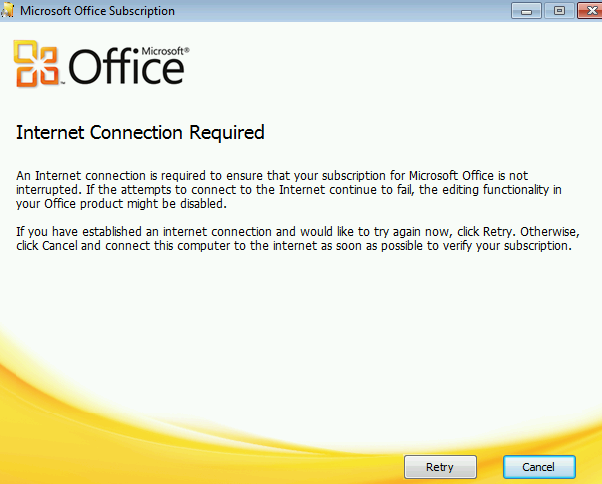
An internet connection is required to ensure that your subscription for Microsoft Office is not interrupted

I have a customer that has a new wave 15 Office365 tenant and click to run is not compatible with Windows XP. Like most corporate customers , my customer had a proxy.

So I ran the Office365 readiness assessment tool which you can download HERE 

The results of the test stated that Office365 ports could not be contacted.

The reason for this is because Office365 communicates to the service via networkservice.

Lets say my proxy was 1.1.1.1:8080 then run the following command and Office will activate fine.

bitsadmin /util /setieproxy networkservice MANUAL_PROXY 1.1.1.1:8080 “”

If you need bitsadmin for xp you can download it HERE .

Exchange Hybrid GAL not populating

As per one of my previous posts HERE on how to edit active directory attributes , When dirsync  is enabled it wont populate the GAL with exchange online and exchange on-premise.


Lets say my email address is sean@contoso.com. 

You need to populate some ad attributes.

Proxy Address: SMTP:sean@contoso.com & smtp:sean@contoso.mail.onmicrosoft.com
Target Address: SMTP:sean@contoso.mail.onmicrosoft.com
UPN:sean@contoso.com

So after those attributes have been synced via dirsync run this powershell command in the exchange management shell 

Enable-RemoteMailbox sean@contoso.com -RemoteRoutingAddress sean@contoso.mail.onmicrosoft.com

So once this is done all you need to do is apply a license and usage location to sean@contoso.com

And then the GAL will be populated between Exchange On premise and Exchange online.

An encrypted connection to your mail server is not available

I have been working on a Hybrid Exchange project recently and when I was using my own laptop on my customer’s  domain , I could connect to a test exchange online mailbox without any issues.

But any machine on their network could not connect via autodiscover to an exchange online mailbox.So a couple of points to note.

When running an exchange hybrid the ‘autodiscover.contoso.com‘ will point at your hybrid servers and when the outlook client hits the hybrid server the client will be directed to the correct mailbox location by the hybrid server.

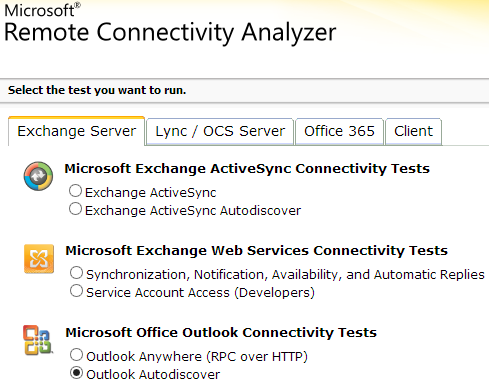
So our good friend the Exchange Remote Connectivity Analyzer can perform a test on both an on prem exchange mailbox and an office365 mailbox and when the outlook client hits the https://autodiscover.contoso.com/autodiscover/autodiscover.xml the outlook client gets routed to the correct mailbox. But in the case of an exchange online mailbox , http redirection occurs until it reaches the exchange online autodiscover.xml which for example could be https://autodisocver.contoso.mail.onmicrosoft.com/autodiscover/autodiscover.xml

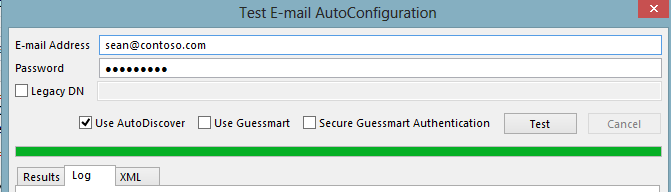
Another test we can do is by running the ‘Test Email AutoConfiguration’ tool in Outlook as per the image below. There are quite a few re-directs until outlook finds the correct exchange online mailbox.
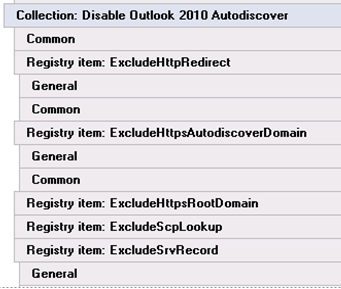
So in my particular scenario my Outlook could connect fine but domain joined laptops could not and this was because of a group policy which is displayed below which was blocking the http redirects required to connect to the exchange online mailbox.
So how to fix this , well firstly remove the group policy and secondly you can edit 4 registry settings as follows and as per the image below in hkey_current_user\software\microsoft\office\14.0\outlook\autodiscover

ExcludeHttpRedirect 0
ExcludeHttpsAutoDiscoverDomain 0
ExcludeHttpsRootDomain 0
ExcludeSrvRecord 0

So now all your Outlook clients in Hybrid mode will be able to connect via autodiscover.


Exchange Hybrid Mailbox Migrations slow when using TMG

When using Exchange online in Hybrid mode , if you want to have a unified global address list with exchange online users and onpremise users then you need to create on premise blank mailboxes for the users that you want to use exchange online and then create ‘remote move requests‘ to move the onpremise mailboxes to exchange online.

During the move request , if you open the log you may see ‘Relinquishing job because the mailbox is locked‘

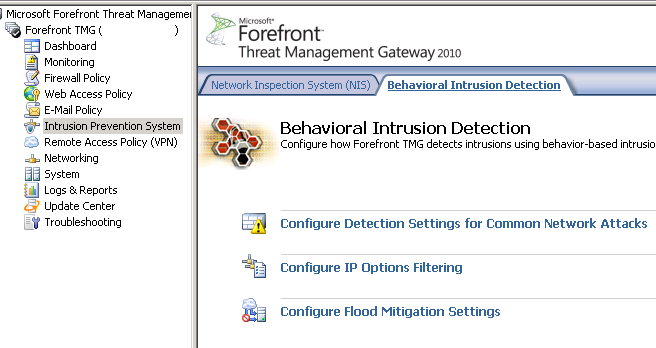
So in order to fix this and really speed up the remote move requests we need to go to the intrusion prevention section of TMG and then the Behavioral Detection\Configure Flood Mitifgation Settings as per the image below.

We click on the link for Configure Flood Mitigation Settings and then click on ‘IP Exceptions‘ and create a new computer set. In the image below I called it ‘Exchange Online Protection‘ and add a computer set with the exchange online protection range as per the image below

All of the Exchange Online Protection IP ranges can be found at this SITE 

You can susbscribe via RSS feed HERE to the Microsoft Online IP Ranges 

So now Remote move requests will migrate a lot quicker 🙂 

Migrating Lotus Notes users into an Exchange Hybrid

In this post I just wanted to highlight what active directory attributes need to change on a user account when you have an existing Exchange Hybrid and want to migrate Lotus Domino users into exchange online.

Primary Email Address: Sean@contoso.com
Hybrid email Domain: contoso.mail.microsoft.com

The existing users that have exchange mailboxes will already have exchange active directory attributes. So lets take a look at what happens when you migrate an on premise exchange mailbox to exchange online.

When you run dirsync , a proxy hybrid domain is created in the example above it is contoso.mail.microsoft.com. So when you initiate a ‘new remote move request‘ and move an onprem user to the cloud the user becomes a mail contact and their routing email address becomes


So how do we populate the active directory users that have came into our active directory from Lotus notes with the right attributes so that when they sync with dirsync to exchange online they will have the correct PRIMARY email address and be able to co-exist with the onpremise users.

We use my good friend ADMODIFY to modify some key attributes

So in this example the default email address policy is firstname.secondname@contoso.com

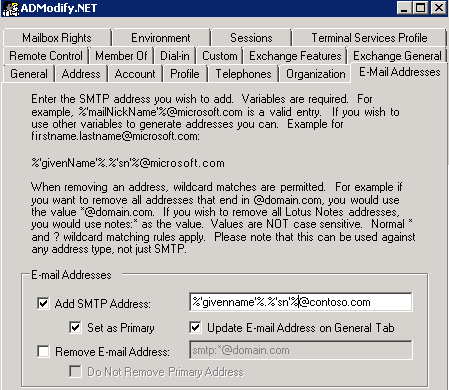
So we connect to our active directory via admodify and select all the users or organisational units we want to modify and add them to the list we then enter ‘%’givenname’%.%’sn’%@contoso.com‘ on  the email address tab


So now that we have modified this attribute the user’s primary email address will be ‘firstname.secondname@contoso.com‘ when synced with dirsync.

We need to make sure the users have the correct UPN and this can be done by viewing one of my previous blogs HERE

We need to modify one more attribute as these users will be in exchange online and will need to co-exist with the exchange on premise users.So as per the image below  we enter the following syntax ‘SMTP:%’givenname’%.%’sn’%@contoso.mail.microsoft.com‘ in the ‘targetAddress‘ attribute.


So the beauty of ADMODIFY is that you can modify thousands of users attributes in a couple of minutes and if something goes wrong it writes the config changes to an xml file. So you can quickly undo the changes you made if there were problems.
SO KEEP THE ADMODIFY CONFIGURATION XML FILES SAFE!

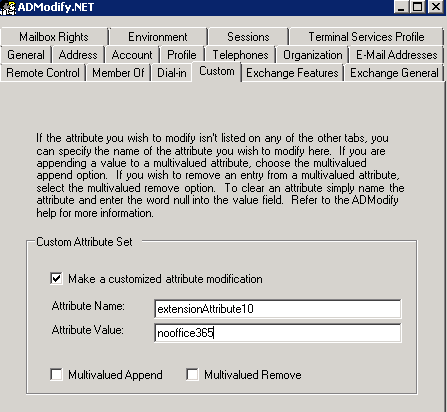
Lets say you don’t want some users to sync to exchange online , you can filter them by what organisational unit gets synced or you can use admodify again to modify a custom attribute by entering ‘nooffice365‘ as per the image below in the ‘extensionAttribute10‘ attribute


Ok so now we have users in exchange online and we have no dirsync error notification emails. How do we mass activate them. Well we run two powershell commands.

  1. We set the user’s location , in this example the country is US
    Get-MsolUser -UnlicensedUsersOnly |Set-MsolUser -UsageLocation US
  2. Get-MsolUser -UnlicensedUsersOnly | Set-MsolUserLicense -AddLicenses “Contoso.com”:EXCHANGESTANDARD
Now we have populated our Active Directory with all the correct attributes that will enable co-existence and mass activated those users via powershell.

So now its over to my choice of software for Lotus Notes migration.

I will post a step by step blog on setting up quest nme next month. This post was to show people how to prep ad and exchange online for mass migration to exchange online where an existing hybrid was in place.

Note:
Quest NME will not populate the GAL as the source directory will be Lotus Notes and target directory Exchange Online.So to populate the gal after you have made all the attribute changes above run this command in the exchange management shell Enable-RemoteMailbox sean@contoso.com -RemoteRoutingAddress sean@contoso.mail.onmicrosoft.com