In this post I just wanted to highlight what active directory attributes need to change on a user account when you have an existing Exchange Hybrid and want to migrate Lotus Domino users into exchange online.
Primary Email Address: Sean@contoso.com
Hybrid email Domain: contoso.mail.microsoft.com
The existing users that have exchange mailboxes will already have exchange active directory attributes. So lets take a look at what happens when you migrate an on premise exchange mailbox to exchange online.
When you run dirsync , a proxy hybrid domain is created in the example above it is contoso.mail.microsoft.com. So when you initiate a ‘new remote move request‘ and move an onprem user to the cloud the user becomes a mail contact and their routing email address becomes

So how do we populate the active directory users that have came into our active directory from Lotus notes with the right attributes so that when they sync with dirsync to exchange online they will have the correct PRIMARY email address and be able to co-exist with the onpremise users.
We use my good friend ADMODIFY to modify some key attributes
So in this example the default email address policy is firstname.secondname@contoso.com
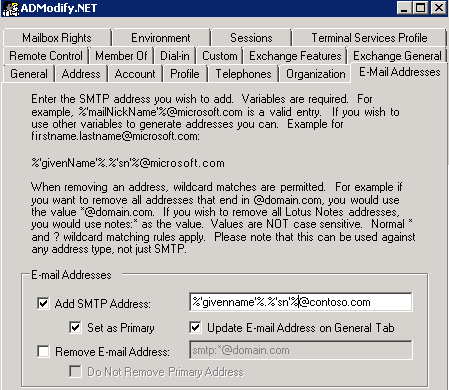
So we connect to our active directory via admodify and select all the users or organisational units we want to modify and add them to the list we then enter ‘%’givenname’%.%’sn’%@contoso.com‘ on the email address tab
So now that we have modified this attribute the user’s primary email address will be ‘firstname.secondname@contoso.com‘ when synced with dirsync.
We need to make sure the users have the correct UPN and this can be done by viewing one of my previous blogs HERE
We need to modify one more attribute as these users will be in exchange online and will need to co-exist with the exchange on premise users.So as per the image below we enter the following syntax ‘SMTP:%’givenname’%.%’sn’%@contoso.mail.microsoft.com‘ in the ‘targetAddress‘ attribute.
So the beauty of ADMODIFY is that you can modify thousands of users attributes in a couple of minutes and if something goes wrong it writes the config changes to an xml file. So you can quickly undo the changes you made if there were problems.
SO KEEP THE ADMODIFY CONFIGURATION XML FILES SAFE!
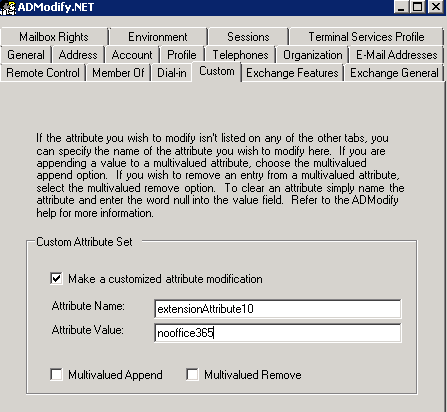
Lets say you don’t want some users to sync to exchange online , you can filter them by what organisational unit gets synced or you can use admodify again to modify a custom attribute by entering ‘nooffice365‘ as per the image below in the ‘extensionAttribute10‘ attribute
Ok so now we have users in exchange online and we have no dirsync error notification emails. How do we mass activate them. Well we run two powershell commands.
- We set the user’s location , in this example the country is US
Get-MsolUser -UnlicensedUsersOnly |Set-MsolUser -UsageLocation US
- Get-MsolUser -UnlicensedUsersOnly | Set-MsolUserLicense -AddLicenses “Contoso.com”:EXCHANGESTANDARD
Now we have populated our Active Directory with all the correct attributes that will enable co-existence and mass activated those users via powershell.
So now its over to my choice of software for Lotus Notes migration.
I will post a step by step blog on setting up quest nme next month. This post was to show people how to prep ad and exchange online for mass migration to exchange online where an existing hybrid was in place.
Note:
Quest NME will not populate the GAL as the source directory will be Lotus Notes and target directory Exchange Online.So to populate the gal after you have made all the attribute changes above run this command in the exchange management shell Enable-RemoteMailbox sean@contoso.com -RemoteRoutingAddress sean@contoso.mail.onmicrosoft.com