Anonymous Relay when transitioning from 2010 to 2016

I recently worked on a project where my customer had a load balanced vip for SMTP. There were two Exchange 2010 cas-hub servers included in the vip. And the 2010 servers had a relay connector for anonymous access configured for applications like scan to email and HR applications. So how do we move this service to our lovely new Exchange 2016 servers.

  1. Create the fronted transport service relay connectors on both Exchange 2016 servers called ‘Relay’
  2. Then run this script to copy all of the relay ips to the new Exchange 2016 relay connectors
    Credit:https://gallery.technet.microsoft.com/office/Copy-a-receive-connector-b20b9bef
  3. Then on Exchange 2016 server 1 we run these commands
    Servers are contso1 & contoso2
    Set-ReceiveConnector “contso1\Relay” -PermissionGroups AnonymousUsers,Exchangeservers -DomainController FSMO DCGet-ReceiveConnector “contso1\Relay” | Add-ADPermission -User ‘NT AUTHORITY\Anonymous Logon’ -ExtendedRights MS-Exch-SMTP-Accept-Any-Recipient -DomainController FSMO DCSet-ReceiveConnector “contso2\Relay” -PermissionGroups AnonymousUsers,Exchangeservers -DomainController FSMO DCGet-ReceiveConnector “contso2\Relay” | Add-ADPermission -User ‘NT AUTHORITY\Anonymous Logon’ -ExtendedRights MS-Exch-SMTP-Accept-Any-Recipient -DomainController FSMO DC
  4. Add a server IP like the ad connect server into the relay connector scope on both contoso1 and contoso2
  5. Then run this command from the AD Connect server to each of the Contoso servers
    telnet SMTP VIP 25
    Helo
    mail from:sean@contoso.com
    rcpt to:sean.ofarrell@yahoooooo.com
    data
    Test from Sean.
  6. Once the email comes through we can then remove the Exchange 2010 server from the SMTP VIP and disable the relay connector on the Exchange 2010 servers.

Finally a lot of my customers do not trust Exchange Online Protection and use services like Mimecast , Proofpoint, Cisco Cloud Email Security and once the SPF records for the domains matches the service it can normally be much easier to set up smtp relay via these saas services.

Exchange On-Premise Mailbox will not MIGRATE

I recently encountered an issue which I have seen before but never this bad and more commonly with Public Folders. My customer had a 50GB mailbox that also had an archive mailbox. The mailbox would get so far and just stall and never complete.

So I tried all of some of the usual methods to repair the mailbox to no avail.
Repair the mailbox with PowerShell & Migrate the mailbox to another Exchange database

So we asked the customer could we review the mailbox and found thousands of folder in the format of 16/04/2019. Exchange does not like / , Exchange normally sees / as the top of the information store. So my first attempt to resolve this was powershell and could not seem to crack it. Thanks to my colleague Mark Doyle  ,We resolved this issue with an Outlook Macro.

So if you ever encounter this unique issue , Please follow these steps.

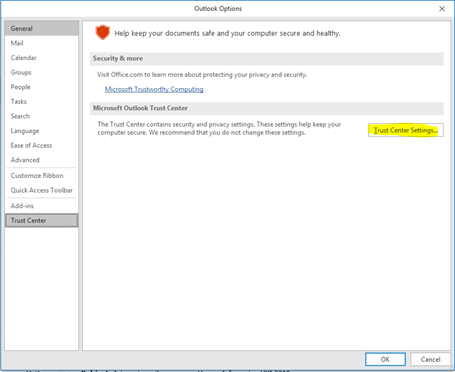
  1. Browse to the Outlook Trust Center
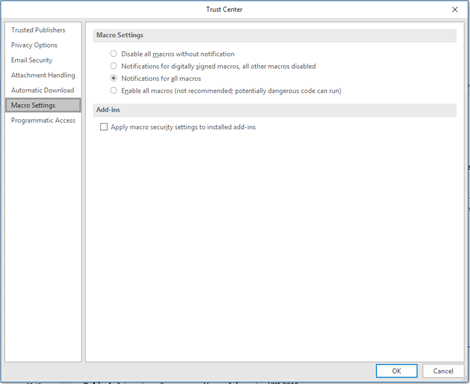
  2. Macro Settings, Select Notifications for all Macros
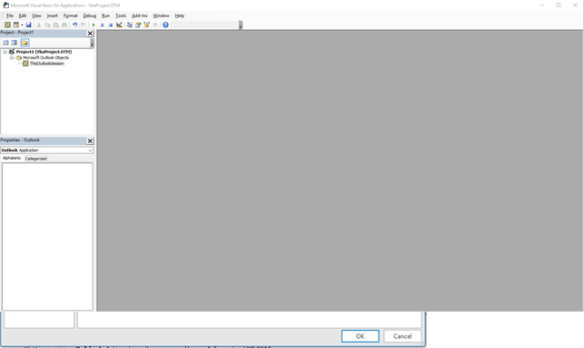
  3. Press Alt + F11 to open Visual Basic
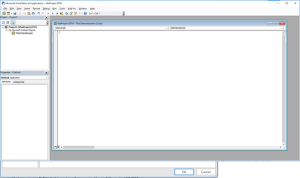
  4. Double click “This Outlook Session” under Microsoft Outlook Objects
  5. Paste  this TEXT below into the window
  6. Click on the folder or inbox that you want , And run the Macro
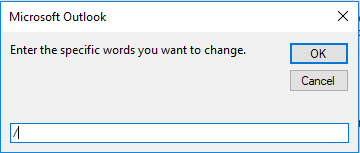
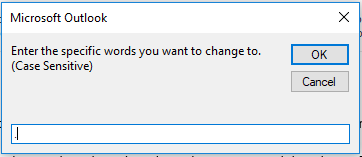
  7. Input character we want to replace in this case will be /
  8. Then select . as the replacement character
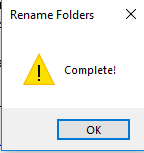
  9. Finally task complete

Final Comment

This is in no means an enterprise solution and I asked Microsoft for help and didn’t get anywhere. Once we removed the / , We could see when checking get-moverequeststatistics (mailbox) , that it was getting past the ‘create folder hierarchy’ stage in a mailbox move. And we did not need to tell our customer , Sorry this mailbox cannot be migrated!

Folder Filtering and mapping with Dell MFNE


This is an update to my original posting which is featured on Dell KB18650
 
During work on a another global Domino to Exchange migration , I have added some more filters which may become useful for these type of migrations.
 
CUSTOM FOLDER MAPPINGS
 
~INBOX=Inbox
~SENT=Sent Items
~CALENDAR=Calendar
~CONTACTS=Contacts
~TASKS=Tasks
~TRASH=Deleted Items
~DRAFTS=Drafts
~OUTBOX=Outbox
~JOURNAL=Journal
JUNKMAIL=Junk E-mail
JUNKMAIL_2013=Junk Email
Chat History=Conversation History
RSS Subscriptions=RSS Feeds
 
FOLDER FILTERS
 
filter0=($Alarms)
filter1=(Group Calendars)
filter2=(Rules)
filter3=($Design)
filter4=Alarms
filter5=(CalSummary)
filter6=(~MAPISP(Internal))
filter7=(IPMCOMMONVIEWS)
filter8=(IPMVIEWS)
filter9=(Search Root)
filter10=($MAPIInbox)
filter11=($MAPIInfo)
filter12=($MAPIIPM Subtree)
filter13=($MAPIOutbox)
filter14=($MAPISent)
filter15=($MAPITrash)
filter16=(Discussion Threads)
filter17=($ToDo)
filter18=($FolderInfo)
filter19=($POP3)
filter20=(To do’s\By Category)
filter21=(To do’s\By Status)
filter22=(Mail Threads)
filter23=($FolderAllInfo)
filter24=($Inbox-Categorized1)
filter25=(MAPIUseContacts)
filter26=(APIUseContacts)
filter27=($MAPIUseContacts)
filter28=$MAPIUseContacts
filter29=JUNKMAIL
filter30=(JUNKMAIL)
filter31=($JUNKMAIL)
filter32=$JUNKMAIL
filter33=EML
filter34=(EML)
filter35=($EML)
filter36=$EML
filter37=(Manage Folders)
filter38=Manage Folders
filter39=$Manage Folders
filter40=($Manage Folders)
filter37=(Custom Expiration\By Date)
filter38=Custom Expiration\By Date
filter39=$Custom Expiration\By Date
filter40=($Custom Expiration\By Date)
filter41=FolderHiddenPublic
filter42=(FolderHiddenPublic)
filter43=(namecolumn)
filter44=(attachment icon)
filter45=$(FolderHiddenPublic)
filter46=($FolderHiddenPublic)
Filter47=(~CustomExpiration)
Filter48=(&CustomExpiration)
Filter49=(CustomExpiration)
Filter50=CustomExpiration
Filter51=$CustomExpiration
Filter52=($CustomExpiration)
Filter53=(~EML)
Filter54=(&EML)
Filter55=(EML)
Filter56=EML
Filter57=$EML
Filter58=($EML)
Filter59=(~FolderHiddenPublic)
Filter60=(&FolderHiddenPublic)
Filter61=(FolderHiddenPublic)
Filter62=FolderHiddenPublic
Filter63=$FolderHiddenPublic
Filter64=($FolderHiddenPublic)
Filter65=(~MAPIUseContacts)
Filter66=(&MAPIUseContacts)
Filter67=(MAPIUseContacts)
Filter68=MAPIUseContacts
Filter69=$MAPIUseContacts
Filter70=($MAPIUseContacts)
Filter71=(~NameColumn)
Filter72=(&NameColumn)
Filter73=(NameColumn)
Filter74=NameColumn
Filter75=$NameColumn
Filter76=($NameColumn)
Filter77=(~Stationery)
Filter78=(&Stationery)
Filter79=(Stationery)
Filter80=Stationery
Filter81=$Stationery
Filter82=($Stationery)
Filter83=(~Drafts)
Filter84=(&Drafts)
Filter85=(Drafts)
Filter86=Drafts
Filter87=$Drafts
Filter88=($Drafts)
Filter89=(~Manage Folders)
Filter90=(&Manage Folders)
Filter91=(Manage Folders)
Filter92=(Manage Folders)
Filter93=$(Manage Folders)
Filter94=($Manage Folders)
Filter95=(~Sent)
Filter96=(&Sent)
Filter97=(Sent)
Filter98=Sent
Filter99=$(Sent)
Filter100=(~SametimeInfo)
Filter101=(&SametimeInfo)
Filter102=(SametimeInfo)
Filter103=SametimeInfo
Filter104=$SametimeInfo
Filter105=($SametimeInfo)
Filter106=(~Attachment Icon)
Filter107=(&Attachment Icon)
Filter108=(Attachment Icon)
Filter109=Attachment Icon
Filter110=$Attachment Icon
Filter111=($Attachment Icon)
Filter106=(~Custom Expiration\Manage Folders)
Filter107=(&Custom Expiration\Manage Folders)
Filter108=(Custom Expiration\Manage Folders)
Filter109=Custom Expiration\Manage Folders
Filter110=$Custom Expiration\Manage Folders
Filter111=($Custom Expiration\Manage Folders)
Filter112=(~By Date)
Filter113=(&By Date)
Filter114=(By Date)
Filter115=By Date
Filter116=$By Date
Filter117=($By Date)
Filter118=((~Custom Expiration\Manage Folders))
Filter119=((&Custom Expiration\Manage Folders))
Filter120=((Custom Expiration\Manage Folders))
Filter121=(Custom Expiration\Manage Folders)
Filter122=($Custom Expiration\Manage Folders)
Filter123=(($Custom Expiration\Manage Folders))
Filter124=((~Custom Expiration\By Date))
Filter125=((&Custom Expiration\By Date))
Filter126=((Custom Expiration\By Date))
Filter127=(Custom Expiration\By Date)
Filter128=($Custom Expiration\By Date)
Filter129=(($Custom Expiration\By Date))
Filter130=(~Company Column)
Filter131=(&Company Column)
Filter132=(Company Column)
Filter133=Company Column
Filter134=$Company Column
Filter135=($Company Column)
Filter136=(~E-mail Column)
Filter137=(&E-mail Column)
Filter138=(E-mail Column)
Filter139=E-mail Column
Filter140=$E-mail Column
Filter141=($E-mail Column)
Filter142=(Custom Expiration\Manage Folders)
Filter143=(To do’s\Incomplete)
Filter144=FolderRefInfo
Filter145=(Custom Expiration\Expired Documents)
Filter146=(Recently Archived)
Filter147=MAPIIPMCOMMONVIEWS
Filter148=MAPIIPMVIEWS
Filter149=MAPINet Folder Inbox
Filter150=MAPISearch Root
Filter151=PrivateIcon
Filter152=(By Person)
Filter153=Phone Column
Filter154=Address column
Filter155=EML
Filter156=MAPIUseContacts


Dell Migrator for Notes to Exchange – Admin Pool

As of from yesterday 30.01.15 , The admin pool feature stopped working.

To resolve this issue , assign a license to all the admin pool accounts.

Also I noticed that I could configure /adjust the Office 365 PowerShell Throttling in the MFNE console. So to Resolve this perform the following steps.


1.) Open the MNE Migration Manager.
2.) Click the Menu button in the upper right and select Global Default Settings.
3.) In the text file that opens, save the copy of current Global Default Setting, and locate the [PowerShell] heading.
4.) Remove the [PowerShell] heading and all values directly beneath it.
5.) Save and Close the file.
6.) Exit the MNE Migration Manager.
7.) Open the MNE Migration Manager and try configuring the Office 365 PowerShell Throttling settings again. You can also refer to the following KB article:


Quest Powershell Script to change UPN for Office365

I normally use AD Modify to modify users’ UPNs. But it is only really practical when you are changing the UPN’s per OU. 

Lets say you were migrating from a different messaging platform , like Lotus Notes or GroupWise. But AD had the mailnickname attribute populated and the correct UPN added into your AD. To run the script you need to do the following

  • Create a csv mail.csv and place it in the root C:\mail.csv. The heading of the csv will be ‘mail’ and then all the mailnicknames like sean@contoso.com
  • On line 29 add in the distinguished name of the domain/forest scope
  • Create a folder C:\logs to analyse any errors
  • Watch out for ‘ which are acceptable characters in a smtp email address but unacceptable as a UPN in Office365.
  • The script can be downloaded HERE.
The author of the script is a colleague of mine Adam Smith