Securing M365 mail routing : SCENARIO 2

Some organisations do not use Exchange Online Protection and Microsoft Defender for 365 to protect their Exchange Online tenant and use 3rd party message hygiene services like Mimecast and Proof Point. This blog will demonstrate a a scenario where securing Exchange Online message routing is configured incorrectly and could be classified a vulnerability,

SCENARIO 2
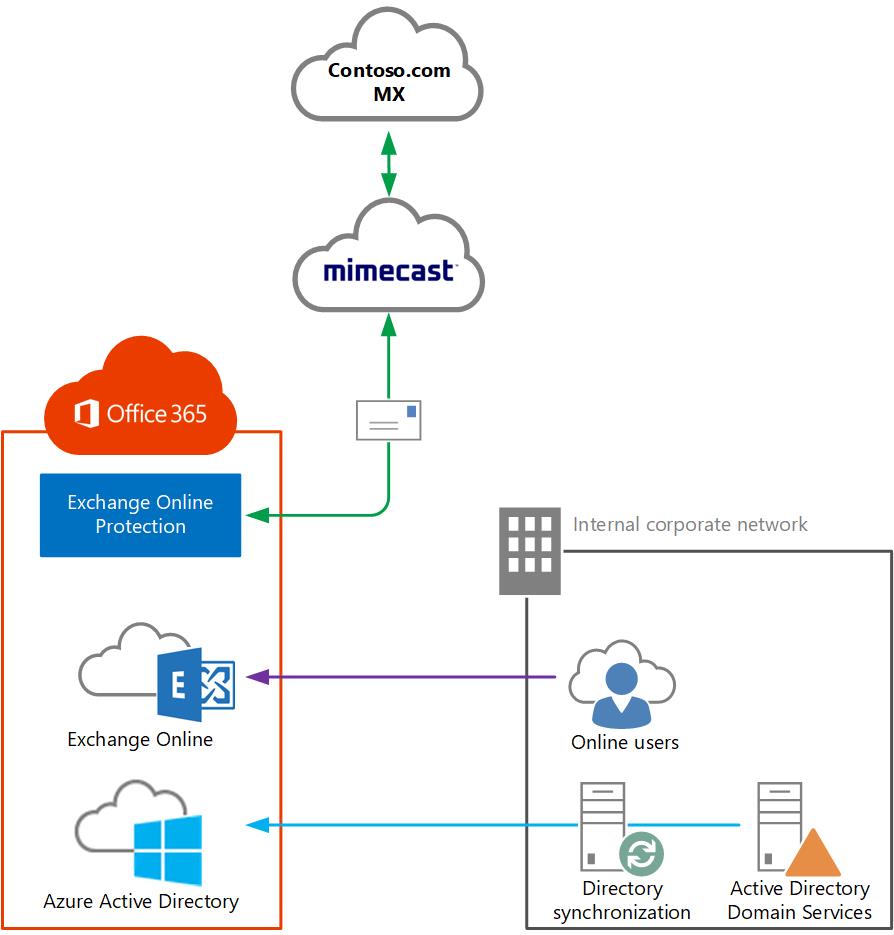

1. Contoso.com MX record is pointed at Mimecast; Mimecast provides spam protection
2. Mimecast then passes the messages to Exchange Online
3. If there are any remaining Exchange on-premise recipients, Exchange online will route the messages to the Exchange Hybrid servers via the secure Exchange Hybrid connectors
3. The Exchange Online inbound connector that accepts traffic from the Mimecast service is secured via TLS

VULNERABILITY
Anyone in the world can send an email to to an Exchange Online recipient with a *.mail.onmicrosoft.com or *.onmicrosoft.com alias, when sending to these domains. The messages completely bypasses , the organisation’s Mimecast’s message hygiene services and can route messages to Exchange Online recipients and Exchange on-premise recipients. If the organisation has not configured Exchange Online protection and Microsoft Defender for 365, then the organisation is vulnerable to malware and phishing emails.

Another problem: Office365 groups, When a Teams Channel is created, it creates an Office365 group that will have a *.onmicrosoft.com alias. Bad actors sending emails to these aliases can once again completely bypass the organisation’s message hygiene services.

SOLUTION
The Hybrid configuration wizard creates an Exchange Online inbound connector that is locked down with TLS via a public trusted certificate on the Exchange Hybrid servers.

The default inbound Exchange Online connector that was created by the Exchange Hybrid wizard, can be modified to only accept inbound messages from the IP ranges of the Mimecast service and TLS.

This script queries the existing inbound connector and creates an inbound connector that blocks messages recipients using the *.mail.onmicrosoft.com to only accept traffic from a service using the TLS certificate and connector that has been modified or it can query a new inbound connector

In this scenario , when a message is sent to an Exchange online recipient , the message flows as follows.
1. MX contoso.com
2. Mimecast
3. Contoso.com aliases & all consto.com *.onmicrosoft.com will only accept messages from Mimecast

Note: run this script using the latest Exchange Online PowerShell module

New-InboundConnector -Name ‘Restrict inbound mail flow to hybrid domains’ -ConnectorType Partner -SenderDomains * -TlsSenderCertificateName (Get-InboundConnector $InboundConnectorName).TlsSenderCertificateName -RestrictDomainsToCertificate $true -RequireTls $true
Securing M365 mail routing : SCENARIO 1

Some organisations do not use Exchange Online Protection and Microsoft Defender for 365 to protect their Exchange Online tenant and use 3rd party message hygiene services like Mimecast and Proof Point. This blog will demonstrate a scenario where securing Exchange Online message routing is configured incorrectly and could be classified as a vulnerability,

SCENARIO 1

In the scenario above , this could be one of the most typical Exchange Online topologies.
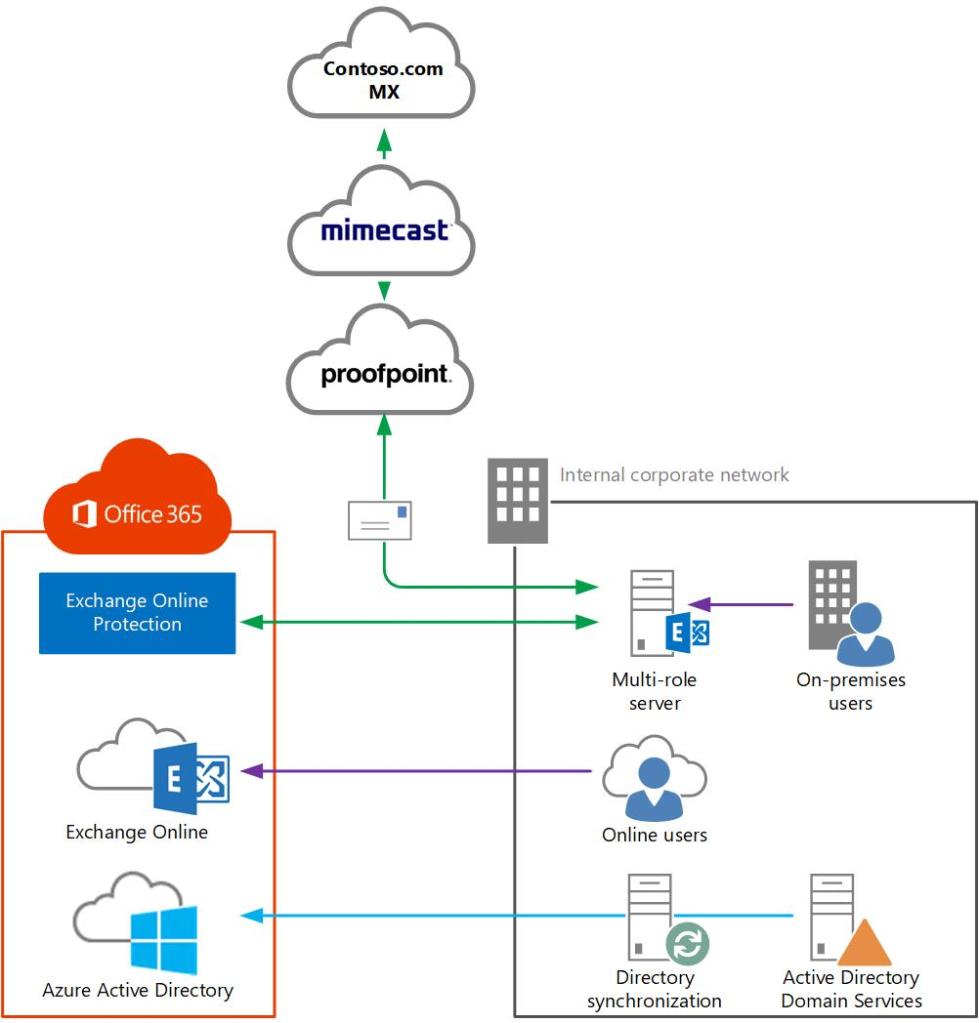
1. Contoso.com MX record is pointed at Mimecast, Mimecast provides spam protection
2. Mimecast then passes the messages to Proof Point, and Proof Point, performs malware inspection on the messages.
3. Proofpoint then routes the messages to the on-premises Exchange Hybrid platform.
4. Exchange Hybrid forwards messages to Exchange Online recipients via the Exchange Hybrid connector and the mail flow source Exchange Hybrid server communicates directly with Exchange Online and does not route via Mimecast or Proof Point.
5. The Exchange Online inbound connector that accepts traffic from the Exchange Hybrid servers is secured via TLS.

VULNERABILITY
Anyone in the world can send an email to an Exchange Online recipient with a *.mail.onmicrosoft.com or *.onmicrosoft.com alias, when sending to these domains. The messages completely bypasses , the organisation’s Mimecast and Proofpoint message hygiene services. If the organisation has not configured Exchange Online protection and Microsoft Defender for 365, then the organisation is vulnerable to malware and phishing emails.

Another problem: Office365 groups, When a Teams Channel is created, it creates an Office365 group that will have a *.onmicrosoft.com alias. Bad actors sending emails to these aliases can once again completely bypass the organisation’s message hygiene services.

SOLUTION
The Hybrid configuration wizard creates an Exchange Online inbound connector that is locked down with TLS via a public trusted certificate on the Exchange Hybrid servers.

This script queries the existing inbound connector and creates an inbound connector that blocks messages routed to *.onmicrosoft.com recipients, to only accept traffic from the Hybrid servers that are using the matching TLS certifictate.

In this scenario , when a message is sent to an Exchange online recipient , the message flows as follows.
1. MX contoso.com
2. Mimecast
3. Proof Point
4. Exchange on-premises
5. Exchange on-premise forwards the message to the Exchange Online recipient’s *.mail.onmicrosoft.com alias.

Note: run this script using the latest Exchange Online PowerShell module

New-InboundConnector -Name ‘Restrict inbound mail flow to hybrid domains’ -ConnectorType Partner -SenderDomains * -TlsSenderCertificateName (Get-InboundConnector $InboundConnectorName).TlsSenderCertificateName -RestrictDomainsToCertificate $true -RequireTls $true
How to migrate Teams Sites from Office365 tenant to another Office365 Tenant using Migration Wiz

This image has an empty alt attribute; its file name is image.png

I have been working very closely with BitTitan for a number of years and BitTitan have been working very closely with Microsoft with the development of their Teams migration service.

The service was updated towards the end of August and this update brought a large number of enhancements which can be reviewed HERE

For years I have been migrating Office365 Tenants to other Office365 tenants and the problem still remains whereby a custom domain like contoso.com cannot exist in two Office365 tenants at once. So during acquisition or merger migration projects at what point do you migrate the Microsoft Teams sites. My recommendation is to take care of the following data sources first with the Migration Wiz user migration bundle.

Primary Mailbox
Archive Mailbox
OneDrive for Business
Outlook switch over via deployment pro.

Once the data sources above have been migrated , I would recommend that Outlook Web App access to the legacy source tenant mailboxes is blocked via running the following command

Get-Mailbox -resultsize unlimited | Set-CASMailbox -OWAEnabled $false
Get-Mailbox -resultsize unlimited | Set-CasMailbox -ActiveSyncEnabled $False

The official MigrationWiz migration guide is available HERE
Also follow this ARTICLE and setup the  Teams-FullControlApp in each source tenant.
I recommend that you use the autodiscover method to populate the project as this will also identify any incompatible items in Teams sites or channels

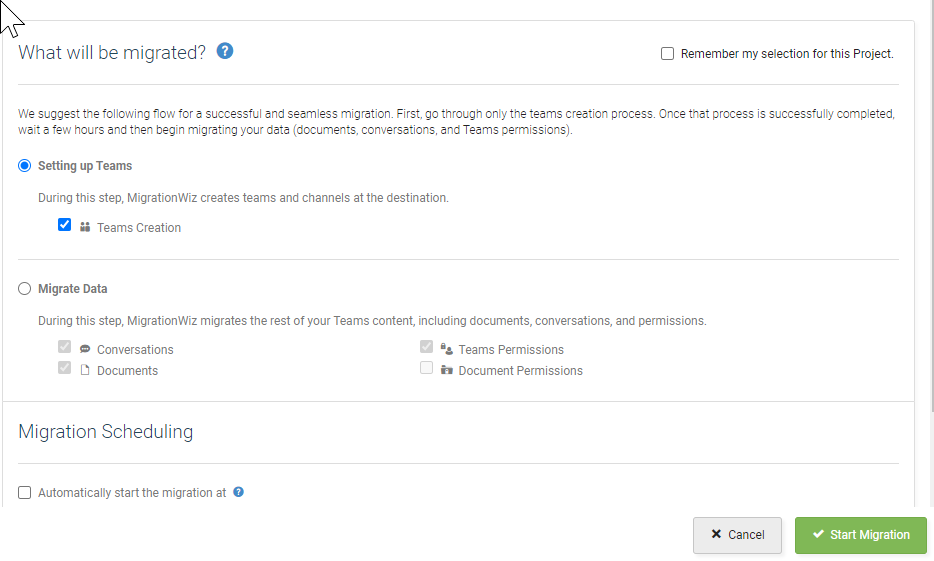
First step is to create the teams site in the target tenant , and do this 24 hours in advance

What_will_be_migrated_Teams.png

Next Step is to do the data migration

Validate the data and then remove the Teams licenses from the users in the source tenants with the following powershell commands. Create a new variable for each Offfice365 licensing sku that contains Teams.

Get-MsolAccountSku

$acctSKU=”contoso:O365_BUSINESS_PREMIUM”
$x = New-MsolLicenseOptions -AccountSkuId $acctSKU -DisabledPlans “TEAMS1”

$acctSKU2=”contoso:TEAMS_EXPLORATORY”
$x = New-MsolLicenseOptions -AccountSkuId $acctSKU -DisabledPlans “TEAMS1”

$acctSKU3=”contoso:O365_BUSINESS_ESSETIALS”
$x = New-MsolLicenseOptions -AccountSkuId $acctSKU -DisabledPlans “TEAMS1”

$acctSKU4=”contoso:O365_BUSINESS_ESSENTIALS”
$x = New-MsolLicenseOptions -AccountSkuId $acctSKU -DisabledPlans “TEAMS1”

Get-MsolUser | Where-Object {$_.licenses[0].AccountSku.SkuPartNumber -eq ($acctSKU).Substring($acctSKU.IndexOf(“:”)+1, $acctSKU.Length-$acctSKU.IndexOf(“:”)-1) -and $_.IsLicensed -eq $True} | Set-MsolUserLicense -LicenseOptions $x

And now all the Teams sites have been migrated and there is no chance of split brain because the Teams license has been removed from the source tenanat.

One really important point to note: MigrationWiz match users from the source to the destination based on the user prefix which is so useful when you are moving one domain from an Office365 tenant to another for example in a merger or aquistion.


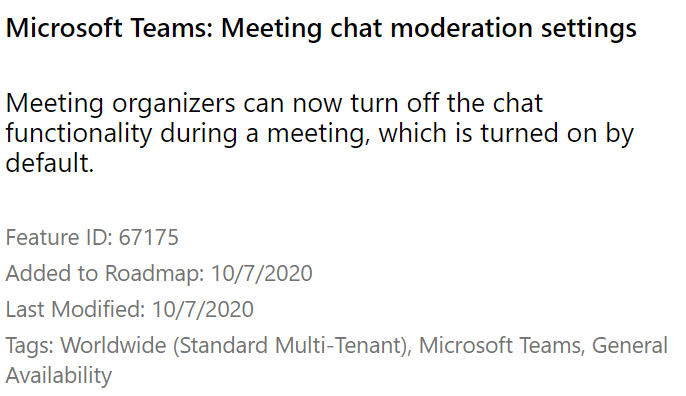
How to delete Teams Chats and Meeting Chat Moderation Settings

A customer recently asked me how can we delete chat history in Microsoft Teams and the answer was really simple. Provided the tenant has the correct Office365 licensing. The solution was to create a retention policy and delete all chat history older than 1 day.

How to delete Teams Chats and Meeting Chat Moderation Settings

https://www.microsoft.com/en-us/microsoft-365/roadmap?filters=&searchterms=67175

Exchange Online to Exchange On-Prem Free \ Busy Not Working

Free busy not working in an Exchange 2016 CU17 Hybrid environment.

When a customer forgets to tell you that they previously configured Exchange Hybrid using the Modern hybrid agent, The modern hybrid agent leaves behind some configuration settings that prevent free-busy working from EOL to EOP.

I always use the classic hybrid wizard for organisations that require long term rich co-existence.

The frustrating this with this issue is that the Exchange Remote Connectivity analyzer tests WORK, which would lead you to believe everything is ok and configured correctly. But when you attempt to query availability requests for a user or resource from OWA or Outlook , the look up fails.

What does the Hybrid Agent leave behind in Exchange Online?

Two values are populated that will prevent free \ busy from EOL to EOP working.

  • OrganizationRelationship -targetsharingepr
  • Intraorgconnector -targetsharingepr

When you query these values , You may see a value like   https://a75aa21a-2f8d-4b2e-85fe-1234.resource.mailboxmigration.his.msappproxy.net/EWS/E
xchange.asmx

To resolve the issue run the following commands

  1. set-intraorgconnector -TargetSharingEpr $null
  2. set-OrganizationRelationship “Name of Org Relationship” -TargetSharingEpr $null