When attempting to federate a domain hosted in Exchange on premises with Exchange Online. The error message displayed below appears.
To resolve this issue TLS 1.2 needs to be enabled on the Exchange Hybrid servers.
ALI TAJRAN has a excellent ARTICLE and script to enable TLS 1.2 on Exchange servers. Once this script has run on the Exchange Hybrid servers, the wizard to add a federated domain will complete successfully.
Note: TLS 1.3 is not supported on Exchange on premises yet.
When the Azure Active Directory Premium password protection service was first released, it was well received.
There a few issues with the Azure AD Premium ‘Password Protection’ service.
1: An enterprise customer will block internet access on all domain controllers 2: If using the Azure AD Premium ‘Password Protection’ service, it requires an agent installed on all domain controllers, this agent will then, communicate with a proxy agent to establish access to Azure AD. For example , ‘agent on dc’s’ communicates to agent on ‘AD Connect server’ 3: Microsoft Defender for Identity domain controller agent, cannot co-exist with the Azure AD Premium ‘Password Protection’ service agent, on the same domain controller 4: Microsoft Defender for Identity service will significantly improve an organisation’s security posture in comparison to the Azure AD Premium ‘Password Protection’ service 5: A much easier and secure method of Identity Management, is to enable the Microsoft Active Directory Premium and Microsoft Authenticator services to use: Passwordless authentication.
Passwordless can protect against
BruteForce Attacks Password Spray Attacks.
Enabling passwordless , can also help organisations, to get one step further in their Zero Trust journey
When an organisation has completely transitioned and migrated to Exchange Online and directed their MX record to contoso-com.mail.protection.outlook.com. The organisation should in line with best practices, have Microsoft Defender for Office365 Plan 2 securely configured.
Scenario 3, this my proffered choice. All Contoso *.onmicrosoft.com aliases can be blocked as they are no longer required. When Contoso’s mx record has been directed at Exchange Online protection. Exchange Online Protection & Microsoft Defender for 365 will protect all aliases. It may not even be necessary to block all Contoso *.onmicrosoft.com aliases.
It is possible to create an email address policy for Office365 groups that only use’s @contoso.com primary email addresses, which can still allow mail flow to Team’s channels. Then the usual protection of contoso.com comes into play, SPF, DKIM and finally DMARC.
Some organisations do not use Exchange Online Protection and Microsoft Defender for 365 to protect their Exchange Online tenant and use 3rd party message hygiene services like Mimecast and Proof Point. This blog will demonstrate a a scenario where securing Exchange Online message routing is configured incorrectly and could be classified a vulnerability,
SCENARIO 2
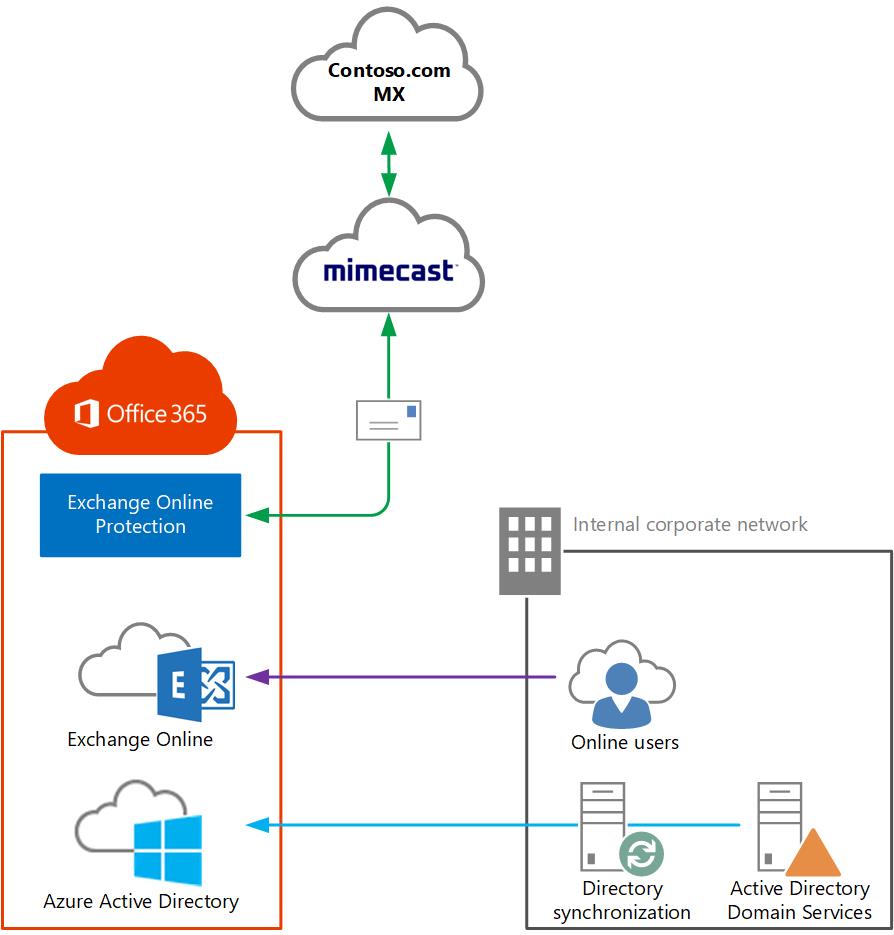
1. Contoso.com MX record is pointed at Mimecast; Mimecast provides spam protection 2. Mimecast then passes the messages to Exchange Online 3. If there are any remaining Exchange on-premise recipients, Exchange online will route the messages to the Exchange Hybrid servers via the secure Exchange Hybrid connectors 3. The Exchange Online inbound connector that accepts traffic from the Mimecast service is secured via TLS
VULNERABILITY Anyone in the world can send an email to to an Exchange Online recipient with a *.mail.onmicrosoft.com or *.onmicrosoft.com alias, when sending to these domains. The messages completely bypasses , the organisation’s Mimecast’s message hygiene services and can route messages to Exchange Online recipients and Exchange on-premise recipients. If the organisation has not configured Exchange Online protection and Microsoft Defender for 365, then the organisation is vulnerable to malware and phishing emails.
Another problem: Office365 groups, When a Teams Channel is created, it creates an Office365 group that will have a *.onmicrosoft.com alias. Bad actors sending emails to these aliases can once again completely bypass the organisation’s message hygiene services.
SOLUTION The Hybrid configuration wizard creates an Exchange Online inbound connector that is locked down with TLS via a public trusted certificate on the Exchange Hybrid servers.
The default inbound Exchange Online connector that was created by the Exchange Hybrid wizard, can be modified to only accept inbound messages from the IP ranges of the Mimecast service and TLS.
This script queries the existing inbound connector and creates an inbound connector that blocks messages recipients using the *.mail.onmicrosoft.com to only accept traffic from a service using the TLS certificate and connector that has been modified or it can query a new inbound connector
In this scenario , when a message is sent to an Exchange online recipient , the message flows as follows. 1. MX contoso.com 2. Mimecast 3. Contoso.com aliases & all consto.com *.onmicrosoft.com will only accept messages from Mimecast
Note: run this script using the latest Exchange Online PowerShell module
New-InboundConnector -Name ‘Restrict inbound mail flow to hybrid domains’ -ConnectorType Partner -SenderDomains * -TlsSenderCertificateName (Get-InboundConnector $InboundConnectorName).TlsSenderCertificateName -RestrictDomainsToCertificate $true -RequireTls $true
Some organisations do not use Exchange Online Protection and Microsoft Defender for 365 to protect their Exchange Online tenant and use 3rd party message hygiene services like Mimecast and Proof Point. This blog will demonstrate a scenario where securing Exchange Online message routing is configured incorrectly and could be classified as a vulnerability,
SCENARIO 1
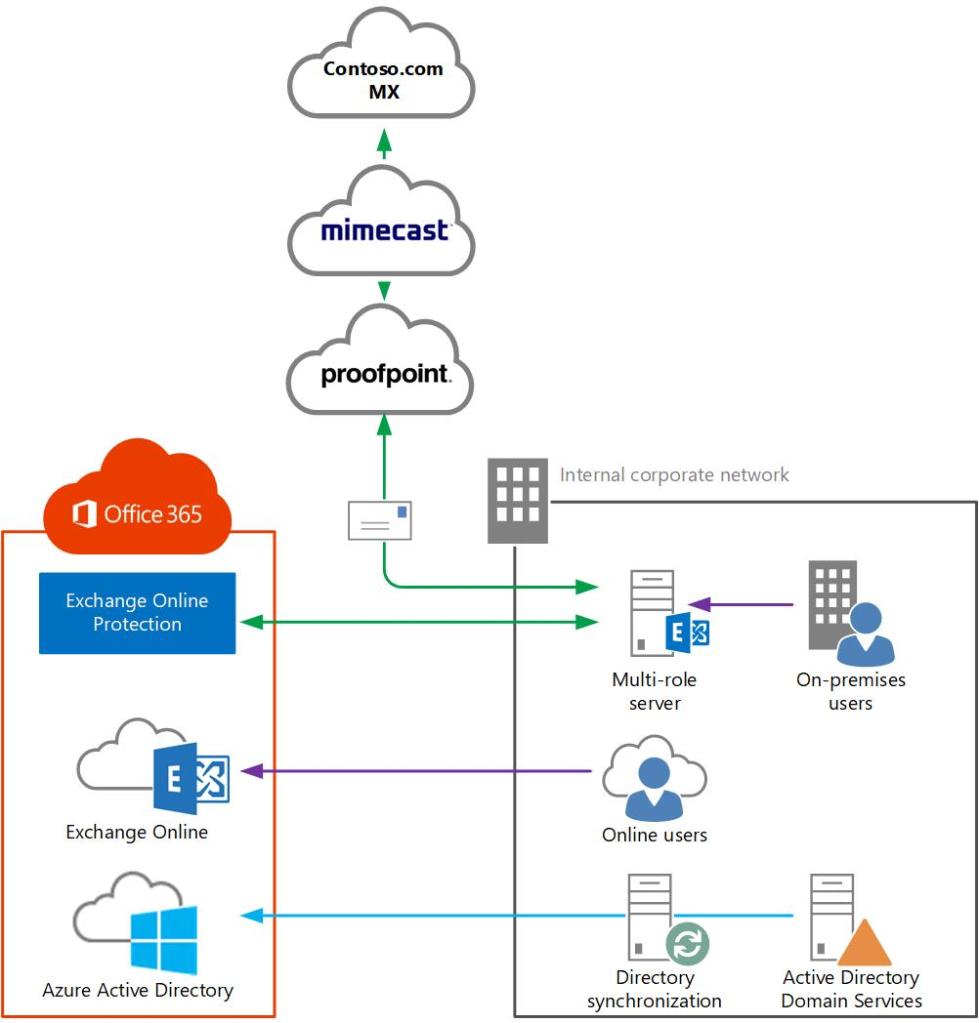
In the scenario above , this could be one of the most typical Exchange Online topologies. 1. Contoso.com MX record is pointed at Mimecast, Mimecast provides spam protection 2. Mimecast then passes the messages to Proof Point, and Proof Point, performs malware inspection on the messages. 3. Proofpoint then routes the messages to the on-premises Exchange Hybrid platform. 4. Exchange Hybrid forwards messages to Exchange Online recipients via the Exchange Hybrid connector and the mail flow source Exchange Hybrid server communicates directly with Exchange Online and does not route via Mimecast or Proof Point. 5. The Exchange Online inbound connector that accepts traffic from the Exchange Hybrid servers is secured via TLS.
VULNERABILITY Anyone in the world can send an email to an Exchange Online recipient with a *.mail.onmicrosoft.com or *.onmicrosoft.com alias, when sending to these domains. The messages completely bypasses , the organisation’s Mimecast and Proofpoint message hygiene services. If the organisation has not configured Exchange Online protection and Microsoft Defender for 365, then the organisation is vulnerable to malware and phishing emails.
Another problem: Office365 groups, When a Teams Channel is created, it creates an Office365 group that will have a *.onmicrosoft.com alias. Bad actors sending emails to these aliases can once again completely bypass the organisation’s message hygiene services.
SOLUTION The Hybrid configuration wizard creates an Exchange Online inbound connector that is locked down with TLS via a public trusted certificate on the Exchange Hybrid servers.
This script queries the existing inbound connector and creates an inbound connector that blocks messages routed to *.onmicrosoft.com recipients, to only accept traffic from the Hybrid servers that are using the matching TLS certifictate.
In this scenario , when a message is sent to an Exchange online recipient , the message flows as follows. 1. MX contoso.com 2. Mimecast 3. Proof Point 4. Exchange on-premises 5. Exchange on-premise forwards the message to the Exchange Online recipient’s *.mail.onmicrosoft.com alias.
Note: run this script using the latest Exchange Online PowerShell module
New-InboundConnector -Name ‘Restrict inbound mail flow to hybrid domains’ -ConnectorType Partner -SenderDomains * -TlsSenderCertificateName (Get-InboundConnector $InboundConnectorName).TlsSenderCertificateName -RestrictDomainsToCertificate $true -RequireTls $true