SPF,DKIM & DMARC for Message Hygiene Services

This article is about securing email transmission and I mention multiple vendors. Proofpoint recently acquired Wombat Security Technologies that provide security awareness training for end users. knowbe4 is another excellent security awareness training provider and the Gartner leader in security awareness training.

None of the vendors I mention in this article can provide zero day vulnerabilities protection and I still think one of the best line of defences for any organisation is security awareness training for end users.

SPF The Sender Policy Framework (SPF) is an email-authentication technique which is used to prevent spammers from sending messages on behalf of your domain. With SPF an organisation can publish authorized mail servers.
Ref: https://www.dmarcanalyzer.com/spf/

DKIM (Domain Keys Identified Mail) is an email authentication technique that allows the receiver to check that an email was indeed sent and authorized by the owner of that domain. This is done by giving the email a digital signature. This DKIM signature is a header that is added to the message and is secured with encryption.
Ref: https://www.dmarcanalyzer.com/dkim/

DMARC : DMARC, which stands for “Domain-based Message Authentication, Reporting & Conformance”, is an email authentication, policy, and reporting protocol. It builds on the widely deployed SPF and DKIM protocols, adding linkage to the author (“From:”) domain name, published policies for recipient handling of authentication failures, and reporting from receivers to senders, to improve and monitor protection of the domain from fraudulent email.
Ref: https://dmarc.org/

With the combination of SPF,DKIM and DMARC , these standards improve the reputation of an email like contoso.com. But most importantly they can help an organisation like contoso.com from being a victim of a phishing or an email spoofing campaign.

A lot of my enterprise customers and early adopters of Exchange Online chose not to use Exchange Online Protection because it quite simply wasn’t good enough at the time they moved to Exchange Online. Exchange Online Protection has really matured in the last number of years with some excellent features like:

  • Office365 ATP
  • Zero Hour Purge
  • Automated Investigation and Response (AIR)

In my view the two best locations for technical guidance on configuring Exchange Online Protection

  1. https://office365itpros.com/
  2. https://www-undocumented–features-com.cdn.ampproject.org/c/s/www.undocumented-features.com/2019/08/13/exchange-online-protection-eop-best-practices-and-recommendations/?amp

DKIM and DMARC should be configured on the last hop of email messages transmission.

Microsoft have documented how to configure DKIM for Exchange Online HERE
Microsoft have documented how to configure DMARC for Exchange Online HERE

Symantec Email Security Cloud DKIM
Symantec Email Security Cloud DMARC

Mimecast DKIM
Mimecast DMARC

Proofpoint DKIM
Proofpoint DMARC
Note: DMARC Not supported on ProofPoint Essentials

Cisco Cloud Email Security DKIM
Cisco Cloud Email Security DMARC

ForcePoint Email Security DKIM
ForcePoint Email Security DMARC

Exchange 2010 – 2016 Hyrid – Outlook not connecting

I have wrote many articles  about the Exchange Hybrid process. There are lots of excellent articles on line about this process. This blog post is aimed it simplifying the whole process and ensuring 2010 clients can still connect when using Exchange 2016 servers for autodiscover.

The Exchange Online Hybrid wizard has greatly improved over the years and the Exchange Hybrid Modern Agent is an amazing step forward and provides a mechanism to quickly migrate mailboxes to Exchange Online.

Exchange 2010  support will Expire in October 2020. I have recently been performing a lot of Hybrid migrations using Exchange 2010 and Exchange 2016 as the hybrid server

I always use this powershell SCRIPT to install the pre-requisites for each new Exchange server.

Autodiscover services are typically  transferred from the Exchange 2010 servers to Exchange 2016 servers.

Simply updating the autodiscover.consto.com A record to point at the new Hybrid server and expecting clients to connect without any issues is a big mistake.

If the Exchange 2010 organisation has a load balanced virtual ip , this IP cannot be simply reused for the Exchange 2016 server. The main reason for this is that,mapi has transitioned to mapi over http from Exchange 2013 versions and higher.

Exchange 2016 has different virtual directories and also has health check urls per Exchange virtual directory.

  • Kemp – Kemp have templates for Exchange 2016
  • F5 – Have templates for Exchange 2016
  • Netscaler – Follow this article to load balance Exchange 2016 via Netscaler HERE

When the Exchange Hybrid has been installed and configured , Run this SCRIPT
And set all of the virtual directories to your corporate domain eg. autodiscover.contoso.com

On the Exchange 2010 server , get an inventory of databases hosted on the Exchange 2010 servers. And then run this command to set the rpc client access server per Exchange 2010 database,

Set-MailboxDatabase –Identity “<Database Name>” –RPCClientAccessServer “exch2010-01.contoso.local”

This is the most important task, Exchange 2016 receives autodiscover requests and proxies them to the Exchange 2010 client access servers for mailboxes that are still hosted on Exchange 2010.

Now is the time to update the two DNS records autodiscover.contoso.com and mail.contoso.com to point to the new Hybrid server.

Exchange Online users that have been migrated and are working outside of their company offices will query the public autodiscover.contoso.com record which will point to the hybrid server, the hybrid server will respond with the correct autodiscover xml via http redirect to Exchange Online.

Exchange On-Premise Mailbox will not MIGRATE

I recently encountered an issue which I have seen before but never this bad and more commonly with Public Folders. My customer had a 50GB mailbox that also had an archive mailbox. The mailbox would get so far and just stall and never complete.

So I tried all of some of the usual methods to repair the mailbox to no avail.
Repair the mailbox with PowerShell & Migrate the mailbox to another Exchange database

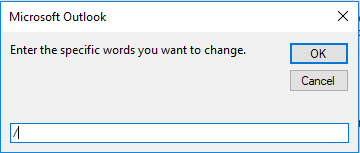
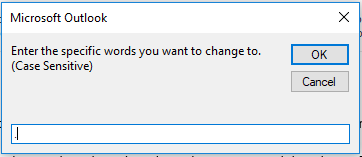
So we asked the customer could we review the mailbox and found thousands of folder in the format of 16/04/2019. Exchange does not like / , Exchange normally sees / as the top of the information store. So my first attempt to resolve this was powershell and could not seem to crack it. Thanks to my colleague Mark Doyle  ,We resolved this issue with an Outlook Macro.

So if you ever encounter this unique issue , Please follow these steps.

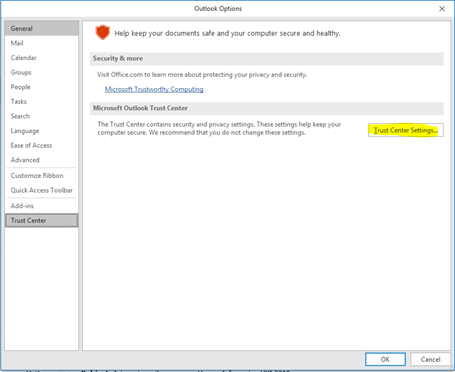
  1. Browse to the Outlook Trust Center
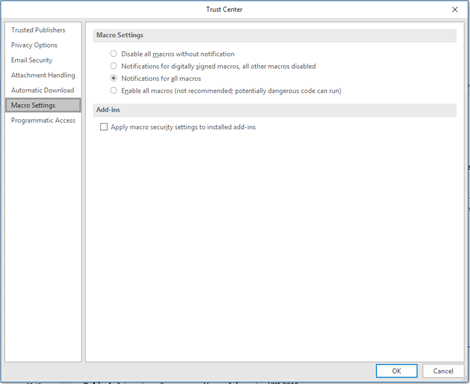
  2. Macro Settings, Select Notifications for all Macros
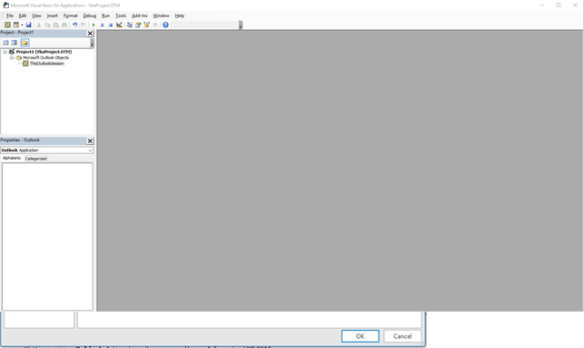
  3. Press Alt + F11 to open Visual Basic
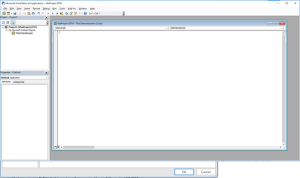
  4. Double click “This Outlook Session” under Microsoft Outlook Objects
  5. Paste  this TEXT below into the window
  6. Click on the folder or inbox that you want , And run the Macro
  7. Input character we want to replace in this case will be /
  8. Then select . as the replacement character
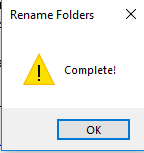
  9. Finally task complete

Final Comment

This is in no means an enterprise solution and I asked Microsoft for help and didn’t get anywhere. Once we removed the / , We could see when checking get-moverequeststatistics (mailbox) , that it was getting past the ‘create folder hierarchy’ stage in a mailbox move. And we did not need to tell our customer , Sorry this mailbox cannot be migrated!

eDiscovery for Exchange Online Data at Rest

  • It is not possible to search for sensitive information types when selecting Exchange Online mailboxes as the data source , Office 365 User Voice REQUEST
  • It is possible to search for the items specified in this Microsoft ARTICLE and via KeyWord

The screen shot below is from an Office365 E5 Advanced eDiscovery query that shows these types of searches are not supported

LETS HOPE MICROSOFT RESOLVE THIS ONE!

Exchange Hybrid Agent

Image

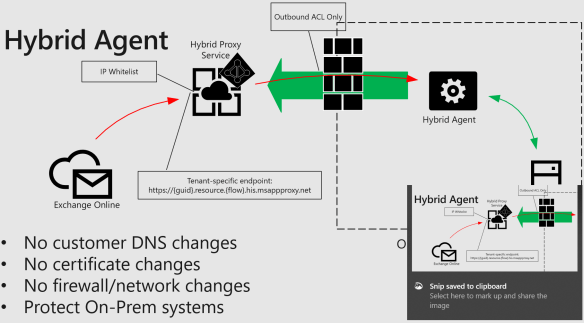
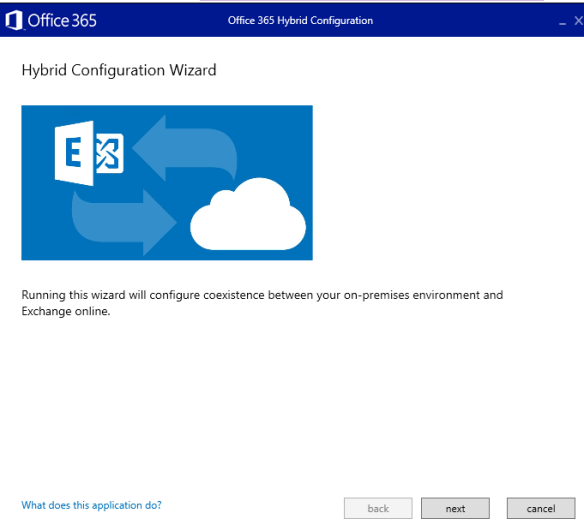
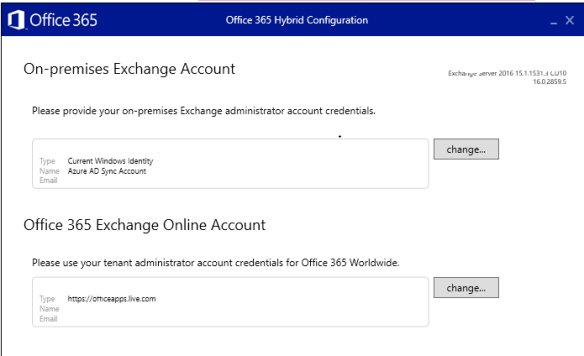
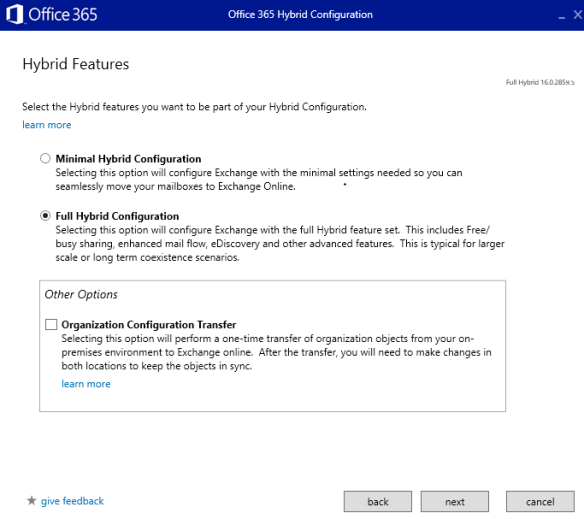
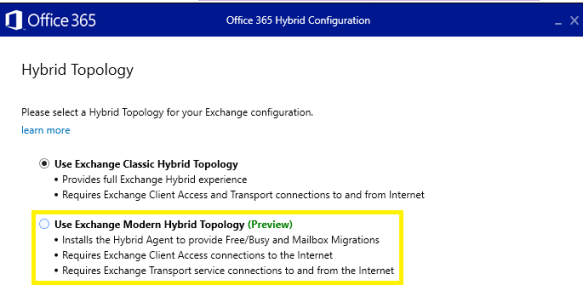
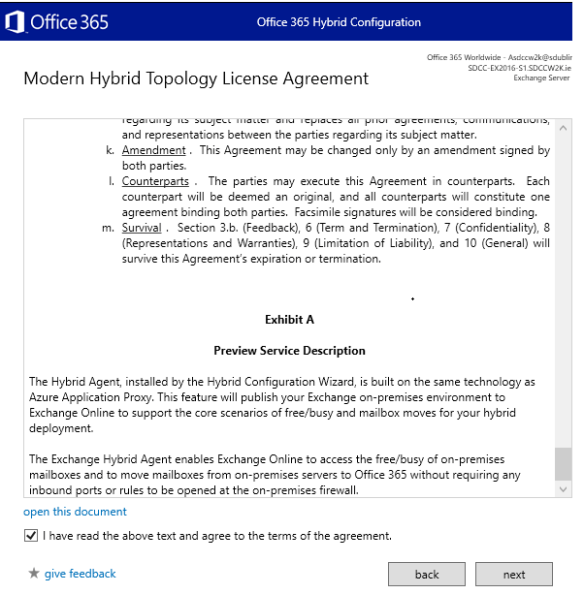
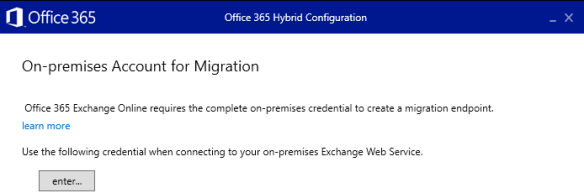
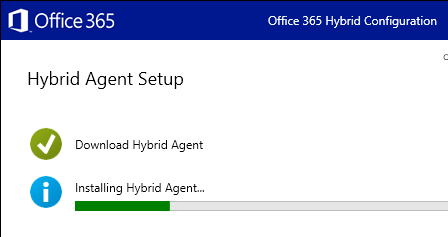
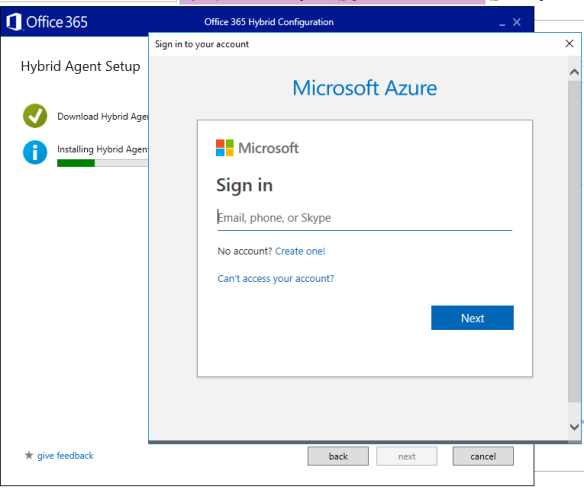
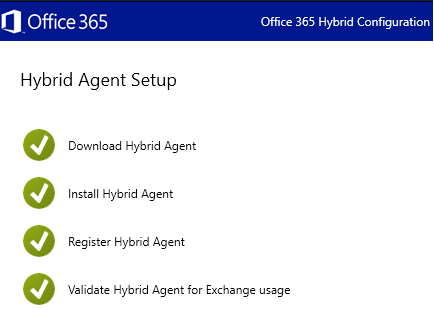
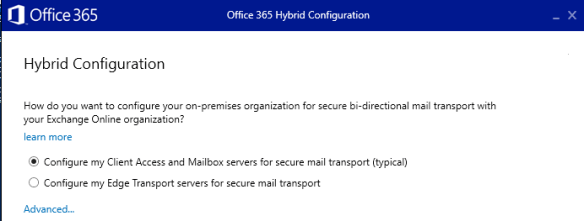
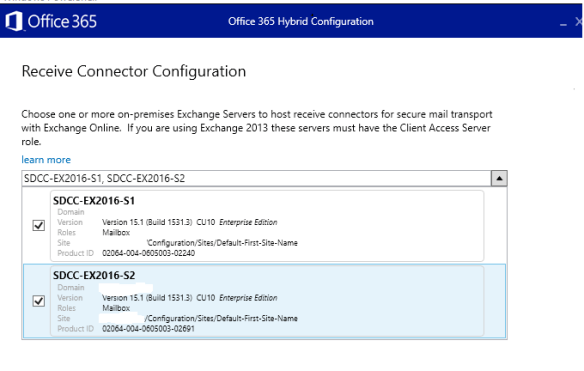
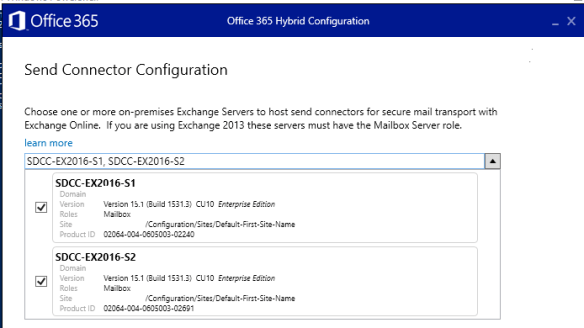
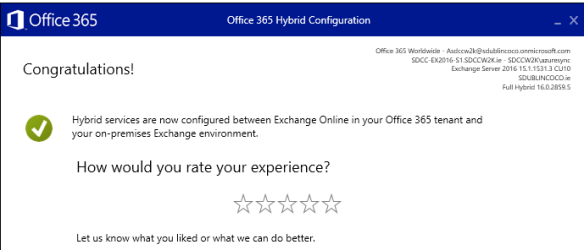
During one of my favorite sessions in Ignite last year, Microsoft announce a new feature : Hybrid Agent displayed in the image above. The next part of this blog is step by step screenshots displaying the configuration of Hybrid Agent on two Exchange 2016 CU10 servers.

First of all run this powershell command on all Hybrid servers.
Set-WebServicesVirtualDirectory -Identity “EWS (Default Web Site)” -MRSProxyEnabled $true

Most organisations route outbound external smtp traffic via a smarthost which can normally be an appliance like Cisco Ironports and do not permit outbound port 25 traffic from Hybrid servers.  I would suggest temporarily allowing smtp traffic outbound from the Hybrid servers until the Hybrid agent installation completes then block outbound port 25 again on the hybrid servers.

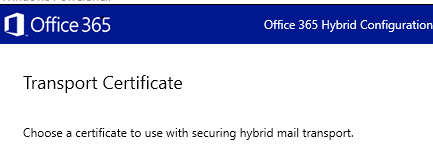
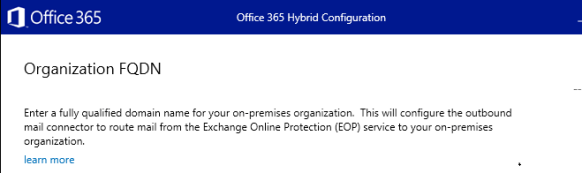
The next steps run through the Hybrid agent setup.


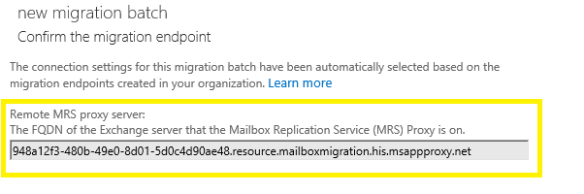
Now when attempting to migrate mailboxes note the change in the migration endpoint highlighted in the image below