
This series:
Part 1 - SMS and voice MFA is ending: lock down your passkey profiles first (you are here)
Part 2 - Who is actually ready?
Part 3 - Enforcing the right passkey at sign-in
Part 4 - The people problem
In short: Microsoft is switching off SMS text and voice call sign-in codes for Microsoft 365. Users are being moved to passkeys, but the default settings accept almost any passkey, including ones stored in personal Google or Apple accounts. This part shows how Contoso restricts that to Microsoft Authenticator for everyone and a YubiKey hardware key for its most privileged administrators.
Why SMS and voice are going
A code sent by text message or read out in a phone call proves very little. An attacker can trick a user into typing it into a fake sign-in page, or take over the phone number with a SIM swap. A passkey works differently: it is a cryptographic key held on the user’s phone or on a hardware key, it only works on the genuine Microsoft sign-in page, and there is nothing for the user to read out or type in. That is why passkeys are described as phishing-resistant.
Key terms used in this series
| Term | Meaning |
|---|---|
| Passkey | A sign-in credential stored on a phone, computer or hardware key, unlocked with a PIN, fingerprint or face. Replaces passwords and one-time codes. |
| Device-bound passkey | Stays on one device or hardware key and cannot be copied. Microsoft Authenticator and YubiKeys hold device-bound passkeys. |
| Synced passkey | Copied between a user’s devices through a personal cloud account such as Google Password Manager or iCloud Keychain. |
| AAGUID | A model identifier every passkey provider reports, for example “Microsoft Authenticator for iOS” or “YubiKey 5 NFC”. It is how Entra ID tells one type of passkey from another. |
| Attestation | Proof, signed by the manufacturer, that the passkey really comes from the model it claims. Without it, the AAGUID is taken on trust. |
| Passkey profile | A set of Entra ID rules for which passkeys a group of users may register. |
| Tier 0 | The most privileged administrators - those who can control the whole tenant. At Contoso their roles are managed with Privileged Identity Management (PIM) and they work from a Privileged Access Workstation (PAW), a locked-down device used only for admin work. |
| Conditional Access | Entra ID’s rules engine for sign-ins: who, from where, to what, and with which method. |
The hard stop is coming
Microsoft has been signalling the end of SMS and voice as authentication methods for some time. That signal now has dates attached, and the first one has already passed.
- 1 September 2026 - passkeys became the default authentication experience in Microsoft Entra ID. Every user enabled for SMS or voice was automatically enabled for passkeys and is nudged to register one at their next MFA sign-in.
- 1 February 2027 - Microsoft-provided SMS and voice is retired for all users except Global Administrators and external users. After this date, a user whose only MFA method is SMS or voice must register a passkey before they can continue signing in. The prompt is blocking and there is no opt-out.
- 1 July 2027 - the same retirement and blocking prompt apply to Global Administrators and external users.
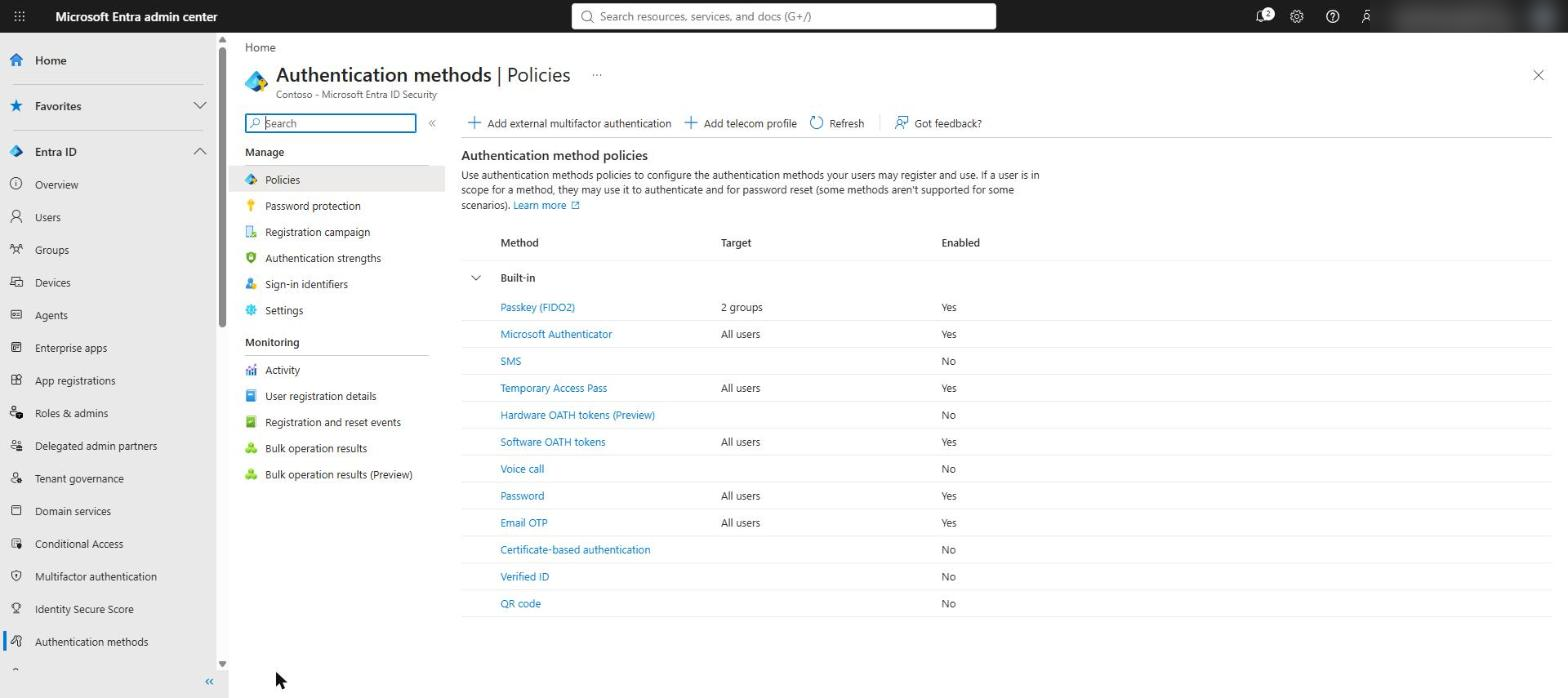
There is a temporary opt-out from the automatic passkey enablement, set through Microsoft Graph, but it only covers the September 2026 to February 2027 window. It does not stop the retirement or the enforcement. Organisations with a genuine regulatory or operational need for SMS or voice will have to bring a third-party telephony provider from the Microsoft Security Store - the new Add telecom profile option on the Authentication methods blade is where that lives.
What Microsoft does for you - and why that is not enough
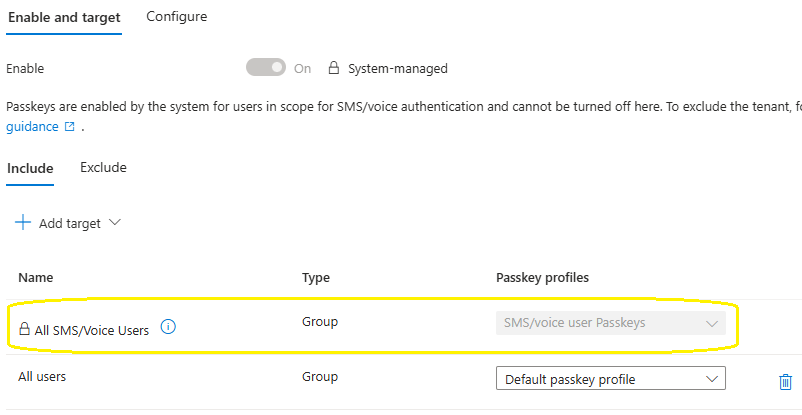
If your tenant still has SMS or voice users, you will find a locked, system-managed row in the Passkey (FIDO2) policy: All SMS/Voice Users, assigned the SMS/voice user Passkeys profile. It is enabled by the system and cannot be turned off from the policy.
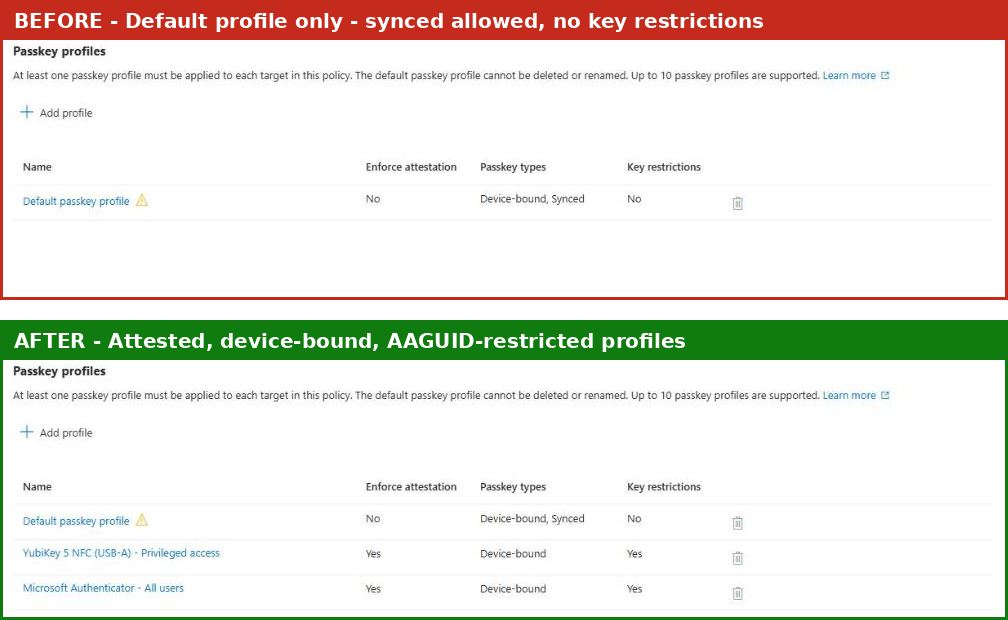
Getting SMS and voice users onto passkeys is the right outcome. The problem is which passkeys. When passkey profiles were rolled out, existing settings were migrated into the Default passkey profile. In the Contoso tenant, that profile had no attestation, allowed both device-bound and synced passkeys, and had no key restrictions. In practice, any passkey provider a user chooses - Google Password Manager, iCloud Keychain, Samsung Pass or anything else - is acceptable.
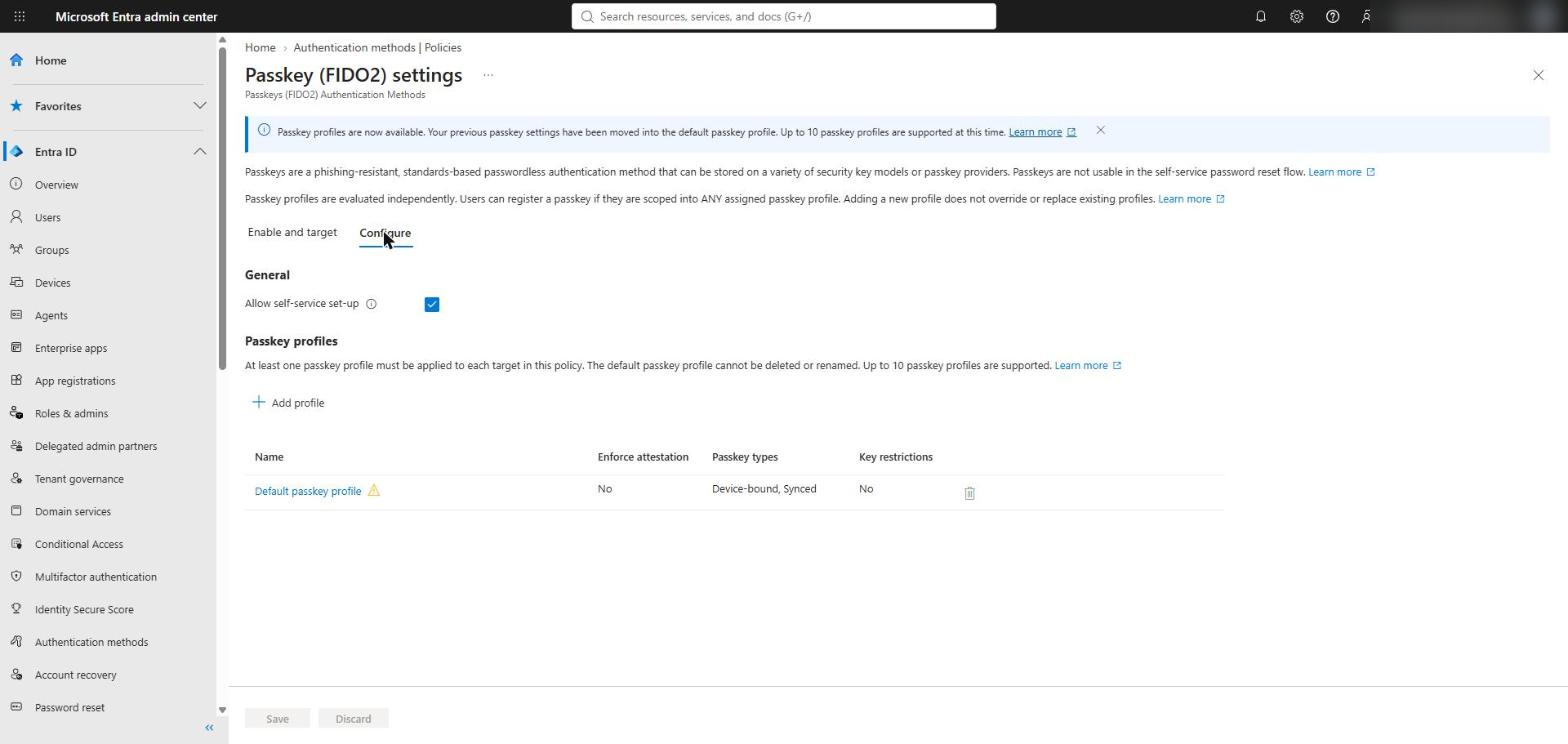
Synced passkeys are phishing-resistant, but they live in a consumer account Contoso does not manage. The passkey that unlocks Microsoft 365 should be one Contoso can identify and control.
The design: two profiles, two populations
Passkey profiles let you set different rules for different groups. The Contoso design uses two:
- Microsoft Authenticator - All users: attestation enforced, device-bound only, restricted to the Microsoft Authenticator for Android and iOS AAGUIDs. Assigned to All users for full coverage.
- YubiKey 5 NFC (USB-A) - Privileged access: attestation enforced, device-bound only, restricted to the YubiKey 5 NFC AAGUIDs. Assigned to the _PIM Tier 0 security group, in line with a Zero Trust privileged access model where Tier 0 identities authenticate from a Privileged Access Workstation with a hardware key.
Building the YubiKey profile
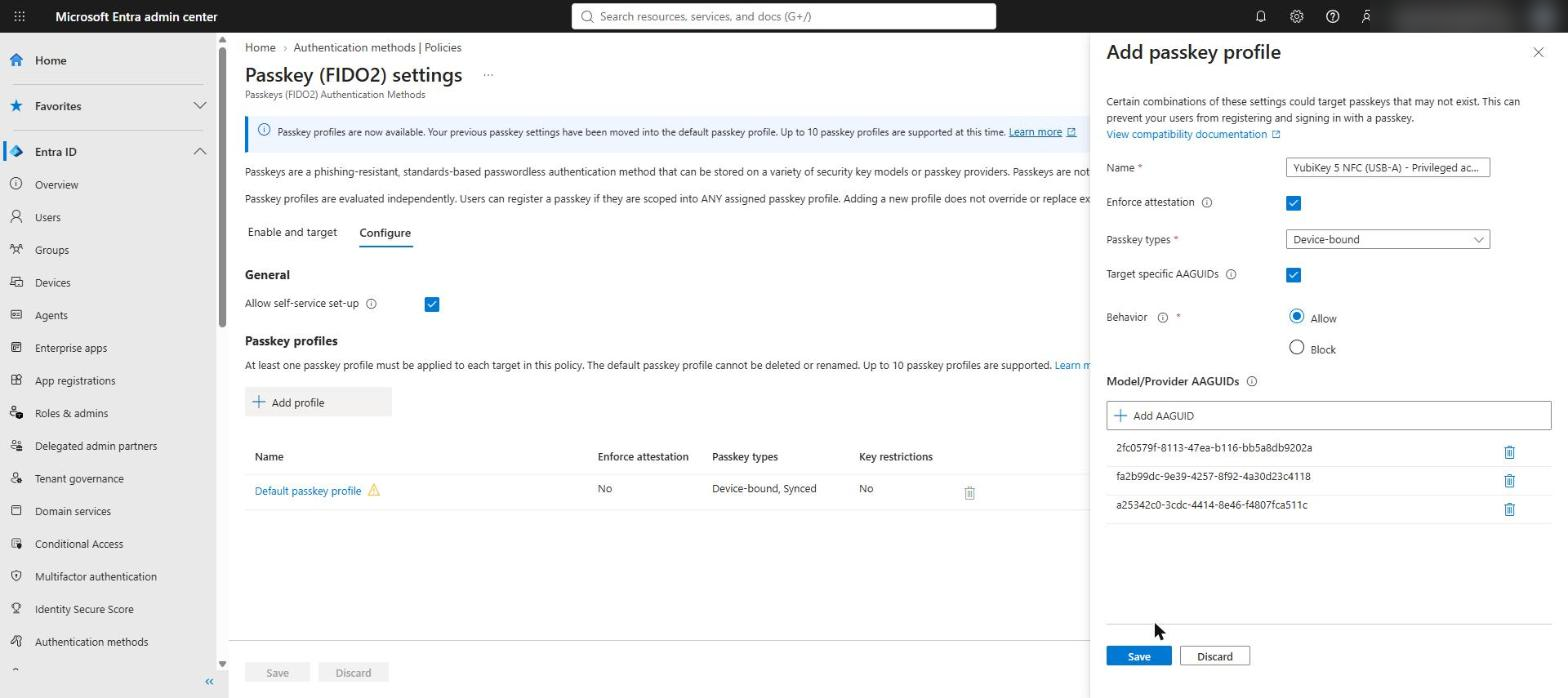
In the Microsoft Entra admin centre, go to Entra ID > Authentication methods > Policies > Passkey (FIDO2) > Configure > Add profile.
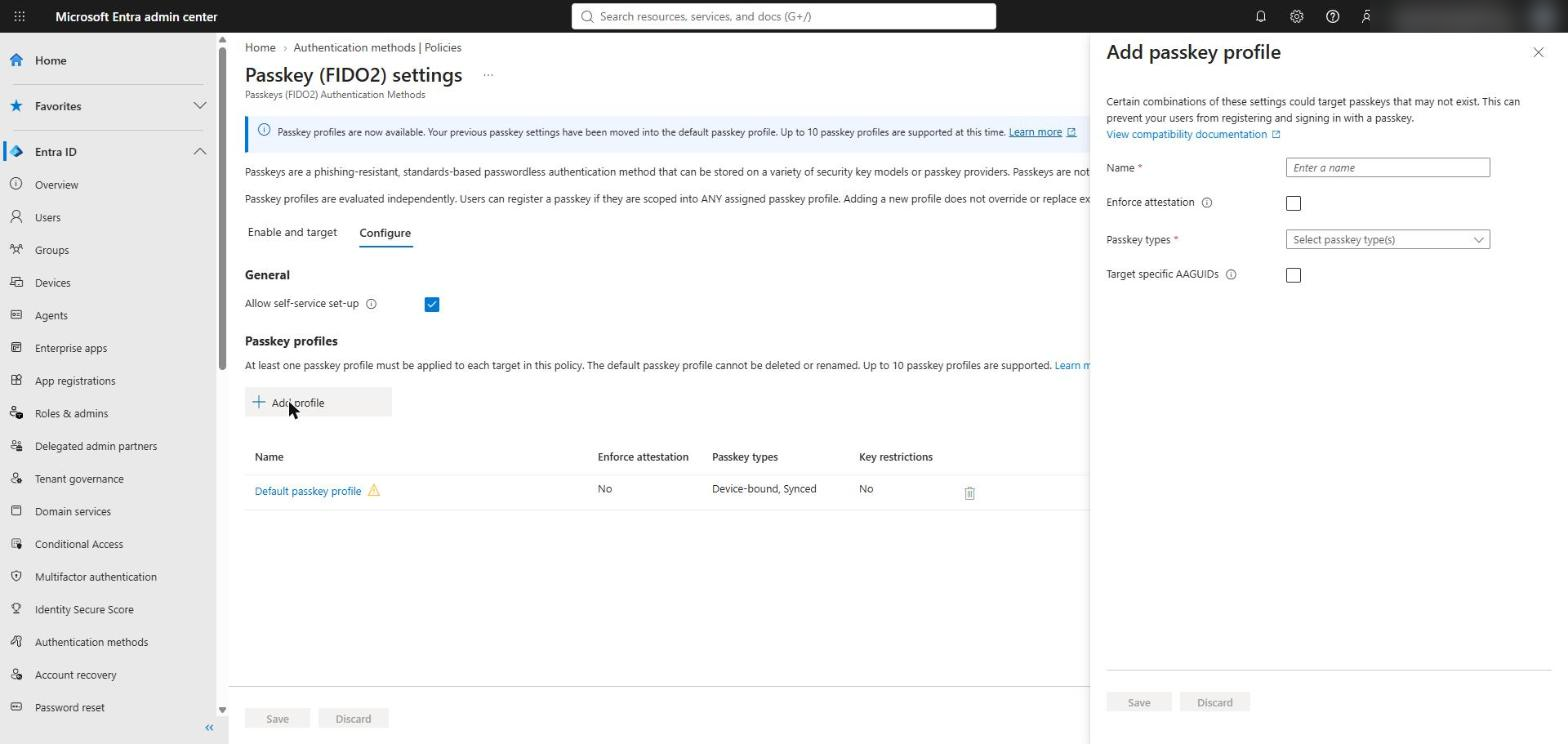
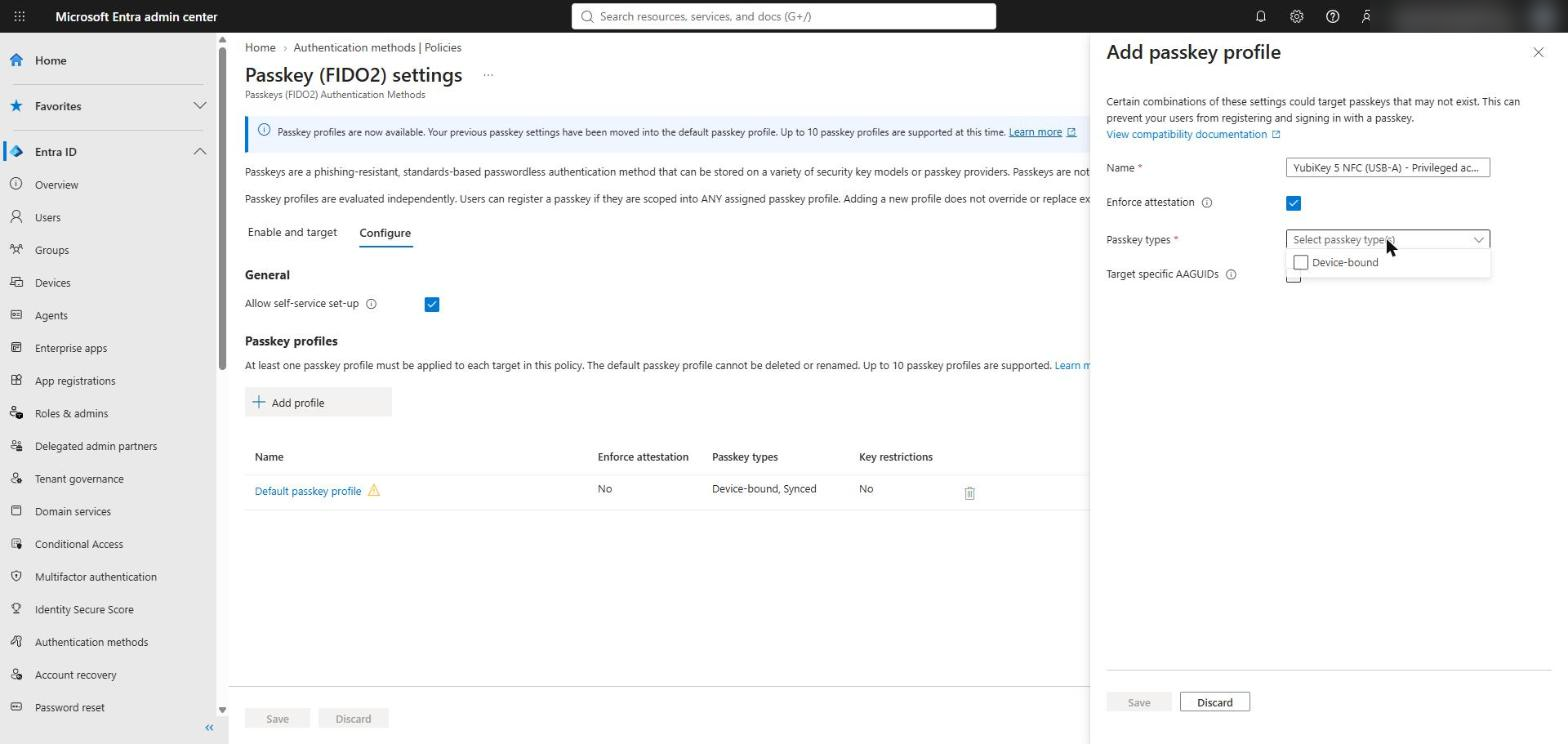
Two behaviours in the portal are worth knowing before you start. First, once Enforce attestation is ticked, the only passkey type offered is Device-bound - synced passkeys do not support attestation.
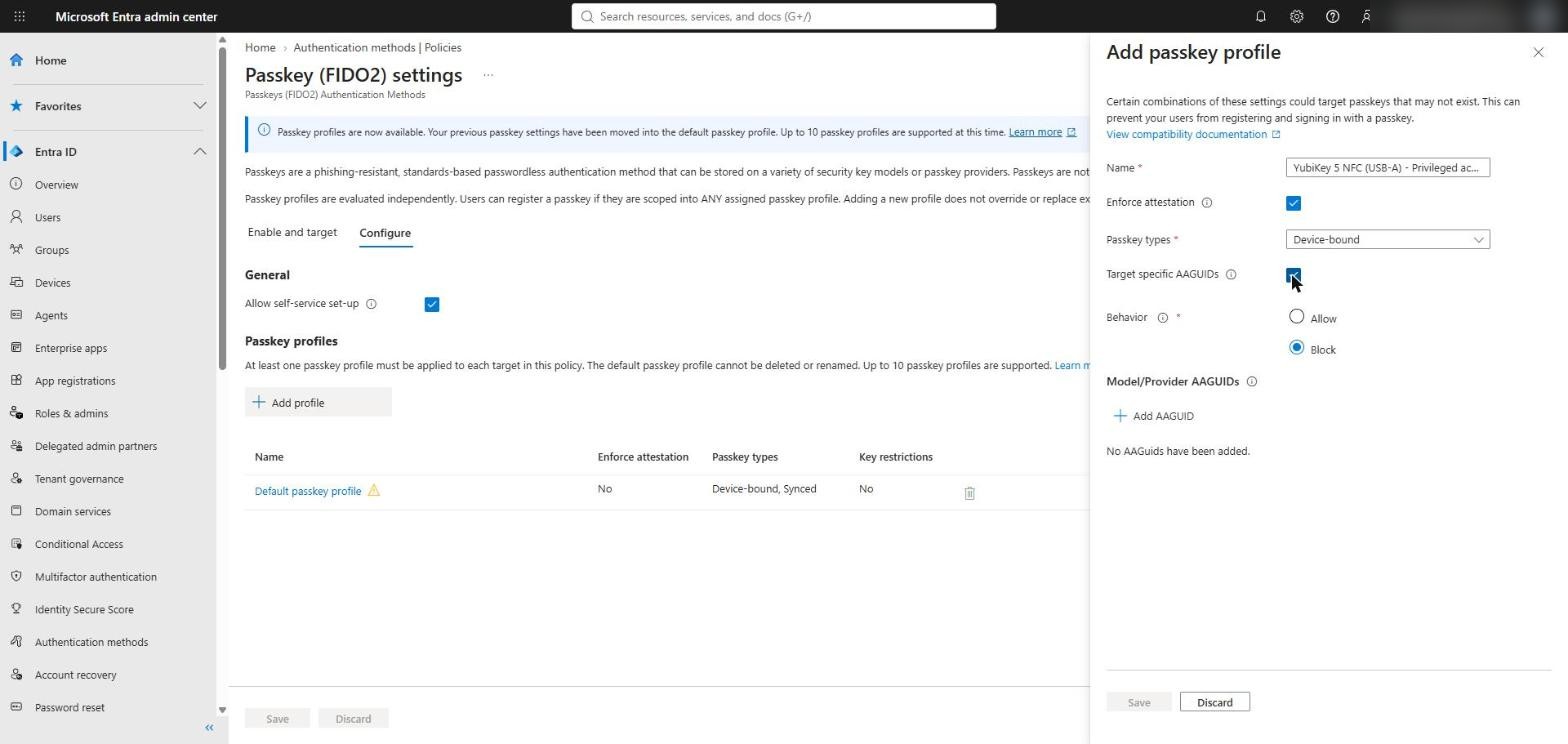
Second, when you tick Target specific AAGUIDs, the Behaviour defaults to Block, not Allow. Leave it on Block and you have built a block list. For an allow-list profile, change it to Allow before adding AAGUIDs.
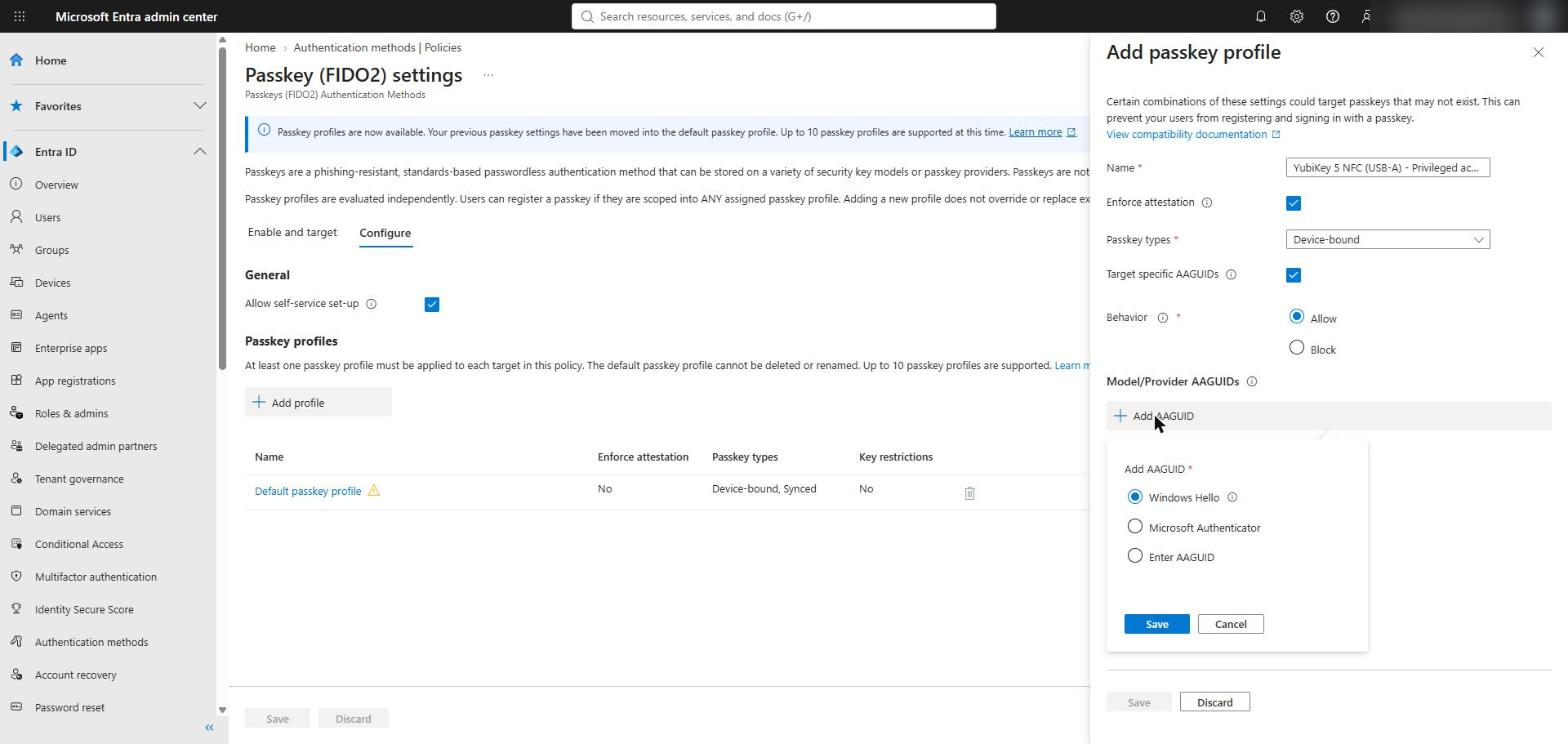
Add AAGUID gives three choices: Windows Hello, Microsoft Authenticator (which adds both the Android and iOS AAGUIDs) and Enter AAGUID for anything else.
A YubiKey model does not have a single AAGUID. It changes with firmware generation, and YubiKey firmware cannot be upgraded, so keys bought in different years report different values. To cover every YubiKey 5 NFC (USB-A) Contoso might issue, the profile includes:
- fa2b99dc-9e39-4257-8f92-4a30d23c4118 - firmware 5.1
- 2fc0579f-8113-47ea-b116-bb5a8db9202a - firmware 5.2 and 5.4
- a25342c0-3cdc-4414-8e46-f4807fca511c - firmware 5.7
Building the Authenticator profile
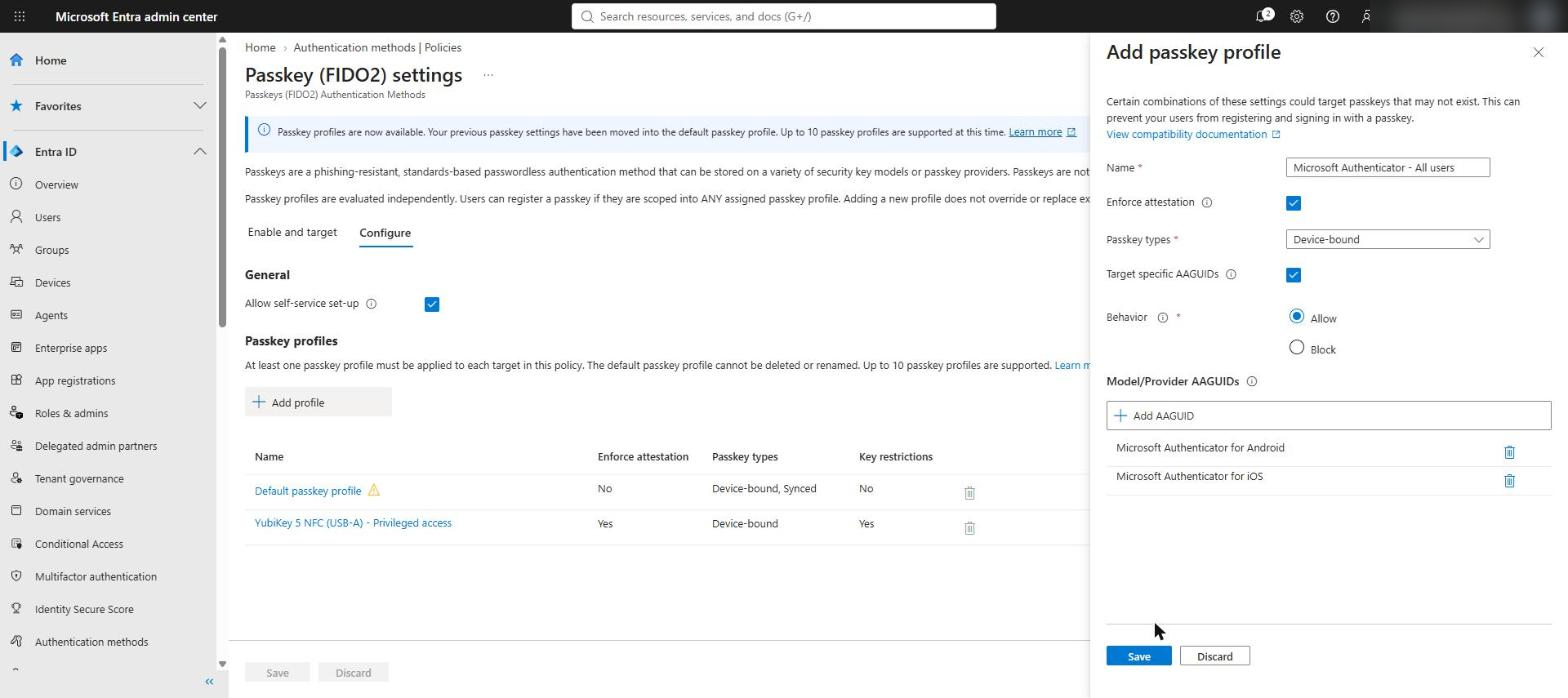
Repeat the process with the Microsoft Authenticator shortcut. The portal adds the Android and iOS AAGUIDs and shows them by name rather than as GUIDs.
Assigning the profiles
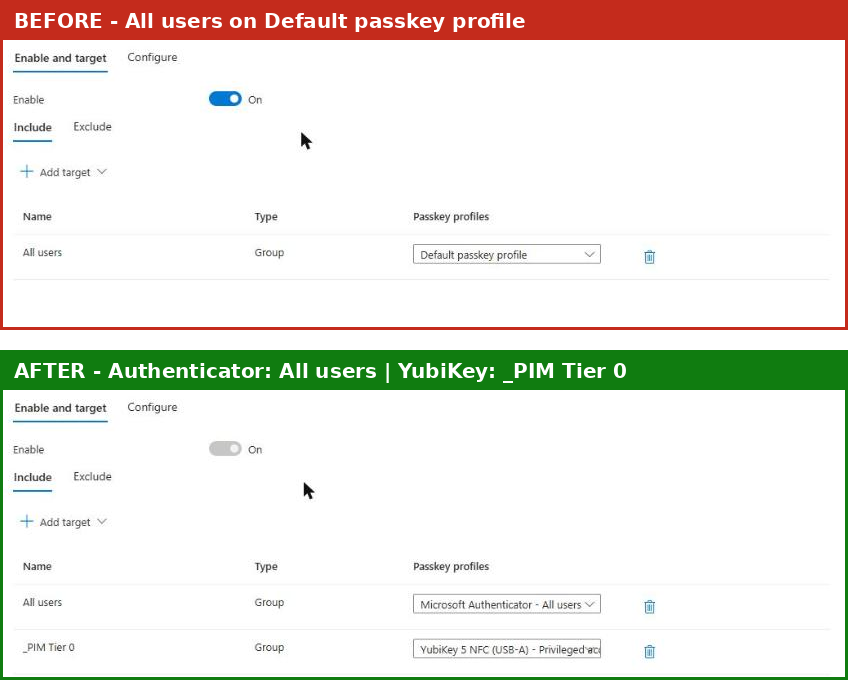
On the Enable and target tab, change the All users target from Default passkey profile to Microsoft Authenticator - All users, then add _PIM Tier 0 as a target and assign it the YubiKey profile. The Default passkey profile cannot be deleted or renamed, but it no longer needs to be assigned.
Can’t anyone just install Authenticator?
A fair challenge to this design: if the profile allows Microsoft Authenticator, any iOS or Android user can install the app, so what has been locked down? The answer is that the profile controls the type of passkey, not the phone it sits on - and that is exactly what it is meant to do.
- The passkey cannot leave the device. An Authenticator passkey is device-bound and attested. It is not copied to a Google or Apple account, and it cannot be exported or shared. A synced passkey in a personal password manager can be, which is what the Default profile allowed.
- Installing the app proves nothing on its own. Registering a passkey is itself an authenticated action: the user must already pass MFA to add one. The real risk is an attacker who has phished a password and an SMS code registering their own Authenticator. Part 3 closes that gap with a Conditional Access policy on security information registration.
- Contoso can see and revoke it. Every Authenticator passkey appears against the user with its model, and the Part 2 report lists them. A lost phone is a single method to remove.
If Contoso wants passkeys only on company-managed phones, that is a device control rather than a passkey control - Intune compliance or app protection in Conditional Access - and it sits on top of this design rather than replacing it.
Does All users override the Tier 0 assignment?
No - and this is the point most likely to catch people out. Profiles are not evaluated in order, and none takes precedence. When a user is scoped into more than one profile, a passkey is allowed if it fully satisfies at least one of them. A Tier 0 admin who is in both All users and _PIM Tier 0 can therefore register either a YubiKey or an Authenticator passkey.
Excluding _PIM Tier 0 does not help either. The Exclude tab applies to the whole Passkey (FIDO2) method and takes precedence over every include, so excluded users lose passkeys entirely - YubiKey included.
Keep All users for full coverage. Passkey profiles control what can be registered. Conditional Access controls what must be used. Requiring the YubiKey for Tier 0 at sign-in is the subject of Part 3.
Before you change your own tenant
Recommended rollout order. This series is written in the order that best explains the controls, not the order to deploy them. In production: (1) report on what users have registered (Part 2); (2) start communications and offer an option to every user (Part 4); (3) create both profiles and assign the YubiKey profile to Tier 0; (4) move All users off the Default profile only when the Part 2 report shows nobody would be locked out; (5) enforce the YubiKey for Tier 0 with Conditional Access, report-only first (Part 3).
- Key restrictions apply to sign-in as well as registration. Moving All users off the Default profile means any passkey registered under it that does not match the new profile - a synced passkey, or another vendor’s security key - stops working. Report on what is registered first. Part 2 covers how.
- Attestation is checked at registration only. Enforcing it later does not invalidate passkeys registered without it.
- Profile limits. The portal states that up to 10 passkey profiles are supported.
- The system-managed SMS/voice target is outside your control. Moving those users off SMS and voice deliberately, rather than waiting for the February 2027 cut-off, is what puts them under your profiles.
Next in the series
Part 2 looks at the starting point: how to report on registered authentication methods per user, find who still relies on SMS or voice, and who has a passkey that will stop working once the Default profile is retired.
References
- Microsoft Learn - SMS and voice retirement in Microsoft Entra ID
- Microsoft Learn - Enable passkeys (FIDO2) and passkey profiles in Microsoft Entra ID
- Microsoft Security blog - Passkeys are the default authentication method in Entra ID (13 July 2026)
- Message Centre MC1221452 - General availability of passkey profiles (mc.merill.net)
- Yubico - YubiKey hardware FIDO2 AAGUIDs


Pingback: Replacing SMS and voice MFA, Part 4: The people problem | Cloud-Secure.ai
Pingback: Replacing SMS and voice MFA, Part 3: Enforcing the right passkey at sign-in | Cloud-Secure.ai
Pingback: Replacing SMS and voice MFA, Part 2: Who is actually ready? | Cloud-Secure.ai