This series:
Part 1 - SMS and voice MFA is ending: lock down your passkey profiles first
Part 2 - Who is actually ready? (you are here)
Part 3 - Enforcing the right passkey at sign-in
Part 4 - The people problem
In short: Before changing any sign-in settings, find out what each user has actually set up. This part shows the built-in Entra ID reports, why they are not enough on their own, and two free scripts that sort every user into a readiness group - from “ready” to “will be locked out in February 2027” - and turn those groups into action lists.
In Part 1, Contoso replaced the loose Default passkey profile with an Authenticator profile for all users and a YubiKey profile for Tier 0. In a production tenant, this report comes first: you need to know where every user stands before moving anyone off the Default profile. Otherwise the first anyone hears of a problem is a user who cannot sign in.
Start with the headline number
Entra ID > Authentication methods > Activity gives you the headline. In the Contoso tenant, 2 of 34 users were MFA capable and 0 were passwordless capable.
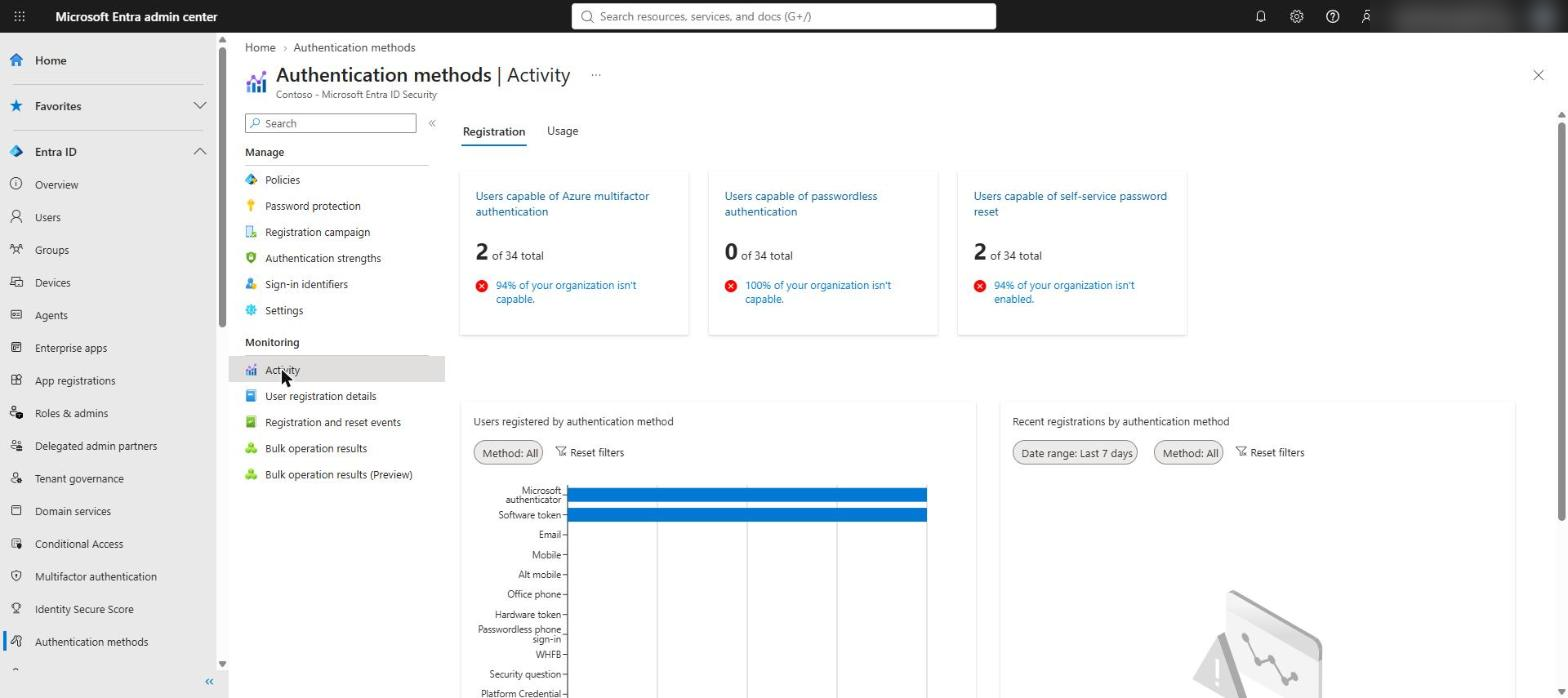
That is a useful number for a steering group. It does not tell you who to contact or what each of them needs.
Microsoft’s analyser checks policy, not people
Microsoft has published a PowerShell script for the retirement, Get-SmsVoicePolicyUsers.ps1 (github.com/microsoft/entra-sms-voice-usage-analyzer). It is worth running, but be clear about what it does. It reads the SMS and Voice method policy scope, the registration campaign state and the migration state, and exports the targeted groups and users to CSV.
It is a policy scope scanner, not a user inventory. It does not expand group membership, check registered methods or read sign-in activity. It tells you who SMS and voice are enabled for, not who depends on them.
User registration details
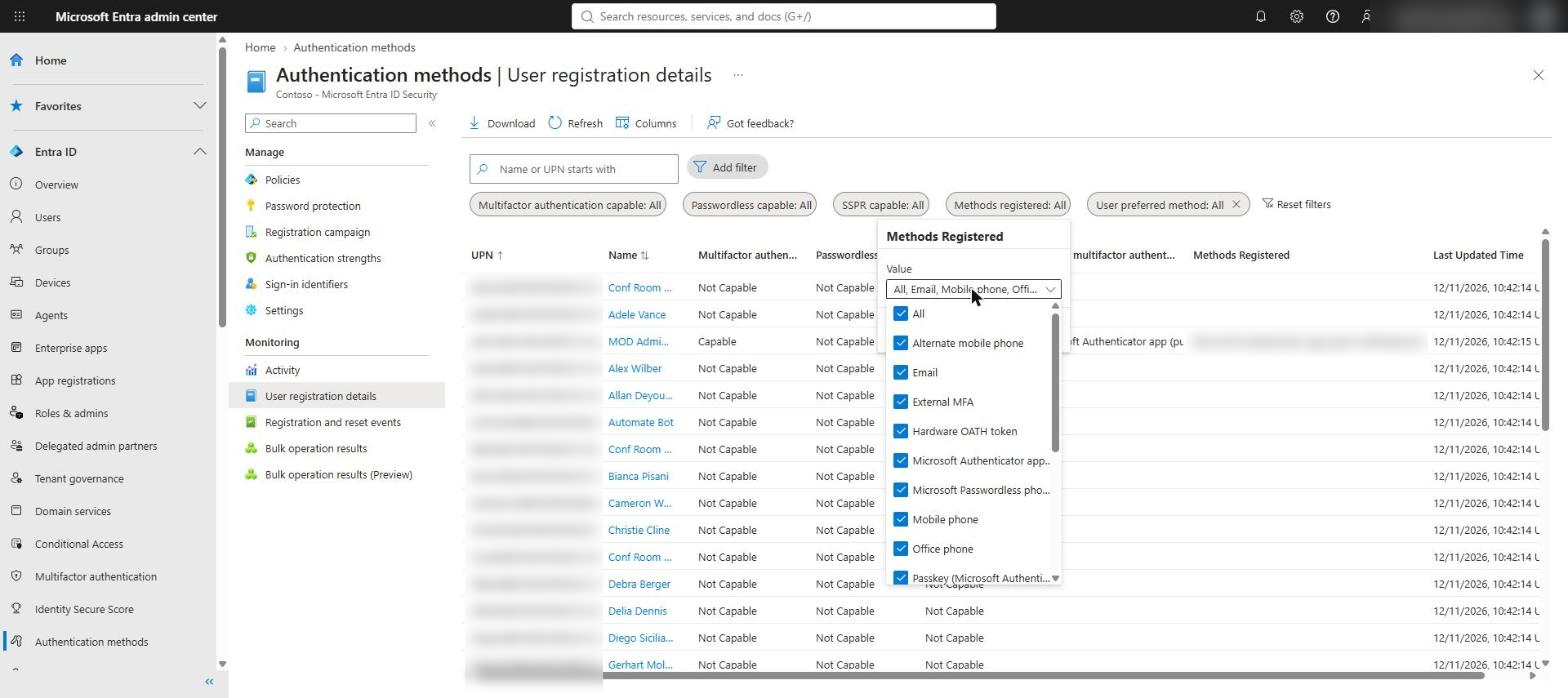
Entra ID > Authentication methods > User registration details is the per-user view. Each row shows whether the user is MFA capable, passwordless capable and SSPR capable, their default MFA method and every method they have registered. It can be filtered and downloaded as CSV.
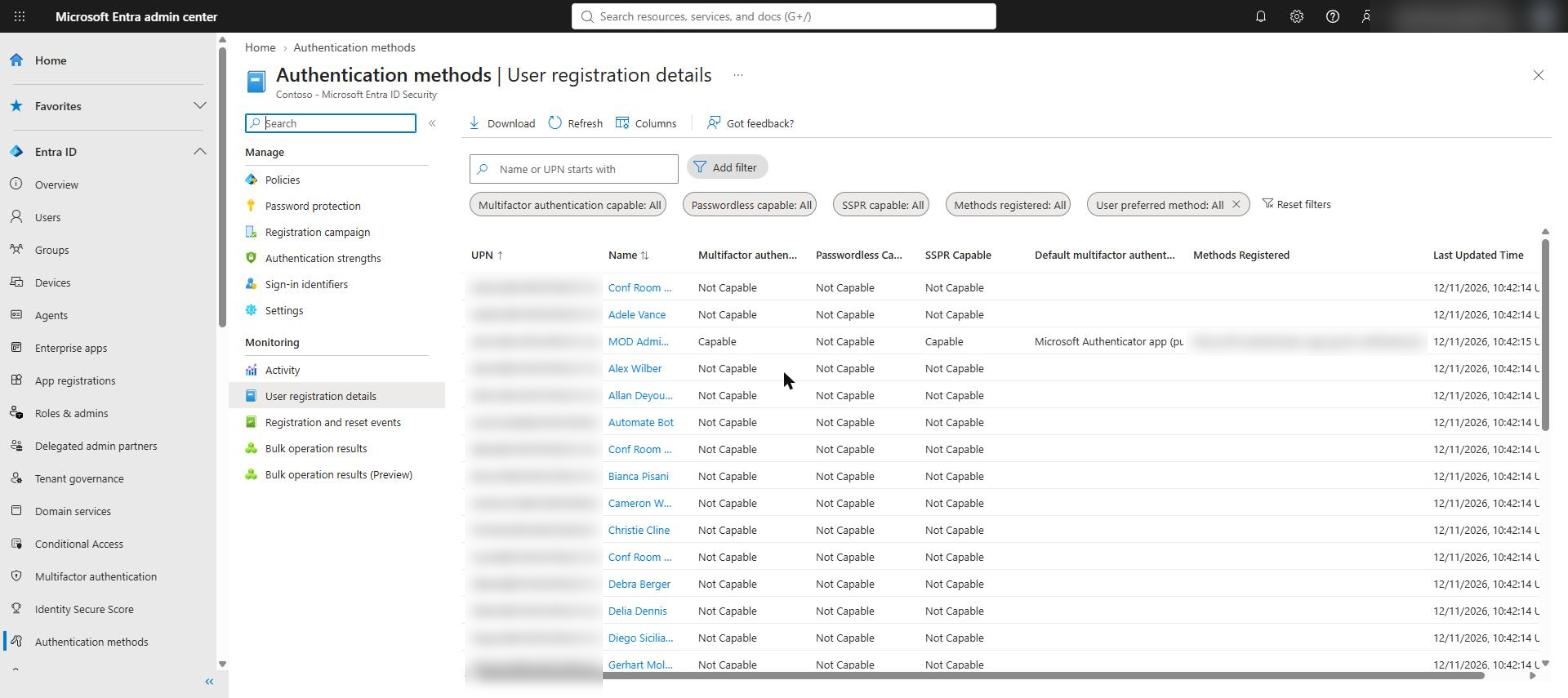
The Methods registered filter now separates Passkey (Microsoft Authenticator) from other passkeys, which is exactly the distinction the profiles in Part 1 depend on.
Why I built my own readiness scripts
Before Microsoft Graph, the quickest way to see each user’s methods was the MSOnline PowerShell module. With MSOnline retired, the community has filled the gap - AdminDroid’s free Export MFA Status Report script (published in the admindroid-community/powershell-scripts repository on GitHub) is a good example. In client reports I have generated, per-user reports like this have consistently surfaced users who have never registered Microsoft Authenticator - often users whose only method is a mobile phone number. Those are the users who will hit the blocking prompt in February 2027.
Generic MFA reports answer the question “does this user have MFA?”. For this migration the question is different: “will this user still be able to sign in once SMS and voice are gone and the restrictive passkey profiles from Part 1 apply?”. That needs the AAGUID of every registered passkey, checked against the profiles you plan to deploy - so I wrote two scripts for it, published in the cloud-secure-ai GitHub repository.
| Script | What it does |
|---|---|
| Get-PasskeyReadiness.ps1 | Read-only. Reads every user’s registered methods, including passkey models and AAGUIDs, and places each user in one readiness bucket. Exports a CSV and a console summary. |
| Sync-PasskeyReadinessGroups.ps1 | Creates one security group per bucket and keeps membership up to date. Supports -WhatIf. |
The readiness buckets
| Bucket | Meaning and action |
|---|---|
| SmsVoiceOnly | Only phone-based MFA registered. Blocked from 1 February 2027. Highest priority. |
| PasskeyOutsideAllow | Has a passkey whose AAGUID is not on your allow list - for example a synced passkey. It stops working when the Default profile is retired. |
| PrivilegedNoHardwareKey | Member of the Tier 0 group without an approved FIDO2 hardware security key. Fix before switching on the Part 3 policy. |
| NoAuthenticator | Has MFA, but no Microsoft Authenticator and no allowed passkey. |
| NotMfaCapable | No MFA method registered at all. |
| Ready | Microsoft Authenticator or an allowed passkey registered. |
Running the report
The script reads each user’s authentication methods directly, so the passkey AAGUIDs come back in the same call and it does not depend on Microsoft Entra ID P1 reporting. Phone numbers are masked to the last four digits, and nothing is written to the tenant. The allow lists match the Contoso profiles from Part 1:
$authenticator = 'de1e552d-db1d-4423-a619-566b625cdc84',   # Authenticator for Android
                 '90a3ccdf-635c-4729-a248-9b709135078f'    # Authenticator for iOS
$yubiKey5Nfc   = 'fa2b99dc-9e39-4257-8f92-4a30d23c4118',   # YubiKey 5 NFC 5.1
                 '2fc0579f-8113-47ea-b116-bb5a8db9202a',   # YubiKey 5 NFC 5.2/5.4
                 'a25342c0-3cdc-4414-8e46-f4807fca511c'    # YubiKey 5 NFC 5.7

.\Get-PasskeyReadiness.ps1 -AllowedAaguids ($authenticator + $yubiKey5Nfc) `
    -PrivilegedGroupId '<_PIM Tier 0 group object ID>' -PrivilegedAaguids $yubiKey5Nfc `
    -LicensedUsersOnly -EnabledUsersOnly
The output is a timestamped CSV and a summary by bucket. For scheduled runs, the script also supports certificate-based app authentication.
Requirements
- Microsoft Graph PowerShell SDK
- Get-PasskeyReadiness.ps1: User.Read.All, UserAuthenticationMethod.Read.All and GroupMember.Read.All
- Sync-PasskeyReadinessGroups.ps1: Group.ReadWrite.All and GroupMember.ReadWrite.All
Turn the report into groups
A report is only useful if it drives action. Sync-PasskeyReadinessGroups.ps1 loads each bucket into its own security group. Run it with -WhatIf first to see what it would create:
.\Sync-PasskeyReadinessGroups.ps1 -CsvPath .\PasskeyReadiness_<timestamp>.csv -GroupPrefix 'Contoso-MFA-' -WhatIf
.\Sync-PasskeyReadinessGroups.ps1 -CsvPath .\PasskeyReadiness_<timestamp>.csv -GroupPrefix 'Contoso-MFA-' -RemoveStale- Contoso-MFA-SmsVoiceOnly - targeted first by the registration campaign and communications (Part 4)
- Contoso-MFA-PasskeyOutsideAllow - contacted before the Default profile is retired, so they can register an allowed passkey
- Contoso-MFA-PrivilegedNoHardwareKey - issued a YubiKey before the Part 3 policy is switched on
- Contoso-MFA-NoAuthenticator - targeted by the Authenticator registration campaign
Re-run both scripts weekly. With -RemoveStale, users drop out of a group as soon as they fix their registration, so the groups always reflect who still needs help. When SmsVoiceOnly and PasskeyOutsideAllow reach zero, retiring the Default passkey profile is a non-event.
Next in the series
Part 3 returns to the question left open in Part 1: if profiles are a union, how do you make sure Tier 0 admins actually sign in with their YubiKey? The answer is a Conditional Access authentication strength.
References
- Microsoft Learn - SMS and voice retirement in Microsoft Entra ID
- GitHub - microsoft/entra-sms-voice-usage-analyzer
- Microsoft Learn - userRegistrationDetails resource type (Microsoft Graph)
- AdminDroid community - Export MFA Status Report using MS Graph: github.com/admindroid-community/powershell-scripts/blob/master/Export%20MFA%20Status%20Report%20using%20MS%20Graph/GetMFAStatusReport.ps1
- GitHub - cloud-secure-ai/entra-passkey-readiness (Get-PasskeyReadiness.ps1 and Sync-PasskeyReadinessGroups.ps1) - github.com/cloud-secure-ai/entra-passkey-readiness


Pingback: Replacing SMS and voice MFA, Part 1: Lock down your passkey profiles first | Cloud-Secure.ai
Pingback: Replacing SMS and voice MFA, Part 4: The people problem | Cloud-Secure.ai
Pingback: Replacing SMS and voice MFA, Part 3: Enforcing the right passkey at sign-in | Cloud-Secure.ai