
This series:
Part 1 - SMS and voice MFA is ending: lock down your passkey profiles first
Part 2 - Who is actually ready?
Part 3 - Enforcing the right passkey at sign-in (you are here)
Part 4 - The people problem
In short: Part 1 decided which passkeys people may set up. That alone does not stop a Tier 0 administrator signing in with their phone instead of their YubiKey. This part adds a Conditional Access rule that only accepts the YubiKey for those administrators, tested in report-only mode before it is switched on.
Part 1 ended with an uncomfortable fact. Passkey profiles are a union: a Tier 0 admin in both All users and _PIM Tier 0 can register either an Authenticator passkey or a YubiKey, and excluding them from the passkey method removes passkeys altogether. Profiles decide what can be registered. To decide what must be used, you need Conditional Access.
Why the built-in strengths are not enough
Entra ID ships three built-in authentication strengths: Multifactor authentication, Passwordless MFA and Phishing-resistant MFA.
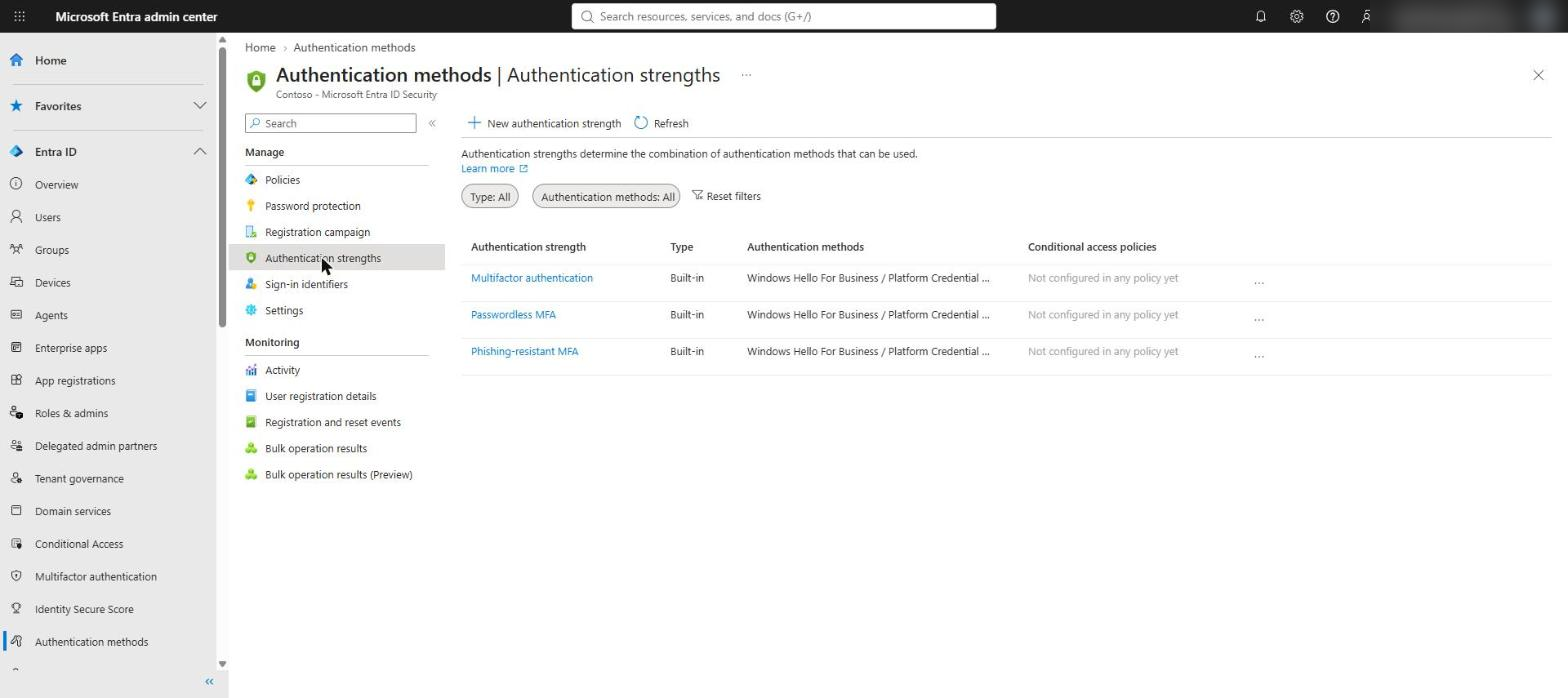
Phishing-resistant MFA is a good baseline for admins, but it is satisfied by any passkey the user can register - including the Authenticator passkey the All users profile allows. For Tier 0, Contoso wants one thing: a YubiKey 5 NFC. That needs a custom strength.
Build the custom authentication strength
Go to Entra ID > Authentication methods > Authentication strengths > New authentication strength.
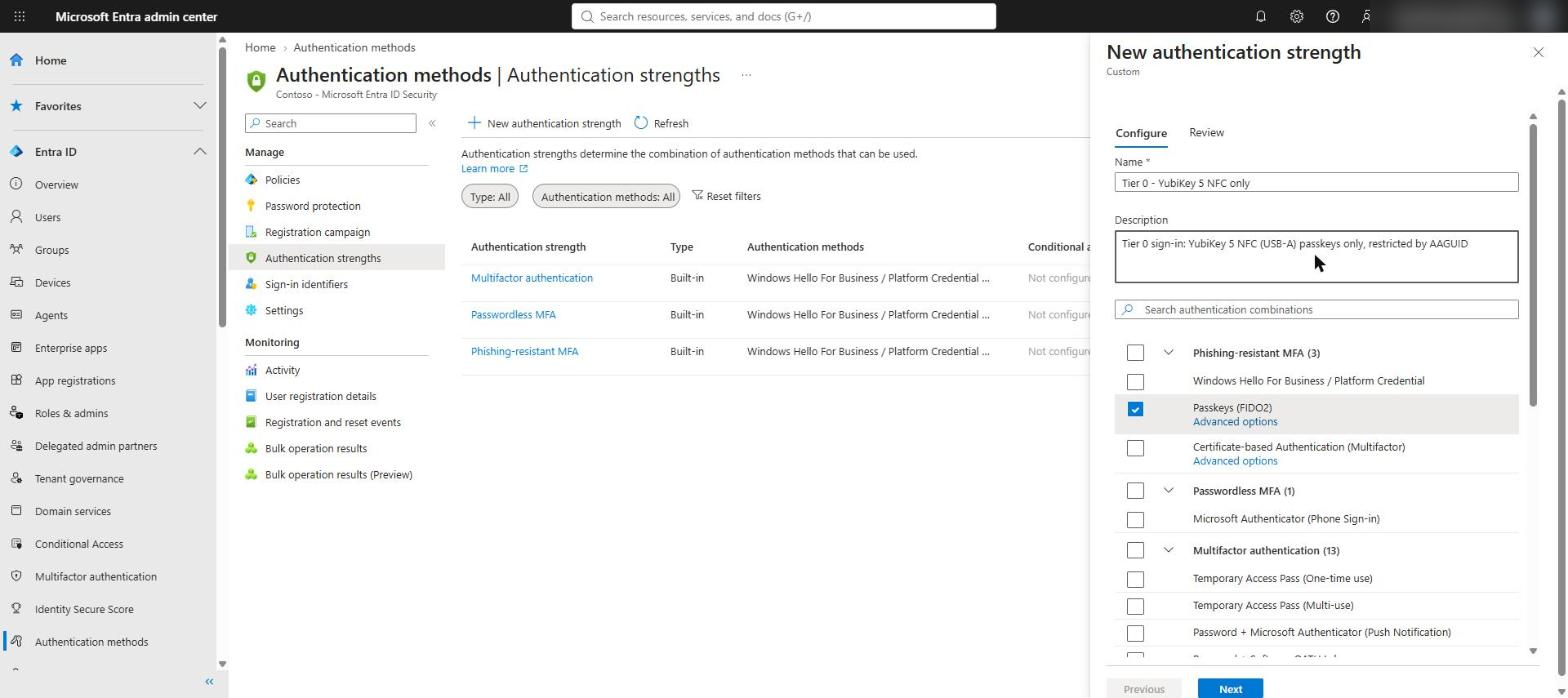
- Name it Tier 0 - YubiKey 5 NFC only. The description field is capped at 100 characters, so keep it short.
- Under Phishing-resistant MFA, tick Passkeys (FIDO2) only. Leave every other method unticked.
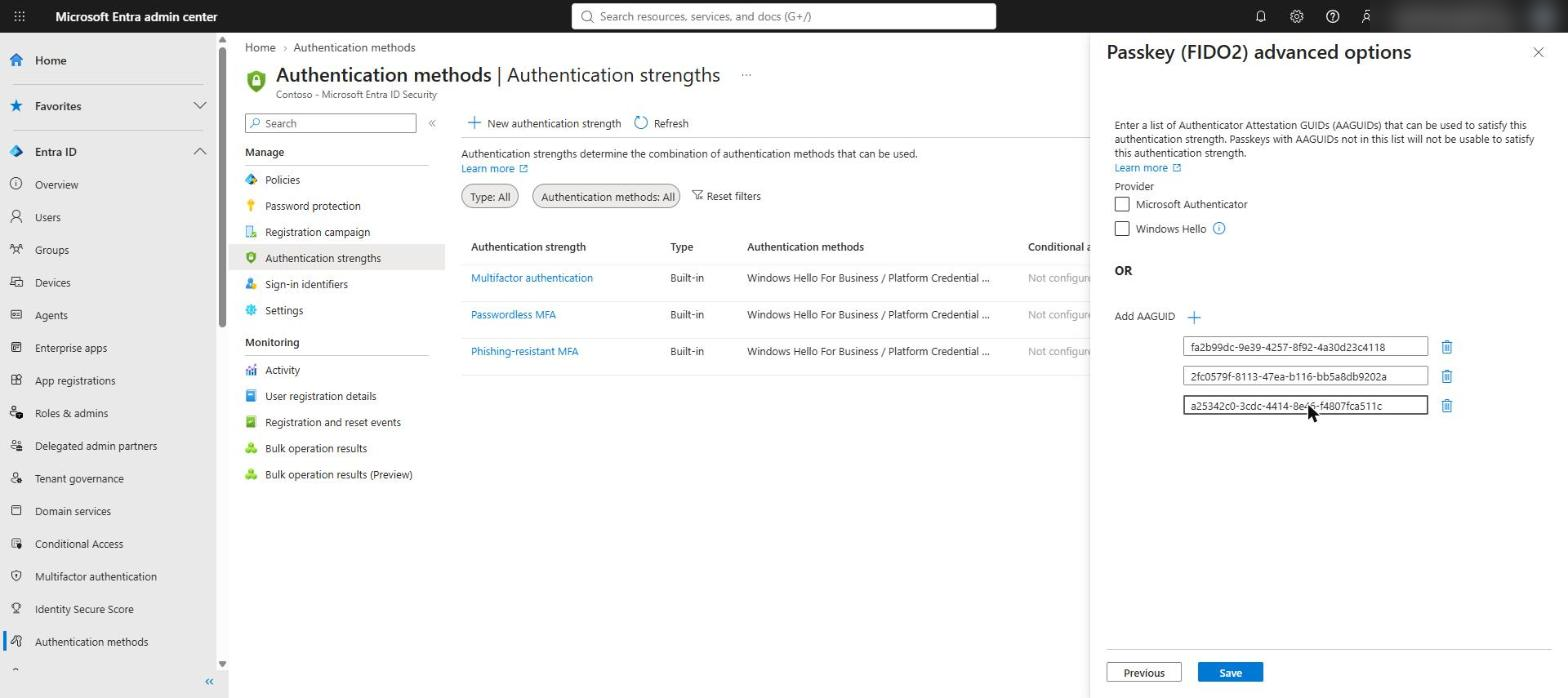
- Select Advanced options under Passkeys (FIDO2). You can tick Microsoft Authenticator or Windows Hello as providers, or add AAGUIDs. Add the same three YubiKey 5 NFC AAGUIDs used in the Part 1 passkey profile.
- Review and create. The review page confirms that during sign-in the user must use a passkey matching one of the listed AAGUIDs.
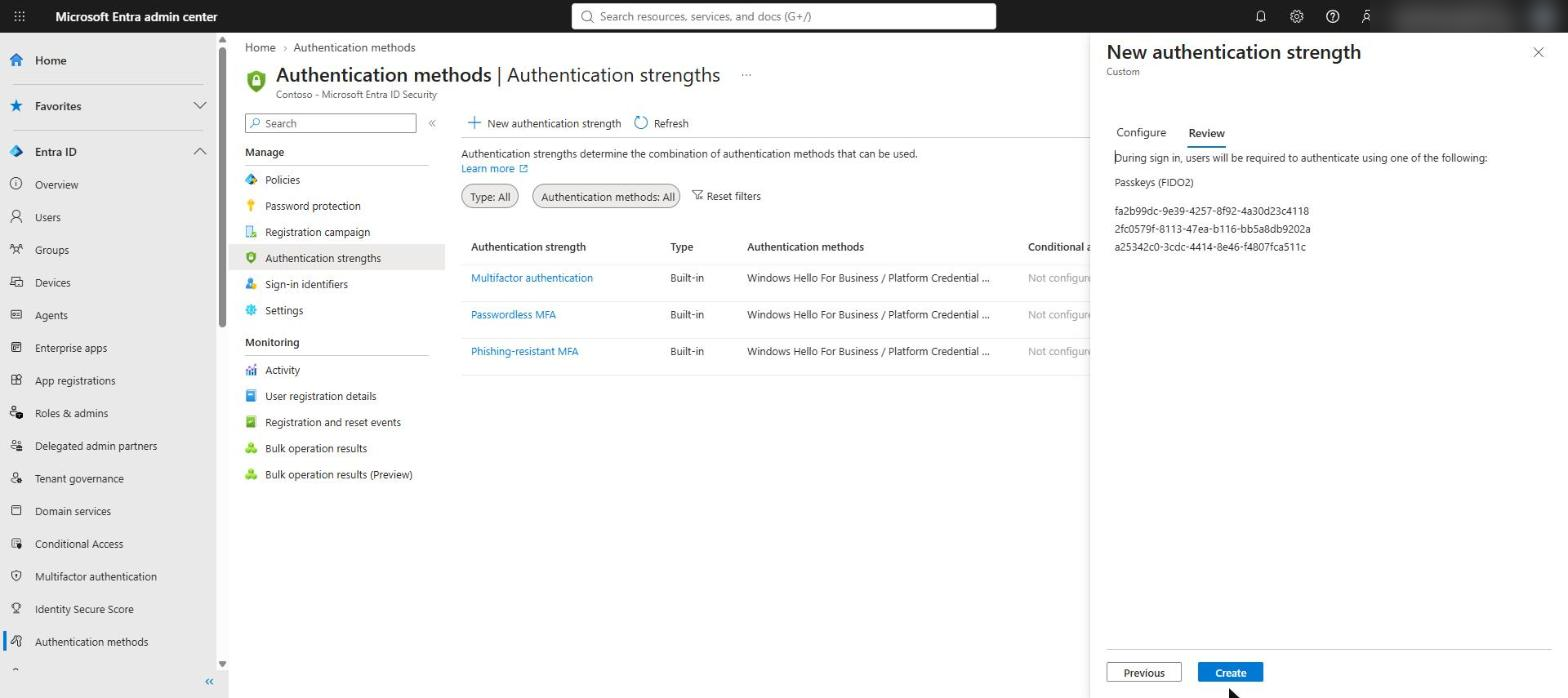
Keep the two lists in step. The AAGUIDs in the authentication strength must match the AAGUIDs in the passkey profile. If a new YubiKey firmware generation arrives with a new AAGUID, add it to both - otherwise users can register a key they cannot sign in with, or the reverse.
A tenant can hold up to 15 custom authentication strengths. Advanced passkey options are not supported for external users whose home tenant is in a different Microsoft cloud.
Create the Conditional Access policy
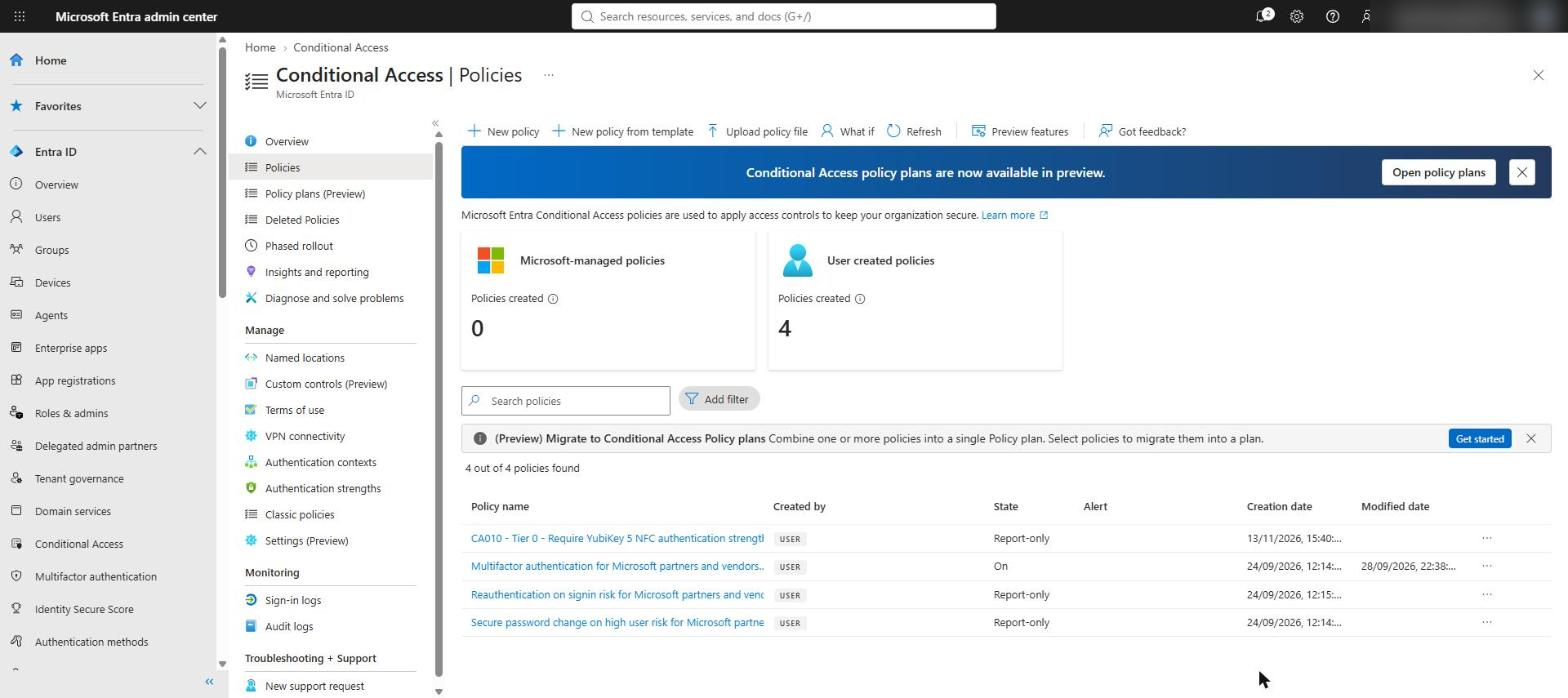
Go to Conditional Access > Policies > New policy and create it in Report-only first.
| Setting | Value |
|---|---|
| Name | CA010 - Tier 0 - Require YubiKey 5 NFC authentication strength |
| Users | Include: _PIM Tier 0. Exclude: break-glass (emergency access) accounts |
| Target resources | All resources (formerly All cloud apps) |
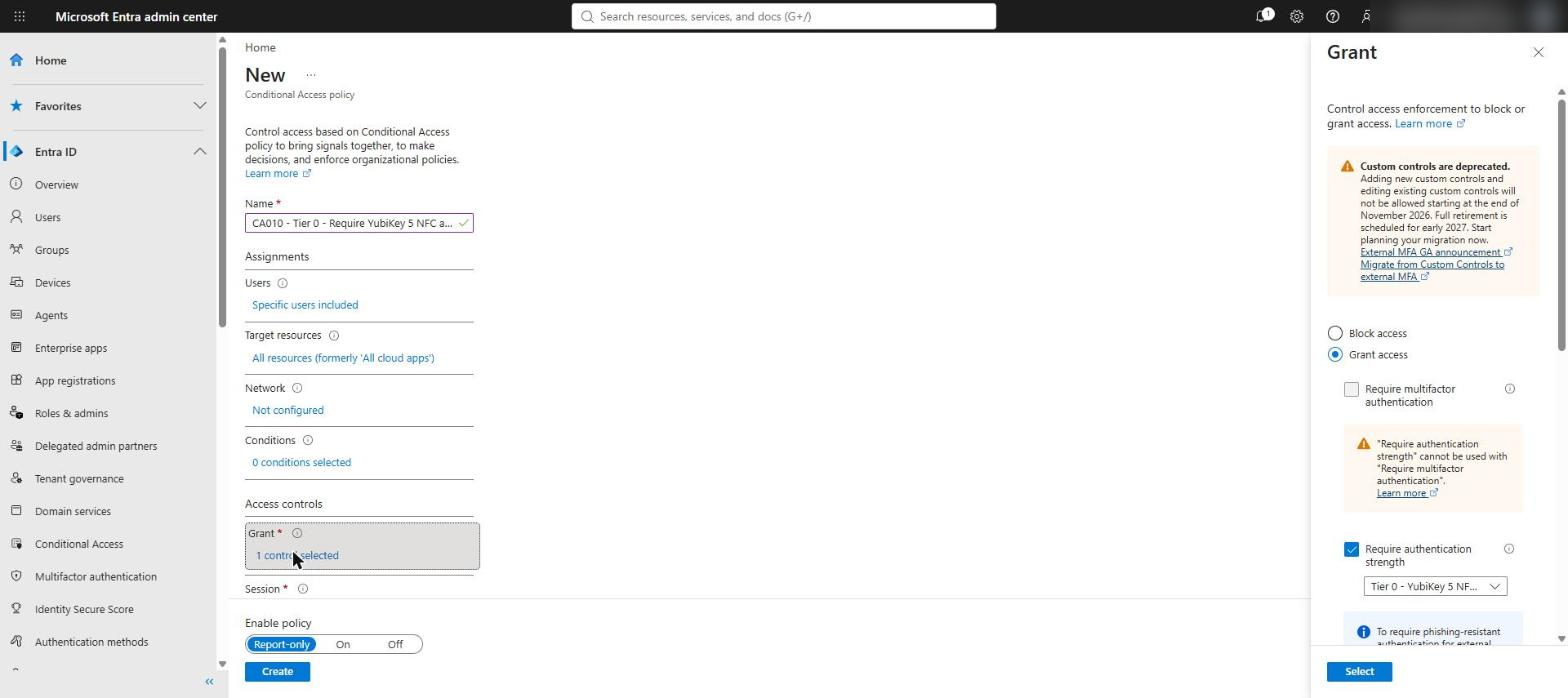
| Grant | Grant access - Require authentication strength: Tier 0 - YubiKey 5 NFC only |
| Enable policy | Report-only |
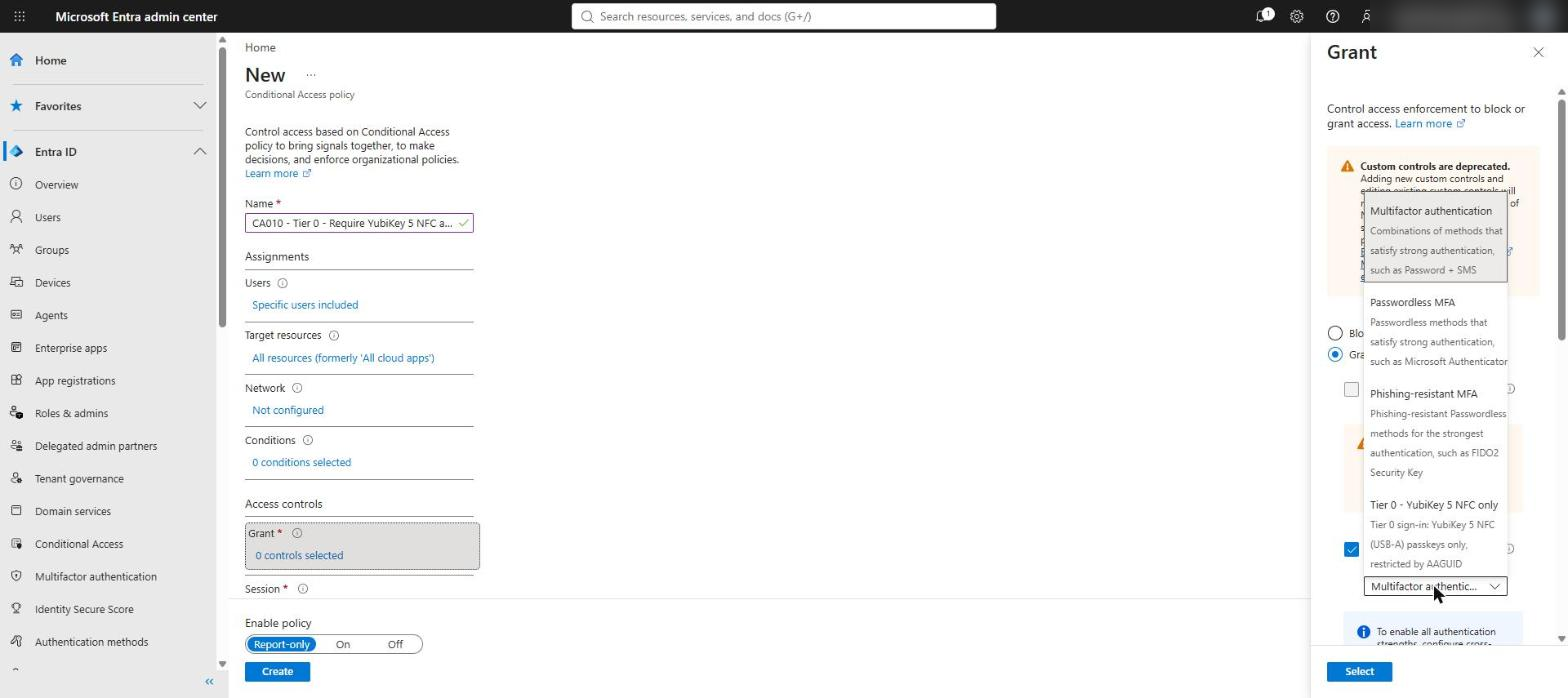
The new strength appears in the Require authentication strength drop-down alongside the built-in ones. Note that the portal will not let you combine Require authentication strength with Require multifactor authentication in the same policy.
From report-only to on
- Make sure every Tier 0 admin has registered a YubiKey under the Part 1 profile. A Temporary Access Pass is the cleanest way to bootstrap that registration.
- Leave the policy in Report-only for at least a week and review the Report-only results in the sign-in logs for _PIM Tier 0 members.
- Any sign-in that would have failed is a Tier 0 admin still using Authenticator, a password or another key. Fix those first.
- Switch the policy to On.
Once enforced, a Tier 0 admin who tries another passkey sees “You can’t get there from here” and has to restart the session and sign in with the YubiKey.
Protect the registration itself
Passkey profiles and authentication strengths both assume the person registering the passkey is the real user. Close the obvious gap - an attacker with a phished password and SMS code registering their own Authenticator - with a second Conditional Access policy on the Register security information user action.
| Setting | Value |
|---|---|
| Name | CA011 - All users - Secure security information registration |
| Users | Include: All users. Exclude: break-glass accounts and guests |
| Target resources | User actions: Register security information |
| Conditions | Locations: any location, excluding Contoso trusted locations |
| Grant | Require multifactor authentication, or require a compliant device |
New starters with nothing registered yet use a Temporary Access Pass issued by the service desk, which satisfies the MFA requirement for their first registration. The result: a new passkey can only be added from a trusted location or device, or by someone who already holds a strong method.
Going further for Tier 0
- PIM activation. Rather than requiring the YubiKey for every resource, you can tie it to role activation: create an authentication context, target it with this strength, and require that context on activation in the PIM role settings.
- Privileged Access Workstations. Add a device condition so Tier 0 sign-ins are only allowed from compliant PAW devices. The YubiKey proves who the admin is; the PAW proves where they are working from.
Next in the series
Both Conditional Access policies are in place. Part 4 deals with the hardest part of any authentication change: the people who say no.
References
- Microsoft Learn - Custom authentication strengths and advanced options for passkeys (FIDO2)
- Microsoft Learn - Conditional Access: require authentication strength
- Microsoft Learn - Enable passkeys (FIDO2) and passkey profiles in Microsoft Entra ID


Pingback: Replacing SMS and voice MFA, Part 1: Lock down your passkey profiles first | Cloud-Secure.ai
Pingback: Replacing SMS and voice MFA, Part 4: The people problem | Cloud-Secure.ai
Pingback: Replacing SMS and voice MFA, Part 2: Who is actually ready? | Cloud-Secure.ai