
It is that time of the year again and the Microsoft Ignite Book of News has been released.
The BOOK of news can be viewed HERE
Microsoft Copilot – Lots of new features

Security – Lots of new features
It is that time of the year again and the Microsoft Ignite Book of News has been released.
The BOOK of news can be viewed HERE
Microsoft Copilot – Lots of new features
Security – Lots of new features

Microsoft do not update security baselines that are available in the Microsoft Intune portal very often. The Security Compliance Toolkit and Baselines HERE , which has been updated as recently as 11th of October 2023, provides the following baselines.
Windows Server 2022 Baseline
Dean Ellerby, has an excellent post on how to enrol Windows Servers for MDE protection and management: HERE
1. Download latest Security Compliance Toolkit and Baselines: HERE
2. Browse to Intune \ Devices \ Group Policy analytics

3. Click on : Import Group Policy Object Files

The extracted files will look like below, browse to ‘GP Reports’ and then select each ‘gpreport.xml’

4. We then select the MSFT Windows Server 2022 – Defender Antivirus policy
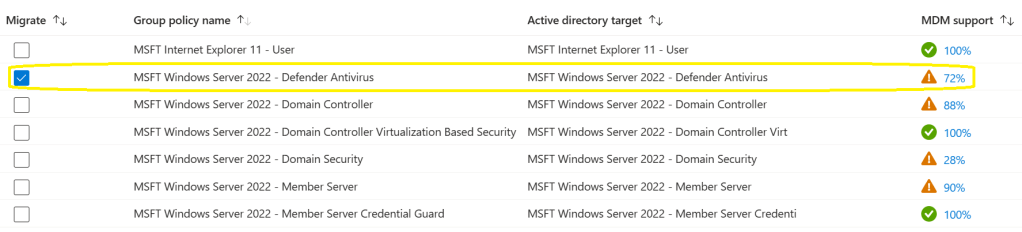
5. We then select : Migrate
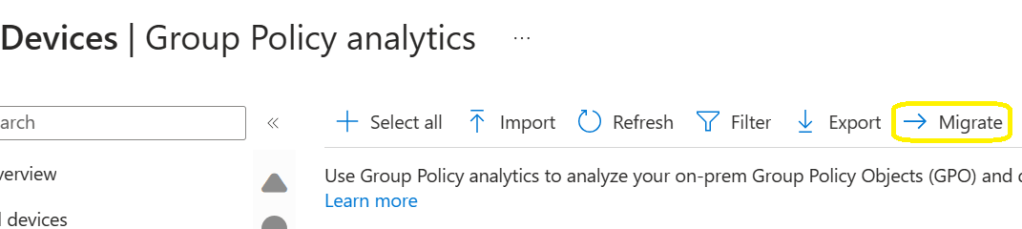
6. Select all settings on this page and next

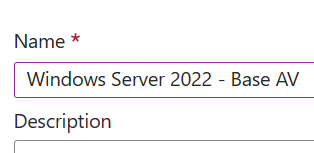
7. Give the policy a name
8. Assign the policy to a Microsoft Entra ID dynamic device group containing Microsoft Windows servers or a manually configured security group.
MSFT Windows Server 2022 – Member Server Base Line
These settings cannot be managed by Microsoft Intune, however the settings can be exported to a csv and then use a tool like Azure Logic Apps or Azure Automation Functions to apply the base line settings.
1. Select MSFT Windows Server 2022 – Member Server

2. The select export

3. The export process will export all of the settings that can be re-used in Azure Automation

Windows 11, Microsoft Edge and Microsoft 365 Apps for Enterprise Baselines
The built in Windows 10 and later, Microsoft Edge compliance policy, have configuration settings that conflict with Microsoft Defender Endpoint configurations, specifically ASR (Attack Surface Reduction) policies, some of these settings cannot be excluded from the default : ‘Windows 10 and later, and Microsoft Edge compliance policies’
Import all of the gpreport.xml files for Windows 11, Microsoft Edge and Microsoft APPs for Enterprise as described in the Windows Server 2022 baseline section. The image below high lights what policies can be exported and then create endpoint security policies or Windows device configuration policies.

Summary
In this blog post , I am mainly focusing on Windows 11 22H2 and the latest build of Windows Server 2022.
Some of the main benefits of using the ‘Microsoft Security Compliance Toolkit and Baselines’
Reference: Simon Hartmann Eriksen https://www.simsenblog.dk/2023/05/08/security-baseline-latest-as-settings-catalog/

The Microsoft website : https://microsoft365dsc.com/ explains all things, regarding Microsoft DSC, including configuration, export, import, synchronisation etc..
Microsoft have made things a lot easier compared to earlier versions of Microsoft365 DSC. It is now possible to select which configuration policies can be backed up and re-used from the numerous M365 technologies via the Microsoft365DSC Portal: https://export.microsoft365dsc.com
This blog post will focus on the most common M365 configurations that can be re-used in multiple M365 tenants, to speed up deployment and also remove human error, which can often occur from manual configuration.
Where to start
Browse to https://export.microsoft365dsc.com/ and then select the configuration items per M365 technology, that you would like to re-use in, another M365 tenant, tenants’ or a research and development M365 tenant.
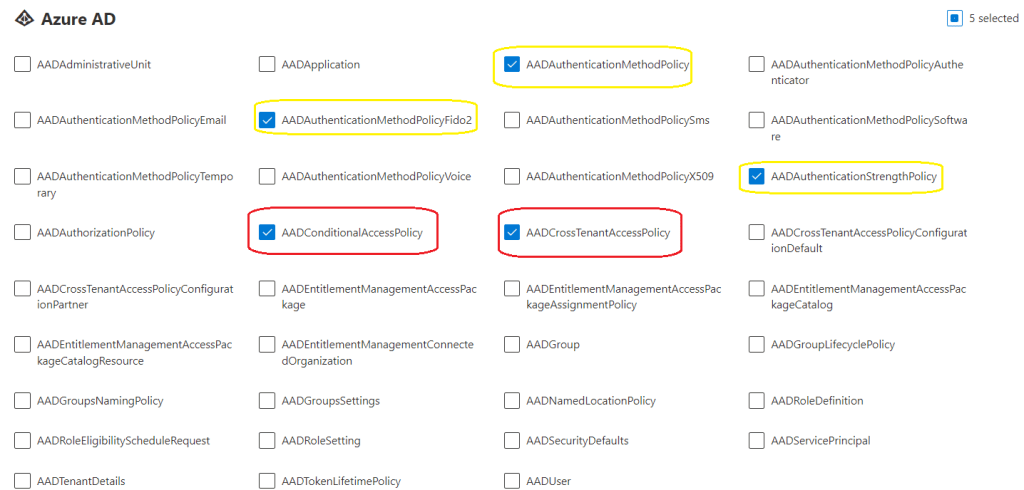
Microsoft Entra ID \ Azure Active Directory
The items highlighted in yellow, could be potentially be used per M365 tenant, tenants’ or a research and development M365 tenant.
Items : Highlighted in red
Microsoft have recently added, conditional access templates, which was a very welcome addition, however, I still prefer to use PowerShell to implement Conditional Access Policies, which can be unique per organisation.
Exchange Online
The items highlighted in yellow, could potentially be used per M365 tenant.
I do not like using the Exchange Online, standard and strict protection templates, as they cannot be re-configured.
My preference is to run an Exchange Online Orca Report and then review the recommendations and tweak the configuration per organisation. Microsoft Exchange Online security policies should always come first.

Intune
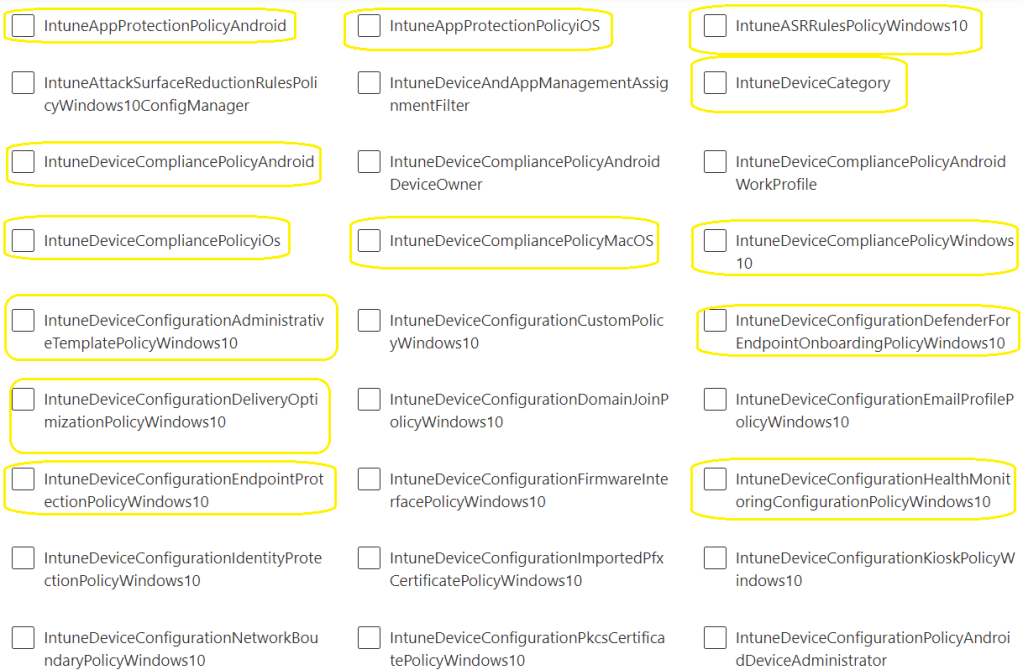
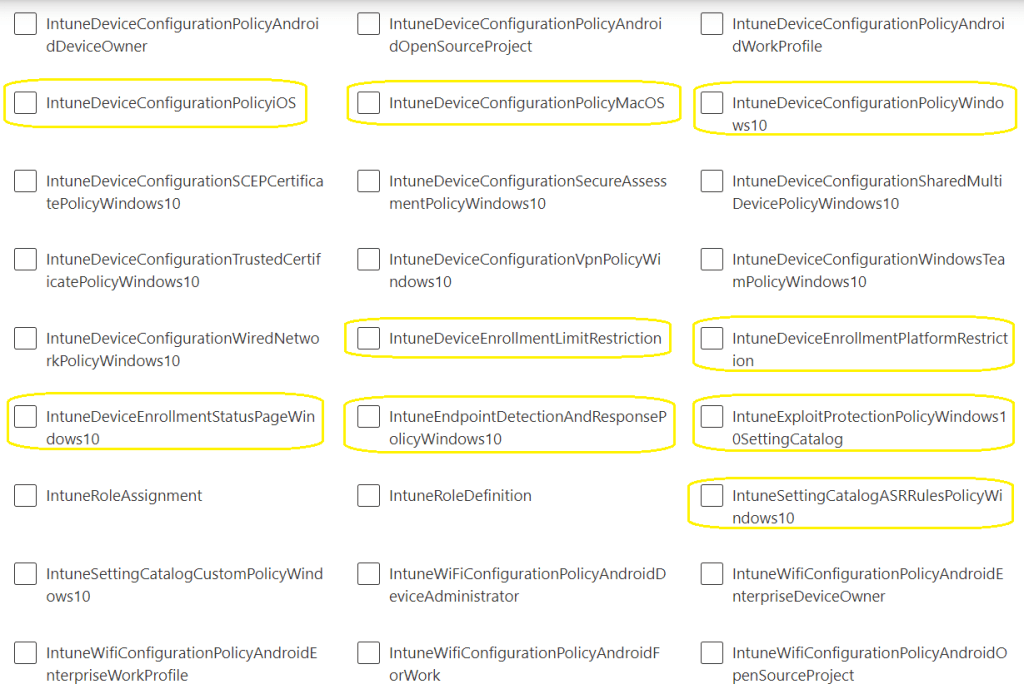
Intune DSC, for me, this is by far the most beneficial use case.
Device security ( Jeffrey Appel’s : Defender for Endpoint – Ultimate Blog Series)
Jeffrey’s blog series, doesn’t just focus on Microsoft Defender for Endpoint configurations, it includes a lot of Windows 10 and later, hardening policies, which should be used in every organisation. It takes a long time to configure these policies! M365 DSC can, re-use these configurations polices, if Jeffrey, updates his blog series, the change can be made in a research and development M365 tenant, tested and then pushed to a production tenant.
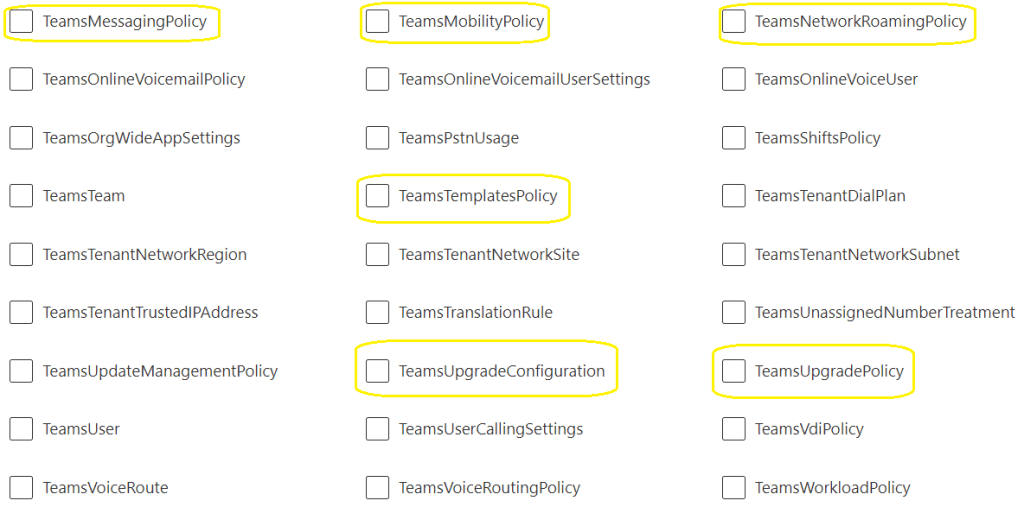
The following images that contain items highlighted in yellow , could be potentially used per M365 tenant.

Additional M365 DSC modules
Teams
The following images that contain items highlighted in yellow , could be potentially be used per M365 tenant

Summary
This blog post , attempted to highlight the practical and beneficial usage of M365 DSC.
An IT services provider can, standardise configurations in line with best practices and re-use these configurations per customer.
Microsoft consistently drives innovation and adaptability to meet evolving industry demands.
An organisation can test emerging M365 technologies in a research and development M365 tenant, and when the organisation has completed testing etc, the configuration can be synchronised to the organisation’s production tenant or tenants’, which can control and mitigate risks, with regards, simply allowing an M365 tenant accept all new and emerging technology features from Microsoft. It can also accelerate the adoption of new and emerging technology features from Microsoft, when an organisation has fully tested these new features and is ready to deploy the new features in their production tenant or tenants’
If anyone, or any organisation would like some further assistance with this, please get in touch with me via LinkedIn : https://www.linkedin.com/in/seanofarrelll/

Microsoft’s unwavering commitment to security and compliance has consistently driven innovation and adaptability to meet evolving industry demands. Their dedicated security and compliance portals have left the legacy portal, portal.office.com, in the not too distant past.
One common frustration for M365 administrators is the inability to assign the following roles within Microsoft Privileged Identity Management:

Microsoft Purview Roles
Microsoft has invested significantly in their portal redesign at compliance.microsoft.com. In traditional scenarios, IT administrators often find themselves tasked with configuring, executing, exporting e-discovery case results, and subsequently reporting to compliance officers, data protection officers, or HR departments. However, entrusting IT admins with these compliance tasks raises initial concerns about data protection. It’s imperative that IT admins remain unaware of sensitive information contained within e-discovery case results, as these results might encompass IT admin staff within the search criteria.
As of the time of this post, there are approximately 95 role groups within M365 Purview. Here are some practical use cases illustrating how these roles can be assigned to fulfil various compliance roles and organizational requirements:
How to Assign Microsoft Purview Roles to Microsoft Entra ID Groups
Note: For the purposed of this blogpost, I created a Microsoft CDX tenant, all users and screenshots are fictional.
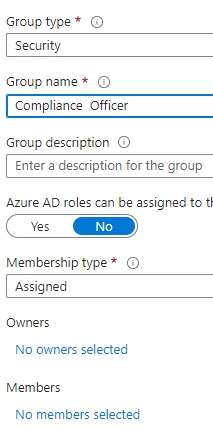
1: Create a Microsoft Entra id group. Important, to not add any members or owners
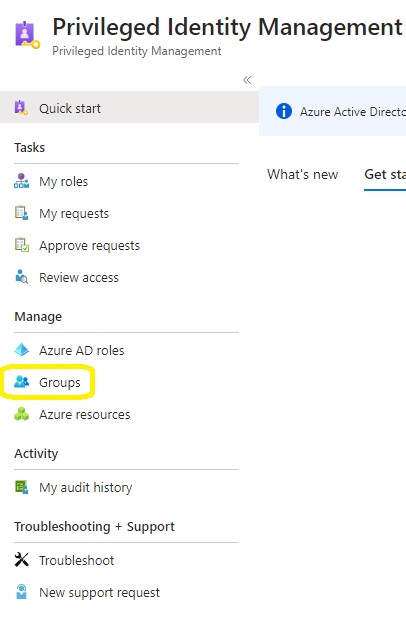
2: Login to Microsoft Entra Privileged Identity Management and select Groups.
3.Seclect Discover Groups

4.Search for the previously created group and then select manage groups
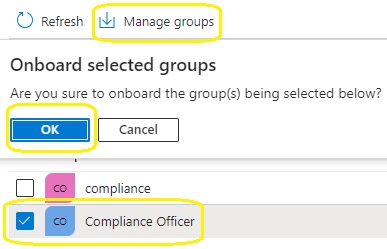
5.Select groups in Privileged Identity Management

6. Click on assignment, add members to eligible assignments, this is why , we did not need to add any group members in step 1

7. Click on settings and member
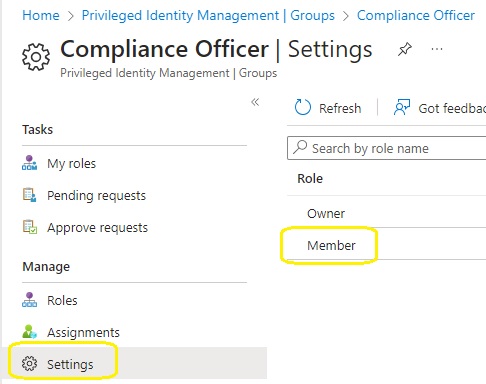
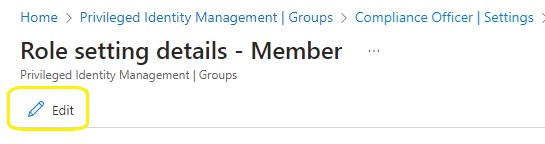
8. Edit the member settings
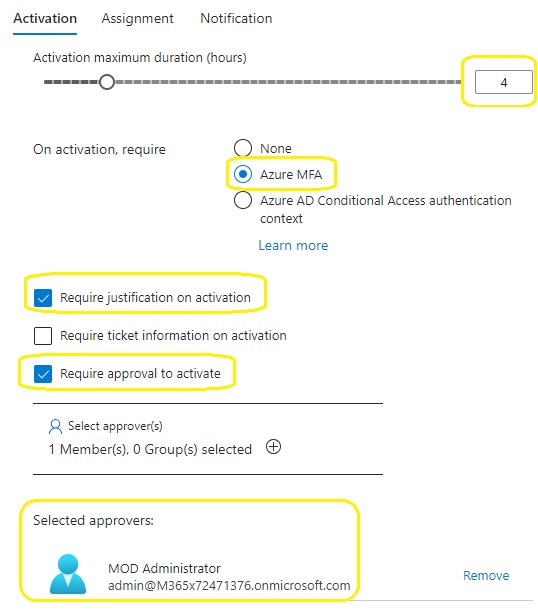
9. Set hours to 4, require justification on activation, require approval to activate and then finally select the approver. The approver may be different per role that requires activation.
10. Create a role group in the compliance.microsoft.com portal : Microsoft Purview Permissions

11. Name the role group

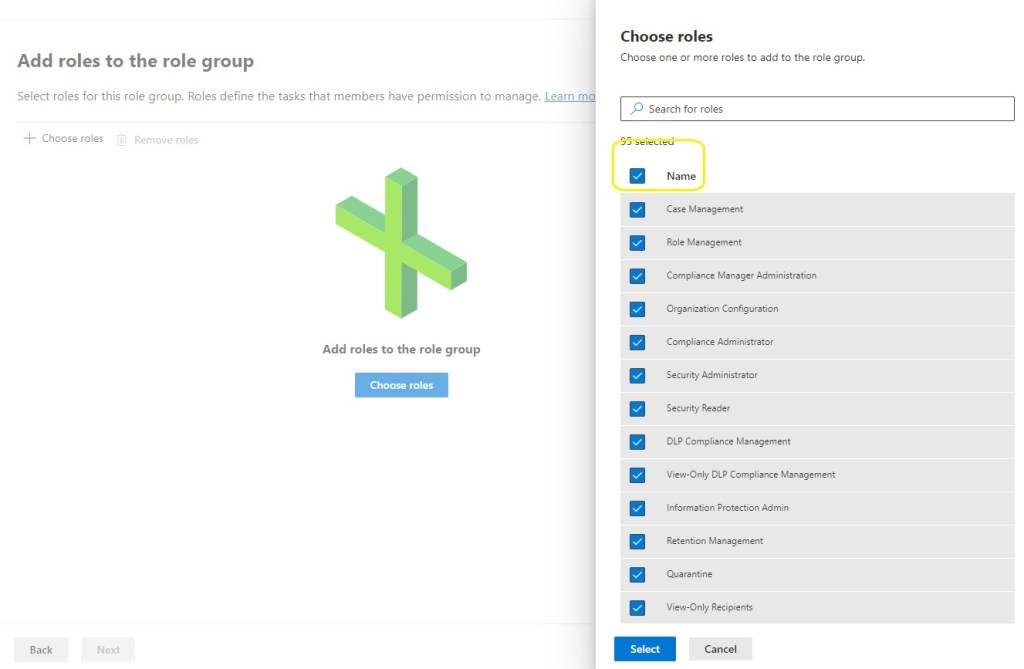
12. Add the roles.
Select all roles
13. Choose groups and add the group that was created previously

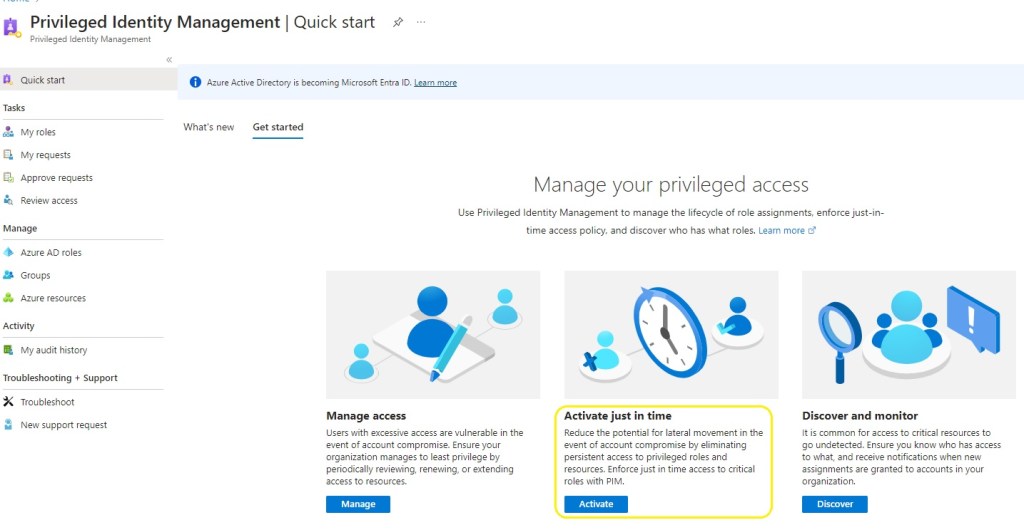
14. Now the end user Adele Vance can login to https://entra.microsoft.com /identity governance / Privileged Identity Management and select ‘Activate just in time’
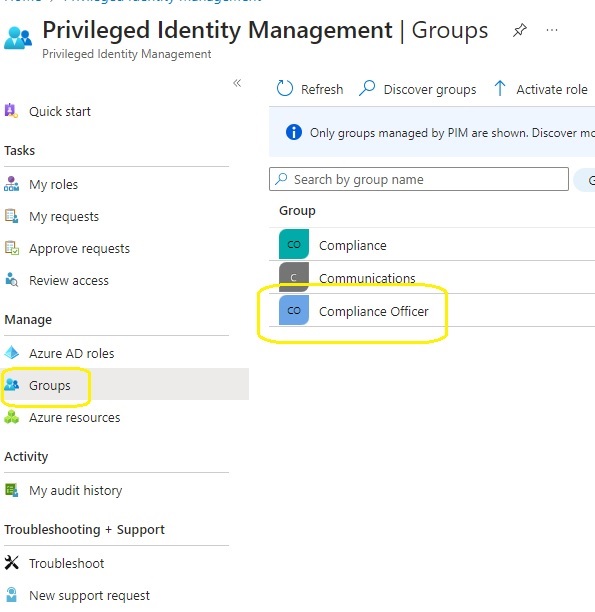
15. The user then selects group, activate and provides a business justification.
16. The group owner and admin , receives an email notification, that there is a pending just in time access request and can choose to approve or deny the request.
17. The compliance officer can then login to complicane.microsoft.com and perform his\her compliance activities. During my testing, no license was required for the compliance officer. I am sure Microsoft would insist that the compliance officer has an M365 E5 or E5 compliance add-on license:)
Summary
The technical steps outlined in this blogpost, enable organisations to apply Privileged Identity Management policies to roles \ permissions control in services like
M365 Purview roles are not available in M365 roles or Microsoft Entra ID Privileged Identity Management, for really good reasons. M365 Purview role \ permission elevation , can be typically required for legal disputes.
Every organisation, should consider compliance and governance with a cloud transformation journey where services, data and line of business workflows, transition from on-premises to Microsoft cloud services.
If anyone, or any organisation would like some further assistance with this, please get in touch with me via LinkedIn : https://www.linkedin.com/in/seanofarrelll/
What is password less authentication?

What is Microsoft’s Password less strategy?

There have recently been an increased amount of brute force password spray attacks against M365 \ Azure AD tenants.
The obvious protection is to implement (MFA) Multi Factor Authentication as the first line of defence.
A complex 8 character password that is not protected with MFA can be cracked in 24 hours or less.
I recently worked on a project where some M365 user accounts were brute force password sprayed attacked over 20,0000 times in a single month.
A lot of organisations make the mistake of having a ‘Meet the Team’ section on their corporate website, including the senior team member’s email addresses, which is one of the first places a bad actor will target.
Bruce force password spray attacks are not performed by human beings, they are performed by bots, hosted on private cloud networks or some public cloud networks……
A simple solution to protect an organisation against brute force password spray attacks is to enable Microsoft password less, gps authentication and biometric authentication via the Microsoft Authenticator application.
Conditional access policies that allow or block countries are not effective as a bad actor can simply mask their IP and pick any country code IP that they choose.
Microsoft password less authentication methods
Microsoft Authenticator
FIDO2-compliant security keys
Windows Hello for Business
Microsoft password less methods wizard
Microsoft Authenticator password less authentication mechanism
To enable password less and GPS location authentication , please implement and test the following configuration.
1. Browse to Azure Active Directory\ Security \ Authentication Methods
2. Select Microsoft Authenticator

3. Enable and target a test group before enabling the feature for all users

4. Select the following 3 configurations
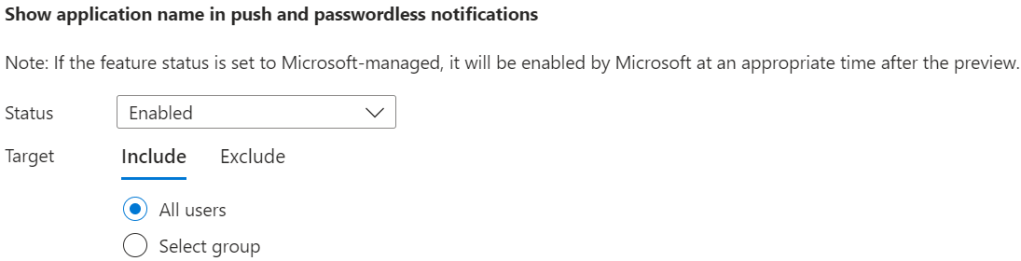
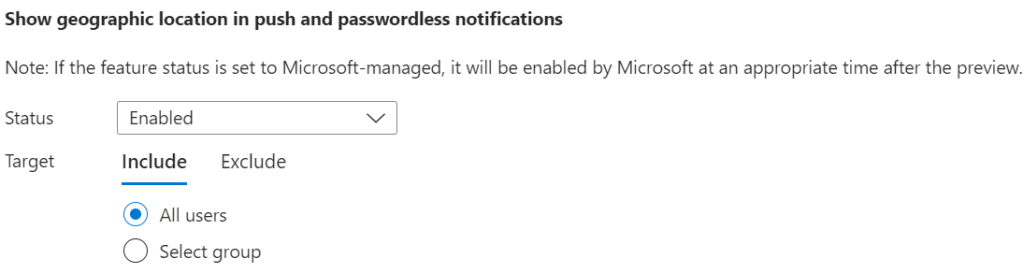

Microsoft Authenticator Application Configuration
The end user must enable phone sign in on the Microsoft Authenticator application. Currently, this can only be enabled for one password less account on Android, but multiple accounts on iOS.


End User Experience

No password

Click yes if you are in Dublin, no if the GPS notification is displaying an incorrect location. The GPS location, protection mechanism must be communicated to end users. Do not click yes if the GPS co-ordinates specifies Hong Kong, if you are in Dublin

The final step is to validate via biometric thumbprint on your Android or iOS device.
Summary
Brute force password spray attacks cannot succeed when the following authentication methods are in place.
1: Password less
2: GPS verification
3: Biometrics validation on the Microsoft Authenticator application
The end user experience is much more user friendly, and most importantly a lot more secure.

