
Azure Privileged Identity Management to lock down provision of Virtual Machines in Azure

In my previous post on how to secure Office 365 Roles and this post is about how to secure Azure Resources.

Office365 and Azure Active Directory have a number of roles that are familiar like global administrator , compliance administrator etc. One of the most common use cases for Azure PIM it to request just in time access to the global administrator role

As organisations extend their networks into Azure , Azure subscription’s costs can sometimes spiral out of control. And this post will demonstrate the technical steps required to lock down the ‘virtual machine contributor’ role with Azure Privileged Identity Management, so that it requires finance department or senior it approval to create virtual machines in Azure, and the process around making technical admin staff eligible for the ‘virtual machine contributor role’

An example of how Azure costs could spiral , An Azure Admin , provisions the most expensive high performance virtual machine available in Azure, makes the VM geo-redundant, adds in a few ultra disks and a few Terra Bytes of Azure Blob Strage.

If there are multiple Azure subscriptions, The eligible users and app-rovers will need to be configured per subscription.In the image below we want to manage Azure Resources.

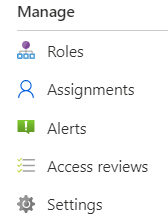
We click on Azure Resources and then click on settings.
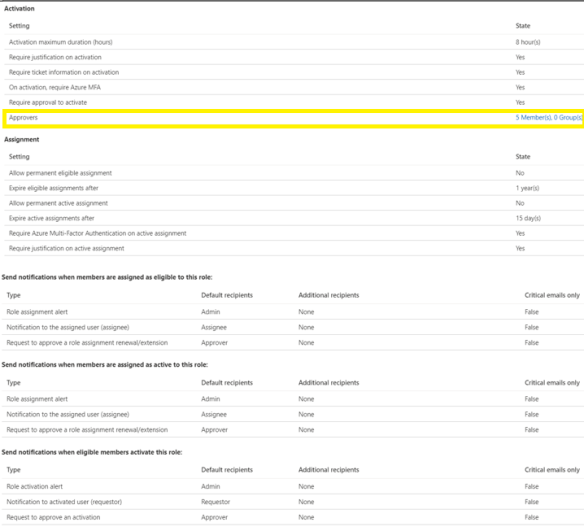
Add the app-rovers for the role and ensure the app-rovers have mailboxes so that they receive the email notification
Next step is to add eligible users for the virtual machine contributor role.
Now any admin that needs to provision a virtual machine in Azure has to follow a workflow and can only do so when senior IT resources or finance department users have approved the provision of the virtual machine


SAML Single Sign On SSO WordPress Using Azure AD

Mini Orange is a great plugin for SAML SSO integration into Azure AD.
Their documentation is located HERE

The documentation misses a few key points.

Locking down Azure Active Directory

Azure Active Directory has excellent security with conditional access being one of the most widely used tool to protect Azure Active Active Directory.

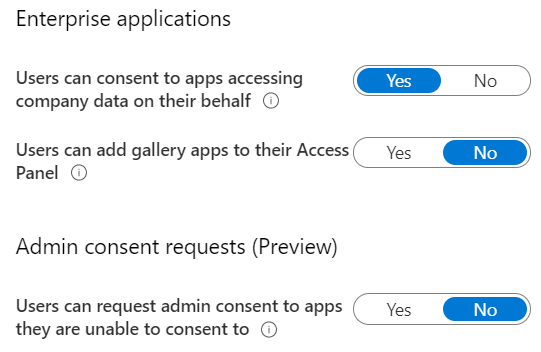
The sceen shot below shows the default settings for an Azure AD Premium Plan 2 tenant.

The information tab on the user consent to apps accessing company data on their behalf reads like this:

If this option is set to yes, then users may consent to allow applications which are not published by Microsoft to access your organization’s data, if the user also has access to the data. This also means that the users will see these apps on their Access Panels.
If this option is set to no, then admins must consent to these applications before users may use them.

So in the scenario where a phishing email slipped through the cracks and an end user grants access to a non Microsoft application to their organizations’s data. We do not want that to happen!!!!

The correct setting is listed below
Application administrators should be granted the application administrator role in Azure Active Directory , Then the next time an and user wants to add an application, the application administrator will receive an email and can approve from his\her Outlook client.

The next time an end user or IT staff member wants to add an application to Azure AD, Do not just simply grant the global administrator role.

User Azure Privileged Identity Management and Application Administrator Roles!

Azure AD Connect 1.4.38.0 authentication error

I started to notice that Azure AD connect was failing and had a look in the console and seen the error message in the console displayed in the image below

Then when I tried to run the command Start-ADSyncSyncCycle -PolicyType delta ,  I received a long list of authentication errors.

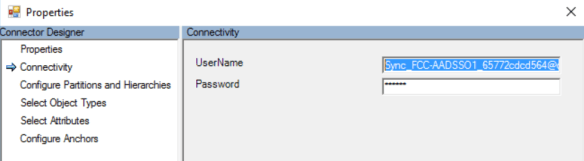
To resolved the issue browse into properties of the Azure Active Directory account and copy the account name onto the clipboard.

Next add this account in as an excluded account from conditional access policies the same way a break glass cloud identity admin account would be excluded from conditional access policies.

As soon as the sync account has been added to the exclusions , syncs will resume

Conditional Access and Azure Active Directory License Management

Azure AD group based license assignment was made generally available in Feb 2018. It really is a superb way of managing and assigning licenses for services like Office365.

Quite often on projects that I deliver ,  I will work with my customer to build a profile which could be for example standard user, power user , exec user and these groups can assign some or all of the M365 suite of services.

So this means we would have 3 security groups to match each user profile and each organisation can modify their new starter process to add new users into their relevant security group or use Identity Management tools like Microsoft Identity Manager 2016 SP1 to manage the user life cycle.

One of the quickest and most powerful conditional access policy is as follows

  • Assignment : All users , except license groups and break glass admin account
  • Cloud Apps :  All Apps
  • Conditions : Default , NO CHANGE
  • Access Controls \ Grant : BLOCK

So the assignment to all users is the key , If a new user is not setup properly and follows the new user creation process then they cannot access the organisation’s cloud apps that are integrated with Azure AD.

This is a policy to block all unlicensed users.

All licensed users would expect to have the following items configured as a minimum requirement.

  • MFA
  • SSPR
  • Combined SSPR & MFA registration
  • Azure Password Protection Service
  • Microsoft Advanced Threat Protection integration with CASB
  • Azure AD P2 license , Identity Protection policies enabled
  • Azure AD Hybrid joined machines
  • Intune managed bitlocker encrypted devices
  • Intune managed devices with security baselines