I recently uninstalled DirSync from a customer site where DirSync was installed using SQL Server and not SQL Express.
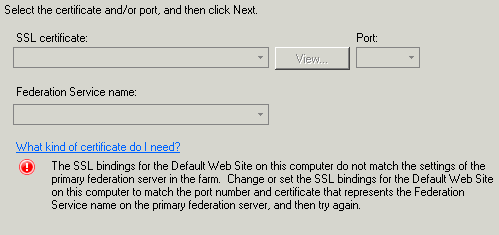
I launched dirsync /fullsql and tried to launch ‘DirSyncInstallShell.psc1‘ and got the error message above.
The fix was really simple , Download and install Powershell 3.0 on Windows Server 2008R2
Category Archives: Entra ID
Error adding second adfs server with ucc cert
Windows Azure Active Directory Sync Tool
The windows azure active directory sync tool , has a new feature. ‘Password Synchronization‘
This is a really neat feature and will meet the needs of most businesses that need to synchronize identities to office365. Setting up ADFS farms is often overkill for small businesses as to do it properly you need a minimum of 4 servers. Two adfs proxy servers and Two adfs lan servers each in a different site for redundancy and high availability.
Now with password synchronization you only need one server or can install the dirsync service onto an existing server.So how do we configure password synchronization.
- Create a dirsync service account and add the account to the ‘FIMSyncAdmins‘ group on the server where you plan installing the service.
- Create this shorcut on the desktop ‘”C:\Program Files\Windows Azure Active Directory Sync\SYNCBUS\Synchronization Service\UIShell\miisclient.exe“
- Then as per the image below , right click on ‘Active directory Connector‘, ‘Configure Directory Partitions‘ and then ‘Containers‘ and select the OU’s that you want to synchronize.
- Create an OU and add the DirSync Server into that OU.
- Add the DirSync Server to that OU.
- IN GPO Management , Block Inheritance on the OU.
- Create a group policy object as follows. Navigate to ‘Computer Configuration\Policies\Windows Settings\Security Settings\Local Policies\User Rights Assignment‘
- Located “Login as a Service” and add the service account for the synchronization engine which could be typically ‘AAD_95a9bb5e2ba4‘
- Link the GPO to the OU prevously created and enforce the policy
- Logon to the DirSync server, GPUPDATE/FORCE
- Log off
- Log on
- Start the service
- Or you could simply use gpedit.msc and edit the local policy on the machine.
Office365 ADFS 2.0 with full SQL Server
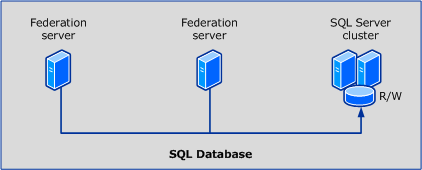
As per my previous post about DirSync for Enterprise organisations , We also need to install ADFS farms into SQL clusters for high availability and scalability. So below are the steps to install ADFS 2.0 into a SQL Cluster.
In this example on how to set this up for the purposes of this demo , Please take note of the following items.
Domain:contoso
ADFS Server : adfs.contoso.local
SQL Cluster: sqlclus
ADFS Service Account: contoso\adfs
ADFS Service Name: signin.contoso.com
- Download and install ADFS 2.0 RTW which you can download HERE The ADFS 2.0 installer installs the pre-requisites required for the software.
- Do not open the ADFS configuration wizard after the install has complete, Download and install ADFS 2.0 Rollup 3 which you can download HERE
- Now get your trusted ssl certificate for your adfs service name ‘signin.contoso.com‘ and bind it to the default site. I always remove any http bindings for the default website on your adfs lan server.
- In certificate manager. Right Click on the trusted certificate ‘signin.contoso.com‘ and select all tasks\manage private keys and then add the contoso\adfs service account permissions ‘Full Control & Read’
- From a command prompt with elevated privileges make this the current directory C:\Program Files\Active Directory Federation Services 2.0\
- Now we are ready to create the ADFS farm and we do so with the following command
FSConfig.exe CreateSQLFarm /ServiceAccount “contoso\adfs” /ServiceAccountPassword “password” /SQLConnectionString “database=AdfsConfigurationServer;server=sqlclus;integrated security=SSPI” /port 443 /FederationServiceName “signin.contoso.com” /CleanConfig /AutoCertRolloverEnabled
And you will see the following output from the command prompt window
- Ideally the lan adfs servers will be load balanced , If you need to use a sql cluster for your adfs deployment then there is a good chance the customer will have load balancers like F5, Netscaler or Kemp.My preference would be Kemp.So there will be a virtual ip for the ADFS Service name ‘signin.contoso.com‘
- To enable kerberos authentication to Outlook Wep App and Sharepoint , place the https://signin.contoso.com into the intranet settings in Internet explorer for clients via group policy.
- ADFS proxy servers will be in a DMZ or else TMG Servers can also act as adfs proxy servers and will point at the loadbalanced ‘signin.contoso.com‘ vip in the lan.
- Cloudfloor DNS provide GEO dns routing. So for example they can direct traffic from iso country codes to a location of choice. For example us adfs requests can hit us adfs servers. Irish requests can hit Irish adfs servers etc… So a service like this can take care of the external load balancing.
- So now we have all this done , time to federate the onpremise domain name ‘contoso.com‘ with our Office365 tenant.
- Before we do this we need to ensure we have done the following.
A: Verify ownership of contoso.com
B:Activate Active Directory Synchronisation
C: Download and install the Microsoft Single Sign in Assistant HERE
D: Once the Single Signin Assistant has been installed , Download and install the Windows Azure Directory Module for Powershell HERE - Now we are ready to run the commands to federate ‘contoso.com‘ with Office365 and we will do so with the following command
$cred=Get-Credential
Connect-MsolService –Credential $cred
Set-MsolAdfscontext -Computer adfs.contoso.local # then enter contoso\adfs credentials
Convert-MsolDomainToFederated –DomainName contoso.com -SupportMultipleDomain - You might have only one domain, But I always recommend using the -SupportMultipleDomain switch as it can future proof your adfs service. For example your customer could acquire a company.
- Finally we want to brand our ADFS Proxy pages with company logos and here is a great blog posting by Laurent Bel on how to customise the ADFS 2.0 login page HERE
- So now that we have created our first ADFS Server to connect to a SQL Cluster , How do we add more ADFS servers. We do so with the following command as per the original ADFS server setup.
FSConfig.exe joinSQLFarm /ServiceAccount ‘contoso\adfs‘ /ServiceAccountPassword ‘password‘ /SQLConnectionString “database=AdfsConfigurationServer;server=sqlclus;integrated security=SSPI”
I have not installed ADFS 2.1 on Windows Server 2012 into a SQL Cluster yet but I think it would be the exact same process. I will be doing this on a project coming up shortly and will create a new blog post for this.
I hope people find this blog posting useful as it took me quite a bit of time to get ADFS right when I first started working with ADFS.
Sean
Intsall DirSync into full SQL
Installing Dirsync is a requirement for enterprise directory synchronisation’s. When I say enterprise i mean , directories with over 50,000 active directory objects or users. By using full sql server as apposed to the standard sql express , we can also make the database highly available via SQL clustering.
So to install it requires some small steps.
1. Open a command prompt with elevated privileges and make the directory where the dirsync.exe installation file is located the current directory. Then run this command ‘dirsync /fullsql’
2. This will install Dirsync without the standard SQL Express.
3. Next , browse to C:\program files\Microsoft Online Directory Sync\DirSyncInstallShell and follow the install syntax in this Microsoft Article
4. Make Sure you are installing into a minimum of Server 2008R2 SP1 ideally SP2
5. IDFIX is a great utility recently released from Microsoft to troubleshoot DirSync errors which you can download HERE