SAML Single Sign On SSO WordPress Using Azure AD

Mini Orange is a great plugin for SAML SSO integration into Azure AD.
Their documentation is located HERE

The documentation misses a few key points.

Microsoft Authentication Prompts

When securing cloud services like Office365 with Azure MFA , End User education and adoption is absolutely critical. Not all organisations’ can afford Azure Active Directory Premium Edition Plan 2 or M365 E5 subscriptions.

Azure Identity Protection provides dynamic protection against the following scenarios.

  • Atypical travel
  • Anonymous IP address
  • Unfamiliar sign-in properties
  • Malware linked IP address
  • Leaked Credentials
  • Azure AD threat intelligence

In the event of credentials being compromised the bad actor must get past the next level of authentication which will normally be the Microsoft Authenticator App or a text message.

It is critical to educate end users : DO NOT APPROVE random authentication requests. If an end user is on leave and not attempting to access their cloud resources there should be no reason to approve multi factor authentication challenges.

Locking down Azure Active Directory

Azure Active Directory has excellent security with conditional access being one of the most widely used tool to protect Azure Active Active Directory.

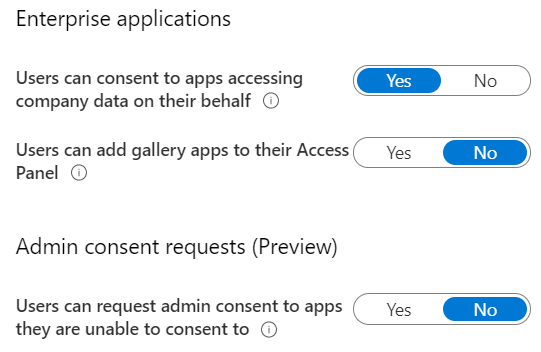
The sceen shot below shows the default settings for an Azure AD Premium Plan 2 tenant.

The information tab on the user consent to apps accessing company data on their behalf reads like this:

If this option is set to yes, then users may consent to allow applications which are not published by Microsoft to access your organization’s data, if the user also has access to the data. This also means that the users will see these apps on their Access Panels.
If this option is set to no, then admins must consent to these applications before users may use them.

So in the scenario where a phishing email slipped through the cracks and an end user grants access to a non Microsoft application to their organizations’s data. We do not want that to happen!!!!

The correct setting is listed below
Application administrators should be granted the application administrator role in Azure Active Directory , Then the next time an and user wants to add an application, the application administrator will receive an email and can approve from his\her Outlook client.

The next time an end user or IT staff member wants to add an application to Azure AD, Do not just simply grant the global administrator role.

User Azure Privileged Identity Management and Application Administrator Roles!

Quest Migration Manager for AD – UPN change mid project

I recently encountered a unique scenario when using Quest Migration Manager for Active Directory. I was in the process of migrating 3 AD Forests into a new AD Forest. I had already migrated 1200 users into the new AD Forest and at the time of migration the UPN’s were contoso.com.

My customer then decided to change all UPN’s and primary smtp domains to @fabrikam.com in the middle of the project. This caused a big problem when computer accounts were being migrated. After the computer account had completed migration to the new domain, the user’s UPN was @contoso.com. Which meant the user had to change their UPN to login instead of just simply entering their existing AD password that they were previously using.

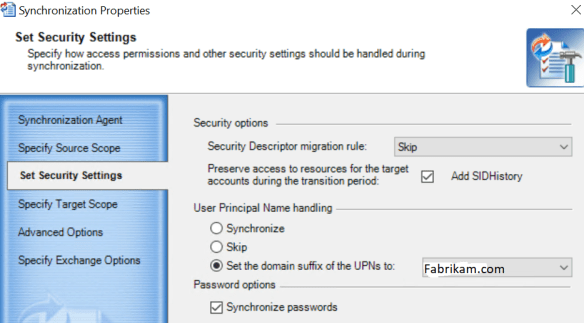
So how do we resolve this issue.Right click on the properties of the domain pair as per image below
Next change target domain to contoso.com or a fqdn of a domain controller in contoso.com

Next modify the security settings and set the domain suffix to fabrikam.com
Finally stop and start the synchronization task.

Once this has been completed, when computer accounts are migrated the correct UPN will be populated and users simply need to enter their existing AD password.

Dynamically Assign AIP Policies

In a previous post on how to dynamically assign Intune licenses using Azure dynamic user security groups.

When an organisation has configured global labels like the default labels displayed below. An organisation can choose to apply a policy to all users or all Azure Information Protection Plan 1 licensed users or all Azure Information Protection Plan 2 licensed users.

Azure Information Protection Plan 1 Azure Security Group

Create an Azure Active Directory Dynamic User Security Group , Edit the query and enter the query below for Azure Information Protection Plan 1 licensed users.

user.assignedPlans -any (assignedPlan.servicePlanId -eq “6c57d4b6-3b23-47a5-9bc9-69f17b4947b3” -and assignedPlan.capabilityStatus -eq “Enabled”)

Azure Information Protection Plan 2 Azure Security Group

Create an Azure Active Directory Dynamic User Security Group , Edit the query and enter the query below for Azure Information Protection Plan 2 licensed users.

user.assignedPlans -any (assignedPlan.servicePlanId -eq “5689bec4-755d-4753-8b61-40975025187c” -and assignedPlan.capabilityStatus -eq “Enabled”)

If the during the creation of the group , it fails with an error , delete the “” that encapsulates the “guid” and “enabled” within the query and use your keyboard to replace the “” if you are copying them from this blog post.

So this solution enables administrators to apply policies to all AIP plan 1 and plan 2 licensed users and because it is dynamic , it will catch all new employees in the organisation.