
Azure Identity Protection – Microsoft Defender for Identity

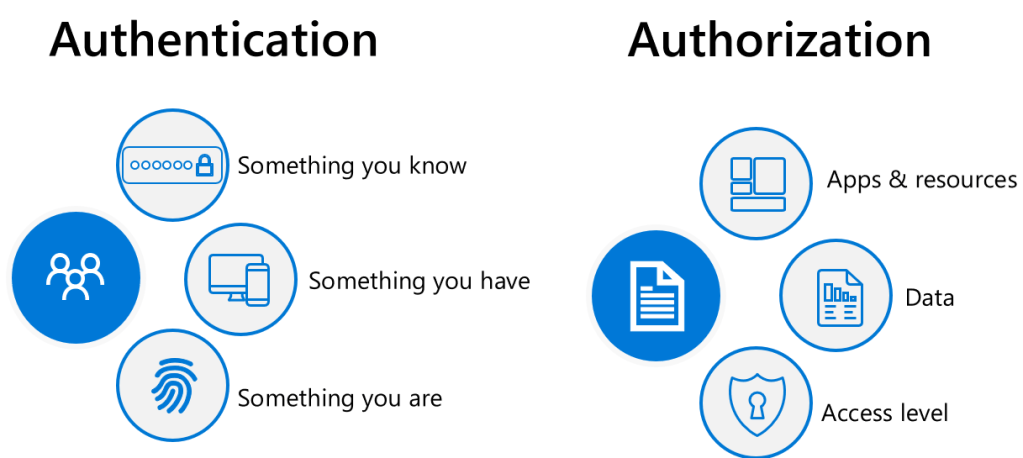
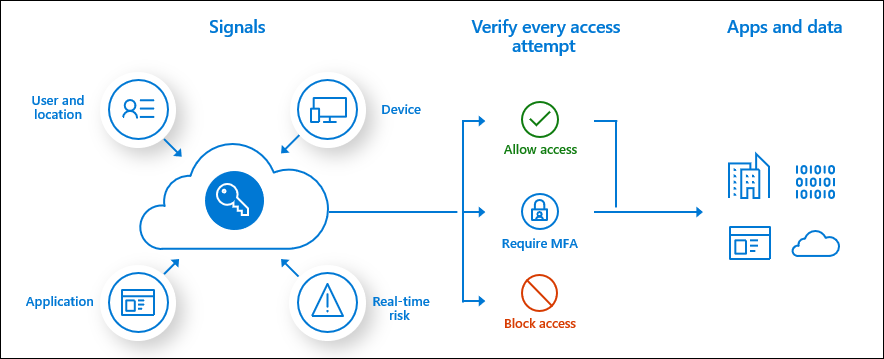
The image above is a high level overview of all identity protection methods regardless of vendor and especially when it comes to implementing Zero Trust. A lot of organisations do not really know what Zero Trust is, or how to begin their Zero Trust journey.

Zero Trust is a bit like Data Classification, it becomes an operational task that will never end. It is not implemented as a project but more as an operational procedure, that constantly evolves as threats and data protection requirements evolve. I have not yet seen a Zero Trust request from an organisation yet that are exactly the same. Zero Trust strategies can often be similar per industry like , legal, pharma, manufacturing and food industry etc..

The purpose of this blog post is to show how Azure Identity Protection and Microsoft Defender for Identity protection work together and can improve any organisation’s security posture as Identity is the new security plane and the days of protecting identity behind edge perimeter firewalls are no longer relevant.

Not all organisations’ (like SMB) can afford Microsoft Azure Identity Protection. I normally advise SMB organisations to procure Azure AD Premium plan 2 licenses to protect any privileged accounts.

For enterprise organisations that are licensed for Azure Identity protection, my preference for implementing the Azure Identity Protection controls, is via Conditional Access. This provides additional insights when placing the policies in report mode only and then reviewing the reports in Conditional Access – Insights and Reporting.

Azure Active Directory Topology

The image above illustrates Azure ADDS (Active Directory Domain Services) and Azure AD. So, think of Azure Identity Protection, as a service protecting identity at the cloud level or like the traditional perimeter edge firewall for ADDS. Microsoft Defender for Identity, protects on-premise identities.

Microsoft Azure Identity Protection

Identity Protection is a tool that allows organizations to accomplish three key tasks:

Identity Protection uses the learnings Microsoft has acquired from their position in organizations with Azure AD, the consumer space with Microsoft Accounts, and in gaming with Xbox to protect your users. Microsoft analyses 6.5 trillion signals per day to identify and protect customers from threats

Microsoft Defender for Identity

Microsoft Defender for Identity monitors domain controllers by capturing and parsing network traffic and leveraging Windows events directly from domain controllers, then analyses the data for attacks and threats. Utilizing profiling, deterministic detection, machine learning, and behavioural algorithms Defender for Identity learns about your network, enables detection of anomalies, and warns you of suspicious activities.

Microsoft Defender for Identity provides alerts to suspicious lateral movements in an on-premise network with ADDS identities. The alerts are great but can only be actioned as soon as a Security staff member can respond to the alerts.

The two automated responses that Microsoft for Identity can perform are:

Disable user â€“ this will temporarily prevent a user from logging in to the network. This can help prevent compromised users from moving laterally and attempting to exfiltrate data or further compromise the network. 


Reset user password – this will prompt the user to change their password on the next logon, ensuring that this account cannot be used for further impersonation attempts. 

Typically, all enterprise organisation’s do not permit internet access on their domain controllers, except for port 53 (DNS) or port 123 (Network Time Protocol), but most normally domain controllers internet connectivity is controlled by proxies

The Azure AD Premium P1 and P2 password protection service, provides an excellent topology. An agent is installed on domain controllers that then communicates with a proxy agent installed on a server, that has internet access, like an AD connect server.

Microsoft Defender for Identity standalone sensor

The standalone sensor requires two network adapters.
1: Management Adapter: used for communications on your corporate network
2: Capture adapter: used to capture traffic to and from the domain controllers

The below ports are required to be configured for standalone sensor

Azure Sentinel

Playbooks may be available in the future that can perform more automated remediation tasks with Microsoft Defender for Identity.

Microsoft have provided an online demonstration on how to compromise an identity and take control of a domain, which I find hard to believe, however, it is a bit like ethical hacking. Security professionals must know the lateral movements of a bad actor when attempting to compromise an identity and an on-premise Active Directory domain.

The article is available HERE

Microsoft Defender for Identity also provides some recommendations, when the Microsoft for Defender Identity sensors (agents) have gathered telemetry information on an on-premise Active Directory instance. An example would be ‘implement secure LDAP’, when an organisation reviews the recommendations provided by Microsoft Defender for Identity, some careful planning is required to assess the impact of implementing the recommendations that Microsoft Defender for Identity has provided.

When Azure Identity Protection and Microsoft Defender for Identity, has been fully implemented in an organisation, it will really improve the organisation’s security posture and Microsoft will continually develop these services to protect against existing and future vulnerabilities.


Quest Migration Migration Manager Unable to migrate SID history

One of my colleagues Mark Doyle highlighted an issue with QMMA for Windows Server 2019 and 2022 domain controllers. Without these commands run on the 2019 and 2022 domain controllers the DSA agent server could not successfully migrate user accounts and SID history.

So my colleague Mark Doyle stuck at it , and even the Windows Server 2019 or 2022 firewall may state that it is off, it kind of isn’t.

So to resolve this issue we had run a couple of commands on the new 2919\2022 domain controllers and the problem was solved , so here are the commands.

1.netsh advfirewall firewall add rule name=”Quest Migration Manager Agent” dir=in action=allow program=”%SystemRoot%\System32\AelAgentMS.exe”

2.netsh advfirewall firewall add rule name=”Quest Migration Manager Agent” dir=in action=allow program=”%SystemRoot%\System32\AelAgentMS64.exe”

Now we can migrate SID history with user accounts,

Using the location condition in a Conditional Access Policy

Microsoft have released a new feature in Conditional Access where named locations can be defined by country GPS coordinates. The Microsoft Article can be referenced HERE

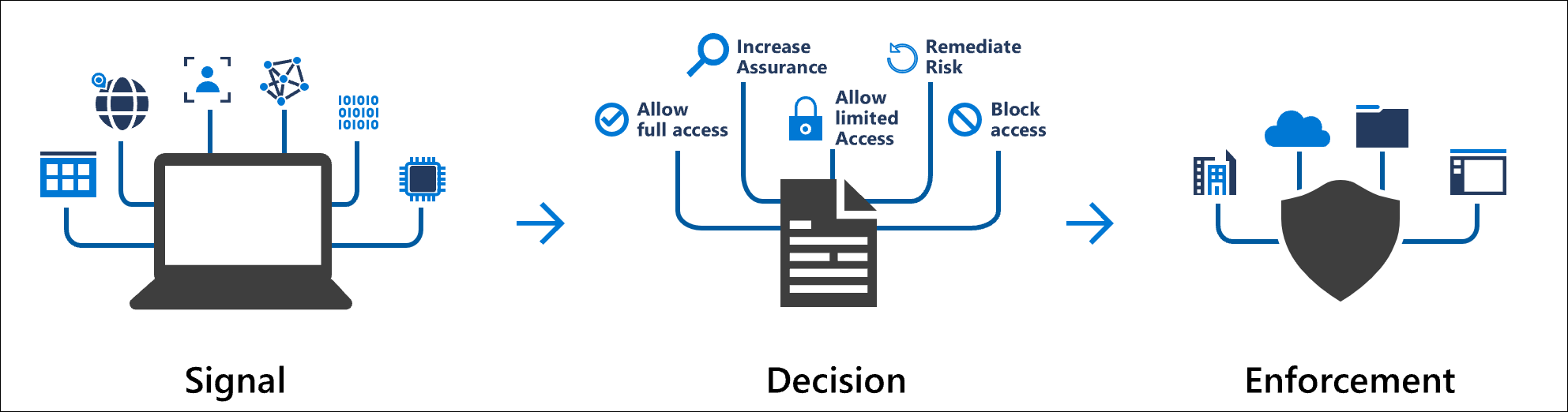
Conceptual Conditional signal plus decision to get enforcement

This is a great improvement in protecting against bad actors. A lot of my customers’ often ask me to create a conditional access policy to block access for all countries except Europe, Ireland and the UK. Bad actors could simply use a vpn and then specify what country they are connecting from which can then by-pass the conditional access blocking bad actors based on country IP, where they cannot by pass GPS coordinates

How to assign Microsoft Defender for EndPoint Policies

The first task is to assign a security group with all users in scope for Microsoft Defender for Endpoint via Azure Licensing Mnagement.

The second part is to apply the policies to a group of users. The syntax below can be used to create an Azure Dynamic user group which will auto populate based on whether a user has a license for Microsoft Defender for Endpoint.

user.assignedPlans -any (assignedPlan.servicePlanId -eq “111046dd-295b-4d6d-9724-d52ac90bd1f2” -and assignedPlan.capabilityStatus -eq “Enabled”)

Phishing Email

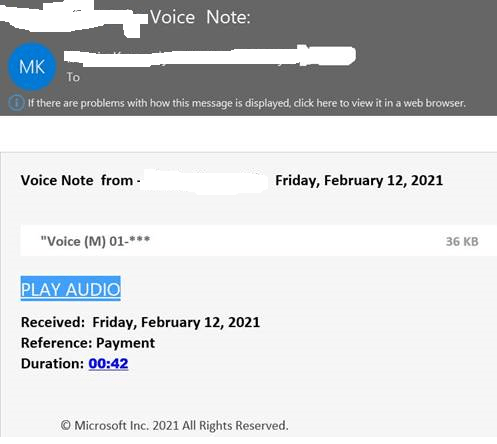
Quite a nasty phishing email that sailed past Mimecast and Microsoft Defender for ATP.
It brings the user to a site and the the end user clicks on another link to listen to their voicemail and this is when the payload is delivered and it can perform the following malicious acts

Copy cached credentials
Modify Outlook Rules
Infect the entire global address list
Attempt data exfiltration via One Drive for Business

Phishing email displayed below , Careful folks. End user security awareness training is the best defense against the phishing emails that get through and breach your message hygiene services.


Conditional Access Insights and Reporting

Conditional Access Schematic

One of the most desirable Conditional Access policy controls is to only grant access to cloud applications if the Windows 10 devices are Azure AD Hybrid joined.

To ensure all Windows 10 devices are Azure AD Hybrid joined can be quite tricky , It is not as simple as enabling Azure AD Hybrid join in the AD connect wizard and simply synching an organizational unit that contains all of the Window 10 machines

The Windows 10 devices must be able to communicate with the Microsoft Office365 and Intune endpoints.

Microsoft Azure AD Conditional Access Policy – Report Mode only has been available for some time, however trying to demonstrate and analyze the impact of enabling the new conditional access policy was quite difficult when trying to review the activity for the new policy in the Azure AD sign in logs or even via a csv export of the policy activity.

Microsoft released Conditional Access Insights and Reporting : Overview and setup available HERE Power BI can also connect to the Log Analytics workspace to create custom dashboards if required.

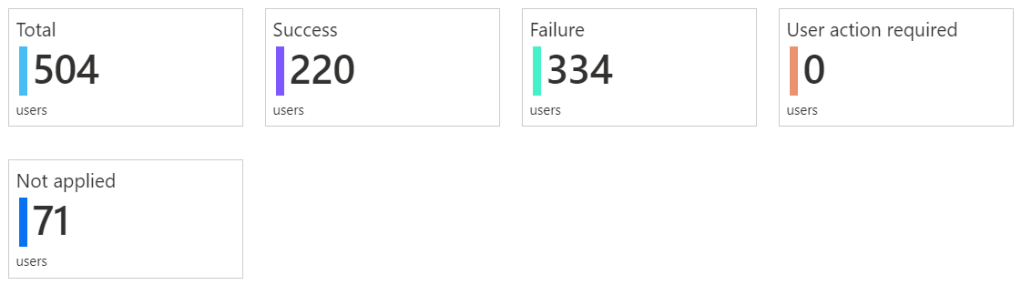
Now when attempting to review conditional access policies in report mode only and in this example the policy is a report mode only if devices were blocked from signing in unless they were Azure AD Hybrid joined.

The impact summary is simple to read and break down

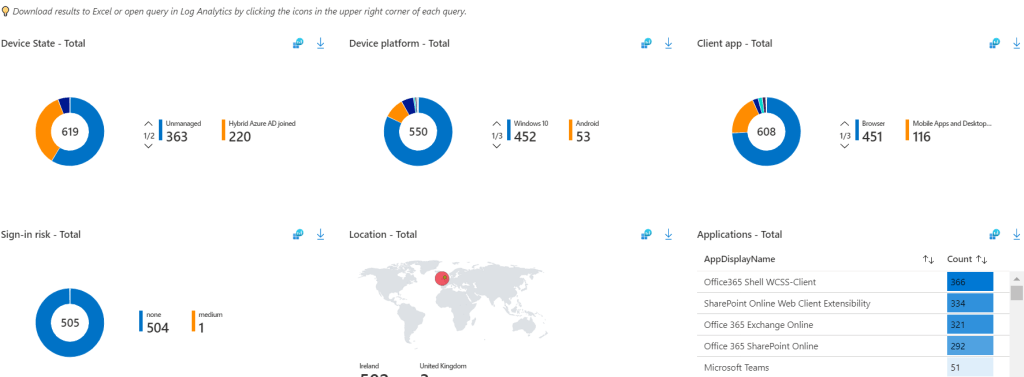
The next page summarizes user sign in details and which users would be impacted most by enabling the policy and then allow IT administrators to take action and get the users \ devices compliant before enabling the policy.

How to migrate Teams Sites from Office365 tenant to another Office365 Tenant using Migration Wiz

This image has an empty alt attribute; its file name is image.png

I have been working very closely with BitTitan for a number of years and BitTitan have been working very closely with Microsoft with the development of their Teams migration service.

The service was updated towards the end of August and this update brought a large number of enhancements which can be reviewed HERE

For years I have been migrating Office365 Tenants to other Office365 tenants and the problem still remains whereby a custom domain like contoso.com cannot exist in two Office365 tenants at once. So during acquisition or merger migration projects at what point do you migrate the Microsoft Teams sites. My recommendation is to take care of the following data sources first with the Migration Wiz user migration bundle.

Primary Mailbox
Archive Mailbox
OneDrive for Business
Outlook switch over via deployment pro.

Once the data sources above have been migrated , I would recommend that Outlook Web App access to the legacy source tenant mailboxes is blocked via running the following command

Get-Mailbox -resultsize unlimited | Set-CASMailbox -OWAEnabled $false
Get-Mailbox -resultsize unlimited | Set-CasMailbox -ActiveSyncEnabled $False

The official MigrationWiz migration guide is available HERE
Also follow this ARTICLE and setup the  Teams-FullControlApp in each source tenant.
I recommend that you use the autodiscover method to populate the project as this will also identify any incompatible items in Teams sites or channels

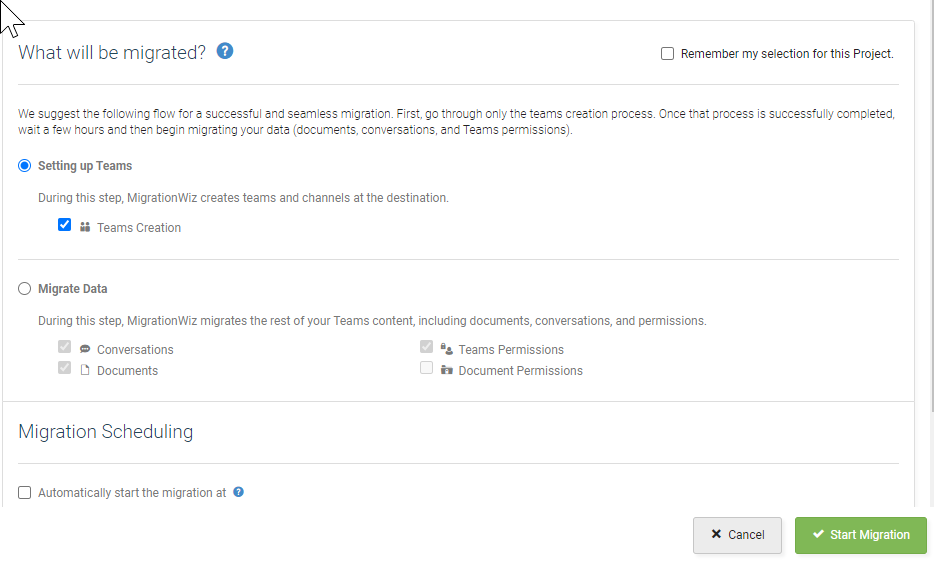
First step is to create the teams site in the target tenant , and do this 24 hours in advance

What_will_be_migrated_Teams.png

Next Step is to do the data migration

Validate the data and then remove the Teams licenses from the users in the source tenants with the following powershell commands. Create a new variable for each Offfice365 licensing sku that contains Teams.

Get-MsolAccountSku

$acctSKU=”contoso:O365_BUSINESS_PREMIUM”
$x = New-MsolLicenseOptions -AccountSkuId $acctSKU -DisabledPlans “TEAMS1”

$acctSKU2=”contoso:TEAMS_EXPLORATORY”
$x = New-MsolLicenseOptions -AccountSkuId $acctSKU -DisabledPlans “TEAMS1”

$acctSKU3=”contoso:O365_BUSINESS_ESSETIALS”
$x = New-MsolLicenseOptions -AccountSkuId $acctSKU -DisabledPlans “TEAMS1”

$acctSKU4=”contoso:O365_BUSINESS_ESSENTIALS”
$x = New-MsolLicenseOptions -AccountSkuId $acctSKU -DisabledPlans “TEAMS1”

Get-MsolUser | Where-Object {$_.licenses[0].AccountSku.SkuPartNumber -eq ($acctSKU).Substring($acctSKU.IndexOf(“:”)+1, $acctSKU.Length-$acctSKU.IndexOf(“:”)-1) -and $_.IsLicensed -eq $True} | Set-MsolUserLicense -LicenseOptions $x

And now all the Teams sites have been migrated and there is no chance of split brain because the Teams license has been removed from the source tenanat.

One really important point to note: MigrationWiz match users from the source to the destination based on the user prefix which is so useful when you are moving one domain from an Office365 tenant to another for example in a merger or aquistion.


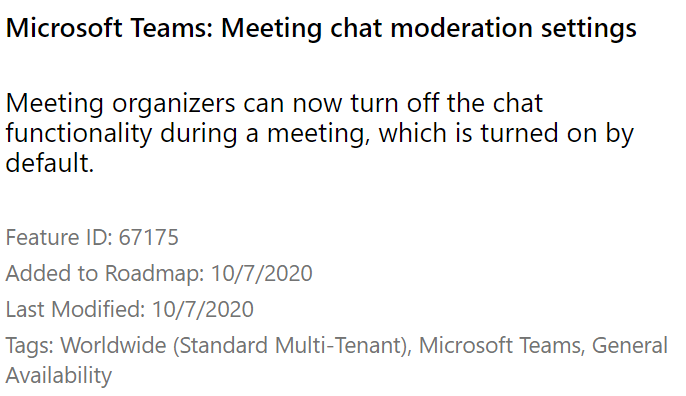
How to delete Teams Chats and Meeting Chat Moderation Settings

A customer recently asked me how can we delete chat history in Microsoft Teams and the answer was really simple. Provided the tenant has the correct Office365 licensing. The solution was to create a retention policy and delete all chat history older than 1 day.

How to delete Teams Chats and Meeting Chat Moderation Settings

https://www.microsoft.com/en-us/microsoft-365/roadmap?filters=&searchterms=67175

Exchange Online to Exchange On-Prem Free \ Busy Not Working

Free busy not working in an Exchange 2016 CU17 Hybrid environment.

When a customer forgets to tell you that they previously configured Exchange Hybrid using the Modern hybrid agent, The modern hybrid agent leaves behind some configuration settings that prevent free-busy working from EOL to EOP.

I always use the classic hybrid wizard for organisations that require long term rich co-existence.

The frustrating this with this issue is that the Exchange Remote Connectivity analyzer tests WORK, which would lead you to believe everything is ok and configured correctly. But when you attempt to query availability requests for a user or resource from OWA or Outlook , the look up fails.

What does the Hybrid Agent leave behind in Exchange Online?

Two values are populated that will prevent free \ busy from EOL to EOP working.

  • OrganizationRelationship -targetsharingepr
  • Intraorgconnector -targetsharingepr

When you query these values , You may see a value like   https://a75aa21a-2f8d-4b2e-85fe-1234.resource.mailboxmigration.his.msappproxy.net/EWS/E
xchange.asmx

To resolve the issue run the following commands

  1. set-intraorgconnector -TargetSharingEpr $null
  2. set-OrganizationRelationship “Name of Org Relationship” -TargetSharingEpr $null

Teams Calendar Integration with on-premise Exchange calendars

One of the pre-requisites for Teams (online) integration with Exchange on-premise calendars is oauth authentication.

Sometimes solution providers just install a single or multiple Exchange 2016 servers to ensure the oauth pre-requisite is delivered. However if the project scenario requires Exchange on-premise mailboxes to be migrated as quickly as possible to  Exchange Online then it may seem overkill to implement Exchange 2016 servers during this transition period.

Exchange 2013 CU24 and above does not complete the oauth authentication part of the Hybrid wizard, however Microsoft do have an article on how to configure OAUTH for Exchange 2013.

Configure OAUTH for Exchange 2013 :
https://docs.microsoft.com/en-us/exchange/configure-oauth-authentication-between-exchange-and-exchange-online-organizations-exchange-2013-help

This solution works perfectly and allows an organization to transition from Exchange 2013 to Exchange Online without the requirement for Exchange 2016 servers and enables Teams to interact with Exchange 2013 on-premise calendars.