
Now that Microsoft have announced that Exchange 2010 support will end in October 2020 a lot of organisations are moving to Exchange 2016, 2019 or hopefully Exchange Online.
For enterprise organisations , the migration topology will include two Exchange 2016 servers that are load balanced via an F5 , Citrix Net Scaler or my preferred choice a Kemp load balancer. Autodiscover services for the smtp domains will be transferred to the new virtual IP and the service will be provided by the new Exchange 2016 servers that will proxy access requests to Exchange 2010 hosted mail resources.
The new virtual IP for load balancing services will become the target for the Exchange Online migration endpoint.
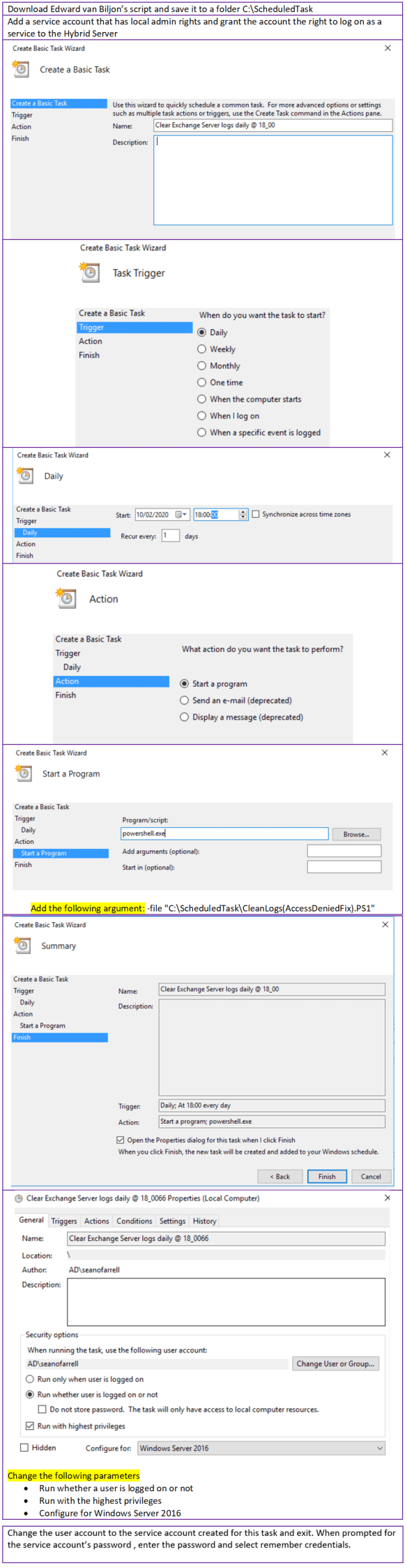
The Exchange Online Hybrid wizard licenses the new Exchange 2016 servers as part of the Hybrid configuration process , the Hybrid license does not permit the hosting of mailboxes. One of the problems with Exchange server since Exchange 2013 is log file growth. This post will demonstrate a scheduled task i always create on Hybrid servers.
The task schedules Edward van Biljon script available to download HERE
These log files are mostly IIS log files and not Exchange database log files as no mailboxes are hosted on the Hybrid server. But if an organisation is moving thousands of mailboxes to Exchange Online and not clearing down these logs, then they will run into issues. I have often reclaimed 20 -30GB of disk storage from running this script as a scheduled task.
The next section to consider is Exchange Database logs. Most vendors like
perform an excellent backup service and are typically scheduled to run outside of business hours. Exchange backups are critical to truncate logs and become even more critical in an Exchange DAG. I have worked on previous projects that migrated Lotus Notes or Groupwise to Exchange and the log files grew too quick and could not wait till the daily evening backup. This issue can also arise in Exchange Hybrid native migrations due to the volume of traffic being migrated.
Most Exchange backup vendors communicate with VSS , It is critical that Exchange truncates the mailbox database logs , as there will be corruption in the databases’ if Exchange cannot perform this task.
If there is a scenario where the Exchange database and log volume is running out of space , Microsoft have an excellent utility called diskshadow which has been around for a long time. So essentially we trick Exchange into thinking a full backup has been performed and here are the simple steps if an Exchange Server database was installed on the system volume.

This process should only be used in emergencies, Business as Usual backup schedules should normally ensure Exchange volumes do not run out of space but during migrations from an Exchange 2010 to Exchange Online or Lotus Notes to Exchange on-premise or online , the log files fill up really quick and even more so if there 3 or more databases that are members of a DAG
The final option for reclaiming space is offline de-fragmentation databases to claim white space. And only choose this option when all mailboxes have been migrated as it can take a long time and requires downtime.



 We click on Azure Resources and then click on settings.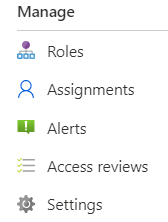
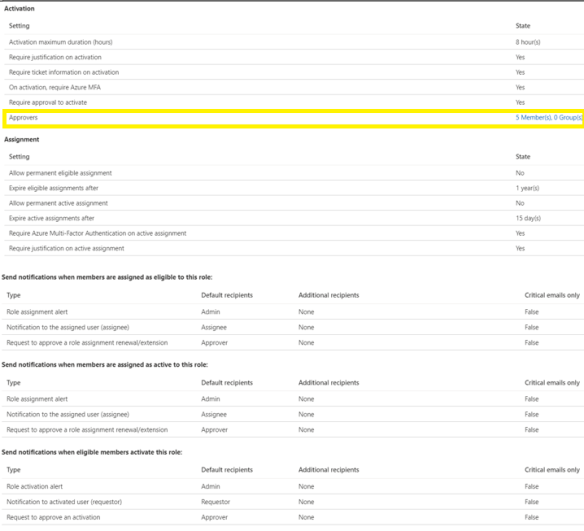 Next step is to add eligible users for the virtual machine contributor role.
 Now any admin that needs to provision a virtual machine in Azure has to follow a workflow and can only do so when senior IT resources or finance department users have approved the provision of the virtual machine


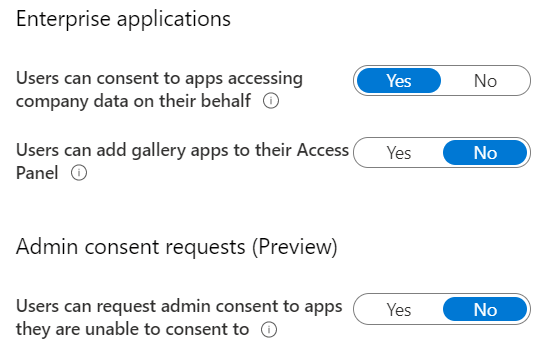
 Application administrators should be granted the application administrator role in Azure Active Directory , Then the next time an and user wants to add an application, the application administrator will receive an email and can approve from his\her Outlook client.
 The next time an end user or IT staff member wants to add an application to Azure AD, Do not just simply grant the global administrator role.
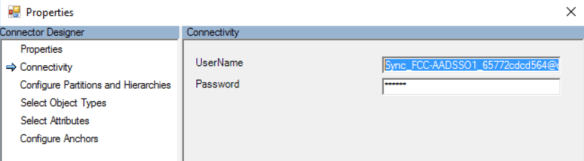
 Next change target domain to contoso.com or a fqdn of a domain controller in contoso.com
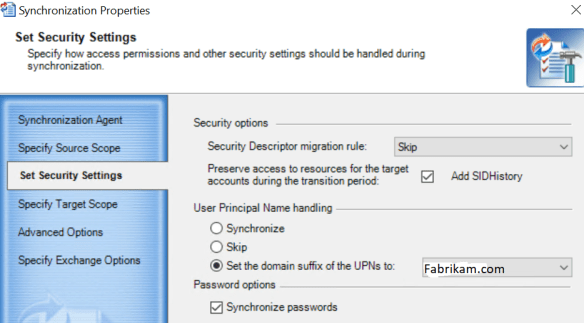 Finally stop and start the synchronization task.



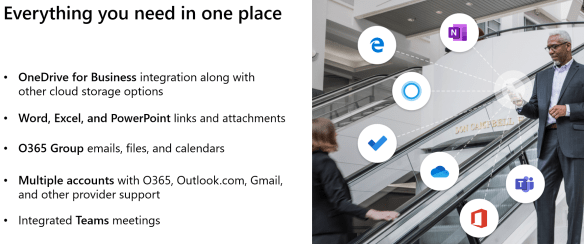

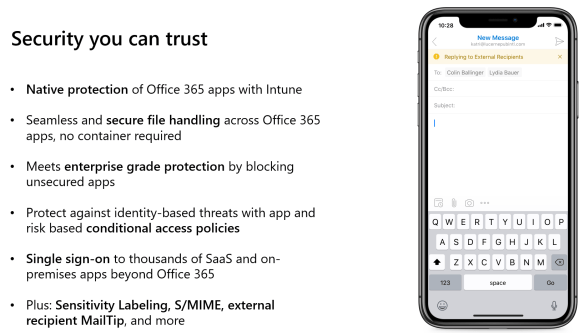
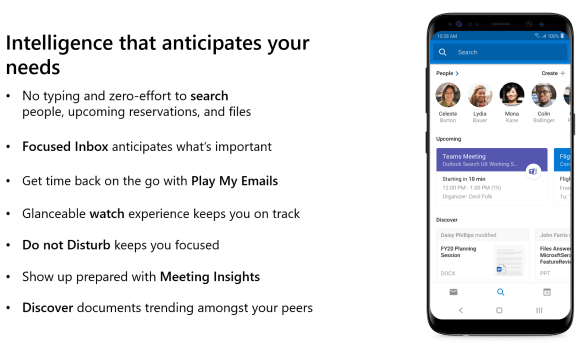

 I started to notice that Azure AD connect was failing and had a look in the console and seen the error message in the console displayed in the image below
 Cloud-Secure.ai