Behind the scenes of this blog is me, Seán O'Farrell. I am the principal Microsoft security architect in eir evo, in Dublin, Ireland.
My blog posts are completely my own views & provide no warranty. My blog posts are in no way affiliated with my current employer, Microsoft, Quest or any vendor’s technologies mentioned in my blog.
Focused on all Microsoft security products and services specifically Defender * and Purview.
I recently worked on a project focused primarily on Defender for Cloud (Defender for Servers). It’s always valuable to validate a Defender for Servers deployment to ensure no configuration has been overlooked that could weaken an organisation’s security posture.
There are some known challenges when deploying to Windows Server 2012 R2, 2016, and 2022, less so with Server 2025, which benefits from more modern integration.
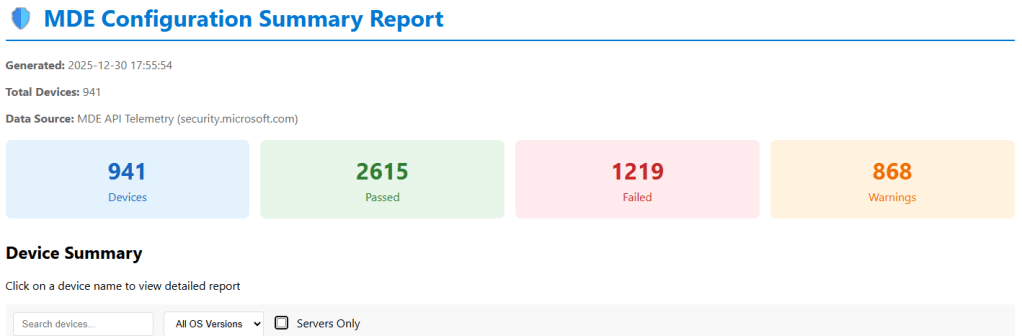
To help with this, I’ve developed a PowerShell script that scans every device connected to a security.microsoft.com tenant and generates a comprehensive HTML summary report, as shown in the image below.
The script also exports a csv report on the status of each machine and recommendations on how to remmediate any machine that has a low security posture.
A app registration is required, the permission requirements are detailed in the readme.md included in the script dowload available : HERE
Open the script get-mdeconfurationreport.ps1 and modify these variables. [string]$TenantId = “YOUR-TENANT-ID-HERE”, # 👈 Your Tenant ID [string]$ClientId = “YOUR-CLIENT-ID-HERE”, # 👈 Your App ID [string]$ClientSecret = “YOUR-CLIENT-SECRET-HERE” # 👈 Your Secret
For the purpose of this blog, the organisation will be referred to as Contoso. When new devices are onboarded in Defender for Endpoint, one of Microsoft’s recommendations is to run a full scan initially. Subsequent scans will then be quick scans.
Executing a full scan can be challenging for various reasons, such as devices going to sleep or being turned off before the scan completes.
Microsoft Defender for Endpoint is a next-generation EDR solution that provides real-time protection against malicious behaviour on endpoint devices. No security vendor can claim their service can protect against a zero-day exploit. However, a next-gen EDR solution like Defender for Endpoint does not need to know the file hash of a malicious file or attack process.
Mimikatz is one of the most notorious malware programs. However, the Mimikatz.exe file could simply be renamed, resulting in a new file hash.
Legacy EDR solutions typically depend on the file hashes of malicious files like Mimikatz.
Microsoft Defender for Endpoint guards against malicious behaviour and connects to the Microsoft Security Center, which quickly learns from trillions of daily transactions to detect new and emerging threats.
If an organization is managed by SCCM, the following query can be run against all machines to establish the full scan status:
Select SMS_R_System.ResourceID from SMS_R_System
Where SMS_R_System.ResourceID in
(Select SMS_G_System_ANTIMALWAREHEALTHSTATUS.ResourceID from SMS_G_System_ANTIMALWAREHEALTHSTATUS Where SMS_G_System_ANTIMALWAREHEALTHSTATUS.LastFullScanAge = -1)
To query the full scan status on machines using the security.microsoft.com portal, the following KQL query can be used:
DeviceEvents
| where ActionType == "AntivirusScanCompleted"
| summarize arg_max(Timestamp, *) by DeviceId
| extend ScanType = tostring(parse_json(AdditionalFields).ScanTypeIndex), DaysAgo = datetime_diff('day', now(), Timestamp)
| project DeviceName, ActionType, ScanType, DaysAgo
| where DaysAgo > 0
| sort by DaysAgo
Multi-tenant management in Microsoft Defender XDR (MTO) is designed to provide security operation teams with a single, unified view of all the tenants they manage. This feature allows teams to quickly investigate incidents and perform advanced hunting across data from multiple tenants, thereby improving their security operations.
Multi-tenant management in Microsoft Defender XDR became generally available (GA) on February 20th, 2024.
A copilot search can provide more details 🙂
Blog Purpose
The goal of this blog post is to show you how to set up multi-tenant management in Microsoft Defender XDR with the least privilege needed. Multi-tenant management in Microsoft Defender XDR allows you to manage and monitor multiple tenants from a single console. This feature was released for general availability (GA) on February 20th, 2024.
Typically, I choose a hub and spoke topology. Source and target tenants’
Roles
Global Admin Role, is required for the initial set up in the ‘Contoso.com’ source tenant, when configuring the ‘cross tenant’ configurations
Browser Sessions
Sometimes using multiple Microsoft Edge profiles to sign into the source tenant and the target tenants can cause problems, due to cookies and too many Edge active browser sessions.
Typically, I use the Microsoft Edge browser in private window option to sign into the source ‘Contso.com’ tenant
And then Google Chrome ‘Incognito Mode’ session to sign into the target ‘Fabrikam.com’ tenant.
#####Step 1
Log into the target tenant ‘Fabrikam.com’, browse to https://entra.microsoft.com/ / external identities/ cross-tenant access settings
Select ‘Add organization’ and add the tenant id for ‘Contoso.com’
When the Contoso organization has been added to Fabrikam.com, select the inbound access/ cross-tenant sync and select ‘Allow users sync into this tenant’
Select the inbound access/ trust settings ‘Automatically redeem invitations with the tenant’ (Typically, this setting will automatically be selected, but just in case, it needs to be checked)
#####Step 2
Log into the target tenant ‘Contoso.com’, browse to https://entra.microsoft.com/ external identities/ cross-tenant access settings
Select ‘Add organization’ and add the tenant id for ‘Fabrikam.com’
When the organisation ‘Fabrikam.com has been added, select Outbound Access/ trust settings/ automatically redeem invitations with the tenant Fabrikam
#####Step 3
Now login to ‘Contoso.com’ and browse to , browse to https://entra.microsoft.com/ / external identities/ cross-tenant access settings
Select ‘Add organization’ and add the tenant id for ‘Fabrikam.com’
In the source tenant ‘Contoso.com’ / cross-tenant access settings, select ‘Fabrikam.com’ outbound settings / trust settings
#####Step 4
This section is where global admin privileges are required in the source tenant ‘Contoso.com’
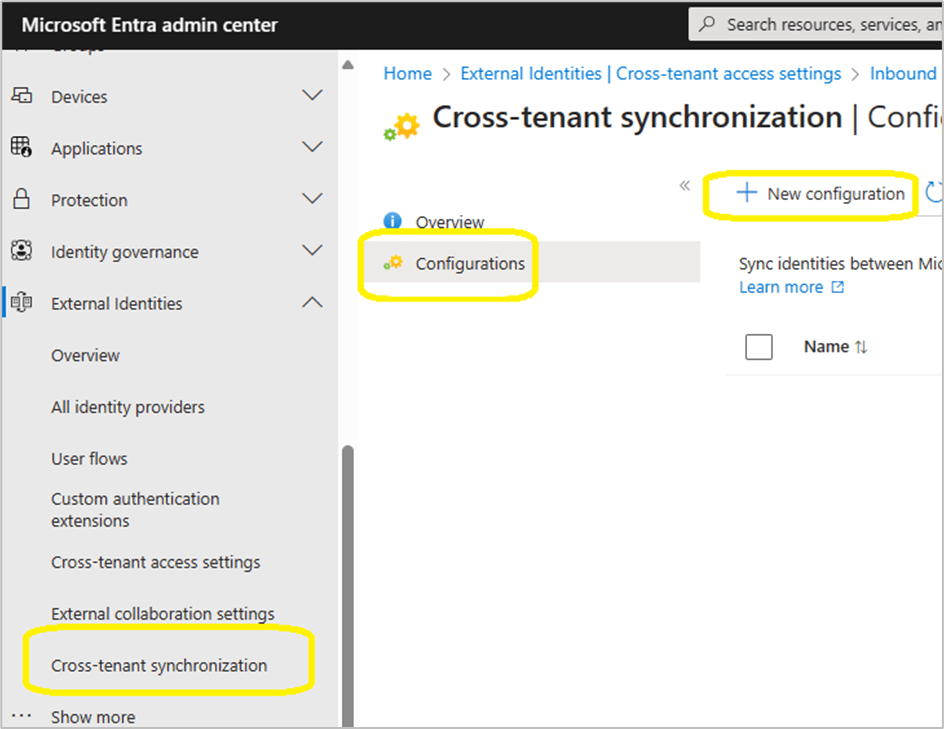
Browse to Contos.com | cross-tenant synchronization > Cross-tenant synchronisation
Select new configuration
Provide a name for your configuration
It can take up to 60 seconds for the configuration to be created, if the browser session appears like it is hung, JUST WAIT!
Select ‘Get Started’
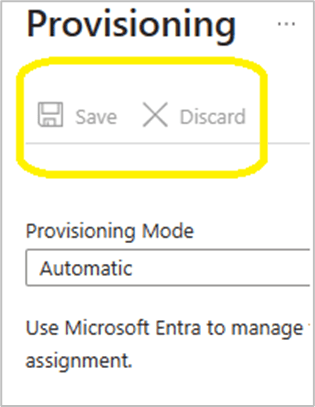
Change the provisioning mode, authentication mode and tenant ID as per the image below.
When pressing save, the browser session does not revert to the global cross-tenant synchronization / cross-tenant synchronization / configurations GUI.
#####Step 5
At this stage we will configure the provisioning configuration.
Select the ‘Contoso – Fabrikam organization’
Add the admin user accounts from the source tenant ‘Contoso.com’ that will be provisioned into ‘Fabrikam.com’
Select the provisioning status and change it from off to on.
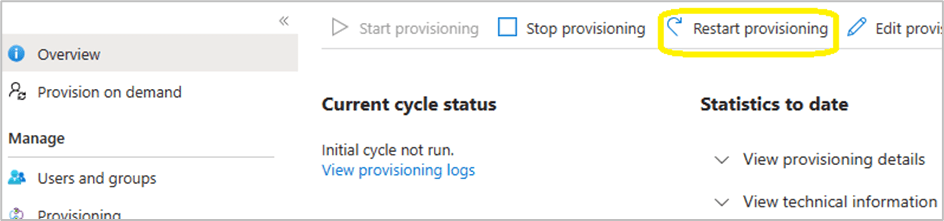
Within the provisioning overview section, select ‘Restart provisioning’
Note: Do not keep clicking on ‘start provisioning’ , ‘stop provisioning’ and ‘restart provisioning’ , be patient and wait!
#####Step 6
To access the security data of the ‘Fabrikam.com’ tenant, the admin users from ‘Contoso.com’ need to be assigned the ‘Security reader’ role in ‘Fabrikam.com’. This role allows them to view security reports and alerts, but not to make any changes.
However, if ‘Fabrikam.com’ has Privileged Identity Management (PIM) enabled and is an Enterprise Identity Protection 2 (EIP2) tenant, there is an extra step involved.
The ‘Security reader’ role assignment must be activated through PIM, either for a specific duration or as permanently eligible. Note that the permanent option is not really permanent, it still expires after 6 months and needs to be renewed manually.
Therefore, it is recommended to set a reminder to check the PIM role assignments in ‘Fabrikam.com’ and renew the ‘Security reader’ role for the ‘Contoso.com’ admin accounts when necessary.
‘Security Reader’ role can manually be added per Contoso admin in Fabrikam or a Microsoft Entra ID security group can be created and assigned the ‘Security Reader’ role. This process could make life easier for admins, they simply need to add the Contoso admins to the newly created security group.
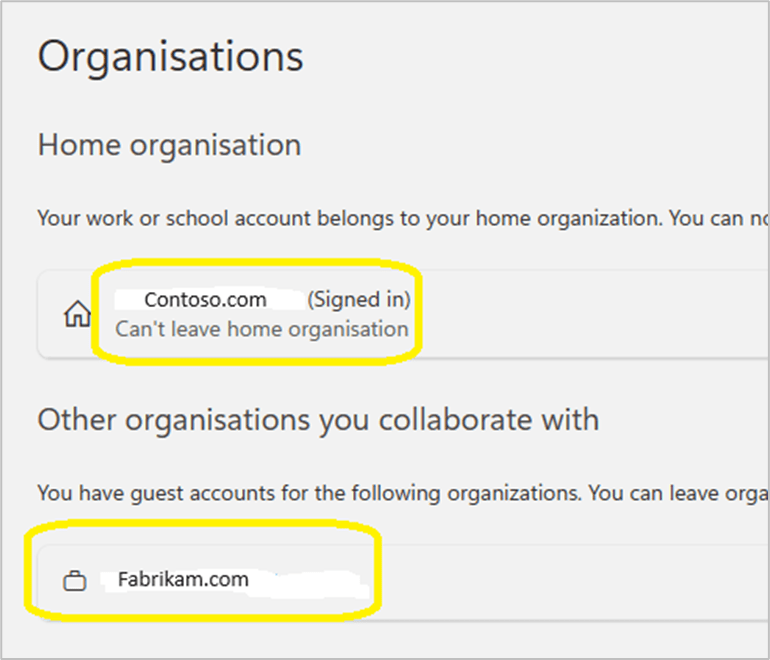
#####Step 7 Each admin account should confirm that ‘Fabrikam.com’ appears in their list of organisations that they can collaborate with via this url: https://myaccount.microsoft.com/organizations
#####Step 8
Each ‘Contoso.com’ admin must login to https;//mto.security.microsoft.com and select settings/ add tenants / and select ‘Fabrikam.com’
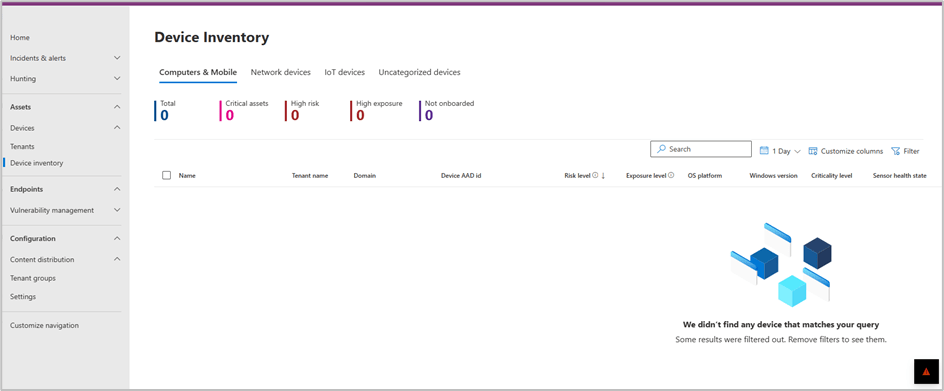
To validate successful configuration and visibility of multi tenant devices. The Contoso admin needs to browse to the Devices \ Devices Inventory
By selecting Devices/ Tenants, it will provide an image that provides a high level overview of device status per tenant.
#####Step 9
In this scenario ‘Contoso.com’ and ‘Fabrikam.com’, corporate office locations have trusted named locations in Entra ID conditional access. When a ‘Contoso.com’ admin accesses MTO, the Conditional access policies, may simply grant a ‘Contoso.com’ admin access to ’Fabrikam.com’ tenant without MFA challenge.
In the scenario where an organisation does not have ‘named locations’ configured in ‘Entra conditional access’, the source tenant admin, may be unable to view the organisations target tenant.
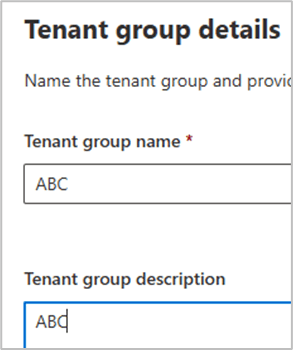
Browse to content distribution / tenant groups / create tenant group
In the bottom right hand corner, the image below may display and prompt for MFA login.
Once logged into Fabrikam , via MFA. The Fabrikam tenant will and devices will become visible in MTO
Also test login to the target tenant via https://security.microsoft.com/tenantid to ensure security admins can view all sections of the security.microsoft.com portal.
#####Step 10
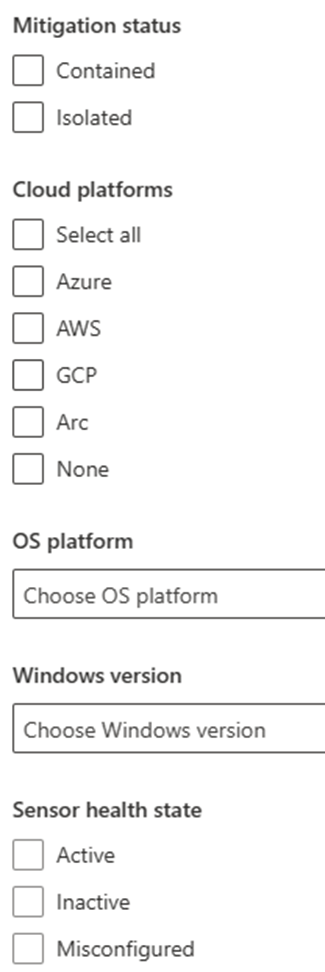
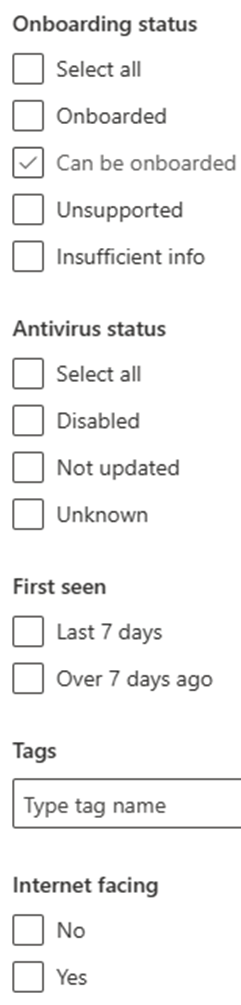
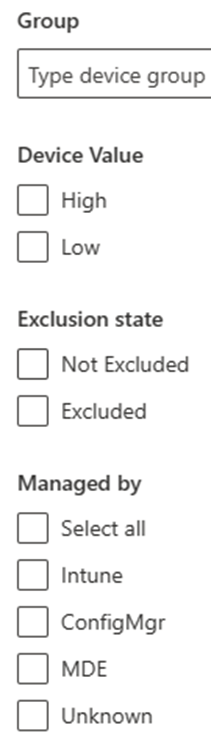
MTO device filer view
#####Step 11
Advanced hunting.
Advanced hunting queries can be executed against ‘Contoso.com’ and ‘Fabrikam.com’
#Some sample KQL queries
## All mitre attack alerts
AlertInfo // Define timerange | where Timestamp > ago(30d) | where AttackTechniques != “” | mvexpand todynamic(AttackTechniques) | summarize count() by tostring(AttackTechniques) // Define graphic | render piechart
// Filter only devices that have not performed a antivirus scan in the last day
| where DaysAgo > 0
| sort by DaysAgo
#####Summary
#Some of the positive features are:
– Simplified threat hunting with multi-tenancy support.
– Centralized view of all device inventory across all tenants and within each tenant.
– Instant insights and ability to filter views according to needs.
The most amazing feature for me is the ability to run KQL queries across all tenants. I ran some KQL queries across 8 tenants with thousands of devices and the results took between 1 – 5 seconds.
#One of the negative features is:
– The service does not provide a cross-tenant reporting functionality.
On January 30th, 2021, Microsoft discontinued the capability for administrators to customise the refresh interval of an ID or SAML token. Instead, they introduced a novel functionality within conditional access known as “sign-in frequency,” which governs the refresh and session token lifetime policy properties.
Properties governing the duration of refresh and session tokens’ lifetimes
Conditional Access Options for Sign in Frequency Microsoft has enhanced Conditional Access by introducing a new feature: sign-in frequency. The default options for sign-in frequency include hours and days, with a minimum setting of 1 hour and 1 day.
This option was a very welcome addition to the Coitional Access, session control options. Zero Trust , explained simply , ‘always assume breach’ on LAN or WAN.
However when working with an organisation on a cloud transformation journey that is moving from Microsoft Office 2010 \ 2013 , Exchange 2010, 2013. Too much change can become counter productive for an organisation. It is a black art finding the balance between security and productivity. Obviously security must always win.
The inclusion of this feature was a significant enhancement to Conditional Access session control options. In simple terms, Zero Trust advocates ‘always assume breach,’ whether on LAN or WAN. Nevertheless, when collaborating with an organisation undergoing a cloud transformation from Microsoft Office 2010/2013 and Exchange 2010/2013, excessive changes can potentially hinder productivity. Striking the right balance between security and productivity becomes a delicate task, with the clear understanding that security should always take precedence.
Require user reauthentication during Intune device enrolment, regardless of their current MFA status.
Require user reauthentication for risky users with the require password change grant control.
Require user reauthentication for risky sign-ins with the require multifactor authentication grant control.
There’s an additional scenario not covered in the mentioned Microsoft article—when an organisation establishes a new authentication context.
The crucial element in the depicted image is the ID of the Authentication Context policy. This ID can be allocated to critical SharePoint Online sites such as Finance, HR, Board of Management, ensuring that members of these sites are consistently prompted for authentication. This mitigates the risk associated with scheduled sign-in frequencies of 1 hour and beyond.
An hour is a significant duration, particularly in a scenario where an identity has been compromised. In just 5 minutes, a malicious actor who has compromised an organisation’s identity can swiftly pilfer intellectual and valuable information.
Summary
The current sign-in frequency control, set at a minimum of 1 hour or a specified number of days, is effective for all SAAS applications integrated with Microsoft Azure AD. .
Microsoft introduced a preview version for managing token lifetimes in Microsoft Entra ID on October 31, 2023. I haven’t had an opportunity to test it yet. Administrators lost the ability to configure refresh and session token lifetimes on January 30, 2021, and Microsoft hasn’t reinstated this capability for administrators since then. While it’s expected to function seamlessly with Microsoft applications integrated with Microsoft Entra ID, extensive testing is needed for the multitude of SAAS applications integrated with Microsoft Entra ID. Additionally, please be aware that this feature is currently in preview
When configuring Intune \ ASR (Attack Surface Reduction) policies for Windows Servers.
Why will the ASR policies not apply??
There is one setting in Intune\ Endpoint Security that is not compatible with ASR policies assigned to Windows severs, which is applicable to both Defender for Endpoint for servers plan 1or 2.
Within the ASR policy the following policy needs to remain – ‘Not Configured’
Once this policy remains ‘Not Configured’ , ASR rules can successfully apply to servers that are protected with Microsoft Defender for Server plan 1 & 2
Microsoft do not update security baselines that are available in the Microsoft Intune portal very often. The Security Compliance Toolkit and Baselines HERE , which has been updated as recently as 11th of October 2023, provides the following baselines.
Windows 10 version 22H2 Security Baseline
Windows 11 version 22H2 Security Baseline
Microsoft 365 Apps for Enterprise 2306
Microsoft Edge v117 Security Baseline
Windows Server 2022 Security Baseline
Windows Server 2022 Baseline
Dean Ellerby, has an excellent post on how to enrol Windows Servers for MDE protection and management: HERE
1. Download latest Security Compliance Toolkit and Baselines: HERE 2. Browse to Intune \ Devices \ Group Policy analytics
3. Click on : Import Group Policy Object Files
The extracted files will look like below, browse to ‘GP Reports’ and then select each ‘gpreport.xml’
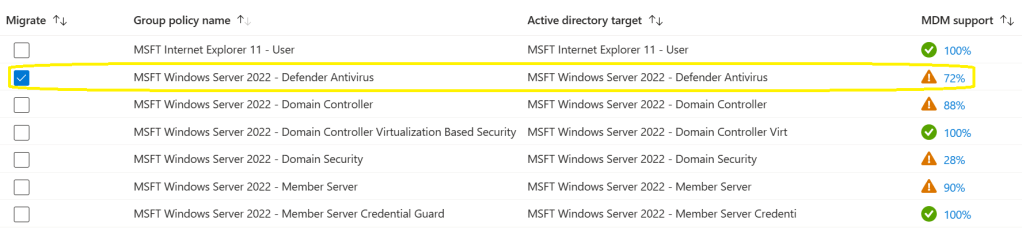
4. We then select the MSFT Windows Server 2022 – Defender Antivirus policy
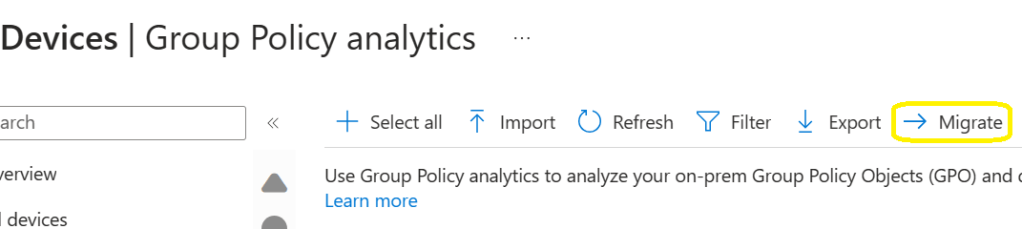
5. We then select : Migrate
6. Select all settings on this page and next
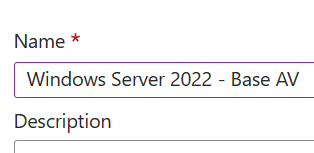
7. Give the policy a name
8. Assign the policy to a Microsoft Entra ID dynamic device group containing Microsoft Windows servers or a manually configured security group.
MSFT Windows Server 2022 – Member Server Base Line
These settings cannot be managed by Microsoft Intune, however the settings can be exported to a csv and then use a tool like Azure Logic Apps or Azure Automation Functions to apply the base line settings.
1. Select MSFT Windows Server 2022 – Member Server
2. The select export
3. The export process will export all of the settings that can be re-used in Azure Automation
Windows 11, Microsoft Edge and Microsoft 365 Apps for Enterprise Baselines
The built in Windows 10 and later, Microsoft Edge compliance policy, have configuration settings that conflict with Microsoft Defender Endpoint configurations, specifically ASR (Attack Surface Reduction) policies, some of these settings cannot be excluded from the default : ‘Windows 10 and later, and Microsoft Edge compliance policies’
Import all of the gpreport.xml files for Windows 11, Microsoft Edge and Microsoft APPs for Enterprise as described in the Windows Server 2022 baseline section. The image below high lights what policies can be exported and then create endpoint security policies or Windows device configuration policies.
Summary
In this blog post , I am mainly focusing on Windows 11 22H2 and the latest build of Windows Server 2022.
Some of the main benefits of using the ‘Microsoft Security Compliance Toolkit and Baselines’
Typically, when devices are onboarded to Microsoft Defender for Endpoint, there can be a lot of notifications in terms of vulnerabilities and recommendations. A lot of these notifications and recommendations can be resolved, when ensuring end user Windows 11 and Windows Server 2022 devices have up to date security baselines
Microsoft provide a delta spreadsheet with all changes when a new ‘Microsoft Security Compliance Toolkit and Baseline’ is released
The new policies for Windows 10 and later, uses , the ‘Settings Catalog’ template in Intune. It is very easy to remove configurations that conflict with ‘Microsoft Endpoint Security Policies’
I love Google Chrome and have used it for years, but my preference is to block Google Chrome on all managed devices and use one browser: Microsoft Edge on all platforms.
Windows Server 2022 Security Baseline policies can be exported and applied via automation in Azure and then updated with the delta information from new releases of ‘Microsoft Security Compliance Toolkit and Baselines’
The Microsoft website : https://microsoft365dsc.com/ explains all things, regarding Microsoft DSC, including configuration, export, import, synchronisation etc..
Microsoft have made things a lot easier compared to earlier versions of Microsoft365 DSC. It is now possible to select which configuration policies can be backed up and re-used from the numerous M365 technologies via the Microsoft365DSC Portal: https://export.microsoft365dsc.com
This blog post will focus on the most common M365 configurations that can be re-used in multiple M365 tenants, to speed up deployment and also remove human error, which can often occur from manual configuration.
Where to start
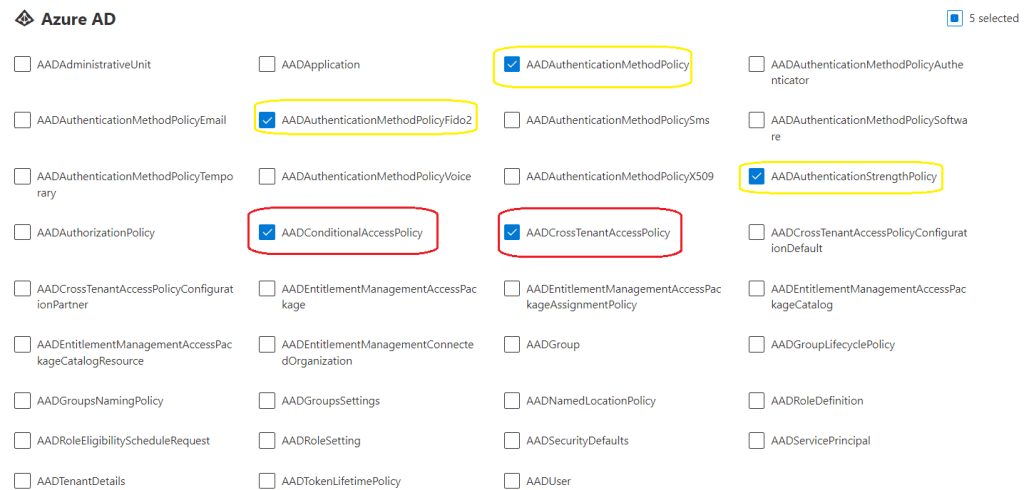
Browse to https://export.microsoft365dsc.com/ and then select the configuration items per M365 technology, that you would like to re-use in, another M365 tenant, tenants’ or a research and development M365 tenant.
Microsoft Entra ID \ Azure Active Directory
The items highlighted in yellow, could be potentially be used per M365 tenant, tenants’ or a research and development M365 tenant.
Items : Highlighted in red
Microsoft have recently added, conditional access templates, which was a very welcome addition, however, I still prefer to use PowerShell to implement Conditional Access Policies, which can be unique per organisation.
Exchange Online
The items highlighted in yellow, could potentially be used per M365 tenant. I do not like using the Exchange Online, standard and strict protection templates, as they cannot be re-configured.
My preference is to run an Exchange Online Orca Report and then review the recommendations and tweak the configuration per organisation. Microsoft Exchange Online security policies should always come first.
Intune
Intune DSC, for me, this is by far the most beneficial use case.
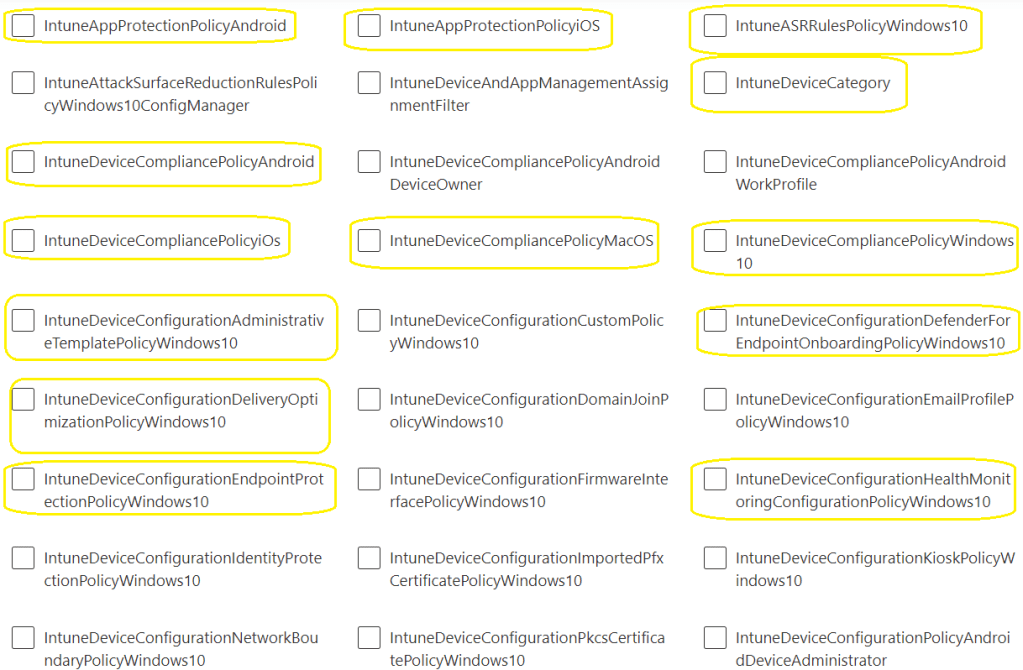
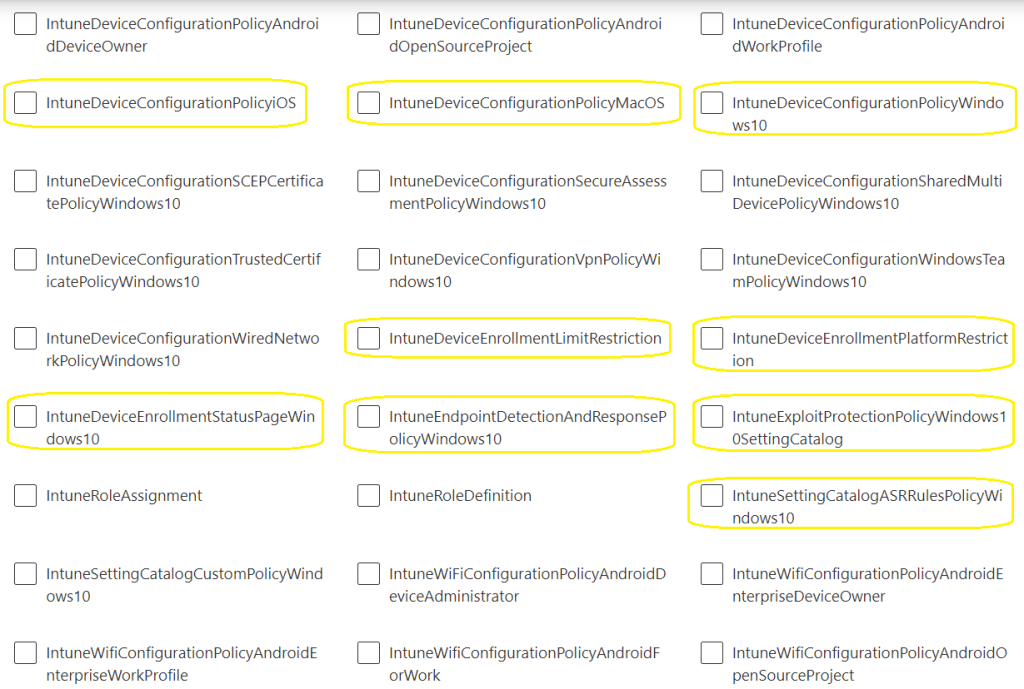
Device security ( Jeffrey Appel’s : Defender for Endpoint – Ultimate Blog Series) Jeffrey’s blog series, doesn’t just focus on Microsoft Defender for Endpoint configurations, it includes a lot of Windows 10 and later, hardening policies, which should be used in every organisation. It takes a long time to configure these policies! M365 DSC can, re-use these configurations polices, if Jeffrey, updates his blog series, the change can be made in a research and development M365 tenant, tested and then pushed to a production tenant.
The following images that contain items highlighted in yellow , could be potentially used per M365 tenant.
Additional M365 DSC modules
Office 365 : do not re-use per M365 tenant
OneDrive: do not re-use per tenant, however an Intune ‘IntuneDeviceConfigurationAdminisrativeTemplatePolicyWindows10; can be re-used to configure One Drive for Business configuration and governance
Planner : do not re-use
Power Platform : do not re-use
Security and Compliance: do not re-use, (unique per organisation)
SharePoint : do not re-use, (unique per organisation)
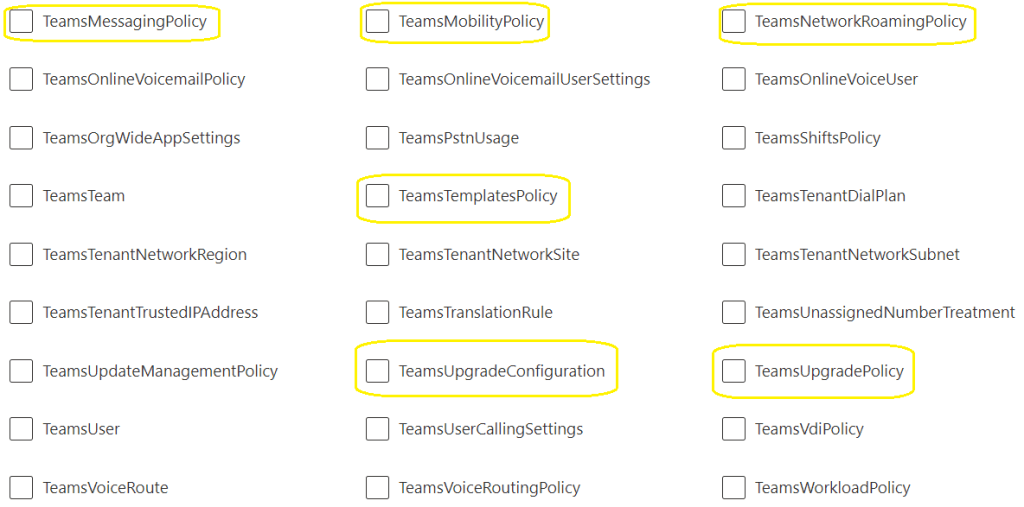
Teams
The following images that contain items highlighted in yellow , could be potentially be used per M365 tenant
Summary
This blog post , attempted to highlight the practical and beneficial usage of M365 DSC.
An IT services provider can, standardise configurations in line with best practices and re-use these configurations per customer.
Microsoft consistently drives innovation and adaptability to meet evolving industry demands.
An organisation can test emerging M365 technologies in a research and development M365 tenant, and when the organisation has completed testing etc, the configuration can be synchronised to the organisation’s production tenant or tenants’, which can control and mitigate risks, with regards, simply allowing an M365 tenant accept all new and emerging technology features from Microsoft. It can also accelerate the adoption of new and emerging technology features from Microsoft, when an organisation has fully tested these new features and is ready to deploy the new features in their production tenant or tenants’
Microsoft’s unwavering commitment to security and compliance has consistently driven innovation and adaptability to meet evolving industry demands. Their dedicated security and compliance portals have left the legacy portal, portal.office.com, in the not too distant past.
One common frustration for M365 administrators is the inability to assign the following roles within Microsoft Privileged Identity Management:
Microsoft Purview roles’
Microsoft Defender roles’
Microsoft Dynamic roles’
This blog post will primarily delve into the assignment of Microsoft Purview roles. The image below showcases the default role assignment choices available in Microsoft Privileged Identity Management.
Microsoft Purview Roles
Microsoft has invested significantly in their portal redesign at compliance.microsoft.com. In traditional scenarios, IT administrators often find themselves tasked with configuring, executing, exporting e-discovery case results, and subsequently reporting to compliance officers, data protection officers, or HR departments. However, entrusting IT admins with these compliance tasks raises initial concerns about data protection. It’s imperative that IT admins remain unaware of sensitive information contained within e-discovery case results, as these results might encompass IT admin staff within the search criteria.
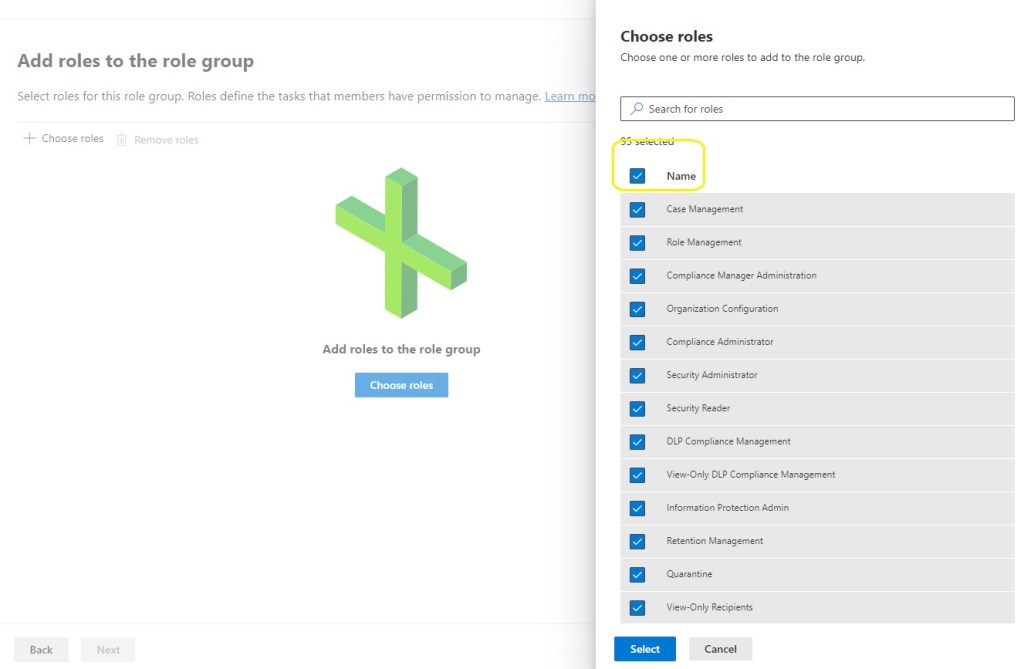
As of the time of this post, there are approximately 95 role groups within M365 Purview. Here are some practical use cases illustrating how these roles can be assigned to fulfil various compliance roles and organizational requirements:
e-discovery
Insider Risk Management
Privacy Management
Data Investigator
How to Assign Microsoft Purview Roles to Microsoft Entra ID Groups
Note: For the purposed of this blogpost, I created a Microsoft CDX tenant, all users and screenshots are fictional.
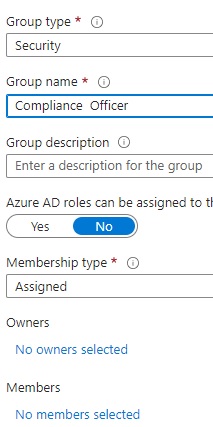
1: Create a Microsoft Entra id group. Important, to not add any members or owners
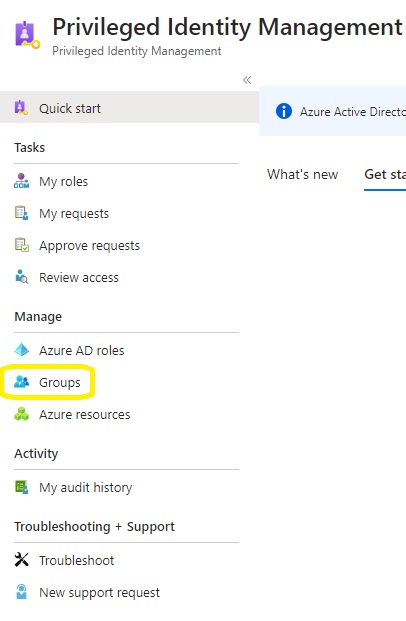
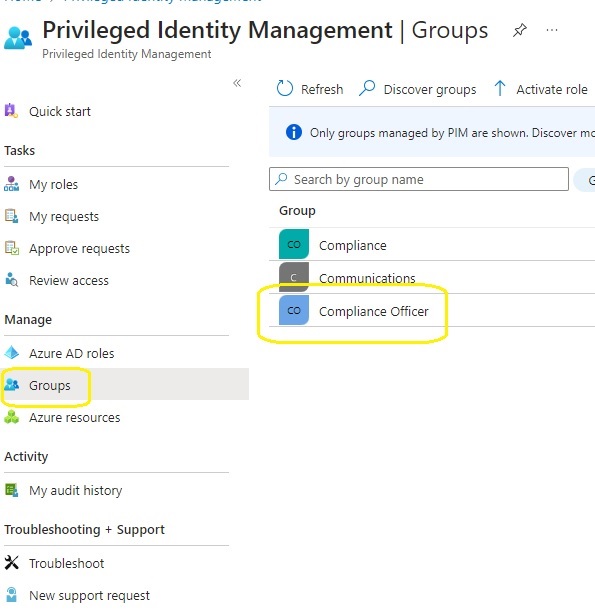
2: Login to Microsoft Entra Privileged Identity Management and select Groups.
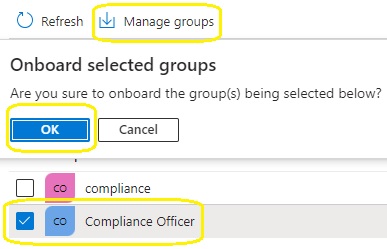
3.Seclect Discover Groups
4.Search for the previously created group and then select manage groups
5.Select groups in Privileged Identity Management
6. Click on assignment, add members to eligible assignments, this is why , we did not need to add any group members in step 1
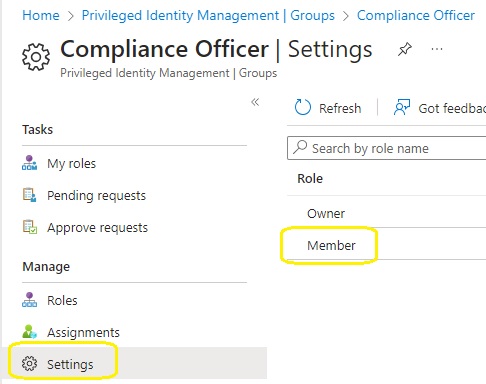
7. Click on settings and member
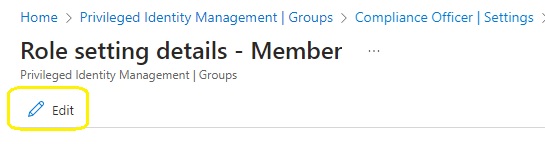
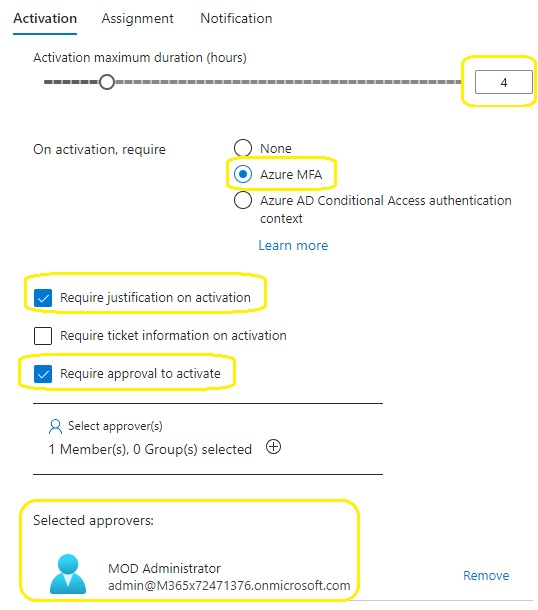
8. Edit the member settings
9. Set hours to 4, require justification on activation, require approval to activate and then finally select the approver. The approver may be different per role that requires activation.
10. Create a role group in the compliance.microsoft.com portal : Microsoft Purview Permissions
11. Name the role group
12. Add the roles.
Select all roles
13. Choose groups and add the group that was created previously
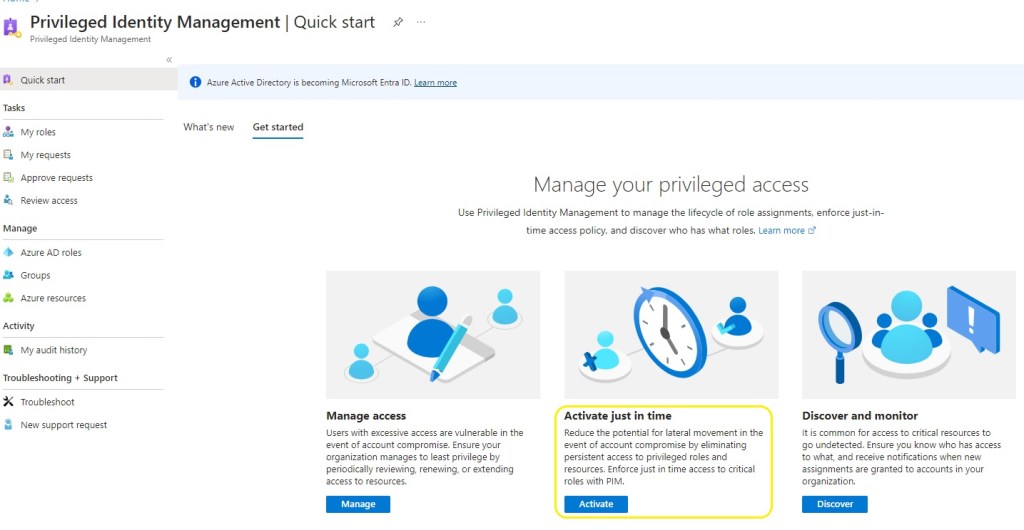
14. Now the end user Adele Vance can login to https://entra.microsoft.com /identity governance / Privileged Identity Management and select ‘Activate just in time’
15. The user then selects group, activate and provides a business justification.
16. The group owner and admin , receives an email notification, that there is a pending just in time access request and can choose to approve or deny the request.
17. The compliance officer can then login to complicane.microsoft.com and perform his\her compliance activities. During my testing, no license was required for the compliance officer. I am sure Microsoft would insist that the compliance officer has an M365 E5 or E5 compliance add-on license:)
Summary
The technical steps outlined in this blogpost, enable organisations to apply Privileged Identity Management policies to roles \ permissions control in services like
Microsoft Purview roles’
Microsoft Defender roles’
Microsoft Dynamic roles’
M365 Purview roles are not available in M365 roles or Microsoft Entra ID Privileged Identity Management, for really good reasons. M365 Purview role \ permission elevation , can be typically required for legal disputes.
Every organisation, should consider compliance and governance with a cloud transformation journey where services, data and line of business workflows, transition from on-premises to Microsoft cloud services.






































 Cloud-Secure.ai