Phishing Email

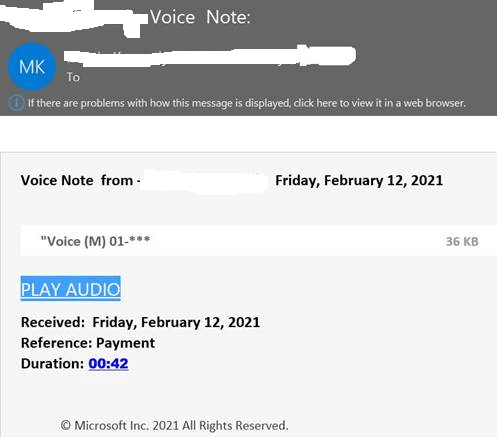
Quite a nasty phishing email that sailed past Mimecast and Microsoft Defender for ATP.
It brings the user to a site and the the end user clicks on another link to listen to their voicemail and this is when the payload is delivered and it can perform the following malicious acts

Copy cached credentials
Modify Outlook Rules
Infect the entire global address list
Attempt data exfiltration via One Drive for Business

Phishing email displayed below , Careful folks. End user security awareness training is the best defense against the phishing emails that get through and breach your message hygiene services.


Azure Privileged Identity Management to lock down provision of Virtual Machines in Azure

In my previous post on how to secure Office 365 Roles and this post is about how to secure Azure Resources.

Office365 and Azure Active Directory have a number of roles that are familiar like global administrator , compliance administrator etc. One of the most common use cases for Azure PIM it to request just in time access to the global administrator role

As organisations extend their networks into Azure , Azure subscription’s costs can sometimes spiral out of control. And this post will demonstrate the technical steps required to lock down the ‘virtual machine contributor’ role with Azure Privileged Identity Management, so that it requires finance department or senior it approval to create virtual machines in Azure, and the process around making technical admin staff eligible for the ‘virtual machine contributor role’

An example of how Azure costs could spiral , An Azure Admin , provisions the most expensive high performance virtual machine available in Azure, makes the VM geo-redundant, adds in a few ultra disks and a few Terra Bytes of Azure Blob Strage.

If there are multiple Azure subscriptions, The eligible users and app-rovers will need to be configured per subscription.In the image below we want to manage Azure Resources.

We click on Azure Resources and then click on settings.

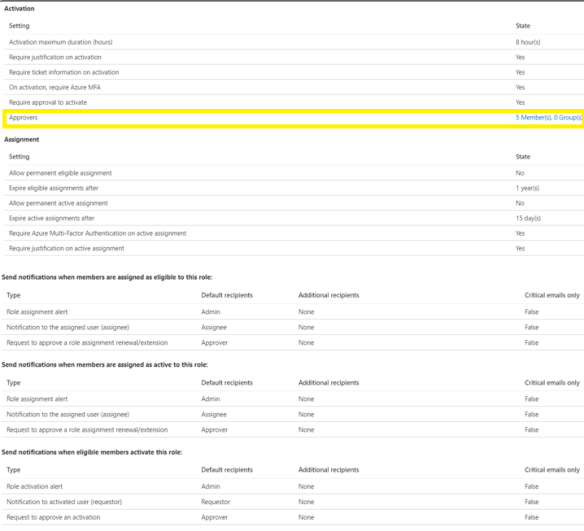
Add the app-rovers for the role and ensure the app-rovers have mailboxes so that they receive the email notification
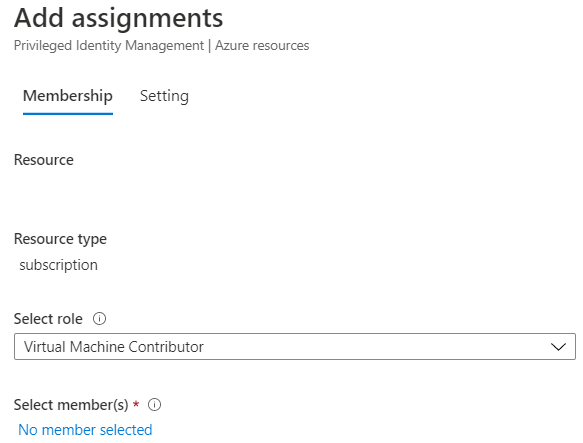
Next step is to add eligible users for the virtual machine contributor role.
Now any admin that needs to provision a virtual machine in Azure has to follow a workflow and can only do so when senior IT resources or finance department users have approved the provision of the virtual machine
Locking down Azure Active Directory

Azure Active Directory has excellent security with conditional access being one of the most widely used tool to protect Azure Active Active Directory.

The sceen shot below shows the default settings for an Azure AD Premium Plan 2 tenant.

The information tab on the user consent to apps accessing company data on their behalf reads like this:

If this option is set to yes, then users may consent to allow applications which are not published by Microsoft to access your organization’s data, if the user also has access to the data. This also means that the users will see these apps on their Access Panels.
If this option is set to no, then admins must consent to these applications before users may use them.

So in the scenario where a phishing email slipped through the cracks and an end user grants access to a non Microsoft application to their organizations’s data. We do not want that to happen!!!!

The correct setting is listed below
Application administrators should be granted the application administrator role in Azure Active Directory , Then the next time an and user wants to add an application, the application administrator will receive an email and can approve from his\her Outlook client.

The next time an end user or IT staff member wants to add an application to Azure AD, Do not just simply grant the global administrator role.

User Azure Privileged Identity Management and Application Administrator Roles!

Block sending of messages based on real-time content inspection in SASS with Cloud APP Security

This post demonstrates how to integrate Facebook Workplace with Azure AD and enable single sign on, and CASB protection for keywords that users post in a Facebook Workplace site.

The process would be exactly the same for any SAAS application and this post demonstrates the power of CASB integration with SAAS applications. For example , when using CASB to protect SAAS applications like GMAIL, Salesforce, Service Now, CASB can block real time key words and inspect files for sensitive information types defined by an organisation and integrate with Azure Information Protection.

There is a Microsoft tutorial on how to integrate Azure AD with Facebook workplace but I found the guide difficult to follow.

So I will try and structure this post in order to block a keyword from being posted to Facebook Workplace.

  1. Sign up for a Facebook Workplace account and sign in. Then click on the admin panel , security and authentication settings.
  2. Click on the Add new SSO Provider
  3. After you click on the link displayed above , scroll down and copy the audience URL which is the unique identifier.
  4. Next we add a new tab in the browser and go to Azure Active Directory , Enterprise Applications and add Facebook Workplace from the gallery.
  5. Add the users or security group that will have access to this published application within Azure AD
  6. Create a conditional access policy and do the following
    Select Facebook Workplace as the app
    Select the users in scope for testing
    Select session control and select the settings displayed in the image below
    There is obviously a lot more protection that can be applied with this conditional access policy, like location protection , azure hybrid joined machines etc..  For the purpose of this blog we are simply demonstrating the interaction with CASB and conditional access session policies.
  7. As I always use Chrome until Edge Chromium is GA , the next step is to to open a new tab and install the My Apps Secure Sign-in Extension for Chrome and sign in with the credentials that you are signed into the Azure Portal with.
  8. Within Azure AD , Select Facebook Workplace and select single sign on and select SAML
  9. Edit basic saml configuration and paste in the following urls
    A:Identifier (Entity ID) :  The audience url captured in step 3
    B:Reply URL (Assertion Consumer Service URL) : https://my.workplace.com/work/saml.php
    C:Sign On Url : https://my.workplace.com/work/saml.php
  10. Exit the SAML basic configuration and then move to step 5 in the SAML configuration and click on ‘Setup WorkPlace for Facebook’
  11. When we click on ‘Setup WorkPlace by Facebook’ , The browser will redirect the session to the Facebook WorkPlace authentication settings and click on the ‘Single Sign On  (SSO) button
  12. Wait a few seconds and the Chrome add in we discussed in step 7 will display the following screen which will auto populate the Azure SAML configuration automatically into Facebook WorkPlace.
  13. The next pop up requests the admin to test SSO and then save the changes.
  14. The next window will re-direct the Facebook Workplace login url through CASB
  15. Click on close on the next page
  16. Next really important step , Go back to the Facebook Workplace tab and select save changes
  17. Next steps are to create the Cloud App Security Policy to block a key word using this template :Block sending of messages based on real-time content inspection
  18. The activities in the policy are displayed below
  19. The content inspection config of the policy uses contoso as the keyword
  20. The action is to block and notify the user with the organisation’s terms and conditions for usage of cloud apps or a custom response
  21. Finally , Facebook WorkPlace will be available for the users in scope to use the application in the https://myapps.microsoft.com portal

Final note , SAAS applications that support SCIM will be much easier to on-board into Azure Active Directory and CASB. I hope this blog post shows how easy it is to on-board SAAS apps into Azure AD and CASB.


Azure AD Combined security information registration

One of the glaring holes in the SSPR and MFA registration process was when bad actors that had compromised credentials could register for SSPR or MFA if the compromised account had not already registered.

One of my customers highlighted this to me and the way we overcame the vulnerability was to populate Active Directory with mobile numbers and through powershell force the authentication method to text message and not give an end user the choice.

Finally Microsoft have released a feature that can lock down the SSPR an MFA registration process to a corporate ip or ip ranges, the following slides show how we enable this in a conditional access policy.

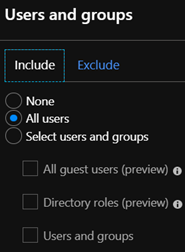
  1. Select all users and exclude the tenant Office365 admin breakglass account.
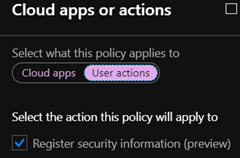
  2. Select cloud apps or actions and select the ‘Register Security information (preview)’ option.
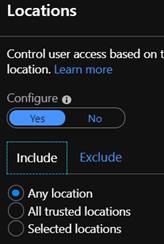
  3. In location select from any location
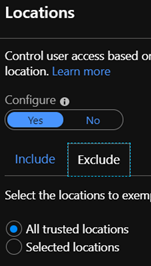
  4. Exclude all trusted locations
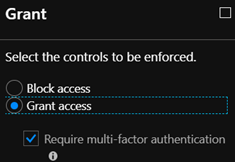
  5. In the controls section , Select ‘Grant Access’ and ‘Require multi-factor authentication.

Reference: https://techcommunity.microsoft.com/t5/Azure-Active-Directory-Identity/Conditional-access-for-the-Azure-AD-combined-MFA-and-password/ba-p/566348