Upgrading DPM2010RTM to SP1 Rollup 1


The upgrade from DPM2012 to DPM2012 SP1 RU1 is quite simple or so I thought!

  1. In order to install SP1  for dpm2012 rollup3 is a pre-requisite which you can download HERE
  2. However I could not get Rollup 3 to install as it kept failing on execute sql strings section.
  3. Open a command prompt with elevated privileges and make this the current directory “C:\Program Files\Microsoft System Center 2012\DPM\DPM\bin” and then run this command dpmbackup -db. This will place a backup of the dpm database in the following folder C:\Program Files\Microsoft System Center 2012\DPM\DPM\Volumes\ShadowCopy\Database Backups
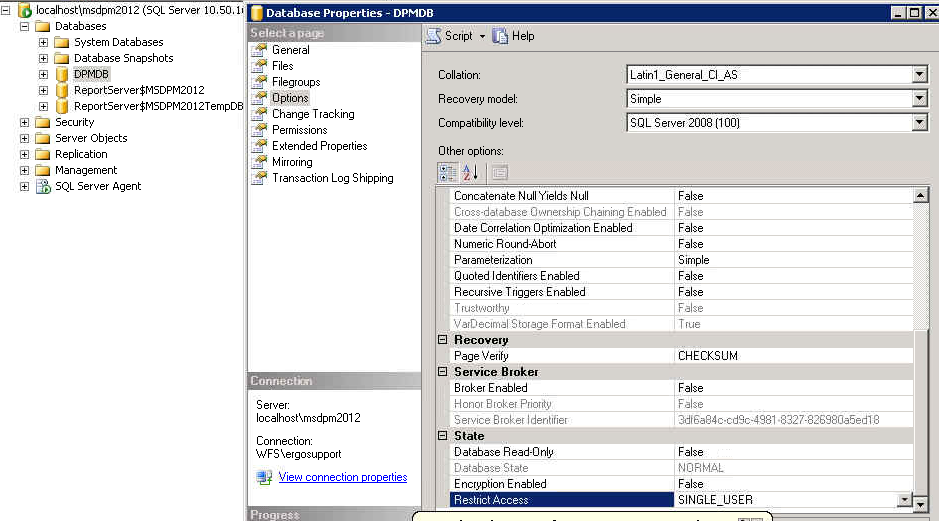
  4. So once we have done a backup , the trick is to set the options on the DPM database to single user mode as per the image below.So once this is done. You can install Rollup 3.
  1. I would then still leave it in single user mode when installing DPM 2012 SP1
  2. You may get an error with id:820 when DPM2012 begins the upgrade to SP1. HERE is a description on how to fix it. HERE is also a great post about WMI Service errors
  3. You may also get an error 812 stating that reporting services cannot be configured. So to fix this there are a few steps.

    Firstly run this command ‘netsh http show urlacl’ and copy all the http urls on port 80.
    So in my case I deleted the following urls with the following cmmands

    netsh http delete urlacl http://+:80/Temporary_Listen_Addresses/
    netsh
    http delete urlacl http://+:80/ReportServer_MSDPM2012/

    netsh
    http delete urlacl http://+:80/Reports_MSDPM2012/

    Then open up SQL 2008R2 / Reporting Services Configuration Manager and connect to the dpm2012 instance. Within the web services url section click apply. Then you can re-run setup and no more error 812

  4. Then after SP1 has been installed , you need to install ROLLUP1 for DPM 2012 SP1
  5. Finally you can then re-enable multi-user mode on the database and login to DPM2012 SP1 RU1 🙂
  6. Final version number will display as per the image below. Version 4.1.3322.0

Enabling serialized hyper-v virtual machine backups in dpm

Here is an excellent blog posting by Matthew Hodgkins describing with screen shots on how to enable serialized hyper-v virtual machine backups in dpm.

So I would say follow Matthew’s Blog article , However I would make one slight change.

Copy the text below and save is as a .bat file and schedule the task to run the .bat file.

powershell “& {set-executionpolicy -executionPolicy bypass -force}” 

powershell “& “C:\Datascripts\ListVMsOnClusterForDPM.ps1”


Enabling serialized backups will prevent the following DPM error occurring.

Failed to prepare a Cluster Shared Volume (CSV) for backup as another backup using the same CSV is in progress. (ID 32612 Details: Back up is in progress. Please wait for backup completion before trying this operation again (0x8007173D))

Scheduling DPM Reports fails

I  ran into a problem today where I could not schedule reports to be emailed to recipients even though all the  smtp server details were entered correctly and when I send a test message , it is received ok.

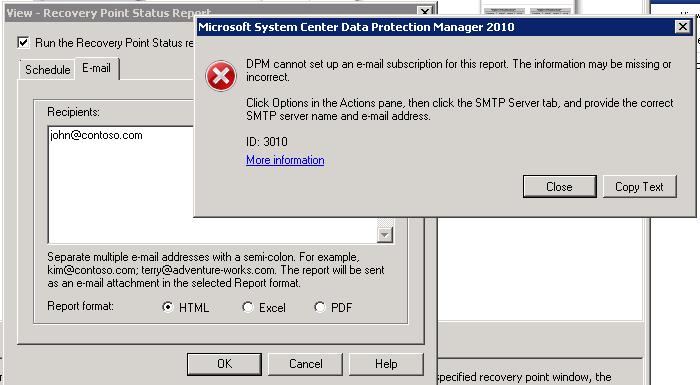
So the problem was happening when I enter an email recipient for a scheduled report I was getting the error message below.

So the fix is quite simple. Launch SQL Reporting Configuration Wizard and connect to the MSDPM2010 instance.

Then enter the email server settings as per the image below.


Now when you add an email recipient for a scheduled report, you will not receive an error message anymore.


Using Hardware VSS writers with DPM

I blogged previously on setting up Dell Equal Logic Hardware VSS writers with DPM. I find setting up HP application aware snapshot manager with Lefthand Storage Area Networks much much easier. And once setup , you can forget about it and have the comfort that your virtual environment is safely backed up.

So I will start by a step by step guide on how I recently set this up and what worked for me.

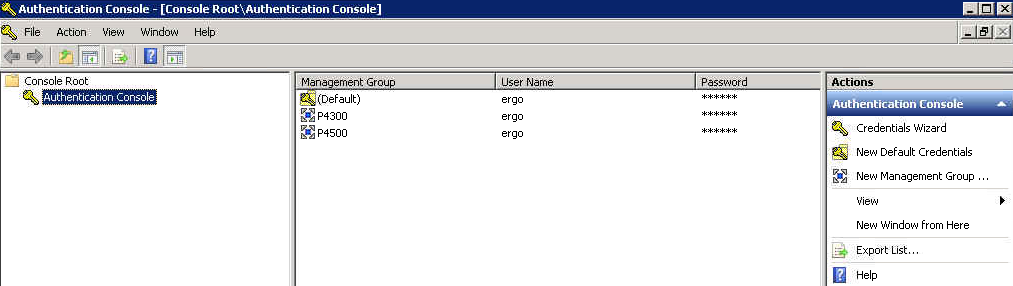
Install the HP Application aware snapshot manager version 9.5.0.1004 and then enter the credentials for the saniq management group. In the image below there are 2 sans a p4300 and p4500

Then test the credentials

Then Delete the %Programfiles%\Microsoft DPM\DPM\Config\DataSourceGroups.xml file from the DPM server.

Add this dword value to the dpm server with a value of 2

HKLM\Software\Microsoft\Microsoft Data Protection Manager\2.0\Configuration\MaxAllowedParallelBackups

I then create a protection group for hyper-v virtual machines and create a protection group per clustered shared volumes.Another thing which i have found to work quite well is to have all virtual machines on 1 clustered shared volume to be managed by one node and then the other clustered shared volume will be managed by another node.So when the scheduled DPM protection group runs it speaks to the hardware vss writer which then speaks to the lefthand san which takes a snapshot.You can use System Center Virtual Machine Manager to migrate storage if required.

If you take a look at the management group within San IQ , You will see the snapshot being created and deleted when the protection group completes it’s backup.Also during a scheduled protection group’s backup if you look in the monitoring tab and jobs in progress you will notice excellent throughput on the running backup job.

Always make sure you have enough space on your Lefthand sans for snapshots.

And the end result is healthy protection groups.


DPM 2010 Server Processor running at 100%


I recently fixed a problem for a customer whereby their DPM2010 server was very slow to do anything. Even opening up the GUI was taking a long time.

The server in question was a HP Proliant DL380G5.
So to fix it I needed to do 2 things.
  1. Update the storage controller’s firmware and driver.

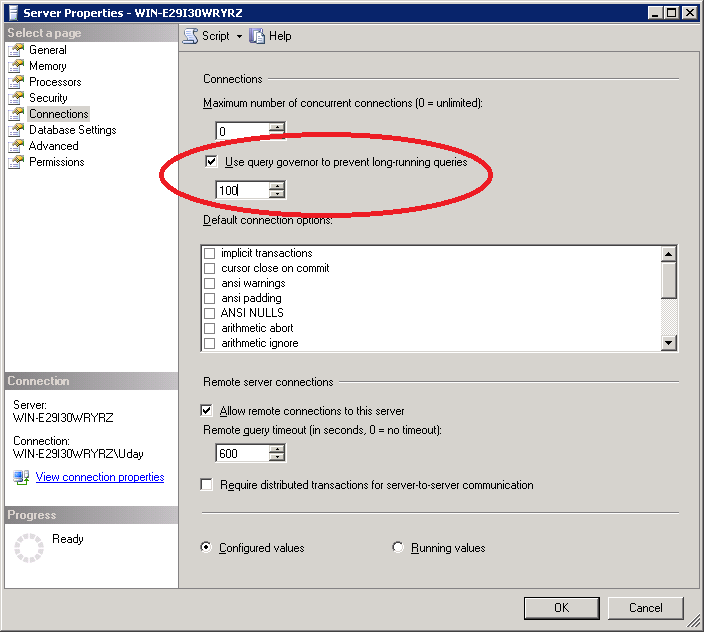
  2. As per the image above , login to the msdpm2010 instance and change the value in the red circle to 300 and reboot server.
Problem solved 🙂