
Folder Filtering and mapping with Dell MFNE 4.1

When using templates in Dell MFNE 4.1 , The template does not read the global settings defined in the tool.
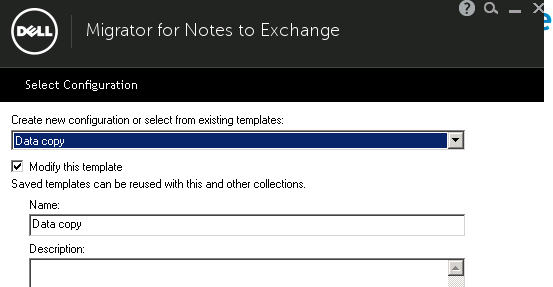
So when you click modify template the next screen appears as per image below which allows you to edit the settings for the template specifically folder filtering and folder mapping.
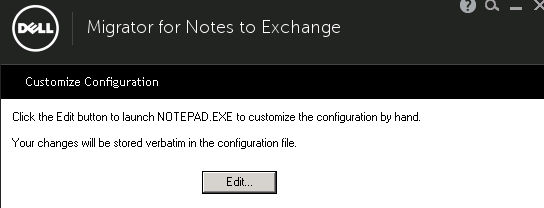
If folder filtering is not configured properly, end users will see system folders in their Exchange inbox which would result in a horrible end user experience as per the image below.
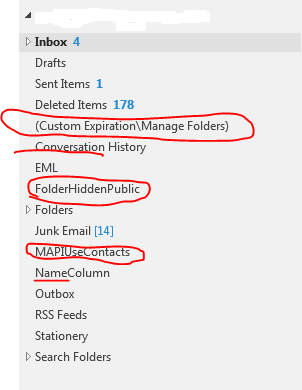
So for folder filters add the following filters into your configuration file.


[Filters]
filter0=($Alarms)
filter1=(Group Calendars)
filter2=(Rules)
filter3=($Design)
filter4=Alarms
filter5=(CalSummary)
filter6=(~MAPISP(Internal))
filter7=(IPMCOMMONVIEWS)
filter8=(IPMVIEWS)
filter9=(Search Root)
filter10=($MAPIInbox)
filter11=($MAPIInfo)
filter12=($MAPIIPM Subtree)
filter13=($MAPIOutbox)
filter14=($MAPISent)
filter15=($MAPITrash)
filter16=(Discussion Threads)
filter17=($ToDo)
filter18=($FolderInfo)
filter19=($POP3)
filter20=(To do’s\By Category)
filter21=(To do’s\By Status)
filter22=(Mail Threads)
filter23=($FolderAllInfo)
filter24=($Inbox-Categorized1)
filter25=(MAPIUseContacts)
filter26=(APIUseContacts)
filter27=($MAPIUseContacts)
filter28=$MAPIUseContacts
filter29=JUNKMAIL
filter30=(JUNKMAIL)
filter31=($JUNKMAIL)
filter32=$JUNKMAIL
filter33=EML
filter34=(EML)
filter35=($EML)
filter36=$EML
filter37=(Manage Folders)
filter38=Manage Folders
filter39=$Manage Folders
filter40=($Manage Folders)
filter37=(Custom Expiration\By Date)
filter38=Custom Expiration\By Date
filter39=$Custom Expiration\By Date
filter40=($Custom Expiration\By Date)
filter41=FolderHiddenPublic
filter42=(FolderHiddenPublic)
filter43=(namecolumn)
filter44=(attachment icon)
filter45=$(FolderHiddenPublic)
filter46=($FolderHiddenPublic)
Filter47=(~CustomExpiration)
Filter48=(&CustomExpiration)
Filter49=(CustomExpiration)
Filter50=CustomExpiration
Filter51=$CustomExpiration
Filter52=($CustomExpiration)
Filter53=(~EML)
Filter54=(&EML)
Filter55=(EML)
Filter56=EML
Filter57=$EML
Filter58=($EML)
Filter59=(~FolderHiddenPublic)
Filter60=(&FolderHiddenPublic)
Filter61=(FolderHiddenPublic)
Filter62=FolderHiddenPublic
Filter63=$FolderHiddenPublic
Filter64=($FolderHiddenPublic)
Filter65=(~MAPIUseContacts)
Filter66=(&MAPIUseContacts)
Filter67=(MAPIUseContacts)
Filter68=MAPIUseContacts
Filter69=$MAPIUseContacts
Filter70=($MAPIUseContacts)
Filter71=(~NameColumn)
Filter72=(&NameColumn)
Filter73=(NameColumn)
Filter74=NameColumn
Filter75=$NameColumn
Filter76=($NameColumn)
Filter77=(~Stationery)
Filter78=(&Stationery)
Filter79=(Stationery)
Filter80=Stationery
Filter81=$Stationery
Filter82=($Stationery)
Filter83=(~Drafts)
Filter84=(&Drafts)
Filter85=(Drafts)
Filter86=Drafts
Filter87=$Drafts
Filter88=($Drafts)
Filter89=(~Manage Folders)
Filter90=(&Manage Folders)
Filter91=(Manage Folders)
Filter92=(Manage Folders)
Filter93=$(Manage Folders)
Filter94=($Manage Folders)
Filter95=(~Sent)
Filter96=(&Sent)
Filter97=(Sent)
Filter98=Sent
Filter99=$(Sent)
Filter100=(~SametimeInfo)
Filter101=(&SametimeInfo)
Filter102=(SametimeInfo)
Filter103=SametimeInfo
Filter104=$SametimeInfo
Filter105=($SametimeInfo)
Filter106=(~Attachment Icon)
Filter107=(&Attachment Icon)
Filter108=(Attachment Icon)
Filter109=Attachment Icon
Filter110=$Attachment Icon
Filter111=($Attachment Icon)
Filter106=(~Custom Expiration\Manage Folders)
Filter107=(&Custom Expiration\Manage Folders)
Filter108=(Custom Expiration\Manage Folders)
Filter109=Custom Expiration\Manage Folders
Filter110=$Custom Expiration\Manage Folders
Filter111=($Custom Expiration\Manage Folders)
Filter112=(~By Date)
Filter113=(&By Date)
Filter114=(By Date)
Filter115=By Date
Filter116=$By Date
Filter117=($By Date)
Filter118=((~Custom Expiration\Manage Folders))
Filter119=((&Custom Expiration\Manage Folders))
Filter120=((Custom Expiration\Manage Folders))
Filter121=(Custom Expiration\Manage Folders)
Filter122=($Custom Expiration\Manage Folders)
Filter123=(($Custom Expiration\Manage Folders))
Filter124=((~Custom Expiration\By Date))
Filter125=((&Custom Expiration\By Date))
Filter126=((Custom Expiration\By Date))
Filter127=(Custom Expiration\By Date)
Filter128=($Custom Expiration\By Date)
Filter129=(($Custom Expiration\By Date))
Filter130=(~Company Column)
Filter131=(&Company Column)
Filter132=(Company Column)
Filter133=Company Column
Filter134=$Company Column
Filter135=($Company Column)
Filter136=(~E-mail Column)
Filter137=(&E-mail Column)
Filter138=(E-mail Column)
Filter139=E-mail Column
Filter140=$E-mail Column
Filter141=($E-mail Column)


#Folder mapping

[EN]
~INBOX=Inbox
~SENT=Sent Items
~CALENDAR=Calendar
~CONTACTS=Contacts
~TASKS=Tasks
~TRASH=Deleted Items
~DRAFTS=Drafts
~OUTBOX=Outbox
~JOURNAL=Journal
JUNKMAIL=Junk E-mail
JUNKMAIL_2013=Junk Email
~PrivateIcon=Inbox
PrivateIcon=Inbox
~IMTranscripts=Conversation History
IMTranscripts=Conversation History

This will also map sametime chat history to conversation history 


Bulk Uploading Mailboxes to Exchange Online and assigning licenses


Microsoft have made it really easy to perform bulk migrate migrations and assign licenses in Exchange Online.

You can export a csv and use it twice. The first csv will have the following headings

emailaddress
sean.ofarrell@contoso.com
ciaran.ofarrell@contoso.com
dean.jones@contoso.com
tecnicalfellow@contoso.com 

You can then upload the file then via the following option in Exchange Online 


And then to assign the licenses use the same csv but change the top heading to userprincipalname like below

userprincipalname
sean.ofarrell@contoso.com
ciaran.ofarrell@contoso.com
dean.jones@contoso.com
tecnicalfellow@contoso.com 

Connect to Office365 via the Windows Azure Active Directory Module for Windows PowerShell and do the following.


# First of all paste in the following variables

$AccountSkuId = “contoso:EXCHANGESTANDARD”
$UsageLocation = “IE”

# The paste the command in below with the correct CSV file path

$Users = Import-Csv “C:\Users\ergo\Desktop\Scripts\Import_users.csv”
$Users | ForEach-Object {
Set-MsolUser -UserPrincipalName $_.UserPrincipalName -UsageLocation $UsageLocation
Set-MsolUserLicense -UserPrincipalName $_.UserPrincipalName -AddLicenses $AccountSkuId
}

And if you wanted to assign Exchange Online P2 Licenses then run the following commands,

# First of all paste in the following variables

$AccountSkuId = “contoso:EXCHANGEENTERPRISE”
$UsageLocation = “IE”

# The paste the command in below with the correct CSV file path

$Users = Import-Csv “C:\Users\ergo\Desktop\Scripts\Import_users.csv”
$Users | ForEach-Object {
Set-MsolUser -UserPrincipalName $_.UserPrincipalName -UsageLocation $UsageLocation
Set-MsolUserLicense -UserPrincipalName $_.UserPrincipalName -AddLicenses $AccountSkuId
}

If you are using waad and want to assign a user with a P2 license an archive then you need to populate the AD attribute for the user “msExchRemoteRecipientType’ and change the value to 3. This can be done in bulk via ADMODIFY or Powershell

Replacing TMG with IIS ARR for an Exchange Hybrid

On September 12th 2012 Microsoft announced that the TMG Forefront 2010 product will be discontinued. Microsoft obviously had to replace this product with alternatives. 
One of those products is the Web Application Proxy feature in Microsoft Windows Server 2012 R2   Web Application Proxy Deployment Guide 
Another product which was was released was Microsoft Application Request Routing 3.0 
This product plugs into IIS and can act as a reverse proxy to publish Exchange 2013/2010.
The Exchange Team Blog have a three part article on how to set it up and install it
Part 1 , Part 2 , Part 3 

There is an excellent Article on the Office365 community site on how to configure TMG 2010 for an Exchange Hybrid scenario.

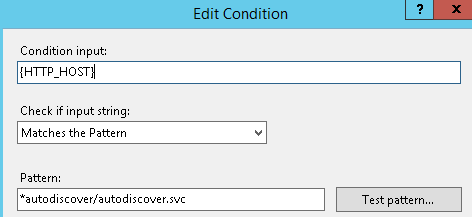
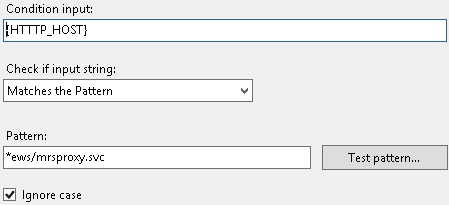
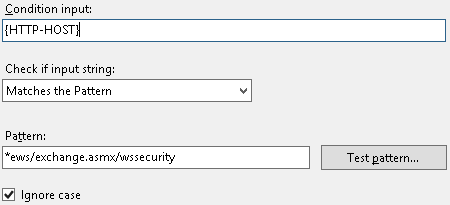
And the key paths that require publication from the Hybrid Server are 
  • /ews/mrsproxy.svc
  • /ews/exchange.asmx/wssecurity
  • /autodiscover/autodiscover.svc/wssecurity
  • /autodiscover/autodiscover.svc
So how do we get these paths working in IIS ARR?????

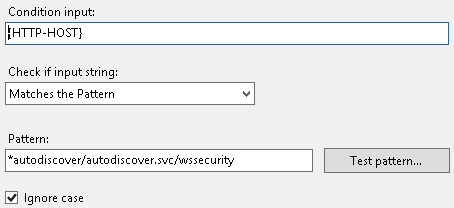
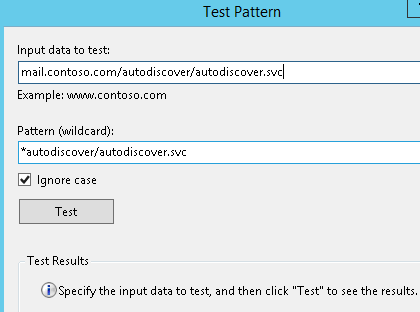
The following 4 images are how we add the paths into the https url re-write section of IIS ARR


And then finally to test the path you enter the public url as per the image above mail.contoso.com/autodiscover/autodiscover.svc and when we press test.
GREEN LIGHTS APPEAR 🙂 

The main purpose of this blog was to help people understand how to get different path types into IIS ARR as it took me a bit of time to configure. A server 2012 R2 server can be provisioned in minutes in the right environment. Publishing Exchange Hybrid services like this from a DMZ is in line with Microsoft Best Practices.

Converting Office365 Cloud Identities into Managed Identities

There are three core identity scenarios in Office365 as illustrated above. I created a previous blog post on how to covert cloud identities to federated identities which can be viewed HERE

To convert cloud identities to managed identities with password sync can be quite simple by changing the users UPN and also matching the user’s UPN with their primary smtp address.

However , How many time have you received the dreaded email from Microsoft like below

Sean
Ofarrell
Unable to update this object because the following attributes associated with this object have values that may already be associated with another object in your local directory services: [ProxyAddresses SMTP:sean.ofarrell@contoso.com]. Correct or remove the duplicate values in your local directory. Please refer to http://support.microsoft.com/kb/2647098 for more information on identifying objects with duplicate attribute values.

So you search active directory and exchange online for conflicts but cant find any which will probably drive you CRAZY. So here is how to fix it.

I will demonstrate how to fix it for one user
It is very important that WAAD is not running when running these powershell commands.

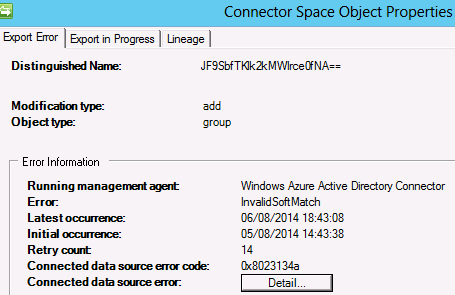
The image below is a synchronization error message from sean.ofarrell@contoso.com in WAAD

So to fix this we copy the distinguished name and run the following command.

set-MsolUser -UserPrincipalName sean.ofarrell@contoso.com -ImmutableID JF9SbfTKlk2kMWlrce0fNA==

Using Azure RMS with Office365

How to perform WAAD Manual Sync

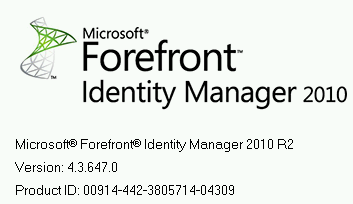
WAAD version 4.3.647.0 seems to have moved the powershell module for manual syncs. To put the shortcut back on the desktop of your WAAD Server. Simply create a new shortcut and paste in the details below and then type start-onlinecoexistencesync to perform a manual sync

powershell.exe -noexit -noprofile -file “C:\Program Files\Windows Azure Active Directory Sync\DirSync\ImportModules.ps1”

How to enable Yammer SSO without ADFS

It would be great if when you click the Yammer icon in the Office365 services ribbon it actually signs you into Yammer rather than redirecting you to Yammer.com.

This blog will detail how to setup single sign on to Yammer via Microsoft Windows Azure Active Directory. When SSO for Yammer is enabled with Azure AD there is no on premise ADFS requirements.

Every Office365 Subscription also has a Windows Azure tenant in the background.When signed into an Office365 tenant , open a new tab and browse to this URL https://manage.windowsazure.com/ and signup for a free trial. 

You will need a credit card  when signing up however there will be no charge to the credit card.

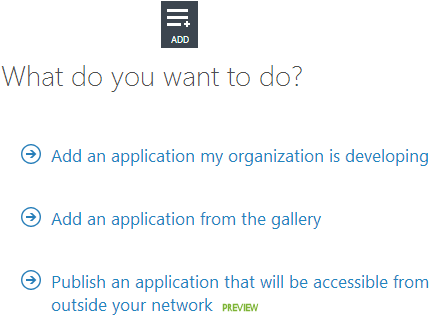
  • Browse to the Active Directory section in the Azure Management Portal and then select
    “Add Application”  and “Add an application my organization is developing”
    as per the image below.
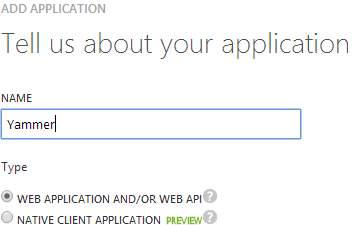
  • Name your application as per image below
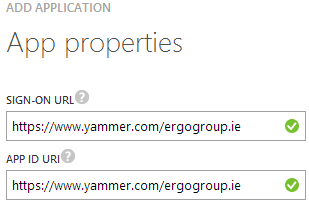
  • Then enter your sign-on url & app id uri as per image below
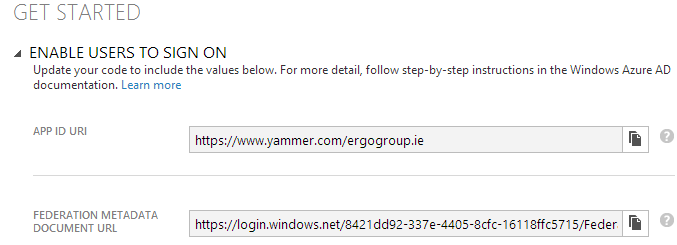
  • You then select “ENABLE USERS TO SIGN ON” and then browse to the “FEDERATION METADATA DOCUMENT URL” and save the metadata xml file as per image below.
  • Next we need to connect Windows Azure Active Directory via powershell and run the following commands
Import-Module MSOnlineExtended -Force
$replyUrl = New-MsolServicePrincipalAddresses –Address “https://saml.yammer.com/sp/ACS.saml2”
New-MsolServicePrincipal –ServicePrincipalNames @(“yammer/sso”) -DisplayName “Yammer Federation” -Addresses $replyUrl

  • The command will output an “AppPrincipalId” take note of this value and save it into a text file.
  • Then you will need to fill in the Yammer  SSO-Checklist.docx which you can download HERE
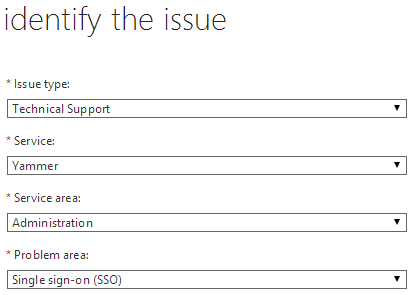
  • We now create a Service Request as per image below
  • We then create a compressed file that contains the FederationMetadata.xml, the AppprincipalId and the SSO Checklist and attach the file to the service request.
Once Yammer Support enable Single Sign On for your Yammer network. When you click on the Yammer link from the Office365 portal it will sign you into Yammer 🙂 Or when you browse to your Yammer SSO URL like https://www.yammer.com/ergogroup.ie
If you sign into Yammer , You can then open a new tab to access portal.microsoftonline.com or a Sharepoint Online site without having to re-authenticate. All this with no – on premise ADFS!

Credits: Billy Harris Microsoft

Cloud Accelerate Partner Support

One of the benefits of being a Microsoft Cloud Accelerate Partner is that you can get dedicated  Cloud Partner Support which is available 24 Hours a day 7 days a week.

So how do you access this benefit as there is no dedicated phone number.

The way you access the Cloud Partner Support team is by logging a service request via your partner tenant. So you can log a service request through your own partner tenant for one of your customer’s tenants.

This really is an excellent service. Its like having a Microsoft Premier Support contract. I have logged a number of service requests via the Cloud Partner Support team and their response time is excellent.

HERE is a document providing an overview of the Cloud Deployment Program Overview

QUEST NME unable to create admin pool

In the image above I ran into an issue when trying to create an admin pool for on Quest Notes For Exchange migration toolkit.This was for a migration to Exchange Online.

So the first thing i did was set-executionpolicy unrestricted -force on both the x64 and x32 versions of powershell. But that didn’t fix the issue.

Most enterprises have quite a few group policies and sometimes these policies are applied before the machines have been moved to an OU that has inheritance blocked.

So to remove the group policies causing the issue. 

Browse to HKLM\Software\micrsoft\windows\currentversion\group policy and then delete any S-x-x-xx-xxxxxxxxxxxxxx keys.
Ensure you have the Windows Azure Active Directory Module for powershell installed on all the nme machines.

Once I had removed all the group policies I could create the admin pool and proceed with migrations.

Exchange Hybrid GAL not populating

As per one of my previous posts HERE on how to edit active directory attributes , When dirsync  is enabled it wont populate the GAL with exchange online and exchange on-premise.


Lets say my email address is sean@contoso.com. 

You need to populate some ad attributes.

Proxy Address: SMTP:sean@contoso.com & smtp:sean@contoso.mail.onmicrosoft.com
Target Address: SMTP:sean@contoso.mail.onmicrosoft.com
UPN:sean@contoso.com

So after those attributes have been synced via dirsync run this powershell command in the exchange management shell 

Enable-RemoteMailbox sean@contoso.com -RemoteRoutingAddress sean@contoso.mail.onmicrosoft.com

So once this is done all you need to do is apply a license and usage location to sean@contoso.com

And then the GAL will be populated between Exchange On premise and Exchange online.