
Office365 MCITP Training Resource 70-321,70-323

To obtain and Office365 MCITP , You need to pass the following 2 exams.

Exam 70-321: Deploying Office365
Exam 70-323: Administrating Office365

There is plenty of documentation from Microsoft describing the different modular components of Office365 , I always keep them on my laptop or Skydrive as I can easily access them to refresh my memory on all the different components. When all of the documentation is together , it amounts to quite a lot and could be confusing as to where to start to studying for the Office365 MCITP.

So I thought I would post this blog with the most relevant resources to help people pass the exam and better understand Office365.
Office 365 PDF eBook: Microsoft Office 365: Connect and Collaborate Virtually Anywhere, Anytime

Office 365 for Enterprise : Service Description


70-321 /323 Jumpstart Videos 

Collection 10954: 70-323: Administering Office 365 (e learning course)

Office 365 for the IT Pro – Exchange Online Microsoft Virtual Academy

Office 365 for the IT Pro – Exchange Online Virtual Academy

Office 365 for the IT Pro – Lync Online, SharePoint Online & Deployment Virtual Academy

Office 365 for the IT Pro – Platform Virtual Academy

I have found the Jumpstart videos and the virtual academy to be the best. Also if you have an opportunity to setup an Exchange Hybrid in a lab it will really help.

Troubleshooting Outlook Connectivity


Microsoft have released an excellent utility called the Outlook Connectivity Analyzer which you can download HERE
________________________________________________________________________________
Overview
The Outlook Configuration Analyzer Tool 2.0 provides a detailed report of your current Outlook profile and mailbox. This report includes many parameters about your profile, and it highlights any known problems that are found in your profile or mailbox. For any problems that are listed in the report, you are provided a link to a Microsoft Knowledge Base (KB) article that describes a possible fix for the problem. If you are a Help Desk professional, you can also export the report to a file. Then, the report can be viewed in the Outlook Configuration Analyzer Tool on another client computer where the tool is installed. The Outlook Configuration Analyzer Tool 2.0 also includes a command-line version that can be used to collect an OCAT scan without user intervention.
________________________________________________________________________________
This tool can be used via command line without user intervention. Now this is really useful. Some users are too busy for the IT guy to run a report on their pc and use up their valuable time.
The tool can be used for mailboxes connected to Exchange on-premise or Office365.

 
A user can send you the xml file which was output from their own report which can then be viewed by importing into your own local copy of this tool.


A lot of the times Outlook Add-Ins can cause problems and for an engineer that is supporting Exchange on a regular basis it becomes easy to spot the culprit add in.

 
It also picks up hotfixes which are not available in Windows update , like this one KB2598374which fixes quite a few issues.


Enabling serialized hyper-v virtual machine backups in dpm

Here is an excellent blog posting by Matthew Hodgkins describing with screen shots on how to enable serialized hyper-v virtual machine backups in dpm.

So I would say follow Matthew’s Blog article , However I would make one slight change.

Copy the text below and save is as a .bat file and schedule the task to run the .bat file.

powershell “& {set-executionpolicy -executionPolicy bypass -force}” 

powershell “& “C:\Datascripts\ListVMsOnClusterForDPM.ps1”


Enabling serialized backups will prevent the following DPM error occurring.

Failed to prepare a Cluster Shared Volume (CSV) for backup as another backup using the same CSV is in progress. (ID 32612 Details: Back up is in progress. Please wait for backup completion before trying this operation again (0x8007173D))
Scheduling DPM Reports fails

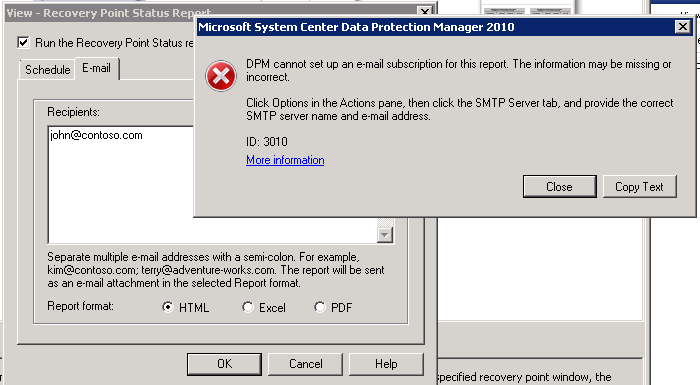
I  ran into a problem today where I could not schedule reports to be emailed to recipients even though all the  smtp server details were entered correctly and when I send a test message , it is received ok.

So the problem was happening when I enter an email recipient for a scheduled report I was getting the error message below.

So the fix is quite simple. Launch SQL Reporting Configuration Wizard and connect to the MSDPM2010 instance.

Then enter the email server settings as per the image below.


Now when you add an email recipient for a scheduled report, you will not receive an error message anymore.


Microsoft Online Services € Pricing

I can never remember the pricing on all the different products , So here they are as a point of reference. These prices are subject to change by Microsoft and can change based on user quantities.

Microsoft Online Services (Per User/Per Month) Qty Unit Cost
Microsoft Exchange Online P1 1 €3.57
Microsoft Exchange Online P2 1 €7.25
Microsoft Exchange Online Kiosk 1 €1.79
Microsoft Exchange Online Archiving 1 €2.68
Dynamics CRM Online 1 €40.25
Microsoft Lync Online P1 1 €1.79
Microsoft Lync Online P2 1 €5.00
Microsoft Sharepoint Online P1 1 €3.57
Microsoft Sharepoint Online P2 1 €7.25
Microsoft Office365 P1 1 €5.25
Microsoft Office365 E1 1 €7.25
Microsoft Office365 E2 1 €12.50
Microsoft Office365 E3 1 €19.00
Microsoft Office365 E4 1 €20.75

Exchange Online for Enterprise

Office365 for small businesses is a great fit, it just makes sense. A small business doesn’t have the budget for large amounts of storage and infrastructure refreshes. So for a small monthly fee which can go up or down ,small business can use Office365

I don’t mean to sound like a Microsoft salesman here but recently when I was drawing some Visio diagrams for a customer proposal it dawned on me that it does make sense for enterprise customers and I will explain why.

One of the big stumbling blocks for enterprise customers , is the monthly recurring costs.

For example 2000 users on an Exchange P1 plan would cost €7140.00 per month or €85,680 per annum. So any financial controller looking at this will say no way!!!!!!!!!!!!

However nearly all enterprise customers have Microsoft Enterprise Agreements. I am increasingly surprised at how enterprise customers don’t understand the benefits of an EA. There are many benefits but I am just going to list some relevant to Exchange Online.

  • Microsoft Planning Service Days: Microsoft can help transition to cloud services through and existing EA Agreement.
  • Exchange Core Cal: If you have an Exchange Core Cal , this covers you for an on premise exchange cal and exchange online cal

The image below shows a brief example diagram of a 2000 user company in different geographical locations and using on-premise exchange 2010.
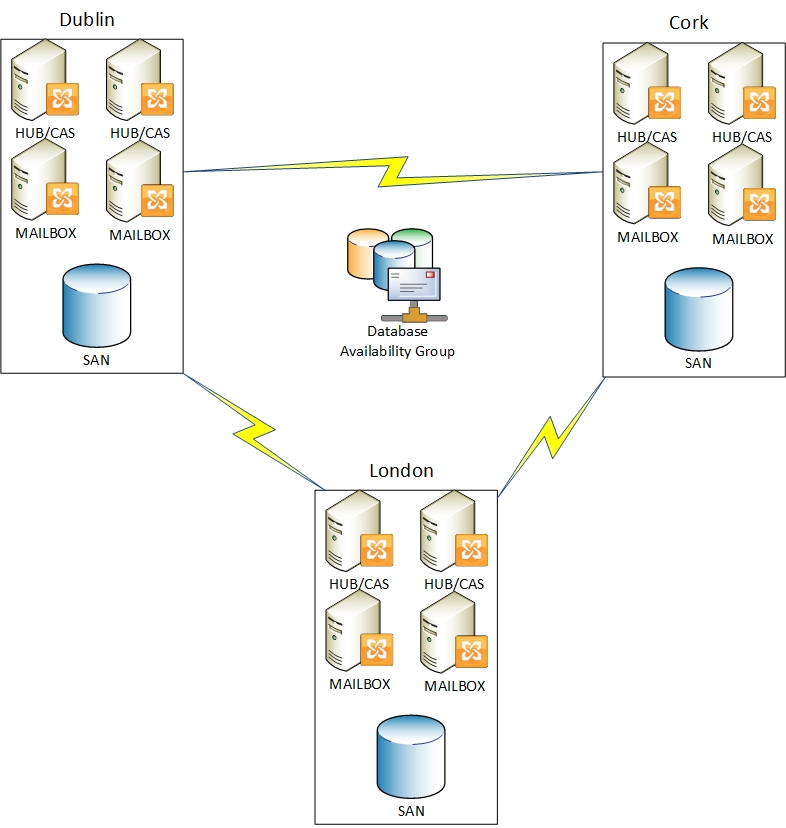

So lets look at some of the costs associated with maintaining and running this on=premise solution.

Item  Cost
Wan Links  Possibly 60k per annum for the 3 sites
Storage How much would the storage cost for 25gb * 2000 users cost. Storage refresh after 3 years may cost 300k
Power Consumption Most likely the exchange server will be running on a virtualisation platform. A rough guess for all 3 sites 50k per annum.
Hardware Vendor Support On the Sans and virtualisation hosts , roughly 30k over 3 years
Mail Hygiene Potentially 50k per annum
Hardware Deprecation New hardware becomes old the minute it is delivered to site.
Exchange Admin Staff Cost Possibly 100k per annum
Exchange 2013 How much would it cost to upgrade this entire organisation to Exchange 2013…..
Backup Software  Possibly 10k per annum
Backup Hardware Hardware refresh after 3 years possibly 100k

So all of the above cost and infrastructure could become like the image below.
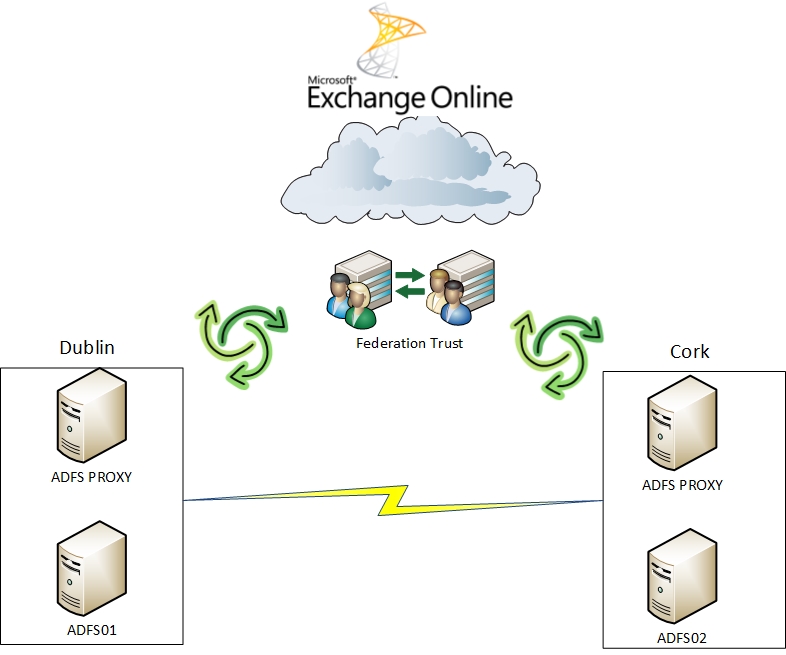
So now it starts to make sense, and enterprise customers are licensed to do this right now and probably don’t even realise it!

Exchange Online Features & Pricing

Exchange 2010 Management Shell will not open.

I recently had a problem on a customer site that had dag in another DR site.So the DR site had one cas/hub server and 2 mailbox servers.

Powershell is crucial for DAG as everything done in the exchange management console is essentially sending through powershell commands.So when I was opening up the exchange management shell i was getting this error.

“Connecting to remote server failed with the following error message: The WinRM client cannot process the request. It cannot determine the content type of the HTTP response from the destination computer. The content type is absent or invalid. For more information, see the about_Remote_Troubleshooting Help topic.”

So when i connected to exchange management shell the error message above would display and then the management shell would connect to the cas/hub server.So if I wanted to run any DAG related powershell commands I couldnt because the cas/hub servers didnt have the mailbox role. So i did a lot of research on the internet and tried everything like:

  • Running winrm quickconfig
  • Adding in the winrm iis listener feature
  • Checking iis bindings

I then came across a blog posting whereby adding and removing the wsman and kerbauth modules in the powershell site in iis.So when i clicked on add-module I got the error displayed in the image below.
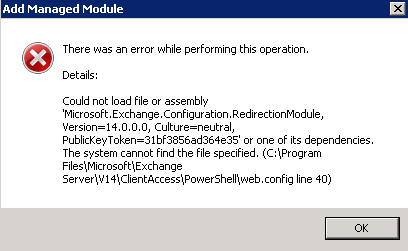
So to fix it I copied the webconfig file from another mailbox server that had the exchange management shell working fine and replaced the webconfig file on the troublesome mailbox servers and the powershell worked fine.