
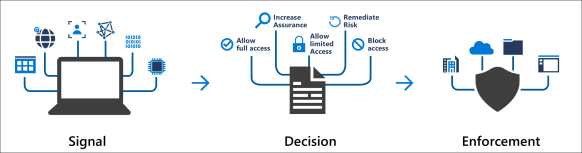
Every organisation is different and has different requirements. I have been working with conditional access for quite some time and have settled on the following policies for every organisation.
Create a security group that contains users that are permitted to access the organisations cloud services when outside of trusted locations.
Blocked Countries Conditional Access Policy
- All Users
- Exclude Break Glass Admin account
- All Cloud Apps
- Location : Blocked Countries that have been setup in the named locations section of Azure Conditional Access.
- Access Control : Block Access
Blocked External Access
- All users , except Break Glass Admin account and security group that contains users that are permitted access.
- All Cloud Apps
- Locations : Any location except trusted locations
- Access Control : Block Access
Permit External Access
- Users : security group that contains users that are permitted access.
- All Cloud Apps
- Locations : Any location except trusted locations
- Client Apps
Browser
Mobile apps and desktop clients
Modern authentication clients - Grant Access : Require all of these controls
Require Multi factor Authentication
Require Hybrid Azure AD joined device
Require approved client app
Terms of Use
Mobile Device Access
- Users : security group that contains users that are permitted access.
- Exchange Online
- Locations : Any location except trusted locations
- Device Platforms : Android & IOS
- Client Apps
Browser
Mobile apps and desktop clients
Modern authentication clients - Grant Access : Require all of these controls
Require Multi factor Authentication
Require device to be marked as compliant (Enrolled in Intune)
Require approved client appTerms of Use
Why still enable MFA for the mobile device access policy. When the Microsoft Authenticator application is installed on an Android or IOS device. It acts like an SSO broker and can communicate with the modern authentication Microsoft Outlook client.
Block Legacy Protocols
Simply replicate the legacy : Baseline policy: Block legacy authentication (Preview)

 We click on Azure Resources and then click on settings.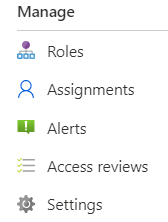
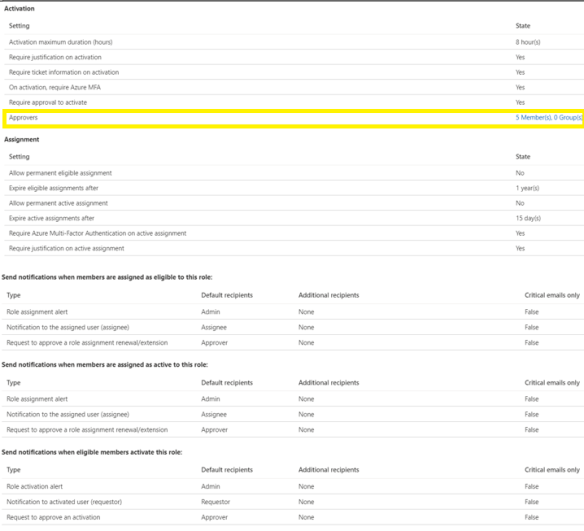 Next step is to add eligible users for the virtual machine contributor role.
 Now any admin that needs to provision a virtual machine in Azure has to follow a workflow and can only do so when senior IT resources or finance department users have approved the provision of the virtual machine


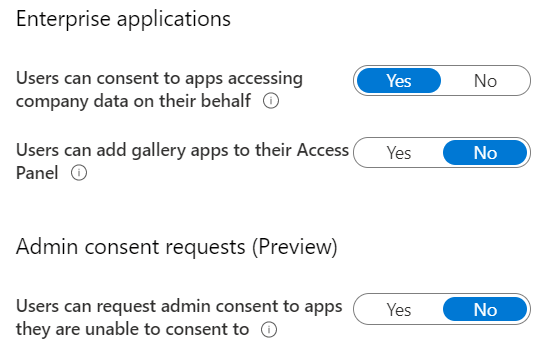
 Application administrators should be granted the application administrator role in Azure Active Directory , Then the next time an and user wants to add an application, the application administrator will receive an email and can approve from his\her Outlook client.
 The next time an end user or IT staff member wants to add an application to Azure AD, Do not just simply grant the global administrator role.
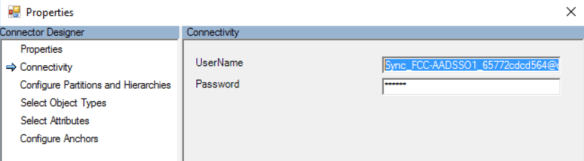
 Next change target domain to contoso.com or a fqdn of a domain controller in contoso.com
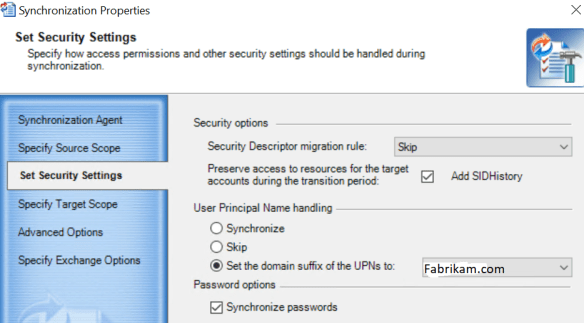 Finally stop and start the synchronization task.





 I started to notice that Azure AD connect was failing and had a look in the console and seen the error message in the console displayed in the image below