Unknown's avatar

About Sean O'Farrell

Behind the scenes of this blog is me, Seán O'Farrell. I am the principal Microsoft security architect in eir evo, in Dublin, Ireland. My blog posts are completely my own views & provide no warranty. My blog posts are in no way affiliated with my current employer, Microsoft, Quest or any vendor’s technologies mentioned in my blog. Focused on all Microsoft security products and services specifically Defender * and Purview.

Intsall DirSync into full SQL

Installing Dirsync is a requirement for enterprise directory synchronisation’s. When I say enterprise  i mean , directories with over 50,000 active directory objects or users. By using full sql server as apposed to the standard sql express , we can also make the database highly available via SQL clustering.

So to install it requires some small steps.

1. Open a command prompt with elevated privileges and make the directory where the dirsync.exe installation file is located the current directory. Then run this command ‘dirsync /fullsql’

2. This will install Dirsync without the standard SQL Express.

3. Next ,  browse to C:\program files\Microsoft Online Directory Sync\DirSyncInstallShell and follow the install syntax in this Microsoft Article 


4. Make Sure you are installing into a minimum of Server 2008R2 SP1 ideally SP2

5. IDFIX is a great utility recently released from Microsoft to troubleshoot DirSync errors which you can download HERE

SMTP relay to Office365

Microsoft have an article on how to setup smtp relay to Office365 KB2600912


An example of why would you would need this is whereby you need to continue to scan to email from your on-premise multi function printer.

Another way of doing this is by relaying through your isp’s smtp outbound mail server. For example UPC’s outgoing mail server is ‘smtp.upcmail.ie‘

But if you are using the new exchange online (tenant version 15) then it will get processed as spam.

So to fix this you simply need to create a rule, So below I will show some screenshots in whitelisting  scanner@contoso.com

So you need to login to https://portal.microsoftonline.com  and in the top right hand corner , select exchange management.

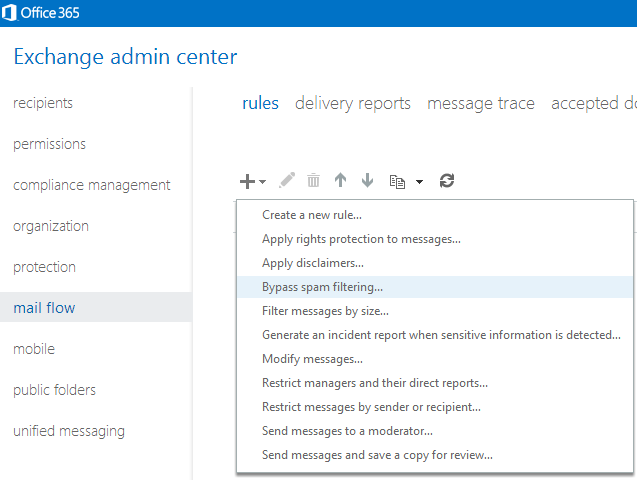
Then go to mail flow and add a new rule as per the image below, selecting the bypass spam filtering rule template.

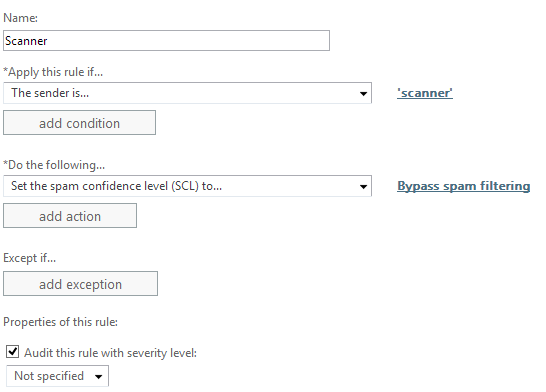
Then specify the sender as ‘scanner@contoso.com’ with the default options.


Now you can receive your scan to email documents 🙂

Upgrading DPM2010RTM to SP1 Rollup 1


The upgrade from DPM2012 to DPM2012 SP1 RU1 is quite simple or so I thought!

  1. In order to install SP1  for dpm2012 rollup3 is a pre-requisite which you can download HERE
  2. However I could not get Rollup 3 to install as it kept failing on execute sql strings section.
  3. Open a command prompt with elevated privileges and make this the current directory “C:\Program Files\Microsoft System Center 2012\DPM\DPM\bin” and then run this command dpmbackup -db. This will place a backup of the dpm database in the following folder C:\Program Files\Microsoft System Center 2012\DPM\DPM\Volumes\ShadowCopy\Database Backups
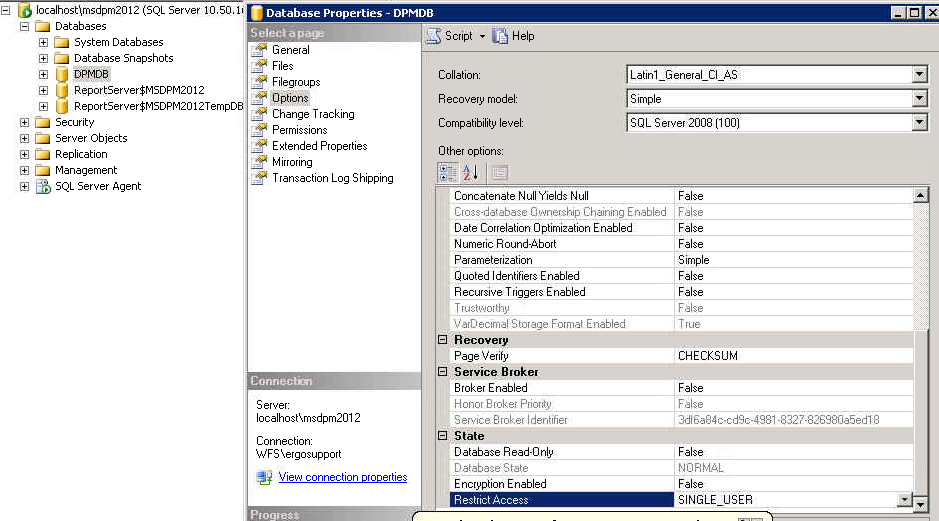
  4. So once we have done a backup , the trick is to set the options on the DPM database to single user mode as per the image below.So once this is done. You can install Rollup 3.

  1. I would then still leave it in single user mode when installing DPM 2012 SP1
  2. You may get an error with id:820 when DPM2012 begins the upgrade to SP1. HERE is a description on how to fix it. HERE is also a great post about WMI Service errors
  3. You may also get an error 812 stating that reporting services cannot be configured. So to fix this there are a few steps.

    Firstly run this command ‘netsh http show urlacl’ and copy all the http urls on port 80.
    So in my case I deleted the following urls with the following cmmands

    netsh http delete urlacl http://+:80/Temporary_Listen_Addresses/
    netsh
    http delete urlacl http://+:80/ReportServer_MSDPM2012/

    netsh
    http delete urlacl http://+:80/Reports_MSDPM2012/

    Then open up SQL 2008R2 / Reporting Services Configuration Manager and connect to the dpm2012 instance. Within the web services url section click apply. Then you can re-run setup and no more error 812

  4. Then after SP1 has been installed , you need to install ROLLUP1 for DPM 2012 SP1
  5. Finally you can then re-enable multi-user mode on the database and login to DPM2012 SP1 RU1 🙂
  6. Final version number will display as per the image below. Version 4.1.3322.0

The target mail user doesn’t have an SMTP ddress that matches the target delivery domain

I recently came across the error in the image above when trying to move mailboxes from an on-premise hybrid server to Office365.

Why would this happen? 

Configure your hybrid servers before you configure dirsync. During the hybrid configuration wizard , the wizard creates a sub domain  ‘domain.mail.onmicrosoft.com’ 

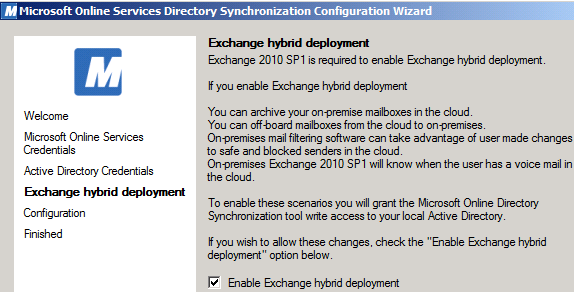
Now that the target delivery domain has been created by the Hybrid Wizard, We can run the DirSync configuration wizard. Select enable ‘hybrid configuration’  so once the wizard can see the target delivery domain it will add the smtp:email@domain.mail.onmicrosoft.com to the proxyaddress attribute in Active Directory for each user account.

So now when you try to run a remote move request, it will complete without issue.


ADFS Farm Highly Available between geographical sites

I am working on a project now moving 700 users to Exchange Online. I am implementing single sign on via an ADFS Farm and DirSync.


Not every organisation has load balancers or the even the ability to load balance external DNS.

A very important factor that needs to be taken into consideration is this. If the Microsoft Online Services federation gateway cannot communicate with a customers on premise active directory then users are not getting their email , lync or sharepoint. 

Email will still flow, but the users will think the service is down. So because of this it is always a good idea to have some high availability with the ADFS farm.

So I came across a company called Cloudfloor DNS .Cloudfloor provide the ability to loadbalance the traffic via round robin or active passive to my adfs proxy servers.It is quite a simple service but a lifesaver in the event of one site going down and all users not being able to use their Microsoft online services.

Cloudfloor can also do geographical dns based rules. This could be very useful in a gloabl lync or exchange deployment. Australian traffic goes to australian exchange servers and lync servers etc…. etc…

To set it up takes 5 minutes and works perfectly when tested. 

Publish CRM2011 IFD via TMG 2010

I recently had to publish Microsoft Dynamics CRM2011 with claims based authentication and internet facing domains.

So to set this up within the lan , HERE is an excellent blog on how to setup the configurations on CRM 2011 and ADFS within your LAN. So the purpose of this blog posting is to show people how to securely publish CRM 2011 via TMG.


In terms of best practice , it is never a good idea to punch a hole through a corporate firewall to a service running on a server on a LAN. I am surprised Microsoft are discontinuing their Forefront TMG Servers on December 15th. Microsoft will continue to support TMG but wont be selling it anymore from December 15th 2012.

TMG 2010 needs to be patched in a certain order.

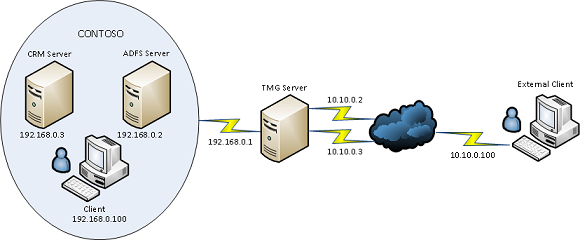
So the image below describes the required topology for CRM 2011 IFD via TMG and I will outline the steps needed to implement this and get it working as there are quite a few things left out of the official Microsoft documentation.


Create WebListener

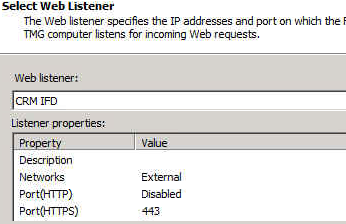
So as per the image above we would need to add the IP’s 10.10.10.2 & 10.10.0.3 to the external nic on the tmg server.During the creation of the web listener when the external network is created we click the radio button and add the dmz ips we added earlier on as per the image below.


The next section in the web listener creation is very important. Select the SSL Certificate for each of the DMZ ips we added in the previous component of the web listener creation.
Ok so we have the web listener created , now is time to get all the rest of the dependencies in place before we can quickly create the web publishing rules.

Disable ADFS Server Loopback Check
1. Click Start, click Run, type regedit, and then click OK.
2. In Registry Editor, locate and then click the following registry key:HKEY_LOCAL_MACHINE\SYSTEM\CurrentControlSet\Control\Lsa
3. Right-click Lsa, point to New, and then click DWORD Value.
4. Type DisableLoopbackCheck, and then press ENTER.
5. Right-click DisableLoopbackCheck, and then click Modify.
6. In the Value data box, type 1, and then click OK.
7. Quit Registry Editor, and then restart your computer.


DMZ to LAN & LAN to DMZ Routing

The next thing to take into account is the routes from the TMG Server to the LAN and from the LAN to the DMZ. In the diagram above it is a very basic small network. But most companies can have multiple subnets.
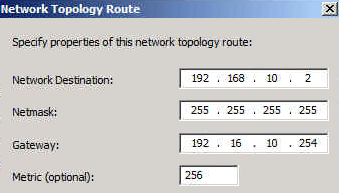
So lets say the the internal adfs server is 192.168.10.2 , To enable TMG to route traffic to this server we would need to add a network routing rule as per the image below.

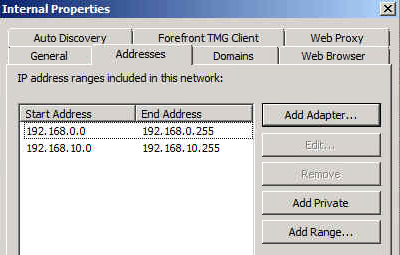
We will also need to add the extra subnet to the internal network as per the image below

Nearly done! We may also need to add a static persistent route to the ADFS & CRM Server so it can then get back to the TMG Server.

External / Internal DNS Records

adfs.contoso.com  points to adfs server

dev.contoso.com points to crm server
auth.contoso.com points to crm server
orgname.contoso.com points to crm server

Creating Web Publishing Rules

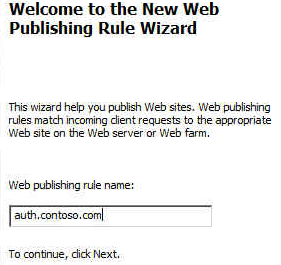
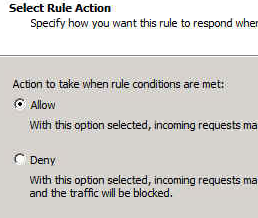
Ok so now we will create one rule for the crm server first.


Publish a Website
Use SSL
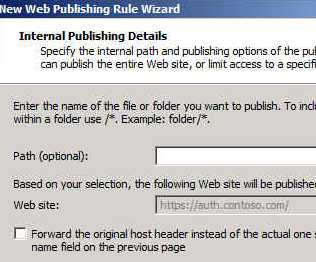
Enter the IP address of the CRM Server
Leave the defaults and click next
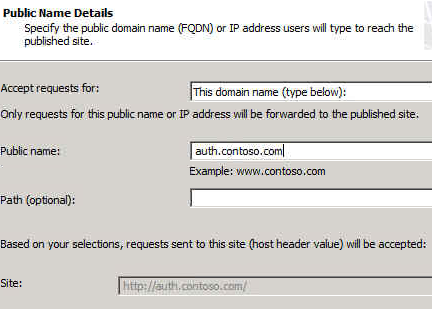
Enter the public name auth.contoso.com
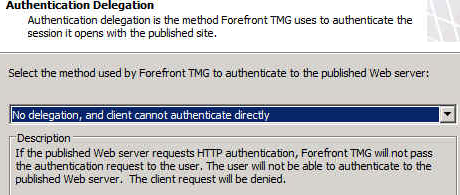
Select the web listener
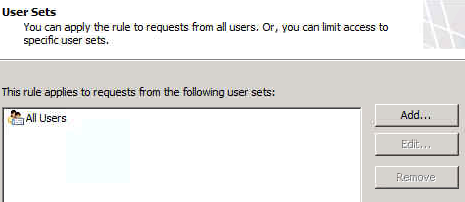
Leave at defaults and click next


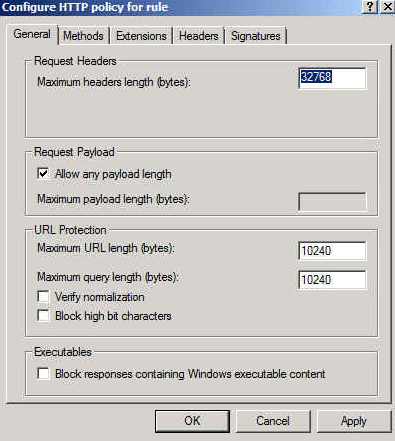
So when the rule is created, You need to right click on the rule and select “configure http”

And then untick  “Verify normalization” & ” Block high bit characters”
Remaining Rules

There are 2 more rules for CRM. So we simply copy and paste the rule we just created and edit the ‘to’ tab and ‘public name’ tab and add in dev.contoso.com and orgname.contoso.com

We copy and paste the rule again for adfs except as well as editing the to & public name tab we will also edit the computer ip and change it to 192.168.0.2 so that traffic for this rule is directed to the adfs server.
ADFS Login Page
Here is a great blog post on how to customise the ADFS login page to include a corporate logo. 


My thanks to Paul Mc Guinness who helped me get this working 🙂 

Exchange 2013 Storage, High Availability and Site Resilience

Here is an excellent slide on Exchange 2013 Storage, High Availability and Site Resilience.

Some of the key features are as follows.

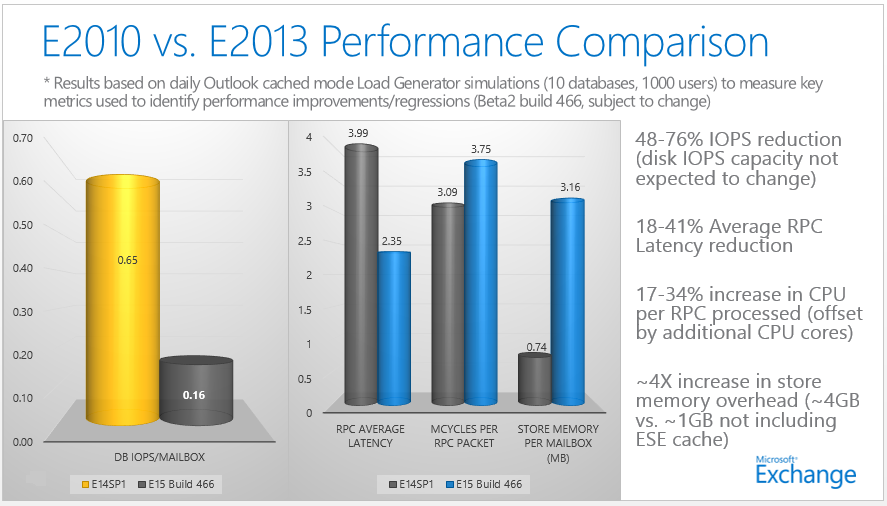
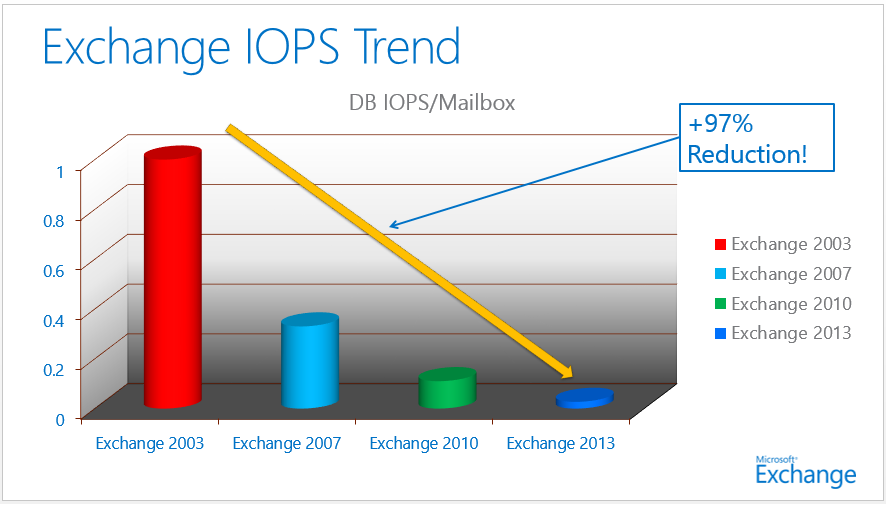
Passive copy DB on 2013 consumes 50% of the iops of the iops required for an active copy.


Autoreseed – Can use spare disks. Periodically scan for failed and suspended copies, check pre-requisites,allocate remap a spare, start the seed, verify health, alert admin about failed disk.

Data Center Failover can be automated.
  

Office 365 Support for Windows Server 2012


I recently installed an ADFS Server farm on Windows Server 2012 but when I tried to federate to Office365 via the Microsoft Onlien Services Powershell Module it would not work!


The reason for the error is that in ADFS 2012 the cmdlets are surfaced by a module instead of a snapin, and the MSOnline cmdlets are hardcoded to load the old snapin which was available in ADFS 2.0. You can work around this issue by creating your own reference in the registry to the ADFS module as a snapin.
To do so, copy and paste the items below into notepad and save them as a .reg file and then execute.


Windows Registry Editor Version 5.00

[HKEY_LOCAL_MACHINE\SOFTWARE\Microsoft\PowerShell\1\PowerShellSnapIns\Microsoft.Adfs.PowerShell]
“ApplicationBase”=”C:\\Windows\\ADFS”
“Version”=”6.2.9200.0”
“AssemblyName”=”Microsoft.IdentityServer.PowerShell, Version=6.2.0.0, Culture=neutral, PublicKeyToken=31bf3856ad364e35”
“Description”=”This powershell snap-in contains cmdlets used to manage Microsoft Identity Server resources.”
“PowerShellVersion”=”1.0”
“ModuleName”=”C:\\Windows\\ADFS\\Microsoft.IdentityServer.PowerShell.dll”
“Vendor”=”Microsoft”

You can now use Windows Server 2012 for Single Sign on to Office365 🙂

Please note :  This solution is not supported by Microsoft. It is my understanding that a new Microsoft online services powershell module will be available for download when the new Office365 is generally available in Q1 of next year.