One of the benefits of being a Microsoft Cloud Accelerate Partner is that you can get dedicated Cloud Partner Support which is available 24 Hours a day 7 days a week.
So how do you access this benefit as there is no dedicated phone number.
The way you access the Cloud Partner Support team is by logging a service request via your partner tenant. So you can log a service request through your own partner tenant for one of your customer’s tenants.
This really is an excellent service. Its like having a Microsoft Premier Support contract. I have logged a number of service requests via the Cloud Partner Support team and their response time is excellent.
HERE is a document providing an overview of the Cloud Deployment Program Overview
Author Archives: Sean O'Farrell
QUEST NME unable to create admin pool
In the image above I ran into an issue when trying to create an admin pool for on Quest Notes For Exchange migration toolkit.This was for a migration to Exchange Online.
So the first thing i did was set-executionpolicy unrestricted -force on both the x64 and x32 versions of powershell. But that didn’t fix the issue.
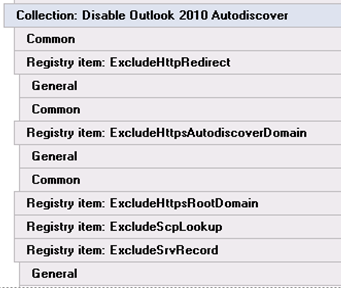
Most enterprises have quite a few group policies and sometimes these policies are applied before the machines have been moved to an OU that has inheritance blocked.
So to remove the group policies causing the issue.
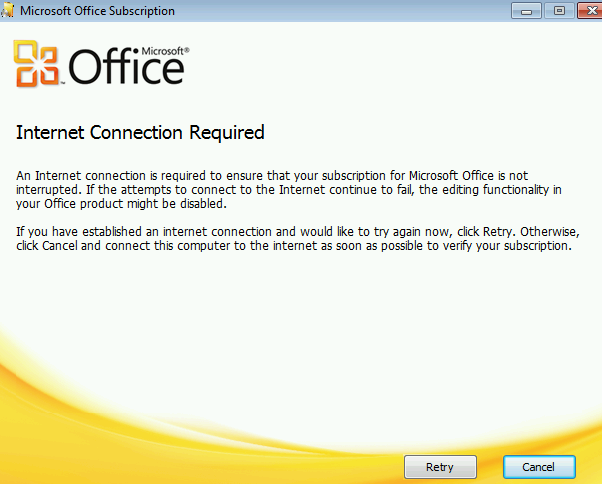
An internet connection is required to ensure that your subscription for Microsoft Office is not interrupted
Exchange Hybrid GAL not populating
An encrypted connection to your mail server is not available
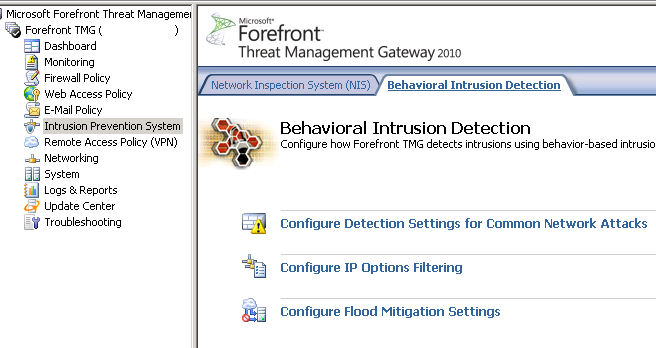
Exchange Hybrid Mailbox Migrations slow when using TMG
Migrating Lotus Notes users into an Exchange Hybrid
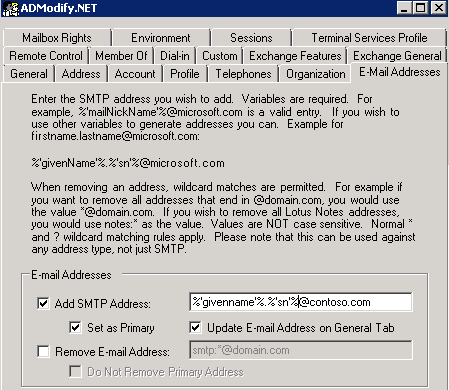
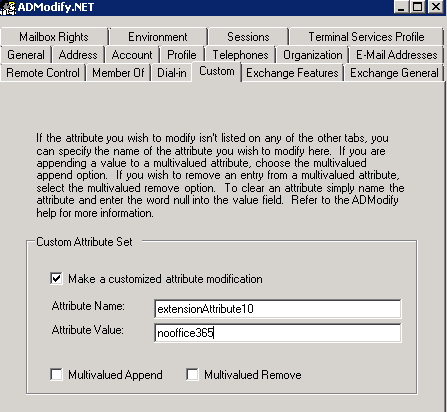
In this post I just wanted to highlight what active directory attributes need to change on a user account when you have an existing Exchange Hybrid and want to migrate Lotus Domino users into exchange online.
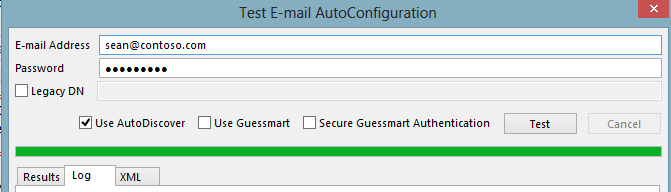
Primary Email Address: Sean@contoso.com
Hybrid email Domain: contoso.mail.microsoft.com
The existing users that have exchange mailboxes will already have exchange active directory attributes. So lets take a look at what happens when you migrate an on premise exchange mailbox to exchange online.
When you run dirsync , a proxy hybrid domain is created in the example above it is contoso.mail.microsoft.com. So when you initiate a ‘new remote move request‘ and move an onprem user to the cloud the user becomes a mail contact and their routing email address becomes
SO KEEP THE ADMODIFY CONFIGURATION XML FILES SAFE!
- We set the user’s location , in this example the country is US
Get-MsolUser -UnlicensedUsersOnly |Set-MsolUser -UsageLocation US - Get-MsolUser -UnlicensedUsersOnly | Set-MsolUserLicense -AddLicenses “Contoso.com”:EXCHANGESTANDARD
Note:
Quest NME will not populate the GAL as the source directory will be Lotus Notes and target directory Exchange Online.So to populate the gal after you have made all the attribute changes above run this command in the exchange management shell Enable-RemoteMailbox sean@contoso.com -RemoteRoutingAddress sean@contoso.mail.onmicrosoft.com

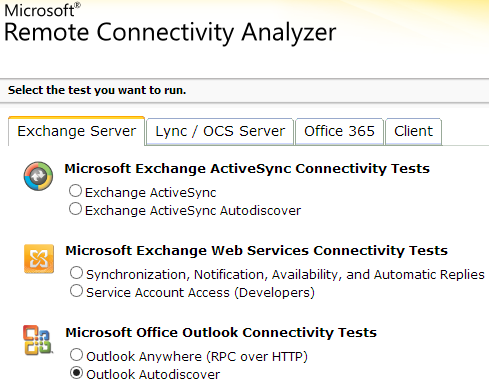
Microsoft Office Configuration Analyzer Tool 1.0
I previously blogged HERE about the Microsoft Outlook Connectivity Analyzer 2.0 which has now been replaced by the Microsoft Office Configuration Analyzer Tool 1.0 which you can download HERE
This tool can be really useful when troubleshooting connectivity issues like firewalls and proxies blocking access to Office365.
Bulk activation of Office365 Users
When using DirSync and ADFS it can take a long time to activate thousands of users. So here is a really quick way of doing it.
Firstly HERE is a great article on msexchangeguru.com on dirsync filtering. So there are plenty of organisational units in Active Directory that do not need to be syncronised to Office365.
So I always filter the OU’s that are synchronized to Office365.
Within the organisation section of the Office365 portal make your external domain which has been verified the default domain.
Ensure all user’s have the correct User Principal Names as per one of my previous BLOGS
So once all the user’s have been synced to Office365 , they need a license assigned to them.
So connect to Office365 via the Windows Active Directory Module for Windows Powershell and do the following.
connect-msolservice # and enter an Office365 Global Administrator’s credentials.
As all of the users are currently unlicensed , we will set a location for the users as per the command below and the location will be us.
Office365 ADFS 2.0 with full SQL Server
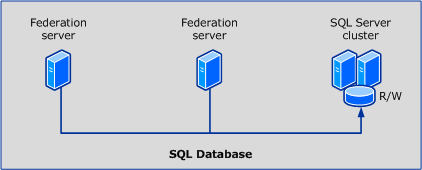
As per my previous post about DirSync for Enterprise organisations , We also need to install ADFS farms into SQL clusters for high availability and scalability. So below are the steps to install ADFS 2.0 into a SQL Cluster.
In this example on how to set this up for the purposes of this demo , Please take note of the following items.
Domain:contoso
ADFS Server : adfs.contoso.local
SQL Cluster: sqlclus
ADFS Service Account: contoso\adfs
ADFS Service Name: signin.contoso.com
- Download and install ADFS 2.0 RTW which you can download HERE The ADFS 2.0 installer installs the pre-requisites required for the software.
- Do not open the ADFS configuration wizard after the install has complete, Download and install ADFS 2.0 Rollup 3 which you can download HERE
- Now get your trusted ssl certificate for your adfs service name ‘signin.contoso.com‘ and bind it to the default site. I always remove any http bindings for the default website on your adfs lan server.
- In certificate manager. Right Click on the trusted certificate ‘signin.contoso.com‘ and select all tasks\manage private keys and then add the contoso\adfs service account permissions ‘Full Control & Read’
- From a command prompt with elevated privileges make this the current directory C:\Program Files\Active Directory Federation Services 2.0\
- Now we are ready to create the ADFS farm and we do so with the following command
FSConfig.exe CreateSQLFarm /ServiceAccount “contoso\adfs” /ServiceAccountPassword “password” /SQLConnectionString “database=AdfsConfigurationServer;server=sqlclus;integrated security=SSPI” /port 443 /FederationServiceName “signin.contoso.com” /CleanConfig /AutoCertRolloverEnabled
And you will see the following output from the command prompt window
- Ideally the lan adfs servers will be load balanced , If you need to use a sql cluster for your adfs deployment then there is a good chance the customer will have load balancers like F5, Netscaler or Kemp.My preference would be Kemp.So there will be a virtual ip for the ADFS Service name ‘signin.contoso.com‘
- To enable kerberos authentication to Outlook Wep App and Sharepoint , place the https://signin.contoso.com into the intranet settings in Internet explorer for clients via group policy.
- ADFS proxy servers will be in a DMZ or else TMG Servers can also act as adfs proxy servers and will point at the loadbalanced ‘signin.contoso.com‘ vip in the lan.
- Cloudfloor DNS provide GEO dns routing. So for example they can direct traffic from iso country codes to a location of choice. For example us adfs requests can hit us adfs servers. Irish requests can hit Irish adfs servers etc… So a service like this can take care of the external load balancing.
- So now we have all this done , time to federate the onpremise domain name ‘contoso.com‘ with our Office365 tenant.
- Before we do this we need to ensure we have done the following.
A: Verify ownership of contoso.com
B:Activate Active Directory Synchronisation
C: Download and install the Microsoft Single Sign in Assistant HERE
D: Once the Single Signin Assistant has been installed , Download and install the Windows Azure Directory Module for Powershell HERE - Now we are ready to run the commands to federate ‘contoso.com‘ with Office365 and we will do so with the following command
$cred=Get-Credential
Connect-MsolService –Credential $cred
Set-MsolAdfscontext -Computer adfs.contoso.local # then enter contoso\adfs credentials
Convert-MsolDomainToFederated –DomainName contoso.com -SupportMultipleDomain - You might have only one domain, But I always recommend using the -SupportMultipleDomain switch as it can future proof your adfs service. For example your customer could acquire a company.
- Finally we want to brand our ADFS Proxy pages with company logos and here is a great blog posting by Laurent Bel on how to customise the ADFS 2.0 login page HERE
- So now that we have created our first ADFS Server to connect to a SQL Cluster , How do we add more ADFS servers. We do so with the following command as per the original ADFS server setup.
FSConfig.exe joinSQLFarm /ServiceAccount ‘contoso\adfs‘ /ServiceAccountPassword ‘password‘ /SQLConnectionString “database=AdfsConfigurationServer;server=sqlclus;integrated security=SSPI”
I have not installed ADFS 2.1 on Windows Server 2012 into a SQL Cluster yet but I think it would be the exact same process. I will be doing this on a project coming up shortly and will create a new blog post for this.
I hope people find this blog posting useful as it took me quite a bit of time to get ADFS right when I first started working with ADFS.
Sean