
Replacing TMG with IIS ARR for an Exchange Hybrid

On September 12th 2012 Microsoft announced that the TMG Forefront 2010 product will be discontinued. Microsoft obviously had to replace this product with alternatives. 
One of those products is the Web Application Proxy feature in Microsoft Windows Server 2012 R2   Web Application Proxy Deployment Guide 
Another product which was was released was Microsoft Application Request Routing 3.0 
This product plugs into IIS and can act as a reverse proxy to publish Exchange 2013/2010.
The Exchange Team Blog have a three part article on how to set it up and install it
Part 1 , Part 2 , Part 3 

There is an excellent Article on the Office365 community site on how to configure TMG 2010 for an Exchange Hybrid scenario.

And the key paths that require publication from the Hybrid Server are 
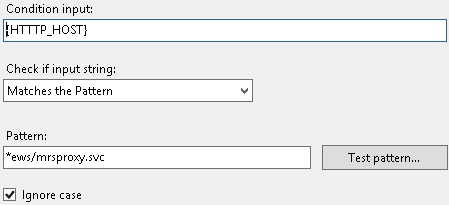
  • /ews/mrsproxy.svc
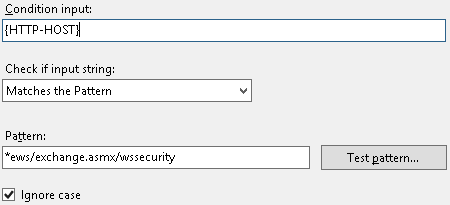
  • /ews/exchange.asmx/wssecurity
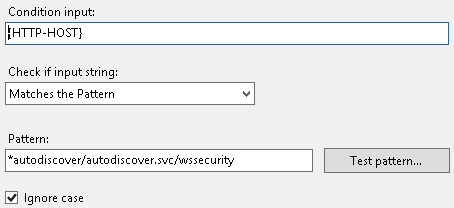
  • /autodiscover/autodiscover.svc/wssecurity
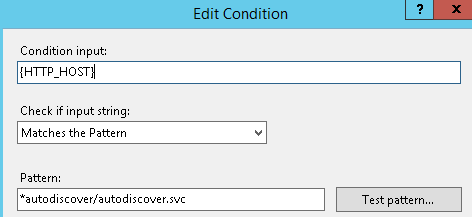
  • /autodiscover/autodiscover.svc
So how do we get these paths working in IIS ARR?????

The following 4 images are how we add the paths into the https url re-write section of IIS ARR


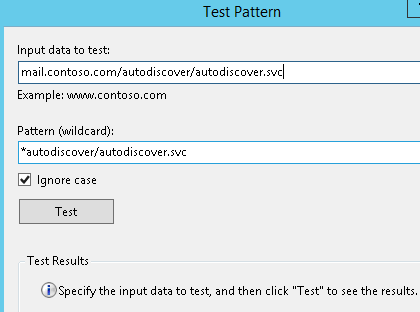
And then finally to test the path you enter the public url as per the image above mail.contoso.com/autodiscover/autodiscover.svc and when we press test.
GREEN LIGHTS APPEAR 🙂 

The main purpose of this blog was to help people understand how to get different path types into IIS ARR as it took me a bit of time to configure. A server 2012 R2 server can be provisioned in minutes in the right environment. Publishing Exchange Hybrid services like this from a DMZ is in line with Microsoft Best Practices.

Converting Office365 Cloud Identities into Managed Identities

There are three core identity scenarios in Office365 as illustrated above. I created a previous blog post on how to covert cloud identities to federated identities which can be viewed HERE

To convert cloud identities to managed identities with password sync can be quite simple by changing the users UPN and also matching the user’s UPN with their primary smtp address.

However , How many time have you received the dreaded email from Microsoft like below

Sean
Ofarrell
Unable to update this object because the following attributes associated with this object have values that may already be associated with another object in your local directory services: [ProxyAddresses SMTP:sean.ofarrell@contoso.com]. Correct or remove the duplicate values in your local directory. Please refer to http://support.microsoft.com/kb/2647098 for more information on identifying objects with duplicate attribute values.

So you search active directory and exchange online for conflicts but cant find any which will probably drive you CRAZY. So here is how to fix it.

I will demonstrate how to fix it for one user
It is very important that WAAD is not running when running these powershell commands.

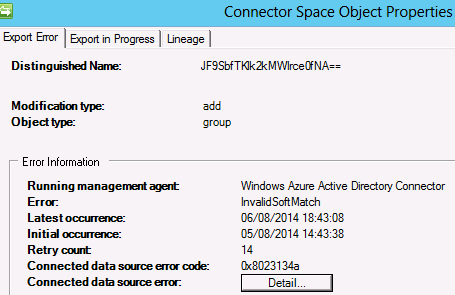
The image below is a synchronization error message from sean.ofarrell@contoso.com in WAAD

So to fix this we copy the distinguished name and run the following command.

set-MsolUser -UserPrincipalName sean.ofarrell@contoso.com -ImmutableID JF9SbfTKlk2kMWlrce0fNA==

Using Azure RMS with Office365

How to perform WAAD Manual Sync

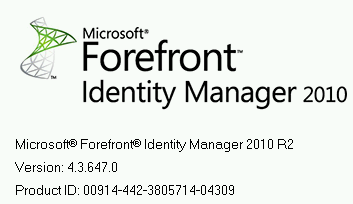
WAAD version 4.3.647.0 seems to have moved the powershell module for manual syncs. To put the shortcut back on the desktop of your WAAD Server. Simply create a new shortcut and paste in the details below and then type start-onlinecoexistencesync to perform a manual sync

powershell.exe -noexit -noprofile -file “C:\Program Files\Windows Azure Active Directory Sync\DirSync\ImportModules.ps1”

How to enable Yammer SSO without ADFS

It would be great if when you click the Yammer icon in the Office365 services ribbon it actually signs you into Yammer rather than redirecting you to Yammer.com.

This blog will detail how to setup single sign on to Yammer via Microsoft Windows Azure Active Directory. When SSO for Yammer is enabled with Azure AD there is no on premise ADFS requirements.

Every Office365 Subscription also has a Windows Azure tenant in the background.When signed into an Office365 tenant , open a new tab and browse to this URL https://manage.windowsazure.com/ and signup for a free trial. 

You will need a credit card  when signing up however there will be no charge to the credit card.

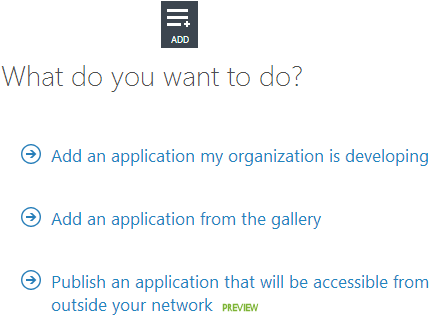
  • Browse to the Active Directory section in the Azure Management Portal and then select
    “Add Application”  and “Add an application my organization is developing”
    as per the image below.
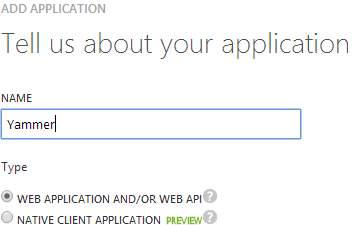
  • Name your application as per image below
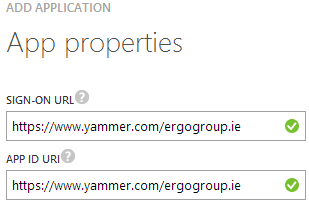
  • Then enter your sign-on url & app id uri as per image below
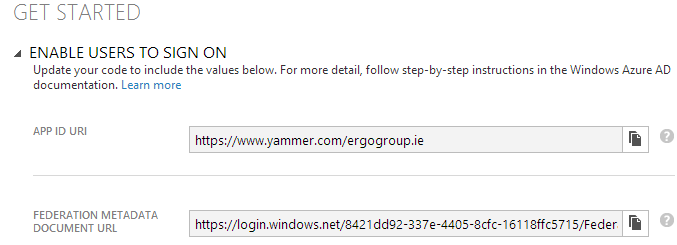
  • You then select “ENABLE USERS TO SIGN ON” and then browse to the “FEDERATION METADATA DOCUMENT URL” and save the metadata xml file as per image below.
  • Next we need to connect Windows Azure Active Directory via powershell and run the following commands
Import-Module MSOnlineExtended -Force
$replyUrl = New-MsolServicePrincipalAddresses –Address “https://saml.yammer.com/sp/ACS.saml2”
New-MsolServicePrincipal –ServicePrincipalNames @(“yammer/sso”) -DisplayName “Yammer Federation” -Addresses $replyUrl

  • The command will output an “AppPrincipalId” take note of this value and save it into a text file.
  • Then you will need to fill in the Yammer  SSO-Checklist.docx which you can download HERE
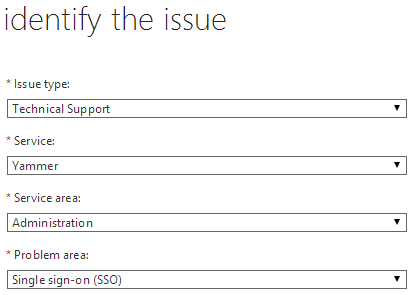
  • We now create a Service Request as per image below
  • We then create a compressed file that contains the FederationMetadata.xml, the AppprincipalId and the SSO Checklist and attach the file to the service request.
Once Yammer Support enable Single Sign On for your Yammer network. When you click on the Yammer link from the Office365 portal it will sign you into Yammer 🙂 Or when you browse to your Yammer SSO URL like https://www.yammer.com/ergogroup.ie
If you sign into Yammer , You can then open a new tab to access portal.microsoftonline.com or a Sharepoint Online site without having to re-authenticate. All this with no – on premise ADFS!

Credits: Billy Harris Microsoft

How to Deploy Office365ProPlus & OneDrive for Business Click to Run


When I first began to work with Office365 ProPlus click to run I couldn’t get my head around how to deploy Office in a software as a service model and to deploy it in bulk in Enterprise organisations.

It really is quite simple and I hope this post will help people to deploy Office365 ProPlus and OneDrive for Business with ease. 

So to create two distribution points for Office365 Pro Plus and OneDrive for Business we do the following.

Download the Office Deployment tool for Click to Run HERE
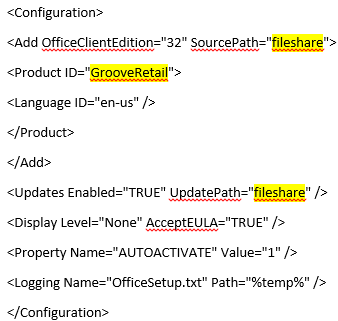
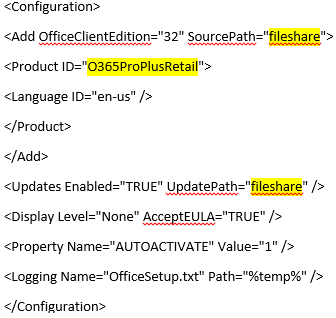
We then need to create a configuration file.

#This is the configuration file for OneDrive for Business which will be saved as odfb.xml
#This is the configuration file for Office365 ProPLus which will be saved as office.xml
So we create a folder for each product that contains the Office Deployment tool and run the following command to download the source files.

#Office365 ProPlus
setup.exe /download office.xml

#OneDrive for Business
setup.exe /download odfb.xml

If you do not have Microsoft System Center Configuration Manager and want to deploy it via a batch file you could use a batch file like this.

@echo off
echo /******************************************
echo /* Installing Office 365
echo /******************************************
net use q: \\fileshare
q:
cd\
Setup.exe /CONFIGURE OFFICE.xml
c:
net use q: /delete /yes
pause

For people that are fortunate enough to have Microsoft System Center Configuration Manager. Here is a quick VIDEO on how to add Office365 ProPlus and OneDrive for Business into your Application Catalog.

Orphaned Exchange Online External Contacts preventing users account to sync to Exchange Online.

I recently had a problem with an Exchange Online tenant. There was an external mail contact which was previously synchronised from Active Directory to Exchange Online. So I had deleted the on-premise active directory mail contact but it still existed in Exchange Online. When I tried to delete the contact it gave the following errror message.

The action ‘Remove-MailContact’, ‘Identity’, can’t be performed on the object ‘Sean OFarrell ‘ because the object is being synchronized from your on-premises organization. This action should be performed on the object in your on-premises organization.

To trouble shoot this issue you can do a couple of things to ensure the external contact does not exist in your on premise Active Directory.

  1. Perform a custom search in ADUC: Search Syntax : proxyaddresses=SMTP:sean.ofarrell@contoso.com 
  2. Search the WAAD Mettaverse
  3. Run this command on the Exchange Onpremise management shell
    remove-mailcontact sean.ofarrell@contoso.com
So if after running all of the above steps you cannot find the external contact which is causing the issues. You do the following.
  1. In Exchange Online Run this command : get-mailcontact sean.ofarrell@contos.com | fl
  2. Take note of the attribute value: ExternalDirectoryObjectId
  3. In this example the externaldirectoryobjectid is 2cb3d9c7-cb29-439f-8174-6c80dd9fe6e8
  4. Then connect to Windows Azure Ad via Powershell and run this command
    get-msolcontact -objectid 2cb3d9c7-cb29-439f-8174-6c80dd9fe6e8 | remove-msolcontact
Problem solved. Now run a delta sync on your WAAD server and everything will work fine.

Office365 WAAD not deleting filtered Organisational Units

If you you upgraded a Dirsync Server to the newer WAAD sync tool and the original configuration was syncing the full AD forest then when you upgrade to the newer version. You need to perform a full synchronisation with the complete AD Forest.
 
After the full sync completes , You can then filter the OU’s and they will be deleted from Syncing with Office365.
 
 
I recently had an issue whereby the objects in the OU’s that I had filtered were not getting removed from my Office365 tenant. So to resolve the issue , I performed the steps above.
 
Once complete , Run the powershell command below to clear out the Office365 recycle bin.
 
Get-MsolUser –all -ReturnDeletedUsers | Remove-MsolUser -RemoveFromRecycleBin -Force


Office365 Desktop Readiness & Server Patches/Utilities


Microsoft Office365 sign in assistant 

Microsoft Office 2013 Service Pack 1 x86

Microsoft Office 2013 Service Pack 1 x64

Microsoft Office 2010 Service Pack 2 x86

Microsoft Office 2010 Service Pack 2 x64

Microsoft Outlook 2010 SP2 February 2014 Cumulative Update

Microsoft Office 2007 Service Pack 3 x86

Microsoft Office 2007 Service Pack 3 x64

Microsoft Outlook 2007  Patch KB2596598

Microsoft Outlook 2007 Patch KB268704

Azure RMS Sharing Application

Lync2013 April 2014 Cumulative Update

Microsoft Exchange Server 2010 Service Pack 3

Microsoft Exchange Server 2010 Service Pack 3 Rollup 5

Windows Azure Active Directory Sync tool – 64 bit

IdFix DirSync Error Remediation Tool

Windows Azure Active Directory Module for Windows PowerShell (32-bit version)

Windows Azure Active Directory Module for Windows PowerShell (64-bit version) 

Windows Azure AD Rights Management Administration Tool

SharePoint Online Management Shell

Windows PowerShell Module for Lync Online

Microsoft Exchange Server 2013 Service Pack 1 (SP1)