Simply change this key to 1
HKLM\SOFTWARE\TrendMicro\PC-cillinNTCorp\CurrentVersion\Misc.\Allow Uninstall = 0 original key
HKLM\SOFTWARE\TrendMicro\PC-cillinNTCorp\CurrentVersion\Misc.\Allow Uninstall = 1
new key

Simply change this key to 1
HKLM\SOFTWARE\TrendMicro\PC-cillinNTCorp\CurrentVersion\Misc.\Allow Uninstall = 0 original key
HKLM\SOFTWARE\TrendMicro\PC-cillinNTCorp\CurrentVersion\Misc.\Allow Uninstall = 1
new key
When email is being protected by an external cloud based solution the default connectiontimeout interval for exchange 07/10 is 10 minutes. And normally this is not enough for eg. Forefront Online , Postini, Messagelabs.
So here is some powershell commands to resolve the issue.
Firstly Get-ReceiveConnector | fl Id*,*connectiontime*
Change the ConnectionTimeOut value
Set-Receiveconnector -ConnectionTimeOut 00:20:00
Name of connector is specified by ServerName\receive connector name

Microsoft have released System Center Essentials 2010 Plus Suite which includes DPM2010. This is an amazing bundle and offers real value for customers. I have just finished a network using both products and SCE 2010 is a super product as is DPM2010. They are both really easy to use powerful tools.
You can get info on the suite here
975530 – Last Review: August 10, 2010 – Revision: 14.0
Stop error message on a Windows Server 2008 R2-based computer that has the Hyper-V role installed and that uses one or more Intel CPUs that are code-named Nehalem: “0x00000101 – CLOCK_WATCHDOG_TIMEOUT”
I have a newly installed HP DL380G6 , completely up to date etc.. that has been randomly rebooting. I installed who crashed to review the memory dump and found that each time it happened this error code was generated CLOCK_WATCHDOG_TIMEOUT
So after some research on the web I found A Hot Fix available from Microsoft to fix the problem. You can get it HERE
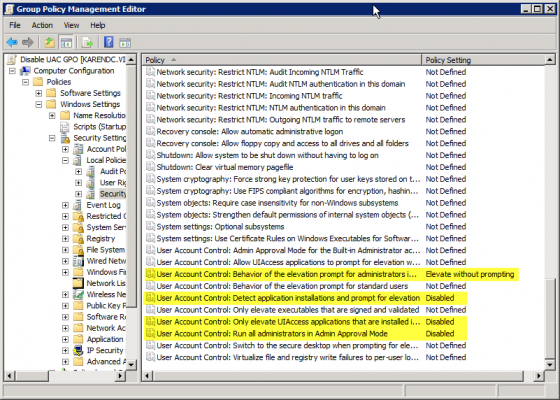
Sometimes applications can be fussy about UAC and this is how to disable it via group policy. I have not had a chance to test app-v but i am sure app-v can overcome problems with uac etc..
# User Account Control: Behavior of the elevation prompt for administrators in Admin Approval Mode – Set its value to Elevate without prompting.
# User Account Control: Detect application installations and prompt for elevation – Set its value to Disabled.
# User Account Control: Only elevate UIAccess applications that are installed in secure locations – Set its value to Disabled.
# User Account Control: Run all administrators in Admin Approval Mode – Set its value to Disabled

