I recently had to publish Microsoft Dynamics CRM2011 with claims based authentication and internet facing domains.
So to set this up within the lan , HERE is an excellent blog on how to setup the configurations on CRM 2011 and ADFS within your LAN. So the purpose of this blog posting is to show people how to securely publish CRM 2011 via TMG.
In terms of best practice , it is never a good idea to punch a hole through a corporate firewall to a service running on a server on a LAN. I am surprised Microsoft are discontinuing their Forefront TMG Servers on December 15th. Microsoft will continue to support TMG but wont be selling it anymore from December 15th 2012.
TMG 2010 needs to be patched in a certain order.
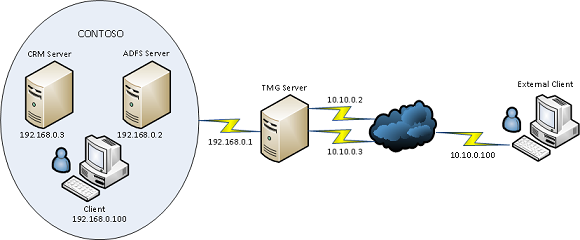
So the image below describes the required topology for CRM 2011 IFD via TMG and I will outline the steps needed to implement this and get it working as there are quite a few things left out of the official Microsoft documentation.
Create WebListener
So as per the image above we would need to add the IP’s 10.10.10.2 & 10.10.0.3 to the external nic on the tmg server.During the creation of the web listener when the external network is created we click the radio button and add the dmz ips we added earlier on as per the image below.
The next section in the web listener creation is very important. Select the SSL Certificate for each of the DMZ ips we added in the previous component of the web listener creation.
Ok so we have the web listener created , now is time to get all the rest of the dependencies in place before we can quickly create the web publishing rules.
Disable ADFS Server Loopback Check
1. Click Start, click Run, type regedit, and then click OK.
2. In Registry Editor, locate and then click the following registry key:HKEY_LOCAL_MACHINE\SYSTEM\CurrentControlSet\Control\Lsa
3. Right-click Lsa, point to New, and then click DWORD Value.
4. Type DisableLoopbackCheck, and then press ENTER.
5. Right-click DisableLoopbackCheck, and then click Modify.
6. In the Value data box, type 1, and then click OK.
7. Quit Registry Editor, and then restart your computer.
DMZ to LAN & LAN to DMZ Routing
The next thing to take into account is the routes from the TMG Server to the LAN and from the LAN to the DMZ. In the diagram above it is a very basic small network. But most companies can have multiple subnets.
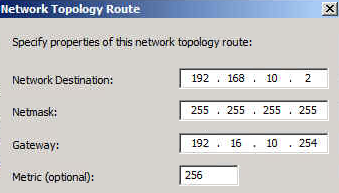
So lets say the the internal adfs server is 192.168.10.2 , To enable TMG to route traffic to this server we would need to add a network routing rule as per the image below.
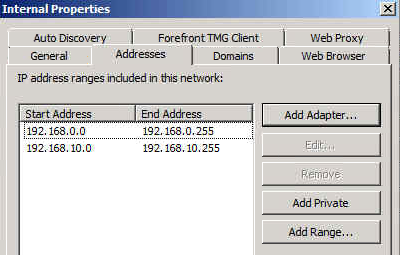
We will also need to add the extra subnet to the internal network as per the image below
Nearly done! We may also need to add a static persistent route to the ADFS & CRM Server so it can then get back to the TMG Server.
External / Internal DNS Records
adfs.contoso.com points to adfs server
dev.contoso.com points to crm server
auth.contoso.com points to crm server
orgname.contoso.com points to crm server
Creating Web Publishing Rules
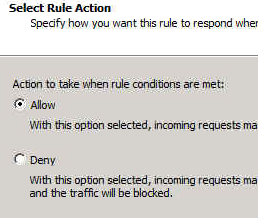
Ok so now we will create one rule for the crm server first.
Publish a Website
Use SSL
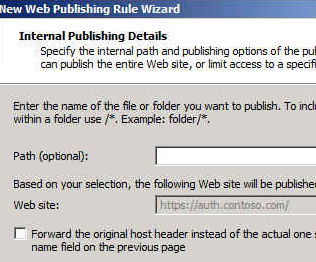
Enter the IP address of the CRM Server
Leave the defaults and click next
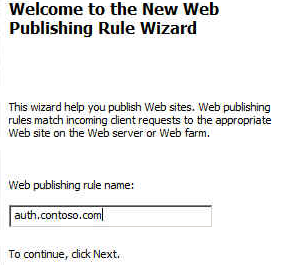
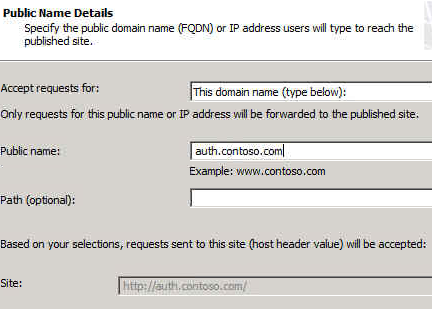
Enter the public name auth.contoso.com
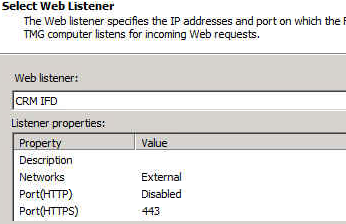
Select the web listener
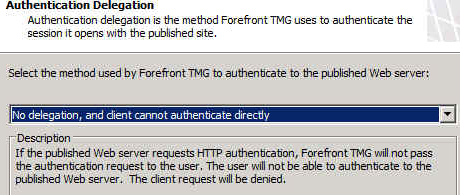
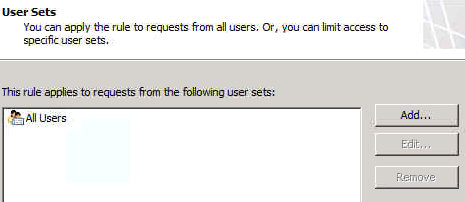
Leave at defaults and click next
Leave at defaults and click next
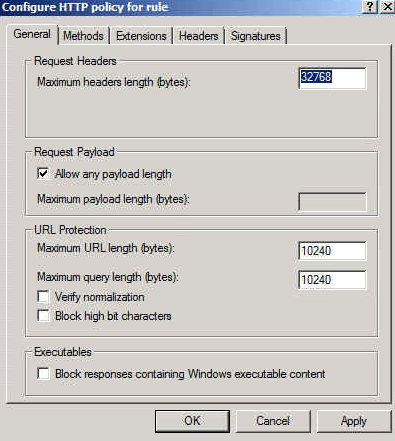
So when the rule is created, You need to right click on the rule and select “configure http”
And then untick “Verify normalization” & ” Block high bit characters”
Remaining Rules
There are 2 more rules for CRM. So we simply copy and paste the rule we just created and edit the ‘to’ tab and ‘public name’ tab and add in dev.contoso.com and orgname.contoso.com
We copy and paste the rule again for adfs except as well as editing the to & public name tab we will also edit the computer ip and change it to 192.168.0.2 so that traffic for this rule is directed to the adfs server.
ADFS Login Page
Here is a great blog post on how to customise the ADFS login page to include a corporate logo.
My thanks to Paul Mc Guinness who helped me get this working 🙂