When using templates in Dell MFNE 4.1 , The template does not read the global settings defined in the tool.
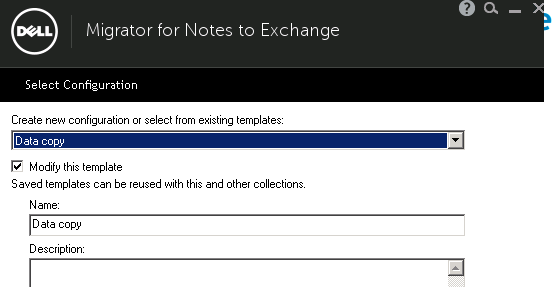
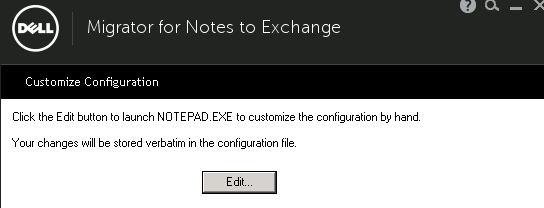
So when you click modify template the next screen appears as per image below which allows you to edit the settings for the template specifically folder filtering and folder mapping.
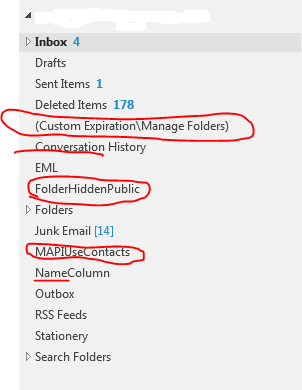
If folder filtering is not configured properly, end users will see system folders in their Exchange inbox which would result in a horrible end user experience as per the image below.
So for folder filters add the following filters into your configuration file.
[Filters]
filter0=($Alarms)
filter1=(Group Calendars)
filter2=(Rules)
filter3=($Design)
filter4=Alarms
filter5=(CalSummary)
filter6=(~MAPISP(Internal))
filter7=(IPMCOMMONVIEWS)
filter8=(IPMVIEWS)
filter9=(Search Root)
filter10=($MAPIInbox)
filter11=($MAPIInfo)
filter12=($MAPIIPM Subtree)
filter13=($MAPIOutbox)
filter14=($MAPISent)
filter15=($MAPITrash)
filter16=(Discussion Threads)
filter17=($ToDo)
filter18=($FolderInfo)
filter19=($POP3)
filter20=(To do’s\By Category)
filter21=(To do’s\By Status)
filter22=(Mail Threads)
filter23=($FolderAllInfo)
filter24=($Inbox-Categorized1)
filter25=(MAPIUseContacts)
filter26=(APIUseContacts)
filter27=($MAPIUseContacts)
filter28=$MAPIUseContacts
filter29=JUNKMAIL
filter30=(JUNKMAIL)
filter31=($JUNKMAIL)
filter32=$JUNKMAIL
filter33=EML
filter34=(EML)
filter35=($EML)
filter36=$EML
filter37=(Manage Folders)
filter38=Manage Folders
filter39=$Manage Folders
filter40=($Manage Folders)
filter37=(Custom Expiration\By Date)
filter38=Custom Expiration\By Date
filter39=$Custom Expiration\By Date
filter40=($Custom Expiration\By Date)
filter41=FolderHiddenPublic
filter42=(FolderHiddenPublic)
filter43=(namecolumn)
filter44=(attachment icon)
filter45=$(FolderHiddenPublic)
filter46=($FolderHiddenPublic)
Filter47=(~CustomExpiration)
Filter48=(&CustomExpiration)
Filter49=(CustomExpiration)
Filter50=CustomExpiration
Filter51=$CustomExpiration
Filter52=($CustomExpiration)
Filter53=(~EML)
Filter54=(&EML)
Filter55=(EML)
Filter56=EML
Filter57=$EML
Filter58=($EML)
Filter59=(~FolderHiddenPublic)
Filter60=(&FolderHiddenPublic)
Filter61=(FolderHiddenPublic)
Filter62=FolderHiddenPublic
Filter63=$FolderHiddenPublic
Filter64=($FolderHiddenPublic)
Filter65=(~MAPIUseContacts)
Filter66=(&MAPIUseContacts)
Filter67=(MAPIUseContacts)
Filter68=MAPIUseContacts
Filter69=$MAPIUseContacts
Filter70=($MAPIUseContacts)
Filter71=(~NameColumn)
Filter72=(&NameColumn)
Filter73=(NameColumn)
Filter74=NameColumn
Filter75=$NameColumn
Filter76=($NameColumn)
Filter77=(~Stationery)
Filter78=(&Stationery)
Filter79=(Stationery)
Filter80=Stationery
Filter81=$Stationery
Filter82=($Stationery)
Filter83=(~Drafts)
Filter84=(&Drafts)
Filter85=(Drafts)
Filter86=Drafts
Filter87=$Drafts
Filter88=($Drafts)
Filter89=(~Manage Folders)
Filter90=(&Manage Folders)
Filter91=(Manage Folders)
Filter92=(Manage Folders)
Filter93=$(Manage Folders)
Filter94=($Manage Folders)
Filter95=(~Sent)
Filter96=(&Sent)
Filter97=(Sent)
Filter98=Sent
Filter99=$(Sent)
Filter100=(~SametimeInfo)
Filter101=(&SametimeInfo)
Filter102=(SametimeInfo)
Filter103=SametimeInfo
Filter104=$SametimeInfo
Filter105=($SametimeInfo)
Filter106=(~Attachment Icon)
Filter107=(&Attachment Icon)
Filter108=(Attachment Icon)
Filter109=Attachment Icon
Filter110=$Attachment Icon
Filter111=($Attachment Icon)
Filter106=(~Custom Expiration\Manage Folders)
Filter107=(&Custom Expiration\Manage Folders)
Filter108=(Custom Expiration\Manage Folders)
Filter109=Custom Expiration\Manage Folders
Filter110=$Custom Expiration\Manage Folders
Filter111=($Custom Expiration\Manage Folders)
Filter112=(~By Date)
Filter113=(&By Date)
Filter114=(By Date)
Filter115=By Date
Filter116=$By Date
Filter117=($By Date)
Filter118=((~Custom Expiration\Manage Folders))
Filter119=((&Custom Expiration\Manage Folders))
Filter120=((Custom Expiration\Manage Folders))
Filter121=(Custom Expiration\Manage Folders)
Filter122=($Custom Expiration\Manage Folders)
Filter123=(($Custom Expiration\Manage Folders))
Filter124=((~Custom Expiration\By Date))
Filter125=((&Custom Expiration\By Date))
Filter126=((Custom Expiration\By Date))
Filter127=(Custom Expiration\By Date)
Filter128=($Custom Expiration\By Date)
Filter129=(($Custom Expiration\By Date))
Filter130=(~Company Column)
Filter131=(&Company Column)
Filter132=(Company Column)
Filter133=Company Column
Filter134=$Company Column
Filter135=($Company Column)
Filter136=(~E-mail Column)
Filter137=(&E-mail Column)
Filter138=(E-mail Column)
Filter139=E-mail Column
Filter140=$E-mail Column
Filter141=($E-mail Column)
#Folder mapping
[EN]
~INBOX=Inbox
~SENT=Sent Items
~CALENDAR=Calendar
~CONTACTS=Contacts
~TASKS=Tasks
~TRASH=Deleted Items
~DRAFTS=Drafts
~OUTBOX=Outbox
~JOURNAL=Journal
JUNKMAIL=Junk E-mail
JUNKMAIL_2013=Junk Email
~PrivateIcon=Inbox
PrivateIcon=Inbox
~IMTranscripts=Conversation History
IMTranscripts=Conversation History
This will also map sametime chat history to conversation history