Using Free NAS with Hyper-V


I ran into a situation where I needed to recover a lot of mailboxes via backup exec on an Exchange 2003 Server and needed to do it via a recovery storage group and exmerge.

But the problem was I did not have enough storage on the exchange server to recover with a RSG.And adding additional storage was not an option , next step for customer was a hardware upgrade for exch 2010.So luckily enough I had a Hyper-V Server with loads of storage so I did the following.

1. Created a new vm with a 500gb dynamic disk , added in a legacy adapter , 4gb ram , 4 virtual cpus.
2. Then started up the new vm and booted into the free nas os, selected the legacy adapter , set the legacy adapter to receive dhcp, took note of ip address.
3. Then logged into the free nas via the http://ip received from dhcp. User name: admin password:freenas
4.Configured freenas as per this article from Dave Lawlor
5. Then downloaded and installed latest microsoft iscsi initiator for Server 2003.
6. Connected to my freenas via iscsi and formatted my new volume.
7. Then moved my RSG to the new volume I created.

This was an interesting resolution to my problem as I couldnt locate the RSG on anything but a local drive and exchange thought my new volume was a local drive.

Now this problem was probably a once off but it is a really simple way for people to play around with iscsi and san technology and its free.

Storagecraft Shadowprotect 4


Shadowprotect 4 has been released. I was beginning to loose faith in Shadow Protect in terms of their development cycle in comparison to Acronis. Both products are very similar.

The reason I love Shadowprotect is because it has never let me down in the past and it’s simple GUI and speed of recovery.

Anyway there are a lot of really cool features in version 4 in particular head start restore and you can take a look at Storagecraft’s Webinar on Shadowprotect.

https://www1.gotomeeting.com/register/214409881

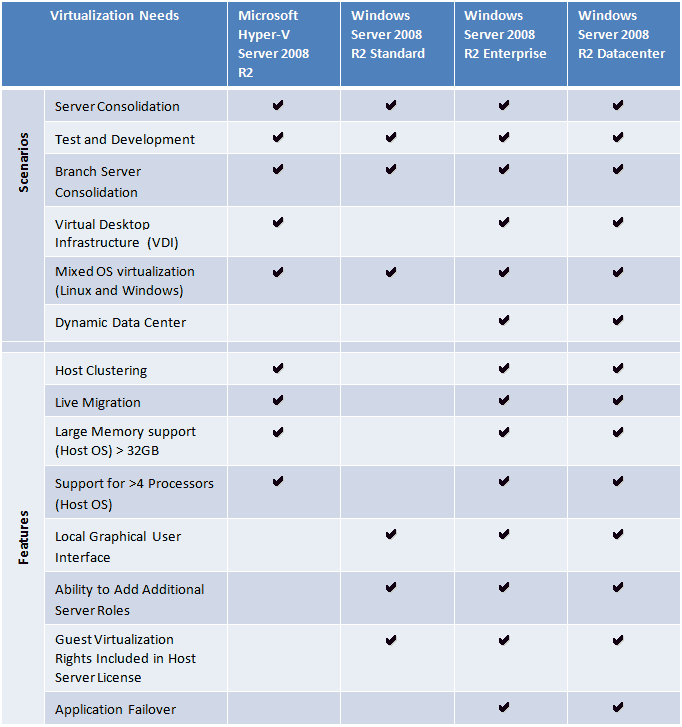
Which Version of MS 2008R2 to use for Hyper-V


Apart from server consolidation some of the other areas where you can use HYPER-V are,

* Test and Development
* Server Consolidation
* Branch Office Consolidation
* Hosted Desktop Virtualization (VDI)

Microsoft free HYPER Visor is good option for testing and R&D. If you are planning to consolidate more than 4 servers in one physical server then moving to Data center version will do huge cost saving to you.

Setting a Domain Controller to Sync with External NTP Server


1. Modify Registry settings on the PDC Emulator for the forest root domain:
In this key:
HKLM\System\CurrentControlSet\Services\W32Time\Parameters\Type
• Change the Type REG_SZ value from NT5DS to NTP.
This determines from which peers W32Time will accept synchronization. When the REG_SZ value is changed from NT5DS to NTP, the PDC Emulator synchronizes from the list of
reliable time servers specified in the NtpServer registry key.
HKLM\SYSTEM\CurrentControlSet\Services\W32Time\Parameters\NtpServer
• Change the NtpServer value from time.windows.com,0x1 to ie.pool.ntp.org,0x1

This entry specifies a space-delimited list of stratum 1 timeservers from which the local computer can obtain reliable time stamps. The list can use either fully-qualified domain
names or IP addresses. (If DNS names are used, you must append ,0x1 to the end of each DNS name.) In this key:
HKLM\System\CurrentControlSet\Services\W32Time\Config
• Change AnnounceFlags REG_DWORD from 10 to 5. This entry controls whether the local computer is marked as a reliable time server (which is only possible if the previous registry entry is set to NTP as described above). Change the REG_DWORD value from 10 to 5 here.
2. Stop and restart the time service:
net stop w32time
net start w32time
3. Manually force an update:
w32tm /resync /rediscover
(Microsoft KB article # 816042 provides detailed instructions for this process.) Apart from that you can refer to this link as well.

As a thumb rule test this before applying for the production network. This is recommend if your organization preparing to move to 100% virtualization environment. If not at all cost try to have one DC in a physical server 🙂

Update: I found out Microsoft has already released an article about running Domain controller in HYPER-V. You can download the document from here.

Microsoft Enterprise Desktop Virtualisation


I recently completed a network where my customer connected to a multi national companies corporate network via Juniper End Point Protection.

The company I installed the network for uses this multi national companies infrastructure to perform computer programming on their equipment and connects to multiple servers within the infrastructure via a customised Citrix ICA Connection.

The multi national refused Windows 7 & Refused Sophos Anti Virus as they said it was incompatible with their end point protection policies. But the endpoint protection was very happy with Windows 7 and Sophos as were the users.

But there was one massive problem!!!! Once the endpoint protection established a connection there was no split tunnel so the users could not access their local drives outlook client, VOIP Softphones etc…

So the customer purchased HP Pro Book laptops with Intel i3 Processors which have Intel VT on the chip.So you have probably been wondering where does MED-V come into all this. I installed MED-V SP1 onto a Virtualised Windows Server 2008R2 Server, Prepared my virtual pc 2007 sp1 image and deployed it to the laptops.The programmers all have docking stations as well as 24″ Wide Screen flat panel monitors. So they use their laptop screen for communication to their own lan and Virtual PC on the big screen for their LOB work on a multi nationals corporate network and the virtual pc communicates directly to the Intel i3 processor via Intel VT Technology.

Once in a blue moon you would come across a situation like this but when you do. This is a really cool solution!

Download the administration videos here
http://www.microsoft.com/downloads/details.aspx?FamilyID=1f0d3e54-25d1-4ec1-a844-3b508bd63ffa&displaylang=en

Sean

Print Spooler Failures


We have been having trouble with print spooler failures with a Terminal Server Farm recently and I recently discovered a cool feature of the 2008R2 Printer Manager.

You can select a driver and set it to isolate which means the driver will have it’s own isolated virtual print spooler , This means it wont share the common print spooler and in the event of a buggy driver it wont pull the whole print spooler down , only the printer using that particular driver.

Remote Desktop Easy Print and a HP Universal Print Driver can act in similar ways and therefore can clash, witch would make sense to isolate each driver.

Its a really cool feature that not many people know about and can really help troubleshoot print spooler problems.

If your having trouble with a driver which is isolated , it will then have its own process and you can use Process Explorer from sysinternals to analyse that process.
http://technet.microsoft.com/en-us/sysinternals/bb896653.aspx

Exchange 2010 Quick Setup Guide


Exchange 2010 Quick Setup Guide R1

1. If installing on Hyper-V R2 , Have the following config
C:\40gb Fixed Disk, D:\100gb Fixed Disk Database, E:\20gb,2008R2 Enterprise , 4 processors , As much ram as possible, Patch OS prior to install.

2. Run this command from command prompt

ServerManagerCmd -i RSAT-ADDS Web-Server Web-Metabase Web-Lgcy-Mgmt-Console Web-ISAPI-Ext NET-HTTP-Activation Web-Basic-Auth Web-Digest-Auth Web-Windows-Auth Web-Dyn-Compression RPC-over-HTTP-proxy Web-Net-Ext -Restart

3. Install Feature “Desktop Expierience” if you wish to install the unified messaging role.

4. Install Exchange 2010, It will sysprep active directory for you.

5. During install it will ask you for external name for owa . I chose mail.domainname eg. mail.cdsoft.ie

6. When setup is complete re-boot server and then install Exchange 2010 Rollup2 Update kb9796711 and reboot.

7. Move Database and log files to relevant drives.

8. Add in accepted external domain, add to default email policy. (I normally like to define firstname.secondname

9. Create an internet send connector via Organisation/Hubtransport/new send connector wizard.

10. Edit the default receive connector permission group to allow anonymous users

11. Edit Organisation/Hub Transport/Global Settings/Transport Settings and change max send & receive size to 30720

12. Run this command in exchange system shell

13. Set-OWAVirtualDirectory -Identity “owa (default web site)” -LogonFormat username -DefaultDomain INTERNALDOMAINNAME (eg.cdsoft.local)

14. Buy a trusted cert for exchange

15. Add users via new mailbox wizard and create new user this way and select AD OU that the user belongs to.

16. Disable Windows Firewall and Allow Main Firewall to allow external ports 25 & 443 access to server.

17. Implement correct backup procedure.
Sean

After installing Hyper-V Integration Services on the next reboot the VM displays BSOD 0x0000007B

A big thanks to kev greene in cdsoft for this article which has proved to be priceless.

Recently, I had some customers with VMs they just P2V’ed, or even had them running already on Virtual Server or Hyper-V. Now, they installed the latest Integration Components that came with the R2 Release.

After the required reboot, the VM shows a Bluescreen 0x0000007B INACCESSIBLE_BOOT_DEVICE

During Debugging I found that the Storage Driver of the ICs require the Windows Driver Framework (WDF), which was not loaded in this case. So the Storage Driver fails to load.
Looking into the Registry of the VM, shows that the WDF Driver was already installed previously, but had the wrong Group relationship, so it is initialized too late.

So here’s how to fix this issue:

1. Boot the VM into LastKnownGood. Press F8 during boot.
2. Open the Registry and drill down to HKEY_LOCAL_MACHINE\SYSTEM\CurrentControlSet\Services\Wdf01000
3. There is a Group Value that should have the Value WdfLoadGroup. In my cases it was wrongly set to base. Change this to WdfLoadGroup
4. Then remove the Integration Components from Control Panel/Software.
5. Reboot the VM (now without ICs)
6. Install the ICs once again

Google Docs Storage

My laptop’s hard drive is starting to make a clicking sound. I have been meaning to replace it for some time but just have not got around to it. So prior to it dying I am uploading all the pics of my little boy Jayden to Google Docs storage. Each user gets a standard 1GB storage but I purchased an additional 20GB storage for $5.00 a year!!!

I always use yousendit.com for sending files i need for work like hot fixes and patches. Mostly any email package or service will put restrictions on sending .exe files , but the free version only allows sending a maximum of 100MB. With my google docs storage I can easily share a folder and send the link to somebody and they have the required file, files.

Its really simple to use and I feel safer having my files in the cloud. I will however have to make my password stronger!!