Exchange Online for Enterprise

Office365 for small businesses is a great fit, it just makes sense. A small business doesn’t have the budget for large amounts of storage and infrastructure refreshes. So for a small monthly fee which can go up or down ,small business can use Office365

I don’t mean to sound like a Microsoft salesman here but recently when I was drawing some Visio diagrams for a customer proposal it dawned on me that it does make sense for enterprise customers and I will explain why.

One of the big stumbling blocks for enterprise customers , is the monthly recurring costs.

For example 2000 users on an Exchange P1 plan would cost €7140.00 per month or €85,680 per annum. So any financial controller looking at this will say no way!!!!!!!!!!!!

However nearly all enterprise customers have Microsoft Enterprise Agreements. I am increasingly surprised at how enterprise customers don’t understand the benefits of an EA. There are many benefits but I am just going to list some relevant to Exchange Online.

  • Microsoft Planning Service Days: Microsoft can help transition to cloud services through and existing EA Agreement.
  • Exchange Core Cal: If you have an Exchange Core Cal , this covers you for an on premise exchange cal and exchange online cal

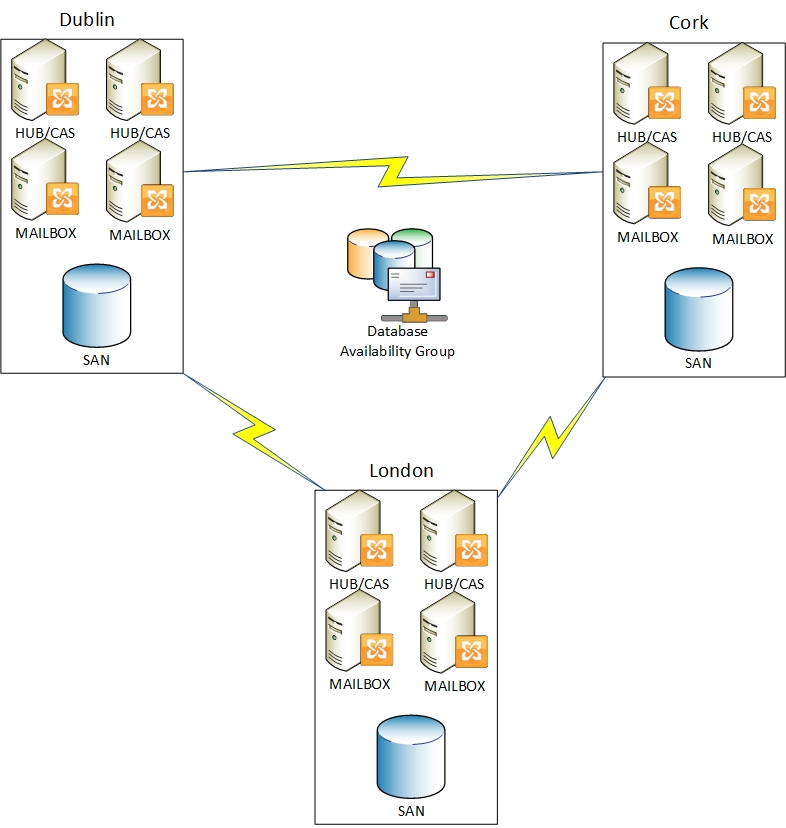
The image below shows a brief example diagram of a 2000 user company in different geographical locations and using on-premise exchange 2010.


So lets look at some of the costs associated with maintaining and running this on=premise solution.

Item  Cost
Wan Links  Possibly 60k per annum for the 3 sites
Storage How much would the storage cost for 25gb * 2000 users cost. Storage refresh after 3 years may cost 300k
Power Consumption Most likely the exchange server will be running on a virtualisation platform. A rough guess for all 3 sites 50k per annum.
Hardware Vendor Support On the Sans and virtualisation hosts , roughly 30k over 3 years
Mail Hygiene Potentially 50k per annum
Hardware Deprecation New hardware becomes old the minute it is delivered to site.
Exchange Admin Staff Cost Possibly 100k per annum
Exchange 2013 How much would it cost to upgrade this entire organisation to Exchange 2013…..
Backup Software  Possibly 10k per annum
Backup Hardware Hardware refresh after 3 years possibly 100k

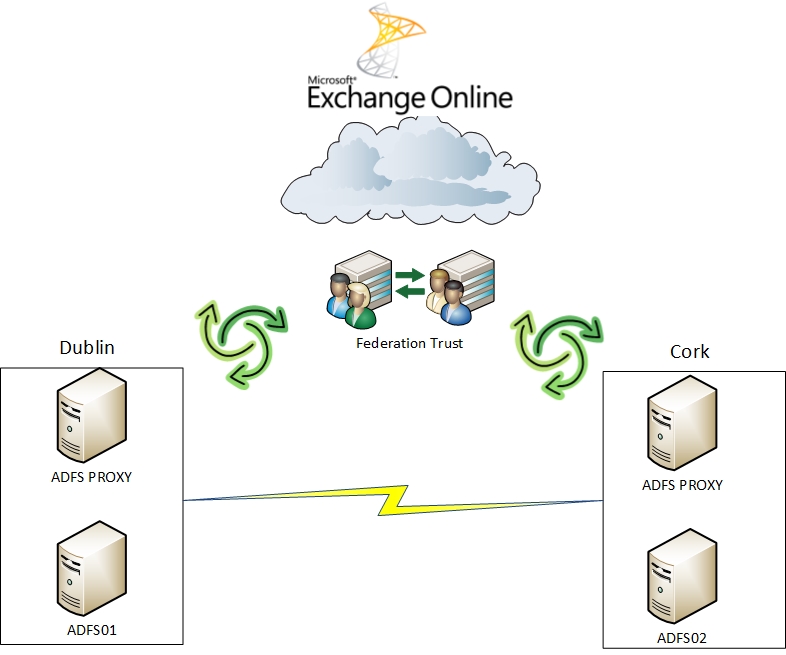
So all of the above cost and infrastructure could become like the image below.

So now it starts to make sense, and enterprise customers are licensed to do this right now and probably don’t even realise it!

Exchange Online Features & Pricing

How to federate existing Office365 users

The most common scenario for federating users that are already using Office365 is when users have transitioned from BPOS to Office 365. The customer/company was waiting to use this excellent feature of Office365 and wanted to implement it once they had transitioned from BPOS to Office365


So in this scenario I will describe how it could be done for 200 users but the same steps apply for any amount of users.

So the first thing to do is to add in a new upn for users. If the customer had an internal domain of contoso.local we will need to add in a new upn of contoso.com. To add the new UPN in , you browse to Active Directory Domains and Trusts and right click on the Active Directory Domains and Trusts icon and select properties and add the new UPN as per the image below.

In this particular scenario , there was no no onpremise exchange , so no email address fields were populated. So we need to modify all user’s UPN and add in their email addresses before we implement Directory Sync because DirSync matches the onpremise AD users with the existing Office365 users by their primary SMTP address. This is described in Microsoft KB 2641663

So we use ADMODIFY from Codeplex. You can download it HERE
Download ADMODIFY , Extract the package, Launch Admodify , Connect to AD and select a domain controller.

So firstly we will select all the users we need to modify..Then click add to list and select all and we can now easily modify all the users.
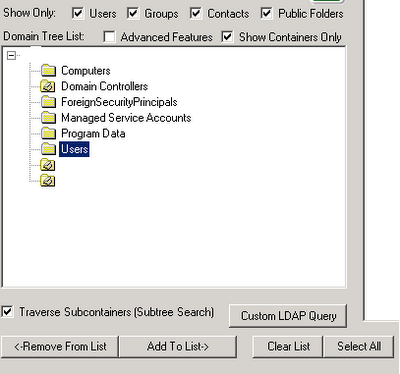
So firstly we will modify all users UPN. All existing users in Office365 have an email address policy of firstname.lastname. So when selecting the UPN tab I enter this variable switch in LegacyAccount tab %’givenname‘%.%’sn‘% as per the image below.

When we hit apply on the UPN Change , We will need to select all the users again and then go to the email tab we need to enter this string in the add smtp address as per the image below %’givenname’%.%’sn’%@contoso.com
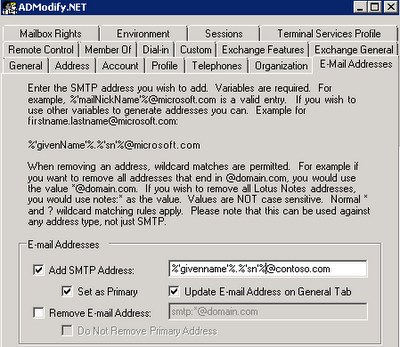

So by adding in this address , admodfy has placed the primary email address on the general tab and updated the required Active Directory proxyAddresses attribute as per the Microsoft KB 2641663 mentioned earlier.

So now we are ready for Dirsync, So when Dirsync runs it will match the active directory user objects with the existing Office365 user accounts and both the Office365 and Active Directory users will have the same immutable ids. To verify the Office365 user’s immutable ID you can run the powershell command in the Microsoft Online Services Powershell module and output the query to a text file.

Get-MsolUser -all where {$_.isLicensedeq $true} select-object userprincipalname,immutableid out-file c:\users.txt

The next step then is to federate the contoso.com domain , this can be done using the Microsoft Online Services Powershell module on the primary adfs server

winrm quickconfig
Connect-MsolService –Credential $cred
Set-MsolAdfscontext -Computer adfsprimary.contoso.local
Convert-MsolDomainToFederatedDomainName contoso.com

So what affect does this have on users?

All user’s domain logins remain the same as when we were modifying UPN’s we didnt alter the (pre-Windows 2000) value.


Outlook will prompt for a user name and password so the user will enter sean.ofarrell@contoso.com , their ad passord and remember credentials.

Smartphone user names will be the user’s priamry email address followed by the users active directory password.

Within the domain via group policy the service name of the adfs farm will be published to each users internet explorer intranet zone which will allow single sign on to the Office 365 portal and Sharepoint.

Lync will auto sign in provided the sign in assistant is installed.

One last thing , dont forget to apply Rollup2 for ADFS 2.0

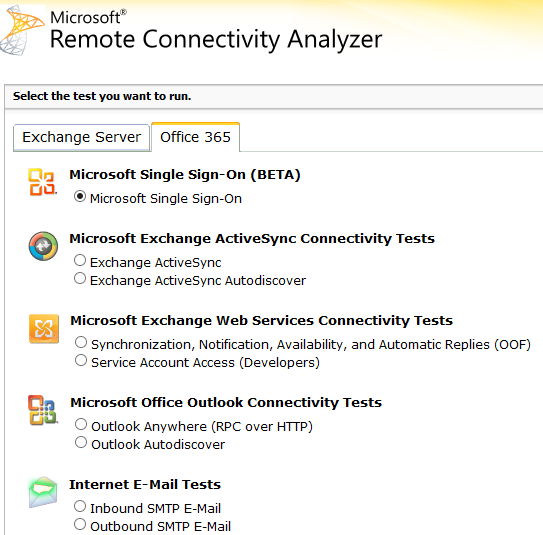
And also the Exchange Remote Connectivity Analyzer can also troubleshoot Single Sign On as well as ActiveSync and Auto Discover

Exchange 2010 Management Shell will not open.

I recently had a problem on a customer site that had dag in another DR site.So the DR site had one cas/hub server and 2 mailbox servers.

Powershell is crucial for DAG as everything done in the exchange management console is essentially sending through powershell commands.So when I was opening up the exchange management shell i was getting this error.

“Connecting to remote server failed with the following error message: The WinRM client cannot process the request. It cannot determine the content type of the HTTP response from the destination computer. The content type is absent or invalid. For more information, see the about_Remote_Troubleshooting Help topic.”

So when i connected to exchange management shell the error message above would display and then the management shell would connect to the cas/hub server.So if I wanted to run any DAG related powershell commands I couldnt because the cas/hub servers didnt have the mailbox role. So i did a lot of research on the internet and tried everything like:

  • Running winrm quickconfig
  • Adding in the winrm iis listener feature
  • Checking iis bindings

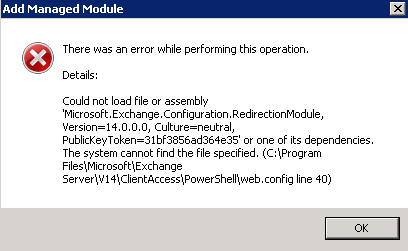
I then came across a blog posting whereby adding and removing the wsman and kerbauth modules in the powershell site in iis.So when i clicked on add-module I got the error displayed in the image below.

So to fix it I copied the webconfig file from another mailbox server that had the exchange management shell working fine and replaced the webconfig file on the troublesome mailbox servers and the powershell worked fine.

Using Hardware VSS writers with DPM

I blogged previously on setting up Dell Equal Logic Hardware VSS writers with DPM. I find setting up HP application aware snapshot manager with Lefthand Storage Area Networks much much easier. And once setup , you can forget about it and have the comfort that your virtual environment is safely backed up.

So I will start by a step by step guide on how I recently set this up and what worked for me.

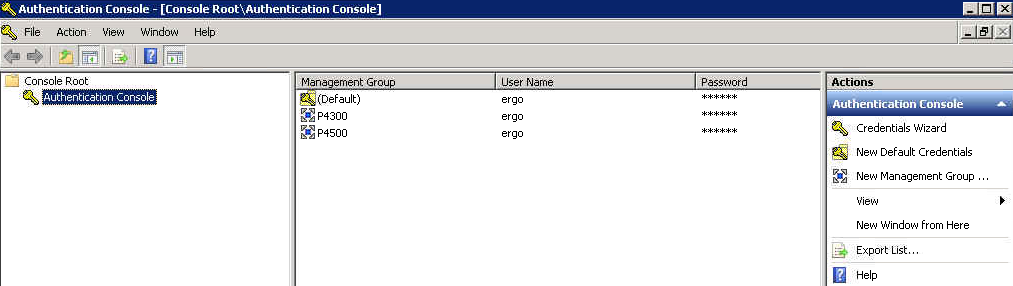
Install the HP Application aware snapshot manager version 9.5.0.1004 and then enter the credentials for the saniq management group. In the image below there are 2 sans a p4300 and p4500

Then test the credentials

Then Delete the %Programfiles%\Microsoft DPM\DPM\Config\DataSourceGroups.xml file from the DPM server.

Add this dword value to the dpm server with a value of 2

HKLM\Software\Microsoft\Microsoft Data Protection Manager\2.0\Configuration\MaxAllowedParallelBackups

I then create a protection group for hyper-v virtual machines and create a protection group per clustered shared volumes.Another thing which i have found to work quite well is to have all virtual machines on 1 clustered shared volume to be managed by one node and then the other clustered shared volume will be managed by another node.So when the scheduled DPM protection group runs it speaks to the hardware vss writer which then speaks to the lefthand san which takes a snapshot.You can use System Center Virtual Machine Manager to migrate storage if required.

If you take a look at the management group within San IQ , You will see the snapshot being created and deleted when the protection group completes it’s backup.Also during a scheduled protection group’s backup if you look in the monitoring tab and jobs in progress you will notice excellent throughput on the running backup job.

Always make sure you have enough space on your Lefthand sans for snapshots.

And the end result is healthy protection groups.


Exchange 2010 Hybrid Wizard Fails

I have been working on a project recently and setting up an exchange hybrid deployment for 1400 users.I ran into a lot of issues with the wizard and have noticed a lot of people on the web have had some problems as well. So I thought I would post the most common issues and how I resolved them.

This is the default directory for the hybrid wizard log files
C:\Program Files\Microsoft\Exchange Server\V14\Logging\Update-HybridConfiguration

  1. “” isn’t a valid SMTP domain – This is when there is still a self signed certificate that has iis & smtp services applied to it Delete the certificate and ensure iis & smtp are assigned to a trusted certificate and rerun the wizard.
  2. An unexpected result was received from Windows Live. Detailed information: “InvalidUri InvalidUri: Passed URI is not valid.”.

    This is when the federation gateway services have blocked the domain you are trying to federate.Your DNS TXT confirmation record shows up fine when you query it on mxtoolbox.com txt:yourdomain.com. So you need to escalate it with Microsoft and get it white listed. The unfortunate part for me was that the particular domain that wasn’t trusted was the external facing domain on my hybrid server and had the domain name linked to my wild card certificate and because of this the wizard would not complete.

  3. ERROR:Updating hybrid configuration failed with error ‘Subtask Configure execution failed: Creating Organization Relationships.

This is an update which I am posting today 12.12.2012 (great date)

Before you run the hybrid configuration wizard or need to do any of the below , run this command in the exchange management shell

Set-AutodiscoverVirtualDirectory “casservername\Autodiscover (Default Web Site)” -WSSecurityAuthentication $True

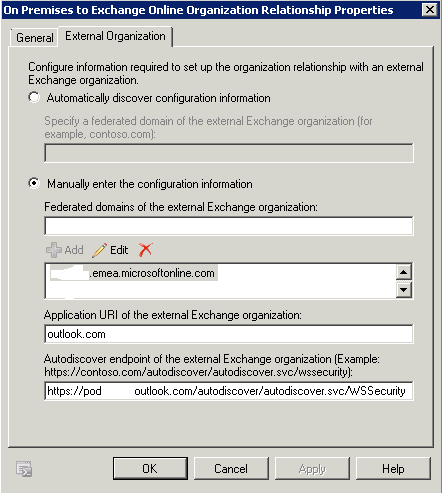
    Now the last error is the most common one which I have seen people having problems with on the web and drove me crazy. So i just manually created the onpremise and online organisation trust.The hybrid wizard even though it fails , still manages to create the “On Premises to Exchange Online Organization Relationship” and it will populate the autodiscover endpoint of your office 365 tenant.

    So now browse to the federation tab on your onpremise organisation and take note of the application URI

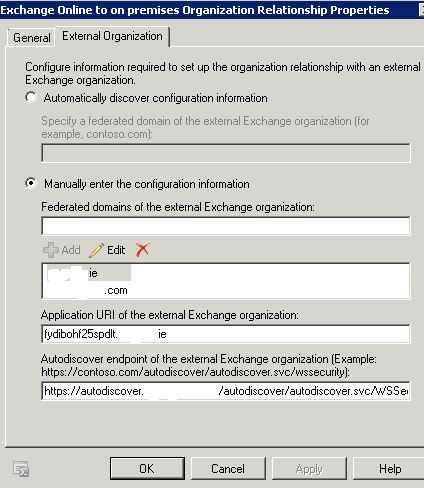
    Now browse to the Online tenant and create a new organisation relationship and call it “Exchange Online to on premises Organization Relationship” Then manually enter the settings as per the image below. Adding in your already federated domains. You can simply add the domain that is blacklisted at a later stage. Enter the application uri that you previously took note of and finally enter https://autodiscover.yourdomain.com/autodiscover/autodiscover.svc/WSSecurity and this will be the domain that can access your hybrid server and the wild card certificate.
    Enable free/busy on both the onprem and online organisation relationship.
    Then add in a send connector and add the default onmicrosoft.com domain. If you were transitioned from bpos to office 365 add in that domain as well.Add in the smart hosts as per the image below and your source servers.

    Then create a receive connector and only allow email from the following ip addresses and ranges. These addresses may change pending on what part of the world you are in.


    Lastly you need to enable the mailbox replication proxy service which you can do so by running this command in the exchange management shell

    Set-WebServicesVirtualDirectory -Identity “EWS (Default Web Site)” -MRSProxyEnabled $true –MRSProxyMaxConnections 100

    This will enable the MRSProxy correctly in SP2. If you have changed the timeout values of the data move then you will again need to go to your web.config file and update the timeout value again. If you are not familiar with this it is the timeout value of the MRSProxy when performing a remote mailbox move. When you are performing bulk migrations of users to Office 365 it is a good idea to increase this so you don’t get failures during overnight data loads if you are using virtual machines for the Mailbox or CAS roles.Open the web.config file located in C:\Program Files\Microsoft\Exchange Server\V14\ClientAccess\exchweb\ewsGo to the bottom of the file and locate the new smaller MRSProxy section and make the change shown:

    So this worked for me , I could see free busy between onprem and an online tenant, and move mailboxes between onprem and office 365 even though the hybrid wizard had been failing.

    DPM 2010 Server Processor running at 100%


    I recently fixed a problem for a customer whereby their DPM2010 server was very slow to do anything. Even opening up the GUI was taking a long time.

    The server in question was a HP Proliant DL380G5.
    So to fix it I needed to do 2 things.
    1. Update the storage controller’s firmware and driver.

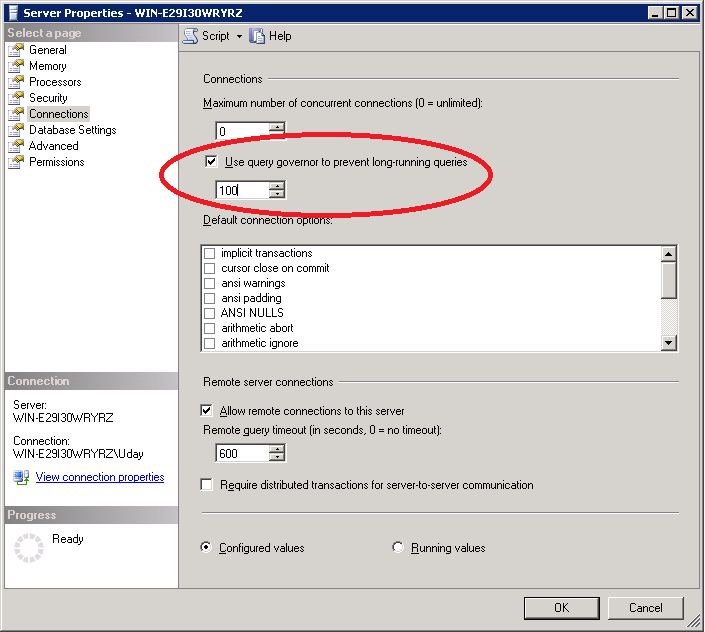
    2. As per the image above , login to the msdpm2010 instance and change the value in the red circle to 300 and reboot server.
    Problem solved 🙂

    Broken Hyper-V AVHD Chain recovery

    I have been helping people around the world recover data from Hyper-V avhd chain disasters since 2009. I have helped people in a lot of countries and cities , some of which include.

    Newyork
    California
    Seattle
    New Hampshire
    New Orleans
    Germany
    Paris
    London
    Sweden
    Belgium
    Netherlands
    Australia
    Singapore
    Korea
    Russia
    People find me for help via the following forum posts.
    1. Snapshots are not for production servers. They are not backups.
    2. Never delete a snapshot in a chain.
    3. If you delete a snapshot via hyper-v console , wait for it to merge back into it’s parent.
    4. Use Microsoft DPM 2012 and hardware vss writers where possible.
    5. Never increase the capacity of a base vhd when it has a broken avhd chain.
    6. Some recommendations on vhd recovery are visible on my linkedin profile
    7. Windows Server 2012 will make it easier to recover from broken snaphot chains.

    Exchange 2010 SP2 RU1 & RU2 breaks OWA


    Exchange 2010 Service Pack 2 Rollup 1 has broken some cas servers. I know it sounds crazy that an update direct from Microsoft would do this.


    I have been working on a number of Exchange 2010 projects recently and both projects were using hardware load balancers. So i started to test the internal owa url on all of my cas servers and on some of the servers – the internal owa url wasn’t working. So if that isn’t working then OWA definitely wont work on that server. So to fix it is quite simple.

    On the server that is having a problem. Delete the themes folder from both of these locations.

    C:\Program Files\Microsoft\Exchange Server\V14\ClientAccess\Owa\14.2.283.3
    C:\Program Files\Microsoft\Exchange Server\V14\ClientAccess\Owa\14.2.247.5

    Once they are deleted then copy and paste themes folders from a healthy cas server back where they should go on the problematic server.

    If the above steps dont work. Go to a server that is working ok and export the following regkeys and then add them to the server that had the problem and re-apply the rollup and problem will be solved.

    [HKEY_LOCAL_MACHINE\SOFTWARE\Microsoft\PowerShell\1\PowerShellSnapIns\Microsoft.Exchange.Management.PowerShell.E2010]

    [HKEY_LOCAL_MACHINE\SOFTWARE\Microsoft\PowerShell\1\PowerShellSnapIns\Microsoft.Exchange.Management.PowerShell.Setup]

    [HKEY_LOCAL_MACHINE\SOFTWARE\Microsoft\PowerShell\1\PowerShellSnapIns\Microsoft.Exchange.Management.Powershell.Support]

    Tier 1 Bpos to Office 365 Transition


    I recently completed Ireland’s first Tier 1 Bpos to Office 365 transition and would like to share the steps involved to achieve this.

    My client was a global charity with their head quarters in Dublin and operating in 14 countries with 1400+ users spread over 90 locations and most with little or no it support.

    As users were so dispersed throughout the globe the charity did not want to implement Single Sign On. One of the most critical requirements for the charity was the need to keep existing ost files on client machines. The reason for this is because some locations in Africa have poor Internet connectivity speeds and it could take weeks for the creation of a new Outlook profile to download and re-sync a local cached copy of a mailbox.So I confirmed with Microsoft that we could keep the existing OST’s and they said we could. However the Office 365 Client Prereqs needed to be installed on each client machine prior to transition.

    So I am going to bullet point in order the steps.

    • Engage with a Microsoft Office 365 transition manager
    • Remove Office Communicator prior to transition – this can be done running this command or a batch file MsiExec.exe /I{0F3AB690-1F39-40B8-9D4A-6E8DDA850FB0}/passive
    • Once that has been done install Microsoft Lync
    • Then install this UPDATE on all Client computers
    • Send out a communication to all staff stating that after transition they can access their web mail via https://portal.microsoftonline.com and smart phones can access m.outlook.com
    • One week before transition , setup Lync SRV Records for each domain as per Microsoft’s GUIDE and internal firewall rules
    • One week prior to transition , reset user’s passwords so that they comply with Office 365’s password policy I did this very quickly and easily via Messageops powershell gui for Bpos

    • Then run the powershell below to ensure any mailboxes with delegated control preserve their custom permissions

    Export Public Delegates

    #$LiveCred = Get-Credential

    #$Session = New-PSSessionConfigurationName Microsoft.Exchange –ConnectionUri https://ps.outlook.com/powershell/ -Credential $LiveCred -Authentication Basic –AllowRedirection

    #Import-PSSession $Session
    get-mailbox -filter {grantSendOnBehalfTone $null} select userprincipalname, grantsendonbehalfto export-clixml delegates.xml

    get-mailbox -filter {grantSendOnBehalfTone $null} select userprincipalname, grantsendonbehalfto export-csv delegates.csv

    Import Public Delegates
    #$LiveCred = Get-Credential

    #$Session = New-PSSessionConfigurationName Microsoft.Exchange –ConnectionUri https://ps.outlook.com/powershell/ -Credential $LiveCred -Authentication Basic –AllowRedirection

    #Import-PSSession $Session
    $logfile = “log-” + (get-date –uformat “%H%M-%Y%m%d”) +”.txt
    start-transcript $logfile
    import-clixml delegates.xml foreach{
    “User: ” + $_.userprincipalname
    foreach($i in $_.grantsendonbehalfto){
    GrantSendOnBehalfTo: ” + $i
    set-mailbox -identity $_.userprincipalnamegrantsendonbehalfto @{Add=$i}
    }

    “———————————–”

    }

    “number of mailboxes with grantSendOnBehalfTo : ” + (get-mailbox -filter {grantSendOnBehalfTone $null} ).count

    stop-transcript

    • During transition the external DNS records for autodiscover can be edited. So if you have a domain named contoso.ie you would create a CNAME record called autodiscover.contoso.ie and point it to autodiscover.outlook.com
    • So once the transition has been complete, a user can still sign into the single sign in utility but Outlook will not be visible. The user can then open Outlook and will get a warning stating ” An administrator has performed maintenance on your Outlook profile, Please restart outlook” So once the user restarts Outlook , the user will then be prompted for his/her user name and password.
    • Some Outlook clients may not want to connect to Office 365 via autodiscover and if that happens simply configure the Outlook profile via this website config.365.com another great site from messageops.
    • Once Outlook can open and close without password prompts you can remove the single sign in utility by running this command MsiExec.exe /X{A91E3887-5185-4091-AF33-AB0048444055} /passive
    • I then wanted to chat to the charity’s ICT manager so I enabled external federation by doing the following steps.

      Click “Manage” from Lync Online under Admin page
      If you are using E account, you will see current setting for Lync online for management page. If Domain federation or Public IM connectivity was disable under Current settings section, please enable them first.
      Click Domain federation: Select “Allow federation with all domains except those I block”
      Click Public IM: click “Enable” to active Public IM.
      After your enable federation, then you can see the External Access for particular user when editing setting

    Ok so there are the technical steps and what is next for the charity. They were waiting for Office 365 before they did some customized development of Sharepoint online and now they can start this work. They absolutely love Lync and can easily communicate between 14 countries.Of the 1400+ users , there was an issue with 2 users , one in Dublin and one in Sudan!

    My next blog post on Office 365 will be around the design and implementation of a ADFS 2.0 Farm which can tolerate one Active Directory site failure of a multi site Active Directory and still allow users to authenticate.

    Implementing Kemp Load Balancers with Exchange 2010 Sp2


    I recently implemented a 2 node Kemp Loadmaster 2200 array and I generally followed Henrik Walther articles on Msexchange.org. There are 2 articles

    Load Balancing Exchange 2010 Client Access Servers using an Hardware Load Balancer Solution
    Uncovering the new RPC Client Access service included with Exchange 2010

    There are a couple of steps in the articles which have changed with Exchange 2010 SP2 and newer firmware on the Kemp Loadmasters which I can highlight below to help anyone out.

    1. Instead of manually editing and adding registry entries for rpc static ports you can download and run a powershell script HERE from Bhargav.Some of the registry locations are different in Exchange 2010Sp2 and you dont need to edit Microsoft.exchange.addressbook.service.exe.config
    2. The latest revisions of Kemploadmaster firmware do not include the persistence type ‘active cookie or Source IP’ the reason for this is because Kemp are phasing this persistence method out in favour of Super http. However if you would like to enable it you need to do the following.

      Go to logging options, debug options , enable l7traces then contact Kemp and they will give you a frame number which you can enter and it will allow ‘active cookie or source ip persistence’