Migrating Lotus Notes users into an Exchange Hybrid

In this post I just wanted to highlight what active directory attributes need to change on a user account when you have an existing Exchange Hybrid and want to migrate Lotus Domino users into exchange online.

Primary Email Address: Sean@contoso.com
Hybrid email Domain: contoso.mail.microsoft.com

The existing users that have exchange mailboxes will already have exchange active directory attributes. So lets take a look at what happens when you migrate an on premise exchange mailbox to exchange online.

When you run dirsync , a proxy hybrid domain is created in the example above it is contoso.mail.microsoft.com. So when you initiate a ‘new remote move request‘ and move an onprem user to the cloud the user becomes a mail contact and their routing email address becomes


So how do we populate the active directory users that have came into our active directory from Lotus notes with the right attributes so that when they sync with dirsync to exchange online they will have the correct PRIMARY email address and be able to co-exist with the onpremise users.

We use my good friend ADMODIFY to modify some key attributes

So in this example the default email address policy is firstname.secondname@contoso.com

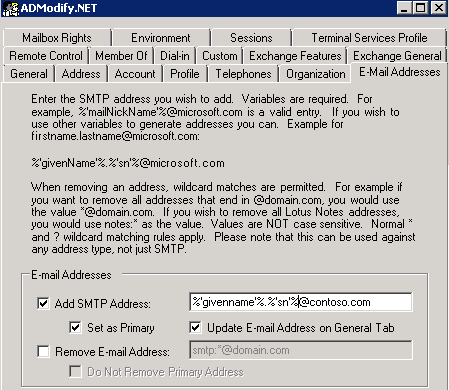
So we connect to our active directory via admodify and select all the users or organisational units we want to modify and add them to the list we then enter ‘%’givenname’%.%’sn’%@contoso.com‘ on  the email address tab


So now that we have modified this attribute the user’s primary email address will be ‘firstname.secondname@contoso.com‘ when synced with dirsync.

We need to make sure the users have the correct UPN and this can be done by viewing one of my previous blogs HERE

We need to modify one more attribute as these users will be in exchange online and will need to co-exist with the exchange on premise users.So as per the image below  we enter the following syntax ‘SMTP:%’givenname’%.%’sn’%@contoso.mail.microsoft.com‘ in the ‘targetAddress‘ attribute.


So the beauty of ADMODIFY is that you can modify thousands of users attributes in a couple of minutes and if something goes wrong it writes the config changes to an xml file. So you can quickly undo the changes you made if there were problems.
SO KEEP THE ADMODIFY CONFIGURATION XML FILES SAFE!

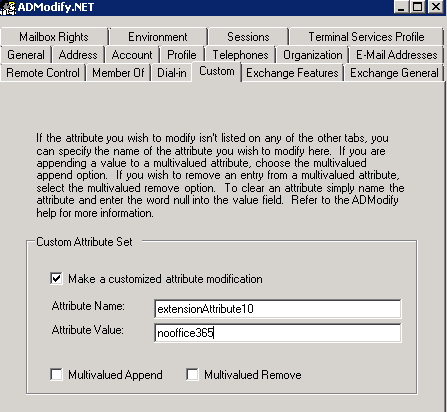
Lets say you don’t want some users to sync to exchange online , you can filter them by what organisational unit gets synced or you can use admodify again to modify a custom attribute by entering ‘nooffice365‘ as per the image below in the ‘extensionAttribute10‘ attribute


Ok so now we have users in exchange online and we have no dirsync error notification emails. How do we mass activate them. Well we run two powershell commands.

  1. We set the user’s location , in this example the country is US
    Get-MsolUser -UnlicensedUsersOnly |Set-MsolUser -UsageLocation US
  2. Get-MsolUser -UnlicensedUsersOnly | Set-MsolUserLicense -AddLicenses “Contoso.com”:EXCHANGESTANDARD
Now we have populated our Active Directory with all the correct attributes that will enable co-existence and mass activated those users via powershell.

So now its over to my choice of software for Lotus Notes migration.

I will post a step by step blog on setting up quest nme next month. This post was to show people how to prep ad and exchange online for mass migration to exchange online where an existing hybrid was in place.

Note:
Quest NME will not populate the GAL as the source directory will be Lotus Notes and target directory Exchange Online.So to populate the gal after you have made all the attribute changes above run this command in the exchange management shell Enable-RemoteMailbox sean@contoso.com -RemoteRoutingAddress sean@contoso.mail.onmicrosoft.com


Bulk activation of Office365 Users

When using DirSync and ADFS it can take a long time to activate thousands of users. So here is a really quick way of doing it.

Firstly HERE is a great article on msexchangeguru.com on dirsync filtering. So there are plenty of organisational units in Active Directory that do not need to be syncronised to Office365.

So I always filter the OU’s that are synchronized to Office365.

Within the organisation section of the Office365 portal make your external domain which has been verified the default domain.

Ensure all user’s have the correct User Principal Names as per one of my previous BLOGS 

So once all the user’s have been synced to Office365 , they need a license assigned to them.

So connect to Office365 via the Windows Active Directory Module for Windows Powershell and do the following.

connect-msolservice # and enter an Office365 Global Administrator’s credentials.

Get-MsolAccountSku  # this will tell you what office365 skus are available. For this example it will be EXCHANGESTANDARD


As all of the users are currently unlicensed , we will set a location for the users as per the command below and the location will be us.

Get-MsolUser -UnlicensedUsersOnly |Set-MsolUser -UsageLocation US

Then we will add a mailbox for all the users that were synced and we can do so with the following command.

Get-MsolUser -UnlicensedUsersOnly | Set-MsolUserLicense -AddLicenses “Contoso”:EXCHANGESTANDARD

Now all the users have a mailbox and can start using Exchange Online 🙂

Office365 ADFS 2.0 with full SQL Server

As per my previous post about DirSync for Enterprise organisations , We also need to install ADFS farms into SQL clusters for high availability and scalability. So below are the steps to install ADFS 2.0 into a SQL Cluster.

In this example on how to set this up for the purposes of this demo , Please take note of the following items.

Domain:contoso
ADFS Server : adfs.contoso.local
SQL Cluster: sqlclus
ADFS Service Account: contoso\adfs
ADFS Service Name: signin.contoso.com

  1. Download and install ADFS 2.0 RTW which you can download HERE The ADFS 2.0 installer installs the pre-requisites required for the software.
  2. Do not open the ADFS configuration wizard after the install has complete, Download and install ADFS 2.0 Rollup 3 which you can download HERE 
  3. Now get your trusted ssl certificate for your adfs service name ‘signin.contoso.com‘ and bind it to the default site. I always remove any http bindings for the default website on your adfs lan server.
  4. In certificate manager. Right Click on the trusted certificate ‘signin.contoso.com‘ and select all tasks\manage private keys and then add the contoso\adfs service account permissions ‘Full Control & Read’
  5. From a command prompt with elevated privileges make this the current directory  C:\Program Files\Active Directory Federation Services 2.0\
  6. Now we are ready to create the ADFS farm and we do so with the following command

    FSConfig.exe CreateSQLFarm /ServiceAccountcontoso\adfs/ServiceAccountPassword “password” /SQLConnectionString “database=AdfsConfigurationServer;server=sqlclus;integrated security=SSPI” /port 443 /FederationServiceNamesignin.contoso.com/CleanConfig /AutoCertRolloverEnabled

    And you will see the following output from the command prompt window

  7. Ideally the lan adfs servers will be load balanced , If you need to use a sql cluster for your adfs deployment then there is a good chance the customer will have load balancers like F5, Netscaler or Kemp.My preference would be Kemp.So there will be a virtual ip for the ADFS Service name ‘signin.contoso.com
  8. To enable kerberos authentication to Outlook Wep App and Sharepoint , place the https://signin.contoso.com into the intranet settings in Internet explorer for clients via group policy.
  9. ADFS proxy servers will be in a DMZ or else TMG Servers can also act as adfs proxy servers and will point at the loadbalanced ‘signin.contoso.com‘ vip in the lan. 
  10. Cloudfloor DNS provide GEO dns routing. So for example they can direct traffic from iso country codes to a location of choice. For example us adfs requests can hit us adfs servers. Irish requests can hit Irish adfs servers etc… So a service like this can take care of the external load balancing.
  11. So now we have all this done , time to federate the onpremise domain name ‘contoso.com‘ with our Office365 tenant.
  12. Before we do this we need to ensure we have done the following.
    A: Verify ownership of contoso.com
    B:Activate Active Directory Synchronisation
    C: Download and install the Microsoft Single Sign in Assistant HERE
    D: Once the Single Signin Assistant has been installed , Download and install the Windows Azure Directory Module for Powershell HERE
  13. Now we are ready to run the commands to federate ‘contoso.com‘ with Office365 and we will do so with the following command
    $cred=Get-Credential

    Connect-MsolService –Credential $cred

    Set-MsolAdfscontext -Computer
    adfs.contoso.local  # then enter contoso\adfs credentials
     
    Convert-MsolDomainToFederated –DomainName contoso.com -SupportMultipleDomain
  14. You might have only one domain, But I always recommend using the -SupportMultipleDomain switch as it can future proof your adfs service. For example your customer could acquire a company.
  15. Finally we want to brand our ADFS Proxy pages with company logos and here is a great blog posting by Laurent Bel on how to customise the ADFS 2.0 login page HERE
  16. So now that we have created our first ADFS Server to connect to a SQL Cluster , How do we add more ADFS servers. We do so with the following command as per the original ADFS server setup.

    FSConfig.exe joinSQLFarm /ServiceAccount ‘contoso\adfs/ServiceAccountPassword password/SQLConnectionString “database=AdfsConfigurationServer;server=sqlclus;integrated security=SSPI” 


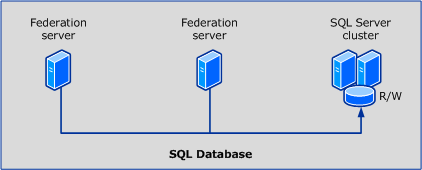
The term “primary federation server” does not apply when the AD FS configuration database is stored in a SQL database instance because all federation servers can equally read and write to the AD FS configuration database that is using the same clustered SQL Server instance, as shown in the following illustration 

I have not installed ADFS 2.1 on Windows Server 2012 into a SQL Cluster yet but I think it would be the exact same process. I will be doing this on a project coming up shortly and will create a new blog post for this. 

I hope people find this blog posting useful as it took me quite a bit of time to get ADFS right when I first started working with ADFS.

Sean 

Intsall DirSync into full SQL

Installing Dirsync is a requirement for enterprise directory synchronisation’s. When I say enterprise  i mean , directories with over 50,000 active directory objects or users. By using full sql server as apposed to the standard sql express , we can also make the database highly available via SQL clustering.

So to install it requires some small steps.

1. Open a command prompt with elevated privileges and make the directory where the dirsync.exe installation file is located the current directory. Then run this command ‘dirsync /fullsql’

2. This will install Dirsync without the standard SQL Express.

3. Next ,  browse to C:\program files\Microsoft Online Directory Sync\DirSyncInstallShell and follow the install syntax in this Microsoft Article 


4. Make Sure you are installing into a minimum of Server 2008R2 SP1 ideally SP2

5. IDFIX is a great utility recently released from Microsoft to troubleshoot DirSync errors which you can download HERE

SMTP relay to Office365

Microsoft have an article on how to setup smtp relay to Office365 KB2600912


An example of why would you would need this is whereby you need to continue to scan to email from your on-premise multi function printer.

Another way of doing this is by relaying through your isp’s smtp outbound mail server. For example UPC’s outgoing mail server is ‘smtp.upcmail.ie

But if you are using the new exchange online (tenant version 15) then it will get processed as spam.

So to fix this you simply need to create a rule, So below I will show some screenshots in whitelisting  scanner@contoso.com

So you need to login to https://portal.microsoftonline.com  and in the top right hand corner , select exchange management.

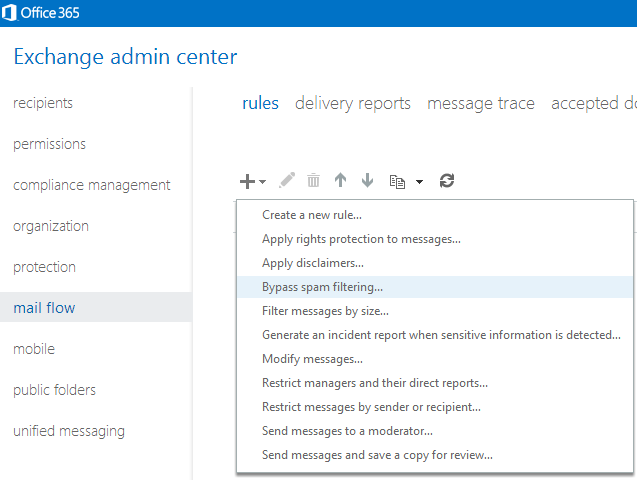
Then go to mail flow and add a new rule as per the image below, selecting the bypass spam filtering rule template.

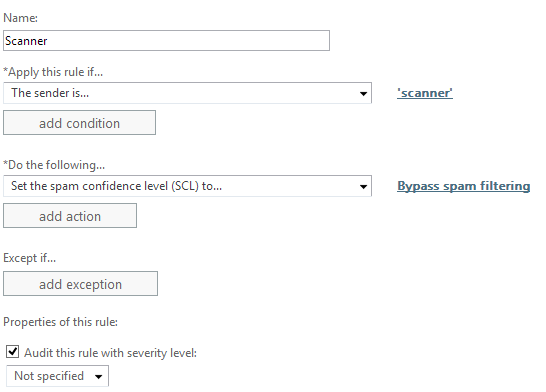
Then specify the sender as ‘scanner@contoso.com’ with the default options.


Now you can receive your scan to email documents 🙂

Upgrading DPM2010RTM to SP1 Rollup 1


The upgrade from DPM2012 to DPM2012 SP1 RU1 is quite simple or so I thought!

  1. In order to install SP1  for dpm2012 rollup3 is a pre-requisite which you can download HERE
  2. However I could not get Rollup 3 to install as it kept failing on execute sql strings section.
  3. Open a command prompt with elevated privileges and make this the current directory “C:\Program Files\Microsoft System Center 2012\DPM\DPM\bin” and then run this command dpmbackup -db. This will place a backup of the dpm database in the following folder C:\Program Files\Microsoft System Center 2012\DPM\DPM\Volumes\ShadowCopy\Database Backups
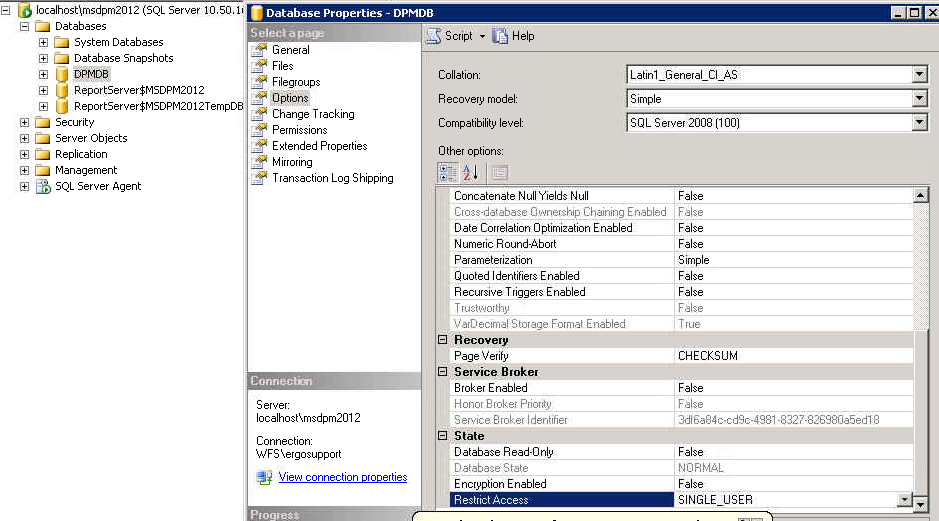
  4. So once we have done a backup , the trick is to set the options on the DPM database to single user mode as per the image below.So once this is done. You can install Rollup 3.

  1. I would then still leave it in single user mode when installing DPM 2012 SP1
  2. You may get an error with id:820 when DPM2012 begins the upgrade to SP1. HERE is a description on how to fix it. HERE is also a great post about WMI Service errors
  3. You may also get an error 812 stating that reporting services cannot be configured. So to fix this there are a few steps.

    Firstly run this command ‘netsh http show urlacl’ and copy all the http urls on port 80.
    So in my case I deleted the following urls with the following cmmands

    netsh http delete urlacl http://+:80/Temporary_Listen_Addresses/
    netsh
    http delete urlacl http://+:80/ReportServer_MSDPM2012/

    netsh
    http delete urlacl http://+:80/Reports_MSDPM2012/

    Then open up SQL 2008R2 / Reporting Services Configuration Manager and connect to the dpm2012 instance. Within the web services url section click apply. Then you can re-run setup and no more error 812

  4. Then after SP1 has been installed , you need to install ROLLUP1 for DPM 2012 SP1
  5. Finally you can then re-enable multi-user mode on the database and login to DPM2012 SP1 RU1 🙂
  6. Final version number will display as per the image below. Version 4.1.3322.0

The target mail user doesn’t have an SMTP ddress that matches the target delivery domain

I recently came across the error in the image above when trying to move mailboxes from an on-premise hybrid server to Office365.

Why would this happen? 

Configure your hybrid servers before you configure dirsync. During the hybrid configuration wizard , the wizard creates a sub domain  ‘domain.mail.onmicrosoft.com’ 

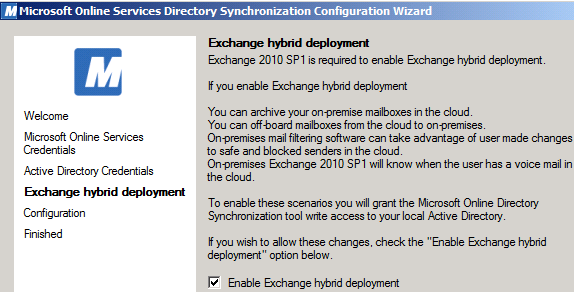
Now that the target delivery domain has been created by the Hybrid Wizard, We can run the DirSync configuration wizard. Select enable ‘hybrid configuration’  so once the wizard can see the target delivery domain it will add the smtp:email@domain.mail.onmicrosoft.com to the proxyaddress attribute in Active Directory for each user account.
So now when you try to run a remote move request, it will complete without issue.


ADFS Farm Highly Available between geographical sites

I am working on a project now moving 700 users to Exchange Online. I am implementing single sign on via an ADFS Farm and DirSync.


Not every organisation has load balancers or the even the ability to load balance external DNS.

A very important factor that needs to be taken into consideration is this. If the Microsoft Online Services federation gateway cannot communicate with a customers on premise active directory then users are not getting their email , lync or sharepoint. 

Email will still flow, but the users will think the service is down. So because of this it is always a good idea to have some high availability with the ADFS farm.

So I came across a company called Cloudfloor DNS .Cloudfloor provide the ability to loadbalance the traffic via round robin or active passive to my adfs proxy servers.It is quite a simple service but a lifesaver in the event of one site going down and all users not being able to use their Microsoft online services.

Cloudfloor can also do geographical dns based rules. This could be very useful in a gloabl lync or exchange deployment. Australian traffic goes to australian exchange servers and lync servers etc…. etc…

To set it up takes 5 minutes and works perfectly when tested. 

Publish CRM2011 IFD via TMG 2010

I recently had to publish Microsoft Dynamics CRM2011 with claims based authentication and internet facing domains.

So to set this up within the lan , HERE is an excellent blog on how to setup the configurations on CRM 2011 and ADFS within your LAN. So the purpose of this blog posting is to show people how to securely publish CRM 2011 via TMG.


In terms of best practice , it is never a good idea to punch a hole through a corporate firewall to a service running on a server on a LAN. I am surprised Microsoft are discontinuing their Forefront TMG Servers on December 15th. Microsoft will continue to support TMG but wont be selling it anymore from December 15th 2012.

TMG 2010 needs to be patched in a certain order.

So the image below describes the required topology for CRM 2011 IFD via TMG and I will outline the steps needed to implement this and get it working as there are quite a few things left out of the official Microsoft documentation.


Create WebListener

So as per the image above we would need to add the IP’s 10.10.10.2 & 10.10.0.3 to the external nic on the tmg server.During the creation of the web listener when the external network is created we click the radio button and add the dmz ips we added earlier on as per the image below.


The next section in the web listener creation is very important. Select the SSL Certificate for each of the DMZ ips we added in the previous component of the web listener creation.
Ok so we have the web listener created , now is time to get all the rest of the dependencies in place before we can quickly create the web publishing rules.

Disable ADFS Server Loopback Check
1. Click Start, click Run, type regedit, and then click OK.
2. In Registry Editor, locate and then click the following registry key:HKEY_LOCAL_MACHINE\SYSTEM\CurrentControlSet\Control\Lsa
3. Right-click Lsa, point to New, and then click DWORD Value.
4. Type DisableLoopbackCheck, and then press ENTER.
5. Right-click DisableLoopbackCheck, and then click Modify.
6. In the Value data box, type 1, and then click OK.
7. Quit Registry Editor, and then restart your computer.


DMZ to LAN & LAN to DMZ Routing

The next thing to take into account is the routes from the TMG Server to the LAN and from the LAN to the DMZ. In the diagram above it is a very basic small network. But most companies can have multiple subnets.
So lets say the the internal adfs server is 192.168.10.2 , To enable TMG to route traffic to this server we would need to add a network routing rule as per the image below.

We will also need to add the extra subnet to the internal network as per the image below

Nearly done! We may also need to add a static persistent route to the ADFS & CRM Server so it can then get back to the TMG Server.

External / Internal DNS Records

adfs.contoso.com  points to adfs server

dev.contoso.com points to crm server
auth.contoso.com points to crm server
orgname.contoso.com points to crm server

Creating Web Publishing Rules

Ok so now we will create one rule for the crm server first.


Publish a Website
Use SSL
Enter the IP address of the CRM Server
Leave the defaults and click next
Enter the public name auth.contoso.com
Select the web listener
Leave at defaults and click next


So when the rule is created, You need to right click on the rule and select “configure http”

And then untick  “Verify normalization” & ” Block high bit characters”
Remaining Rules

There are 2 more rules for CRM. So we simply copy and paste the rule we just created and edit the ‘to’ tab and ‘public name’ tab and add in dev.contoso.com and orgname.contoso.com

We copy and paste the rule again for adfs except as well as editing the to & public name tab we will also edit the computer ip and change it to 192.168.0.2 so that traffic for this rule is directed to the adfs server.
ADFS Login Page
Here is a great blog post on how to customise the ADFS login page to include a corporate logo. 


My thanks to Paul Mc Guinness who helped me get this working 🙂